PaintingProGuide is reader-supported. When you buy through links on this page we may earn an affiliate commission at no extra cost to you.
The best resolution for digital painting is the one that matches the largest way the image will ever be shown. For anything that might be printed, the common standard is 300 pixels per inch at the final print size: an 8 x 10 inch print needs 2400 x 3000 pixels, an 18 x 24 inch poster needs 5400 x 7200. For screen-only work, ignore ppi and match the pixel dimensions of the display or platform, often painting at around twice that size and scaling down at the end for crisper edges.
This guide explains the difference between ppi and dpi, gives ready-made resolution tables for print and screen, covers how device memory limits your canvas and layers, and recommends five books on Amazon that teach digital painting workflows in Procreate, Clip Studio Paint and Photoshop. Product results for this search that were not related to digital art, such as automotive paint thickness gauges, have been left out.
Quick answer: Paint at 300 ppi at your final print size if there is any chance the image will be printed; for an 11 x 14 inch print that is 3300 x 4200 pixels. For web, social media and screens, work at roughly 2x the display size (for example 2160 x 2700 for a 1080 x 1350 portrait post) and export downscaled. Start large enough from the beginning, because enlarging a finished painting blurs it. For learning the workflow, Digital Painting Made Simple by Sara Tepes covers portraits across Clip Studio Paint, Procreate and Photoshop.
PPI, DPI and Pixels: What Actually Matters
Pixels are what your painting is made of. The pixel dimensions (for example, 3000 x 4000) decide how much detail the file holds.
PPI (pixels per inch) is a label that tells a printer how many pixels to place in each inch of paper. Changing ppi without changing pixel dimensions does not add or remove detail; it only changes the printed size.
DPI (dots per inch) technically describes printer ink dots, but many apps and print shops use “dpi” when they mean ppi. When a printer asks for “300 dpi,” they usually mean 300 pixels per inch at the print size.
For screens, ppi is irrelevant: a 1920 x 1080 image fills a 1080p display whether its ppi tag says 72 or 300.
Resolution for Print
| Print size (inches) | Pixels at 300 ppi | Pixels at 150 ppi (large prints viewed from a distance) |
|---|---|---|
| 5 x 7 | 1500 x 2100 | 750 x 1050 |
| 8 x 10 | 2400 x 3000 | 1200 x 1500 |
| 11 x 14 | 3300 x 4200 | 1650 x 2100 |
| 12 x 18 | 3600 x 5400 | 1800 x 2700 |
| 16 x 20 | 4800 x 6000 | 2400 x 3000 |
| 18 x 24 | 5400 x 7200 | 2700 x 3600 |
| 24 x 36 | 7200 x 10800 | 3600 x 5400 |
Large posters and banners viewed from several feet away can often be printed at 150 to 200 ppi without visible softness. Ask your print shop what they recommend for the size you plan, and add bleed if they require it.
Resolution for Screens and Social Media
| Destination | Typical output size | Comfortable working size |
|---|---|---|
| Full HD wallpaper | 1920 x 1080 | 3840 x 2160 |
| 4K wallpaper | 3840 x 2160 | 3840 x 2160 or larger |
| Portrait social post (4:5) | 1080 x 1350 | 2160 x 2700 |
| Square post | 1080 x 1080 | 2160 x 2160 |
| Phone wallpaper | Match your phone’s screen | About 2x the screen size |
| Portfolio website | 2000–3000 px on the long edge | Your print-size master file |
Platform requirements change, so check current guidelines before exporting. Keeping a large master file lets you export any size later.
Why Painting Larger Then Downscaling Helps
Working at twice the output size hides small wobbles in lines and edges, because downscaling averages neighboring pixels and produces smoother results. It also means you can zoom in for detail without the brush feeling coarse. The cost is performance: larger canvases need more memory and storage.
How Device Memory Limits Resolution
Every layer stores a full set of pixels, so doubling canvas width and height roughly quadruples memory per layer. Painting apps on tablets limit the number of layers based on canvas size and the device’s RAM, and desktop apps slow down as files grow. If you hit limits:
- Merge finished layers, especially sketches and flat color passes.
- Use 8-bit color unless you specifically need 16-bit for gradients.
- Paint at a moderate size, then upscale only for final small details if necessary.
- Split very large projects into sections or work on a desktop with more RAM.
Setting Resolution in Common Painting Apps
Every major app asks for the same information when you create a canvas, though menus differ. Look for these fields in the new canvas or new document dialog:
- Units: choose inches or centimeters if you are planning a print, so the app calculates pixels for you; choose pixels for screen work.
- Width and height: enter the final print size or the pixel dimensions from the tables above.
- Resolution (ppi or dpi): 300 for print; any value is fine for screen-only work because pixel dimensions are what count.
- Color profile: sRGB is the safest default for most work; use a print profile only if your printer requests it.
- Background: a neutral gray or a transparent base, depending on your process.
In Procreate the custom canvas screen also shows how many layers your device allows at that size, which is a quick way to see whether a canvas is too large for your iPad. Desktop programs such as Photoshop, Clip Studio Paint and Krita let you save canvas presets, which is worth doing for your most common print and screen sizes.
Bit Depth and File Formats
Resolution is only part of image quality. Bit depth controls how many tones each color channel can hold: 8-bit is standard and efficient; 16-bit reduces banding in very smooth gradients such as skies, at the cost of larger files and slower performance. Save your working file in the app’s native format (or PSD, KRA or CLIP) to keep layers. Export prints as high-quality TIFF or PNG, and web images as PNG or high-quality JPEG. Avoid re-saving JPEGs repeatedly, since each save adds compression artifacts.
What If You Started Too Small?
Enlarging an image (upsampling) adds pixels by guessing, so it cannot add genuine detail. Modest enlargements with a good resampling method, followed by repainting key edges, can rescue a painting for a slightly larger print. For large increases, it is often better to repaint important areas at the new size.
Our Top Picks at a Glance
These books teach digital painting workflows and are useful companions for setting up canvases correctly in each app.
- Digital Painting Made Simple by Sara Tepes — Best multi-app portrait workflow
- Procreate User Guide by Charles Antoine — Best Procreate manual
- Beginner’s Guide to Digital Painting in Procreate — Best Procreate project book
- A Guide to Digital Painting in Procreate: Landscapes & Plein Air — Best for landscape canvases
- Digital Painting Techniques, Vol. 3 — Best professional reference
| Product | Best For | Key Spec | Key Strength | Price Tier |
|---|---|---|---|---|
| Digital Painting Made Simple | Portraits in several apps | Paperback; CSP, Procreate, Photoshop | Cross-app approach | $ |
| Procreate User Guide | Procreate tools and settings | Paperback; beginner to advanced | Step-by-step manual | $$ |
| Beginner’s Guide: Procreate | First Procreate projects | Paperback; 3dtotal Publishing | Project-based | $$ |
| Procreate: Landscapes & Plein Air | Landscape painters | Paperback; 3dtotal Publishing | Subject focus | $$ |
| Digital Painting Techniques Vol. 3 | Intermediate to advanced | Paperback; multiple artists | Professional methods | $$$ |
How We Chose
Resolution guidance on this page reflects widely used print and screen standards. The books were selected from Amazon listing details checked in October 2026, based on how well each title covers digital painting workflows in common apps, and on how widely each is reviewed by Amazon buyers. We have not read these specific books; descriptions are based on titles, subtitles and author information. Non-art products returned for this search, such as coating thickness gauges, were excluded.
- App coverage — Procreate, Clip Studio Paint and Photoshop.
- Workflow focus — canvas setup, layers and export are part of good digital painting instruction.
- Stage fit — beginner manuals to professional references.
Digital Painting Books Reviewed
1. Digital Painting Made Simple by Sara Tepes — Best for a multi-app portrait workflow

Sara Tepes’ book is subtitled Create Captivating Portraits in Clip Studio Paint, Procreate, Photoshop and More. A cross-app approach is useful because the canvas and resolution principles in this guide apply in every program, and the book’s portrait focus covers a subject most digital painters want to master.
It is one of the lower-priced titles here.
Use it to practice portraits at a print-ready canvas size from the start.
Best suited for: Beginners and intermediates painting portraits in any major app.
Key features:
- Paperback
- Portraits in Clip Studio Paint, Procreate, Photoshop and more
- Author: Sara Tepes
- Beginner-friendly
Pros:
- Works across apps
- Popular subject
- Low tier
Cons and limitations:
- Portrait-specific
- Not a full software manual
- Limited listing detail on contents
Buying consideration: Set up a 3000 x 4000 pixel canvas for portrait studies; it prints well at 10 x 13 inches and leaves room for detail.
2. Procreate User Guide by Charles Antoine — Best for mastering Procreate settings
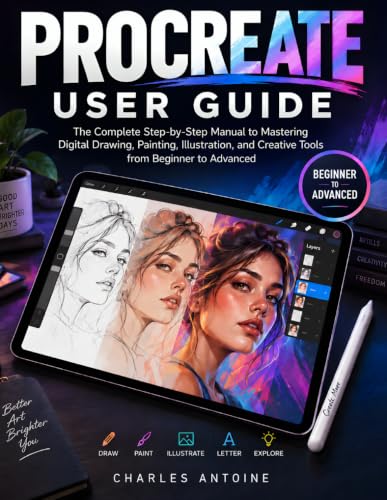
Charles Antoine’s guide is billed as a complete step-by-step manual to digital drawing, painting, illustration and creative tools in Procreate, from beginner to advanced. Canvas creation, layer management and export settings are core to working at the right resolution in Procreate.
A manual is most useful in the first weeks with the app.
Pair it with project-based books for practice.
Best suited for: Procreate users who want a detailed tool reference.
Key features:
- Paperback
- Procreate manual, beginner to advanced
- Step-by-step format
- Author: Charles Antoine
Pros:
- Comprehensive tool coverage
- Useful reference
- Mid tier
Cons and limitations:
- Procreate only
- Manual style rather than art fundamentals
- App updates may change menus
Buying consideration: Check the canvas settings chapter first so every painting starts at the right size.
3. Beginner’s Guide to Digital Painting in Procreate — Best for first Procreate projects

3dtotal Publishing’s beginner’s guide is subtitled How to Create Art on an iPad. Project-based books show the full process from canvas setup to finished image, which reinforces good resolution habits.
It is a good companion to a manual-style book.
Mid tier.
Best suited for: New Procreate painters.
Key features:
- Paperback
- Procreate projects
- 3dtotal Publishing
- Beginner level
Pros:
- Project-based learning
- iPad-focused
- Trusted publisher
Cons and limitations:
- Procreate only
- Beginner focus
- Interface may update
Buying consideration: Note the canvas size each project uses and compare it with your output plans.
4. A Guide to Digital Painting in Procreate: Landscapes & Plein Air — Best for landscape canvases

This 3dtotal guide focuses on landscapes and plein air painting in Procreate. Landscapes are often printed large, so planning resolution matters, and plein air studies benefit from smaller, faster canvases.
It suits painters who already know basic tools.
Mid tier.
Best suited for: Procreate landscape and outdoor painters.
Key features:
- Paperback
- Landscapes and plein air
- 3dtotal Publishing
- Intermediate-friendly
Pros:
- Subject-specific
- Encourages observation
- Trusted publisher
Cons and limitations:
- Procreate only
- Assumes basic knowledge
- Not a resolution guide
Buying consideration: Use smaller canvases for quick outdoor studies and larger ones for studio finals.
5. Digital Painting Techniques, Vol. 3 — Best for a professional reference

Volume 3 of Digital Painting Techniques collects methods from professional artists including Robh Ruppel and Ignacio Bazan Lazcano. Professional workflows show how artists plan canvases for production.
It is the highest-priced book here.
Best for intermediate and advanced painters.
Best suited for: Intermediate and advanced digital painters.
Key features:
- Paperback
- Multiple professional contributors
- Technique chapters
- Long-running series
Pros:
- Professional insight
- Varied subjects
- Reference value
Cons and limitations:
- Highest tier
- Not for beginners
- Older software versions
Buying consideration: Focus on process and planning chapters rather than version-specific menus.
Buying Guide: Choosing the Right Resolution
Decide the largest output first
Print, poster, wallpaper or social post. The largest planned use sets the canvas size.
Use 300 ppi for print
Multiply print inches by 300 for pixel dimensions. Large, distant-view prints can go lower.
Work at about 2x for screens
Painting larger then downscaling gives cleaner edges.
Mind your device
Bigger canvases reduce available layers and slow performance. Balance size against hardware.
Hardware resolution is a different question
“Resolution” also appears on hardware specs, and it is easy to confuse with canvas resolution. A pen tablet’s LPI (lines per inch) describes how finely it tracks the pen, and a monitor’s resolution describes how many pixels it displays. Neither limits your canvas size; a 1080p monitor can edit a 6000-pixel painting by zooming. Higher-resolution monitors simply show more of a large canvas at once.
Keep the aspect ratio fixed
Choose the final ratio before painting to avoid cropping important parts.
Save a master
Keep a full-resolution layered file and export copies for each use.
Practice at the Right Size
Try our tutorials on digital waves and ocean painting and digital night scenes at a print-ready resolution. If you are working without pen hardware, see digital painting without a tablet.
Common Mistakes to Avoid
- Starting at screen size, then deciding to print. Start large.
- Changing ppi and expecting more detail. Only pixel dimensions matter.
- Working enormous for no reason. Huge canvases slow you down.
- Upscaling a finished painting by a lot. It blurs.
- Exporting at full size for social media. Platforms recompress large files.
- Forgetting bleed for print. Ask your printer.
FAQs
What resolution should I use for digital painting?
Use 300 ppi at your final print size for print work, or about twice the display size for screen-only work. The largest planned output decides the canvas.
Is 72 dpi or 300 dpi better for digital art?
For screens, the ppi tag does not matter; pixel dimensions do. For print, set 300 ppi at the print size.
What canvas size is good for a beginner?
Around 3000 x 4000 pixels is a versatile size: it prints well up to about 10 x 13 inches and runs smoothly on most devices.
Can I increase resolution after painting?
You can upscale, but it cannot add real detail. Small enlargements with some repainting work; large ones usually look soft.
Why does my app limit layers on large canvases?
Each layer stores every pixel. Larger canvases use more memory per layer, so apps limit layers based on device RAM.
What resolution should I export for Instagram?
Export at the platform’s recommended dimensions, such as 1080 pixels wide, from a larger master file. Check current guidance, as requirements change.
Final Recommendation
Plan resolution from your largest output: 300 ppi at print size for anything that might be printed, about 2x display size for screen work, and keep a large master file. To learn the full workflow, start with Digital Painting Made Simple for multi-app portraits or the Procreate User Guide for detailed settings, add the Procreate beginner and Landscapes guides for practice, and keep Digital Painting Techniques Vol. 3 as a professional reference.