PaintingProGuide is reader-supported. When you buy through links on this page we may earn an affiliate commission at no extra cost to you.
A cheap drawing tablet with pen is the lowest-cost door into digital painting, and the good news is that the entry-level market has matured. A screenless tablet with a battery-free stylus, several thousand levels of pressure and a working area the size of a paperback now costs less than a decent set of oil paints. The question is no longer whether a budget tablet can do the job but which trade-offs you are willing to make: active area versus desk space, wired versus Bluetooth, brand driver support versus raw specs. We reviewed the Amazon listings for budget pen tablets in November 2026 and narrowed them to the six below, from the compact Huion H420X to a surprisingly affordable pen display from UGEE for painters who can stretch a little further.
Quick answer: The XPPen Deco 01 V3 is the best cheap drawing tablet with pen for most beginner digital painters: a 10 by 6 inch active area, a 16K-level battery-free stylus and eight shortcut keys at a budget price. If you want the smoothest driver experience and bundled software, the Wacom Intuos Small (wired) trades a smaller 6 by 3.7 inch area for Wacom’s reliability. Painters who need a screen under their pen should look at the UGEE UE12 11.6 inch pen display, which costs more than a screenless tablet but far less than any name-brand display.
Our Top Picks at a Glance
- XPPen Deco 01 V3 10×6 — Best overall cheap drawing tablet with pen
- Wacom Intuos Small, Wired — Best for beginners who want bundled software and dependable drivers
- UGEE M708 V2 10×6 — Best large active area for the money
- Huion H420X — Best ultra-compact tablet for note-taking and small sketches
- Wacom Intuos Small, Bluetooth — Best wireless budget tablet
- UGEE UE12 11.6 inch Pen Display — Best step-up if you want a screen
| Product | Best For | Key Spec (from title) | Key Strength | Who Should Skip It |
|---|---|---|---|---|
| XPPen Deco 01 V3 | Most beginner painters | 10×6 in, 16K battery-free stylus, 8 keys | Large area and modern pen at a low price | Users with a tiny desk |
| Wacom Intuos Small (Wired) | Beginners who value software and support | Wired, pen plus bundled software | Wacom driver stability and included apps | Painters who want a 10 inch area |
| UGEE M708 V2 | Big canvas on a budget | 10×6 in, 8 hot keys, 16384-level battery-free stylus | Maximum active area per dollar | Mac users who want polished drivers |
| Huion H420X | Tiny desks, OSU, signatures, quick sketches | 8192 pen pressure levels | Extremely compact and portable | Anyone painting detailed full-screen work |
| Wacom Intuos Small (Bluetooth) | Cable-free laptop setups | Bluetooth, pen plus software | Wireless with Wacom reliability | Desktop users who never move the tablet |
| UGEE UE12 Pen Display | Painters who need to draw on the image | 11.6 in laminated screen, 124% sRGB, 8 keys | Affordable screen with laminated panel | Buyers who need true budget pricing |
How We Chose
Picks are based on the specifications stated in each Amazon listing as of November 2026, how each tablet’s size and feature set fits a beginner learning to paint digitally, and well-established knowledge of how pen tablets work. We have not run these units ourselves, so wherever a quality depends on individual experience, such as driver behavior on a specific laptop, we say what is generally true of the brand rather than invent a result.
- Active area: For painting, bigger is better up to about 10 by 6 inches, which maps comfortably to a full HD or 1440p monitor. Smaller areas force cramped wrist movements.
- Pen type and pressure: Battery-free (electromagnetic resonance) pens are the standard now. Pressure levels above 4,096 are indistinguishable in practice, so 8,192 versus 16,384 is a tiebreaker, not a deciding factor.
- Shortcut keys: Express or hot keys speed up undo, brush resize and zoom. Six or more is useful; zero means your other hand lives on the keyboard.
- Connection: Wired is cheapest and never lags. Bluetooth adds convenience for laptop users at a modest premium.
- Driver and OS support: Windows and Mac support is universal; Android support, listed on several budget tablets, is a bonus for phone and tablet sketching.
- Brand reputation: Wacom, XPPen, Huion and UGEE all have established driver teams. We dropped listings whose titles gave no brand at all.
Best Cheap Drawing Tablets with Pen Reviewed
1. XPPen Deco 01 V3 10×6 Drawing Tablet — Best Overall Cheap Drawing Tablet with Pen

The Deco 01 has been the default budget recommendation for years, and the V3 updates the formula with a 16K-level battery-free stylus while keeping the 10 by 6 inch active area and eight shortcut keys that made the original popular. That combination matters for painting: a 10 by 6 surface maps to a 16:9 monitor without cropping, so a pen stroke across the tablet is a stroke across the whole canvas, and the keys let you keep your off hand on the tablet for undo, brush size and zoom.
XPPen’s drivers are mature on Windows and Mac, and the company publishes updates regularly. Compared with a Wacom Intuos Small at a similar price, you get roughly two and a half times the drawing surface and more keys; what you give up is Wacom’s bundled software and its slightly more polished pen feel. For someone learning to paint rather than sign documents, the extra area wins.
Best suited for: Beginner and intermediate digital painters who use a single monitor of 24 inches or larger and want the most drawing surface their budget allows.
Key features
- 10 by 6 inch active area
- 16K-level pressure, battery-free stylus
- Eight programmable shortcut keys
- Thin slab design that sits flat in front of a keyboard
Pros
- Best balance of active area, pen and keys in the budget tier
- Stylus never needs charging
- Widely documented setup and troubleshooting
Cons and limitations
- Wired only; no Bluetooth option in this model
- No tilt-dependent brush behavior unless your software supports the pen’s tilt
- Footprint is large for a cramped desk
Buying consideration: Measure your desk. The tablet’s outer dimensions are noticeably larger than the 10 by 6 active area, and it needs to sit in front of or beside your keyboard, not on your lap.
2. Wacom Intuos Small, Wired — Best for Beginners Who Want Software and Support
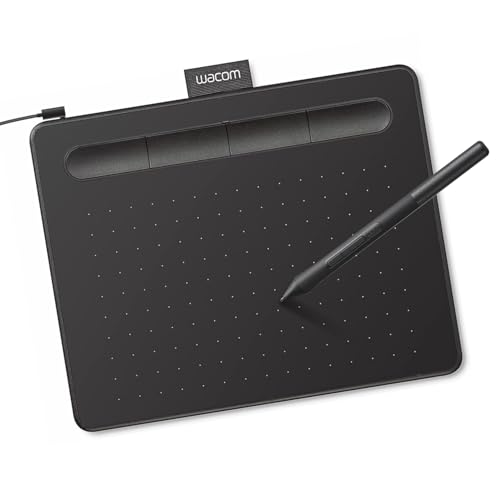
Wacom’s entry-level Intuos is the tablet art teachers recommend because it simply works. The wired Small model comes with the Wacom Pen 4K, a battery-free stylus with 4,096 pressure levels, four ExpressKeys along the top edge, and a software bundle that typically includes a choice of creative applications once you register the tablet. The active area is about 6 by 3.7 inches, which is the main compromise.
That small area is fine on a laptop screen or a 22 inch monitor and becomes a liability on anything larger, where small hand movements translate to big cursor jumps. If you are starting from zero and want the least friction between unboxing and painting, the Intuos is the safest choice. If you already know you want to paint large, full-screen images, spend the same money on more area from XPPen or UGEE.
Best suited for: First-time digital artists, students and laptop users who value dependable drivers and bundled software over raw drawing surface.
Key features
- Wired USB connection
- Battery-free pen with 4,096 pressure levels
- Four ExpressKeys
- Bundled creative software offer included with the tablet
Pros
- Most stable drivers in the budget class on both Windows and Mac
- Compact and light enough for a backpack
- Pen nibs and replacement pens are easy to find
Cons and limitations
- Small active area limits long, sweeping strokes
- Only four shortcut keys
- Lower pressure resolution on paper than competitors, though the difference is hard to feel
Buying consideration: Match the tablet to your display. If your monitor is 27 inches or larger, consider the Medium or a 10 by 6 competitor instead of the Small.
3. UGEE M708 V2 10×6 Drawing Tablet — Best Large Active Area for the Money

UGEE is XPPen’s sister brand, and the M708 V2 is the value play in their lineup: a 10 by 6 inch active area, eight hot keys, a 16,384-level battery-free stylus and compatibility with PC, Mac and Android devices, in an ultra-thin body. On paper it matches the Deco 01 V3 nearly spec for spec, often at a lower price.
The trade-off is polish. UGEE’s drivers work, but the brand has a smaller support footprint than XPPen or Wacom, and its pen feel is usually described as slightly less refined. For a painter whose budget is genuinely tight and who wants the biggest surface possible, those are acceptable compromises. Android compatibility is a bonus for anyone who sketches on a phone or Android tablet.
Best suited for: Budget-constrained painters who want a 10 by 6 inch surface and are comfortable troubleshooting a driver install.
Key features
- 10 by 6 inch active area, ultra-thin profile
- 16,384-level battery-free stylus
- Eight hot keys
- Works with PC, Mac and Android
Pros
- Large drawing surface at an entry-level price
- Android support for mobile painting
- Thin and light despite the size
Cons and limitations
- Smaller brand with less community troubleshooting material
- Wired only
- Surface texture and pen feel are a step below Wacom
Buying consideration: Check that the listing you land on is the V2 with the 16,384-level pen; the original M708 shares a name but uses an older stylus.
4. Huion H420X Graphics Tablet — Best Ultra-Compact Budget Tablet
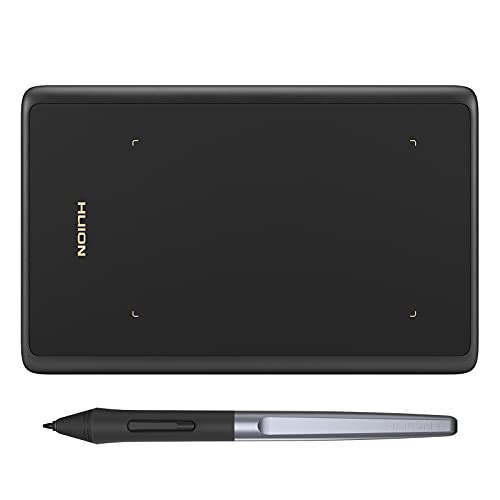
The Huion H420X is the smallest tablet here and, in most months, the cheapest. Its active area is roughly 4.17 by 2.6 inches, paired with a battery-free pen offering 8,192 pressure levels. It is the size of a smartphone, slips into any bag, and is the tablet of choice for rhythm-game players, online teachers annotating slides, and artists who want a pen for quick corrections rather than full paintings.
As a primary painting tablet it is limited. The tiny area means every stroke is a finger movement rather than a wrist or arm movement, which is fine for line art and small sketches but tiring for large washes and gradients. Huion’s drivers are solid, and the brand is well established, so reliability is not the concern; scale is.
Best suited for: Students, travelers and hobbyists with very limited desk space who want a pen input for small sketches, photo touch-ups and annotation.
Key features
- 8,192-level pressure battery-free pen
- Pocket-sized footprint
- Three programmable press keys
- Wired USB connection
Pros
- Lowest cost of entry to pressure-sensitive drawing
- Fits on any desk or in a laptop sleeve
- Reliable Huion driver support
Cons and limitations
- Very small active area restricts painting technique
- Few shortcut keys
- Awkward with monitors above 24 inches
Buying consideration: Buy this as a second tablet for travel or as a first tablet to find out whether digital drawing suits you. Do not expect it to be your long-term painting surface.
5. Wacom Intuos Small, Bluetooth — Best Wireless Budget Tablet

This is the same Intuos Small as pick number two with one addition: Bluetooth. The active area, Pen 4K stylus, four ExpressKeys and software bundle are unchanged. What you gain is the ability to sit back from a laptop or pair with a tablet computer without a cable trailing across the desk, which is more useful than it sounds if you paint on the sofa or move between rooms.
Bluetooth on a pen tablet introduces a battery to charge and the occasional pairing hiccup, and Wacom’s implementation is among the more stable. If you never move your tablet, save the premium and buy the wired version. If you work on a laptop at a kitchen table, the wireless model is worth it.
Best suited for: Laptop users and anyone who wants to paint without being tethered to a USB port.
Key features
- Bluetooth wireless connection with rechargeable battery
- Battery-free pen with 4,096 pressure levels
- Four ExpressKeys
- Bundled creative software offer
Pros
- Clean, cable-free setup
- Same reliable Wacom drivers as the wired model
- Can also be used wired while charging
Cons and limitations
- Costs more than the wired version for identical drawing performance
- Small active area
- Battery adds one more thing to charge
Buying consideration: If the price gap between wired and Bluetooth is large on the day you buy, put the difference toward a 10 by 6 tablet instead; area improves your painting more than wireless does.
6. UGEE UE12 11.6 inch Pen Display — Best Step-Up If You Want a Screen

Strictly speaking a pen display is a different product class, but the UGEE UE12 belongs on this list because it brings a screen into budget territory. The listing specifies an 11.6 inch full-laminated display with 124 percent sRGB color gamut, a battery-free stylus and eight shortcut keys, with compatibility for Windows, Mac and Android. A laminated panel means there is no air gap between the glass and the LCD, which reduces the visual offset between pen tip and cursor.
For a traditional painter moving to digital, drawing directly on the image removes the hand-eye disconnect that makes screenless tablets feel alien at first. The costs are real: a pen display needs power and an HDMI or USB-C video connection, takes more desk space, and 11.6 inches is small for detailed work. But as a cheap way to get a screen under the pen, it has few rivals.
Best suited for: Painters who have tried a screenless tablet and could not adjust, and anyone whose budget allows a modest step above the pure entry level.
Key features
- 11.6 inch full-laminated screen
- 124 percent sRGB color gamut
- Battery-free stylus and eight shortcut keys
- Compatible with Windows, Mac and Android
Pros
- Draw directly on the image at a fraction of name-brand display prices
- Laminated panel reduces parallax
- Wide color gamut for a budget display
Cons and limitations
- Costs more than any screenless tablet on this list
- Requires cables for video and power; laptop port compatibility must be checked
- Small screen for painting detail at full resolution
Buying consideration: Confirm your computer has a spare video output or a USB-C port that supports DisplayPort Alt Mode. Without one you will need an adapter or dock, which eats into the savings.
Buying Guide: How to Choose a Cheap Drawing Tablet with Pen
Budget tablets share the same core technology, so the differences come down to a handful of decisions. Make these deliberately and almost any tablet on this page will serve you well.
Active area and monitor size
The tablet maps its whole active area to your screen. On a 13 to 15 inch laptop a 6 by 4 inch tablet feels natural; on a 27 inch monitor the same tablet feels twitchy because a quarter-inch of pen movement moves the cursor an inch. As a rule, choose roughly 6 by 4 for laptops and screens up to 22 inches, and 10 by 6 for 24 inch and larger monitors. Painting benefits from the larger size more than line art does, because broad strokes and gradients rely on arm movement.
Pressure levels: when the number stops mattering
Pressure sensitivity lets a light touch make a thin, pale stroke and a firm press make a thick, dark one. Early tablets offered 1,024 levels; modern budget tablets advertise 8,192 or 16,384. In practice, anything above 2,048 produces smooth brush transitions, and no human hand can exploit 16,000 discrete steps. Treat high pressure counts as a sign of a current-generation pen, not as a reason to pay more.
Battery-free versus rechargeable stylus
All the tablets here use battery-free electromagnetic resonance pens, which draw power from the tablet surface. They are lighter, never need charging and are the industry standard. Avoid any budget tablet that still ships a rechargeable or AAA-battery pen; that technology is a decade old.
Shortcut keys and your workflow
Express keys sit on the tablet and can be mapped to undo, redo, brush resize, zoom and modifier keys. With eight keys your off hand rarely leaves the tablet. With four, you will still use the keyboard. With none, the keyboard becomes essential, which is fine at a desk and clumsy on a sofa. Decide where you will paint before deciding how many keys you need.
Wired, Bluetooth or both
Wired tablets are cheaper, lighter and never lag or need charging. Bluetooth is a convenience for laptop users and for anyone who wants to pair with a phone or Android tablet. If the choice adds significant cost, area matters more than wireless for painting.
Driver quality and operating system
Drivers translate pen movement into cursor movement and pressure. Wacom has the longest track record and the fewest surprises, especially on Mac. XPPen and Huion are close behind. UGEE and lesser-known brands work but may require more fiddling with settings and may lag on major OS updates. If you use Linux or an unusual setup, Wacom and Huion have the broadest community support. Android compatibility, where listed, lets you draw on a phone or tablet with the right adapter.
Screenless tablet or budget pen display
A screenless tablet costs less, takes less space and is easier on the neck because you look at a monitor. A pen display lets you draw directly on the image, which traditional painters often prefer, but costs more, needs cables and sits lower on the desk. Most beginners adapt to screenless within a few weeks. If you have tried and cannot adjust, the UE12 is the affordable route to a screen.
Who Should Buy What
The complete beginner on a budget: XPPen Deco 01 V3. You get enough area to grow into and enough keys to learn a proper workflow.
The student who wants it to just work: Wacom Intuos Small, wired. Reliable drivers, bundled software, and a size that suits a laptop.
The painter squeezing every dollar: UGEE M708 V2. The largest surface per dollar, provided you are comfortable with a smaller brand.
The traveler or dorm-room sketcher: Huion H420X. It fits anywhere and costs very little, though it will not be your forever tablet.
The laptop-on-the-sofa artist: Wacom Intuos Small, Bluetooth. Cable-free and stable.
The traditional painter who needs to see the pen on the image: UGEE UE12. A laminated screen at a budget price, with cables as the cost of entry.
Before you order, read our comparison of pen displays versus pen tablets to settle the screen question, and bookmark our troubleshooting guide for when a drawing tablet pen stops working, which covers the driver conflicts that trip up most first-time owners. Once the tablet arrives, our pen tablet tips for artists will shorten the adjustment period.
Common Mistakes to Avoid
- Buying a small tablet for a large monitor. A 6 by 4 inch area on a 27 inch screen makes precise work frustrating.
- Paying extra for pressure levels. Beyond a few thousand levels the difference is imperceptible.
- Skipping the driver install. Without the manufacturer’s driver, pressure sensitivity will not work and the pen will behave like a mouse.
- Installing two brands’ drivers at once. Wacom and other drivers conflict; uninstall the old one before adding a new tablet.
- Choosing a standalone tablet by mistake. Some listings in this search were self-contained Android drawing tablets, which are a different product and cannot drive desktop painting software.
- Ignoring port compatibility on pen displays. A display needs video output; check for HDMI or full-featured USB-C before buying.
- Expecting the tablet to feel natural on day one. Screenless drawing takes a couple of weeks of practice. Give it time before upgrading.
Helpful Guides Before You Buy
- Are Cheap Drawing Tablets Good Enough for Digital Painting?
- How Much Is a Drawing Tablet With Pen? Price Tiers Explained
- What Is a Standalone Drawing Tablet With Pen? Do You Need One?
FAQs
What is the best drawing tablet under 100 dollars for painting?
Prices change, but the XPPen Deco 01 V3 and UGEE M708 V2 typically sit in that range and offer 10 by 6 inch active areas with battery-free pens and eight shortcut keys, which is the most painting capability available at an entry-level price. Check the current price on Amazon before deciding.
Is a budget drawing tablet good enough for serious digital painting?
Yes. The pen technology in a budget tablet is the same electromagnetic resonance system used in professional models. Professionals pay more for larger areas, better surface texture, tilt accuracy and build quality, not for fundamentally different capability.
Do I need a screen on a cheap graphics tablet?
No. Most digital artists learned on screenless tablets, and the hand-eye disconnect fades after a few weeks. A screen helps traditional painters adjust faster but adds cost, cables and desk space.
Can I use an affordable pen tablet with an Android phone or tablet?
Several budget tablets, including the UGEE M708 V2 and UE12, list Android compatibility. You will need an OTG adapter and a drawing app that supports pressure, and the active area may be mapped to only part of the phone screen.
Which is better for a beginner, Wacom or XPPen?
Wacom offers the most reliable drivers and bundled software but smaller active areas at the same price. XPPen offers larger areas and more keys. Beginners who prize simplicity should choose Wacom; those who want room to paint should choose XPPen.
How long does a drawing tablet with pen last?
The tablet itself has no moving parts and commonly lasts many years. Pen nibs wear down and should be replaced periodically; most tablets include spares. The surface may become glossy with heavy use, which a protective sheet can prevent.
Final Recommendation
For the majority of beginner digital painters, the XPPen Deco 01 V3 is the cheap drawing tablet with pen to buy: its 10 by 6 inch area suits a modern monitor, the 16K stylus is current-generation, and eight keys support a proper workflow. Choose the Wacom Intuos Small if you value a frictionless setup and bundled software more than drawing area, and pick the Bluetooth version only if you genuinely paint away from a desk. The UGEE M708 V2 is the answer when every dollar counts and you want the largest surface, the Huion H420X is a travel or trial tablet rather than a main one, and the UGEE UE12 is the right call for painters who have discovered they need to see the image under the pen.