PaintingProGuide is reader-supported. When you buy through links on this page we may earn an affiliate commission at no extra cost to you.
Huion Kamvas vs Wacom Cintiq is the classic value-versus-benchmark question in pen displays. Wacom invented much of the category and the Cintiq line is still the reference many studios use. Huion’s Kamvas displays offer similar core features, a screen you draw on directly with a battery-free pen, for considerably less money, and recent generations have closed much of the gap in pen accuracy and screen quality.
For most painters, the decision comes down to budget, screen size, how much you value Wacom’s pen ecosystem and driver track record, and whether the extra money buys something you will actually notice. This comparison sets the current Wacom Cintiq 16 against the Huion Kamvas 13 (Gen 3), both listed on Amazon, and explains where each one makes sense.
Quick answer: Choose the Wacom Cintiq 16 if you want a larger 2.5K screen with wide color coverage, the Pro Pen 3 and Wacom’s long-standing driver and accessory support. Choose the Huion Kamvas 13 (Gen 3) if you want the best value: a laminated anti-sparkle screen, 16,384 pressure levels, shortcut keys and dials, and an adjustable stand included, at well under half the price tier. Note the Cintiq here is the larger screen, so you are comparing size as well as brand.
Our Top Picks at a Glance
- Wacom Cintiq 16 with Pro Pen 3 — Best for color-critical work and Wacom ecosystem users
- HUION Kamvas 13 (Gen 3) — Best value pen display with built-in shortcuts and stand
| Product | Best For | Key Spec | Key Strength | Price Tier |
|---|---|---|---|---|
| Wacom Cintiq 16 | Professional illustration and color work | 16″ IPS, 2560 x 1600, 99% DCI-P3 | Pro Pen 3 with tilt, wide color gamut | $$$ |
| HUION Kamvas 13 (Gen 3) | Value and portability | 13.3″ laminated, 16,384 pressure levels | Anti-sparkle glass, shortcut keys, stand included | $$$ |
How We Chose
This comparison is built from the Amazon listing details and specifications checked in October 2026, plus well-established information about each brand’s product lines. We did not use either display for this article. The Kamvas 13 Gen 3 listing is new and had no buyer reviews at the time we checked, so we rely on its stated specifications only.
What we compared:
- Screen: size, resolution, lamination, surface and color coverage.
- Pen: pressure levels, initial activation force, tilt and buttons.
- Workflow: shortcut keys, dials and included stands.
- Connectivity: cables and computer requirements.
- Value and ecosystem: price tier, driver history and accessories.
Huion Kamvas vs Wacom Cintiq: Side by Side
| Feature | Wacom Cintiq 16 | Huion Kamvas 13 (Gen 3) |
|---|---|---|
| Screen size | 16 inches | 13.3 inches |
| Resolution | 2560 x 1600 (2.5K WQXGA) | Not stated in checked listing |
| Lamination and glass | IPS display | Fully laminated, anti-sparkle canvas glass |
| Color | 99% DCI-P3, 100% sRGB, 8-bit | Factory calibration report included |
| Pen | Pro Pen 3, 8,192 levels, tilt, 3 buttons | PenTech 4.0, 16,384 levels, 2 g activation force, 3 buttons |
| Shortcuts | Pen buttons; no express keys listed | 5 programmable keys plus dual dials |
| Stand | Fold-out legs at 20 degrees; adjustable stand optional | Adjustable ST300 stand included |
| Connection | USB-C to computers with DP Alt Mode or Thunderbolt 3/4 | USB-C single cable or 3-in-1 cable |
Wacom Cintiq 16 and Huion Kamvas 13 Reviewed
1. Wacom Cintiq 16 with QHD Screen and Pro Pen 3 — Best for Color-Critical Work and Wacom Users

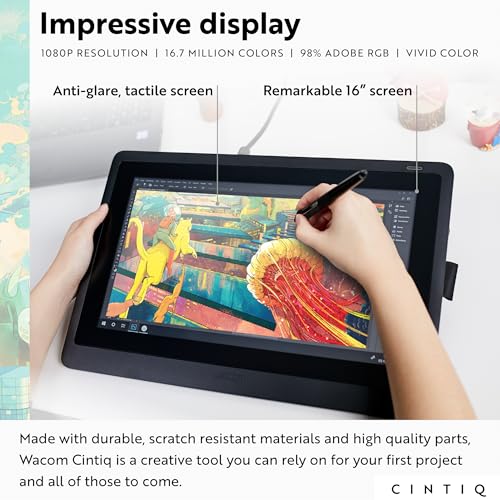
The Cintiq 16 listed here has a 16-inch IPS display at 2560 by 1600 resolution, which gives noticeably sharper detail than older 1080p pen displays of the same size. Wacom lists 99 percent DCI-P3 and 100 percent sRGB coverage with 8-bit color depth, so it suits illustrators who need colors that match other modern screens and print workflows.
It ships with the Pro Pen 3, Wacom’s current flagship pen, offering 8,192 pressure levels, tilt support and three shortcut buttons, plus a holder that mounts on either side of the display. Fold-out legs give a 20-degree working angle, with an adjustable stand available separately. It connects via USB-C to Windows or Mac computers with DisplayPort Alt Mode or Thunderbolt 3 or 4; other computers need extra cables. Pro Pen 3 compatibility also opens up accessories like the Wacom Art Pen 2 with barrel rotation.
Best suited for: professional illustrators, colorists and studio artists who want a larger, sharper screen and Wacom’s pen ecosystem.
Key features:
- 16-inch IPS, 2560 x 1600
- 99% DCI-P3 and 100% sRGB, 8-bit
- Pro Pen 3: 8,192 levels, tilt, 3 buttons
- Fold-out legs at 20 degrees
- USB-C with DP Alt Mode or Thunderbolt
Pros:
- Larger, sharper screen
- Wide color gamut
- Mature drivers and pen ecosystem
Cons and limitations:
- Much higher price tier
- No express keys on the display
- Adjustable stand costs extra
- Computer must support DP Alt Mode or Thunderbolt, or use extra cables
Buying consideration: check your computer’s USB-C port before buying; without DisplayPort Alt Mode or Thunderbolt support you will need additional cables.
2. HUION Kamvas 13 (Gen 3) Drawing Tablet With Screen — Best for Value With Built-In Shortcuts

The Kamvas 13 Gen 3 packs a lot into a lower price tier. The listing describes a fully laminated 13.3-inch screen with new anti-sparkle canvas glass for reduced glare and improved accuracy. Lamination reduces the gap between the glass and the display, which helps the line appear directly under the pen tip.
Huion’s PenTech 4.0 pen offers 16,384 pressure levels and a 2-gram initial activation force, with three side buttons. The display adds five programmable shortcut keys and dual dials, which Cintiq 16 users would need a separate remote for. Each unit includes a factory color calibration report, a single USB-C connection option plus a 3-in-1 cable, and the adjustable ST300 stand.
Best suited for: hobbyists, students and working artists who want a capable, portable pen display without the Wacom premium.
Key features:
- 13.3-inch fully laminated screen
- Anti-sparkle canvas glass
- PenTech 4.0: 16,384 levels, 2 g activation force
- 5 shortcut keys and dual dials
- Adjustable ST300 stand included
- Factory calibration report
Pros:
- Excellent features for the price
- Shortcut keys and dials built in
- Stand included
- Compact and portable
Cons and limitations:
- Smaller screen
- New listing with no buyer reviews at check time
- Listing names Windows only as operating system; confirm Mac support for your setup
Buying consideration: confirm driver support for your operating system and creative software before buying, especially on macOS or Linux.
Key Differences Explained
Screen Size and Resolution
A 16-inch screen gives more room for gestural strokes and full-arm drawing, and the Cintiq’s 2.5K resolution keeps fine lines crisp. A 13.3-inch screen is easier to carry and fits small desks, but you will zoom and pan more. If you paint large, loose work, size matters; if you sketch on the go, smaller is fine.
Pen Feel and Pressure
The Kamvas lists double the pressure levels of the Pro Pen 3, but beyond a few thousand levels the difference is hard to feel. Initial activation force, how lightly you can touch before a mark appears, and consistency across the screen matter more. Huion highlights a 2-gram activation force; Wacom emphasizes response to the lightest touch. Both pens are battery-free.
Surface and Lamination
Huion’s laminated anti-sparkle glass targets two common pen display complaints: parallax and sparkle from anti-glare etching. The Cintiq 16 listing describes an IPS display but does not mention lamination or etching in the checked text, so if those matter to you, read the full specification on Wacom’s product page.
Workflow Extras
Huion includes shortcut keys, dials and an adjustable stand. With the Cintiq 16, you rely on pen buttons and keyboard shortcuts, and buy a stand or remote separately if you want them. For painters who constantly change brush size or zoom, dials are genuinely useful.
Color Performance
The Cintiq lists wide DCI-P3 and full sRGB coverage. The Kamvas listing emphasizes factory calibration with a report. If your work goes to print or clients judge color closely, the Cintiq’s published gamut is the safer bet; for most online illustration, a calibrated sRGB-class screen is enough.
Drivers and Ecosystem
Wacom drivers are widely supported by professional software, and Pro Pen 3 devices share accessories. Huion drivers have improved considerably over the years and support major painting apps. Studios that standardize on Wacom often stick with it for consistency.
A Note on Size Matching
The two displays in this comparison are not the same size, and that is worth keeping in mind. Both brands sell their pen displays in several sizes, from compact 12- and 13-inch models up to 22- and 24-inch studio screens, plus higher-end Cintiq Pro and Kamvas Pro variants. If you like the Cintiq 16 but want a fairer price comparison, look at Huion’s 16-inch Kamvas models; if you like the Kamvas 13’s portability, Wacom also makes smaller Cintiq and Movink devices.
In other words, choose the screen size that suits how you draw first, then compare the two brands at that size. A bigger screen at a lower brand tier is often a better painting tool than a smaller screen with a more famous logo, and the reverse is true if portability matters more than canvas space.
Verdict by Use Case
Beginners and Students: Huion Kamvas 13
The Kamvas gives you a laminated pen display, shortcuts and a stand at a much lower cost. That leaves budget for software, courses or a better computer.
Professional Illustrators: Wacom Cintiq 16
The bigger 2.5K screen, wide color gamut and Wacom ecosystem justify the premium if you draw for a living and need reliability with professional software.
Portable Setups: Huion Kamvas 13
A 13.3-inch display with a single USB-C cable is easy to pack with a laptop.
Studios Already Using Wacom: Wacom Cintiq 16
Sharing pens, accessories and driver settings across machines is simpler when everything is Wacom.
Buying Guide: How to Choose Between Huion Kamvas and Wacom Cintiq
Set a Total Budget
Include stands, remotes, cables and any adapters. The Cintiq’s base price is only part of the cost if you want an adjustable stand and shortcut remote.
Check Computer Compatibility
USB-C display connections need DisplayPort Alt Mode or Thunderbolt. Older computers may need HDMI and USB adapters or a 3-in-1 cable. Confirm driver support for your operating system.
Match Screen Size to Your Desk and Style
A 16-inch display needs more desk space and works best on a stand. A 13-inch display can sit on your lap or a small desk.
Think About Ergonomics
Drawing on a flat display for hours strains your neck. An adjustable stand helps a lot, which is one reason the Kamvas’s included stand is valuable.
Consider Software Shortcuts
If you use keyboard shortcuts heavily, physical keys on the display are less important. If you prefer to work without a keyboard, dials and express keys save time.
Plan for Nibs and Accessories
Both pens use replaceable nibs. Textured or etched surfaces wear nibs faster. Check availability of replacement nibs and spare pens for your model.
Setting Up Either Display for Painting
A pen display only performs as well as its setup. These steps apply to both the Cintiq and the Kamvas and make a bigger difference to how painting feels than most spec-sheet differences.
Install the Latest Driver First
Uninstall any old tablet drivers from other brands before installing the new one. Conflicting drivers are the most common cause of missing pressure, jittery lines and buttons that do nothing. Download the current driver from the manufacturer’s website rather than relying on whatever your operating system installs automatically.
Calibrate Pen Position
Both brands include a calibration routine that aligns the cursor with the pen tip. Run it while sitting in your normal drawing position, because the angle you view the screen from changes how offset looks. Laminated screens like the Kamvas reduce parallax, but calibration still helps at the edges.
Set the Pressure Curve
Default pressure curves suit average hands. If light strokes do not register, soften the curve; if every stroke looks heavy, firm it up. Many painting apps also have their own pressure settings, so adjust the driver first and fine-tune in the app second.
Map Shortcuts to Your Habits
On the Kamvas, assign the dials to brush size and zoom, and the keys to undo, eyedropper, hand tool and brush or eraser toggle. On the Cintiq, use the pen buttons for right-click and eraser, and consider a separate remote if you work without a keyboard.
Calibrate Color if It Matters
The Kamvas ships with a factory calibration report and the Cintiq lists wide color coverage, but both will drift slightly over time. If your work is printed or color-matched for clients, a hardware colorimeter is worth adding to either setup.
Mind Your Posture
Raise the display to a comfortable angle, keep your shoulders relaxed and draw from the elbow. Take short breaks every half hour. Long digital painting sessions on a flat screen are one of the main causes of neck and wrist strain among artists.
Get Painting
Whichever display you choose, try a focused project to learn its pen feel, such as painting digital waves and ocean scenes or digital night scenes, both of which reward fine pressure control. Not ready to buy yet? See how far you can get with digital painting without a tablet.
Common Mistakes to Avoid
- Comparing pressure levels alone and ignoring screen size, resolution and color.
- Buying a USB-C pen display for a computer without DisplayPort Alt Mode or Thunderbolt.
- Forgetting to budget for a stand or shortcut remote.
- Drawing flat on a desk for hours without an angled stand.
- Skipping driver updates, which often fix pen and pressure issues.
- Not calibrating the pen position after setup, leading to cursor offset.
FAQs
Is Huion Kamvas as good as Wacom Cintiq?
For many artists, a current Huion Kamvas offers comparable everyday drawing performance at a much lower price. Wacom still leads in ecosystem, driver track record and, on models like the Cintiq 16, published color coverage.
Why is Wacom Cintiq so expensive?
You pay for Wacom’s pen technology, driver support, build quality and brand reputation, plus features like wide color gamut on newer models. Accessories such as adjustable stands are often sold separately.
Does the Huion Kamvas 13 Gen 3 work with Mac?
The checked listing names Windows as its operating system. Huion typically provides drivers for several platforms, so confirm current Mac support on Huion’s website before buying.
Do 16,384 pressure levels make a difference over 8,192?
Most artists cannot feel a difference beyond a few thousand levels. Initial activation force, line consistency and pen ergonomics matter more for painting.
What computer do I need for a Wacom Cintiq 16?
A Windows or Mac computer with a USB-C port that supports DisplayPort Alt Mode or Thunderbolt 3 or 4. Without that, you need additional cables, according to the listing.
Which is better for beginners, Huion or Wacom?
Huion is usually the better starting point because it delivers a full pen display experience, shortcuts and a stand at a lower cost. Wacom makes more sense once you know you need its specific advantages.
Final Recommendation
Buy the Wacom Cintiq 16 if you need a larger 2.5K screen with wide color coverage, rely on professional software and want Wacom’s pen ecosystem. Buy the Huion Kamvas 13 (Gen 3) if value, portability and built-in shortcuts matter more, and if a 13.3-inch screen suits how you draw. Both put a battery-free pen directly on the screen; the right choice depends on how big you work, how critical color is, and how much of your budget you want to spend on hardware.