

PaintingProGuide is reader-supported. When you buy through links on this page we may earn an affiliate commission at no extra cost to you.
Art students often ask which laptop to buy for digital painting, and the most useful answer is slightly unexpected: the laptop matters, but the pen setup matters more. A student laptop with enough memory and a decent screen can run Krita, Clip Studio Paint or Photoshop well. What turns it into a painting machine is a pressure-sensitive pen tablet or pen display plugged into it. Without one, even an expensive laptop is awkward to paint on.
So this guide does two things. First, it lays out the laptop specs that matter for digital painting students, so you can judge any laptop on a school list or in a store. Then it reviews six pen tablets and pen displays on Amazon that pair with a student laptop, from compact budget tablets to a 15.6-inch drawing display. Our product search for this topic returned drawing tablets rather than laptops, which is a fair reflection of where a student’s painting budget is best spent once the laptop basics are covered.
Quick answer: Choose a student laptop with at least 16GB of RAM, a modern multi-core processor, an SSD of 512GB or more and a Full HD screen. Then add a pen tablet: the Wacom Intuos Small is the trusted entry point, the UGEE M708 gives a larger 10 x 6 inch drawing area on a budget, and the XP-PEN Artist 13.3 Pro V2 lets you draw directly on a color-rich screen.
Our Top Picks at a Glance
- Wacom Intuos Small — Best first pen tablet for students
- UGEE M708 10 x 6 inch Tablet — Best large drawing area on a budget
- GAOMON M10K PRO — Best budget tablet with tilt and shortcut ring
- XP-PEN Artist 13.3 Pro V2 Pen Display — Best pen display for students
- GAOMON PD1161 11.6 inch Pen Display — Best portable pen display
- Artisul SP1603 15.6 inch Pen Display — Best large pen display
| Product | Best For | Key Spec | Key Strength | Price Tier |
|---|---|---|---|---|
| Wacom Intuos Small | First tablet | Screenless, 4,096 levels, battery-free pen | Trusted brand, software included | $$ |
| UGEE M708 | Big drawing area | 10 x 6 in, 16,384 levels, 8 keys | Large surface for the price | $$$ |
| GAOMON M10K PRO | Tilt on a budget | 10 x 6.25 in, 8,192 levels, tilt, touch ring | Radial controller | $$$ |
| XP-PEN Artist 13.3 Pro V2 | Drawing on screen | 13.3 in FHD laminated, 16K levels, 95% P3 | Pen display and tablet modes | $$ |
| GAOMON PD1161 | Portable display | 11.6 in FHD, 8,192 levels, tilt, 1.9 lb | Lightweight | $$$ |
| Artisul SP1603 | Large display | 15.6 in FHD laminated, 128% sRGB, tilt | Big canvas, dial | $$$ |
How We Chose
We did not paint with these tablets for this guide. Picks are based on the Amazon listing details and specifications checked in October 2026, including pressure levels, tilt support, active area or screen size, color coverage and compatibility, how well each fits a student’s laptop setup and budget, and how widely each product is reviewed by Amazon buyers. Laptop guidance below is based on the general hardware needs of common painting software.
- Compatibility: Windows, macOS and often ChromeOS or Android.
- Pressure and tilt: natural line weight and shading.
- Size: drawing area that suits a laptop desk or backpack.
- Display quality: resolution, lamination and color coverage for pen displays.
- Student budget: clear price tiers from budget to premium.
Laptop Specs Students Need for Digital Painting
RAM: 16GB is the sweet spot
Every layer in a high-resolution painting uses memory. With 8GB, painting apps slow down or limit layers quickly, especially with a browser open for references. Sixteen gigabytes is comfortable for most coursework; 32GB helps for large print-size canvases and animation.
Processor: modern and multi-core
Brush engines, filters and exports run on the CPU. A recent mid-range processor with six or more cores, from either Intel or AMD, is plenty for 2D painting. Avoid very low-power chips designed only for browsing and documents.
Graphics: integrated is usually fine
Most 2D painting apps run well on modern integrated graphics. A dedicated GPU helps for 3D modeling, game art courses and some Photoshop features. Check your course requirements before paying extra.
Storage: 512GB or more, SSD only
Layered files are large, and references add up. An SSD keeps apps fast; 512GB is a practical minimum, with cloud or external storage for archives.
Screen: Full HD and decent color
A 1920 x 1080 or 1920 x 1200 screen is fine. Many budget laptops cover only part of the sRGB color range, which makes colors look duller. If color accuracy matters for your course, consider a pen display with wider coverage, or check work on a calibrated school monitor.
Ports and portability
Pen tablets connect over USB-A or USB-C; pen displays may need HDMI or a full-featured USB-C port with DisplayPort support. Check your laptop’s ports before choosing a display. If you carry your laptop to class daily, a 14-inch model with long battery life is easier to live with.
Sample Student Budgets
Tight budget: a laptop with 16GB RAM and an SSD, plus a compact screenless tablet such as the Wacom Intuos Small or GAOMON M10K PRO, and free software like Krita. Mid budget: the same laptop class with a larger tablet like the UGEE M708 or a portable pen display like the GAOMON PD1161. Higher budget: a laptop with 32GB RAM and a pen display with wide color coverage, such as the XP-PEN Artist 13.3 Pro V2 or Artisul SP1603. In each case, the pen device is what makes the laptop a painting tool.
Pen Tablet or Pen Display?
A screenless pen tablet sits on the desk while you look at the laptop screen. It is affordable, light and durable, and many professionals use one for posture reasons. It takes a week or two to get used to drawing while looking up. A pen display lets you draw directly on a screen, which feels more natural to beginners, but costs more, needs desk space and adds cables. Many students start with a tablet and move to a display later.
Best Pen Tablets and Displays for Student Laptops Reviewed
1. Wacom Intuos Small — Best for a first pen tablet
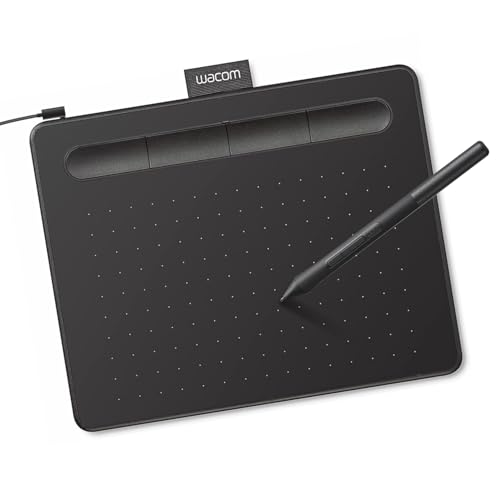
Wacom is the long-standing leader in drawing tablets, and the Intuos Small is its entry-level model. The listing highlights Wacom’s battery-free EMR pen technology for a pen-on-paper feel, 4,096 pressure levels and compatibility with Windows, macOS, Android and Chromebook plug-and-play.
It works with any software program, and registering the tablet gives access to bundled creative software and online training, according to the listing. The small size suits cramped dorm desks and fits easily in a backpack, though some students outgrow the drawing area as they use bigger arm movements.
Best suited for: Students buying their first tablet who value reliability and support.
Key features:
- Battery-free EMR pen
- 4,096 pressure levels
- Works with Windows, Mac, Android, Chromebook
- Software and training included
Pros:
- Trusted brand and drivers
- Very portable
- Bundled software
Cons and limitations:
- Small drawing area
- Fewer pressure levels than some rivals
Buying consideration: Great for learning; size up later if you feel cramped.
2. UGEE M708 10 x 6 inch Tablet — Best for a big drawing area on a budget

UGEE’s M708 V3 gives a 10 x 6 inch active area with a papery texture surface, which is roomy for the price. The passive battery-free stylus offers 16,384 pressure levels, and there are 8 customizable express keys for shortcuts like eraser, zoom and undo.
It supports Windows, macOS, Android, ChromeOS and Linux, and comes with USB to USB-C connectivity plus adapters. An ambidextrous design, pen holder and extra nibs make it a practical all-rounder for students.
Best suited for: Students who want room to draw with their arm, not just their wrist.
Key features:
- 10 x 6 inch active area
- 16,384 pressure levels
- 8 express keys
- Windows, Mac, ChromeOS, Android, Linux
Pros:
- Large area for the price
- Paper-like surface
- Wide compatibility
Cons and limitations:
- Larger footprint on small desks
- Less established brand than Wacom
Buying consideration: Map the express keys to undo, brush size and eyedropper first.
3. GAOMON M10K PRO — Best for tilt support on a budget
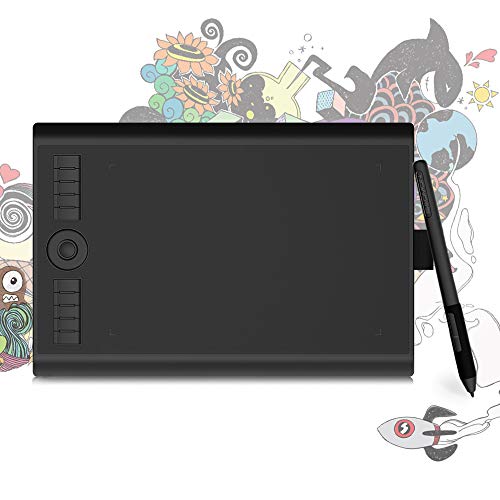
The GAOMON M10K PRO offers a 10 x 6.25 inch area, a battery-free AP32 pen with 8,192 pressure levels and a 266 PPS report rate, and tilt sensitivity so angled strokes shade like a pencil. A touch ring works as a radial controller for zoom, brush size and scrolling, alongside 10 express keys.
It is compatible with Windows, macOS and Android, and the listing names free programs such as GIMP, FireAlpaca, Krita and MediBang alongside paid software, which is reassuring for students on a budget.
Best suited for: Students who want tilt shading and quick controls without a big spend.
Key features:
- 10 x 6.25 inch area
- 8,192 levels with tilt
- Touch ring and 10 express keys
- Windows, Mac, Android
Pros:
- Tilt support
- Radial controller
- Works with free art apps
Cons and limitations:
- Driver setup needed
- Not ChromeOS listed
Buying consideration: Use the ring for brush size; it is faster than keyboard brackets.
4. XP-PEN Artist 13.3 Pro V2 Pen Display — Best for drawing on screen

The Artist 13.3 Pro V2 is a 13.3-inch Full HD pen display with a fully laminated screen that reduces parallax. The listing claims 95% P3 color gamut, a 16,384-level battery-free stylus with an X3 Pro chip, a red dial roller and 8 shortcut keys, and a metal back with stand.
A full-featured USB-C port allows single-cable connection to compatible laptops with USB 3.1 DisplayPort support. It can also switch to pen tablet mode with the screen off to save laptop battery. It works with Windows, macOS, ChromeOS, Android and Linux, and must be connected to a computer.
Best suited for: Students who want to draw directly on screen with good color.
Key features:
- 13.3-inch FHD laminated display
- 16,384-level stylus
- 95% P3 color gamut per listing
- Dial and 8 shortcut keys
Pros:
- Draw on screen
- Wide color gamut claim
- Single-cable USB-C option
Cons and limitations:
- Needs a compatible USB-C or HDMI connection
- Not standalone
Buying consideration: Check your laptop supports DisplayPort over USB-C before relying on single-cable use.
5. GAOMON PD1161 11.6 inch Pen Display — Best for a portable pen display

GAOMON’s PD1161 is an 11.6-inch Full HD IPS pen display weighing 866g (1.9 lb), light enough to carry to class. The battery-free pen offers 8,192 pressure levels with tilt support and two buttons, and there are 8 shortcut keys on the side.
It works with Windows and macOS and connects over HDMI and USB. An anti-glare film is pre-applied. It is not standalone and must be connected to a computer.
Best suited for: Students who want a pen display that travels.
Key features:
- 11.6-inch FHD IPS
- 8,192 levels with tilt
- 8 shortcut keys
- 1.9 lb
Pros:
- Portable
- Tilt support
- Anti-glare film
Cons and limitations:
- Smaller drawing surface
- Windows and macOS only per listing
Buying consideration: Bring an HDMI adapter if your laptop lacks a full-size port.
6. Artisul SP1603 15.6 inch Pen Display — Best for a large drawing screen

The Artisul SP1603 is a 15.6-inch pen display with a fully laminated tempered glass screen, a 9mm aluminum body and a P77 battery-free stylus with 8,192 levels and plus or minus 60 degree tilt. The listing claims 90% NTSC (128% sRGB) color coverage at 1920 x 1080.
Up to 14 customizable shortcut keys and a dial speed up work, and it works with Windows, macOS and Android. It needs to be connected to a computer or laptop.
Best suited for: Students who mainly work at a desk and want a large canvas.
Key features:
- 15.6-inch FHD laminated display
- 128% sRGB claim
- 8,192 levels with 60-degree tilt
- 14 keys and dial
Pros:
- Large drawing area
- Wide color coverage claim
- Slim aluminum body
Cons and limitations:
- Premium price tier
- Takes up desk space
Buying consideration: Pair with a laptop stand so both screens sit comfortably.
Buying Guide: How to Build a Student Digital Painting Setup
Check course requirements
Some programs specify operating systems, software or minimum specs. Read them first.
Prioritize laptop RAM
16GB minimum for painting; 32GB for big canvases and animation.
Reserve budget for a pen tablet
Even a basic tablet transforms painting on any laptop.
Match the tablet to your desk
Small tablets fit dorm desks; large ones suit arm-driven drawing.
Confirm connections
Pen displays may need HDMI or full-featured USB-C. Check ports.
Consider portability
If you paint in class, choose light gear and a laptop with long battery life.
Look for bundled software
Some tablets include software or trials, which helps students on a budget.
Start Painting
If your tablet has not arrived yet, our guide to digital painting without a tablet gets you started. Then try the digital waves and ocean painting tutorial for practice with blending and color.
Common Mistakes to Avoid
- Spending the entire budget on the laptop and nothing on a pen.
- Buying 8GB RAM laptops for layer-heavy coursework.
- Choosing a pen display without checking laptop ports.
- Giving up on a screenless tablet after one day; the adjustment takes practice.
- Ignoring driver updates, which fix many pen issues.
- Painting with the laptop flat on the desk for hours, straining the neck.
FAQs
What laptop specs do art students need for digital painting?
At least 16GB RAM, a modern multi-core processor, a 512GB SSD and a Full HD screen. A dedicated GPU is only needed for 3D or game art courses.
Do I need a drawing tablet if my laptop has a touchscreen?
Usually yes. Most touchscreens do not report pen pressure. A pen tablet or display gives pressure-sensitive control.
Is Wacom worth it for students?
Wacom’s Intuos Small is a reliable, well-supported first tablet. Budget brands like UGEE and GAOMON offer larger areas for similar money.
Should students buy a pen display or a pen tablet?
Start with a pen tablet if budget is tight. Choose a pen display if drawing on screen helps you learn and your laptop has the right ports.
Can I use these tablets with a Chromebook?
Some can. The Wacom Intuos Small, UGEE M708 and XP-PEN Artist 13.3 Pro V2 list ChromeOS compatibility.
What free software works with these tablets?
Krita, GIMP, FireAlpaca and MediBang work with most pen tablets. The GAOMON M10K PRO listing names several of them.
Final Recommendation
Pick a student laptop with 16GB of RAM, a modern processor and an SSD, then spend the rest on drawing input. The Wacom Intuos Small is the safest first tablet, the UGEE M708 gives the most space for the money and the GAOMON M10K PRO adds tilt and a handy touch ring. If you want to draw on screen, the XP-PEN Artist 13.3 Pro V2 is the best all-round pen display here, with the GAOMON PD1161 for portability and the Artisul SP1603 for a large desk canvas.



One Comment