PaintingProGuide is reader-supported. When you buy through links on this page we may earn an affiliate commission at no extra cost to you.
The best stylus for Samsung tablet art depends almost entirely on which Galaxy Tab you own. Galaxy Tab S models have a built-in Wacom-style EMR digitizer and work with the S Pen, which supports pressure sensitivity and palm rejection, the two things that make digital painting feel natural. Most Galaxy Tab A models do not have that digitizer, so they only accept capacitive or active capacitive styluses that act like a precise fingertip, without true pressure.
That distinction matters more than brand or price. Below we explain how to tell which type your tablet supports, then compare five styluses currently listed on Amazon: a replacement S Pen-type stylus for Galaxy Tab S7 and S7 FE, an active stylus for Tab A models, and three universal capacitive styluses. We are clear about which ones offer pressure and which do not.
Quick answer: If you own a Galaxy Tab S model, use the S Pen or a compatible EMR pen; for the Tab S7 and S7 FE, the Dogxiong S Pen replacement offers 4,096 pressure levels and replacement tips. If you own a Galaxy Tab A, no stylus will add true pressure; the Rgar Active Stylus gives the finest tip and best accuracy for sketching. Universal disc styluses like fllynewrite are fine for casual drawing but not for serious painting.
Our Top Picks at a Glance
- Dogxiong S Pen Replacement for Galaxy Tab S7 / S7 FE — Best stylus for Samsung tablet art with pressure
- Rgar Active Stylus for Galaxy Tab A Series — Best for Tab A owners who want a fine tip
- fllynewrite 2-in-1 Disc Stylus — Best cheap universal stylus for sketching
- AmberVec 2-in-1 Stylus 3-Pack — Best multi-pack with spare tips
- Bopomofo 5-Pack Capacitive Stylus — Best for kids and casual doodling
| Product | Best For | Key Spec | Key Strength | Price Tier |
|---|---|---|---|---|
| Dogxiong S Pen (Tab S7 / S7 FE) | Pressure-sensitive art | 4,096 levels, 5 tips | True EMR pressure on supported tabs | $ |
| Rgar Active Stylus (Tab A) | Precise sketching on Tab A | 1.5 mm nib, rechargeable | 10 hours use per listing | $ |
| fllynewrite 2-in-1 | Budget sketching | Disc tip + spare tips | No charging or pairing | $ |
| AmberVec 3-Pack | Spares and sharing | Disc and fiber tips, 3 pens | Hidden spare tips | $ |
| Bopomofo 5-Pack | Kids and casual use | Disc and rubber tips | Five pens, works over protectors | $ |
How We Chose
These picks are based on the Amazon listing details and specifications checked in October 2026, how well each stylus’s technology matches Samsung tablets used for drawing, and how widely each product is reviewed by Amazon buyers. We excluded one listing claiming pressure levels on a basic capacitive disc stylus, because capacitive styluses cannot report pressure, and a fiber-tip stylus that suits browsing more than drawing.
What we looked for:
- Technology: EMR with pressure, active capacitive, or passive capacitive.
- Compatibility: specific Galaxy Tab models listed.
- Tip precision: fine nibs and disc tips that show where the line lands.
- Power: battery-free versus rechargeable.
- Spares: replacement nibs or tips included.
Which Stylus Type Does Your Samsung Tablet Support?
| Stylus type | Works on | Pressure | Palm rejection | Best for |
|---|---|---|---|---|
| S Pen / EMR pen | Galaxy Tab S models with S Pen support | Yes | Yes | Serious digital art |
| Active capacitive | Most touchscreens, including Tab A | No | Usually no | Precise sketching and notes |
| Passive capacitive (disc, rubber, fiber) | All touchscreens | No | No | Casual doodling, kids |
To check, look up your tablet’s specifications. If it lists S Pen support, an EMR stylus will give pressure. If it does not, any stylus works like a finger and your painting app will simulate pressure with stroke speed at best.
Best Styluses for Samsung Tablet Art Reviewed
1. Dogxiong S Pen Replacement for Samsung Galaxy Tab S7 / S7 FE — Best for Pressure-Sensitive Art

If your original S Pen is lost or worn, this replacement is listed as compatible with the Galaxy Tab S7 and S7 FE, and also the Galaxy Note 20 and Note 20 Ultra. The listing states 4,096 levels of pressure sensitivity and support for menu functions, which is what makes brush size and opacity respond to how hard you press.
It comes with five black replacement tips and a tweezer for swapping nibs. It does not include Bluetooth, so remote features like Air Actions or camera shutter will not work, but those are not needed for drawing.
Best suited for: Galaxy Tab S7 and S7 FE owners who need a pressure-sensitive pen for drawing and painting.
Key features:
- Compatible with Galaxy Tab S7 / S7 FE per listing
- 4,096 pressure levels
- No Bluetooth
- 5 replacement tips and tweezer
Pros:
- True pressure sensitivity
- Spare tips included
- Low price tier for a replacement
Cons and limitations:
- Only for listed models
- No Bluetooth remote features
Buying consideration: confirm your exact tablet model; other Tab S models may need a different pen.
2. Rgar Active Stylus Pen for Samsung Galaxy Tab A Series — Best for Precise Sketching on Tab A

The Rgar stylus is listed as compatible with Galaxy Tab A11+, A11, A9, A9 Plus, A8, A8 Plus, A7 and A7 Lite, and not with iPads. It uses a 1.5 mm nib, finer than disc or rubber styluses, so you can see exactly where your line starts.
There is no app or pairing; double-click the cap to turn it on. It charges by USB-C and the listing claims about 10 hours of use from a half-hour charge, with four indicator lights for battery level. As an active capacitive stylus, it does not provide pressure sensitivity on Tab A tablets.
Best suited for: Galaxy Tab A owners who want the most precise stylus available for their tablet.
Key features:
- 1.5 mm fine nib
- Compatible with Tab A11 through A7 Lite per listing
- USB-C rechargeable
- Two spare nibs
Pros:
- Fine, precise tip
- Long battery life per listing
- Widely reviewed
Cons and limitations:
- No pressure sensitivity
- Needs charging
- No palm rejection
Buying consideration: use pressure simulation or fixed brush sizes in your art app, and rest your hand on a glove to avoid stray touches.
3. fllynewrite 2-in-1 Stylus Pen for Samsung Galaxy Tab and Touchscreens — Best for Budget Sketching

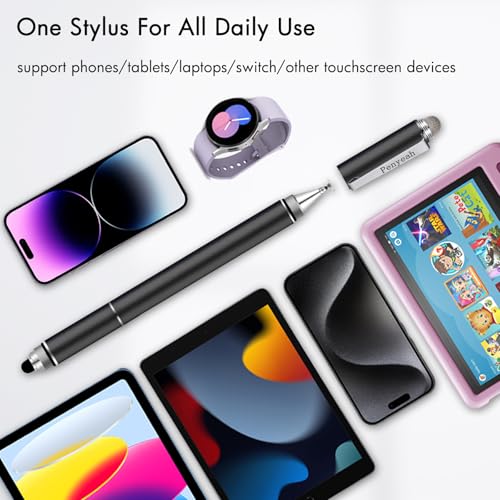
This universal stylus lists compatibility with Galaxy Tab A11, A11+, A9+, A9, A8, A8 Plus, A7 and A7 Lite as well as iPad, Fire HD and Surface. It uses a flexible transparent disc tip so you can see the exact contact point.
No charging or Bluetooth is needed; it works out of the box. It includes two disc tips and a cap. As a passive capacitive stylus it has no pressure or palm rejection.
Best suited for: casual sketchers and note-takers on any Samsung tablet.
Key features:
- Transparent disc tip
- Works on all touchscreens
- No charging needed
- Two spare disc tips
Pros:
- Very low price tier
- Clear view of contact point
- Widely reviewed
Cons and limitations:
- No pressure
- Disc tips wear and can click on glass
Buying consideration: tighten the disc gently if it wobbles; a loose disc makes lines less precise.
4. AmberVec 2-in-1 High Precision Universal Stylus, 3-Pack — Best for Spares and Sharing

AmberVec’s three-pack gives each stylus a disc tip for drawing and a fiber tip for browsing and scrolling. A spare disc tip hides inside each body, and the pack includes three extra disc tips and three extra fiber tips in total.
It works with all touchscreens including Samsung tablets, and is one of the most widely reviewed universal styluses. Like other passive styluses, it offers no pressure.
Best suited for: families and anyone who wants spare styluses around the house.
Key features:
- Three styluses
- Disc and fiber tips
- Hidden spare tips
- Universal compatibility
Pros:
- Lots of spares
- Two tip types
- Very widely reviewed
Cons and limitations:
- No pressure
- iPad users must disable an Apple Pencil setting first
Buying consideration: keep one in your art bag and one at home so you always have a clean tip.
5. Bopomofo 5-Pack 2-in-1 Capacitive Stylus — Best for Kids and Casual Use

Bopomofo’s listing is refreshingly honest: it says plainly that this is a capacitive stylus that works like a fingertip and does not support pressure sensitivity or palm rejection. Each pen has a transparent disc tip and a rubber tip, and it works over most screen protectors.
Five pens in different colors make it a good choice for kids, classrooms and shared tablets. It is among the most widely reviewed styluses on Amazon.
Best suited for: children, classrooms and casual doodling.
Key features:
- Five capacitive styluses
- Disc and rubber tips
- Works over most protectors
- Battery-free
Pros:
- Honest listing
- Lots of pens
- No charging
Cons and limitations:
- No pressure or palm rejection
- Rubber tip is imprecise for detail
Buying consideration: use the disc tip for drawing and save the rubber tip for scrolling.
Other Pressure-Sensitive Options for Galaxy Tab S
Galaxy Tab S models usually ship with an S Pen, and that included pen is the best place to start. Because the S Pen uses EMR technology, several third-party EMR pens designed for Samsung and Wacom-compatible devices also work, including digital versions of familiar pencil and fountain pen designs from stationery brands. These are not in our checked listings, so confirm compatibility with your exact Tab S model before buying.
Painting Well Without Pressure Sensitivity
If your Galaxy Tab does not support the S Pen, you can still make good digital art; you just control line weight and opacity differently. Many Android painting apps can tie brush size to stroke speed, so quick flicks taper and slow strokes thicken. Turn that on for inking brushes and experiment with how much variation feels natural.
Another approach is to build tone in layers. Set your brush to a fixed, low opacity and paint several overlapping passes to darken an area, the way you would with a pencil. Keep brush size adjustments close at hand with an on-screen slider so you can change line weight between strokes. Stabilization or streamline settings smooth shaky lines from a capacitive stylus and make curves look far more confident.
Finally, reduce stray touches: wear a two-finger drawing glove, turn on any palm rejection or stylus-only option your app offers, and consider a matte screen protector, which gives a disc or fine-tip stylus more control on slippery glass. If you outgrow these workarounds, that is a clear sign it is time to consider a tablet with S Pen support, which changes the drawing experience far more than any accessory.
Best Apps for Samsung Tablet Art
- Clip Studio Paint: full-featured illustration and comics app for Android.
- Infinite Painter: natural-media painting with strong brush engine.
- Ibis Paint X: popular free app for anime and illustration.
- Krita: available on Android tablets for desktop-style painting.
- PENUP and Samsung Notes: built-in options for sketching and coloring.
Buying Guide: How to Choose a Stylus for Samsung Tablet Art
Confirm S Pen Support
This is the most important step. If your tablet supports the S Pen, choose an S Pen or EMR pen for pressure. If not, choose a precise active or disc stylus and accept that pressure is not possible.
Match the Exact Model
S Pen replacements vary by generation. Check that the listing names your tablet, not just the Tab S family.
Tip Precision
Fine active nibs and transparent disc tips are more precise than rubber or mesh tips. Precision matters more than anything else on tablets without pressure.
Power Requirements
EMR pens and passive styluses need no charging. Active capacitive styluses need charging; check battery life and charging port type.
Palm Rejection
Only S Pen-supported tablets offer true palm rejection with a pen, because the tablet can tell the pen apart from your hand and simply ignores skin contact while the pen is near. On others, use a drawing glove and adjust app settings to reduce stray touches.
Spare Tips
Tips wear with use, especially on matte screen protectors. Sets with spare nibs or discs save money over time. Replace a nib as soon as it looks flat or feels scratchy, because a worn tip drags and can mark the screen protector.
More Digital Art Help
Need help with your setup? Our drawing tablet setup guide covers pressure curves and palm rejection basics that apply to many devices. Prefer to start without a pen at all? See digital painting without a tablet.
Common Mistakes to Avoid
- Buying an S Pen for a Galaxy Tab A model that does not support it.
- Expecting pressure sensitivity from capacitive or active capacitive styluses.
- Buying an S Pen replacement for the wrong Tab S generation.
- Drawing with a worn nib that scratches or skips.
- Ignoring palm rejection settings and glove options on non-S Pen tablets.
- Letting active styluses run flat mid-session; check the battery lights.
FAQs
What is the best stylus for Samsung tablet art?
For Galaxy Tab S models, the S Pen or a compatible EMR pen is best because it supports pressure and palm rejection. For Tab S7 and S7 FE, the Dogxiong replacement lists 4,096 pressure levels. Tab A owners should choose a precise active stylus like Rgar.
Does the S Pen work on Galaxy Tab A?
Most Galaxy Tab A models do not support the S Pen. A few special editions have included S Pen support, so check your exact model specifications.
Can a cheap stylus give pressure sensitivity on Samsung tablets?
Only if it is an EMR pen and your tablet supports S Pen. Capacitive and active capacitive styluses cannot report pressure.
Do I need to charge a Samsung S Pen for drawing?
S Pens for Galaxy Tab S models use EMR for drawing, which needs no charging. Some S Pens include a small battery for Bluetooth remote features, which are not required for drawing.
Which apps work best with a stylus on Samsung tablets?
Clip Studio Paint, Infinite Painter, Ibis Paint X and Krita are popular painting apps on Android. Samsung Notes and PENUP are good for sketching.
How do I stop my hand making marks on a Samsung tablet?
On S Pen tablets, palm rejection usually handles this. On other tablets, use a drawing glove and enable stylus-only or palm rejection modes in your painting app if available.
Final Recommendation
Galaxy Tab S owners should draw with the S Pen; if you need a replacement for a Tab S7 or S7 FE, the Dogxiong pen offers 4,096 pressure levels and spare tips. Galaxy Tab A owners cannot get true pressure, so pick the most precise tool available, the Rgar active stylus. For casual sketching on any model, the fllynewrite disc stylus is the best cheap option, AmberVec’s three-pack gives spares, and Bopomofo’s five-pack suits kids. Only one stylus in the checked listings supports real pressure, so if digital painting is your main goal, a tablet with S Pen support is the upgrade that matters most.