Are you ready to take full control of your digital artwork? Knowing how to make a custom Procreate canvas size lets you create exactly what you envision—whether it’s a detailed illustration, a social media post, or a print-ready design.
Instead of struggling with preset dimensions, you’ll learn how to set up the perfect canvas tailored to your project’s needs. Stick with me, and I’ll guide you step-by-step through the simple process to customize your Procreate canvas. By the end, you’ll save time, avoid frustrating resizing issues, and unleash your creativity like never before.
Let’s dive in and make your ideal canvas a reality!

Credit: designbundles.net
Create New Canvas

Creating a new canvas in Procreate is the first step toward a personalized digital artwork. This process allows you to set the exact size you need for your project. Custom canvas size helps fit your design perfectly to your requirements.
Start fresh with a canvas tailored to your style and purpose. Follow these simple steps to create a new canvas easily.
Accessing The Gallery
Open Procreate on your device to access the Gallery. The Gallery displays all your current artworks. It serves as the main hub for managing your projects. From here, you can create, edit, or delete canvases.
Using The Add Button
Look for the plus icon (+) at the top right corner of the Gallery. Tap this Add button to begin creating a new canvas. This action opens the canvas selection menu. It shows default sizes and options to customize your canvas.
Opening Canvas Settings
Tap the “New Canvas” option to open canvas settings. Here, enter your desired width and height. You can choose units like pixels, inches, or centimeters. Adjust the resolution to control canvas quality. Save your custom size and start drawing immediately.
Set Custom Dimensions
Setting custom dimensions for your Procreate canvas lets you create artwork with precise size. This step is essential for projects that need specific measurements. Custom dimensions ensure your design fits perfectly on any platform or print size.
Here’s how to set the exact width, height, and resolution for your canvas in Procreate. Each part helps control the final look and quality of your work.
Choosing Units Of Measurement
Procreate allows you to pick from pixels, inches, or centimeters. Pixels are best for digital art and screens. Inches and centimeters suit print projects better. Choose the unit that matches your project needs before entering sizes.
Entering Width And Height
Type your desired width and height values in the fields provided. Keep sizes reasonable to avoid slow performance on your device. Double-check these numbers for accuracy before proceeding. This step defines the canvas space you will work within.
Adjusting Resolution And Dpi
Resolution controls how sharp your image looks. DPI (dots per inch) is key for print quality. A higher DPI means clearer prints but larger file size. Set DPI to 300 for professional print quality. Lower DPI works fine for online images.
Resize Existing Canvas
Resizing an existing canvas in Procreate allows you to adjust your artwork’s dimensions without starting over. This feature helps you change the size to fit different needs, such as printing or digital sharing. The process is simple and gives you control over the canvas area and content scaling.
Navigating To Crop And Resize
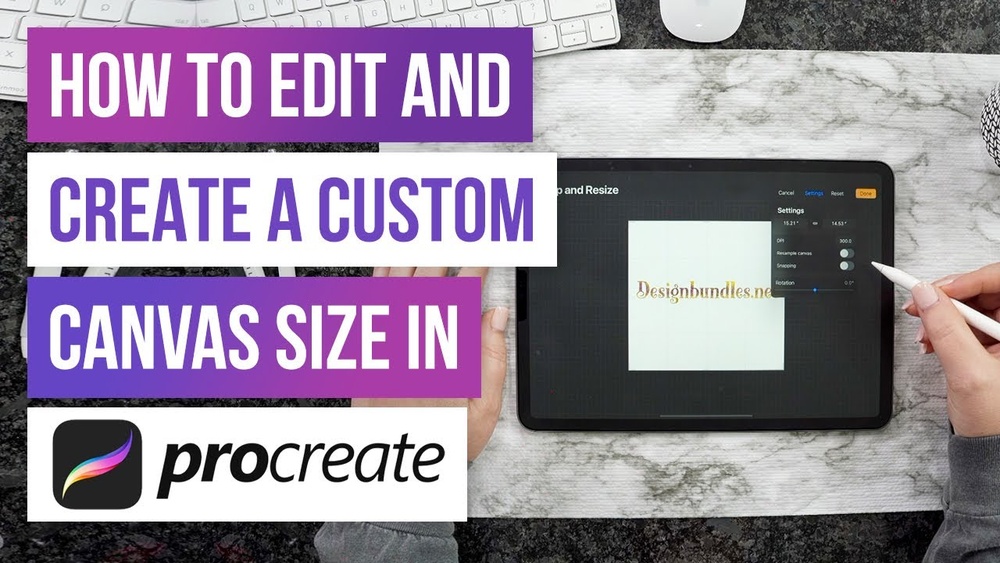
First, open your artwork in Procreate. Tap the Actions menu, marked by a wrench icon. Next, select the Canvas tab. Here, tap on Crop and Resize. This action opens the resize interface where you can change canvas dimensions.
Using The Grid Overlay
The Crop and Resize tool shows a grid overlay on your canvas. This grid helps you see the new canvas boundaries clearly. Drag the edges or corners of the grid to adjust the size. The area inside the grid will remain visible after resizing.
Enabling Resample For Content Scaling
Before finalizing, check the Resample option at the bottom. Resample scales your artwork to fit the new canvas size smoothly. This prevents distortion or pixelation. Turn off Resample if you want to crop without resizing the content.
Credit: designbundles.net
Tips For Optimal Canvas Size
Choosing the right canvas size in Procreate makes a big difference in your artwork. The right size helps you create clear images without slowing your device. It also makes printing easier and better. Follow these tips to pick the best canvas size for your work.
Choosing Size For Printing
Think about where your art will be printed. For small prints, a canvas size of 3000 x 3000 pixels works well. For larger prints, use at least 300 DPI and bigger dimensions. This keeps the image sharp and clear. Check the print size before setting your canvas.
Balancing Quality And Performance
Big canvases have more detail but slow your iPad. Small canvases work faster but may lose detail. Find a size that fits your device’s power. Use fewer layers on big canvases to keep Procreate running smooth. Test different sizes to see what works best.
Saving Custom Canvas Templates
Save your favorite canvas sizes as templates in Procreate. This saves time for future projects. Tap the plus icon, then tap ‘Create New Canvas.’ Enter your custom size and tap ‘Create.’ Name and save it. You can reuse this template anytime from the canvas menu.
Fit Canvas To Screen
Fitting your Procreate canvas to the screen helps you work more comfortably. It adjusts the canvas size so you see the whole artwork clearly. This makes drawing easier and reduces the need to zoom or pan often. Procreate offers simple ways to fit the canvas perfectly on your device screen.
Using Quick-pinch Gesture
The quick-pinch gesture is the fastest way to fit the canvas to your screen. Place two fingers on the canvas and pinch them together quickly. This action zooms out the canvas until it fits within the visible screen area.
This gesture resets your view and shows the entire canvas without manual adjustment. It works well for large or zoomed-in artworks. Try it anytime you want a full view of your work.
Maximizing Workspace Visibility
Fitting the canvas to the screen maximizes your workspace. You see all parts of your design at once, which helps with details and layout. It reduces eye strain and makes navigation smooth.
To keep your workspace clear, hide the Procreate interface by tapping the Actions menu. This hides tools and menus, giving more room for your canvas. Combine this with fitting the canvas to screen for the best workspace experience.

Credit: www.youtube.com
Frequently Asked Questions
How To Make A Custom Size Canvas In Procreate?
Open Procreate Gallery, tap the plus icon, then select “New Canvas. ” Enter custom width and height. Choose units like pixels or inches. Tap “Create” to start.
Can I Resize Canvas In Procreate?
Yes, you can resize your canvas in Procreate by tapping Actions > Canvas > Crop and Resize. Adjust the edges to change size.
How To Make An A3 Canvas In Procreate?
Open Procreate Gallery and tap the “+” icon. Select “New Canvas,” set width to 297mm and height to 420mm for A3 size. Adjust DPI to 300 for high quality, then tap “Create” to start your A3 canvas.
How To Fit Canvas To Screen In Procreate?
Use the Quick-Pinch gesture on your canvas for a fast zoom fit to screen. Pinch quickly, then lift fingers.
Conclusion
Creating a custom canvas size in Procreate is simple and useful. Set your dimensions carefully for best results. Adjusting canvas size helps fit your artwork needs perfectly. Practice these steps to save time and improve workflow. Enjoy designing with your new custom canvas settings!