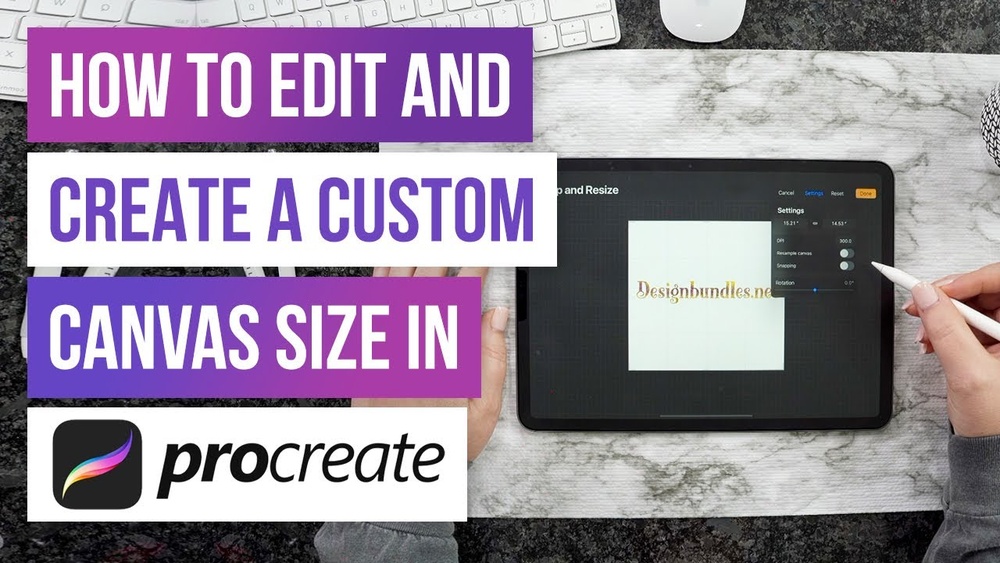
Quick answer: To make a custom canvas size in Procreate, open the Gallery, tap the + icon, then tap the dark square-with-plus icon at the top right of the New Canvas menu. Enter width and height in pixels, inches, centimeters or millimeters, set the DPI (300 for print, 72 to 150 for screen), choose a color profile, and tap Create. Procreate shows the maximum number of layers for that size before you confirm, so you can adjust the dimensions if the layer count is too low.
Procreate’s preset canvases are fine for quick sketches, but they rarely match the exact size of a print, a social post, a book cover or a physical canvas you want to paint later. Creating a custom Procreate canvas size takes under a minute and saves you from cropping, stretching or repainting work that was started at the wrong proportions.
Below you will find the exact steps, the right sizes for common projects, how DPI and layer limits work, how to increase canvas size after you start, and how to match a digital canvas to a real stretched canvas. If your plan is to paint the final piece by hand, our guide to the best canvas sets for beginners lists standard physical sizes you can mirror digitally.
How to Make a Custom Procreate Canvas Size: Step by Step
- Open the Gallery. If you are inside an artwork, tap Gallery at the top left.
- Tap the + icon at the top right. The New Canvas menu appears with presets.
- Tap the Create custom size icon (a dark square with a plus sign) at the top right of the menu.
- Name the canvas by tapping “Untitled Canvas” at the top. A clear name such as “Print 11×14” makes it easy to reuse.
- Choose units. Tap Millimeters, Centimeters, Inches or Pixels.
- Enter Width and Height. Tap each field and type the number.
- Set DPI. Enter 300 for most print work, or a lower value for screen-only art.
- Check the Maximum Layers figure shown under the dimensions. It changes as you adjust size and DPI.
- Pick a Color Profile in the side menu: RGB for screens and most consumer printing, CMYK when a commercial printer requests it.
- Adjust Time-lapse Settings if you plan to share process videos (resolution and quality).
- Set Canvas Properties, such as background color or a hidden background.
- Tap Create. The custom size is saved to your presets list for future use.
To edit or delete a saved preset later, swipe left on it in the New Canvas list.
Understanding Pixels, Inches and DPI
These three values are linked. Pixels are the actual image data. Inches describe the intended print size. DPI (dots per inch, technically pixels per inch in this context) tells software how many pixels fit into each inch when printed.
The formula is simple:
Pixels = inches x DPI
So an 8 x 10 inch print at 300 DPI needs 2400 x 3000 pixels. The same pixel count at 150 DPI would print at 16 x 20 inches, but with half the detail per inch.
Which DPI should you use?
| Use | Suggested DPI | Why |
|---|---|---|
| Fine art prints viewed up close | 300 | Standard for sharp detail at reading distance |
| Comic line art in black and white | 600 | Keeps thin lines crisp |
| Large posters viewed from a distance | 150 to 200 | People stand farther back, so less density is needed |
| Social media and web | 72 to 150 (pixels matter more) | Screens display pixels, not inches |
For screen-only art, focus on pixel dimensions. A 3000-pixel-wide image looks the same online whether it is labeled 72 or 300 DPI.
Best Canvas Size for Digital Art in Procreate
There is no single best size, but these starting points cover most projects.
| Project | Pixel size | Aspect ratio / notes |
|---|---|---|
| Instagram portrait post | 2160 x 2700 | 4:5, double the display size for crispness |
| Instagram square | 2160 x 2160 | 1:1 |
| Phone wallpaper | 1290 x 2796 or similar | Match your phone’s screen resolution |
| Desktop wallpaper | 3840 x 2160 | 16:9, 4K |
| Print 5 x 7 in | 1500 x 2100 at 300 DPI | Greeting cards, small prints |
| Print 8 x 10 in | 2400 x 3000 at 300 DPI | Common frame size |
| Print 11 x 14 in | 3300 x 4200 at 300 DPI | Check layer limit |
| US Letter page | 2550 x 3300 at 300 DPI | Coloring pages, printables |
| Book cover (6 x 9 in) | 1800 x 2700 at 300 DPI plus bleed | Ask the printer for bleed requirements |
Best canvas size for logos
Logos need to scale up and down cleanly. Procreate is a raster app, so work large, such as 4000 x 4000 pixels, on a square canvas with a transparent background. For professional use, many designers redraw or vectorize the final logo in vector software so it can scale to any size without losing quality.
How Big Should You Make Your Canvas?
Start by asking two questions: what is the largest size this artwork might ever be used at, and how many layers will you need?
- Plan for the largest likely use. If you might print it later, work at print resolution from the start. You can always shrink an image, but enlarging it reduces quality.
- Balance size with layers. Bigger canvases mean fewer layers. A complex painting with lots of layers may be better at a moderate size than at a huge size with only a handful of layers.
- Consider brush performance. Very large canvases can make heavy textured brushes feel slower.
- Studies can be small. Practice sketches and thumbnails do not need print resolution. Around 2000 pixels on the long side keeps things fast.
What Is the Biggest Canvas Size in Procreate?
The maximum canvas size depends on your iPad’s memory (RAM) and model. Newer iPads with more memory allow larger canvases and more layers. Procreate calculates limits automatically, so the easiest way to find your device’s maximum is to enter a large size in the custom canvas menu. If the size is too big, Procreate will reduce it or indicate that it exceeds what the device supports, and the maximum layers number will drop toward one.
Very large canvases with only a few layers are rarely practical. For most work, choose a size that still allows at least 10 to 20 layers.
How to Increase Canvas Size in Procreate After Starting
Sometimes you need more room after you have begun. Procreate lets you change canvas dimensions using Crop and Resize.
- Tap Actions (wrench), then Canvas.
- Tap Crop and Resize.
- Drag the edges of the crop box outward to add space, or tap Settings to enter exact dimensions.
- Toggle Resample Canvas on if you want to scale the existing artwork with the canvas, or leave it off to add empty space around it.
- Tap Done.
Adding space (without resampling) is safe and does not affect the quality of existing work. Resampling to a larger size enlarges existing pixels and may make the artwork softer. Resizing can also reduce your maximum layer count, and Procreate may warn you if existing layers exceed the new limit.
Matching a Digital Canvas to a Physical Canvas
Many painters plan compositions in Procreate before painting on a real canvas. Matching the aspect ratio exactly means the sketch transfers without cropping or distortion.
| Physical canvas size | Aspect ratio | Procreate size at 150 DPI (planning) | Procreate size at 300 DPI (print-ready) |
|---|---|---|---|
| 8 x 10 in | 4:5 | 1200 x 1500 px | 2400 x 3000 px |
| 9 x 12 in | 3:4 | 1350 x 1800 px | 2700 x 3600 px |
| 11 x 14 in | 11:14 | 1650 x 2100 px | 3300 x 4200 px |
| 12 x 16 in | 3:4 | 1800 x 2400 px | 3600 x 4800 px |
| 16 x 20 in | 4:5 | 2400 x 3000 px | 4800 x 6000 px |
| 18 x 24 in | 3:4 | 2700 x 3600 px | 5400 x 7200 px |
| 24 x 36 in | 2:3 | 3600 x 5400 px | Often exceeds device limits; use 150 to 200 DPI |
For planning only, the 150 DPI column is usually enough and leaves room for more layers. Simply enter the physical size in inches in Procreate’s custom canvas menu and set DPI to 150.
Canvas for painting: small size vs big size
Small canvases (8 x 10 inches or less) are quick to finish and good for studies, gifts and practice. Big canvases (18 x 24 inches and up) suit statement pieces and loose, expressive work but take more paint and time. Planning digitally first helps you test whether a composition works at either scale. Canvas boards and panels in small sizes are also handy for testing ideas; our Blick canvas panel review looks at one affordable option for small studies.
Custom Sizes for Canvas Prints and Gallery Wraps
If you plan to have digital art printed on canvas, the file needs a little extra planning. A gallery-wrapped canvas print folds the image around the sides of the stretcher frame, so part of your artwork ends up on the edges rather than the front.
- Add wrap margin. Many print services ask for extra image on every side, often around 1.5 to 2 inches depending on frame depth. A 16 x 20 inch wrap may need a file closer to 19 x 23 inches. Confirm the exact number with the printer.
- Keep important details inside the front face. Faces, text and focal points should stay well clear of the fold line.
- Use lower DPI for large canvas prints if needed. Canvas texture hides fine detail, so 150 to 200 DPI is commonly accepted for big prints, which helps if a full 300 DPI file is beyond your device’s limits.
- Choose a mirrored edge alternative. Some printers can mirror the outer strip of the image onto the sides, so you do not need to paint extra area. Ask before you start.
Common Custom Canvas Mistakes
Starting too small
Painting on a small canvas and enlarging it later for print produces soft, blurry results. Decide on final use first.
Starting so large there are no layers
A giant canvas that only allows three layers makes painting frustrating. Find a balance.
Wrong aspect ratio
Painting at a ratio that does not match your frame, canvas or platform means cropping important parts later.
Forgetting bleed for print
Printed products like cards and covers often need extra image area around the edges that gets trimmed. Ask your printer and add it when creating the canvas.
Confusing DPI with quality
Changing DPI without changing pixel dimensions does not add detail. Pixel count is what determines how much detail you have.
Tips for Managing Custom Canvas Presets
- Name presets by purpose and size, such as “IG 4×5” or “Print 11×14 300.”
- Create presets for physical canvas sizes you commonly paint.
- Delete old presets you no longer use to keep the list tidy.
- Set a default background color in Canvas Properties if you prefer a toned ground, the digital version of a tinted canvas.
FAQs
What is the best canvas size for digital art in Procreate?
A versatile choice is 2400 x 3000 pixels at 300 DPI. It prints well up to 8 x 10 inches, looks sharp on social media and still allows a good number of layers on most iPads.
How do I increase canvas size in Procreate?
Go to Actions, Canvas, Crop and Resize. Drag the edges outward or enter new dimensions in Settings. Leave Resample off to add space without stretching existing artwork.
What is the biggest canvas size in Procreate?
It depends on your iPad’s memory. Enter a large size in the custom canvas menu and Procreate will show what your device supports, along with the remaining layer count.
Why does Procreate limit my layers?
Each layer uses memory, and larger canvases use more memory per layer. Procreate limits layers so the app stays stable on your device.
Should I use RGB or CMYK in Procreate?
Use RGB for screen work and most consumer printing services. Choose CMYK only if a commercial printer specifically asks for it, and confirm which profile they need.
How big should you make your canvas for a physical painting plan?
Match the physical canvas’s aspect ratio. Entering the real size in inches at 150 DPI gives enough resolution for planning while keeping plenty of layers available.
Next Step
Create two or three presets today for the sizes you use most: one for social media, one for printing and one that matches a physical canvas size you like. Having them ready removes a decision every time you start a new piece.
If you plan to bring your digital sketches to life with paint, browse our picks for the best canvas set to start painting with and choose sizes that line up with your Procreate presets.