
PaintingProGuide is reader-supported. When you buy through links on this page we may earn an affiliate commission at no extra cost to you.
The best surface to draw on digitally depends on what you already own and how you like to work. There are four realistic options: a phone or tablet screen with a stylus, a pen tablet (a drawing pad that connects to a computer or phone while you look at the screen), a pen display (a screen you draw directly on), and a standalone drawing tablet with its own operating system. Each has a different feel, a different learning curve and a very different price.
For most beginners, a pen tablet with a paper-like surface is the best-value starting point: affordable, durable, pressure-sensitive and compatible with almost any computer. This guide compares all four surfaces, then reviews six drawing tablets available on Amazon, from compact pen tablets to a standalone screen tablet that needs no computer.
Quick answer: For most people, a pen tablet is the best surface to draw on digitally, and the Wacom Intuos Small is the most dependable entry point: battery-free EMR pen technology, 4,096 pressure levels and plug-and-play support for Chromebook. If you want a larger drawing area for similar money, the UGEE M708 V3 offers 10 x 6 inches with a papery texture and 16,384 pressure levels. If you do not have a computer, the Frunsi RubensTab T11 Pro is a standalone 10.1 inch screen tablet with drawing apps pre-installed.
Our Top Picks at a Glance
- Wacom Intuos Small Pen Tablet — Best overall surface for drawing digitally
- UGEE M708 V3 Drawing Tablet, 10 x 6 in — Best large drawing area for the money
- GAOMON M10K Drawing Tablet with Touch Ring — Best for shortcuts and workflow
- VEIKK VK850 Drawing Tablet, 8 x 5 in — Best ultra-thin portable tablet
- UGEE M708 V2 Drawing Tablet — Best for Android and Chromebook users
- Frunsi RubensTab T11 Pro Standalone Tablet — Best surface for drawing without a computer
Digital Drawing Surfaces Compared
| Surface | How it works | Pros | Cons |
|---|---|---|---|
| Phone or tablet with stylus | Draw directly on the device screen | Portable, no extra hardware if you own one | Small screen on phones; glass can feel slippery |
| Pen tablet (no screen) | Draw on a pad while watching your monitor | Affordable, durable, papery surface, ergonomic posture | Hand-eye coordination takes practice |
| Pen display | Draw directly on a screen connected to a computer | Most natural, see lines under the pen | Higher cost, needs desk space |
| Standalone drawing tablet | Screen tablet with its own OS and apps | No computer needed, portable | Performance and app choice depend on hardware |
Surface texture matters too. Pen tablets usually have a matte, paper-like finish that gives the pen a little drag, which many artists prefer. Glass screens are smooth; a matte or paper-like screen protector adds friction if your strokes feel slippery.
| Product | Best For | Key Spec | Key Strength | Price Tier |
|---|---|---|---|---|
| Wacom Intuos Small | Reliable entry point | 4,096 levels, battery-free EMR pen | Chromebook plug-and-play | $$ |
| UGEE M708 V3 | Large area | 10 x 6 in, 16,384 levels, 8 keys | Papery texture surface | $$$ |
| GAOMON M10K | Shortcuts | 10 x 6.25 in, 8,192 levels, touch ring | 10 keys, left-hand friendly | $$$ |
| VEIKK VK850 | Portability | 8 x 5 in, 16,384 levels, tilt | 0.08 in thin, quick dial | $$ |
| UGEE M708 V2 | Android, Chromebook | 10 x 6.25 in, 8,192 levels per details | Tilt support, 8 keys | $$ |
| Frunsi RubensTab T11 Pro | No computer | 10.1 in Full HD screen, Android 12 | Standalone with stand case | $$$ |
How We Chose
We chose these tablets from the Amazon listing details and specifications checked in October 2026, focusing on active area, pressure levels, surface texture, compatibility and shortcut controls, and how widely each is reviewed by Amazon buyers. We have not drawn on these tablets; the surface comparison above reflects well-established differences between device types.
- Active area: larger areas allow arm movement; smaller areas are portable.
- Pressure sensitivity: all picks support pressure; beyond a few thousand levels, consistency matters more than the number.
- Surface texture: papery surfaces give tooth and control.
- Compatibility: Windows, Mac, Chromebook, Android and Linux support where stated.
- Battery-free pens: no charging interruptions.
Best Surfaces to Draw On Digitally Reviewed
1. Wacom Intuos Small Pen Tablet — Best for a reliable entry point
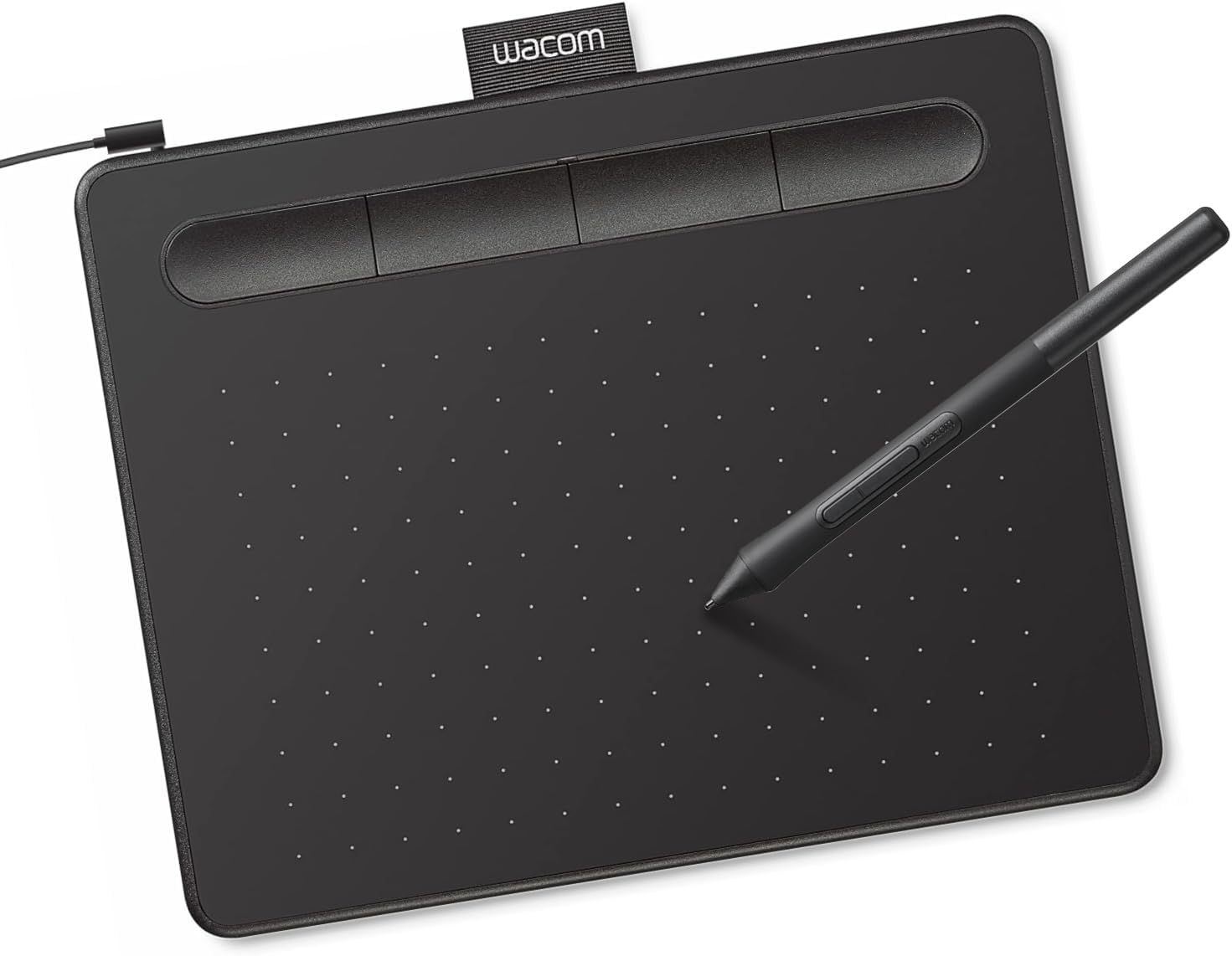
Wacom is the long-established leader in drawing tablets, and the Intuos Small is its entry model. It uses Wacom’s EMR, battery-free pen technology, which the listing describes as feeling like pen on paper, with 4,096 pressure levels. It connects by USB-A, works with Windows, Mac OS and Android, and is plug-and-play with Chromebook.
Wacom includes creative software and online training with registration, according to the listing. The small active area suits laptop setups and tight desks, though some artists find a larger area more comfortable for sweeping strokes.
Best suited for: Beginners and students who want a dependable, widely supported tablet, including Chromebook users.
Key features:
- Battery-free EMR pen
- 4,096 pressure levels
- USB-A wired
- Windows, Mac OS, Android; Chromebook plug-and-play
- Software and training with registration
Pros:
- Trusted brand and drivers
- No pen charging
- Wide compatibility
Cons and limitations:
- Small active area
- Fewer pressure levels than budget rivals list
- No shortcut dial
Buying consideration: Map the tablet to a portion of your screen if strokes feel too fast; it improves control on large monitors.
2. UGEE M708 V3 Drawing Tablet, 10 x 6 in — Best for a large drawing area for the money
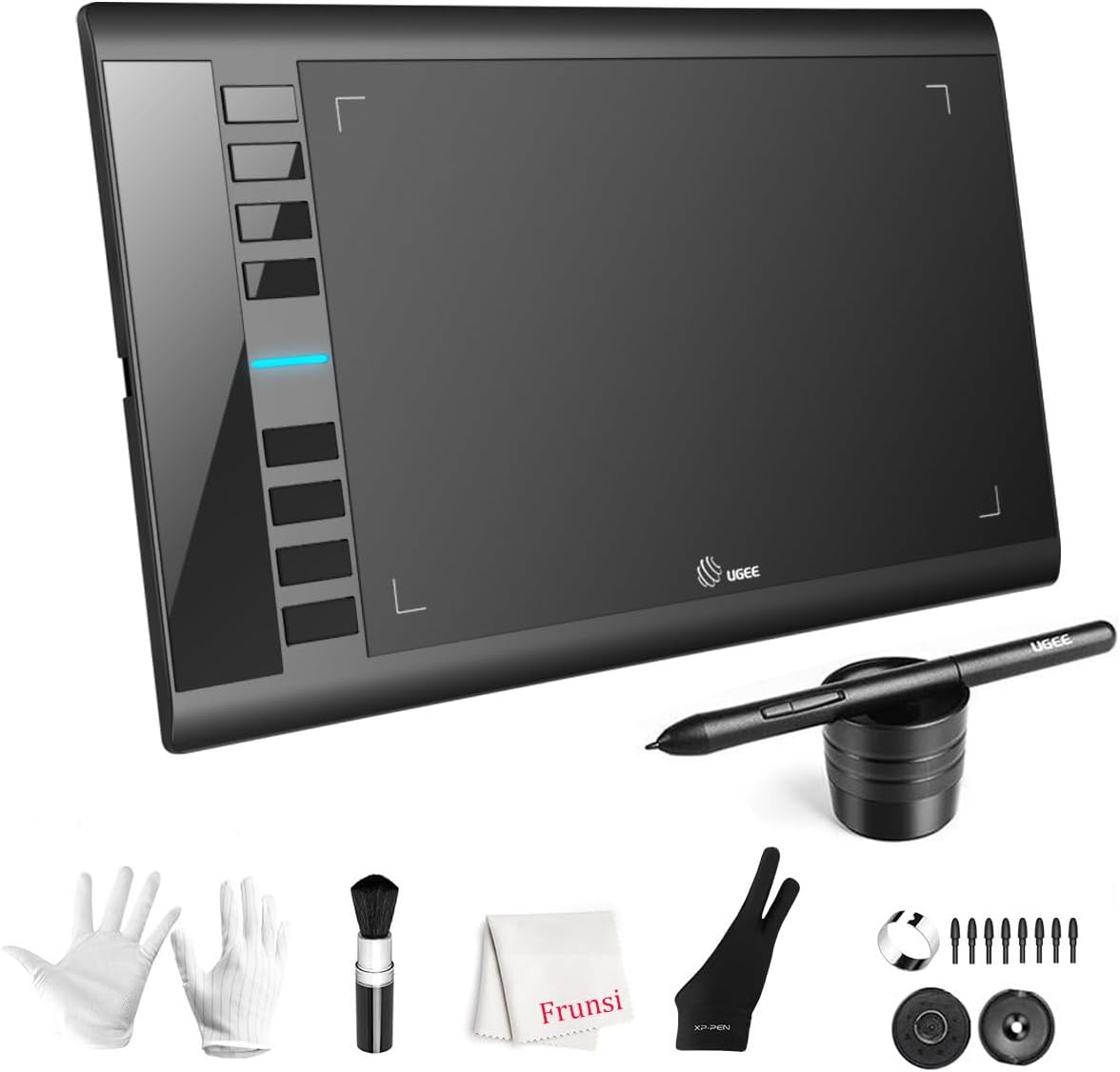
UGEE’s M708 V3 gives you a 10 x 6 inch active drawing area with a papery texture surface, which is considerably more room than small entry tablets. Its passive, battery-free stylus offers 16,384 levels of pressure sensitivity, and eight customizable express keys sit on the side for eraser, zoom, scroll and undo.
Compatibility is broad: Windows 11/10/8/7, macOS, Android 10 or later, ChromeOS 88 or later and Linux, with USB to USB-C connectivity and adapters included.
Best suited for: Artists who want a large surface for natural arm movement without a big budget.
Key features:
- 10 x 6 in active area
- Papery texture surface
- 16,384 pressure levels, battery-free pen
- 8 express keys
- Windows, macOS, Android, ChromeOS, Linux
Pros:
- Large area at entry price
- Paper-like texture
- Very wide compatibility
Cons and limitations:
- Large footprint on small desks
- No dial or touch ring
- Driver download needed for some systems
Buying consideration: Set the express keys for undo, brush size and eraser first; those three save the most time.
3. GAOMON M10K Drawing Tablet with Touch Ring — Best for shortcuts and workflow

GAOMON’s M10K pairs a 10 x 6.25 inch papery drawing surface with ten press keys and a programmable touch ring for zooming, brush size and scrolling. Its battery-free AP31 stylus has 8,192 pressure levels and two side buttons for switching between pen and eraser.
The touch ring and key layout can be set up for left-handed use, a detail many tablets overlook. It works with Windows 7 or later, macOS 10.12 or later and certain Android 11 to 14 devices, and includes extra nibs and a pen loop.
Best suited for: Artists who rely on shortcuts and left-handed users.
Key features:
- 10 x 6.25 in papery surface
- 8,192 pressure levels, battery-free pen
- 10 press keys and touch ring
- Left-handed setup
- Windows, macOS, some Android
Pros:
- Touch ring speeds workflow
- Left-hand friendly
- Extra nibs included
Cons and limitations:
- Android support is limited to certain devices
- No ChromeOS listed
- Fewer pressure levels listed than UGEE V3
Buying consideration: Assign the touch ring to brush size; resizing on the fly is one of the biggest speed gains.
4. VEIKK VK850 Drawing Tablet, 8 x 5 in — Best for ultra-thin portability

VEIKK’s VK850 is 0.08 inches thin and about 0.57 pounds, with an 8 x 5 inch active area that is larger than the cramped 6 x 4 inch surfaces of many entry tablets. The battery-free stylus offers 16,384 pressure levels and tilt support.
Ten customizable shortcut keys and a quick dial for brush size or scrolling mean you can work without a keyboard. It connects to laptops and Android phones via a USB-C adapter and lists Photoshop, Clip Studio, Krita and Blender among compatible software.
Best suited for: Students and traveling artists who want a slim tablet for a laptop bag.
Key features:
- 8 x 5 in active area
- 16,384 pressure levels, tilt support
- 10 shortcut keys and quick dial
- 0.08 in thin, about 0.57 lb
- Windows, Mac, Linux, Android
Pros:
- Very portable
- Tilt support
- Dial plus keys
Cons and limitations:
- Smaller area than 10 x 6 tablets
- Needs adapter for phones
- Newer listing with fewer reviews
Buying consideration: Use it with an Android phone and Ibis Paint X for a pocketable drawing setup.
5. UGEE M708 V2 Drawing Tablet — Best for Android and Chromebook users

The M708 V2 is the earlier version of UGEE’s 10 x 6.25 inch tablet. The listing supports Windows, macOS, ChromeOS 88 or later, Linux and Android 6.0 or later, and names ibis Paint X and FlipaClip among compatible apps. It includes eight customizable express keys and tilt control.
The listing is inconsistent on pressure levels, mentioning both 16,384 and 8,192, while the product details state 8,192. Either is ample for drawing, but buy the V3 if you want the newer model.
Best suited for: Android tablet, phone and Chromebook users who want a large pen tablet.
Key features:
- 10 x 6.25 in area
- Battery-free stylus with tilt
- 8 express keys
- Android 6.0+, ChromeOS 88+, Windows, macOS, Linux
- Pressure: 8,192 per details
Pros:
- Broad Android support
- Large area
- Tilt support
Cons and limitations:
- Inconsistent pressure spec
- Older version
- Similar price to V3
Buying consideration: Check your Android version before buying; older devices may not support pen tablets.
6. Frunsi RubensTab T11 Pro Standalone Drawing Tablet — Best for drawing without a computer

The Frunsi RubensTab T11 Pro is a standalone screen tablet: a 10.1 inch Full HD IPS display (1920 x 1200) running Android 12, with a built-in 5,800 mAh battery the listing rates at up to five hours of use. It comes with a battery-free pressure-sensitive pen, pre-installed drawing apps and an adjustable stand case.
Because you draw directly on the screen, there is no hand-eye coordination gap like with pen tablets. The details list 1,024 pressure levels, which is fewer than the pen tablets here but enough for basic drawing.
Best suited for: Beginners and kids without a computer who want to draw directly on a screen.
Key features:
- 10.1 in Full HD IPS screen
- Android 12
- 5,800 mAh battery, up to 5 hours per listing
- Battery-free pen, 1,024 levels per details
- Pre-installed apps; stand case
Pros:
- No computer needed
- Draw directly on screen
- Portable with case
Cons and limitations:
- Highest price tier here
- Lower pressure levels
- Performance depends on Android hardware
Buying consideration: Add a matte screen protector if the glass feels too slick; it gives the pen more control.
Buying Guide: How to Choose a Surface to Draw On Digitally
Start with what you have
If you own an iPad or a Galaxy tablet with a pen, you already have a good drawing surface. If you have a computer, a pen tablet is the cheapest upgrade. If you have neither, consider a standalone tablet.
Screen or no screen
Drawing directly on a screen feels most natural. Pen tablets take a week or two to get used to, but they are cheaper and encourage better posture because you look up at your monitor.
Active area size
Small (around 6 x 4 inches) suits laptops and travel. Medium (8 x 5 to 10 x 6 inches) suits most desks and allows more natural strokes.
Surface feel
Papery pen-tablet surfaces add friction and control. On glass, use a matte screen protector. Replace worn nibs to avoid scratching.
Compatibility
Check your operating system against the listing. Chromebook users should read our guide to drawing on a Chromebook before buying.
Shortcuts
Express keys, dials and touch rings speed up work but are optional for beginners. Undo and brush size are the shortcuts that matter most.
Getting Used to a Pen Tablet: A One-Week Plan
The biggest hurdle with a screenless pen tablet is drawing on one surface while looking at another. It feels strange for a few days, then suddenly it does not. This short routine speeds up the adjustment.
- Day 1: install the driver, set pen pressure to a medium curve, and scribble freely for 15 minutes.
- Day 2: draw straight lines, circles and spirals across the whole active area.
- Day 3: trace over a photo on a low-opacity layer to connect hand and screen movement.
- Day 4: practice pressure: lines that go thin to thick to thin.
- Day 5: fill a page with quick thumbnails, no undo allowed.
- Days 6–7: paint a simple still life using what you practiced.
Learn to Use Your New Surface
Once you have a surface, start with the basics in our guide to how to digitally paint. Warm up with thumbnail sketching digitally, which is the fastest way to adapt to a pen tablet, then try a focused exercise like painting water digitally.
Common Mistakes to Avoid
- Giving up on a pen tablet after a day. Hand-eye coordination takes a week or two.
- Skipping driver installation. Pressure sensitivity often needs the official driver.
- Mapping a small tablet to a huge monitor. Strokes become jumpy; map to part of the screen.
- Ignoring nib wear. Worn nibs scratch surfaces and feel rough.
- Hunching over the desk. Keep your monitor at eye level and the tablet within easy reach.
- Buying more pressure levels instead of a bigger area. Area and feel matter more.
FAQs
What is the best surface to draw on digitally for beginners?
A pen tablet like the Wacom Intuos Small or UGEE M708 V3 is the best-value starting point. If you own an iPad or S Pen tablet, start with that.
Is it better to draw on a screen or a pen tablet?
Drawing on a screen feels more natural, but pen tablets are cheaper, durable and encourage better posture. Many professionals use both.
Can I draw digitally without a computer?
Yes. A standalone tablet like the Frunsi RubensTab T11 Pro, an iPad or an Android tablet with a stylus all work without a computer.
Do pressure levels matter?
All of these tablets support pressure. Beyond a few thousand levels, the difference is subtle; area, surface feel and drivers matter more.
Will a drawing tablet work with my Chromebook?
The Wacom Intuos Small lists Chromebook plug-and-play, and the UGEE tablets list ChromeOS 88 or later. Check your Chromebook’s version.
How do I make a glass screen feel like paper?
Use a matte or paper-like screen protector. It adds friction and reduces glare, though it wears nibs faster.
Final Recommendation
For most people, a pen tablet is the best surface to draw on digitally, and the Wacom Intuos Small is the safest choice. If you want more room, the UGEE M708 V3 offers a 10 x 6 inch papery surface, and the GAOMON M10K adds a touch ring for faster workflow.
Travelers should look at the slim VEIKK VK850, Android users at the UGEE M708 V2, and anyone without a computer at the standalone Frunsi RubensTab T11 Pro.



One Comment