
PaintingProGuide is reader-supported. When you buy through links on this page we may earn an affiliate commission at no extra cost to you.
Once you own a tablet and a painting app, the next improvements are rarely about raw power. They are about friction: reaching for the keyboard fifty times an hour, a sweaty palm dragging across the screen, a stray touch that leaves a smudge in your sky. The best accessories for digital painting remove those small irritations so you can stay in the flow of the painting.
This guide ranks five accessories from the October 2026 listings by how much difference they make day to day, then covers the wider set of upgrades worth considering, including which ones are mostly hype.
Quick answer: The single most useful accessory for most digital painters is a shortcut remote, and the HUION Keydial Mini is the standout, with 18 programmable keys, a dial and Bluetooth 5.0. Next, add a two-finger drawing glove: the Kortimu 3-layer palm rejection glove suits iPads and touchscreens, while the HUION Artist Glove is a simple, low-friction option for pen tablets.
Our Top Picks at a Glance
- HUION Keydial Mini — Best accessory overall for faster painting
- Kortimu 3-Layer Palm Rejection Drawing Glove — Best glove for iPads and touchscreens
- Holyzuel Breathable Drawing Glove — Best for long, warm sessions
- HUION Artist Drawing Glove — Best basic glove for pen tablets and displays
- BUTOUCH Professional 2 Brush Stylus — Best for a real-brush feel on touchscreens
| Product | Best For | Key Spec | Key Strength | Price Tier |
|---|---|---|---|---|
| HUION Keydial Mini | Shortcuts without a keyboard | 18 keys, dial, Bluetooth 5.0 | Works with other brands’ tablets | $$ |
| Kortimu Drawing Glove | iPad and touchscreen painting | 3-layer palm design, 2 gloves, 3 sizes | Cleaning cloth included | $ |
| Holyzuel Breathable Glove | Warm hands, long sessions | Perforated spandex, padded palm | Airflow | $ |
| HUION Artist Glove | Pen tablets and displays | Lycra and nylon, free size | Reduces friction and smudges | $ |
| BUTOUCH Professional 2 | Loose, painterly touch work | Synthetic-hair conductive brush | No battery, any touchscreen | $$ |
How We Chose
We did not use these accessories ourselves for this guide. Picks are based on Amazon listing details and specifications checked in October 2026, on how much each product’s features address common digital painting frustrations, and on how widely each product is reviewed by Amazon buyers.
- Impact on workflow: how often the accessory helps during a typical session.
- Compatibility: operating systems, devices and tablet brands listed.
- Comfort: materials, sizing and breathability.
- Value: what is included and the price tier.
Several near-duplicate glove listings appeared in our data; we kept the ones with the clearest differences in design.
Which Accessories Matter Most? A Priority Order
If you are building up a setup gradually, this order gives the biggest gains first:
- Shortcut controls (keypad, dial or remote): saves time every minute you paint.
- A drawing glove: cheap, and solves smudging and friction immediately.
- A stand or tilted surface: reduces neck and shoulder strain on long sessions.
- A matte screen protector for glossy displays: adds tooth and protects the screen.
- Spare nibs for your pen: worn nibs scratch surfaces and feel scratchy.
- Specialty styluses such as brush styluses: fun and expressive, but optional.
Best Accessories for Digital Painting Reviewed
1. HUION Keydial Mini — Best Overall Accessory

Painting digitally involves constant switching: brush, eraser, eyedropper, undo, zoom, rotate, brush size. A keypad puts all of those under your off hand. The Keydial Mini has 18 programmable keys and a dial that can hold up to three functions, such as brush size in Photoshop or timeline scrubbing. It connects over Bluetooth 5.0 with a listed range of up to 10 meters, and offers anti-ghosting for up to five keys pressed together.
A Setting Preview function shows a popup of what each key and the dial currently do, with custom names, so you do not have to memorize your layout. The listing says it works with macOS and Windows, including Surface Pro and MacBook, and with other brands’ graphics tablets. Shortcuts are set up in the HUION driver.
Best suited for: anyone painting on a computer with a pen tablet or display, especially those without many tablet buttons.
Key features
- 18 programmable keys
- Dial with up to 3 functions
- Bluetooth 5.0, up to 10 m range
- Anti-ghosting up to 5 keys
- Setting Preview popup
Pros
- Huge time saver during painting
- Works with non-HUION tablets
- Wireless
Cons
- Requires HUION driver for customization
- Windows and macOS only per the listing; not for iPad
Buying consideration: Start with eight shortcuts you use constantly and add more only when those become automatic. Too many assigned keys at once slows you down.
2. Kortimu 3-Layer Palm Rejection Drawing Glove — Best for iPads and Touchscreens
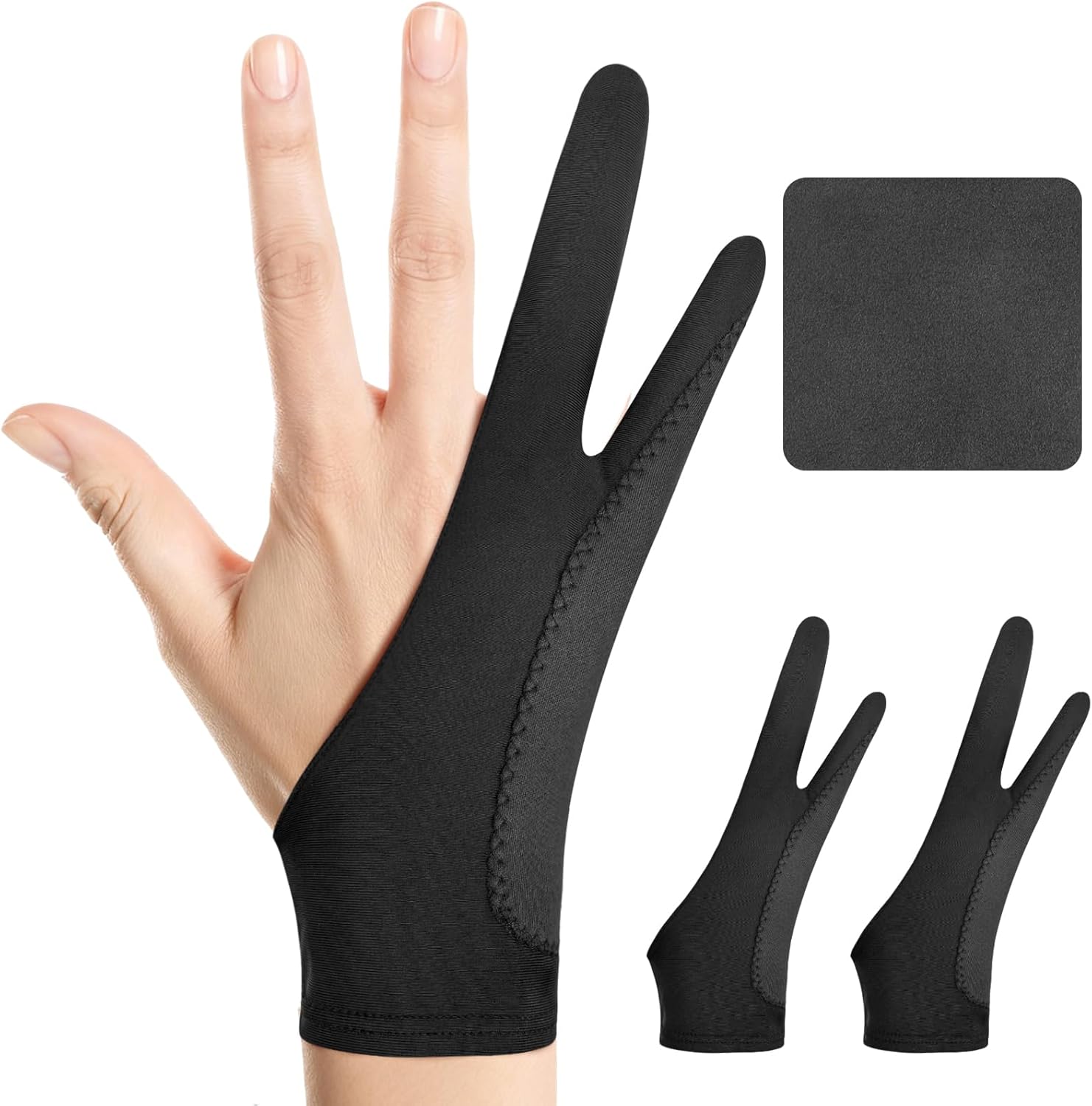
On a touchscreen tablet, your palm can register as a touch, leaving accidental marks or zooming the canvas. The Kortimu glove’s listing describes a 3-layer anti-slip, anti-smudge design that prevents accidental palm touches and keeps the screen clean. It uses a two-finger design that fits either hand and is made from soft, stretchy, moisture-wicking fabric.
The set includes two gloves and a cleaning cloth, in three sizes with listed dimensions, so you can choose a close fit.
Best suited for: iPad and touchscreen painters, especially with apps where palm rejection is imperfect.
Key features
- 3-layer palm rejection design
- Two-finger, ambidextrous
- 2 gloves plus cleaning cloth
- Three sizes
Pros
- Addresses accidental touches
- Two gloves per pack
Cons
- Fit varies; check sizing chart
Buying consideration: Measure your hand against the listed sizes. A loose glove bunches at the fingers and can still let skin touch the screen.
3. Holyzuel Breathable Drawing Glove — Best for Long Sessions

Gloves can get warm over a multi-hour session. Holyzuel’s breathable version uses many tiny perforations to promote airflow and wick moisture, with extra-thick padding on the palm to prevent the palm being sensed by the device. The spandex material is described as silky smooth for gliding over screens, and it works on either hand in S or M sizes.
Best suited for: painters with warm hands or long painting days.
Key features
- Perforated, breathable spandex
- Extra-thick palm padding
- Two sizes, ambidextrous
Pros
- Cooler than solid gloves
- Padding helps palm rejection
Cons
- Only two sizes
- Single glove listing
Buying consideration: Breathable gloves still pick up oils; wash them regularly so they do not transfer residue to the screen.
4. HUION Artist Drawing Glove — Best Basic Glove for Pen Tablets

On a screenless pen tablet or a pen display, accidental touches are not the issue; friction and smudges are. HUION’s classic glove is soft Lycra and nylon in a free size (20 x 8 cm), two-finger design, for either hand. It reduces friction between your hand and the surface and prevents smudges. The listing is clear that it cannot prevent accidental touches on touchscreens; it only reduces friction.
Best suited for: pen tablet and pen display users.
Key features
- Lycra and nylon
- Two-finger, free size
- Black, soil-resistant color
Pros
- Lowest price tier
- Smooth glide on matte surfaces
Cons
- Not for touchscreen palm rejection
- One size only
Buying consideration: If you paint on an iPad or touchscreen laptop, choose a padded palm-rejection glove instead.
5. BUTOUCH Professional 2 Brush Stylus — Best for a Real-Brush Feel

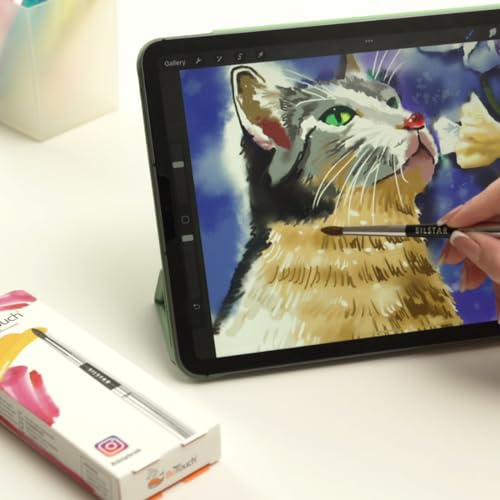
A brush stylus is the most playful accessory here. BUTOUCH’s Professional 2 has conductive synthetic hair that works on any capacitive touchscreen with no battery or charging. It does not transmit pressure, but the bristles spread as you press, which many apps read as a wider contact area. The result feels much more like a paintbrush than a hard stylus.
Best suited for: loose, expressive painting and blocking in on iPads and touchscreens.
Key features
- Synthetic-hair conductive brush
- No battery or charging
- Compact and portable
Pros
- Unique, painterly feel
- Works on any touchscreen
Cons
- No electronic pressure
- Not precise for detail
Buying consideration: Treat it as a complement to your main pen, not a replacement.
Other Accessories Worth Considering
These did not appear in our product data for this query, but they are common upgrades:
- Tablet or display stand: raising a screen or pen display to an angle helps posture.
- Matte or paper-like screen protector: adds tooth and reduces glare on glossy displays.
- Spare pen nibs: keep a fresh supply; worn nibs feel scratchy and can mark surfaces.
- A calibrated monitor or calibration device: essential if you sell prints.
- A comfortable chair and good lighting: unglamorous, but they decide how long you can paint.
Accessory Kits by Setup
The right accessories depend heavily on the device you paint on. Here is how we would build out three common setups.
iPad or other touchscreen tablet
Touchscreen painters fight two problems: accidental palm touches and a slippery glass surface. A padded palm-rejection glove like the Kortimu handles the first. A paper-like matte screen protector addresses the second, though it also wears pen tips faster. Add a folding stand to tilt the tablet, and consider a brush stylus for loose underpainting. Most keypads, including the Keydial Mini per its listing, target Windows and macOS rather than iPad, so rely on the app’s gesture shortcuts instead: two-finger tap for undo is standard in many iPad painting apps.
Screenless pen tablet with a computer
Here the pen never touches a screen, so palm rejection is not an issue, but friction on the tablet surface is. A thin, low-friction glove like the HUION Artist Glove helps your hand glide. The biggest upgrade is usually a keypad or dial, especially on small tablets with few or no express keys. Also check your monitor: a screenless tablet setup is only as good as the color on the screen you are watching.
Pen display
Pen displays combine both worlds. A low-friction glove stops smudges and drag on the glass. A keypad helps because your keyboard is often pushed aside to make room for the display. An adjustable stand is close to essential for comfortable posture, and a matte protector adds tooth to glossy models.
Looking After Your Accessories
- Gloves: hand wash in mild soap and air dry. Rotate between two gloves so one is always clean.
- Keypads: keep the driver updated, and back up your shortcut profiles so a reinstall does not wipe them.
- Brush styluses: store with the bristles protected and keep them free of skin oils, which can reduce conductivity.
- Screens: clean with a microfiber cloth; avoid harsh cleaners on matte films.
Buying Guide: How to Choose Accessories for Digital Painting
Start with what slows you down
Notice what interrupts you during a session. Constant keyboard trips point to a keypad. Smudges and stray marks point to a glove. Aching neck points to a stand.
Check compatibility
Keypads depend on drivers and operating systems; iPads need different solutions from Windows or macOS. Read the compatibility notes carefully.
Glove type for your screen
Touchscreens need padded palm-rejection gloves. Screenless tablets and pen displays mostly need low-friction gloves.
Fit and comfort
Gloves should be snug without squeezing. Breathable designs help on long sessions.
Wireless versus wired
Bluetooth keypads reduce desk clutter but need charging or batteries. Wired options never disconnect.
Value
Most accessories here are low cost. Spend more on items you will use every session, like a keypad, and less on novelty items.
Accessories That Are Mostly Hype
Not every add-on earns its place. A few categories tend to disappoint relative to their marketing:
- Styluses that do not list pressure for painting on devices without a pen system. They move a cursor, but every stroke has the same weight.
- Giant all-in-one accessory bundles. They often include items you already have, such as cleaning cloths and generic stands.
- Extra pen holders and decorative cases. Nice to have, but they do not change how you paint.
- Expensive brushes packs before you master the defaults. Most painting apps ship with more than enough brushes to learn on.
The test for any accessory is simple: will it remove an interruption that happens every session? If yes, it is worth buying. If it solves a problem you rarely have, skip it.
Set Up Your Shortcuts Like a Painter
A good starter layout for a keypad or dial:
- Dial: brush size, with a press to switch to zoom or canvas rotation
- Keys: undo, redo, brush, eraser, eyedropper, flip canvas horizontally, new layer, merge down
- Modifier keys: Ctrl/Cmd, Alt/Option and Shift for tool variations
Keep the layout the same across every program you use. Muscle memory is the real speed gain: once undo is always under the same finger, you stop thinking about it entirely.
Flipping the canvas regularly is one of the best habits in digital painting; it reveals proportion errors instantly. Try it while working through our digital night scene painting tips. And if you are still deciding whether you need a tablet at all, read how to paint digitally without one.
Common Mistakes to Avoid
- Buying a glove that does not match your screen type. Touchscreens need palm rejection padding.
- Assigning too many shortcuts at once. Learn a core set first.
- Ignoring driver setup. Keypads like the Keydial Mini need the driver for custom keys.
- Using worn nibs. Replace them before they scratch your surface.
- Spending on gadgets before posture. A stand and good chair often help more.
- Never washing gloves. Oils transfer back to the screen.
FAQs
What accessories do I need for digital painting?
Beyond a tablet and software, the most useful are a shortcut keypad or remote, a drawing glove, a stand for comfortable posture and spare pen nibs.
Does the HUION Keydial Mini work with Wacom or XP-Pen tablets?
The listing says it works with other brands’ graphics tablets on Windows and macOS. Shortcuts are configured in the HUION driver.
Do drawing gloves really help?
Yes. They reduce friction and smudges, and padded versions help prevent accidental palm touches on touchscreens.
Can a drawing glove stop palm touches on an iPad?
Padded palm-rejection gloves like the Kortimu are designed to. Basic thin gloves, such as the HUION Artist Glove, state that they do not prevent touch detection.
Is a brush stylus worth it for digital painting?
It is a fun complement for loose painting on touchscreens, but it lacks electronic pressure and precision, so keep a regular pen for detail.
What is the best shortcut setup for painting?
Put brush size on a dial, and undo, eraser, eyedropper, brush and canvas flip on keys. Add more once those feel automatic.
Final Recommendation
If you buy just one accessory, make it the HUION Keydial Mini: its keys and dial cut down the constant tool switching that slows digital painting. Then add a glove matched to your screen. The Kortimu suits iPads and touchscreens, the Holyzuel breathable glove suits long sessions and the HUION Artist Glove is all a pen tablet user needs. Finish with a BUTOUCH brush stylus if you want a looser, more painterly feel on a touchscreen.




