

PaintingProGuide is reader-supported. When you buy through links on this page we may earn an affiliate commission at no extra cost to you.
Once you have a tablet and software, the next upgrades are the small things that remove friction from every session: a controller under your off hand so you stop reaching for the keyboard, a glove so your palm glides instead of sticking, and a pen tablet for the computer if you have been sketching on an iPad. The best digital painting accessories for artists are the ones that save repeated tiny actions, because zooming, undoing and resizing brushes hundreds of times a day adds up to real time and real strain.
Quick answer: The single most useful upgrade for most desktop artists is a shortcut controller: the HUION Keydial Mini offers 18 programmable keys and a dial over Bluetooth, while the TourBox Lite uses eight custom-shaped controls you can find by feel. iPad Procreate users should look at the AOIKTYE Procreate shortcut keyboard. Add a Kortimu palm-rejection drawing glove for smoother strokes.
Below we compare seven accessories across controllers, input devices and gloves, then cover which accessories matter most for different setups.
Our Top Picks at a Glance
- HUION Keydial Mini Bluetooth Keypad — Best shortcut controller overall
- TourBox Lite Drawing Controller — Best tactile controller for eyes-on-canvas work
- AOIKTYE Keyboard for Procreate — Best shortcut remote for iPad artists
- UGEE M708 Drawing Tablet — Best budget pen tablet for computer painting
- Kortimu 3-Layer Palm Rejection Drawing Glove — Best drawing glove
- OTraki 4 Pack Artist Drawing Gloves — Best value glove multipack
- BUTOUCH Digital Painting Brush Stylus — Best for a real-brush feel on touchscreens
| Product | Best For | Key Spec | Key Strength | Price Tier |
|---|---|---|---|---|
| HUION Keydial Mini | Desktop shortcuts | 18 keys plus dial, Bluetooth 5.0 | Highly programmable | $$ |
| TourBox Lite | Tactile control | 8 custom-shaped controls, wired | Use without looking | $$$ |
| AOIKTYE Procreate Keyboard | iPad shortcuts | 22 shortcut keys, Bluetooth, rechargeable | Built for Procreate | $$ |
| UGEE M708 | Computer pen input | 10 x 6 in, 16384 pressure levels | 8 express keys, tilt | $$$ |
| Kortimu Glove | Palm glide | 3-layer palm rejection, two-finger | Ambidextrous, cleaning cloth | $ |
| OTraki 4 Pack | Spare gloves | 4 artist gloves | Budget multipack | $ |
| BUTOUCH Brush Stylus | Brush feel | Synthetic hair tip, no battery | Works on touchscreens | $$ |
How We Chose
These picks rely on Amazon listing details and specifications checked in October 2026, how directly each accessory improves digital painting workflows, and how widely each product is reviewed by Amazon buyers. We have not used these accessories ourselves, so we report listed features. One glove multipack listing had little detail, so we keep claims about it general.
- Time saved per session: shortcuts, controllers and input upgrades.
- Comfort: gloves that reduce friction and smudging.
- Compatibility: with common software and devices.
- Connection: Bluetooth for freedom, wired for reliability.
- Value relative to how often you will use it.
Best Digital Painting Accessories for Artists Reviewed
1. HUION Keydial Mini Bluetooth Keypad — Best for shortcut control

The Keydial Mini puts 18 programmable keys and a dial in your off hand. The listing says the dial can change brush size in Photoshop and navigate timelines, with up to three functions per dial, and every key can be mapped to any shortcut. It connects over Bluetooth 5.0 and offers anti-ghosting for up to five keys pressed together.
With undo, brush size, eyedropper, flip canvas and layer shortcuts under your fingers, you can keep the pen on the tablet and your eyes on the image.
Best suited for: Desktop artists in Photoshop, Clip Studio, Krita and similar.
Key features:
- 18 programmable keys
- Dial with up to 3 functions
- Bluetooth 5.0
- Anti-ghosting up to 5 keys
Pros:
- Lots of keys for the size
- Dial for brush size and zoom
- Wireless
Cons and limitations:
- Takes time to configure
- Learning curve for key layout
Buying consideration: Start with five essential shortcuts and add more as you memorize them.
2. TourBox Lite Drawing Controller — Best for tactile, eyes-on-canvas control

TourBox Lite has eight custom-shaped controls designed so you can zoom, rotate, undo and switch tools without leaving the canvas. The listing names Clip Studio Paint, Photoshop and Krita, and emphasizes keeping the pen on the canvas while your other hand handles frequent actions. It connects by wire.
Distinct shapes mean you can find each control by feel, which is different from a grid of identical keys.
Best suited for: Artists who want to operate shortcuts without looking.
Key features:
- 8 custom-shaped controls
- Wired USB
- Works with Clip Studio, Photoshop, Krita
Pros:
- Find controls by touch
- Natural two-handed workflow
- Focused feature set
Cons and limitations:
- Highest price tier here
- Fewer controls than keypads
- Wired only
Buying consideration: Map rotate and zoom to the knob-style controls for the most natural feel.
3. AOIKTYE Keyboard for Procreate — Best for iPad shortcut control

Procreate relies heavily on gestures, but a physical remote can speed things up. AOIKTYE’s keyboard is designed for Procreate with 22 shortcut keys, including color picking, color balance and HSB adjustments, cut, copy and paste. It connects via Bluetooth and has a 250mAh rechargeable battery charged by USB-C, with up to 84 hours of use per the listing title.
The listing also mentions use with other programs like Photoshop, Clip Studio and SAI.
Best suited for: iPad artists who want physical shortcuts in Procreate.
Key features:
- 22 shortcut keys
- Bluetooth, rechargeable via USB-C
- Designed for Procreate
- Long battery life per listing
Pros:
- Purpose-built for Procreate
- Rechargeable
- Compact
Cons and limitations:
- Fixed Procreate-oriented layout
- Less flexible than fully programmable pads
Buying consideration: Keep it charged; a dead remote mid-session breaks flow.
4. UGEE M708 Drawing Tablet — Best for budget computer pen input
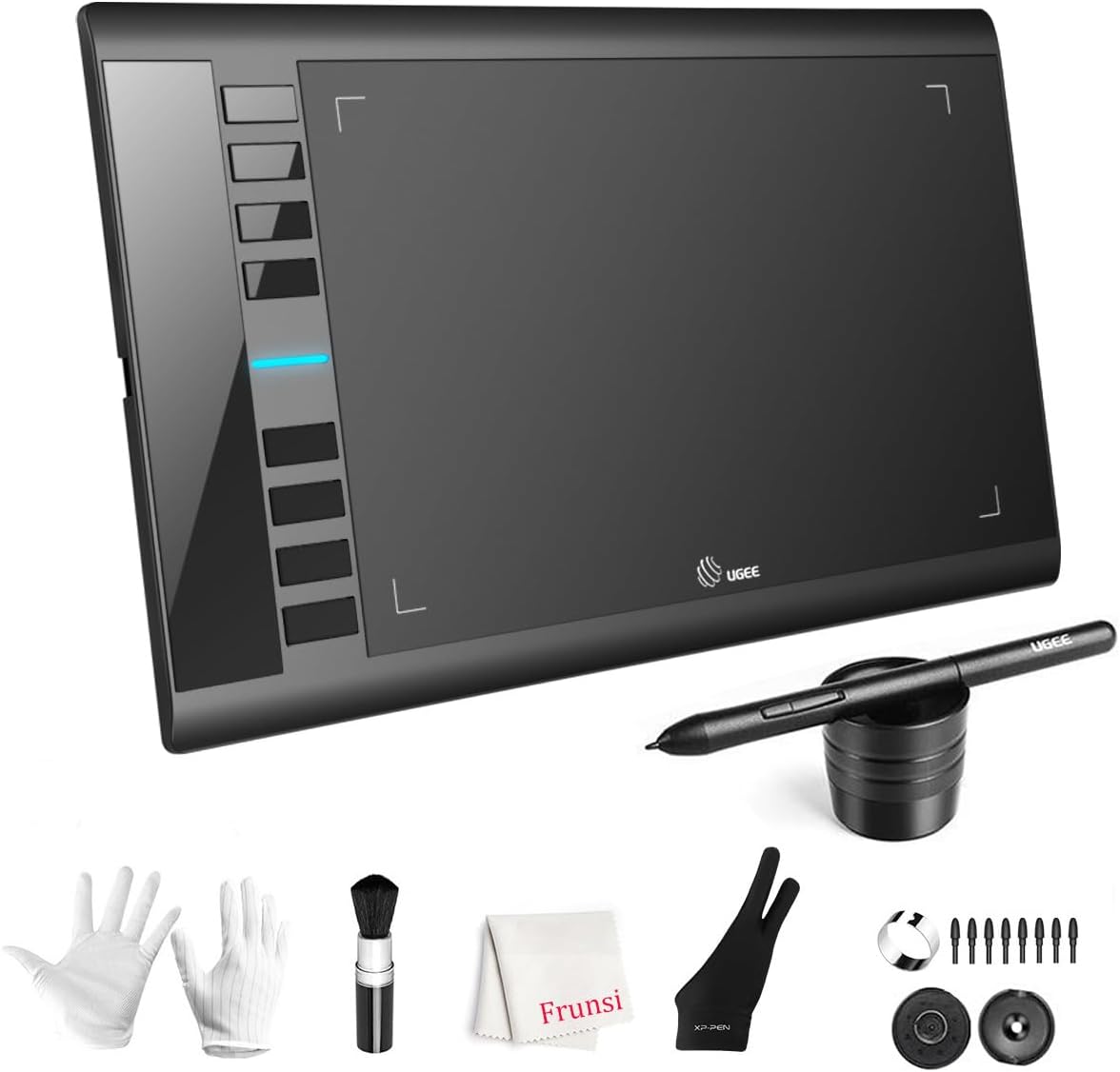
If you sketch on an iPad but want to paint on a computer, a pen tablet is the essential accessory. UGEE’s M708 provides a 10 x 6 inch active area with a paper-like surface, a passive stylus with 16384 pressure levels, 60-degree tilt support and eight express keys. It works with Windows, macOS and Android.
It is an affordable way to add pressure-sensitive painting to a desktop.
Best suited for: Artists adding pen input to a computer on a budget.
Key features:
- 10 x 6 in active area
- 16384 pressure levels
- 60 degree tilt
- 8 express keys
Pros:
- Big area for the price
- Battery-free pen
- Express keys
Cons and limitations:
- Wired
- No screen
Buying consideration: Install the latest driver and test pressure in your software before painting.
5. Kortimu 3-Layer Palm Rejection Drawing Glove — Best for palm glide
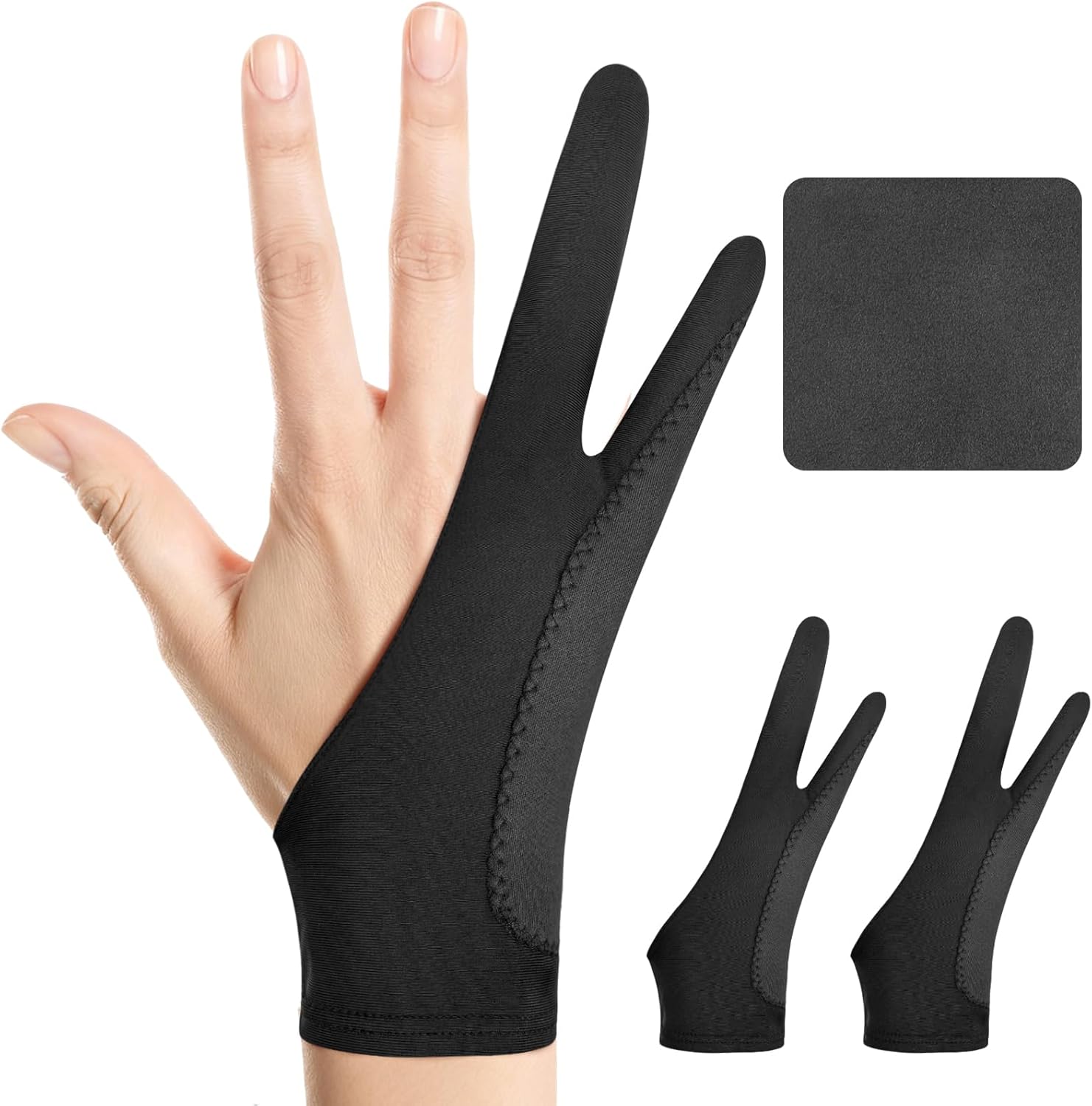
A two-finger drawing glove reduces friction between your palm and the screen, prevents smudges and, on touchscreens, helps prevent accidental palm touches. Kortimu’s glove has a three-layer anti-slip, anti-smudge design, an ambidextrous fit and a moisture-wicking stretch fabric. A cleaning cloth is included.
It is inexpensive and one of the easiest comfort upgrades you can make.
Best suited for: iPad and pen display artists.
Key features:
- Two-finger design
- 3-layer palm rejection
- Fits left or right hand
- Cleaning cloth included
Pros:
- Smoother glide
- Reduces smudges
- Low cost
Cons and limitations:
- One size may not fit everyone
- Needs occasional washing
Buying consideration: Wash it regularly; skin oils build up and reduce glide.
6. OTraki 4 Pack Artist Drawing Gloves — Best for spare gloves

This OTraki listing offers four artist drawing gloves for digital tablets and paper sketching. The listing we checked had limited detail, so we can only say that it is a multipack of two-finger-style artist gloves at a low price tier.
Multipacks are handy so you always have a clean glove while another is in the wash.
Best suited for: Artists who want spares or a glove for each workspace.
Key features:
- 4 gloves
- For digital tablets and paper sketching
Pros:
- Very low cost per glove
- Spares for washing
Cons and limitations:
- Limited listing detail
- Fit and material not specified
Buying consideration: Check sizing reviews on the listing before ordering.
7. BUTOUCH Digital Painting Brush Stylus — Best for a real-brush feel on touchscreens

BUTOUCH makes a capacitive brush stylus with synthetic hair, which the listing says works with all touchscreen devices and needs no battery or charging. It is compact and portable.
A brush stylus does not offer pressure sensitivity like an active pen, but it gives a loose, painterly feel that some artists enjoy for expressive sketches and kids enjoy for fun.
Best suited for: Artists who want a traditional brush feel for loose sketches.
Key features:
- Synthetic hair brush tip
- No battery or charging
- Works on touchscreens
- Compact
Pros:
- Painterly feel
- No charging
- Works on phones and tablets
Cons and limitations:
- No pressure sensitivity
- Less precise than an active pen
Buying consideration: Use it with soft, large brushes in your app for the most natural effect.
Other Accessories Worth Considering
Beyond the products above, a few other accessories are common in digital studios. Replacement nibs keep pen tablets drawing smoothly; nibs wear down, especially on textured surfaces, and a worn nib can scratch. Matte screen protectors add paper-like friction to glossy tablets and pen displays, which many artists prefer, though they can slightly soften the image. Tablet and display stands tilt your drawing surface for better posture. Monitor calibration devices help ensure your colors are accurate for client and print work. A second monitor or a small reference screen keeps references visible without covering your canvas.
A Sensible Order for Buying Accessories
- Pen input. A pen tablet or display is the foundation.
- Comfort basics. A drawing glove and a stand or tilted surface.
- Workflow speed. A shortcut controller or Procreate remote.
- Accuracy. Monitor calibration if you do color-critical or print work.
- Extras. Brush styluses, extra nibs, carrying cases and cable organizers.
Caring for Your Accessories
Wash fabric gloves by hand in mild soap and let them air dry. Wipe tablet surfaces and controllers with a dry microfiber cloth, and use only cleaners recommended by the manufacturer on screens. Store pens in their holders so nibs are not bent, and keep spare nibs in the case they came in. Update drivers and controller software periodically, since updates often add support for new software versions.
Which Accessories Matter Most for Your Setup?
Desktop with a pen tablet. A shortcut controller (Keydial Mini or TourBox Lite) gives the biggest workflow gain. A glove adds comfort.
Pen display. A glove prevents smudges and improves glide; a controller keeps the keyboard off the desk. A stand to tilt the display is also worth considering.
iPad with Procreate. A Procreate shortcut keyboard, a palm-rejection glove and a tablet stand transform comfort for long sessions.
No tablet yet. A budget pen tablet like the UGEE M708 is the first accessory to buy. Our guide to digital painting without a tablet explains how to start in the meantime.
Setting Up a Shortcut Controller
Begin with the actions you use most: undo, redo, brush size, eyedropper, zoom, rotate canvas, flip canvas, new layer and toggle eraser. Map those first and paint with them for a week before adding more. Keep a printed cheat sheet beside the controller until the layout becomes muscle memory. Many controllers support per-application profiles, so you can use different layouts in Photoshop and Clip Studio.
Put your setup to work with our tutorials on painting digital waves and ocean and digital night scenes.
Gloves Explained: What They Do and Do Not Do
Two-finger drawing gloves cover the ring and little fingers and the side of the palm, the parts of your hand that rest on the tablet. On pen tablets and pen displays, they mainly reduce friction and stop skin oils from leaving smudges, which matters more than you might expect on glossy screens. On iPads, they can also help prevent accidental touches, though apps’ own palm rejection does most of that work. Gloves do not affect pen pressure or accuracy. Fit matters: a glove that is too loose bunches up, and one that is too tight is uncomfortable over long sessions, so check sizing notes on the listing.
Controllers vs Keyboard Shortcuts
A standard keyboard already has every shortcut, so why buy a controller? Mostly ergonomics and focus. A keyboard sits at an awkward angle beside a tablet and invites you to look away to find keys. A compact controller sits where your off hand rests naturally, with a dial or knob for continuous adjustments like brush size and zoom that keys handle poorly. If your desk is small or you paint on your lap, a controller can also replace the keyboard entirely during painting.
Buying Guide: How to Choose Digital Painting Accessories
Start with the biggest friction
If you reach for the keyboard constantly, buy a controller. If your hand sticks to the screen, buy a glove.
Check software compatibility
Controllers vary in software support. Check the listing for your program.
Bluetooth or wired
Bluetooth keeps the desk tidy; wired avoids charging and pairing issues.
Ergonomics
Choose accessories that reduce reaching and repeated wrist movements.
Buy spares for consumables
Gloves and nibs wear out; multipacks save money.
Think about portability
If you paint in cafes or travel, favor compact, wireless and rechargeable accessories that fit in a tablet sleeve. For a fixed studio desk, wired devices are fine and never need charging.
Avoid gadget overload
A few well-chosen accessories are better than a cluttered desk.
Common Mistakes to Avoid
- Buying a controller and never configuring it. Spend time setting it up.
- Mapping too many shortcuts at once. Start small.
- Ignoring glove hygiene. Dirty gloves smudge screens.
- Expecting pressure from a brush stylus. Capacitive brushes do not provide it.
- Skipping driver updates. Tablets and controllers need current drivers.
FAQs
What accessories do digital artists need?
A pen tablet or display, then a shortcut controller, a drawing glove and often a stand. Good lighting and a comfortable chair help too.
Is a shortcut controller worth it?
For many desktop artists, yes. It reduces reaching for the keyboard and speeds up repeated actions like undo and brush size.
Do drawing gloves really help?
They reduce friction and smudges and help with palm rejection on touchscreens. They are inexpensive and popular.
Can I use a Procreate keyboard with other apps?
Some listings mention compatibility with other programs. Check the specific product for details.
Is a brush stylus good for digital painting?
It gives a fun, painterly feel, but lacks pressure sensitivity. An active pen is better for precise work.
Wired or Bluetooth controller?
Bluetooth is tidier and portable; wired is plug-and-play without charging. Both work well.
Final Recommendation
For desktop artists, the HUION Keydial Mini is the most versatile upgrade, while the TourBox Lite suits those who want to work by feel. iPad Procreate users should start with the AOIKTYE shortcut keyboard.
If you do not have pen input on your computer yet, the UGEE M708 is the budget pick. Add a Kortimu glove for smoother strokes, or the OTraki multipack for spares, and try the BUTOUCH brush stylus for loose, painterly sketches.




