

PaintingProGuide is reader-supported. When you buy through links on this page we may earn an affiliate commission at no extra cost to you.
Krita ships with a surprisingly deep set of Python plugins already installed, and a small community of developers has built add-ons that fill the gaps the core team has not reached. The best Krita plugin for you depends on where your current workflow stalls: color picking, hotkey overload, exporting many layers, or managing a long comic project. This guide walks through the plugins most worth enabling or installing, in order of how much friction they remove for a digital painter.
A note on scope: Krita plugins are free software, and everything below is either bundled with Krita or distributed by its author at no cost. The only products you can buy on this page are a few pen tablets near the end, included because express keys pair naturally with shortcut plugins.
Quick answer: For most painters the best Krita plugin to install first is Shortcut Composer, which replaces dozens of memorized hotkeys with pie menus and temporary-tool shortcuts. Color-focused artists should add Pigment.O for a far richer color picker, and anyone exporting sprites, UI assets or comic pages should enable the bundled Krita Batch Exporter and Comics Manager before looking anywhere else.
Our Top Picks at a Glance
- Shortcut Composer — Best overall Krita plugin for speeding up painting
- Pigment.O — Best color picker and mixer docker
- Krita Batch Exporter (bundled) — Best for game artists and layer exports
- Comics Manager (bundled) — Best for comic and webtoon projects
- Ten Brushes (bundled) — Best quick win for brush switching
- Quick Settings Docker (bundled) — Best for brush size and opacity control
- Buli Commander — Best file browser inside Krita
| Plugin | Best For | Key Spec | Key Strength | Price Tier |
|---|---|---|---|---|
| Shortcut Composer | Faster painting | Pie menus, cursor trackers, temporary tools | Cuts hotkey memorization dramatically | Free |
| Pigment.O | Color work | Multiple color models, mixers, harmony tools | Far more control than the default picker | Free |
| Krita Batch Exporter | Asset exports | Export layers by name tags and scale | Repeatable, rule-based export | Free (bundled) |
| Comics Manager | Comics and webtoons | Page templates, metadata, project export | Keeps multi-page projects organized | Free (bundled) |
| Ten Brushes | Brush switching | Ten brush presets on hotkeys | Simplest workflow upgrade | Free (bundled) |
| Quick Settings Docker | Brush control | Clickable size and opacity grids | Avoids slider hunting while painting | Free (bundled) |
| Buli Commander | File management | Dual-pane browser with previews | Browse references without leaving Krita | Free |
How We Chose
We did not benchmark these plugins ourselves. Our ranking is based on what each plugin does according to its documentation and the Krita manual, how directly it solves a common painting bottleneck, and how long it has been maintained and used by the Krita community. Bundled plugins got extra weight because they involve no download, no compatibility risk and no trust decision.
- Friction removed: does the plugin save clicks on something you do hundreds of times a session?
- Stability: is it bundled with Krita or maintained across recent Krita 5 releases?
- Setup cost: can a beginner enable it in Settings and understand it in ten minutes?
- Scope fit: we favored plugins for painting and illustration over niche automation.
Best Krita Plugins Reviewed
1. Shortcut Composer — Best Overall for Faster Painting
Shortcut Composer is a third-party Python plugin that turns single keys into context-sensitive controls. Hold a key and a pie menu appears for choosing brushes, blending modes or tools; release and you are back to painting. It also adds “temporary tool” keys that activate a tool only while held, and cursor trackers that let you change brush size or canvas rotation by dragging.
The reason it tops this list is that it attacks Krita’s biggest learning curve: the sheer number of shortcuts. Instead of memorizing 40 key combinations, you learn a handful of keys that each open a visual menu you can customize.
What it adds:
- Customizable pie menus for brush presets, blending modes, tools and actions
- Temporary-tool keys that revert when released
- Cursor-drag trackers for size, opacity, rotation and layer selection
- Configuration through its own settings dialog inside Krita
Strengths:
- Replaces memorization with visual menus
- Highly configurable without editing code
- Actively developed for Krita 5
Limitations:
- Requires a plugin download and restart of Krita
- The first setup session takes some reading
- Pie menus feel awkward with a mouse; a tablet pen suits them better
2. Pigment.O — Best Color Picker Docker
Krita’s default Advanced Color Selector is capable, but Pigment.O goes much further. This docker lets you pick colors in several color models at once, mix between swatches, and view harmony relationships, all in a single panel. Painters who think in terms of value and saturation shifts tend to adopt it quickly.
It is a large docker, so it works best on a second monitor or on a wide display where you can leave it open beside the canvas.
What it adds:
- Multiple color model sliders and selectors in one docker
- Color mixing and gradient tools between chosen swatches
- Harmony and complementary color helpers
- Independent from Krita’s built-in selectors
Strengths:
- Deep control for color-focused illustrators
- Reduces trips to separate palette tools
- Free and widely used in the Krita community
Limitations:
- Takes considerable screen space
- Can be overwhelming for beginners who have not learned basic color theory
- Third-party, so check compatibility with your Krita version
3. Krita Batch Exporter — Best for Layer and Asset Exports
Bundled with Krita, the Batch Exporter lets you tag layers with export instructions in their names, then export everything in one command. It is the standard tool for game artists exporting sprite parts, UI designers producing multiple sizes, and anyone who needs repeatable, rule-based output.
Because it reads instructions from layer names, your export rules travel with the .kra file. Open the project months later and the same command reproduces the same files.
What it adds:
- Export layers or groups individually from one command
- Name-based tags control scale, format and output folder
- Works on nested groups
- Enabled from Settings > Configure Krita > Python Plugin Manager
Strengths:
- No download; already in Krita
- Rules persist in the document
- Saves enormous time on multi-asset projects
Limitations:
- Tag syntax must be learned from the manual
- Overkill for single-image painters
- Easy to break by renaming layers carelessly
4. Comics Manager — Best for Comics and Webtoons
Also bundled, Comics Manager is a project-level docker for sequential art. You define a page template, add pages, store metadata such as title and author, and export the whole project to formats suited to print or web. For long-form webtoons and zines it replaces a folder full of loose files with a single managed project.
The docker is unglamorous but solves a real organizational problem; comic artists who skip it usually end up building the same system manually.
What it adds:
- Page templates with consistent size, margins and guides
- Project metadata and page ordering
- Batch export of all pages to common formats
- Bundled Python plugin
Strengths:
- Keeps dozens of pages consistent
- Export the whole book in one step
- No extra installation
Limitations:
- Interface is sparse and takes a few tries to understand
- Only useful for multi-page projects
- Template setup is front-loaded work
5. Ten Brushes — Best Quick Win for Brush Switching
Ten Brushes is the simplest bundled plugin and often the first one a new user should enable. It assigns up to ten brush presets to hotkeys so you can jump between a sketching pencil, an ink pen and a soft blender without opening the preset docker.
Combine it with a tablet’s express keys and you have a physical brush rack. Many painters eventually replace it with Shortcut Composer, but Ten Brushes is the zero-setup version of the same idea.
What it adds:
- Ten configurable preset slots
- Assign any brush preset to any key
- Optional activate-previous-brush toggle
- Bundled and enabled from the Python Plugin Manager
Strengths:
- Setup takes two minutes
- Immediate speed improvement
- Stable across Krita versions
Limitations:
- Only ten slots
- No visual menu; you must remember which key is which
- Superseded by Shortcut Composer for advanced users
6. Quick Settings Docker — Best for Brush Size and Opacity
This bundled docker shows grids of brush sizes and opacity values you can click. Instead of dragging a slider or using bracket keys, you tap the exact size you want. It is particularly useful for line artists who alternate between a few fixed widths.
It is small enough to tuck beside the layers docker and works well on a pen display where sliders are fiddly.
What it adds:
- Clickable brush size grid
- Clickable opacity grid
- Compact docker footprint
- Bundled plugin
Strengths:
- Precise, repeatable size changes
- Faster than sliders on touch or pen displays
- No learning curve
Limitations:
- Fixed value sets; limited customization
- Redundant if you already use cursor trackers
- Not useful for painters who vary size continuously
7. Buli Commander — Best File Browser Inside Krita
Buli Commander is a third-party dual-pane file manager docker. It previews .kra files and common image formats, shows metadata, and lets you open, copy and organize files without leaving Krita. Reference-heavy painters use it to browse photo folders alongside the canvas.
It belongs to a family of “Buli” plugins by the same developer, several of which (notes, export tools) are worth exploring once you are comfortable installing plugins.
What it adds:
- Dual-pane file browser with thumbnails
- Previews of Krita documents and layered formats
- Basic file operations from within Krita
- Part of a larger set of community plugins
Strengths:
- Reduces window switching for reference material
- Rich previews of .kra files, which the OS browser cannot show
- Free and maintained
Limitations:
- Third-party install required
- Heavier docker with many options
- Not needed if you keep references in Krita’s built-in reference image tool
Installing and Enabling Plugins
Bundled plugins only need to be switched on: open Settings, choose Configure Krita, then Python Plugin Manager, tick the plugin and restart Krita. Third-party plugins arrive as zip files or .action/.desktop pairs; Krita includes a Plugin Importer under Tools > Scripts that handles most of them. We cover each step with screenshots in our guide to how to install plugins in Krita.
If you are new to the software entirely, work through how to use Krita for beginners first. Plugins amplify a workflow you already have; they do not replace learning the brush engine, layers and selections.
Plugins vs Brush Bundles vs Scripts
Three different things get called “Krita plugins” online, and sorting them out saves confusion. A plugin is Python code that adds dockers, menus or automation; it is managed in the Python Plugin Manager. A resource bundle is a .bundle file of brush presets, brush tips, patterns and gradients; it is imported through Manage Resources and changes what you paint with, not how the interface behaves. A script is a one-off Python file you run from the Scripter or the Ten Scripts plugin to perform a task such as renaming layers.
If your goal is new textures or ink brushes, you want a bundle, not a plugin. If your goal is a faster interface, you want a plugin. If you need a small repetitive task done once, a script is the lightest option. The picks on this page are all true plugins.
Buying Guide: How to Choose a Krita Plugin
Identify the bottleneck
Time yourself for a painting session and note what you reach for most. If it is the preset docker, start with Ten Brushes or Shortcut Composer. If it is the color selector, Pigment.O. If it is the export dialog, Batch Exporter. Installing everything at once creates a cluttered interface and slows startup.
Check Krita version compatibility
Krita 5 changed the resource system, and some plugins written for Krita 4 broke. Read the plugin’s page for the versions it supports and prefer plugins updated within the past year.
Prefer bundled plugins first
Everything shipped with Krita is tested against each release. Exhaust the bundled options before adding third-party code.
Consider screen space
Large dockers such as Pigment.O and Buli Commander work best on big or dual displays. On a 13-inch laptop, Shortcut Composer’s pop-up menus are more practical because they appear only when invoked.
Match input device
Pie menus and cursor trackers shine with a pen. Mouse users often get more from the Quick Settings Docker and Ten Brushes, which rely on clicks and keys.
Read the source or the community
Plugins run Python with full access to your files. Install from the author’s official repository or the Krita Artists forum, where other users report issues publicly.
Hardware That Makes These Plugins More Useful
Shortcut Composer and Ten Brushes are at their best when their actions sit on physical buttons, so a pen tablet with programmable express keys is the one purchase that multiplies what these free plugins do. The four tablets below were picked from Amazon listings checked in October 2026 for key count, operating system support and how widely buyers review them. We have not tested them.
HUION Inspiroy H1060P — Best for Mapping Lots of Shortcuts
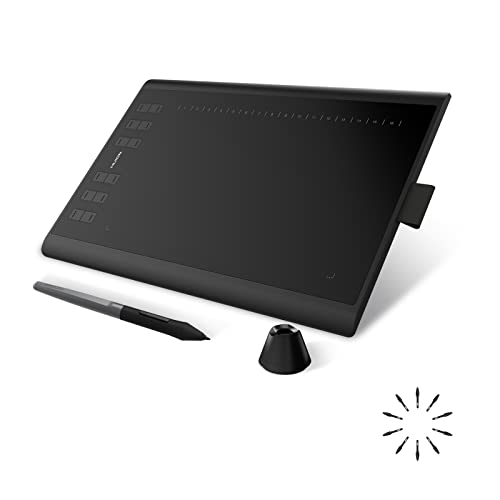
With 12 programmable press keys and 16 soft keys along a 10 x 6.25 inch working area, this tablet gives you room to assign pie menus, Ten Brushes slots and undo without crowding. The listing also lists Linux (Ubuntu) support alongside Windows, macOS and Android, which matters to the many Krita users on Linux.
Best suited for: Krita users who want every Shortcut Composer action on a dedicated button.
Key features:
- 12 press keys plus 16 soft keys
- 10 x 6.25 inch working area
- Battery-free PW100 stylus with tilt
HUION Inspiroy H640P — Best Compact Tablet for Small Desks

The H640P is a 6 x 4 inch tablet with six customizable press keys and a battery-free PW100 pen with 8,192 pressure levels. At 0.3 inches thin and 0.61 pounds, it fits beside a laptop keyboard, and the listing confirms Linux support as well as Mac, Windows and Android.
Best suited for: laptop painters and beginners who want a few physical shortcuts without a large tablet.
Key features:
- 6 customizable press keys
- 8,192 pressure levels, battery-free pen
- Works with Windows, Mac, Linux and Android
XPPen Deco 01 V3 — Best Large Active Area on a Budget

XPPen’s Deco 01 V3 offers a 10 x 6 inch active area, eight express keys and a battery-free stylus the listing rates at 16,384 pressure levels. The larger area suits painters who use broad arm movements, while the eight keys cover the handful of shortcuts most plugin setups rely on.
Best suited for: painters on Windows or macOS who want a roomy drawing area more than a big bank of keys.
Key features:
- 10 x 6 inch active area
- 8 customizable express keys
- 16K pressure-level battery-free stylus
Wacom Intuos Small — Best Entry Tablet From an Established Brand
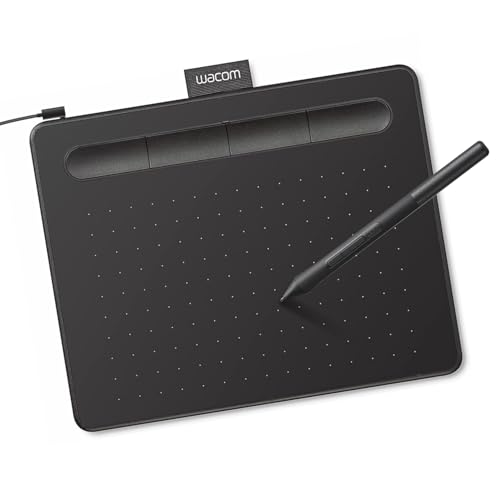
The Intuos Small uses Wacom’s battery-free EMR pen technology and, according to the listing, works with any software program, which includes Krita. It is smaller than the 10-inch tablets here, but Wacom drivers are widely supported, and registration includes bundled creative software.
Best suited for: first-time tablet buyers who value a well-known brand and a compact footprint.
Key features:
- Battery-free EMR pen
- Works with any drawing software
- Software and training included with registration
Once your plugins and tablet are set up, put them to work with our walkthroughs on digital painting in Krita for free, painting digital waves and ocean, and painting digital night scenes.
Common Mistakes to Avoid
- Installing ten plugins on day one and then blaming Krita for a cluttered interface.
- Downloading plugins from random mirrors instead of the author’s page or the Krita Artists forum.
- Forgetting to restart Krita after enabling a plugin in the Python Plugin Manager.
- Using a Krita 4 plugin on Krita 5 and assuming the crash is Krita’s fault.
- Renaming layers tagged for Batch Exporter without updating the export rules.
- Leaving the Pigment.O docker open on a small laptop screen and painting through a keyhole.
FAQs
What is the best Krita plugin for beginners?
Ten Brushes, because it is already bundled, takes two minutes to configure and gives an immediate speed boost. Once you are comfortable, Shortcut Composer offers the same idea with far more power.
Are Krita plugins free?
Yes. Krita itself is free and open source, its bundled plugins ship with it, and the community plugins covered here are distributed by their authors at no charge.
How do I enable a bundled Krita plugin?
Go to Settings, then Configure Krita, then Python Plugin Manager. Tick the plugin, click OK and restart Krita. New dockers appear under Settings > Dockers.
Do Krita plugins work on Krita 5?
All bundled plugins do. Third-party plugins vary; check the author’s page for the supported versions, since the resource system changed between Krita 4 and 5.
Is Shortcut Composer safe to install?
It is a well-known community project distributed openly with its source code. As with any plugin that runs Python inside Krita, download it from the author’s official repository.
Can plugins add new brushes to Krita?
Plugins mostly add tools and interface features. Brushes come as resource bundles, which you import through Settings > Manage Resources rather than the plugin manager.
Final Recommendation
Enable Ten Brushes and the Quick Settings Docker today; they cost nothing and need no download. When you are ready for a bigger upgrade, install Shortcut Composer and spend an evening configuring its pie menus. Color-driven illustrators should add Pigment.O; game and UI artists should learn Krita Batch Exporter; and anyone making comics should build their next project inside Comics Manager from page one.


One Comment