PaintingProGuide is reader-supported. When you buy through links on this page we may earn an affiliate commission at no extra cost to you.
Quick answer: You can convert a photo to a digital painting online for free with filter-based “photo to painting” tools, or by painting over the photo yourself in free software such as Krita. Filters are instant but look generic; a paint-over takes longer but produces a genuine digital painting. For a quick mobile option, the “Converter photo to painting” Android app is available on Amazon’s Appstore. To learn the paint-over method properly, the Beginner’s Guide to Digital Painting in Clip Studio Paint is a practical book.
Turning a photo into something that looks painted is one of the most popular digital art requests: a pet portrait in oil-paint style, a vacation snapshot as a watercolor, a family photo as a gift. There are two very different ways to do it. The first is automatic: upload a photo, choose a style and let an algorithm apply brush-like textures. The second is manual: use the photo as a reference or base layer and paint over it with digital brushes.
This guide explains both approaches, what “free” usually means with online converters, how to get better results from filters, how to do a simple paint-over in free software and how to print or display the finished image, whether it hangs on a wall or rotates on a digital frame.
Two Ways to Convert a Photo to a Digital Painting
| Method | How It Works | Pros | Cons |
|---|---|---|---|
| Filter or AI style converter | Upload a photo, pick a painting style, download | Instant, no skill needed, often free to try | Generic look, limited control, watermarks or resolution limits on free tiers |
| Manual paint-over | Photo as base layer; paint strokes by hand on new layers | Real artistic control, unique result, builds skills | Takes hours, needs practice |
| Hybrid | Apply a filter, then refine by hand | Faster than full paint-over, more personal than a filter | Still needs software and some skill |
What Makes a Photo Look Painted?
Real paintings simplify. A painter decides what matters and leaves out the rest, uses visible strokes that follow form, softens edges that are less important and pushes color and value for mood. Photos record everything with equal sharpness. The best conversions, automatic or manual, imitate those choices: they reduce detail in backgrounds, unify colors, add directional brush texture and keep a few sharp accents where the eye should land. Keeping this in mind helps you judge any tool’s result and decide where to intervene by hand.
What “Free” Usually Means
Many online photo-to-painting tools are free to try, but free versions commonly add a watermark, limit the download resolution, restrict the number of styles or require an account. If you plan to print the result, check the maximum resolution before you invest time. Also read the privacy terms: when you upload a photo to a web service, especially of people, you should know how it is stored and used.
Fully free and open-source desktop programs such as Krita and GIMP have no watermarks or resolution limits. They do not convert photos with one click, but they are ideal for paint-overs and hybrid approaches. Our guide on how to do digital painting in Krita for free walks through the setup.
How to Get Better Results From a Photo-to-Painting Filter
- Start with a strong photo. Clear lighting, a simple background and a well-defined subject give filters more to work with.
- Crop first. Remove distracting edges so the “painting” has a clear composition.
- Adjust contrast and color before converting; filters exaggerate whatever is there.
- Choose a style that suits the subject. Loose watercolor for landscapes, oil or impasto for portraits and pets, ink for architecture.
- Try lower intensity settings. Subtle effects often look more convincing.
- Refine by hand if you can, softening backgrounds and adding a few deliberate strokes to the focal point.
How to Paint Over a Photo in Free Software
- Open the photo in Krita (or another free painting program) and lower its opacity to about 50%.
- Add a new layer and block in large shapes and colors with a big, soft brush, sampling colors from the photo.
- Add another layer for mid-sized forms; use textured brushes such as an oil or gouache preset.
- Hide the photo layer periodically to see how your painting stands on its own.
- Add details only where the eye should go, such as eyes in a portrait or the brightest highlight in a landscape.
- Finish with a texture overlay or canvas grain if you want a traditional look, then export at high resolution.
Want to go beyond photos? Our digital tutorials on painting digital waves and ocean and painting digital night scenes teach techniques you can apply to your own paint-overs.
Our Top Picks at a Glance
- “Converter photo to painting” (Android app) — Best quick mobile converter
- Beginner’s Guide to Digital Painting in Clip Studio Paint — Best book for learning to paint over photos
- Beginner’s Guide to Digital Painting in Photoshop, 2nd Edition — Best for Photoshop users
- Digital Painting in Photoshop: Industry Techniques for Beginners — Best in-depth Photoshop technique book
- FLYRUIT Frameo 15.6 in Digital Picture Frame — Best large display for your painted photos
- MemoryCube 10.1 in WiFi Digital Picture Frame — Best compact display
| Product | Best For | Key Spec | Key Strength | Price Tier |
|---|---|---|---|---|
| Converter photo to painting app | Instant conversion on Android | Amazon Appstore app | Quick one-tap styles | Varies |
| Clip Studio Paint Beginner’s Guide | Learning paint-overs | Book, 3dtotal Publishing | Tutorials by professional artists | $$ |
| Photoshop Beginner’s Guide, 2nd Ed. | Photoshop users | Paperback, 3dtotal Publishing | Beginner focus | Varies |
| Photoshop Industry Techniques | Deeper technique | Paperback, 3dtotal Publishing | Comprehensive introduction | $$ |
| FLYRUIT Frameo 15.6 in | Displaying results | 15.6 in 1080p IPS touchscreen | WiFi app plus SD/USB | Varies |
| MemoryCube 10.1 in | Compact display | 10.1 in 1280 x 800 IPS touchscreen | Auto-rotate, multi-user sharing | Varies |
How We Chose
We selected these items from the Amazon listing details checked in October 2026, choosing a converter app, books that teach photo paint-over techniques and digital frames to display finished work, plus considering how widely each is reviewed by Amazon buyers. Some listings did not show a price on the check date, so their price tier is shown as “Varies.” We have not used these specific products ourselves.
Tools and Resources Reviewed
1. “Converter photo to painting” (Android App) — Best for quick mobile conversion

This Amazon Appstore listing is a photo-to-painting converter app for Android devices, including Fire tablets. The listing provides little detail, so treat it as a quick, filter-style option: choose a photo, apply a painting effect and save the result.
Mobile apps are the fastest way to experiment with styles before deciding whether a more hands-on paint-over is worth the time.
Best suited for: casual users with Android or Fire devices who want instant effects.
Key features:
- Android and Fire app
- Filter-style photo conversion
Pros:
- Instant results
- No skills required
Cons and limitations:
- Listing gives few details about styles, resolution or ads
- Generic filter look
Buying consideration: Check the export resolution before using results for prints.
2. Beginner’s Guide to Digital Painting in Clip Studio Paint — Best for learning paint-overs

From 3dtotal Publishing, with tutorials by professional artists including Devin Elle Kurtz, this book introduces digital painting in Clip Studio Paint. Its tutorials teach the layer, brush and color skills you need to turn a photo into a genuine painting rather than a filter result.
Clip Studio Paint is a paid program, but the brush and layer principles transfer directly to free software like Krita.
Best suited for: beginners serious about digital painting.
Key features:
- Book from 3dtotal Publishing
- Tutorials by professional artists
- Clip Studio Paint focus
Pros:
- Structured learning
- Transferable techniques
Cons and limitations:
- Software-specific screenshots
Buying consideration: Follow one tutorial, then repeat the steps using a photo of your own as reference.
3. Beginner’s Guide to Digital Painting in Photoshop (2nd Edition) — Best for Photoshop users
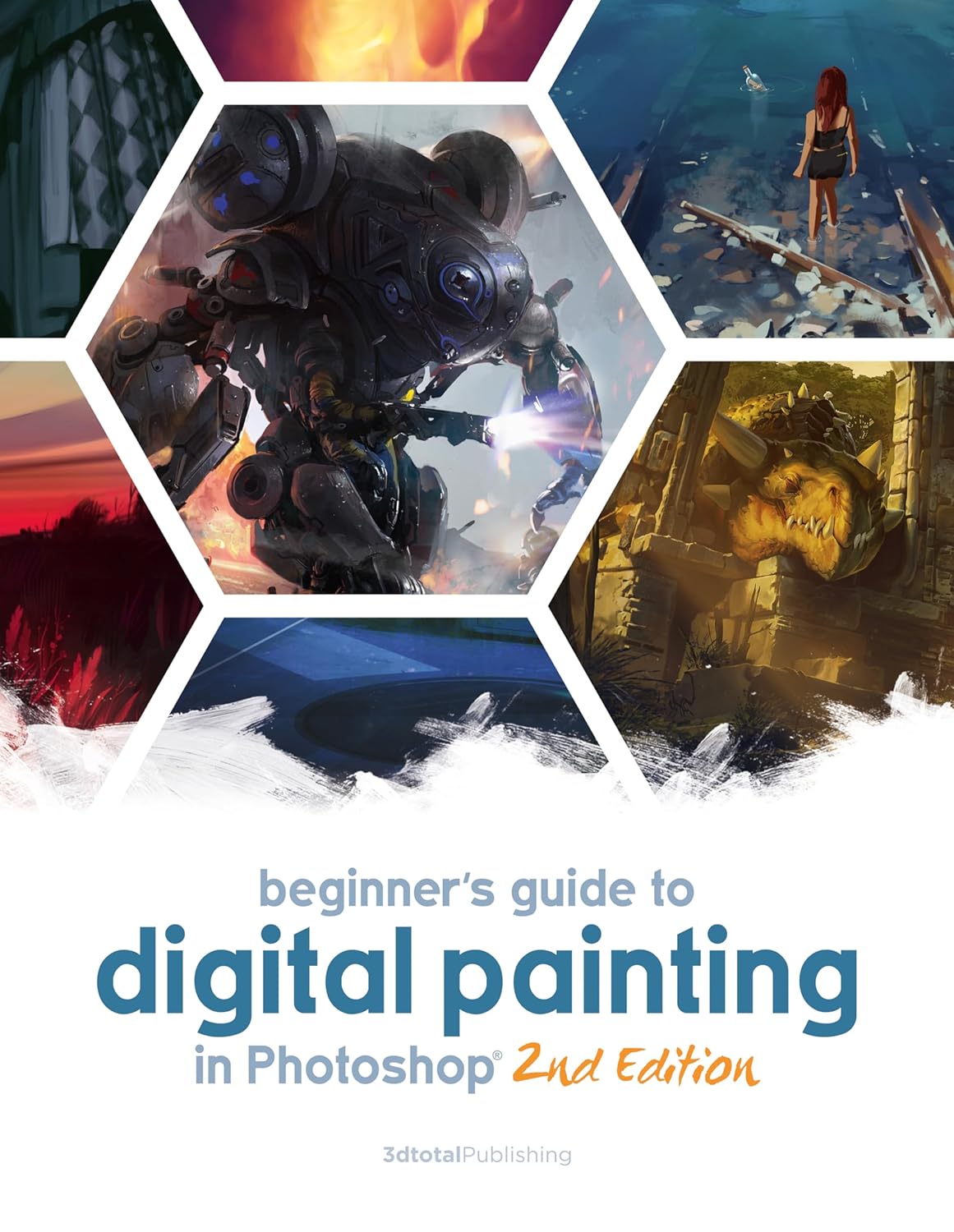
This 3dtotal Publishing paperback is a beginner’s introduction to digital painting in Photoshop. If you already have Photoshop, it is a direct way to learn brushes and layers for paint-overs.
Price information was not available on the check date; see the listing for current availability.
Best suited for: beginners who already use Photoshop.
Key features:
- Paperback, 2nd edition
- Beginner focus
- Photoshop-based
Pros:
- Clear starting point for Photoshop users
Cons and limitations:
- Requires Photoshop
- Price varies
Buying consideration: Use adjustment layers on your photo before painting to set the mood.
4. Digital Painting in Photoshop: Industry Techniques for Beginners — Best for in-depth technique

Another 3dtotal Publishing title, described as a comprehensive introduction to techniques and approaches used in the industry. It goes deeper than a quick-start guide.
It suits readers who want to move from photo paint-overs to original digital paintings.
Best suited for: committed learners and aspiring illustrators.
Key features:
- Paperback
- Comprehensive introduction
- Industry techniques
Pros:
- In-depth
- Professional approaches
Cons and limitations:
- Higher price tier
- Photoshop-specific
Buying consideration: Work through it chapter by chapter alongside your own projects.
5. FLYRUIT Frameo 15.6 in WiFi Digital Picture Frame — Best for displaying your painted photos
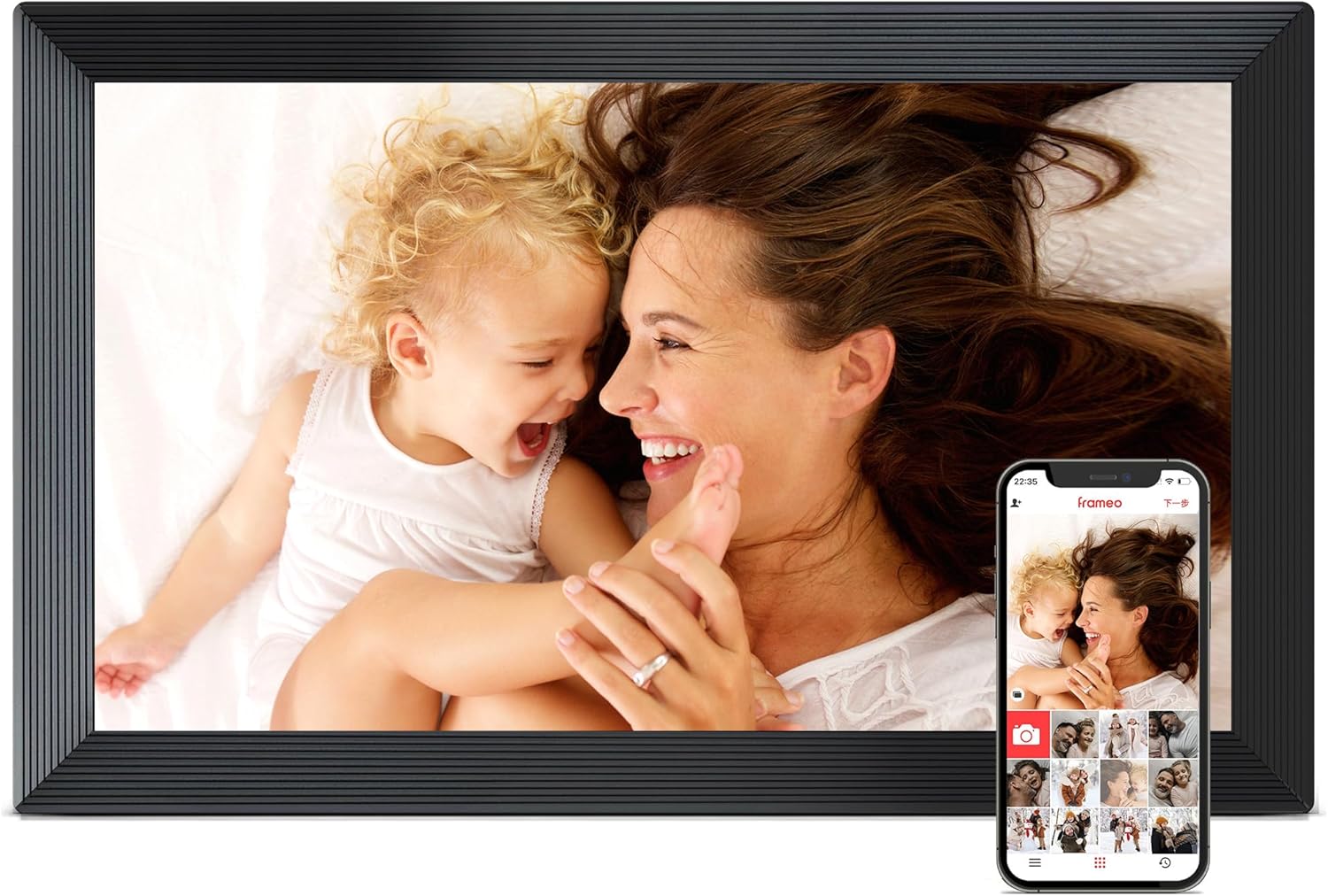
Once you have converted photos into paintings, a digital frame is an easy way to show them. This 15.6 inch 1080p IPS touchscreen frame works with the Frameo app over 2.4 GHz WiFi, and also accepts SD cards and USB drives for non-WiFi use.
A large screen shows digital paintings at a size closer to framed art.
Best suited for: gifting painted family photos and showing digital art at home.
Key features:
- 15.6 in 1080p IPS touchscreen
- Frameo app, 2.4 GHz WiFi
- SD card and USB support
Pros:
- Large display
- Easy sharing
- Works without WiFi
Cons and limitations:
- Price varies
- Only 2.4 GHz WiFi
Buying consideration: Export paintings at the frame’s native resolution for the sharpest display.
6. MemoryCube 10.1 in WiFi Digital Picture Frame — Best for a compact display

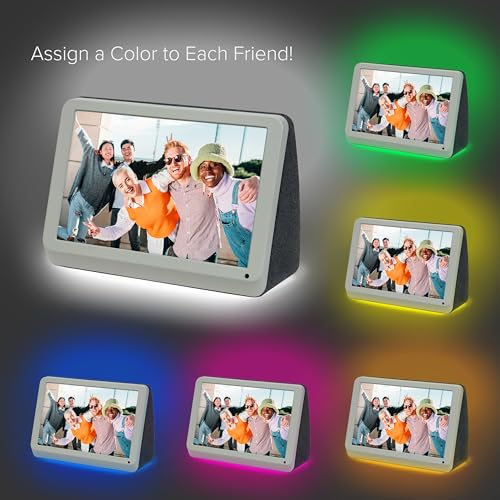
A 10.1 inch, 1280 x 800 HD IPS touchscreen frame with gravity-sensing auto-rotate, multi-user remote sharing via a free app and support for common image formats including JPEG and PNG.
It is a smaller, desk-friendly way to display a rotating set of painted photos.
Best suited for: desks, shelves and gifts for relatives.
Key features:
- 10.1 in, 1280 x 800 IPS
- Auto-rotate
- Multi-user sharing app
- JPEG, PNG, BMP support
Pros:
- Compact
- Easy for seniors per listing
- Rotates automatically
Cons and limitations:
- Price varies
- Small for wall display
Buying consideration: Use PNG exports to avoid compression artifacts on painted textures.
Buying Guide: Choosing a Way to Convert Photos to Paintings
Decide how much control you want
Filters for speed; paint-overs for originality; hybrid for a balance.
Check output resolution
For prints, you need high-resolution exports. Many free online tools limit this.
Look for watermarks and accounts
Free tiers often add watermarks or require sign-up.
Consider privacy
Read how uploaded photos are handled, especially for images of children or private moments.
Choose software you can grow with
Free programs like Krita let you move from paint-overs to original digital art without paying.
Plan how you will display the result
Print on canvas or paper, or show it on a digital frame.
Matching Painting Styles to Photo Subjects
Pets
Oil or impasto styles suit fur, especially with a simple, dark background. In a paint-over, keep the eyes sharp and let fur at the edges dissolve into loose strokes.
Portraits
Soft oil or gouache effects flatter skin. Avoid heavy textures on faces; they can look like blemishes. Concentrate detail on the eyes and mouth.
Landscapes
Watercolor and impressionist styles work well because landscapes tolerate loose edges. Simplify skies into a few broad strokes.
Cityscapes and buildings
Ink-and-wash or sketch styles keep strong lines. In paint-overs, use straight-edge tools for the main verticals.
Flowers and still life
Bright gouache or acrylic styles suit saturated color. Crop tightly so the subject fills the frame.
Building a Paint-Over Habit
The fastest way to improve is to paint over one photo a week, each time relying a little less on the base layer. Start by tracing major shapes, then try sampling only colors while drawing shapes yourself, and eventually paint with the photo beside the canvas rather than underneath it. That progression turns photo conversion into genuine digital painting skill.
Printing Your Digital Painting
For prints, export at the largest size your tool allows, ideally around 300 pixels per inch at the print size. Choose canvas printing for a painterly feel or matte paper for watercolor styles. Check colors on a calibrated screen, and order a small proof first if the print is a gift.
Common Mistakes to Avoid
- Uploading a blurry, poorly lit photo and expecting a painterly miracle.
- Using maximum filter strength, which looks artificial.
- Ignoring watermarks or low resolution until it is time to print.
- Uploading private photos to services without reading their privacy terms.
- Painting detail everywhere in a paint-over; selective detail looks more like real painting.
- Forgetting to hide the photo layer to check the painting on its own.
- Running several different filters on the same image, which piles up artifacts and muddies color.
FAQs
Can I convert a photo to a digital painting for free?
Yes. Many online tools and apps offer free filter-style conversions, often with limits. Free software like Krita lets you paint over photos without watermarks.
What is the difference between a filter and a digital painting?
A filter applies automatic brush-like effects; a digital painting is created stroke by stroke by an artist, often using the photo as reference.
Do free photo-to-painting tools add watermarks?
Many free tiers do, or they limit resolution. Check before you start.
What free software can I use to paint over photos?
Krita and GIMP are free and open source. Krita is designed for painting and is a common choice for paint-overs.
Can I print a converted photo painting?
Yes, if the export resolution is high enough. Aim for about 300 pixels per inch at the print size.
How long does a digital paint-over take?
A simple paint-over can take an hour or two; a detailed portrait or landscape can take a day or more. Filters take seconds.
Is it legal to convert someone else’s photo into a painting?
Use photos you took or have permission to use. Converting a copyrighted photo does not remove the photographer’s rights.
Final Recommendation
To convert a photo to a digital painting online for free, start with a filter-style app or web tool for instant results, and use the “Converter photo to painting” app if you are on Android or Fire. For a result that genuinely looks hand-painted, learn to paint over photos in free software such as Krita, using the Clip Studio Paint or Photoshop beginner’s guides to build skills. Display your finished paintings on a large FLYRUIT Frameo frame or the compact MemoryCube frame, or print them on canvas.