
PaintingProGuide is reader-supported. When you buy through links on this page we may earn an affiliate commission at no extra cost to you.
An Apple Pencil alternative can save you a large share of the cost of Apple’s own stylus, and for note-taking, sketching and line work in Procreate it does a surprisingly good job. The catch is pressure. The third-party iPad styluses in this guide list palm rejection, tilt and fast charging, but none of their Amazon listings claim pressure sensitivity. For painters who build up strokes by pressing harder, that is the single most important fact on the page.
So the honest framing is this: these pens are the best Apple Pencil alternatives for people who draw with tilt, opacity and brush size rather than pressure, for students who sketch and annotate, and for anyone who wants a backup pen. If pressure-driven painting is your main use, budget for a genuine Apple Pencil instead.
Quick answer: The ESR Geo Digital Pencil is the most complete Apple Pencil alternative here, with tilt sensitivity, Bluetooth shortcuts, a battery readout and Find My support. The DIGIROOT iPad Pencil is a strong lower-cost pick with tilt, a strong magnet and quick USB-C charging, and the KEEPRO stylus adds a one-click undo button that is handy in Procreate. None of these listings claim pressure sensitivity, so pressure-based painters should look at Apple’s own pencil.
Our Top Picks at a Glance
- ESR Geo Digital iPad Pencil — Best overall Apple Pencil alternative
- DIGIROOT iPad Pencil — Best value with tilt and a strong magnet
- KEEPRO Stylus Pen — Best for one-click undo while drawing
- Penlike Pencil for iPad — Best magnetic attachment at a low tier
- Hastraith Stylus Pen — Best long standby and accessory bundle
- MoKo Stylus Pen — Best battery percentage display
- JAMJAKE Stylus Pen — Best simple, no-pairing stylus
| Product | Best For | Key Spec | Key Strength | Price Tier |
|---|---|---|---|---|
| ESR Geo Digital Pencil | Most features | Tilt, Find My, Bluetooth shortcuts | Locate it if lost | $$ |
| DIGIROOT iPad Pencil | Value with tilt | 13-minute USB-C full charge (listed) | Strong magnet | $ |
| KEEPRO Stylus Pen | Procreate shortcuts | One-click undo, 3 spare tips | Battery shown on iPad | $ |
| Penlike Pencil | Magnetic storage | Tilt, 15-minute charge (listed) | Attaches like Pencil 2 | $ |
| Hastraith Stylus | Long standby | Tilt, 3 spare nibs, silicone cover | No Bluetooth needed | $ |
| MoKo Stylus | Battery visibility | LED percentage display, 4 tips | Tilt and palm rejection | $ |
| JAMJAKE Stylus | Simple everyday use | 1.5 mm tip, touch-cap switch | Long listed work time | $$ |
How We Chose
We picked these styluses from the Amazon listing details and specifications as checked in October 2026, weighing how well each pen’s stated features suit drawing and painting on an iPad, and how widely each is reviewed by Amazon buyers. We have not timed charging or measured latency ourselves; figures such as charge time come from the listings and are labeled that way.
- Compatibility: support for iPads from 2018 onward, and clarity about which models are excluded.
- Drawing features: palm rejection, tilt sensitivity and tip size.
- Workflow extras: shortcuts, undo buttons and battery readouts.
- Practicality: magnetic attachment, spare tips and charging connector.
- Honest limits: whether the listing implies features it does not actually state, such as pressure.
What You Give Up Without an Apple Pencil
Apple’s pencils use a proprietary protocol. Third-party pens use the same palm-rejection-capable connection that Apple opened for styluses on iPads released from 2018 onward, which is why every listing here starts its compatibility list at 2018. That gives you accurate tracking, palm rejection and, on many pens, tilt.
What these listings do not offer is pressure sensitivity. In Procreate, pressure usually drives size and opacity on most brushes. Without it, your lines are a consistent width unless you change brush settings, use tilt-driven brushes, or vary speed with brushes that respond to it. Many illustrators work happily this way for inking and flat color; painters who rely on soft pressure build-up feel the limit quickly.
You may also lose features like double-tap tool switching and wireless magnetic charging, depending on the pen. Several listings note magnetic attachment but explicitly say they do not support magnetic charging.
Best Apple Pencil Alternatives Reviewed
1. ESR Geo Digital iPad Pencil — Best Overall Alternative

ESR’s Geo Digital Pencil packs the most practical extras of any pen here. The listing highlights Find My support so you can locate it if it goes missing, Bluetooth shortcuts that let you tap to return home or double-tap for the task manager, and a real-time battery display on the iPad.
For drawing, the built-in tilt sensor adjusts line thickness as you angle the nib, which suits pencil and shading brushes. It charges over USB-C, with the listing quoting a full charge within 20 minutes, and it explicitly does not support wireless charging. Compatibility covers iPads released in 2018 or later on iOS 12.2 and above.
Best suited for: iPad artists and students who want tilt shading, a reliable way to find their pen, and quick Bluetooth shortcuts.
Key features (from the listing):
- Tilt sensitivity
- Find My support
- Bluetooth shortcuts and battery display
- USB-C charging, full charge within 20 minutes (listed)
- For iPads from 2018 onward
Pros:
- Find My is rare at this tier
- Tilt helps with shading
- Useful shortcut gestures
Cons and limitations:
- No pressure sensitivity claimed
- No wireless charging
- Shortcuts require Bluetooth connection
Buying consideration: If you misplace pens often, Find My alone can justify the slightly higher tier over the other alternatives.
2. DIGIROOT iPad Pencil — Best Value with Tilt

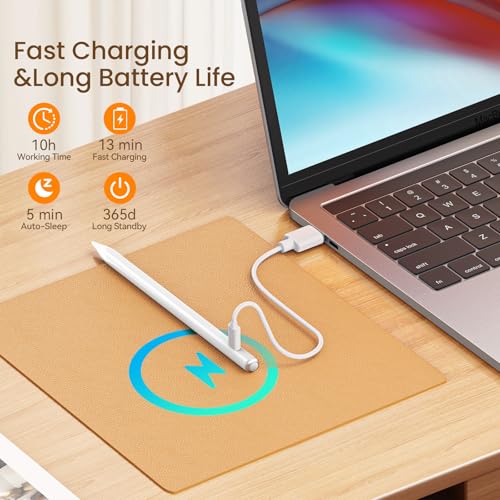
DIGIROOT combines palm rejection, tilt sensitivity and a strong built-in magnet at a low price tier. The listing claims a full charge in 13 minutes over USB-C with up to 9 hours of use, and an auto shut-off after 10 minutes of inactivity.
Three LED indicators show remaining power. The listing says angle changes create varying lines, which is the tilt behavior painters want for shading. Note that the compatibility statement mentions iPads released 2018 to 2025 in one place and 2018 to 2026 in the title, so check your exact model against the list.
Best suited for: Budget-minded iPad sketchers who want tilt and a pen that stays attached to the side of the iPad.
Key features (from the listing):
- Tilt sensitivity and palm rejection
- Strong magnetic attachment
- Full charge in 13 minutes via USB-C (listed)
- Up to 9 hours of use (listed)
- 3 LED battery indicators
Pros:
- Low tier with tilt included
- Magnet keeps it with the iPad
- Fast charge for quick top-ups
Cons and limitations:
- No pressure sensitivity claimed
- Compatibility years stated inconsistently
- No Bluetooth shortcuts
Buying consideration: A quick two-minute charge giving a couple of hours of use, as the listing describes, is useful if you forget to charge before class.
3. KEEPRO Stylus Pen for iPad — Best for One-Click Undo

KEEPRO’s standout is a button that undoes the previous action once the pen is connected over Bluetooth, which saves a two-finger tap during drawing. The battery percentage also shows in the iPad status bar when connected, and the pen can be used without Bluetooth if you do not need those extras.
It lists tilt sensitivity and comes with three extra tips. The listing says it charges fully in 30 minutes, reaches 80 percent in 15 minutes and runs up to 10 hours, with auto shut-off after five minutes idle. Turning it on requires a three-second press, which is less convenient than a simple tap.
Best suited for: Procreate users who undo often and want a physical button for it.
Key features (from the listing):
- One-click undo via Bluetooth
- Tilt sensitivity
- 3 extra tips included
- Battery shown in iPad status bar
- Up to 10 hours of use (listed)
Pros:
- Physical undo button
- Works with or without Bluetooth
- Spare tips in the box
Cons and limitations:
- No pressure sensitivity claimed
- Three-second press to power on
- Undo needs a Bluetooth connection
Buying consideration: Check whether your drawing app responds to the undo shortcut; the listing frames it as a general iPad feature.
4. Penlike Pencil for iPad — Best Magnetic Attachment at a Low Tier

Penlike attaches magnetically to the side of compatible iPads in the way Apple Pencil (2nd generation) does, although the listing is clear it does not support magnetic charging. It offers tilt sensitivity for varying line thickness and shading, and palm rejection so you can rest your hand on the screen.
Charging is via USB-C, with a full charge in about 15 minutes for up to 9 hours, and the pen sleeps after five minutes of inactivity. Its compatibility list includes recent iPad Air and iPad Pro models as well as the A16 iPad.
Best suited for: Artists who want the pen to live on the side of the iPad and do not need Bluetooth extras.
Key features (from the listing):
- Magnetic attachment (no magnetic charging)
- Tilt sensitivity
- Palm rejection
- USB-C, full charge in 15 minutes (listed)
Pros:
- Simple, no setup
- Magnetic storage
- Tilt for shading
Cons and limitations:
- No pressure sensitivity claimed
- No shortcuts or battery percentage
- Short idle sleep can interrupt slow sketching
Buying consideration: If you pause often to study references, the five-minute sleep may mean tapping to wake the pen more than you would like.
5. Hastraith Stylus Pen for iPad — Best Long Standby and Accessory Bundle

Hastraith turns on with a touch of the cap button and needs no Bluetooth. The listing claims a 13-minute full charge over USB-C and more than 10 hours of continuous use, and the details list long standby time. Three LEDs indicate battery level in bands.
The box is generous: three replacement nibs, a dust cover and a silicone protective cover alongside the pen and cable. Tilt sensing and full-screen palm rejection are listed.
Best suited for: Students and casual sketchers who want a ready-to-use kit with spare nibs and a grip cover.
Key features (from the listing):
- Tilt sensitivity and palm rejection
- No Bluetooth required
- 3 replacement nibs, dust cover, silicone cover
- 13-minute charge, 10+ hours use (listed)
Pros:
- Complete accessory bundle
- Long listed use time
- Simple touch activation
Cons and limitations:
- No pressure sensitivity claimed
- No shortcuts
- Battery shown only in rough bands
Buying consideration: A silicone sleeve can make a slim pen more comfortable for long sessions, which is a real plus for drawing.
6. MoKo Stylus Pen for iPad — Best Battery Percentage Display

MoKo puts an LED display on the pen itself that shows the remaining battery percentage, which removes guesswork without needing Bluetooth. It lists palm rejection, tilt sensitivity, magnetic attachment and four replaceable tips, and it charges with the included USB-C cable.
The listing’s compatibility statement covers 2018 to 2025 iPad models. One inconsistency: the product details mention an AAA battery while the description describes USB-C charging. Go by the description, but be aware of the mismatch.
Best suited for: Anyone who has had a stylus die mid-sketch and wants a clear battery readout on the pen.
Key features (from the listing):
- LED battery percentage display
- Tilt sensitivity and palm rejection
- Magnetic attachment
- 4 replaceable tips
- No Bluetooth required
Pros:
- Exact battery level at a glance
- Plenty of spare tips
- Magnetic storage
Cons and limitations:
- No pressure sensitivity claimed
- Battery details inconsistent in the listing
- Compatibility list stops at 2025 models
Buying consideration: Confirm your iPad model appears in the compatibility list, especially if you own a 2026 release.
7. JAMJAKE Stylus Pen for iPad — Best Simple, No-Pairing Stylus

JAMJAKE keeps it simple: a 1.5 mm tip, palm rejection and a touch-cap switch, with no pairing required. The listing claims a 5 to 15 minute charge provides 15 hours of work time. Unlike most pens here, the listing does not mention tilt.
It is clear about exclusions, stating it does not work with pre-2018 iPads, iPhone, Android or Microsoft devices. That clarity is helpful for buyers with older hardware.
Best suited for: Note-takers and casual sketchers who mainly want a precise tip and long work time.
Key features (from the listing):
- 1.5 mm tip
- Palm rejection
- Touch-cap power switch
- Up to 15 hours of work time (listed)
- No pairing needed
Pros:
- Long listed work time
- Clear compatibility exclusions
- Simple operation
Cons and limitations:
- No tilt mentioned
- No pressure sensitivity claimed
- No magnetic attachment mentioned
Buying consideration: For drawing, a pen with tilt usually offers more expression. Choose JAMJAKE if long sessions of writing and line work matter more than shading.
Buying Guide: How to Choose an Apple Pencil Alternative
Confirm your iPad model
Every pen here requires an iPad released in 2018 or later. Look up your model number in Settings and find it in the listing’s compatibility list. Some lists stop at 2025 models, so 2026 iPad owners should check carefully.
Decide whether you need pressure
If your painting depends on pressure for size and opacity, no listing here promises it. Line artists, letterers and people who paint with flat layers and tilt-shaded brushes can work well without it.
Prioritize tilt for drawing
Tilt lets you shade with the side of a pencil brush. Most of these pens list it; JAMJAKE does not. For art, tilt is the feature that makes a third-party pen feel closest to the real thing.
Consider shortcuts and battery readouts
ESR and KEEPRO connect over Bluetooth for shortcuts and battery display on the iPad. MoKo shows battery on the pen. Others use LED bands. Pick based on how much you hate surprises mid-session.
Check the charging and sleep behavior
All charge via USB-C, none wirelessly. Auto-sleep timers range from five to ten minutes in the listings. A short timer saves battery but can be annoying when you pause to think.
Plan for tips
Tips wear, especially with a matte screen protector. Pens that include spares, such as KEEPRO, Hastraith and MoKo, save a reorder.
Put Your New Pen to Work
A tilt-capable stylus is ideal for practicing soft shading. Try it on our tutorial for painting digital night scenes, where layered glows reward controlled brush angles, or work through our guide to painting digital waves and ocean.
Common Mistakes to Avoid
- Assuming a third-party stylus has pressure sensitivity because it mentions tilt.
- Buying for an iPad released before 2018.
- Pairing a pen that does not need Bluetooth and then wondering why nothing changes.
- Leaving the Apple Pencil connected in Bluetooth settings while using another stylus, which can cause conflicts.
- Using a heavily textured screen protector without spare tips.
- Expecting magnetic charging from pens that only attach magnetically.
FAQs
Is there an Apple Pencil alternative with pressure sensitivity?
None of the third-party iPad styluses reviewed here claim pressure sensitivity in their listings. They offer palm rejection and, in most cases, tilt. If pressure is essential, an Apple Pencil is the reliable option.
Do Apple Pencil alternatives work with Procreate?
Yes, for drawing and palm rejection. Tilt-based brush behavior works on pens that list tilt. Pressure-driven size and opacity changes will not respond without pressure support.
Will these styluses work on an older iPad?
No. All of them require an iPad released in 2018 or later. Older models need a different type of stylus.
Do third-party iPad pencils charge magnetically?
Not these ones. Several attach magnetically, but the listings state charging is through USB-C, and some explicitly say magnetic charging is not supported.
Can I use an Apple Pencil alternative for note-taking?
Yes. Palm rejection and fine tips make them well suited for handwriting in notes apps, and Scribble works with handwriting input.
Which Apple Pencil alternative is best for drawing?
For drawing, choose one that lists tilt. The ESR Geo Digital Pencil adds the most extras, while DIGIROOT gives tilt at a lower tier.
Final Recommendation
For the most complete Apple Pencil alternative, choose the ESR Geo Digital Pencil for its tilt, shortcuts and Find My support. On a tighter budget, DIGIROOT delivers tilt and a strong magnet, and KEEPRO is the pick if a physical undo button would speed up your workflow. Students who want a ready kit should look at Hastraith, and anyone who dislikes battery surprises at MoKo. If pressure-based painting is central to your work, treat these as backups and invest in Apple’s pencil.


One Comment