
PaintingProGuide is reader-supported. When you buy through links on this page we may earn an affiliate commission at no extra cost to you.
XP-Pen vs Huion is the most common head-to-head in budget and mid-range drawing tablets, and the honest answer is that both brands make very good hardware for the money. They compete model for model: XP-Pen’s Deco and Artist lines face Huion’s Inspiroy and Kamvas lines at nearly every size and price point. Both use battery-free pens, both support Windows and macOS, and both undercut Wacom significantly.
So the decision usually comes down to the specific model, not the logo: screen quality and lamination on pen displays, pen feel, shortcut controls, driver stability on your operating system, and what is included in the box. This guide compares the two brands on those points, and looks closely at one current model, the XPPen Artist 12 (3rd Gen), as a reference for what an entry pen display offers today.
Quick answer: Neither brand wins outright. Choose XP-Pen if a specific model offers the pen technology, dials or bundle you want; the XPPen Artist 12 (3rd Gen) is a strong small pen display with a 16K-level, ±60° tilt pen, full lamination, 99% sRGB and USB-C one-cable support. Choose Huion if its equivalent model has the screen size, price or extras you prefer. Compare models of the same size and generation directly, and check driver support for your OS.
Our Top Picks at a Glance
- XPPen Artist 12 (3rd Gen) — Best small pen display example in this comparison
- Huion Kamvas line (brand overview) — Best for a wide choice of pen display sizes
- XP-Pen Deco and Huion Inspiroy lines — Best budget screenless tablets from either brand
XP-Pen vs Huion: Brand Comparison
| Factor | XP-Pen | Huion |
|---|---|---|
| Screenless tablets | Deco series | Inspiroy series |
| Pen displays | Artist series | Kamvas series |
| Standalone / Android options | Magic Drawing Pad | Kamvas Slate and other standalone models |
| Pen power | Battery-free | Battery-free |
| OS support | Windows, macOS, Linux; Android on many models | Windows, macOS, Linux; Android on many models |
| Controls | Express keys, dials and rollers on some models | Express keys, dials and touch bars on some models |
| Price position | Budget to mid-range | Budget to mid-range |
| Best approach | Compare specific model specs | Compare specific model specs |
| Product | Best For | Key Spec | Key Strength | Price Tier |
|---|---|---|---|---|
| XPPen Artist 12 (3rd Gen) | Small pen display for PC or Android | 11.9 in laminated, 16,384 levels, ±60° tilt | 99% sRGB, USB-C one cable, dual rollers | $$$ |
How We Chose
We did not test XP-Pen or Huion tablets for this comparison. The model details come from the Amazon listing checked in October 2026, and the brand-level comparison is based on each company’s published product lines and widely reported characteristics. The current Amazon results we checked included one XP-Pen model and no Huion listing, so we describe Huion at the brand level.
- Pen technology: pressure levels, tilt support, initial activation force and battery-free design.
- Display quality (pen displays): lamination, anti-glare glass and color gamut.
- Controls: shortcut keys, dials, rollers and touch bars.
- Connectivity: single USB-C cable versus multi-cable setups.
- Driver support: Windows, macOS, Linux and Android compatibility.
- Bundle: stands, gloves, spare nibs and cables included.
XP-Pen: What the Brand Does Well
XP-Pen’s lineup runs from tiny Deco pen tablets to large Artist pen displays. In recent generations the brand has emphasized its smart-chip pen technology, high pressure levels and ergonomic controls such as dials and rollers. Many XP-Pen models also support Android devices, which is useful for artists who want to draw with a phone or tablet.
1. XPPen Artist 12 3rd Gen 11.9-Inch Drawing Tablet with Screen — Best for a small pen display for PC or Android

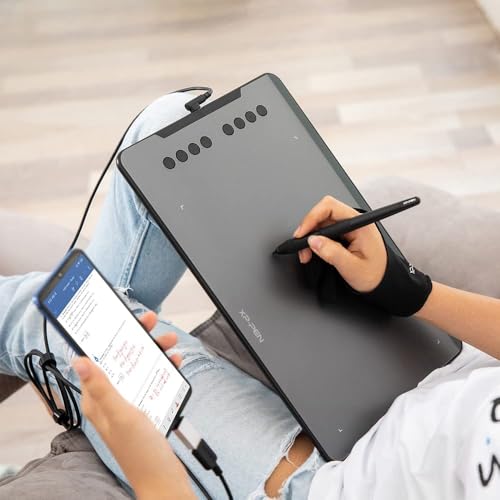
The Artist 12 (3rd Gen) is a compact pen display: you draw directly on an 11.9-inch screen connected to your computer or a compatible Android phone. The listing describes a battery-free stylus with an X4 smart chip delivering 16,384 pressure levels and ±60° tilt recognition.
Full lamination eliminates the gap between glass and display so the nib lines up closely with the cursor, and AG nano-etched glass reduces glare and adds tooth. The listing cites a 99% sRGB gamut with OSD color management, a USB-C one-cable connection, dual roller wheels and 8 silent shortcut keys, plus an included stand.
Best suited for: beginners and students moving from a screenless tablet, artists who travel, and anyone who wants to draw on screen without the cost of a large display.
Key features:
- 11.9-inch fully laminated display
- Battery-free pen with 16,384 pressure levels and ±60° tilt
- 99% sRGB with OSD color management
- USB-C one-cable connection; Android phone support
- Dual rollers, 8 shortcut keys and a stand
Pros:
- Draw directly on screen at an accessible price tier
- Lamination reduces parallax
- One-cable USB-C simplifies setup
- Rollers adjust brush size and zoom without the keyboard
Cons and limitations:
- Small screen can feel cramped for large illustrations
- One-cable setup depends on your computer’s USB-C port supporting video
- Requires a computer or compatible Android device
Buying consideration: Check that your laptop’s USB-C port supports DisplayPort Alt Mode for the single-cable connection; otherwise you may need an adapter.
Huion: What the Brand Does Well
Huion offers an equally broad range: Inspiroy pen tablets for budget screenless drawing, Kamvas pen displays from compact to large, and standalone options. Huion is known for competitive pricing, a wide choice of display sizes and frequent model updates. Its Kamvas displays are popular with artists who want a large drawing surface without paying premium-brand prices.
Huion pens are battery-free, and recent models support high pressure levels and tilt. Many models include customizable keys, dials or touch bars. As with XP-Pen, the best Huion model for you depends on size, screen quality and controls rather than the brand alone. Our guide to digital painting without a tablet is worth reading if you are still deciding whether you need a tablet at all.
Head-to-Head: XP-Pen vs Huion
Pen feel and pressure
Both brands use battery-free pens with high pressure counts and tilt on current models. In practice, differences in initial activation force (how lightly you can touch before a line registers), nib wobble and barrel ergonomics matter more than headline pressure numbers. Compare these on the specific model’s spec sheet and reviews.
Display quality
On pen displays, look for full lamination, anti-glare etched glass and a stated color gamut. The Artist 12 (3rd Gen) lists full lamination and 99% sRGB. Huion’s Kamvas models offer similar features at various sizes; check each listing’s lamination and gamut claims.
Controls
XP-Pen often uses dials and rollers; Huion uses express keys, dials and on some models touch bars. Choose the style that suits your workflow: rollers and dials are excellent for brush size, zoom and rotation.
Connectivity
Single USB-C cable connections are a major convenience on modern pen displays. Older or larger models may use HDMI plus USB. Confirm what your computer supports before buying.
Drivers and software
Both brands provide drivers for Windows, macOS and Linux on most models, and Android support on many. Download drivers directly from the manufacturer’s website, uninstall other tablet drivers first, and check compatibility with your OS version.
Bundles and value
Both brands frequently include stands, drawing gloves, spare nibs and software offers. Compare total package value rather than just the tablet price.
Screenless Tablets: XP-Pen Deco vs Huion Inspiroy
If you are buying your first tablet, the screenless lines are where both brands offer the most value. XP-Pen’s Deco tablets and Huion’s Inspiroy tablets come in small, medium and large sizes, with and without wireless connectivity, and many include express keys or a dial. Prices overlap heavily, and both brands use battery-free pens.
When comparing two screenless models, look at active area (how much of the surface tracks the pen), the surface texture (smoother surfaces glide, rougher surfaces feel more like paper but wear nibs faster), the number and placement of shortcut keys, and whether the model supports Android if you want to draw on a phone. Thin, light tablets are easier to carry; heavier ones stay put on the desk.
A practical rule: if you use a laptop or a monitor up to about 24 inches, a small or medium tablet is plenty. For larger or ultrawide monitors, a medium or large active area keeps hand movements comfortable.
Pen Displays: XP-Pen Artist vs Huion Kamvas
Pen displays are where differences between specific models become more visible. Compare screen size and resolution, lamination, anti-glare glass, color gamut, brightness, and how the display connects. Many recent models from both brands use full lamination to reduce parallax and etched glass to cut glare and add tooth, and many support a single USB-C cable on compatible computers.
Small displays around 12 to 13 inches, like the Artist 12 (3rd Gen), suit laptops, small desks and travel. Sixteen-inch displays are a popular middle ground for home studios. Larger 22- to 24-inch displays feel closer to a professional setup but need a sturdy stand and a lot of desk space. Higher resolution matters more on larger screens, where lower resolutions can look soft.
Color accuracy matters if you print your work or do client projects. A listed sRGB coverage near 100% and on-screen display controls for color adjustment, as the Artist 12 (3rd Gen) lists, are good signs. For professional print work, consider calibrating with a hardware colorimeter.
Ergonomics for Long Drawing Sessions
Whichever brand you choose, posture affects how long you can draw comfortably. Raise pen displays on a stand so you are not hunching over a flat screen, and keep the top of the display roughly at a comfortable viewing angle. With screenless tablets, position the tablet so your forearm rests on the desk and you can draw from the elbow. A two-finger drawing glove reduces friction and stops palm smudges on displays. And take short breaks to stretch your hand and rest your eyes; drawing tablets make it easy to lose track of time.
Support, Warranty and Longevity
Both brands sell through major retailers and provide manufacturer warranties; check the current terms on the listing or brand website before buying. Keep your receipt, register the product if offered, and download drivers only from the official site. Screenless tablets tend to last for many years because there is no panel to fail, while pen displays are more complex devices. Replacing worn nibs regularly protects the drawing surface on both types.
Verdict by Use Case
- First pen display on a budget: a small XP-Pen Artist or Huion Kamvas model; the Artist 12 (3rd Gen) is a strong example.
- Large drawing area: compare Huion Kamvas and XP-Pen Artist models at your target size; Huion offers many size options.
- Cheapest way to start: a small XP-Pen Deco or Huion Inspiroy screenless tablet.
- Drawing with an Android phone: look for models that list Android support, such as the Artist 12 (3rd Gen).
- Linux users: both brands offer Linux drivers on many models; check your exact model.
- Shortcut-heavy workflows: choose the model whose dials or keys match how you work.
Buying Guide: Choosing Between XP-Pen and Huion
Decide screenless or pen display first
Screenless tablets are cheaper and very durable. Pen displays let you draw on the image directly. This decision affects your budget more than the brand.
Pick a size for your desk and monitor
Small pen displays around 12 to 13 inches suit laptops and travel. Larger 16- to 24-inch displays suit dedicated desks. For screenless tablets, match active area to monitor size.
Check lamination and anti-glare
Laminated screens reduce parallax, and etched glass reduces glare and adds a paper-like tooth. Both matter for comfort over long sessions.
Verify connections
Confirm whether a model uses one USB-C cable or a multi-cable adapter, and whether your computer can provide video over USB-C.
Compare generations
Both brands update models regularly. Compare same-generation models; an older model from one brand against a newer model from the other is not a fair comparison.
Factor in accessories
A stand improves ergonomics, a glove reduces friction and smudges, and spare nibs extend pen life.
Software Compatibility
XP-Pen and Huion tablets work as standard pen input devices once their drivers are installed, so they run with the major drawing and painting programs, including Krita, Clip Studio Paint, Photoshop, Affinity apps, Blender and many others. Pressure sensitivity is handled by the driver and the operating system, so if pressure works in one program but not another, check that program’s tablet input setting. On Windows, some programs offer a choice between Windows Ink and WinTab; switching between them often fixes pressure or lag issues. On macOS, grant the driver accessibility and input monitoring permissions when prompted.
Bundled software offers come and go, so do not choose a tablet based on a free trial. Free programs like Krita are capable enough to get full value from either brand on day one.
Setting Up Either Brand for the First Time
Uninstall any previous tablet drivers, restart, then install the latest driver from the manufacturer. Connect the tablet, calibrate the pen on pen displays, set the pressure curve, and map shortcut keys to undo, brush size, eyedropper and pan. Test pressure in your art software before starting a big piece. Once you are set up, try a painting project with strong light and color, such as our guides to painting digital waves and ocean or painting digital night scenes.
Common Mistakes to Avoid
- Choosing by brand instead of comparing specific models.
- Comparing an older model from one brand to a newer model from the other.
- Installing multiple tablet drivers at once, which causes conflicts.
- Assuming USB-C one-cable support works on every laptop.
- Ignoring desk ergonomics; use a stand and take breaks.
- Focusing only on pressure levels instead of pen feel and activation force.
FAQs
Is XP-Pen or Huion better?
Neither is better overall. Both make strong tablets at similar prices. Compare specific models on screen quality, pen technology, controls and driver support for your system.
Is the XPPen Artist 12 3rd Gen good for beginners?
Yes. It offers a laminated 11.9-inch screen, a battery-free pen with high pressure levels and tilt, and USB-C one-cable connection, which makes it an accessible first pen display.
Do XP-Pen and Huion work with Mac?
Most current models support macOS. Check the listing and download the latest driver from the manufacturer.
Can XP-Pen or Huion tablets work with Android phones?
Many models support Android devices. The XPPen Artist 12 (3rd Gen) listing mentions connecting an Android phone.
Are XP-Pen and Huion as good as Wacom?
For most hobbyists and many professionals, yes. Wacom remains a benchmark for driver stability and pen feel, but XP-Pen and Huion offer more features for the money.
Do these pens need batteries?
No. Current XP-Pen and Huion pens are battery-free and draw power from the tablet.
Final Recommendation
The XP-Pen vs Huion choice is really a model-versus-model choice. Both brands deliver excellent value, battery-free pens and broad compatibility. If you want a compact pen display now, the XPPen Artist 12 (3rd Gen) is a well-specified option with a laminated screen, a 16K-level tilt pen and single-cable USB-C. If you prefer a different size or Huion’s controls, compare the same-generation Huion Kamvas model side by side and pick the one whose screen, pen and bundle best fit your desk and workflow.



One Comment