PaintingProGuide is reader-supported. When you buy through links on this page we may earn an affiliate commission at no extra cost to you.
A computer for digital painting does not need to be a gaming rig or a workstation. Painting programs care most about three things: enough RAM to hold large, many-layered canvases (16 GB at minimum, 32 GB comfortable, 64 GB for very large professional files), a capable processor for smooth brushes and fast saving, and a display with accurate color. A discrete graphics card helps with canvas navigation and some filters, but it matters less than memory. The best computer for digital painting is the one that hits those marks for your budget, paired with a pressure-sensitive pen tablet.
This guide explains what to prioritize in a desktop or laptop, gives three example configurations by budget, and reviews six products on Amazon: two creator laptops at the high end, three pen tablets that turn any computer into a painting setup, and a standalone drawing tablet for anyone who would rather skip the computer entirely.
Quick answer: For professional work on very large files, the HIDevolution-configured ASUS ProArt P16 (16-inch 4K OLED touch, Ryzen AI 9 HX 370, 64 GB RAM, RTX 5070, 2 TB SSD) is the most capable computer here. Most hobbyists do not need that: any reasonably modern desktop or laptop with 16 to 32 GB of RAM and an SSD paints smoothly. Add a pen tablet such as the XPPen Deco 01 V3 (10 x 6 inch area, 16,384 levels, 60° tilt), the Wacom Intuos Small or the UGEE M708, and you have a complete setup.
What Matters in a Computer for Digital Painting
| Component | Minimum | Recommended | Professional |
|---|---|---|---|
| RAM | 16 GB | 32 GB | 64 GB |
| Processor | Recent 6-core | 8-core | 12-core or more |
| Storage | 512 GB SSD | 1 TB SSD | 2 TB SSD plus backup drive |
| Graphics | Modern integrated | Entry discrete GPU | Mid to high discrete GPU |
| Display | Full HD IPS, close to 100% sRGB | QHD or 4K, factory calibrated | Wide-gamut, calibrated, possibly OLED or pen display |
Why RAM comes first
Every layer in a painting stores all of its pixels. A print-size canvas with dozens of layers can use many gigabytes, and when memory runs out the computer slows to a crawl. More RAM is the single best upgrade for painters.
Processor
Brush engines, filters, transformations and saving large files all lean on the CPU. A modern multi-core processor keeps strokes responsive.
Graphics card
Painting programs use the GPU for smooth zooming, rotating and some effects. Integrated graphics are fine for learning; a discrete GPU helps with very large canvases and GPU-accelerated features.
Storage
SSDs open and save big files quickly. Keep current projects on the internal SSD and archive to an external drive or cloud storage.
Display
Color accuracy matters if you print or work for clients. A monitor close to full sRGB coverage, ideally calibrated, prevents surprises.
Getting More From the Computer You Already Have
Before buying a new machine, a few changes can make an existing computer paint noticeably better:
- Add RAM if your desktop or laptop has upgradeable slots; it is often the cheapest, biggest improvement.
- Move to an SSD if you still run from a hard drive; file opening and saving speed up dramatically.
- Close background apps such as browsers with many tabs while painting.
- Adjust your painting program’s memory and undo settings so it uses more of the available RAM and keeps fewer history states.
- Work at sensible canvas sizes for practice, saving very large canvases for final pieces.
- Update graphics and tablet drivers to fix lag and pressure glitches.
Desktop or Laptop?
Desktops give the most performance for the money, are easy to upgrade with more RAM or storage, and pair well with a large monitor and pen tablet. Laptops trade some value for portability, and creator laptops with touch or pen screens let you draw directly on the display. If you paint mostly at one desk, a desktop is the better value; if you paint in classes, cafes or while traveling, choose a laptop.
Example Setups by Budget
- Starter: an existing laptop or desktop with 16 GB RAM, free Krita, and a pen tablet like the UGEE M708.
- Enthusiast: a desktop with 32 GB RAM, an 8-core processor, a 1 TB SSD, a color-accurate QHD monitor, and a 10 x 6 inch pen tablet.
- Professional: a creator laptop or workstation with 64 GB RAM, a discrete GPU, a calibrated wide-gamut display or pen display, and backup storage.
Our Top Picks at a Glance
- ASUS ProArt P16 by HIDevolution (64 GB, RTX 5070, 2 TB) — Best high-end creator laptop
- ASUS ProArt StudioBook 17 (64 GB, RTX 2060) — Best large-screen workstation (older generation)
- XPPen Deco 01 V3 Pen Tablet (10 x 6 in) — Best pen tablet to pair with any computer
- Wacom Intuos Small — Best compact tablet from the industry standard
- UGEE M708 Pen Tablet — Best budget large tablet
- Frunsi T8 Standalone Drawing Tablet — Best if you would rather skip the computer
| Product | Best For | Key Spec | Key Strength | Price Tier |
|---|---|---|---|---|
| ASUS ProArt P16 (HIDevolution) | Pro workloads, portability | 16 in 4K OLED touch; Ryzen AI 9; 64 GB; RTX 5070; 2 TB | Top-tier display and memory | $$$ |
| ASUS ProArt StudioBook 17 | Large-screen workstation | 17 in 1920×1200; i7-9750H; 64 GB; RTX 2060; 2 TB | 64 GB RAM | $$$ |
| XPPen Deco 01 V3 | Pairing with any computer | 10 x 6 in; 16,384 levels; 60° tilt | Tilt and large area | $$ |
| Wacom Intuos Small | Compact desks | Small; EMR; 4,096 levels | Bundled software | $$ |
| UGEE M708 | Lowest-cost large tablet | 10 x 6 in; 16,384 levels | Wide OS support | $$$ |
| Frunsi T8 | No computer needed | 8 in; Android 13; 4 GB RAM | Preloaded apps | $$$ |
How We Chose
These products were selected from Amazon listing details and specifications checked in October 2026, judged on the components that matter for painting software and on pen input quality, and on how widely each is reviewed by Amazon buyers. We have not run painting software on these machines. Component guidance reflects how painting programs generally use hardware.
- RAM and CPU for large canvases.
- Display quality and touch or pen support.
- Pen tablet pressure and tilt for pairing.
- Value relative to painting needs, not gaming benchmarks.
Best Computers and Pen Tablets for Digital Painting Reviewed
1. ASUS ProArt P16 by HIDevolution (64 GB, RTX 5070, 2 TB) — Best for professional workloads on the go
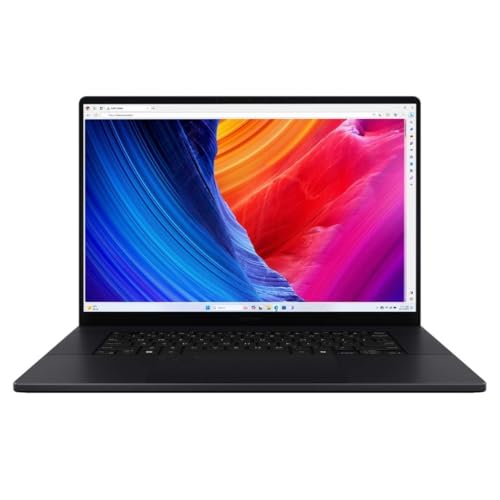
This HIDevolution build of the ASUS ProArt P16 combines a 16-inch 4K (3840 x 2400) OLED touch screen, an AMD Ryzen AI 9 HX 370 (12 cores, 24 threads, up to 5.1 GHz), an NVIDIA GeForce RTX 5070 with 8 GB, 64 GB of LPDDR5X memory and a 2 TB PCIe 4.0 NVMe SSD, running Windows 11 Pro.
For painting, 64 GB of RAM handles enormous, many-layered canvases, and the OLED display offers deep blacks and high resolution. HIDevolution also applies upgraded thermal compounds to the CPU and GPU and provides a one-year warranty as an authorized ASUS build-to-order dealer.
Because the memory is on-board LPDDR5X, it cannot be upgraded later, so the 64 GB configuration is future-proof for painting.
Best suited for: Professional illustrators and concept artists who need top performance in a portable machine.
Key features:
- 16 in 4K OLED touchscreen
- Ryzen AI 9 HX 370; RTX 5070 8 GB
- 64 GB LPDDR5X; 2 TB NVMe SSD
- Windows 11 Pro; 1-year warranty
Pros:
- Huge headroom for large files
- Stunning display
- Portable creator laptop
Cons and limitations:
- Very high price tier
- Memory not upgradeable
- OLED needs care to avoid static image burn-in
Buying consideration: Use a calibrated color mode for print work, and keep static interface elements from sitting unchanged for many hours on OLED.
2. ASUS ProArt StudioBook 17 (64 GB, RTX 2060) — Best for a large-screen workstation

The ProArt StudioBook 17 listed here has an Intel Core i7-9750H six-core processor, 64 GB of RAM, a 2 TB M.2 SATA SSD, a 17-inch 1920 x 1200 display and an NVIDIA RTX 2060, running Windows 10 Pro according to the details.
The 64 GB of RAM is excellent for painting, and the 16:10 17-inch screen gives extra vertical space for tool panels. However, this is an older-generation configuration: the processor and GPU are several generations behind current models, and Windows 10 is no longer the current Windows release.
Compare carefully with newer laptops before buying at this tier.
Best suited for: Painters who value lots of RAM and a large screen and can find this model at a fair price.
Key features:
- 17 in 1920 x 1200 display
- Intel i7-9750H; RTX 2060
- 64 GB RAM; 2 TB SATA SSD
- Windows 10 Pro
Pros:
- 64 GB RAM
- Large 16:10 screen
- Workstation-class build
Cons and limitations:
- Older processor and GPU
- Windows 10 rather than current Windows
- High price for its generation
Buying consideration: Check whether the machine can be upgraded to the current version of Windows and confirm warranty terms with the seller.
3. XPPen Deco 01 V3 Pen Tablet (10 x 6 in) — Best for pairing with any computer

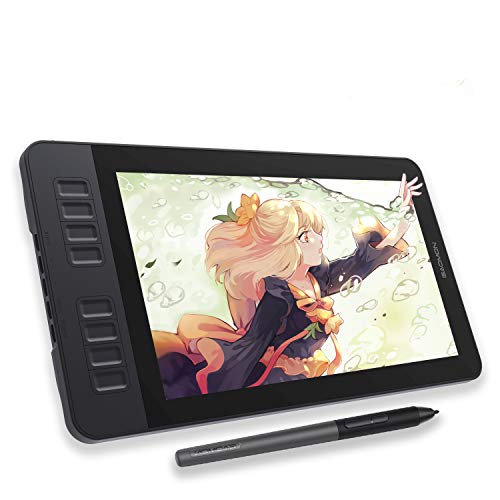
XPPen’s Deco 01 V3 provides a 10 x 6 inch active area, a battery-free stylus with 16,384 pressure levels and 60° tilt, and eight customizable express keys. It works with Windows 7 and later, macOS 10.10 and later, Chrome OS and more per the listing.
It can be rotated 180 degrees in the driver for left-handed use.
Tilt support at this tier makes pencil and brush shading feel more natural.
Best suited for: Anyone pairing a pen tablet with a desktop or laptop.
Key features:
- 10 x 6 in active area
- 16,384 levels; 60° tilt
- 8 express keys
- Left- and right-handed
Pros:
- Tilt support
- Large area
- Low tier
Cons and limitations:
- Screenless
- Driver install
- Nibs wear over time
Buying consideration: Set the brush size shortcut on one express key; you will use it constantly.
4. Wacom Intuos Small — Best for compact setups
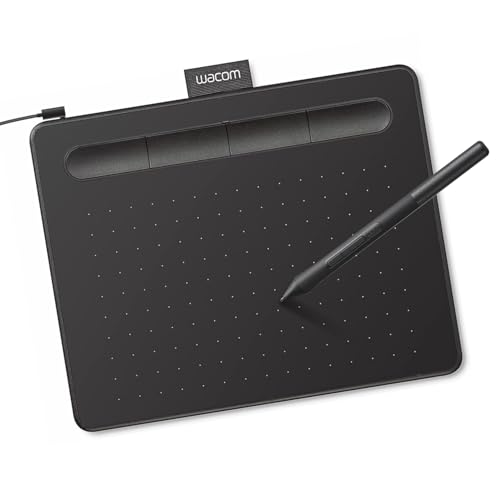
Wacom’s Intuos Small uses EMR battery-free technology with 4,096 pressure levels and works with Windows, macOS and Android, plus Chromebook. Registration unlocks bundled creative software and training.
It is the most compact option and suits laptop setups.
Wacom is the long-established standard for pen tablets.
Best suited for: Laptop users and small desks.
Key features:
- EMR battery-free pen
- 4,096 levels
- Windows, macOS, Android, Chromebook
- Software and training included
Pros:
- Trusted brand
- Compact
- Bundled extras
Cons and limitations:
- Small area for big monitors
- No tilt listed
- USB-A
Buying consideration: Map it to one monitor if you use two.
5. UGEE M708 Pen Tablet (10 x 6 in) — Best for a budget large tablet

UGEE’s M708 V3 offers a 10 x 6 inch paper-textured area, a battery-free pen with 16,384 pressure levels and eight express keys, with broad OS support including Linux.
It is the lowest-cost large tablet here.
Ambidextrous design.
Best suited for: Budget setups on any OS.
Key features:
- 10 x 6 in area
- 16,384 levels
- 8 express keys
- Windows, macOS, Linux, Chrome OS, Android
Pros:
- Low tier
- Large area
- Linux support
Cons and limitations:
- No tilt listed
- Screenless
- Price varied between listings
Buying consideration: Install the latest UGEE driver before connecting.
6. Frunsi T8 Standalone Drawing Tablet — Best for skipping the computer

If buying or upgrading a computer is not appealing, a standalone drawing tablet is an alternative. Frunsi’s T8 is an 8-inch Android 13 tablet with a 1200 x 800 display, a quad-core processor, 4 GB of RAM and 64 GB of storage (expandable to 256 GB), with 2,048 pressure levels per the details.
It comes with pre-installed drawing apps and tutorials and can install other Android apps.
It is far less powerful than a computer but simpler for beginners.
Best suited for: Beginners and kids who want an all-in-one device.
Key features:
- 8 in display; Android 13
- 4 GB RAM; 64 GB storage
- 2,048 pressure levels
- Pre-installed apps
Pros:
- No computer required
- Portable
- Simple setup
Cons and limitations:
- Limited power and RAM
- Small screen
- Not for large paintings
Buying consideration: Keep canvases small and layer counts low on 4 GB devices.
Buying Guide: Choosing a Computer for Painting
Buy RAM, then CPU
Memory and processor matter most. Graphics come next.
Choose desktop for value, laptop for mobility
Desktops are cheaper per unit of performance and easy to upgrade.
Plan the display
An accurate monitor is part of the computer budget.
Check upgradeability
Many laptops have soldered memory; buy enough up front.
Think about noise and heat
Long painting sessions keep a computer working steadily. Creator laptops and small desktops can get warm and loud under load; a laptop stand improves airflow, and a desktop with good cooling stays quieter. If you paint late at night or record tutorials, a quieter machine is worth considering.
Include a pen tablet
Without pressure input, a computer is not a painting setup.
Back up
Add an external drive or cloud backup for your files.
Set Up and Start Painting
Once your computer is ready, practice with our tutorials on digital waves and ocean painting and digital night scenes, or see digital painting without a tablet if you are waiting on pen hardware.
Common Mistakes to Avoid
- Paying for gaming GPU power instead of RAM.
- Buying 8 GB RAM machines for serious painting.
- Ignoring screen color.
- Forgetting the pen tablet in the budget.
- Buying older-generation hardware at new prices.
- Skipping backups.
FAQs
How much RAM do I need for digital painting?
16 GB is a practical minimum, 32 GB is comfortable for most artists, and 64 GB suits very large professional files.
Do I need a powerful graphics card for digital painting?
Not necessarily. Painting programs benefit more from RAM and CPU. A discrete GPU helps with large canvases and some features.
Is a Mac or PC better for digital painting?
Both work well. Most painting programs run on both; Windows offers more pen-screen laptops, while Mac users often pair with an iPad or pen tablet.
Is a desktop better than a laptop for painting?
Desktops give more performance per dollar and are easier to upgrade. Laptops are portable, and some include pen-enabled screens.
Can I paint on an older computer?
Yes, with lighter programs and moderate canvas sizes. Adding RAM is often the most effective upgrade.
Do I need a pen tablet if my laptop has a touchscreen?
Only touchscreens with pressure-sensitive pen support work like a drawing tablet. Finger touch alone does not provide pressure.
Final Recommendation
Prioritize RAM, then processor, then display. For professional power, the ASUS ProArt P16 (HIDevolution) is the strongest machine here; the ProArt StudioBook 17 offers 64 GB RAM but on older hardware. Most painters will be happiest with a reasonably modern computer plus a pen tablet like the XPPen Deco 01 V3, Wacom Intuos Small or UGEE M708. If you would rather skip the computer entirely, the Frunsi T8 is a simple standalone starter.