PaintingProGuide is reader-supported. When you buy through links on this page we may earn an affiliate commission at no extra cost to you.
The iPad has the richest selection of painting apps of any tablet platform, and the leaders are genuinely professional tools. That abundance makes the choice harder, not easier. The best digital painting app for iPad depends on what you paint, how you like to pay and how much you value natural media simulation versus speed and simplicity.
This guide compares the major iPad painting apps on their strengths, gives a clear recommendation for each type of painter, and closes with four products from our October 2026 research that help you get more out of them: two Procreate guidebooks and two brush styluses.
Quick answer: For most iPad painters, Procreate is the best digital painting app: a one-time purchase with a fast brush engine, excellent Apple Pencil support and a huge community of brushes and tutorials. Choose Clip Studio Paint for comics and illustration, Adobe Fresco for live oil and watercolor brushes, and Infinite Painter for natural media with strong guides. To learn Procreate, 3dtotal’s Beginner’s Guide to Digital Painting in Procreate is a strong start.
Our Top Picks at a Glance
- Procreate — Best overall iPad painting app
- Clip Studio Paint — Best for illustration and comics
- Adobe Fresco — Best for realistic wet media
- Infinite Painter — Best for natural brushes and guides
- Sketchbook — Best free app for simple sketching
- Beginner’s Guide to Digital Painting in Procreate (3dtotal) — Best book for learning Procreate
- BUTOUCH Professional 2 Brush Stylus — Best tool for a brush-like feel on iPad
| App or product | Best For | Key Spec | Key Strength | Price Tier |
|---|---|---|---|---|
| Procreate | Most painters | iPad-only, Apple Pencil optimized | Fast, intuitive, one-time purchase | Varies |
| Clip Studio Paint | Comics, illustration | Inking, 3D references, vector layers | Cross-platform pro tools | Varies (subscription) |
| Adobe Fresco | Wet media look | Live oil and watercolor brushes | Realistic paint behavior | Varies |
| Infinite Painter | Natural media, guides | Perspective and symmetry tools | Painterly brushes | Varies |
| Sketchbook | Simple sketching | Clean interface | Free | Free |
| 3dtotal Procreate Beginner’s Guide | Learning Procreate | Book | Structured lessons | $$ |
| Philip Moore Procreate Guide | Second Procreate reference | Book | Beginner-to-professional framing | $$ |
| BUTOUCH Professional 2 | Brush feel | Synthetic-hair stylus | Battery-free | $$ |
| BUTOUCH Basic for Beginners | Kids and students | Compact brush stylus | Simple, low tier | $ |
How We Chose
App recommendations draw on each app’s well-established, publicly documented features and their wide use among iPad painters; pricing models change, so check the App Store for current terms. The books and styluses are based on Amazon listing details checked in October 2026, how well each fits iPad painting, and how widely each product is reviewed by Amazon buyers.
- Brush engine and blending
- Apple Pencil support: pressure, tilt and gestures
- Workflow tools: layers, selections, references, animation
- Cost model: one-time, subscription or free
- Learning resources and community
We excluded a standalone Android tablet, a screenless pen tablet and an Android pen tablet that appeared in the search results, since they do not run iPad apps.
Best Digital Painting Apps for iPad Reviewed
1. Procreate — Best Overall
Procreate is the app most people think of when they think of iPad painting, and for good reason. It is built exclusively for iPad, with a fast brush engine that handles large brushes smoothly, deep Apple Pencil integration, a customizable brush studio and gestures that make undo, redo and color picking nearly instant. It records time-lapse video of your process automatically. Unlike many pro apps, it is a one-time purchase.
Best suited for: painters and illustrators of every level who want a powerful app that stays out of the way.
Pros
- Fast, responsive brush engine
- Intuitive gesture-based interface
- One-time purchase
- Huge library of tutorials and community brushes
Cons
- iPad-only, so files and habits do not transfer to other platforms
- Fewer comic-specific tools than Clip Studio Paint
Buying consideration: Layer limits depend on canvas size and your iPad’s memory, so check what your device supports for print-size work.
2. Clip Studio Paint — Best for Illustration and Comics
Clip Studio Paint brings its desktop feature set to iPad: stabilized inking, vector layers, fills that respect line art, screentones, panel tools, 3D pose models and capable painting brushes. It works on a subscription on iPad and can be used across platforms with the right plan.
Best suited for: comic artists, manga creators and illustrators who also work on a computer.
Pros
- Professional comic and illustration tools
- 3D references for poses and perspective
- Cross-platform workflow
Cons
- Subscription model
- Dense interface on smaller iPads
Buying consideration: Try the trial to see whether the interface feels comfortable on your iPad’s screen size.
3. Adobe Fresco — Best for Realistic Wet Media
Adobe Fresco’s signature feature is live brushes that simulate how oil paint smears and watercolor blooms and bleeds. It also includes pixel and vector brushes and integrates with other Adobe apps and cloud documents.
Best suited for: traditional painters who want digital paint to behave like real media.
Pros
- Convincing live oil and watercolor
- Adobe ecosystem integration
Cons
- Live brushes can be demanding on older iPads
- Some features tied to Adobe plans
Buying consideration: Check current plan details on the App Store, as Adobe’s offers change.
4. Infinite Painter — Best for Natural Brushes and Guides
Infinite Painter offers natural-feeling brushes plus strong guide tools for perspective, symmetry and shapes. It is also available on Android, which helps if you use both platforms.
Best suited for: environment and architectural painters who rely on perspective guides.
Pros
- Painterly brushes
- Excellent guides
- Cross-platform with Android
Cons
- Smaller community than Procreate
Buying consideration: Use the trial to compare its brushes with Procreate’s.
5. Sketchbook — Best Free App for Simple Sketching
Sketchbook offers a clean, distraction-free interface with layers and essential brushes, free of charge. It is ideal for quick sketches and for people who find feature-heavy apps overwhelming.
Best suited for: sketching, ideation and beginners on a zero budget.
Pros
- Free
- Simple and fast
Cons
- Limited painting depth
Buying consideration: Use it alongside a full painting app for finished work.
Which App Suits Which iPad?
iPad mini: the small screen favors apps with minimal, hideable interfaces. Procreate’s gesture-driven design works well here; Clip Studio Paint’s many panels can feel cramped.
Standard 11-inch iPad: every app in this guide runs comfortably for typical canvas sizes. Very large canvases with many layers may hit memory limits sooner than on higher-end models.
iPad Air and iPad Pro: more memory and faster chips allow bigger canvases, more layers and smoother live brushes in Fresco. Larger screens also make Clip Studio Paint’s interface more comfortable.
Whatever your iPad, check each app’s canvas and layer limits on your specific model before starting a large commission or print piece.
Products That Help You Paint Better on iPad
6. Beginner’s Guide to Digital Painting in Procreate (3dtotal) — Best Procreate Book

3dtotal Publishing’s guide teaches how to create art on an iPad with Procreate, structured for beginners. A printed guide is easy to keep open beside the iPad while you practice.
Best suited for: new Procreate users who want guided lessons.
Pros
- Structured beginner path
- From a digital art education publisher
Cons
- Interface details may change with app updates
Buying consideration: Focus on the techniques rather than exact menu positions, which can move between versions.
7. The Complete Beginner’s Guide to Digital Painting in Procreate on iPad (Philip Moore)

Philip Moore’s guide, part of a Professional Guide Series, focuses on mastering Procreate on iPad from the beginner level. It can serve as a second reference alongside the 3dtotal book.
Best suited for: learners who like multiple explanations of the same tools.
Pros
- Procreate-specific
- Beginner focus
Cons
- Less-established publisher than 3dtotal
Buying consideration: Check the edition date against your Procreate version.
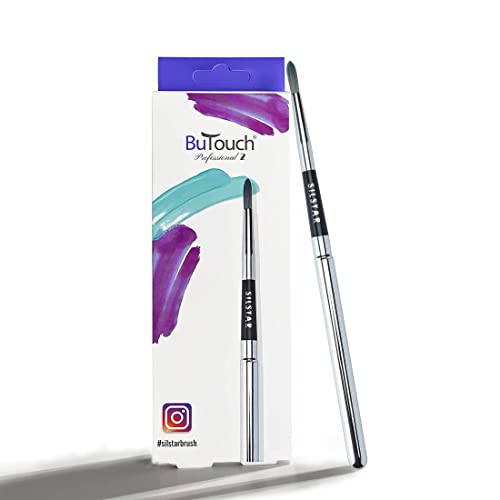
8. BUTOUCH Professional 2 Brush Stylus — Best for a Brush Feel

The BUTOUCH Professional 2 has a synthetic-hair conductive tip that works on any touchscreen, including iPads, with no battery or charging. It does not send electronic pressure like Apple Pencil, but its bristles spread under pressure for a brush-like stroke. Enable finger painting in your app so it draws.
Best suited for: loose, painterly work alongside an Apple Pencil.
Pros
- Real brush feel
- No charging
Cons
- No electronic pressure or palm rejection
Buying consideration: Wear a padded glove to prevent palm marks, since the iPad treats the brush like a finger.
9. BUTOUCH Basic for Beginners — Best for Kids

The Basic for Beginners is a compact brush stylus aimed at kids and young artists, compatible with all touchscreen devices and requiring no battery or charging.
Best suited for: children painting in simple iPad apps.
Pros
- Simple and robust
- Low price tier
Cons
- Not for detailed work
Buying consideration: A good, inexpensive alternative to an Apple Pencil for young children.
Procreate Features Painters Use Most
- QuickShape and StreamLine: snap rough shapes into clean lines and smooth wobbly strokes.
- Alpha Lock and Clipping Masks: paint inside existing shapes without going over the edges, essential for rendering.
- Blend modes: Multiply for shadows, Add or Screen for light, Color for tinting.
- Brush Studio: customize shape, grain, dynamics and pencil response, or build brushes from scratch.
- Reference window: keep a photo or color reference floating over the canvas.
- Color Harmony and palettes: plan color schemes and save palettes for consistency.
- Time-lapse replay: automatically records your process for sharing or study.
Learning these seven features covers most of what professional Procreate painters use day to day. Many of the same ideas exist in other apps under different names.
Apple Pencil Settings That Improve Any App
In iPadOS settings, you can adjust Apple Pencil double-tap or squeeze actions (depending on the pencil) to switch between brush and eraser or open a tool palette. Inside your painting app, tune the pressure curve so light touches register and heavy pressure does not max out too early. In Procreate this lives in the Pressure and Smoothing preferences. Five minutes spent here makes every brush feel better.
Exporting and Printing From iPad Apps
Most iPad painting apps export PNG, JPG and layered PSD files, and some export their own native format for re-editing. For prints, set up your canvas at the final print size and around 300 pixels per inch from the start, since enlarging later softens detail. Export PNG or TIFF for printing services when possible, and keep the layered file in case you need to make changes.
Buying Guide: How to Choose a Digital Painting App for iPad
What you paint
Painting and general illustration: Procreate. Comics: Clip Studio Paint. Realistic oils and watercolor: Fresco. Perspective-heavy environments: Infinite Painter.
How you prefer to pay
Procreate is a one-time purchase. Clip Studio Paint is subscription-based on iPad. Others mix free tiers with paid features. Over several years, one-time purchases often cost less.
Platform needs
If you also paint on Windows, Mac or Android, cross-platform apps like Clip Studio Paint and Infinite Painter keep your workflow consistent. Procreate is iPad-only.
Apple Pencil support
All major apps support Apple Pencil pressure and tilt where the pencil provides them. Check that your pencil model supports pressure, since some do not.
Device power
Live brushes and large canvases demand more memory. Older iPads may limit layers and canvas size.
Learning curve
Procreate and Sketchbook are easiest to start. Clip Studio Paint and Fresco have more to learn.
Brushes and community resources
A large community means more free and paid brushes, tutorials and answers to specific questions. Procreate has the largest iPad community by a wide margin, which is a practical advantage when you get stuck. Clip Studio Paint also has an extensive asset store with brushes and 3D materials.
File compatibility
If you hand files to clients or finish work in desktop software, check PSD export and how well layers, blend modes and text survive the transfer. Test with a sample file before a deadline.
Choosing Between Procreate and the Alternatives
Most iPad painters will be happiest with Procreate as their main app. Consider an alternative if you can answer yes to one of these:
- Do you make comics with panels, word balloons and screentones? Choose Clip Studio Paint.
- Do you want paint that physically smears and bleeds? Add Fresco.
- Do you also paint on Android or a computer? Consider Clip Studio Paint or Infinite Painter.
- Do you only sketch occasionally? Sketchbook may be all you need.
Many artists use two apps: Procreate for painting and another for a specific task, such as Fresco for watercolor studies.
Getting Started in Any iPad Painting App
- Set up palm rejection or wear a glove.
- Learn the undo and redo gestures on day one.
- Choose three brushes and use only those for a week.
- Paint a value study before adding color.
- Export finished work and back it up.
Ready for a project? Our digital waves and ocean tutorial works beautifully in any of these apps, and our night scene tips make great use of Procreate’s blend modes. No pencil yet? See how to paint digitally without one.
Common Mistakes to Avoid
- Downloading every brush pack. Master the defaults first.
- Switching apps too often. Commit to one for a few months.
- Ignoring canvas limits. Big canvases reduce available layers.
- Using a pencil without pressure. Check your Apple Pencil model.
- Not backing up. Export your files regularly.
- Painting flat on a table. Use a stand or tilting case to keep your neck comfortable.
- Skipping the trial. Test subscription apps before committing.
FAQs
What is the best painting app for iPad?
Procreate is the best all-round choice for most painters. Clip Studio Paint suits comics and Adobe Fresco suits realistic wet media.
Is Procreate worth it for beginners?
Yes. It is intuitive, a one-time purchase and supported by countless tutorials and books, such as 3dtotal’s Beginner’s Guide to Digital Painting in Procreate.
What is a good free painting app for iPad?
Sketchbook is free and simple. Adobe Fresco and Clip Studio Paint also offer free or trial options; check current terms on the App Store.
Can I use a brush stylus with Procreate?
Yes. Enable finger painting in Procreate’s settings so a brush stylus like the BUTOUCH Professional 2 can draw.
Is Krita available on iPad?
No. Krita is available on desktop and Android, not iPad. Procreate, Clip Studio Paint and Infinite Painter are common iPad choices.
Which iPad app is best for watercolor painting?
Adobe Fresco’s live watercolor brushes are designed to simulate bleeding and blooming. Procreate also has watercolor-style brushes.
Final Recommendation
Start with Procreate; for most iPad painters it is the best balance of power, speed and price. Add Clip Studio Paint if you make comics, Adobe Fresco if you love wet media, or Infinite Painter if you need strong guides and an Android version. Learn faster with 3dtotal’s Beginner’s Guide to Digital Painting in Procreate, and add a BUTOUCH Professional 2 brush stylus when you want a looser, more painterly feel.