
PaintingProGuide is reader-supported. When you buy through links on this page we may earn an affiliate commission at no extra cost to you.
Picking the best drawing app for Android is harder than on iPad, because Android covers everything from a budget phone to a 14-inch Samsung tablet with a pressure-sensitive S Pen. The right app for a child doodling on a Fire tablet is not the right app for someone painting commissions, and Google Play and the Amazon Appstore do not always carry the same titles.
This guide answers the real question first: what to look for in an Android drawing app depending on your device, your stylus and your goals. After that, it lists five drawing apps currently available through the Amazon Appstore, which is the route Fire tablet owners and many Android users take. Information about those apps is limited to what their store listings show as of October 2026, so the descriptions stay deliberately general.
Quick answer: If you have a pressure-sensitive stylus and want to paint seriously, choose a full-featured raster app with layers, blend modes and brush customization, and test its pressure response on your specific tablet before committing to a paid tier. For kids on a Fire or Android tablet, a simple coloring and doodling app such as Kids Doodle 2 or Drawing For Kids is the better fit. For social or practice drawing, Artworkout’s multiplayer drawing games and Drawing Cartoons 2’s step-by-step approach suit casual use.
Our Top Picks at a Glance
- Kids Doodle 2 – Color & Draw — Best for young children on a Fire or Android tablet
- Drawing For Kids — Best simple drawing practice for kids
- Drawing Cartoons 2 — Best for guided cartoon drawing
- Artworkout – Multiplayer Drawing Games — Best for social drawing practice
- Food Color By Number — Best relaxing pixel-art coloring
| Product | Best For | Key Spec | Key Strength | Price Tier |
|---|---|---|---|---|
| Kids Doodle 2 | Young children | Color and draw app, Amazon Appstore | Simple interface for little hands | Free |
| Drawing For Kids | Kids’ practice | Kids’ drawing app, Amazon Appstore | Focused on drawing basics | Free |
| Drawing Cartoons 2 | Cartoon drawing | Cartoon drawing app, Amazon Appstore | Guided approach | Free |
| Artworkout | Social practice | Multiplayer drawing games | Draw with others | Free |
| Food Color By Number | Relaxed coloring | Pixel-art color-by-number | Low-pressure creativity | Free |
How We Chose
These apps were not installed or drawn with for this article. The selection is based on the Amazon Appstore listing titles as checked in October 2026, on how each app’s stated purpose fits a type of Android user, and on how widely each app is reviewed by Amazon users. Because the Appstore listings for these titles carry very little detail, the descriptions below avoid claiming specific features, file formats or stylus support that the listings do not state.
The general advice in this guide rests on well-established facts about how drawing apps work on Android: raster versus vector engines, layer systems, pressure sensitivity and the difference between a phone touchscreen and an active stylus tablet.
- Audience fit: a kids’ app and a professional painting app are judged by different standards.
- Clarity of purpose: apps whose titles state what they do earn a place; vague or unrelated listings were dropped.
- Availability: all five are listed on the Amazon Appstore, which matters for Fire tablet owners.
- Cost: all five are listed as free downloads; in-app purchases may apply and are not detailed on the listings.
What Makes a Good Drawing App for Android
Before looking at specific apps, it helps to understand the four things that separate a toy from a tool.
Pressure and tilt support
Android itself passes stylus pressure to apps, but each app must implement it. On a Samsung tablet with an S Pen, a pressure-aware app lets line weight change with how hard you press. On a phone or a Fire tablet without an active stylus, no app can give you pressure, so a simpler app loses nothing.
Layers and blend modes
Layers let you sketch, ink and color on separate levels. Blend modes such as multiply and overlay are how digital painters shade and add light. Kids’ apps and coloring apps generally skip these, and that is fine for their audience; a painting app without them is not worth your time.
Brush engine and customization
A capable app lets you adjust brush size, opacity, flow, spacing and texture, and import or build brushes. Lightweight apps ship a fixed brush set, which is less flexible but far easier for beginners and children.
Canvas size and export
If you want to print, you need a canvas of several thousand pixels and export to PNG or PSD. If you draw for fun or to share on a phone, a smaller canvas and simple image export are enough. Check the app’s limits before investing time in a piece.
Best Drawing Apps for Android on the Amazon Appstore
The Amazon Appstore is the default on Fire tablets and is also installable on other Android devices. The five apps below are listed there as drawing or coloring apps. Their listings do not include feature bullets, so what follows describes each app by its stated purpose only.
1. Kids Doodle 2 – Color & Draw — Best for Young Children

Kids Doodle 2 presents itself as a color-and-draw app for children, and that focus is its strength. Apps in this category typically offer large, simple brushes, bright colors and few menus, so a young child can start making marks without an adult setting anything up. On a Fire tablet with a finger or a basic capacitive stylus, that simplicity is exactly what is needed.
Because the listing offers no feature detail, treat any specifics as something to confirm after installing. What the title does tell you is that this is a doodling and coloring experience, not a layered painting program, and it should be judged on that basis.
Best suited for: preschool and early elementary children using a tablet with a finger or passive stylus.
Key features:
- Listed as a color and draw app for kids
- Available through the Amazon Appstore
- Free download per the listing
Pros:
- Purpose-built for children
- No stylus required
Cons/limitations:
- Not intended for layered or detailed artwork
- Listing does not detail features or in-app purchases
Buying consideration: check the app’s parental controls and any in-app purchase settings on your device before handing it to a child.
2. Drawing For Kids — Best Simple Drawing Practice for Kids

Drawing For Kids is, as the name says, a drawing app aimed at children. Apps of this kind usually lean toward guided drawing, where a child follows simple shapes or steps, or toward free drawing with a limited, friendly toolset. Either way, the goal is confidence with a pen rather than finished artwork.
For a parent choosing between this and Kids Doodle 2, the practical difference will be interface and content, which the listings do not describe. Installing both costs nothing according to the listings, so trying each for an afternoon is the sensible approach.
Best suited for: children who have outgrown pure scribbling and want to practice drawing recognizable things.
Key features:
- Listed as a kids’ drawing app
- Amazon Appstore download
- Free per the listing
Pros:
- Child-focused design
- Low barrier to entry
Cons/limitations:
- Feature set not described on the listing
- Not a tool for older students
Buying consideration: look at the screenshots on the listing to judge whether the style suits your child’s age.
3. Drawing Cartoons 2 — Best for Guided Cartoon Drawing
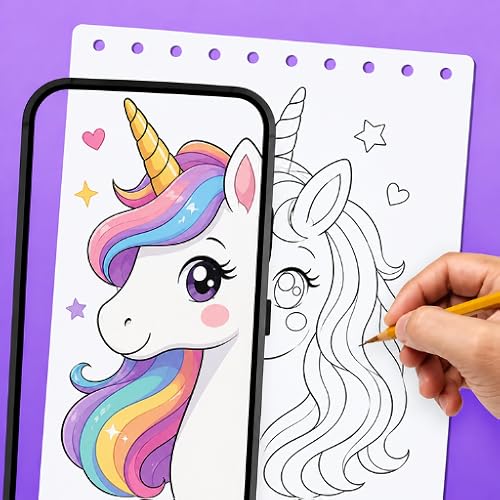
Drawing Cartoons 2 targets a specific interest: cartoon characters. Guided cartoon apps generally walk the user through building a figure from basic shapes, which is a legitimate way to learn construction and proportion. For teens and adults who want to draw for fun rather than paint, this focus is more motivating than a blank canvas.
The listing gives no detail on whether it includes free drawing tools, animation or export options, so those remain things to check after installation. What is clear is the audience: people who want to draw cartoons, on any Android device, without a stylus requirement.
Best suited for: hobbyists and older kids who want structured practice drawing characters.
Key features:
- Listed as a cartoon drawing app
- Available on the Amazon Appstore
- Free download per listing
Pros:
- Clear, motivating subject focus
- Works with finger or stylus
Cons/limitations:
- Not a general painting program
- Export and tool details not listed
Buying consideration: if you want to move beyond cartoons later, you will still need a full raster painting app.
4. Artworkout – Multiplayer Drawing Games — Best for Social Drawing Practice

Artworkout is described as multiplayer drawing games, which puts it in the category of draw-and-guess or timed-prompt apps. These are useful in a way that is easy to underrate: drawing quickly, under a prompt, with other people watching, builds the habit of committing to a line. Many art teachers use similar exercises as warm-ups.
It will not replace a painting app, and the listing does not describe its drawing tools. Treat it as the social, playful part of a drawing habit rather than the main tool.
Best suited for: friends and families who want to draw together, and anyone who draws more when it feels like a game.
Key features:
- Listed as multiplayer drawing games
- Amazon Appstore download
- Free per the listing
Pros:
- Encourages frequent, quick drawing
- Social format
Cons/limitations:
- Not for finished artwork
- Requires an internet connection for multiplayer
Buying consideration: check the app’s community and chat settings if children will use it.
5. Food Color By Number — Best Relaxing Pixel-Art Coloring
Food Color By Number is a pixel-art coloring app with a sandbox mode, according to its listing title, and it is here for a different reason than the others. Color-by-number apps are not drawing apps in the strict sense, but they teach color relationships and give people who feel they “cannot draw” a low-pressure way onto a screen. The sandbox mode suggests free pixel drawing is possible as well.
For adults who want a relaxing evening activity on a phone, this fits. For anyone trying to learn to draw, it is a companion, not a path.
Best suited for: adults and kids who enjoy coloring and pixel art and want something calm on a phone or tablet.
Key features:
- Listed as pixel-art color-by-number with sandbox pages
- Amazon Appstore download
- Free per the listing
Pros:
- Relaxing and approachable
- Works on any screen size
Cons/limitations:
- Not a freehand drawing tool
- In-app purchases not detailed on the listing
Buying consideration: pair it with a true drawing app if your goal is to improve at drawing.
Buying Guide: How to Choose a Drawing App for Android
Start with your hardware
A phone with a finger is for sketching and coloring apps. A tablet with a passive rubber-tip stylus adds precision but not pressure. A tablet with an active stylus, such as a Samsung S Pen, unlocks pressure-sensitive painting apps. Buy the app that matches the device you own, not the one you plan to buy.
Decide between raster and vector
Raster apps paint with pixels and feel like real media; they are what most digital painters use. Vector apps draw with scalable lines and suit logos, lettering and clean illustration. Most Android painting apps are raster, and that is the right default for anyone coming from traditional painting.
Check the free tier honestly
Many Android drawing apps are free to download but gate layers, brushes or export resolution behind a subscription. Read the in-app purchase section of the store listing, then test the free version on a real drawing before paying. The five apps above are all listed as free downloads; their in-app purchase details are not shown in the listing data.
Look at layer limits and canvas size
Budget tablets have less memory, and apps limit layer counts accordingly. If you plan to print, confirm the app allows a canvas of at least 3,000 pixels on the long side and exports PNG or PSD.
Consider Google Play versus the Amazon Appstore
Fire tablets use the Amazon Appstore by default, which carries fewer professional art apps than Google Play. If serious painting is the goal and you own a Fire tablet, check that your chosen app exists on the Appstore before buying a stylus for it.
Test palm rejection
Resting your hand on the screen while drawing is natural. Good apps combined with an active stylus ignore palm touches. On finger-only devices this is not available, which is another reason simpler apps suit phones.
Think about workflow beyond the app
Where do your files go? Cloud sync, PSD export and the ability to move work to a desktop program matter if drawing becomes more than a hobby. For kids and casual users, a simple share-to-gallery is enough.
Try These Hands-On Projects Too
Digital tools are one path; many of the same ideas work in physical media. If a child enjoys a doodling app, our guide to scratch art painting crafts is a natural next step away from the screen, and painting pottery at home turns color-by-number instincts into something you can hold.
Common Mistakes to Avoid
- Buying an app before the stylus: pressure-sensitive features are useless without an active pen.
- Judging an app on a phone: most painting apps are designed for tablet screens.
- Ignoring in-app purchases: “free” often means a limited trial.
- Expecting a kids’ app to grow with the child: plan to switch apps as skills develop.
- Skipping export checks: find out how to get your work off the device before you make something you care about.
- Assuming Google Play apps are on the Amazon Appstore: they often are not.
FAQs
Can I do serious digital painting on Android?
Yes, on a tablet with an active, pressure-sensitive stylus and a full-featured raster app with layers and blend modes. On a phone or a finger-only tablet, expect sketching and coloring rather than finished paintings.
Are the Amazon Appstore drawing apps the same as Google Play versions?
Not always. Some developers publish identical builds, others publish older or lighter versions, and many professional apps are not on the Appstore at all. Check the Appstore listing’s version and screenshots.
Which drawing app is best for a child on a Fire tablet?
A dedicated kids’ app such as Kids Doodle 2 or Drawing For Kids is the better fit, since both are listed on the Amazon Appstore and are designed for finger drawing. Review parental controls before installing.
Do I need a stylus for drawing apps on Android?
Not for kids’ apps, coloring apps or casual sketching. For line art and painting, a stylus improves control, and an active stylus with pressure support makes a real difference.
Is a color-by-number app good for learning to draw?
It teaches color placement and patience but not line or form. Use it alongside a freehand drawing app, not instead of one.
How do I know if an app supports pressure on my tablet?
Install it, pick a brush, and vary your pressure on a test stroke. If the line stays the same width and opacity regardless of pressure, either the app or your stylus does not support it.
Final Recommendation
There is no single best drawing app for Android because there is no single Android. For a child on a Fire or Android tablet, start with Kids Doodle 2 or Drawing For Kids. For casual, playful drawing, Drawing Cartoons 2 and Artworkout make the habit stick, and Food Color By Number is the relaxing option for people who do not think of themselves as artists. For serious painting on a stylus-equipped tablet, apply the buying guide above: pressure support, layers, blend modes and export, tested on your own device before you pay.


One Comment