
PaintingProGuide is reader-supported. When you buy through links on this page we may earn an affiliate commission at no extra cost to you.
Color you cannot trust is the most frustrating problem in digital painting: a sunset that looks perfect on your screen turns muddy on a client’s phone or comes out of the printer too dark. The best monitor for digital art fixes that with three things working together: a wide, accurately calibrated color gamut, enough resolution to see brush texture at normal zoom, and an adjustable stand you can live with for long sessions.
Below, seven 27-inch monitors are compared for illustration, concept art, photo painting and print work. All of them use IPS panels, which hold color well at an angle, but they differ a lot in color coverage, calibration and connectivity.
Quick answer: The ASUS ProArt PA279CRV is the best all-round monitor for digital art in this list, combining 4K resolution, 99% Adobe RGB and DCI-P3 coverage, factory calibration and 96W USB-C. If print matching is your priority and the budget allows, the BenQ SW272QN adds hardware calibration and Delta E of 1.5 or lower. For laptop users on a smaller budget, the ViewSonic VP2766-2K offers Pantone Validated sRGB color and 90W USB-C.
Our Top Picks at a Glance
- ASUS ProArt PA279CRV — Best for most digital artists
- BenQ SW272QN — Best for print-focused artists who want hardware calibration
- ViewSonic VP2766-2K — Best for laptop users who work mainly for screens
- ASUS ProArt 27″ WQHD Display — Best for calibrated sRGB on a moderate budget
- LG 27US500-W UltraFine 4K — Best for affordable 4K with wider color
- Samsung ViewFinity S7 (S71H) — Best for the lowest-cost 4K workspace
- CUNPU 27″ 4K IPS Monitor — Best for budget 4K with picture-by-picture
| Product | Best For | Key Spec | Key Strength | Price Tier |
|---|---|---|---|---|
| ASUS ProArt PA279CRV | most digital artists | 27″ 4K IPS, 99% Adobe RGB / DCI-P3, Delta E under 2 | Wide gamut plus 96W USB-C | $$$ |
| BenQ SW272QN | print-focused artists who want hardware calibration | 27″ QHD, 99% Adobe RGB, Delta E 1.5 or lower, 3D LUT | Hardware calibration and paper preview | $$$ |
| ViewSonic VP2766-2K | laptop users who work mainly for screens | 27″ QHD IPS, 100% sRGB, Pantone Validated, 120Hz | 90W USB-C and full ergonomics | $$$ |
| ASUS ProArt 27″ WQHD Display | calibrated sRGB on a moderate budget | 27″ WQHD IPS, 100% sRGB / Rec. 709, Delta E under 2 | Calman Verified at a lower tier | $$$ |
| LG 27US500-W UltraFine 4K | affordable 4K with wider color | 27″ 4K IPS, HDR10, up to 90% DCI-P3 | 4K detail at a lower tier | $$$ |
| Samsung ViewFinity S7 (S71H) | the lowest-cost 4K workspace | 27″ 4K UHD IPS, HDR10 | High pixel density for the money | $$$ |
| CUNPU 27″ 4K IPS Monitor | budget 4K with picture-by-picture | 27″ 4K IPS, 100% DCI-P3 (listed), 70Hz | PBP/PiP for reference work | $$$ |
How We Chose
We did not run these monitors through lab measurements. Our picks are based on the Amazon listing details and specifications checked in October 2026, how well each display’s color coverage, calibration, resolution and connectivity fit digital art work, and how widely each monitor is reviewed by Amazon buyers. We focused on:
- Color gamut: sRGB for web and screen work; Adobe RGB and DCI-P3 for print and wide-gamut work.
- Factory calibration: stated Delta E values and verification such as Calman or Pantone.
- Resolution: 4K or QHD at 27 inches for sharp detail and workspace.
- Connectivity: USB-C with power delivery for laptops and tablets.
- Ergonomics: height, tilt, swivel and pivot adjustment for long sessions.
Best Monitors for Digital Art Reviewed
1. ASUS ProArt PA279CRV — Best for most digital artists

This ProArt model ticks almost every box a digital painter cares about. The listing specifies a 27-inch 4K (3840 x 2160) IPS panel with 99% DCI-P3 and 99% Adobe RGB coverage, factory calibration to Delta E under 2 and Calman Verified status. That combination supports both screen-focused work and print projects that need wide-gamut color.
Connectivity is a strong point too. DisplayPort over USB-C with 96W power delivery lets one cable carry video and charge a laptop, and there are also DisplayPort, HDMI and a USB hub. The listing also mentions a complimentary three-month Adobe Creative Cloud offer with purchase, valid to the date shown on the product page.
Best suited for: Illustrators, concept artists and photographers who want accurate wide-gamut color and 4K detail without moving into top-tier pricing.
Key features:
- 27-inch 4K UHD IPS panel with HDR support
- 99% DCI-P3 and 99% Adobe RGB coverage
- Factory calibrated, Delta E under 2, Calman Verified
- USB-C with 96W power delivery, DisplayPort, HDMI, USB hub
Pros:
- Covers both print and screen color spaces
- One-cable laptop setup
- 4K gives room for canvas plus tool panels
Cons/limitations:
- Wide-gamut panels need correct color management in your software to avoid oversaturated sRGB content
- Scaling may be needed at 4K on 27 inches for comfortable menu text
Buying consideration: Set your painting app and operating system color profiles correctly; wide gamut only helps when the software knows how to use it.
2. BenQ SW272QN — Best for print-focused artists who want hardware calibration

BenQ’s SW series is aimed at color-critical work, and the SW272QN listing reflects that: 99% Adobe RGB, 99% DCI-P3 and 100% sRGB coverage, Delta E of 1.5 or lower, a 3D LUT and uniformity control across the panel. Hardware calibration means the correction is stored in the monitor itself rather than only in a software profile.
Paper Color Sync is designed to simulate how an image will look printed, which is useful if you sell prints or prepare art for publishing. A wireless hotkey puck, a card reader and 90W USB-C round out a workstation-style package. The trade-off is resolution: QHD instead of 4K, at the highest price in this list.
Best suited for: Artists who sell prints, prepare files for publishers, or need the most consistent color across sessions.
Key features:
- 99% Adobe RGB, 99% DCI-P3, 100% sRGB
- Delta E 1.5 or lower with 3D LUT
- Hardware calibration and Paper Color Sync
- USB-C, hotkey puck and card reader
Pros:
- Strongest color-accuracy specifications here
- Print simulation tools
- Uniformity control for even color edge to edge
Cons/limitations:
- QHD resolution rather than 4K
- Highest price tier in this comparison
Buying consideration: Hardware calibration works best with a compatible calibration device, which is usually a separate purchase.
3. ViewSonic VP2766-2K — Best for laptop users who work mainly for screens

ViewSonic’s ColorPro VP2766-2K focuses on accurate sRGB rather than wide gamut, which is exactly what many digital artists need if their work ends up on the web, in games or on social media. The listing notes factory hardware calibration, 100% sRGB coverage and Pantone Validated certification.
A 120Hz refresh rate makes pen and cursor movement feel smoother, and a single USB-C cable delivers up to 90W, enough for many laptops according to the listing. The stand adjusts for tilt, swivel, 90-degree pivot and 130mm of height, and a 100 x 100mm VESA pattern fits monitor arms.
Best suited for: Digital artists working in sRGB for online, game and app art, especially those connecting a USB-C laptop.
Key features:
- 27-inch QHD (2560 x 1440) IPS, 120Hz
- 100% sRGB, Pantone Validated, factory calibrated
- 90W USB-C, HDMI 2.1, USB hub
- Height, tilt, swivel and pivot stand
Pros:
- Accurate sRGB out of the box
- Smooth 120Hz refresh
- Strong ergonomic adjustment
Cons/limitations:
- Not a wide-gamut display, so less suited to Adobe RGB print work
- QHD instead of 4K
Buying consideration: If you print often or work in wide color spaces, step up to an Adobe RGB model.
4. ASUS ProArt 27″ WQHD Display — Best for calibrated sRGB on a moderate budget

This ProArt model brings factory calibration to a lower price point. The listing describes a 27-inch WQHD (2560 x 1440) IPS panel with 100% sRGB and Rec. 709 coverage, Delta E under 2 accuracy and Calman Verified status.
The ergonomic stand adjusts tilt, swivel, pivot and height, and connectivity includes DisplayPort, HDMI, DVI and a USB hub. ASUS Eye Care features (flicker-free backlight and low blue light) are useful for long painting sessions. There is no USB-C power delivery listed, so laptop users will need a separate charger.
Best suited for: Desktop users who paint for screens and want trustworthy sRGB color without paying for wide gamut.
Key features:
- 27-inch WQHD IPS panel
- 100% sRGB and Rec. 709 coverage
- Factory calibrated, Delta E under 2
- Height, tilt, swivel and pivot stand
Pros:
- Calibrated color at a moderate price
- Full ergonomic stand
- Good for web, game and video work
Cons/limitations:
- No USB-C power delivery listed
- sRGB-focused, not wide gamut
Buying consideration: Good choice for a desktop PC setup; laptop users may prefer the ViewSonic for single-cable convenience.
5. LG 27US500-W UltraFine 4K — Best for affordable 4K with wider color
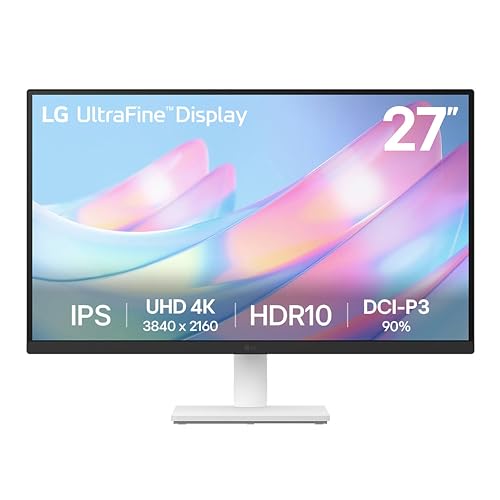
LG’s 27US500-W offers 4K resolution and a wider-than-sRGB gamut, with the listing quoting up to 90% DCI-P3 and HDR10 support. That makes colors more vivid than a basic office monitor, and the pixel density keeps line work crisp.
There is no factory calibration figure in the listing, and the stand adjusts for tilt only, so plan for a monitor arm or a riser if posture matters to you. A reader mode and flicker-safe backlight help with comfort. It is a reasonable step up for hobbyists coming from a laptop screen.
Best suited for: Hobbyist digital painters who want 4K sharpness and richer color on a tighter budget.
Key features:
- 27-inch 4K UHD IPS panel
- HDR10 and up to 90% DCI-P3
- Reader mode and flicker-safe backlight
- HDMI and DisplayPort inputs
Pros:
- Sharp 4K detail
- Wider color than standard office monitors
- Clean white design
Cons/limitations:
- No stated factory calibration
- Tilt-only stand
Buying consideration: Adding a hardware calibrator later can improve color consistency on monitors without factory calibration.
6. Samsung ViewFinity S7 (S71H) — Best for the lowest-cost 4K workspace

Samsung’s ViewFinity S7 is the budget 4K option in this comparison. The listing highlights a 27-inch 4K UHD IPS panel with HDR10 and HDMI plus DisplayPort inputs, with the extra pixels giving more room for reference images and tool panels.
Color coverage and calibration figures are not detailed in the listing, so treat it as a general-purpose 4K screen rather than a color-critical one. For sketching, line art and hobby painting, that is often enough, especially when paired with a calibrator.
Best suited for: Beginners and hobbyists who mainly want screen space and sharpness for sketching and line art.
Key features:
- 27-inch 4K UHD IPS
- HDR10 support
- HDMI and DisplayPort
- Matte screen surface
Pros:
- Most affordable 4K pick here
- Matte surface reduces glare
- Simple setup
Cons/limitations:
- No stated color gamut or calibration figures
- Basic feature set
Buying consideration: If accurate color for clients or print matters, budget for a calibration device or choose a calibrated model.
7. CUNPU 27″ 4K IPS Monitor — Best for budget 4K with picture-by-picture

CUNPU’s 4K monitor lists 100% DCI-P3 coverage, a 70Hz refresh rate and an ultra-slim three-sided bezel. Picture-by-picture and picture-in-picture modes let you run two inputs at once, which can be handy for keeping reference material from a second device on screen.
It is a lesser-known brand compared with the others here, and the listing does not give a calibration figure, so color accuracy out of the box is harder to judge. Inputs include DisplayPort 1.4 and HDMI 2.0.
Best suited for: Budget-minded artists who want 4K and multi-input features and are comfortable calibrating themselves.
Key features:
- 27-inch 4K IPS panel
- 100% DCI-P3 coverage per listing
- PBP and PiP multi-input modes
- DisplayPort 1.4 and HDMI 2.0
Pros:
- Wide listed gamut at a low tier
- Useful multi-input modes
- Slim bezels suit dual-monitor setups
Cons/limitations:
- No stated factory calibration
- Smaller brand with less established support
Buying consideration: Compare warranty and support terms on the listing before buying from a smaller brand.
Buying Guide: How to Choose a Monitor for Digital Art
Color gamut: sRGB, Adobe RGB and DCI-P3
sRGB is the standard for the web and most screens. Adobe RGB is wider in greens and cyans and matters for print. DCI-P3 is wider in reds and greens and is common on modern phones and video. If your art lives online, accurate sRGB is enough; if you print, look for high Adobe RGB coverage.
Calibration and Delta E
Delta E describes color error; lower is better, and values under 2 are generally considered hard to see. Factory calibration with a report gives you a reliable starting point, while hardware calibration lets you keep it accurate over time.
Resolution and size
At 27 inches, QHD is sharp and easy to read, while 4K shows finer detail and more workspace but often needs scaling for menus. Many artists like 4K for line art and texture work.
Panel type and finish
IPS panels hold color consistently at angles, which matters when you lean in to paint. A matte surface reduces reflections from lamps and windows.
Connectivity
USB-C with power delivery lets a laptop or some tablets connect with one cable. Check the wattage against your laptop’s charger.
Ergonomics
Height and tilt adjustment protect your neck during long sessions. Pivot to portrait suits comics and character sheets. A VESA mount lets you add a monitor arm.
Monitor vs pen display
A monitor is for viewing; you still need a drawing tablet or pen display to paint. Many artists draw on a pen display and check color on a calibrated monitor beside it.
Put Your New Screen to Work
A calibrated monitor shines most when you are judging subtle color shifts. Try these walkthroughs once your setup is ready: our guide to digital concept art workflows and tips covers value studies and color keys, and the digital environment painting tips article shows how atmosphere and color temperature create depth.
Common Mistakes to Avoid
- Buying wide gamut without color management. Unmanaged apps can make sRGB art look oversaturated.
- Leaving brightness at maximum. Overly bright screens make art print too dark; many artists work around 100 to 120 nits for print.
- Ignoring the stand. A tilt-only stand can mean neck strain over long sessions.
- Choosing glossy screens in bright rooms. Reflections hide subtle values.
- Never recalibrating. Monitors drift over time; periodic calibration keeps color consistent.
- Forgetting a drawing device. A monitor alone does not replace a tablet or pen display.
FAQs
What monitor specs matter most for digital art?
Color accuracy (low Delta E), the right color gamut for your output, IPS panel, at least QHD resolution at 27 inches and an adjustable stand.
Is 4K worth it for digital art?
Often yes at 27 inches, because it shows fine detail and gives more workspace. QHD is still sharp and easier on graphics hardware.
Do I need Adobe RGB for digital art?
Only if you print or deliver wide-gamut work. For web and game art, accurate sRGB is usually more important.
Should I calibrate a factory-calibrated monitor?
It is a good idea over time. Factory calibration is a strong start, but displays drift with age.
Can I draw directly on these monitors?
No. These are standard monitors. You need a drawing tablet or pen display to paint, and the monitor serves as your viewing screen.
Is a 27-inch monitor big enough for digital art?
Yes for most artists. It fits a canvas plus tool panels comfortably at QHD or 4K.
Final Recommendation
Choose the ASUS ProArt PA279CRV if you want one monitor that handles screen and print work with 4K detail and USB-C convenience. Pick the BenQ SW272QN if print matching and long-term calibration are central to your work. The ViewSonic VP2766-2K and ASUS ProArt WQHD are strong calibrated sRGB choices for web and game art, with the ViewSonic better for laptops. For 4K on a budget, the LG 27US500-W, Samsung ViewFinity S7 and CUNPU 4K cover sharpness first, with color accuracy best confirmed by your own calibration.




One Comment