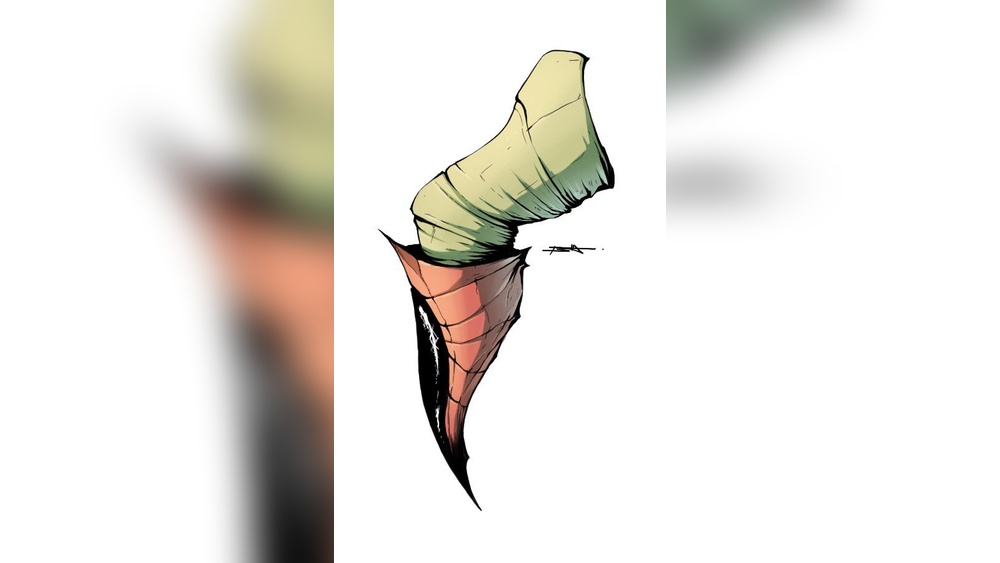
Want to make your digital art pop with sharp, vibrant shadows? Cel shading is the perfect technique to give your Procreate drawings a clean, animated look that stands out.
If you’ve ever wondered how to add that bold, graphic style to your work, you’re in the right place. This guide breaks down simple tips and tricks to help you master cel shading in Procreate, even if you’re just starting out.
Ready to transform your art and impress everyone with your shading skills? Let’s dive in!

Credit: www.youtube.com
Setting Up Procreate For Cel Shading
Setting up Procreate correctly is crucial for smooth cel shading. It helps you work faster and keep your art neat. Preparing your workspace ensures clear, crisp shadows and highlights. Follow these tips to organize your tools and layers effectively.
Choosing The Right Brushes
Select brushes with hard edges for clean shading. Avoid soft or textured brushes that blend colors. The “Monoline” brush in the “Calligraphy” set works well. You can also customize brushes to fit your style. Use a brush that responds well to pressure for control.
Organizing Layers
Create separate layers for line art, base colors, and shadows. Name each layer clearly to avoid confusion. Group shading layers above base colors for easy editing. Use clipping masks to keep shading inside color boundaries. This helps keep your work tidy and editable.
Locking Transparent Pixels
Lock transparent pixels on shading layers before adding color. This prevents painting outside existing shapes. It keeps shadows neat and controlled. To do this, tap the layer and enable “Lock Transparent Pixels.” This step saves time and keeps your shading clean.
Basic Cel Shading Techniques
Basic cel shading techniques form the foundation for creating clean, vibrant artwork in Procreate. This style emphasizes sharp contrasts between light and shadow, giving your illustration a graphic, comic-like look. Understanding these techniques helps you add depth and dimension without complex blending.
Start by choosing strong base colors, then add shadows with clear edges. Use Procreate’s layer modes to enhance your shading efficiently. Simple, flat shadows work best for that classic cel-shaded feel. Follow these steps to build your shading skills and improve your digital art.
Selecting Base Colors
Choose flat, solid colors that represent your character or object. Avoid gradients or textures for the base layer. Pick colors that match your design’s mood and lighting. Use the color picker to keep your palette consistent. Base colors set the tone for the entire shading process.
Using Multiply Layer Mode
Create a new layer above your base colors and set it to Multiply. This mode darkens colors underneath without losing their brightness. Paint your shadows on this layer using a darker shade of your base color. Multiply helps keep shadows natural and rich. It also allows easy adjustments without altering the base.
Applying Flat Shadows
Draw shadows with hard, clean edges to keep the cel shading style sharp. Use the selection tool to limit shadow areas precisely. Avoid soft brushes or blurring; focus on crisp shapes instead. Place shadows where light would naturally be blocked. Flat shadows add depth while preserving the graphic look.
Advanced Shading Tips
Advanced shading techniques give your cel shading a professional edge. They help add realism and vibrancy to your digital art. Using Procreate’s tools smartly can improve your shading process. These tips focus on depth, precision, and color variation for better results.
Adding Depth With Layer Clipping
Layer clipping keeps your shadows neat and within the base colors. Create a new layer above your base color layer and set it as a clipping mask. This means all shading stays confined to the original shape. Use a darker shade to paint shadows on the clipped layer. This method avoids messy edges and saves time on cleanup.
Using Lasso Tool For Precise Shadows
The Lasso Tool helps create sharp, clean shadow shapes quickly. Select the area where you want to add shadows with the Lasso Tool. After selection, fill it with a darker shade or use a brush to paint inside. This technique ensures your shadows follow exact shapes, enhancing the cel shading style’s crisp look.
Incorporating Color Variation
Adding color variation makes your shading more dynamic and less flat. Use shades that differ slightly in hue, not just brightness. For example, add a hint of blue or purple in the shadow areas instead of pure black. This small change adds richness and interest to your artwork. Experiment with subtle color shifts to bring your cel shading to life.
Credit: blog.unvale.io
Lighting And Shadow Placement
Lighting and shadow placement are key to effective cel shading in Procreate. Proper placement creates depth and makes your artwork pop. Understanding where light hits and where shadows fall adds realism and style. This section explains how to decide light direction, shade curved surfaces, and add contrast for a bold look.
Deciding Light Source Direction
Choose one main light source for your scene. This source guides where shadows fall and highlights appear. Keep the light consistent throughout your drawing. Decide if light comes from above, side, or front. Mark this direction lightly on your canvas. It helps place shadows correctly and keeps shading clear and simple.
Shading Rounded Surfaces
Rounded objects need careful shading to show their form. Place shadows where the surface curves away from light. Use soft edges between light and shadow to suggest roundness. Avoid hard lines that flatten the shape. Follow the object’s contour with your shading to keep it natural. This technique gives a smooth and believable look.
Creating Dramatic Contrast
Dramatic contrast makes cel shading eye-catching and bold. Use very dark shadows against bright highlights. Keep shadow edges sharp to enhance the style. Contrast defines shapes and adds energy to your art. Don’t overuse shadows; balance is key. Strong contrast helps your character or object stand out clearly.
Enhancing Cel Shading Effects
Enhancing cel shading effects in Procreate helps bring your artwork to life. It adds depth and dimension. Simple tweaks can make your shadows and highlights pop. Using color edges, adjusting hues, and blending smartly create a polished look. These methods keep your style clean and vibrant. Try them out to improve your cel shaded art quickly.
Adding Colorful Edges
Colorful edges give your cel shading a unique twist. Instead of plain black lines, use colors that complement your artwork. Choose shades slightly lighter or darker than your base colors. This technique adds vibrancy and interest. It also helps separate objects from the background. Use the selection tool to isolate edges and paint them carefully. This small detail enhances the overall visual appeal.
Using Hue And Saturation Adjustments
Hue and saturation controls help refine your shading tones. Adjusting hue shifts colors to better match the light source or mood. Saturation changes the intensity of your colors. Lower saturation softens shadows while higher saturation makes them bold. Use these adjustments on shading layers for subtle effects. They keep your colors balanced and natural. Experiment to find the best look for your piece.
Blending Techniques For Smooth Transitions
Smooth transitions soften the harsh edges typical of cel shading. Use Procreate’s smudge tool with a low opacity brush. Gently blend shadow edges into the base color. Avoid over-blurring to keep the cel style crisp. Layer blending modes like Multiply also help create depth. Combine blending with careful color selection. This approach makes shading look cleaner and more dynamic.
Common Mistakes To Avoid
Cel shading in Procreate looks great when done right. Beginners often face common errors that can ruin the effect. Avoiding these mistakes helps your artwork appear clean and professional. Focus on simple, clear shading to keep your art striking. Here are some common mistakes to watch out for.
Overcomplicating Shadows
Cel shading works best with bold and simple shadows. Adding too many shadow layers or tiny details can confuse the light effect. Stick to one or two shadow shapes to keep the style sharp. Complex shadows can make your art look messy and less stylized.
Ignoring Light Source Consistency
Always decide where your light is coming from before shading. Shadows must fall in the same direction for the whole image. Changing light sources in one drawing breaks the illusion of depth. Consistent lighting makes your cel shading look realistic and neat.
Using Too Many Layers
Too many layers slow down your work and cause confusion. Limit layers to base colors, shadows, and highlights. Keep your layers organized and named clearly. Using fewer layers helps you edit faster and keeps the file size small.
Speeding Up Your Workflow
Speeding up your workflow in Procreate helps you finish cel shading faster. It saves time and keeps your art process smooth. Using the right tools and shortcuts makes a big difference. Work smarter, not harder, with these simple tips.
Using Quick Selection Tools
The Quick Selection tool lets you select areas fast. Tap and drag to highlight parts for shading. It works well for complex shapes and saves time. Use the automatic edge detection to avoid mistakes. This tool reduces manual work and keeps your shading clean.
Creating Custom Shading Presets
Custom shading presets speed up your color choices. Save your favorite brushes and colors for cel shading. This way, you don’t pick shades again and again. Presets help keep your style consistent across drawings. It also lets you switch quickly between tools without delays.
Keyboard Shortcuts For Efficiency
Keyboard shortcuts boost your drawing speed a lot. Assign shortcuts to tools like brush, eraser, and undo. Changing colors or layers becomes quicker with shortcuts. Practice common commands until they feel natural. This cuts down on tapping and keeps your flow steady.
Inspiration And Practice Ideas
Finding inspiration and practicing regularly are key to improving cel shading in Procreate. Inspiration fuels creativity, while practice builds skill. Combining both helps you create vibrant, sharp artwork with confidence.
Explore different styles and keep your hand active. Try simple exercises daily and share your work to get feedback. These steps make your cel shading journey more effective and enjoyable.
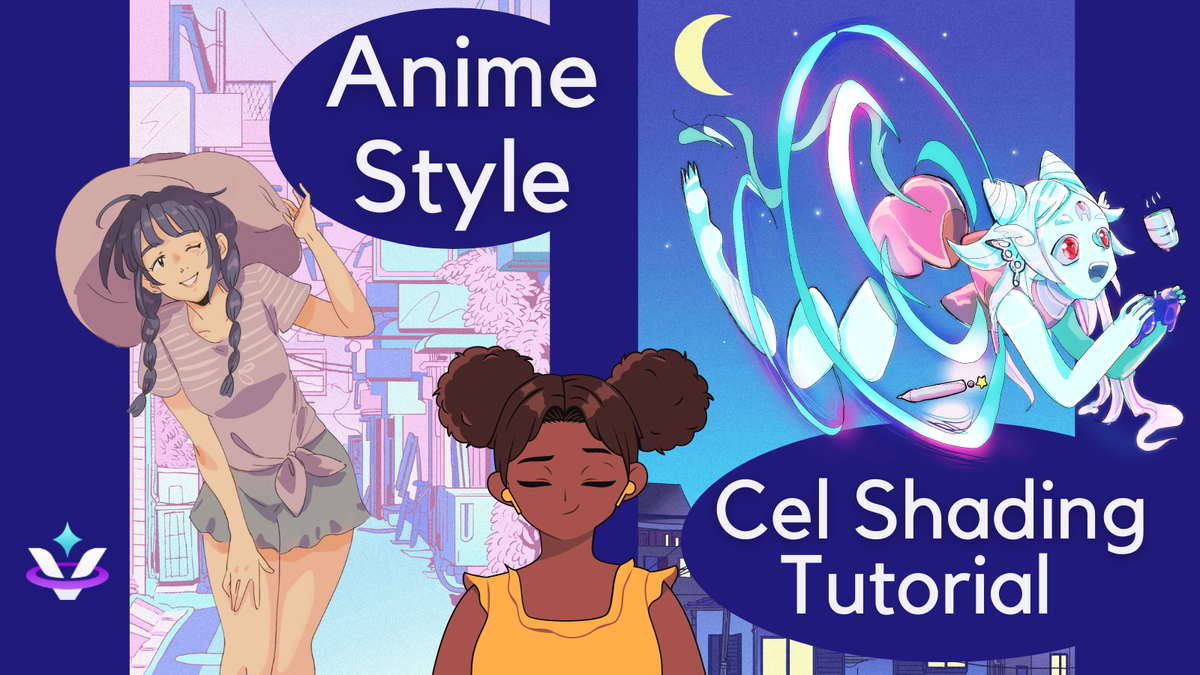
Studying Anime And Comic Styles
Anime and comics use cel shading to create bold, clean looks. Study their shading patterns and color choices closely. Notice how shadows define shapes and add depth. Copy small sections to understand techniques. This builds your visual library for your own art.
Daily Cel Shading Exercises
Practice simple shapes like spheres and cubes first. Shade them with clear light and shadow areas. Gradually add details like hair or clothing. Set a daily goal, even 10 minutes helps. Repetition trains your eye and hand coordination.
Sharing And Getting Feedback
Post your cel shaded art on social media or forums. Ask for honest feedback from other artists. Constructive criticism highlights areas to improve. Join groups focused on Procreate or cel shading. Community support motivates and guides your progress.

Credit: www.youtube.com
Frequently Asked Questions
How To Do Good Cel Shading?
Lock transparent pixels on your shading layer. Use a darker color and apply sharp, clean shadows following light direction. Use the lasso tool for precise edges. Keep shadows flat with minimal gradients for a classic cel-shaded look.
What Are The Tips For Shading?
Use consistent light direction and choose colors darker than the base. Apply smooth, curved strokes following object contours. Use layering and “Lock Transparent Pixels” for clean shading. Vary line spacing for light and dark areas. Blend edges softly for natural depth.
How To Do The Glitch Thing On Procreate?
To create a glitch effect in Procreate, duplicate your layer, shift colors using Hue, Saturation, and Luminosity adjustments, then offset layers slightly. Use the Gaussian Blur or Smudge tool for distortion. Experiment with blending modes to enhance the glitch look.
Is There A Rule In Procreate?
Procreate has no strict rules but offers guidelines and tools to help create digital art effectively and creatively.
Conclusion
Cel shading in Procreate adds depth and style to your art. Practice layering and use simple shapes first. Choose colors carefully to highlight shadows and light. Use the lasso tool to keep shading neat and precise. Keep experimenting with brush settings for different effects.
Remember, patience helps you improve over time. Enjoy the process and watch your skills grow. Cel shading makes your drawings look lively and fun. Keep creating and have fun with your art!