PaintingProGuide is reader-supported. When you buy through links on this page we may earn an affiliate commission at no extra cost to you.
Portrait painting digital work follows the same principles as painting a face in oils: get the big shapes and values right, then refine. What changes is the toolkit. Layers, undo, color pickers and adjustable brushes remove much of the risk, which is why digital portraiture is now the way many artists learn faces in the first place. This guide covers the hardware and apps that matter, a dependable step-by-step workflow, skin tone and lighting basics, and three books that teach the craft well.
Quick answer: To paint a digital portrait, start with a loose sketch, block in three or four values in grayscale or flat color, establish one clear light source, then refine the features from large planes to small details, softening edges as you go. Any pressure-sensitive tablet and an app such as Procreate, Photoshop, Clip Studio Paint or Krita will do the job. For a structured course in book form, Digital Painting Made Simple by Sara Tepes is focused squarely on digital portraits, while Painting Luminous Portraits teaches the light and flesh tones behind them.
What You Need for Digital Portrait Painting
Hardware
A pressure-sensitive stylus is the one piece of hardware that genuinely changes results, because it lets line weight and opacity respond to your hand. Options include an iPad with Apple Pencil, a pen display that you draw on directly, or a less expensive screenless graphics tablet that sits beside the keyboard. Each works; screenless tablets take a few days of practice to get used to.
A phone can also work for sketches and small studies. Our guide to painting digital portraits on a phone covers the apps and techniques that make the small screen workable.
Software
- Procreate (iPad): fast, intuitive, with excellent default painting brushes.
- Photoshop: the industry standard, with deep color and adjustment tools.
- Clip Studio Paint: strong brush engine and line tools, popular with illustrators.
- Krita: free, open-source and very capable for painting.
Brushes
You need far fewer brushes than most packs suggest. A hard round for blocking, a soft airbrush for gradients, a textured bristle or gouache brush for paint feel, and a blending brush cover almost every portrait. Learn those four well before collecting more.
A Step-by-Step Digital Portrait Workflow
1. Gather and set up references
Choose a reference photo with a single clear light source. Flat, front-lit photos make it hard to see form. Place the reference beside your canvas, or use your app’s reference window.
2. Sketch the structure
On a low-opacity layer, block the head as a simple ball and jaw, place the brow line, the bottom of the nose and the mouth, and check the angle of the head. Keep this sketch loose; it is a map, not a drawing to keep.
3. Block in values
Many artists paint in grayscale first. Lay in a background value, then the shadow shape on the face as one flat mass, then the lit side. Three or four values are enough at this stage. If the portrait reads from across the room in grayscale, the color will work later.
4. Add color
Either paint color directly, or apply it over grayscale with a Color or Overlay blending layer and then paint on top with normal layers to fix muddy areas. Choose a base skin tone for the light side and a warmer, slightly more saturated tone for the shadow side.
5. Model the planes
Think of the face as planes: forehead, brow ridge, cheekbones, nose bridge, muzzle around the mouth, and chin. Paint each plane slightly differently in value and temperature according to how it faces the light. This is where a portrait starts to look three-dimensional.
6. Refine the features
Work from big to small. Place the eye sockets as shadow shapes before painting eyeballs. Paint the nose as light and shadow planes rather than outlines. Treat the mouth as an upper lip in shadow, a lit lower lip, and a dark corner line. Our detailed walkthrough on how to digital paint portraits breaks down each feature further.
7. Control edges
Edges are what separate a painting from a traced photo. Keep edges sharp where you want attention, usually around the eyes, and soft where form turns away from the light or meets a similar value. Lose some edges into the background entirely.
8. Hair, background and final pass
Paint hair as large masses of light and shadow before adding a few strands. Keep the background simple and related in color. Finally, flip the canvas horizontally to spot proportion errors, and check values in grayscale one last time. For a complete project from blank canvas to finish, follow our step-by-step guide to painting portraits in digital art.
Skin Tones and Lighting Basics
Skin is not one color. The forehead tends to be slightly more yellow, the cheeks, nose and ears more red, and the jaw and chin cooler or more olive, especially on faces with facial hair. Shadow areas are usually warmer and more saturated where light bounces through skin, and the transition between light and shadow (the terminator) often carries the richest color.
- Warm light, cool shadows or the reverse: pick one relationship and keep it consistent.
- Avoid pure black in shadows; use deep, desaturated versions of the skin color.
- Highlights are small: keep specular highlights on the nose, lower lip and eyes tiny.
- Use the color picker sparingly: sampling a photo too often produces muddy, photographic color.
Stylized Versus Realistic Digital Portraits
Not every digital portrait aims for realism. Stylized portraits simplify planes into bold shapes, push color harder and often use crisp cel-style shadows. Semi-realistic work, popular in concept art and illustration, keeps believable light but exaggerates eyes, hair shapes or color temperature. The fundamentals are the same in all three: a clear light source, consistent shadow shapes and deliberate edges. Decide the style before you start so your brush and blending choices support it.
Layers: A Simple Strategy
New painters often create dozens of layers and get lost. A simpler approach is a sketch layer, a background layer, one or two main painting layers, and a temporary layer for experiments that you merge or delete. Painting on fewer layers forces you to make decisions, which is how painters improve.
Lighting Setups Worth Practicing
Painting the same face under different lighting is one of the fastest ways to understand form. These classic setups come from portrait photography and translate directly into painting.
- Rembrandt lighting: light from about 45 degrees above and to one side, leaving a small triangle of light on the shadow cheek. Dramatic and very readable.
- Loop lighting: similar angle, but less steep, so the nose shadow forms a small loop toward the mouth. Flattering and common in commercial portraits.
- Split lighting: light from directly to the side, dividing the face in half. Strong mood, good for value practice.
- Butterfly lighting: light from in front and above, casting a small shadow under the nose. Glamorous and soft.
- Rim lighting: light from behind, outlining the silhouette. Useful for stylized and dramatic pieces.
A four-week practice plan
- Week 1, values: five grayscale head studies of 30 minutes each, three values only.
- Week 2, features: separate studies of eyes, noses and mouths from several angles.
- Week 3, color: repaint two week-one studies in color, focusing on warm and cool shifts.
- Week 4, finish: one complete portrait, applying edge control and a simple background.
Keep every study. Comparing week one with week four is the best motivation there is, and it shows you exactly which skill to work on next.
Books That Help You Learn Digital Portraits
Books remain one of the best ways to build portrait fundamentals, because they present a structured sequence instead of a random feed of tips. Three titles fit this topic. A set of digital photo frames that appeared in the same product search was left out; they display photos rather than help you paint them.
Our Top Picks at a Glance
- Digital Painting Made Simple by Sara Tepes — Best book focused on digital portraits
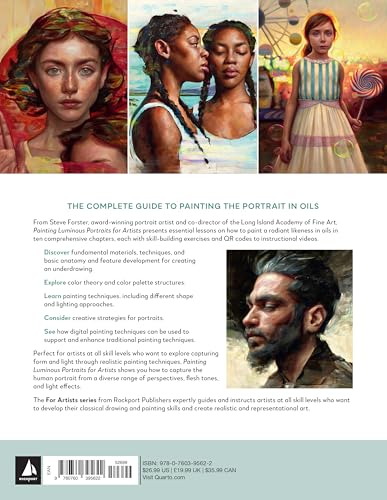
- Painting Luminous Portraits for Artists by Steve Forster — Best for features, flesh tones and light
- Drawing Digital by Lisa Bardot — Best for iPad beginners
| Product | Best For | Key Spec | Key Strength | Price Tier |
|---|---|---|---|---|
| Digital Painting Made Simple | Digital portrait practice | Clip Studio Paint, Procreate, Photoshop and more | Portrait-specific digital lessons | $ |
| Painting Luminous Portraits for Artists | Light and flesh tones | Features, fleshtones, light and form | Fundamentals that transfer to digital | $$ |
| Drawing Digital | iPad beginners | Complete guide to drawing and painting on iPad | Gentle introduction to the tools | $ |
How We Chose
We chose these books from Amazon listing details checked in October 2026, based on how directly each title addresses portrait painting or digital painting technique, what software or subject it covers according to its title and subtitle, and how widely each is reviewed by Amazon buyers. We have not read these copies for this article; descriptions rely on each book’s stated scope.
- Topic fit: portrait-specific or digital-specific instruction.
- Software coverage: app-specific versus app-agnostic.
- Skill level: beginner introduction or fundamentals to grow into.
- Transferable principles: light, form and color that apply in any medium.
Best Books for Portrait Painting Digital Reviewed
1. Digital Painting Made Simple by Sara Tepes — Best for Digital Portrait Practice

Sara Tepes’ book is subtitled “Create Captivating Portraits in Clip Studio Paint, Procreate, Photoshop and More,” which makes it the most precisely targeted book for this search. Rather than teaching a single app, it covers several of the programs people actually use for portraits.
That app-agnostic approach means you can follow along on an iPad or desktop, and switch software later without the lessons going out of date.
Best suited for: Beginner and early-intermediate digital painters who want portrait-specific lessons.
Key features:
- Paperback
- Focus on digital portraits
- Covers Clip Studio Paint, Procreate, Photoshop and more
Pros:
- Most directly matched to digital portrait painting
- Works across several apps
- Lower price tier
Cons and limitations:
- Software interfaces change over time
- Print screenshots are smaller than on-screen tutorials
- Less depth on traditional anatomy than a dedicated anatomy book
Buying consideration: Read with your app open and repeat each exercise twice; the second attempt is where the lesson sticks.
2. Painting Luminous Portraits for Artists — Best for Features, Flesh Tones and Light

Steve Forster’s book is subtitled “An Essential Guide to Painting Facial Features, Fleshtones, Light, and Form.” It is a portrait painting book rather than a digital one, and that is its value: features, skin color and light behave the same way regardless of whether you use a brush or a stylus.
Many digital portraits look flat because they skip these fundamentals. Pairing a traditional portrait book with a digital technique book is a common and effective way to learn.
Best suited for: Digital painters who want stronger fundamentals of form, light and skin color.
Key features:
- Paperback
- Facial features, fleshtones, light and form
- Medium-agnostic portrait principles
Pros:
- Builds lasting fundamentals
- Feature-by-feature approach
- Lessons transfer directly to digital painting
Cons and limitations:
- Not digital-specific; you translate steps into your app
- Highest price tier of the three
- Assumes interest in realistic portraiture
Buying consideration: When the book mixes a color on a palette, reproduce it with your color picker and note the hue, saturation and value you choose.
3. Drawing Digital by Lisa Bardot — Best for iPad Beginners

Lisa Bardot’s book is billed as “the complete guide for learning to draw and paint on your iPad.” It is not portrait-specific, but it is a friendly introduction to the iPad workflow: brushes, layers, color and the habits that make digital work comfortable.
If you are brand new to the tablet, a general introduction like this makes portrait-specific books easier to follow afterwards.
Best suited for: Complete beginners on an iPad who want to learn the tools first.
Key features:
- Paperback
- iPad drawing and painting guide
- Beginner focus
Pros:
- Lowest price tier of the three
- Gentle introduction to digital tools
- Good foundation before portrait study
Cons and limitations:
- Not focused on portraits
- iPad-specific
- Experienced digital artists will find it basic
Buying consideration: Read it first if the app itself still feels unfamiliar, then move to a portrait-focused book.
Buying Guide: How to Choose Resources for Digital Portrait Painting
Match the book to your software
App-agnostic books age better. App-specific books are easier to follow step by step. If you use an iPad, a Procreate-focused introduction is helpful; otherwise, choose a multi-app guide.
Fundamentals before effects
Value, form and edge control matter more than brushes. A traditional portrait book often teaches these better than a digital one.
Tablet and stylus
Pressure sensitivity is the key feature. Screen size matters less than comfort; many professionals work on modest tablets.
Brushes
Start with default brushes. Custom brush packs help only once you know what you want a brush to do.
Reference photos
Good references with a single light source make practice far more productive than any tool upgrade.
Practice structure
Short daily studies of 20 to 30 minutes, focused on one feature or lighting setup, build skill faster than occasional long paintings.
Keep Practicing Digital Painting
Portraits benefit from practice on other subjects, too. Our tutorials on digital night scenes and digital painting without a tablet build the same value and color control in different settings.
Common Mistakes to Avoid
- Rendering details before the big value shapes are right.
- Outlining features instead of painting them as light and shadow planes.
- Using pure black for shadows and pure white for highlights.
- Overusing the soft airbrush, which makes skin look plastic.
- Sampling every color from the photo, which produces muddy results.
- Never flipping the canvas, so proportion errors go unnoticed.
FAQs
What is the best app for digital portrait painting?
Procreate is the most popular on iPad, Photoshop and Clip Studio Paint dominate on desktop, and Krita is a strong free option. The app matters less than learning value, form and edges.
Do I need a drawing tablet to paint digital portraits?
A pressure-sensitive stylus helps a great deal. A screenless graphics tablet is an affordable option, and phones or mice can work for practice studies with some patience.
Should I paint portraits in grayscale first?
Grayscale first is a reliable method for beginners because it separates value from color. Once values work, color can be added with blending layers and refined on top.
How do I make digital skin look realistic?
Vary color across the face, keep shadows warm and saturated near the terminator, use small highlights, soften edges where form turns, and avoid over-blending.
How long does a digital portrait take?
A quick study can take 30 to 60 minutes. A polished portrait often takes several hours to a few days, depending on detail and experience.
Are books still useful for learning digital painting?
Yes. Books present a structured sequence and cover fundamentals that apply across apps, which complements video tutorials well.
Final Recommendation
Learn digital portrait painting by following a consistent workflow: structure, values, color, planes, features, edges. If you want one book focused on this exact topic, choose Digital Painting Made Simple. Add Painting Luminous Portraits to strengthen your understanding of light and flesh tones, and start with Drawing Digital if the iPad itself is still new to you.