
PaintingProGuide is reader-supported. When you buy through links on this page we may earn an affiliate commission at no extra cost to you.
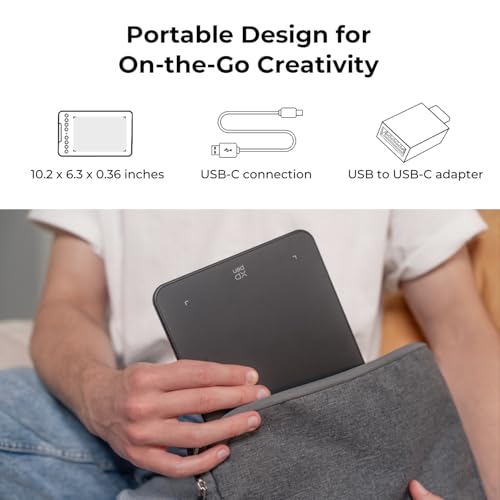
XP-Pen Deco vs Wacom Intuos Small comes down to a simple trade: Wacom gives you the most established drivers, bundled software and training, and the brand most tutorials assume you own, while XP-Pen gives you more hardware for the money. In this comparison we look at the specific models in our listing set, the wired Wacom Intuos Small and the wireless XPPen Deco mini7W V2, because “Deco” covers a whole family of XP-Pen tablets with different sizes.
On paper, the XP-Pen wins on features: a larger stated active area, Bluetooth, tilt support, more shortcut keys and a longer list of supported operating systems. The Wacom wins on ecosystem: a long-proven pen, software included with registration, and a support base so large that almost any problem has a documented fix. Which matters more depends on how and where you draw.
Quick answer: Choose the Wacom Intuos Small if you are a beginner who wants the most dependable setup, bundled creative software and the broadest tutorial support, and you are happy with a wired connection. Choose the XPPen Deco mini7W V2 if you want wireless Bluetooth, tilt for shading brushes, eight shortcut keys and Linux or ChromeOS support. For digital painters who value expressive pen features, the XP-Pen has the edge; for students and first-timers who want the fewest surprises, the Wacom remains the safer pick.
XP-Pen Deco vs Wacom Intuos Small at a Glance
| Feature | Wacom Intuos Small (wired) | XPPen Deco mini7W V2 |
|---|---|---|
| Pressure levels | 4096 | 16384 stated in bullets (details list 8192) |
| Tilt | Not listed | 60 degrees |
| Pen | Battery-free EMR | Battery-free P05D |
| Active area | Small (compact footprint) | 7 x 4.37 inches |
| Connection | USB-A wired | Bluetooth 5.0 or USB-C |
| Battery | Not applicable (wired) | Up to 13 hours per listing |
| Shortcut keys | Express keys on tablet | 8 customizable keys |
| OS support | Windows, macOS, Android; Chromebook plug-and-play | Windows 7+, macOS 10.10+, Android 6+, ChromeOS 88+, Linux |
| Software | Creative software and training on registration | Driver plus mobile active-area app |
| Price tier | $$ | $$$ |
How We Chose
This comparison uses the Amazon listing details and specifications for each tablet, checked in October 2026, and well-established facts about how pen tablets work. We also considered how widely each model is reviewed by Amazon buyers: the Intuos Small has a very large buyer base, while the Deco mini7W V2 listing is newer with far fewer buyer reviews. We did not draw on either tablet.
- Pen performance: pressure, tilt, battery-free design
- Working area and footprint
- Connectivity and portability
- Operating system and app compatibility
- Software, drivers and ecosystem
- Workflow controls
Wacom Intuos Small: The Dependable Standard
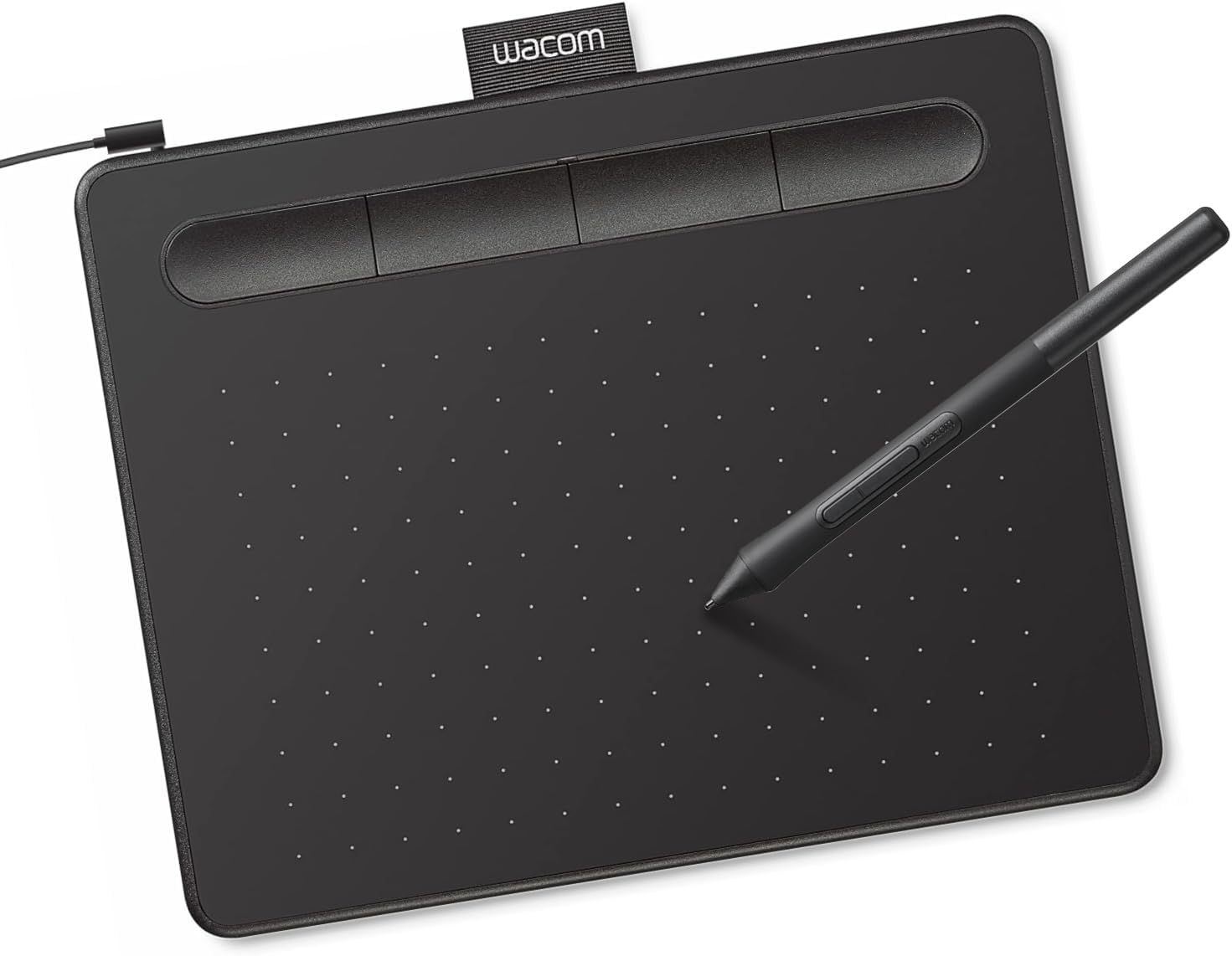
The Intuos Small is Wacom’s entry-level pen tablet and one of the most widely owned drawing tablets anywhere. The listing describes Wacom’s EMR battery-free pen technology, which it says feels like pen on paper, 4096 pressure levels, a USB-A wired connection and compatibility with Windows, macOS and Android, plus plug-and-play use with Chromebooks.
Wacom also includes creative software and online training when you register the tablet. For a beginner, that removes a real hurdle: you get a tablet and something to draw in on day one. The listing points out that the tablet works with any software program for drawing, painting, photo and video editing, design and document markup.
The trade-offs are size and features. The Small is compact, which suits laptops and tight desks but can feel cramped for broad painting strokes. The listing does not mention tilt support, and this version is wired.
Best suited for: Students, beginners, photo editors and anyone who wants the most supported, predictable setup.
Key features:
- Battery-free EMR pen, 4096 pressure levels
- USB-A wired connection
- Windows, macOS, Android; Chromebook plug-and-play
- Creative software and training with registration
Pros:
- Mature, widely supported drivers
- Bundled software adds real value
- Enormous user community and tutorial base
Cons/limitations:
- Compact drawing area
- No tilt listed; wired only in this version
Buying consideration: Register the tablet promptly to claim the included software, and download the latest driver from Wacom.
XPPen Deco mini7W V2: More Hardware for the Money

XP-Pen’s Deco mini7W V2 packs a lot into a small tablet. The listing describes an upgraded battery-free P05D stylus with 16384 pressure levels and 60-degree tilt, Bluetooth 5.0 wireless connectivity with up to 13 hours of continuous use per charge, an L-shaped USB-C port for wired use, and eight customizable shortcut keys. Its title lists a 7 by 4.37 inch drawing area.
Compatibility is broad: Windows 7 or later, macOS 10.10 or later, Android 6.0 or later, ChromeOS 88 or later and Linux. The V2 adds an app that lets you adjust the active area for mobile devices so drawings are not stretched on a phone or tablet screen.
One honest caveat: the bullets state 16384 pressure levels while the product details list 8192. Either figure exceeds what most people can perceive, but it is worth knowing the listing is inconsistent. It is also a much newer listing with a small buyer base so far.
Best suited for: Digital painters who want tilt, wireless use with laptops or Android, and Linux or ChromeOS users.
Key features:
- Battery-free P05D stylus with 60-degree tilt
- Bluetooth 5.0, up to 13 hours per charge
- 8 shortcut keys, USB-C
- Windows, macOS, Android, ChromeOS, Linux
Pros:
- Tilt support for shading brushes
- Wireless freedom
- Broadest OS support
Cons/limitations:
- Pressure spec listed inconsistently
- No bundled creative software mentioned
- Battery needs charging for wireless use
Buying consideration: Use the wired USB-C connection when battery is low or for lowest latency during detailed work.
Head-to-Head Comparison
Pen and pressure
Both use battery-free pens, so neither needs charging. Wacom lists 4096 pressure levels; XP-Pen lists 16384 (or 8192 in the details). In practice, pressure curves, driver quality and the nib’s feel on the surface matter more than the headline number above a few thousand levels. Many professional illustrators work comfortably with 2048 or 4096 levels.
Edge: Tie on everyday drawing; XP-Pen on paper.
Tilt
Tilt lets brushes respond to the pen’s angle, which matters for pencil shading, calligraphy and some painting brushes. The XP-Pen lists 60-degree tilt; the Wacom listing does not mention tilt. If you use tilt-aware brushes in Krita, Photoshop or Clip Studio Paint, this is a significant difference.
Edge: XP-Pen.
Active area and footprint
The XP-Pen’s stated 7 by 4.37 inch area gives a little more room than the compact Intuos Small. Bigger areas let you use more arm movement and feel less cramped on large monitors. Both remain small tablets that pack easily into a laptop bag.
Edge: XP-Pen, slightly.
Connectivity
The Intuos Small in this listing is wired via USB-A. The XP-Pen connects by Bluetooth or USB-C. Wireless is convenient for laptops and couch drawing, but you will need to charge the tablet. USB-A may need an adapter on newer laptops with only USB-C ports.
Edge: XP-Pen for flexibility; Wacom for zero charging.
Operating system support
Both cover Windows, macOS and Android, and both mention Chromebook or ChromeOS support. Only the XP-Pen lists Linux. If you run Linux, the choice is easy.
Edge: XP-Pen.
Software and ecosystem
Wacom includes creative software and training with registration, and its drivers are mature and widely documented. Many tutorials, school courses and app documents assume a Wacom. XP-Pen provides drivers and, for this model, a mobile active-area app, but the listing does not mention bundled creative software. Free programs such as Krita work well with both.
Edge: Wacom.
Shortcut keys
The XP-Pen lists eight customizable shortcut keys. The Intuos Small includes express keys too, but fewer. More keys mean fewer trips to the keyboard for undo, brush size and zoom.
Edge: XP-Pen.
Track record
The Intuos Small listing has an enormous buyer base built over years. The Deco mini7W V2 listing is new. That does not make it worse, but there is less real-world feedback to draw on.
Edge: Wacom.
Setup and Driver Experience
A tablet is only as good as its driver. Both brands require installing their own software to unlock pressure customization, button mapping and screen mapping, and both work best when you download the latest version directly from the manufacturer rather than relying on a generic system driver.
With the Intuos Small, setup typically means plugging in the USB cable, installing the Wacom driver and registering the tablet to claim the included software. Wacom’s driver has been refined over many product generations, and the most common issues, such as pressure not working in a particular app, are thoroughly documented.
With the Deco mini7W V2, you install XP-Pen’s driver for desktop use and pair the tablet over Bluetooth or connect with USB-C. For phones and Android tablets, the V2’s companion app adjusts the active area so the tablet’s proportions match the screen, preventing stretched strokes. Linux users get official support, which is rare among small tablets.
Whichever you choose, uninstall any old tablet drivers from other brands first. Conflicting drivers are one of the most common causes of missing pressure or erratic cursor behavior.
Ergonomics and Desk Setup
Small tablets reward a tidy setup. Place the tablet directly in front of you, or slightly to the side of your keyboard on your drawing-hand side, so your forearm can rest on the desk. Map the tablet to your main monitor only if you use multiple displays; mapping a small tablet across two screens makes every stroke tiny and twitchy.
The XP-Pen’s wireless connection makes it easy to draw in a reclined position or on a lap desk, which some artists find more comfortable for long sessions. The Intuos Small’s cable keeps it anchored, which some prefer for consistency. Both are light enough that a non-slip mat underneath can help on smooth desks.
Long-Term Costs to Plan For
Pen nibs wear down, especially on textured surfaces, so budget for replacement nibs with either brand. If your laptop has only USB-C ports, add a reliable adapter for the Wacom’s USB-A cable. The XP-Pen’s rechargeable battery will gradually lose capacity over years of charging, though the tablet can still be used wired. Neither tablet requires a subscription, and both work with free painting software.
The Learning Curve for First-Time Tablet Users
Whichever tablet you choose, the first week feels strange. With any screenless pen tablet you draw on the pad while watching the monitor, and your hand-eye coordination needs time to adapt. Most people find simple exercises help: tracing circles and straight lines, signing your name repeatedly, and inking over a sketch layer at low opacity.
The smaller the tablet, the more your strokes are amplified on screen, so a compact tablet like the Intuos Small can feel twitchy at first on a large monitor. Mapping the tablet to a single screen, lowering pointer sensitivity in the driver, and drawing with your wrist and forearm rather than just your fingers all help. The XP-Pen’s slightly larger area gives marginally more room to settle in. Within a couple of weeks of regular practice, the setup tends to feel natural on either tablet.
Which Is Better for Your Use Case?
Complete beginners and students
Wacom Intuos Small. Bundled software, a huge help base and plug-and-play behavior make the first weeks easier. If your school or course recommends Wacom, that settles it.
Digital painters and illustrators
XPPen Deco mini7W V2. Tilt support, a slightly larger area and more shortcut keys benefit painting workflows. Wireless is a bonus when you sketch away from the desk.
Photo editors
Either. Photo retouching uses small, precise movements where a compact tablet shines. Wacom’s bundled software may tip the balance.
Chromebook and Android users
Either, check your app. Wacom mentions Chromebook plug-and-play; XP-Pen lists ChromeOS and Android plus an app to fix aspect ratio on mobile screens.
Linux users
XPPen Deco mini7W V2. It is the only one of the two that lists Linux support.
Travelers and laptop users
XPPen Deco mini7W V2. Bluetooth removes a cable from a crowded laptop setup.
Should You Consider a Bigger Tablet Instead?
Both of these are small tablets. If you paint on a large or ultrawide monitor and find small tablets cramped, a larger professional model is a different class of product. For reference, our listing set also included the Wacom Intuos Pro Large, which lists an active area of 14.8 by 9.9 inches, Pro Pen 3 with 8192 levels and tilt, 10 ExpressKeys, two dials and Bluetooth. It is a much bigger investment and footprint, but it shows what the step up looks like.
Buying Guide: How to Choose Between XP-Pen and Wacom
Start with your software
Confirm your painting or editing app supports pressure and, if you want it, tilt on your operating system.
Decide on wired or wireless
Wired is simpler and never needs charging. Wireless is more flexible but adds a battery to manage.
Measure your desk and monitor
Small tablets suit laptops and single monitors. Larger or multiple monitors benefit from larger active areas.
Weigh ecosystem versus features
If you want the safest, most documented path, Wacom. If you want the most features for the money, XP-Pen.
Check ports
USB-A tablets may need an adapter on newer laptops; USB-C is more future-proof.
Plan for nibs
Both pens use replaceable nibs that wear over time. Make sure spares are easy to buy.
Related Tablet Guides
Already leaning toward Wacom? Compare sizes in our Wacom Intuos Small vs Medium guide, and once yours arrives, follow how to use a Wacom Intuos for setup and pen settings. Ready to paint? Try our tutorial on painting digital waves and ocean.
Common Mistakes to Avoid
- Choosing on pressure-level numbers alone.
- Skipping the official driver installation.
- Buying a USB-A tablet without an adapter for a USB-C-only laptop.
- Expecting tilt in apps or brushes that do not support it.
- Leaving Bluetooth on and draining the battery between sessions.
- Forgetting to register a Wacom to claim bundled software.
FAQs
Is XP-Pen as good as Wacom?
For many users, XP-Pen offers comparable drawing performance with more features per tier of spending. Wacom’s advantage is its mature drivers, bundled software and large support base.
Does the Wacom Intuos Small support tilt?
The listing does not mention tilt. The XPPen Deco mini7W V2 lists 60-degree tilt.
Which tablet is better for Chromebook?
Both mention Chromebook or ChromeOS support. XP-Pen lists ChromeOS 88 or later; Wacom notes plug-and-play with Chromebook. Check your app’s pressure support.
Is wireless worth it on a drawing tablet?
It is convenient for laptops and mobile devices. If you always draw at a desk, a wired tablet avoids charging.
Do 16384 pressure levels make a difference?
Not much in practice. Beyond a few thousand levels, the driver’s pressure curve and pen feel matter more.
Which is better for digital painting in Krita?
Both work with Krita. The XP-Pen’s tilt support helps with tilt-aware brushes; the Wacom offers the most established driver support.
Final Recommendation
In the XP-Pen Deco vs Wacom Intuos Small matchup, pick the Wacom Intuos Small if you want a proven, well-supported first tablet with software included and do not mind a cable. Pick the XPPen Deco mini7W V2 if you want tilt, Bluetooth, eight shortcut keys and Linux support, and you are comfortable with a newer listing. For digital painters, the XP-Pen’s feature set is the stronger fit; for beginners who value simplicity and support, the Wacom remains the safer choice.




2 Comments