The best Photoshop canvas size for digital painting is set in pixels, not inches: start from the largest size you will ever print or display at, multiply by the resolution you need, and stop there. This guide walks through that arithmetic inside Adobe Photoshop, with real examples tied to common physical canvas sizes.
A software-neutral explanation of canvas size for digital painting is a good starting point for the concepts. This page is specifically about Photoshop: the New Document dialog, the difference between Image Size and Canvas Size, how resolution and memory interact, and how to pick numbers you will not regret halfway through a painting. Because the products shown are physical canvases and print services, we also use their sizes as targets for your Photoshop document.
Photoshop Canvas Size for Digital Painting: Pixels, Inches and PPI
A Photoshop document is a grid of pixels. Inches only appear when you attach a resolution, measured in pixels per inch (ppi), which tells a printer how densely to place those pixels. A document of 3000 by 2400 pixels is both 10 by 8 inches at 300 ppi and 20 by 16 inches at 150 ppi. The file does not change; only the intended output does.
That is why the best Photoshop canvas size for digital painting depends on where the finished artwork will go.
- Screen only (social media, web portfolio): pixel dimensions matter, ppi is irrelevant. A canvas around 2000 to 4000 pixels on the long side is usually enough.
- Print: work at the print size times a resolution of around 300 ppi for sharp results, or 150 to 200 ppi for large prints viewed from a distance. Check the print service’s requirements.
- Both: work large enough for the print, then scale down for the web.
Pixel Dimensions for Common Canvas Sizes
The physical canvases in the cards below are practical targets. If you plan to print your Photoshop painting onto a canvas of a certain size, this table converts the size to pixels. Values are simple multiplication.
| Print size (inches) | At 150 ppi | At 300 ppi | Approx. memory per layer at 300 ppi (8-bit RGB) |
|---|---|---|---|
| 5 x 7 | 750 x 1050 | 1500 x 2100 | about 9.5 MB |
| 8 x 10 | 1200 x 1500 | 2400 x 3000 | about 21.6 MB |
| 11 x 14 | 1650 x 2100 | 3300 x 4200 | about 41.6 MB |
| 18 x 24 | 2700 x 3600 | 5400 x 7200 | about 117 MB |
The memory column is the uncompressed size of one layer of three color channels at 8 bits each. Real usage is higher because Photoshop keeps history states, previews and caches. The point is that a 18 x 24 inch painting at 300 ppi is more than ten times heavier than an 8 x 10 at the same resolution, and a painting with 40 layers multiplies that.
Setting Up a New Document in Photoshop
In the New Document dialog (File, then New), the key fields are width, height, resolution and color mode. Follow this checklist for a painting.
- Choose units. Set pixels if you think in screen sizes, or inches if you are printing.
- Enter dimensions. Use the table above or your own calculation.
- Set resolution. 300 ppi is the common print standard. For web-only work, 72 or 96 are only labels and do not affect pixel count.
- Color mode. RGB is the usual choice for painting, as it gives the widest range and the full toolset. Check with your printer before converting to CMYK.
- Bit depth. 8-bit is standard. 16-bit gives smoother gradients but doubles memory.
- Background. White is conventional, but a mid-tone can be easier on the eyes for painting.
Photoshop also includes preset categories, such as Art and Illustration, which fill in common sizes. Presets are only starting points; adjust them to your target.
Canvas Size vs Image Size in Photoshop
These two commands are often confused and have very different effects.
Image Size (Image menu). Changes the number of pixels in the whole picture. If “Resample” is on, Photoshop adds or removes pixels, scaling the artwork. If it is off, only the print resolution value changes. Scaling a painting up adds no real detail.
Canvas Size (Image menu). Changes the size of the working area without scaling the artwork. Making the canvas bigger adds blank space around the picture, and making it smaller crops. Use it when you want to extend a composition.
A good habit is to treat enlarging as a one-way trip. If you are unsure, begin with a larger document than you think you need, because shrinking a painting preserves quality while enlarging it does not.
About the products shown: they are physical stretched canvases, canvas boards, custom canvas prints and a digital canvas display, not Photoshop tools. They are relevant if you plan to print or display your digital painting, and the sizes in their titles map to the pixel table above. Check each listing before buying.
Canvia Smart Digital Canvas Display And Frame

This is a digital display and frame, rather than a surface for physical paint. If you want to show digital paintings on a screen, resolution and aspect ratio matter more than ppi. Look at the listing for display resolution and orientation, then export a copy of your painting at those pixel dimensions. A display is a different target from a print: size your export to the screen, not to inches. View the listing.
Esrich Stretched Canvas For Painting
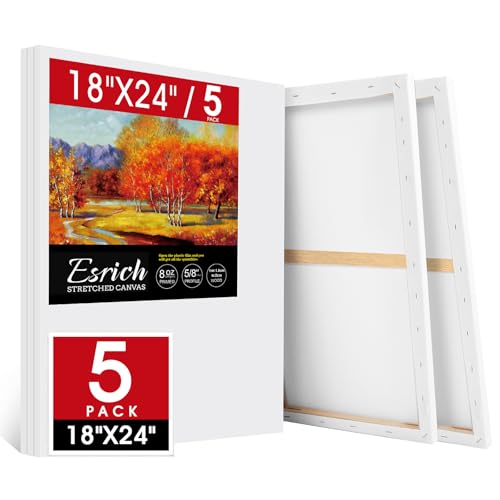
Stretched canvases in 18 x 24 inches, a five-pack. For a print this size, the table gives 5400 x 7200 pixels at 300 ppi. Many printers accept lower resolution for large prints, because viewers stand farther away, so 150 to 200 ppi may be enough. That takes the size down to a manageable 2700 x 3600 to 3600 x 4800 pixels. If you paint on this format physically as well, read about oil and acrylic paints for surfaces. Check the listing.
Artkey Canvases For Painting 8×10 Inch 12-pack

A twelve-pack of 8 x 10 inch boards. This is a convenient reference size: 2400 x 3000 pixels at 300 ppi, with modest memory use. It is a good first document size for learning Photoshop painting because brushes respond quickly even on modest computers. If you also paint traditionally, the physical boards let you compare your digital and traditional approaches. View the listing.
Trends International Art.com Create Your Own Customized Canvas Prints With Your Photos

A service for custom canvas prints from your photos or images. For this, ask the service about file requirements: recommended pixel dimensions, accepted formats and color space. Export a flattened copy of your Photoshop painting at those specifications, and keep your layered PSD as the master. See the listing.
Personalized Custom Canvas Prints: Photo On Canvas (framed 11×14)

A framed 11 x 14 custom photo canvas. At 300 ppi this requires about 3300 x 4200 pixels. Check the pixel guidance the seller gives, and leave a margin around the important part of the image, since wrapped canvases and frames can hide edges. Learn about wall displays in this guide to canvas wall art. View the listing.
Esrich Stretched Canvas For Painting

A two-pack of 11 x 14 inch stretched canvases with a 5/8 inch profile. The size is a sweet spot for desk-based digital painting at 3300 x 4200 pixels. If your computer handles that comfortably with many layers, you have room to grow. Check the listing.
3 Pack Canvases For Painting

A three-pack with 11 x 14, 5 x 7 and 8 x 10 inch canvases for oil and acrylic. A mixed pack mirrors a mix of document sizes. Start with a small one for studies and use the large for finished work. Read about oil and acrylic paint differences if you plan to repaint your digital work in traditional media. View the listing.
Halobios Stretched Canvases For Painting

Another multi-size pack in 11 x 14, 5 x 7 and 8 x 10 inches, for acrylics and oils. As with the other, these sizes are print and painting targets. For oils, the guide on canvas for oil painting gives more on surfaces. Check the listing.
Wall26 Custom Canvas Wall Art, Personalized Photo To Canvas
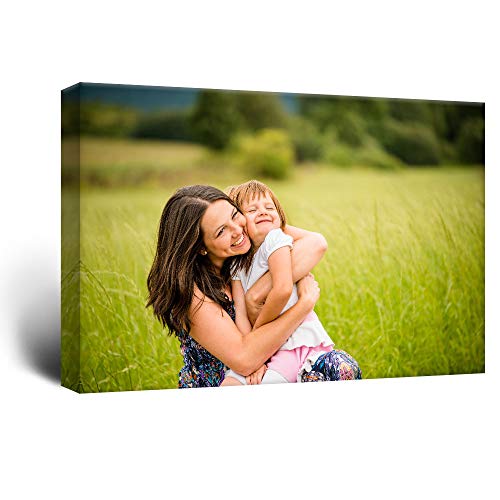
Another custom canvas service. Whichever you use, upload at the size and resolution they require, and view their preview before ordering. If the preview crops your image, adjust the canvas in Photoshop with the Canvas Size command to add margin. View the listing.
Canvas Boards With Easel For Painting 6 Pack

A six-pack of 8 x 10 canvas boards with small pine easels. These are for physical practice, and they give a tangible equivalent of a 2400 x 3000 pixel document. See the guide on canvas boards with easel. View the listing.
Saving and Exporting: PSD, PNG, JPEG and TIFF
Keep your layered working file in PSD format so you can edit later. For sharing online, export a PNG or JPEG at the screen size you need. For print, ask the printer what they prefer: many accept high-quality JPEG or TIFF, and some ask for a specific color profile such as sRGB. Export a flattened copy rather than sending the master. Name files with the size and purpose, for example “harbor-11×14-300ppi.tif”, so you know which copy is which months later.
Finally, set the canvas up with a small safety margin for prints. Canvas wraps and frames can hide an edge, so keep important details away from the borders, and extend the background slightly beyond the intended edge if you plan to wrap the artwork around a frame.
Performance: Why Bigger Is Not Always Better in Photoshop
A large canvas puts pressure on memory, the scratch disk and the graphics processor. Symptoms include lag when you paint, slow brush strokes, long save times and crashes. If this happens, work out whether the canvas is bigger than your output needs. A painting that will only appear on a 1920 pixel wide screen does not need 8000 pixels. A print at 12 x 16 inches does not need more than 3600 x 4800 pixels at 300 ppi.
Ways to keep Photoshop responsive without sacrificing size:
- Merge layers you are done with, or convert them into groups.
- Reduce history states in preferences if memory is limited, or purge them occasionally.
- Work at a smaller size for sketching and composition, then enlarge only if you must.
- Close other heavy applications.
- Keep the scratch disk on a fast drive with free space.
- Save versions often, since big files take time to save.
Brush Size, Detail and Canvas Size
Brush size in Photoshop is in pixels, so the same brush looks different on different canvases. On a small canvas a 100 px brush is huge; on a 7200 px canvas it is a fine detail brush. When you change the canvas size, you may need to adjust brush sizes, and the brush appears to change character. Painters who work at multiple sizes often keep a few tool presets for each canvas size. If you scale an image, keep in mind that brush textures scale too, so grain and bristle marks may look different.
For painterly work, a canvas of 3000 to 4000 pixels on the long side is large enough for visible brushwork at normal viewing sizes. For highly detailed, realistic work or large prints, larger canvases make sense.
Choosing the Right Photoshop Canvas Size for Digital Painting
Work backward from the output. If you only publish online, choose the largest screen size you expect, then add some margin for cropping. If you print, pick the print size and multiply by a resolution that your printer recommends. If unsure, aim for 11 x 14 inches at 300 ppi, which is 3300 x 4200 pixels, and you will have enough resolution for many outputs while keeping files manageable. Save the original and make copies for different uses.
Frequently Asked Questions About Photoshop Canvas Size for Digital Painting
What is a good starting canvas size for digital painting in Photoshop?
A common choice is around 3000 to 4000 pixels on the long side, or 11 x 14 inches at 300 ppi (3300 x 4200 pixels). It is detailed enough for most prints and manageable for most computers.
Does 300 ppi matter for digital painting?
It matters when printing. Resolution only describes how pixels map to inches. For screens, the pixel dimensions are what count.
What is the difference between Canvas Size and Image Size?
Image Size scales the whole picture. Canvas Size changes the working area, adding or removing space around the artwork without scaling it.
Can I enlarge a small painting without losing quality?
Enlarging adds pixels but not real detail, so quality usually drops. It is better to start with a larger canvas than you think you need.
Why does Photoshop slow down with a large canvas?
Each layer stores every pixel, so large canvases and many layers use a lot of memory. Reduce canvas size, merge layers and free up scratch disk space.
Final Thoughts
The right Photoshop canvas size is the one that matches your output and your computer. Do the pixel arithmetic, set the document up correctly, and keep a layered master. The physical canvases shown above are helpful size references if you plan to print your work.
When in doubt, make a test document at your intended size and paint on it for ten minutes before committing to a long project.
Keep a simple note of the canvas sizes and resolutions you use for each kind of output. After a few projects you will have a personal cheat sheet, and creating a new document will take seconds instead of minutes of second-guessing.