PaintingProGuide is reader-supported. When you buy through links on this page we may earn an affiliate commission at no extra cost to you.
There are two ways to paint on a laptop. You can buy a pen-enabled 2-in-1 with a touchscreen that you draw on directly, or you can buy a regular laptop and plug in a pen tablet. The second route is far cheaper and lets you put money into memory and processing power; the first is more natural and portable but costs much more for equivalent performance. The best laptop for digital painting is the one that fits your budget within the route you choose.
This guide compares three laptops on Amazon, from a budget 17.3-inch machine to a convertible creator laptop and a maxed-out 4K OLED workstation, plus three pen tablets that turn any laptop into a painting setup. It also explains which specs actually matter for painting apps, because many listings emphasize gaming or AI features that make little difference to brush performance.
Quick answer: If you want to draw directly on the screen, the Microsoft Surface Laptop Studio 2 is the strongest all-in-one choice here: a 14.4-inch 2400 x 1600 120 Hz touchscreen that converts into a drawing position, a Core i7-13800H, 32 GB of RAM and an RTX 4050. On a budget, pair a capable regular laptop such as the NIMO 17.3-inch (Ryzen 5, 16 GB RAM, 1 TB SSD) with a pen tablet like the HUION Inspiroy H1060P or Wacom Intuos Small. For no-compromise power and a 4K OLED touch display, the HIDevolution-configured ASUS ProArt P16 is the high-end option.
Our Top Picks at a Glance
- Microsoft Surface Laptop Studio 2 (14.4 in, i7, 32 GB) — Best 2-in-1 for drawing on screen
- ASUS ProArt P16 by HIDevolution (16 in 4K OLED Touch) — Best high-end creator laptop
- NIMO 17.3 in Laptop (Ryzen 5, 16 GB, 1 TB) — Best budget laptop to pair with a pen tablet
- HUION Inspiroy H1060P Pen Tablet — Best tablet pairing for value and size
- Wacom Intuos Small Pen Tablet — Best compact tablet from the industry standard
- UGEE M708 Pen Tablet — Best budget tablet with a large area
| Product | Best For | Key Spec | Key Strength | Price Tier |
|---|---|---|---|---|
| Surface Laptop Studio 2 | Drawing directly on screen | 14.4 in 2400×1600 120 Hz; i7; 32 GB; RTX 4050 | Convertible touchscreen design | $$$ |
| ASUS ProArt P16 (HIDevolution) | Large files, pro workloads | 16 in 4K OLED touch; Ryzen AI 9; 64 GB; RTX 5070 | Top-tier display and memory | $$$ |
| NIMO 17.3 in | Budget setup with pen tablet | 17.3 in FHD; Ryzen 5 6600H; 16 GB; 1 TB | Large screen, ample RAM for tier | $$$ |
| HUION H1060P | Pairing with any laptop | 10 x 6.25 in; 8,192 levels; tilt | Large area, many shortcut keys | $$ |
| Wacom Intuos Small | Compact laptop setups | Small; EMR battery-free; 4,096 levels | Software and training included | $$ |
| UGEE M708 | Lowest-cost pairing | 10 x 6 in; 16,384 levels | Wide OS compatibility | $$$ |
How We Chose
These picks were selected from Amazon listing details and specifications checked in October 2026, judged on the specs that matter for painting software (memory, processor, display and pen input), and on how widely each product is reviewed by Amazon buyers. We have not run painting software on these laptops. Performance guidance reflects how common painting apps generally use hardware.
- RAM — the single biggest factor for large canvases and many layers.
- Display — resolution, size and color quality, plus touch and pen support.
- Processor — brush engines and filters lean heavily on the CPU.
- Graphics — helps canvas rotation, zoom and some filters; less critical than RAM for most painting.
- Storage — SSD speed and space for large layered files.
- Pen route — built-in pen screen or a separate tablet.
What Specs Matter for Digital Painting?
| Spec | Minimum to aim for | Comfortable | Why |
|---|---|---|---|
| RAM | 16 GB | 32 GB or more | Large, high-resolution canvases with many layers fill memory quickly |
| Processor | Recent 6-core | 8 cores or more | Smooth brush strokes, filters and file saving |
| Storage | 512 GB SSD | 1 TB SSD or more | Layered files are large; SSDs open and save them fast |
| Display | Full HD IPS | Higher resolution, wide color coverage | Detail and accurate color |
| Graphics | Modern integrated | Discrete GPU | Faster canvas navigation and some GPU-accelerated features |
| Pen input | External pen tablet | Built-in pen display | Pressure-sensitive drawing |
Best Laptops for Digital Painting Reviewed
1. Microsoft Surface Laptop Studio 2 — Best for drawing directly on the screen

The Surface Laptop Studio 2 is a 2-in-1 whose 14.4-inch touchscreen can be pulled forward into a sloped drawing position, which is the main reason artists consider it. The listing gives a 2400 x 1600 resolution and a 120 Hz refresh rate, which makes strokes and panning feel smooth.
Under the hood this configuration has an Intel Core i7-13800H, 32 GB of RAM, a 1 TB SSD and an NVIDIA GeForce RTX 4050 with 6 GB. That is plenty for large Photoshop, Clip Studio Paint or Krita files. The listing claims up to 18 hours of battery life.
The Surface Laptop Studio line supports Microsoft’s Surface pens, sold separately in many configurations, so confirm whether a pen is included in the listing you buy.
Best suited for: Artists who want one portable machine for painting directly on screen and for everyday work.
Key features:
- 14.4 in 2400 x 1600 touchscreen, 120 Hz
- Intel Core i7-13800H, 32 GB RAM
- 1 TB SSD; NVIDIA RTX 4050 6 GB
- Convertible drawing position
Pros:
- Draw directly on the display
- Strong specs for large files
- Smooth 120 Hz screen
Cons and limitations:
- High price tier
- Pen may be sold separately
- 14.4 in is compact for big compositions
Buying consideration: Budget for the pen and a matte screen protector if you prefer more friction when drawing.
2. ASUS ProArt P16 by HIDevolution (16 in 4K OLED Touch) — Best for no-compromise creator power

HIDevolution sells this ASUS ProArt P16 as a build-to-order configuration: a 16-inch 4K (3840 x 2400) OLED touch screen at 60 Hz, an AMD Ryzen AI 9 HX 370 (12 cores, 24 threads), an NVIDIA GeForce RTX 5070 with 8 GB, 64 GB of LPDDR5X memory and 16 TB of PCIe SSD storage in two 8 TB drives. HIDevolution also applies upgraded thermal compounds to the CPU and GPU.
For digital painting, the OLED touchscreen and 64 GB of RAM are the stand-outs: deep blacks, high resolution and room for enormous canvases. The 16 TB of storage is far beyond what most painters need and contributes heavily to the price.
It runs Windows 11 Pro and carries a one-year warranty through HIDevolution, an authorized ASUS build-to-order dealer.
Best suited for: Professional illustrators and concept artists working with very large files who want top-tier hardware.
Key features:
- 16 in 4K OLED touchscreen
- Ryzen AI 9 HX 370, 12 cores
- RTX 5070 8 GB; 64 GB RAM
- 16 TB SSD; Windows 11 Pro
Pros:
- Exceptional display and memory
- Plenty of performance headroom
- Upgraded cooling compounds
Cons and limitations:
- Extremely high price, much of it storage
- Touch screen; confirm stylus support for your needs
- Heavier and more power-hungry than ultraportables
Buying consideration: If you like the ProArt P16 but not the price, look for a configuration with less storage; most painters need 1–2 TB, not 16.
3. NIMO 17.3 in Laptop (Ryzen 5 6600H, 16 GB, 1 TB) — Best for a budget laptop for pen tablet painting

NIMO’s 17.3-inch laptop is the value route: a 6-core AMD Ryzen 5 6600H (boost to 4.5 GHz), 16 GB of DDR5 RAM, a 1 TB PCIe SSD and Radeon 660M integrated graphics, on a 1920 x 1080 IPS display. It runs Windows 11 and comes with a 100 W charger, a two-year warranty and US support per the listing.
It has no touchscreen or pen input, so you would pair it with a pen tablet. The large 17.3-inch screen is a plus for seeing your whole canvas alongside tool panels.
Sixteen gigabytes is a workable minimum for painting at moderate canvas sizes.
Best suited for: Beginners and students building their first digital painting setup on a budget.
Key features:
- 17.3 in 1920 x 1080 IPS display
- Ryzen 5 6600H, 6 cores
- 16 GB DDR5; 1 TB SSD
- Two-year warranty per listing
Pros:
- Large screen at a lower tier
- 16 GB RAM and 1 TB SSD
- Leaves budget for a pen tablet
Cons and limitations:
- No touch or pen input
- Integrated graphics
- Color accuracy not specified
Buying consideration: Calibrate expectations on color: if you plan to print, check colors on a calibrated monitor or test prints.
Pen Tablets to Pair With Any Laptop
4. HUION Inspiroy H1060P Pen Tablet — Best for value and working area

The H1060P offers a 10 x 6.25 inch working area, a battery-free PW100 pen with 8,192 pressure levels and ±60° tilt, plus 12 programmable press keys and 16 soft keys. The tablet is 10 mm slim.
It supports Windows 7 or later, macOS 10.12 or later, Android 6.0 or later and Linux (Ubuntu); Mac users need a USB adapter per the listing.
A large working area suits 15- to 17-inch laptop screens, keeping hand movements proportional.
Best suited for: Laptop painters wanting a large, affordable tablet with shortcuts.
Key features:
- 10 x 6.25 in working area
- 8,192 pressure levels; ±60° tilt
- Battery-free PW100 pen
- 12 press keys + 16 soft keys
Pros:
- Large area for the tier
- Tilt support
- Lots of shortcuts
Cons and limitations:
- Not compatible with iPhone or iPad
- Mac needs an adapter
- Screenless
Buying consideration: Set up your most-used shortcuts (undo, brush size, eraser) first; the rest can wait.
5. Wacom Intuos Small Pen Tablet — Best for compact laptop setups
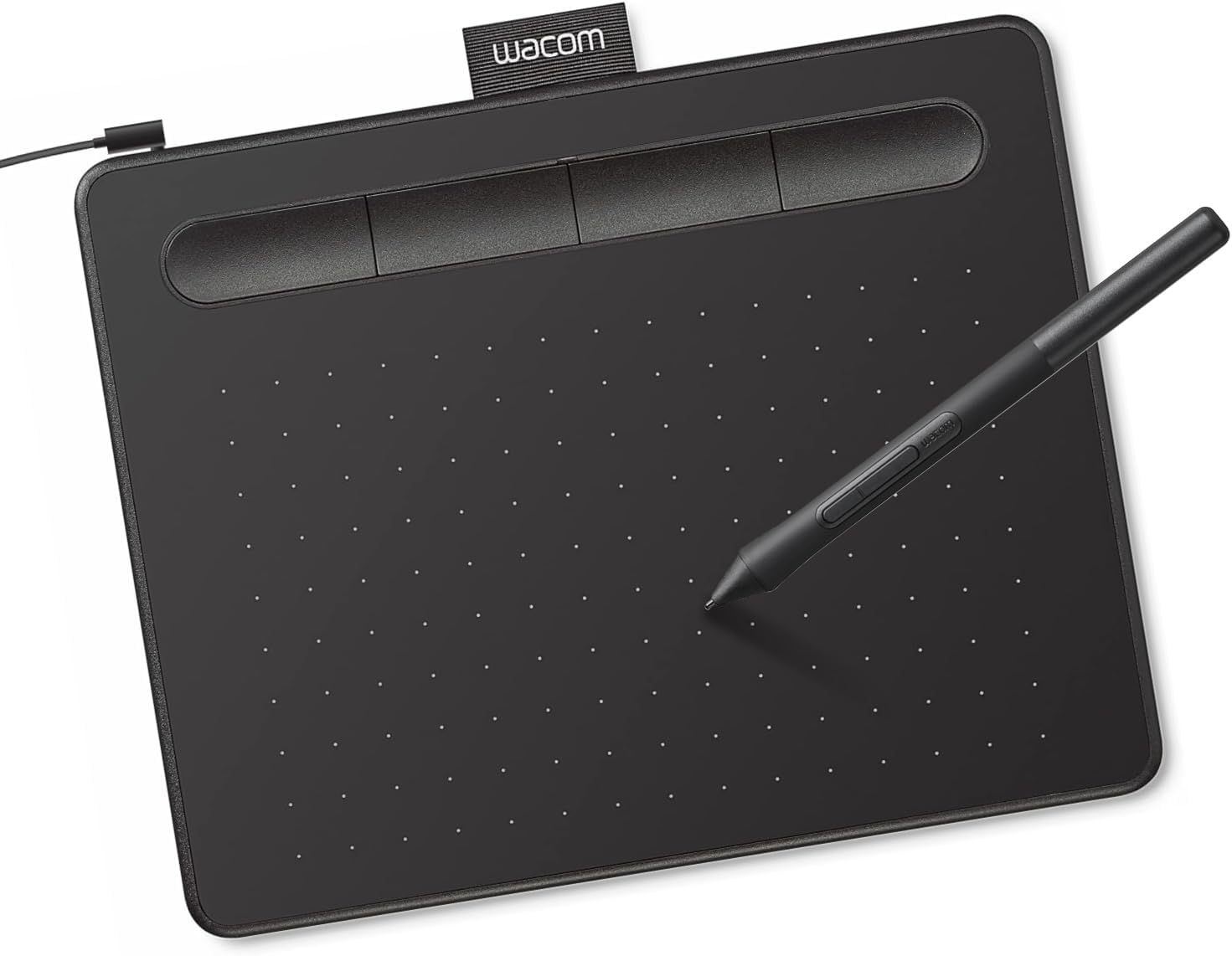
Wacom’s Intuos Small uses EMR, battery-free pen technology with 4,096 pressure levels according to the details. It works with Windows, macOS and Android, and is plug-and-play with Chromebook.
Wacom includes creative software and online training with registration, a useful extra for beginners.
The small size fits beside a laptop on a desk or in a bag.
Best suited for: Students and travelers who want a compact tablet from the industry-standard brand.
Key features:
- EMR battery-free pen
- 4,096 pressure levels
- Windows, macOS, Android, Chromebook
- Software and training with registration
Pros:
- Trusted brand
- Compact and portable
- Bundled software
Cons and limitations:
- Small active area
- Fewer pressure levels than rivals (rarely noticeable)
- USB-A connection
Buying consideration: Map the tablet to your laptop screen only, and set a slightly lighter pressure curve if strokes feel heavy.
6. UGEE M708 Pen Tablet — Best for the lowest-cost pairing
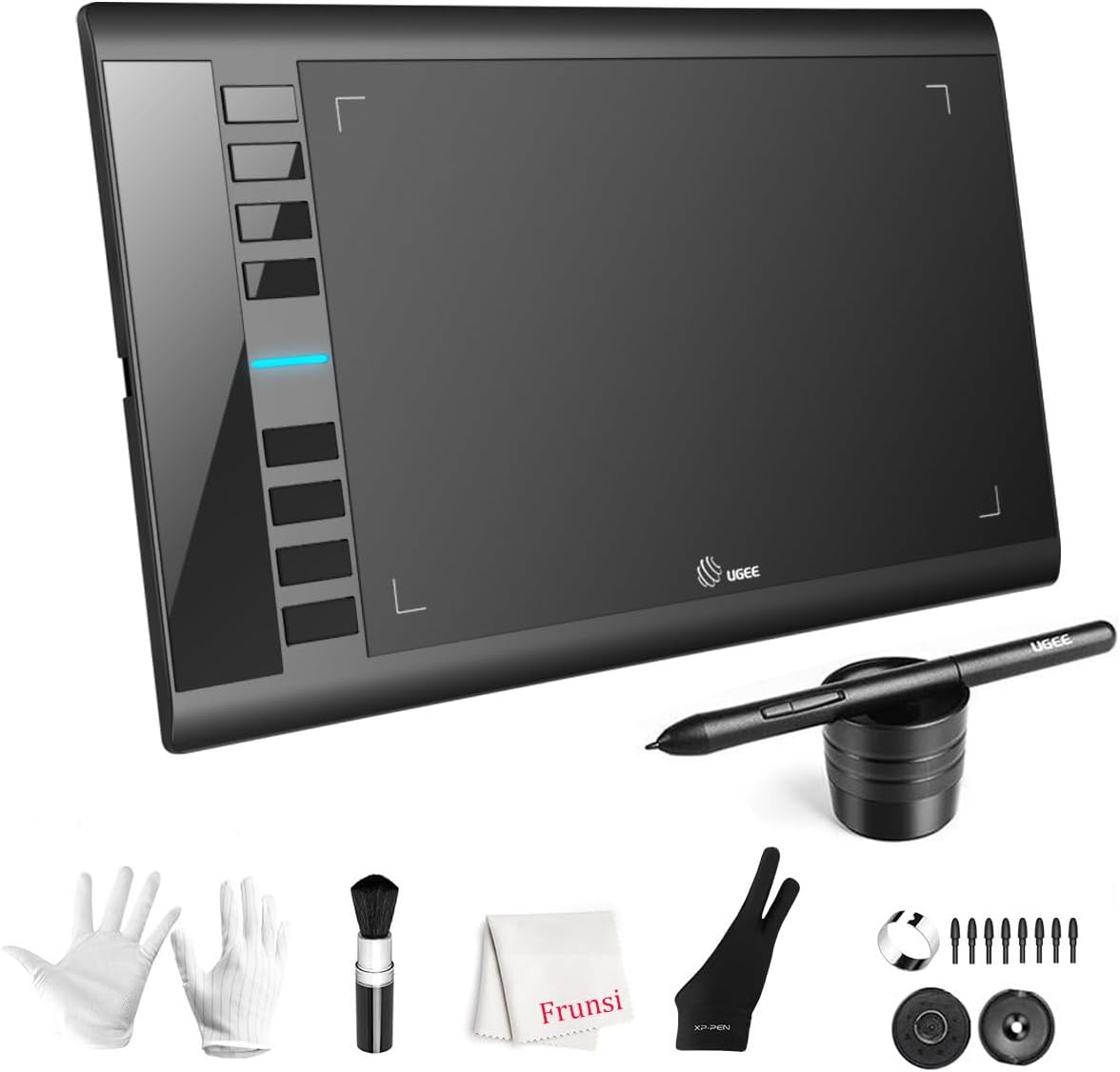
UGEE’s M708 V3 has a 10 x 6 inch active area with a paper-like surface, a battery-free pen with 16,384 pressure levels and eight customizable express keys. The listing names compatibility with Windows, macOS, Android, Chrome OS and Linux, with USB to USB-C connectivity and adapters.
It is a large tablet for the lowest cost among these picks.
The design is ambidextrous.
Best suited for: Beginners on the tightest budgets.
Key features:
- 10 x 6 in active area
- 16,384 pressure levels
- Eight express keys
- Wide OS compatibility
Pros:
- Low tier
- Large area
- Paper-like texture
Cons and limitations:
- Screenless
- Brand less established than Wacom
- Driver setup required
Buying consideration: Install the latest driver from UGEE before connecting.
Setting Up a Laptop for Painting
- Update drivers first. Install the latest graphics and pen tablet drivers before your painting software.
- Raise the screen. A laptop stand plus an external keyboard for shortcuts puts the display nearer eye level.
- Set the power mode to performance when plugged in; battery-saving modes can make brushes lag.
- Allocate memory in your app. Most painting programs let you set how much RAM they use; leave some for the system.
- Check color settings. Turn off adaptive brightness and blue-light filters while judging color.
- Back up automatically. Layered files are valuable; sync to cloud storage or an external SSD.
Buying Guide: How to Choose a Laptop for Digital Painting
Choose your route: pen screen or pen tablet
A 2-in-1 with pen support lets you draw on the display. A regular laptop plus a pen tablet costs less and is easy to upgrade.
Buy RAM first
For painting, 16 GB is a practical minimum and 32 GB is comfortable. More RAM means larger canvases and more layers without slowdown.
Mind the display
IPS or OLED panels offer good viewing angles. Higher resolution helps detail; wide color coverage helps color accuracy. Glossy screens show reflections; matte reduces glare.
CPU over GPU for most painting
Brush engines rely heavily on the processor. A discrete GPU helps some features and canvas navigation but is less important than RAM and CPU.
SSD storage
Layered files are large. An SSD speeds opening and saving; 1 TB gives room for archives.
Ergonomics and portability
Larger screens are easier to paint on but heavier. Consider an external monitor at home.
Start Painting on Your Laptop
Once set up, try our tutorials on digital waves and ocean painting and digital night scenes. Still deciding on a tablet? See digital painting without a tablet.
Common Mistakes to Avoid
- Paying for gaming GPU power instead of RAM. Painting benefits more from memory.
- Buying a touchscreen without pen support. Finger touch is not pressure-sensitive drawing.
- Ignoring color accuracy. Prints may not match a poor screen.
- Overbuying storage. Use external drives for archives.
- Skipping tablet driver updates. Pressure issues often trace back to drivers.
- Painting on a laptop on your lap. Use a desk and good posture for long sessions.
FAQs
Do I need a touchscreen laptop for digital painting?
No. A regular laptop with a pen tablet is a common and affordable setup. A touchscreen only helps if it supports a pressure-sensitive pen.
How much RAM do I need for digital painting?
16 GB is a practical minimum; 32 GB is comfortable for large, high-resolution canvases with many layers.
Is a gaming laptop good for digital painting?
It can be, since gaming laptops often have strong CPUs and RAM. Check display quality, as some gaming screens prioritize refresh rate over color accuracy.
Which pen tablet should I pair with a laptop?
Choose an active area that suits your screen size. A 10 x 6 inch tablet like the HUION H1060P or UGEE M708 suits most 15–17 inch laptops.
Does a discrete GPU matter for painting apps?
It helps some features and smooth canvas navigation, but RAM and CPU usually matter more for brush performance.
Is a MacBook or Windows laptop better for digital painting?
Both work well. Painting software runs on both, though built-in pen screens are only on Windows 2-in-1s; Mac users pair with a pen tablet or use an iPad.
Final Recommendation
To draw directly on the display, choose the Surface Laptop Studio 2. For maximum power and a 4K OLED touchscreen, the ASUS ProArt P16 configuration is the high-end option, though most painters can save by choosing less storage. On a budget, the NIMO 17.3-inch plus a HUION H1060P, Wacom Intuos Small or UGEE M708 pen tablet is a capable, affordable painting setup.