PaintingProGuide is reader-supported. When you buy through links on this page we may earn an affiliate commission at no extra cost to you.
Painting software is less demanding than video editing, but it has its own pressure points. Large canvases with dozens of layers eat memory, brush engines lean on the processor, and a dim or narrow-gamut screen makes color decisions guesswork. The best laptop for digital art balances RAM, a capable processor, a good display and the right ports for a drawing tablet or pen display.
The laptops available on Amazon when we checked in October 2026 were mostly general-purpose machines rather than dedicated creator laptops, so this guide is candid about trade-offs. We picked the models whose specifications fit digital painting best, added a standalone pen tablet as an alternative, and explain what to prioritize so you can judge any laptop you come across.
Quick answer: Of the models we checked, the Acer Aspire 14 AI is the best all-round pick for digital art, with 16GB of RAM, 1TB of storage, a WUXGA touchscreen and a 180-degree hinge. The Lenovo ThinkPad E16 Gen 3 suits artists who plan to connect a pen display, thanks to Thunderbolt 4 and a 16-inch screen. If you want to draw directly on the screen without a separate tablet, the Wacom MovinkPad Pro 14 is a standalone Android pen tablet worth comparing.
Our Top Picks at a Glance
- Acer Aspire 14 AI (Intel Core Ultra 5 226V) — Best for most digital artists on a moderate budget
- Lenovo ThinkPad E16 Gen 3 — Best for pairing with a pen display
- Wacom MovinkPad Pro 14 — Best for drawing directly on screen without a computer
- HP 17.3″ Touchscreen Laptop (Core Ultra 7) — Best for processing power and a big screen on a budget
- HP OmniBook 3 16″ (Ryzen 5) — Best for entry-level sketching and light painting
- Lenovo IdeaPad Slim 3x (Snapdragon X) — Best for battery life and portability
| Product | Best For | Key Spec | Key Strength | Price Tier |
|---|---|---|---|---|
| Acer Aspire 14 AI (Intel Core Ultra 5 226V) | most digital artists on a moderate budget | 16GB LPDDR5X, 1TB, 14″ WUXGA touch | Balanced specs with 1TB storage | $$$ |
| Lenovo ThinkPad E16 Gen 3 | pairing with a pen display | Intel Core 5 210H, 16GB DDR5, 16″ WUXGA touch, Thunderbolt 4 | Thunderbolt 4 and a large anti-glare screen | $$$ |
| Wacom MovinkPad Pro 14 | drawing directly on screen without a computer | 14″ 3K OLED, Pro Pen 3 (8,192 levels), 12GB RAM, Android 15 | Built-in pro pen and OLED display | $$$ |
| HP 17.3″ Touchscreen Laptop (Core Ultra 7) | processing power and a big screen on a budget | Intel Core Ultra 7 255U, 16GB DDR5, 17.3″ 1600×900 touch | Strong CPU and Windows 11 Pro | $$$ |
| HP OmniBook 3 16″ (Ryzen 5) | entry-level sketching and light painting | AMD Ryzen 5, 8GB LPDDR5, 512GB, 16″ 1920×1200 touch | Long battery life and touch display | $$$ |
| Lenovo IdeaPad Slim 3x (Snapdragon X) | battery life and portability | Snapdragon X, 16GB, 512GB, 15.3″ WUXGA | All-day battery and metal chassis | Varies |
How We Chose
We did not benchmark these laptops. Our picks are based on the Amazon listing details and specifications checked in October 2026, how well each machine’s memory, processor, display and ports fit digital painting, and how widely each product is reviewed by Amazon buyers. We prioritized:
- RAM: 16GB as a practical minimum for layered painting files.
- Display: resolution, panel type and touch support.
- Ports: USB-C or Thunderbolt for pen tablets and displays.
- Storage: SSD capacity for large art files and brush libraries.
- Software compatibility: x86 Windows for the widest driver and app support.
Best Laptops for Digital Art Reviewed
1. Acer Aspire 14 AI (Intel Core Ultra 5 226V) — Best for most digital artists on a moderate budget

The Aspire 14 AI combines an Intel Core Ultra 5 226V processor with integrated Intel Arc 130V graphics, 16GB of LPDDR5X memory and 1TB of storage, according to the listing. That is a sensible baseline for painting apps such as Krita, Clip Studio Paint or Photoshop, where RAM and fast storage help with big canvases and many layers.
Its 14-inch WUXGA (1920 x 1200) touchscreen and 180-degree lie-flat hinge add flexibility, and the aluminum chassis keeps it light for travel. The listing does not mention a pressure-sensitive pen, so plan to pair it with a drawing tablet for real painting work.
Best suited for: Students and hobbyists who want a portable all-rounder for painting, with enough memory and storage for layered files.
Key features:
- Intel Core Ultra 5 226V with Intel Arc 130V graphics
- 16GB LPDDR5X RAM, 1TB storage
- 14-inch WUXGA 1920 x 1200 touch display
- 180-degree hinge, aluminum chassis
Pros:
- 16GB RAM and 1TB storage at a moderate tier
- Light and portable
- Touchscreen for navigation and gestures
Cons/limitations:
- No stylus support listed
- Soldered memory cannot be upgraded later
Buying consideration: Because memory is soldered, buy the configuration with enough RAM up front; 16GB is the practical floor for digital painting.
2. Lenovo ThinkPad E16 Gen 3 — Best for pairing with a pen display

The ThinkPad E16 Gen 3 is a business laptop, but its port selection makes it a practical hub for digital art. The listing includes Thunderbolt 4, USB-C 3.2, USB-A, HDMI 2.1 and Ethernet, with native triple-display support. That makes it straightforward to connect a pen display and an external monitor at the same time.
Inside are an Intel Core 5 210H processor with eight cores, 16GB of DDR5 memory and a 512GB SSD, with a 16-inch WUXGA anti-glare IPS touchscreen at 300 nits. The anti-glare finish helps under studio lighting, though 300 nits is moderate brightness.
Best suited for: Artists who will work mostly at a desk with a pen display or drawing tablet and want a reliable, well-connected laptop.
Key features:
- Intel Core 5 210H, 8 cores
- 16GB DDR5 RAM, 512GB SSD
- 16-inch WUXGA IPS anti-glare touchscreen
- Thunderbolt 4, HDMI 2.1, USB-C, USB-A, Ethernet
Pros:
- Excellent connectivity for pen displays
- Large screen with anti-glare finish
- Windows 11 Pro
Cons/limitations:
- 512GB storage fills quickly with art files
- Business styling and weight
Buying consideration: Plan for an external drive or cloud backup if you keep large PSD or CLIP files.
3. Wacom MovinkPad Pro 14 — Best for drawing directly on screen without a computer
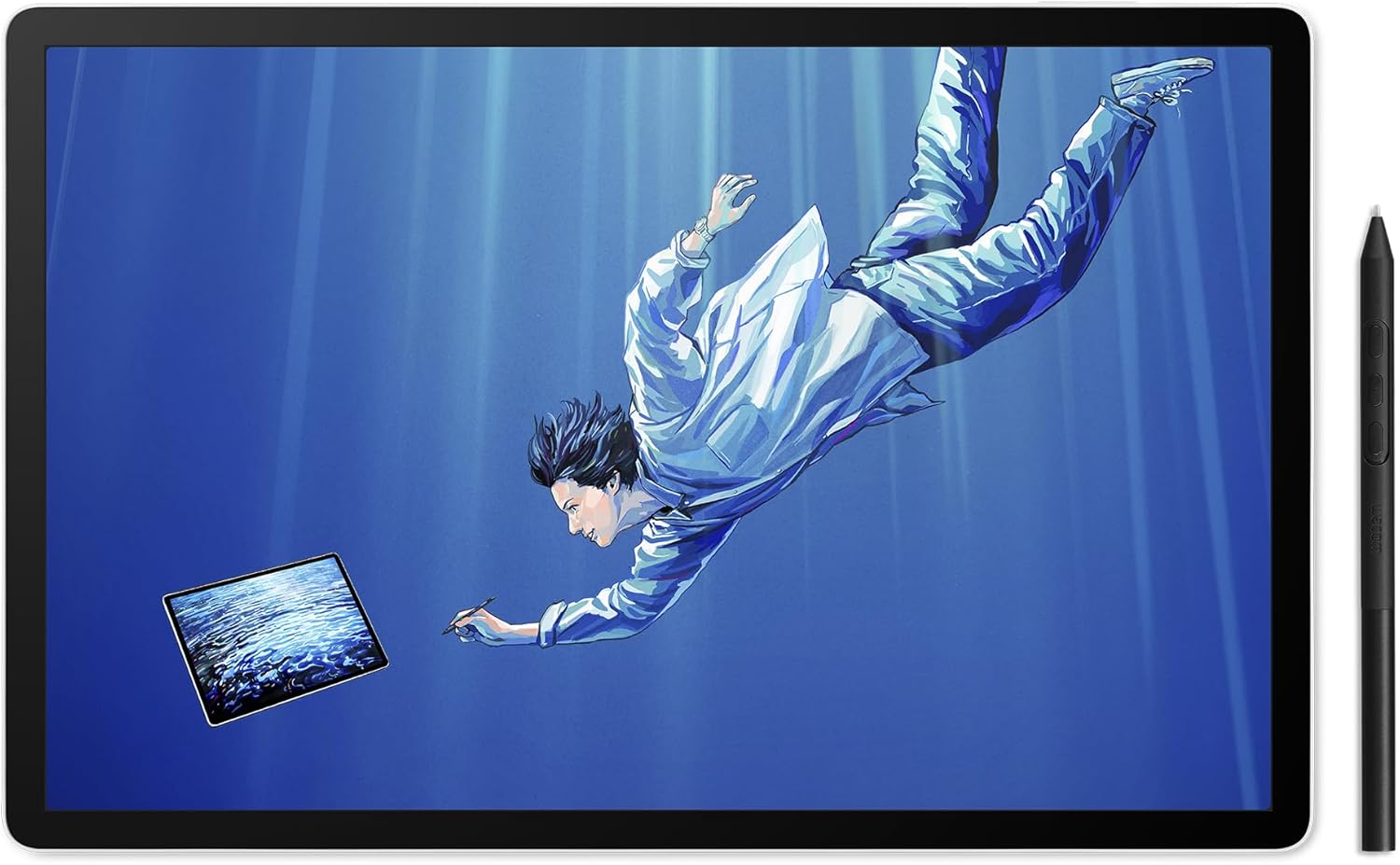
This is not a laptop, but it is worth considering if your main goal is drawing. Wacom’s MovinkPad Pro 14 is a standalone Android 15 tablet with a 14-inch 3K (2880 x 1800) OLED display, 100% sRGB and DCI-P3 coverage per the listing, and an etched glass surface for a paper-like feel.
The included slim Pro Pen 3 offers 8,192 pressure levels and never needs charging. A Snapdragon 8s Gen 3 processor, 12GB of RAM and 256GB of expandable storage handle on-the-go painting apps. The listing also notes it can work with Windows 11 and recent macOS versions, but Windows on ARM systems and Intel Macs are not supported.
Best suited for: Artists who want a portable, pen-first device for sketching and painting, especially away from a desk.
Key features:
- 14-inch 3K OLED, 100% sRGB and DCI-P3
- Wacom Pro Pen 3 slim, 8,192 pressure levels, battery-free
- Snapdragon 8s Gen 3, 12GB RAM, 256GB + microSD
- Android 15 with Google Play access
Pros:
- Professional pen built in
- Vivid OLED color
- No separate computer needed for drawing
Cons/limitations:
- Android apps differ from desktop software
- Not a full laptop replacement for general tasks
Buying consideration: Check that your preferred painting app is available on Android before choosing a tablet over a laptop.
4. HP 17.3″ Touchscreen Laptop (Core Ultra 7) — Best for processing power and a big screen on a budget

HP’s 17.3-inch model offers an Intel Core Ultra 7 255U with 12 cores and 14 threads, 16GB of DDR5 RAM and Windows 11 Pro, according to the listing. The storage is described as 512GB internal SSD plus a 512GB external docking set.
The main drawback for art is the display: 1600 x 900 on a 17.3-inch panel is low resolution, so fine brush texture and small UI text will look softer. It is best treated as a powerful base unit connected to a better external monitor or pen display.
Best suited for: Artists who will mainly use an external monitor or pen display and want a strong processor and big chassis.
Key features:
- Intel Core Ultra 7 255U, 12 cores
- 16GB DDR5 RAM
- 17.3-inch 1600 x 900 touchscreen
- USB-C, 2x USB-A, HDMI, backlit keyboard
Pros:
- Strong processor for brush engines and filters
- Large chassis with numeric keypad
- Windows 11 Pro
Cons/limitations:
- Low screen resolution for its size
- Half the listed storage is an external dock
Buying consideration: Budget for an external monitor if you plan to paint on this laptop’s screen regularly.
5. HP OmniBook 3 16″ (Ryzen 5) — Best for entry-level sketching and light painting

The OmniBook 3 is an everyday laptop with a 16-inch 1920 x 1200 IPS touchscreen, an AMD Ryzen 5 processor with Radeon 610M graphics, 8GB of LPDDR5 RAM and a 512GB SSD. The listing quotes up to around 14 hours of battery life with fast charging.
Eight gigabytes of RAM is the limiting factor for digital art: it is workable for sketching and smaller canvases but can slow down with large, multi-layer files. Consider it a budget machine for learning, paired with a pen tablet.
Best suited for: Beginners and students learning digital drawing on modest files who value battery life.
Key features:
- AMD Ryzen 5 with Radeon 610M graphics
- 8GB LPDDR5 RAM, 512GB SSD
- 16-inch 1920 x 1200 IPS touchscreen
- Up to about 14 hours battery per listing
Pros:
- Long battery life
- Large touch display
- Lower price tier among the laptops here
Cons/limitations:
- 8GB RAM limits large canvases
- Integrated graphics are entry level
Buying consideration: If you expect to work on big print-size canvases, a 16GB laptop is the safer long-term choice.
6. Lenovo IdeaPad Slim 3x (Snapdragon X) — Best for battery life and portability

The IdeaPad Slim 3x pairs a Snapdragon X processor with 16GB of memory, 512GB of storage and a 15.3-inch WUXGA 16:10 display, with a metal chassis that the listing says passed MIL-STD 810H tests. It is built around all-day battery life.
The important caveat is that Snapdragon laptops run Windows on ARM. Many apps run well, but some drawing tablet drivers and older plugins may not, and Wacom’s own MovinkPad listing notes Windows on ARM is not supported for that device. Check your tablet and software compatibility before buying.
Best suited for: Artists who travel, sketch in lightweight apps and have confirmed their tablet and software support Windows on ARM.
Key features:
- Snapdragon X processor with 45 TOPS NPU
- 16GB RAM, 512GB storage
- 15.3-inch WUXGA 16:10 display
- Metal chassis, webcam shutter, fingerprint reader
Pros:
- Long battery life focus
- 16GB RAM
- Durable metal build
Cons/limitations:
- Windows on ARM compatibility limits for some tablet drivers and apps
- Price not shown on the listing when checked
Buying consideration: Search your drawing tablet brand’s support page for ARM driver availability before choosing this laptop.
Recommended Specs by Type of Digital Art
| Use | RAM | Storage | Display | Notes |
|---|---|---|---|---|
| Sketching and line art | 8 to 16GB | 256 to 512GB SSD | 1080p or better | Any modern CPU is fine |
| Illustration and comics | 16GB | 512GB to 1TB | 1920 x 1200 IPS, good sRGB | Pair with a pen tablet or display |
| Print-size painting | 16 to 32GB | 1TB | QHD or better, or external monitor | Large canvases need memory |
| Animation and 3D | 32GB | 1TB+ | High resolution, wide gamut | Dedicated graphics helps |
Buying Guide: How to Choose a Laptop for Digital Art
Memory (RAM)
RAM determines how many layers and how large a canvas you can work with smoothly. 8GB is workable for sketching; 16GB is the practical minimum for serious painting; 32GB helps with print-resolution files and heavy filters.
Processor and graphics
Most painting apps rely heavily on the CPU, with some GPU acceleration for canvas rotation and filters. A modern mid-range processor is plenty for 2D painting. Dedicated graphics matter more for 3D sculpting and animation.
Display quality
Look for at least 1920 x 1080 (or 1920 x 1200) on 14 to 16 inches, an IPS or OLED panel and good sRGB coverage. Low resolutions such as 1600 x 900 make fine detail harder to judge.
Pen support
Touchscreens are not the same as pressure-sensitive pen displays. If a laptop does not list pen support with pressure levels, plan on a separate drawing tablet or pen display.
Ports
USB-C with DisplayPort Alt Mode or Thunderbolt makes connecting pen displays simple, often with one cable. HDMI and USB-A help with older tablets.
Operating system and architecture
Windows on x86 (Intel and AMD) and macOS have the broadest support for art apps and tablet drivers. Windows on ARM is improving, but check driver support first.
Storage
Art files, brushes and reference libraries grow fast. 512GB is a minimum; 1TB is more comfortable. An SSD keeps file opening and saving quick.
Software Tips Once You Are Set Up
If you are just getting started with comics or illustration, our walkthrough on digital manga art in Clip Studio Paint covers canvas setup, brushes and inking. For painterly work, the guide to digital concept art workflows explains thumbnails, value passes and color keys that keep files manageable on any laptop.
Common Mistakes to Avoid
- Assuming a touchscreen means pen pressure. Many touchscreens do not support pressure-sensitive styluses.
- Buying 8GB RAM for large canvases. Memory runs out quickly with many layers.
- Ignoring screen resolution. A big, low-resolution screen makes detail work harder.
- Not checking tablet drivers. Especially important on Windows on ARM.
- Overspending on gaming GPUs for 2D art. RAM and display usually matter more.
- Skipping backups. Art files are irreplaceable; use an external drive or cloud backup.
FAQs
How much RAM do I need for digital art?
16GB is a practical minimum for most digital painting. 8GB handles sketching and small files; 32GB helps with large print-size canvases.
Do I need a touchscreen laptop for digital art?
Not necessarily. Many artists use a regular laptop with a drawing tablet or pen display. A touchscreen helps with navigation but not pressure-sensitive drawing unless pen support is listed.
Is a dedicated graphics card necessary for digital painting?
Usually not for 2D painting. A modern CPU and enough RAM matter more. Dedicated graphics help for 3D work and some heavy filters.
Can I use a Snapdragon laptop for digital art?
Possibly, but check that your painting software and drawing tablet drivers support Windows on ARM before buying.
Is a pen tablet better than a laptop for drawing?
For drawing alone, a pen tablet such as the MovinkPad Pro 14 can feel more natural. A laptop is more versatile for software, file management and other tasks.
What screen size is best for a digital art laptop?
14 to 16 inches balances portability and canvas space. Many artists add an external monitor at home.
Final Recommendation
From the models we checked, the Acer Aspire 14 AI is the best balance of memory, storage and portability for digital painting, paired with a drawing tablet. Choose the ThinkPad E16 Gen 3 if you will mostly work at a desk with a pen display. If what you really want is to draw directly on a screen, compare the Wacom MovinkPad Pro 14. The HP 17.3-inch model offers power but needs an external screen, the HP OmniBook 3 suits beginners on small files, and the IdeaPad Slim 3x is for travelers who have confirmed ARM compatibility.