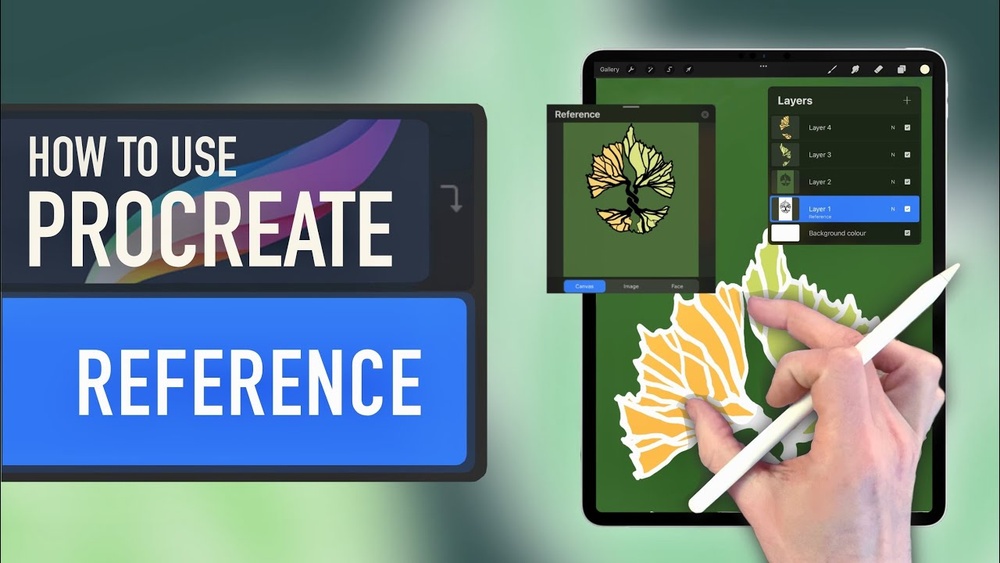
Quick answer: To use a reference layer in Procreate, tap your line art layer’s thumbnail and choose Reference, then select a different, empty layer and drag a color onto a closed shape. The fill lands on the empty layer but follows the boundaries of the line art, so you can color flats without ever touching your lines. Hold after dropping and slide sideways to adjust the fill threshold if color leaks or leaves gaps.
Coloring line art is where many Procreate users lose the most time. Filling directly on the line layer mixes color into your ink, while painting flats by hand around every edge is slow. Learning how to use reference layers in Procreate solves both problems with a single toggle.
This guide explains exactly what the Reference setting does, a full step-by-step coloring workflow, how to fix leaks and halos, and how the separate Reference companion window differs from a reference layer, since the two are easy to confuse.
What a Reference Layer Does
A reference layer is a normal layer with one extra behavior: Procreate reads its contents when deciding where a ColorDrop fill should stop. You still fill on a different layer, but the boundaries come from the reference.
Think of it as a stencil that only the fill tool can see. Your lines remain on their own layer, crisp and unchanged, while flat colors build up underneath on separate layers. You can recolor, move or delete those flats without ever redrawing a line.
Only one layer can be set as Reference at a time. Selecting Reference on a second layer switches it off on the first.
The feature is especially valuable for comics, stickers, character sheets and any style built on flat color. Comic colorists call the base-color stage “flatting,” and it is often the most repetitive part of the job. Reference-based fills cut it down to a series of quick taps, leaving more time for lighting and rendering.
Similar functions exist in desktop painting programs, usually under names like “refer to other layers” or “sample all layers” in the fill tool. If you color on a Windows PC as well, our comparison of Windows apps that work like Procreate covers how each one handles this kind of line-art fill.
Two Different “Reference” Features
Procreate uses the word in two places, and searches often mix them up.
| Feature | Where it lives | What it does |
|---|---|---|
| Reference layer | Layer options (tap layer thumbnail) | Defines boundaries for ColorDrop and some selections on other layers |
| Reference companion window | Actions, then Canvas, then Reference | Floating window showing your canvas, an imported image or a face for reference while you draw |
Most of this article covers the reference layer. The companion window gets its own section near the end because it is useful for painting from photos.
How to Use Reference Layers in Procreate, Step by Step
1. Prepare clean, closed line art
Draw your line art on its own layer using a solid, opaque brush. Close every shape you intend to fill. Tiny gaps where lines almost meet are the most common cause of fills spilling across the whole canvas.
Zoom in and check joins, especially around hair, fingers and fabric folds. If you prefer a sketchy style with intentional gaps, you can close them later on a hidden helper layer, which is covered below.
2. Set the line art as Reference
- Open the Layers panel.
- Tap the thumbnail of your line art layer.
- Tap Reference. The layer now shows “Reference” under its name.
3. Create a flats layer below the lines
Tap the plus to add a layer, then drag it underneath the line art. Keeping flats below lines means any color that slightly overlaps the inner edge of a line stays hidden.
4. Fill with ColorDrop
- Make sure the new flats layer is selected (highlighted in blue).
- Choose a color.
- Drag the color circle from the top right and drop it inside a shape.
The color fills the shape on the flats layer, stopping at the line art boundaries. Continue dropping colors into each region. Many artists use separate layers for skin, hair, clothing and background so each can be locked and shaded independently later.
5. Adjust the ColorDrop threshold
Instead of lifting your finger right after dropping, keep holding. A bar labeled ColorDrop Threshold appears at the top. Slide right to raise it, which fills more aggressively up into the anti-aliased edge of the line; slide left to lower it if the color leaks.
Procreate remembers your last threshold, so once you find a value that suits your line weight, later fills follow suit. Thin, soft lines usually need a lower threshold; thick, hard lines tolerate a higher one.
6. Use Continue Filling for small areas
After a drop, a banner reading Continue Filling may appear at the top. Tap it, and every tap afterward fills another region with the same color. This is fast for patterns, scales or the many small gaps in hair.
7. Shade on top
Once flats are in place, add shading layers above each flats layer and set them to Clipping Mask. Shadows painted with Multiply or highlights painted with Add or Screen will stay within the colored shape. Alternatively, turn on Alpha Lock on the flats layer itself and paint directly.
Fixing the Most Common Problems
Color leaks across the whole canvas
There is a gap in the line art. Undo, zoom in and close it. If you want gaps to stay visible in the final art, close them on a separate “gap closer” layer, set that layer as Reference instead, fill your colors, then hide or delete the gap closer.
Note that the Reference layer is the only one the fill reads, so a gap-closing layer only works if it contains all the lines needed. The simplest approach is to duplicate the line art, close the gaps on the duplicate, mark it as Reference and hide it.
A thin white halo around fills
Anti-aliased lines fade from opaque to transparent at their edges, and a low threshold stops the fill before it reaches the solid part of the line. Raise the threshold, or turn off anti-aliasing in your inking brush’s settings if you prefer a crisper, more graphic look.
Another fix is to select the flats layer, choose Selection in Automatic mode, tap the color, then use a slightly larger brush to paint under the line edges. Because flats sit under the line art, the overlap is invisible.
The fill went onto the wrong layer
ColorDrop fills whichever layer is selected. If color appeared on your line art, the line layer was still active. Select the flats layer before dropping.
Fill seems to ignore the lines
Check that the Reference label is visible on the line layer. Also check that a layer above or below has not been set as Reference instead. If your lines are on several layers, merge them or copy them onto one layer for reference.
Reference Layers and the Selection Tool
The Automatic mode of the Selection tool also respects a reference layer. Tap inside a region on any layer and the selection follows the boundaries of the line art. This is handy for adding gradients, textures or pattern fills inside a specific shape rather than a flat color.
For example, select a sky region automatically, then paint a soft airbrush gradient inside it. The paint cannot cross into the mountains or buildings. Our walkthrough on using adjustment layers in Procreate pairs well with this technique for tweaking each colored region after the fact.
A Practical Layer Structure
A tidy layer stack keeps reference-based coloring fast. One that works well for character art is:
- Line art (set to Reference), top of the stack.
- Highlights (clipped, Add or Screen).
- Shadows (clipped, Multiply).
- Flats for each major area.
- Background.
Group each set of flats with its clipped shading layers and name the group. Layer count can be a constraint on large canvases, so merge shadow and highlight layers once you are happy with them.
Using the Reference Companion Window
The other Reference feature opens a small floating window. Go to Actions, then Canvas, then toggle on Reference. The window offers three options:
- Canvas: shows a live, zoomed-out view of your whole canvas while you work zoomed in. This is excellent for checking composition and values without constantly pinching out.
- Image: imports a photo from your library to paint from, keeping it beside your canvas rather than on a layer.
- Face: on supported iPads, a face-tracking mode used with the FacePaint feature for previewing designs on your own face.
Drag the window by its top bar and resize it from the corner. The Image option is particularly useful because a photo on a layer adds to your layer count and can be painted on accidentally, while the companion window stays separate.
When painting from photos, try converting the reference image to grayscale on your phone or in the Photos app first. Comparing values in black and white is easier, and the floating window keeps it visible at all times. The same approach helps when studying skies, as in our tutorial on painting realistic clouds in Procreate.
Tips for Faster Coloring
- Fill the background first. Drop a color outside your character, then use Invert in the Selection tool to isolate everything else quickly.
- Use temporary bright colors. Fill flats with obviously fake colors so you can spot missed areas, then recolor with Alpha Lock or Hue adjustments later.
- Sample instead of hunting. Touch and hold to eyedrop a color already on the canvas before dropping it elsewhere.
- Lock line art. Swipe left on the line layer and tap Lock to avoid accidental edits.
- Check at 100 percent zoom. Small gaps and halos are visible at actual size even if they disappear when zoomed out.
When Reference Layers Are Not the Right Tool
Reference-based fill is best for illustration with clear outlines. For loose, painterly work without lines, it offers little. In those cases, blocking in shapes with a large brush and refining edges by hand gives more natural results.
If you also paint on a Windows computer, you will find that many desktop programs offer similar features, sometimes called “reference layer” or “fill from all layers.” Our comparison of top Procreate alternatives for Windows notes which ones handle line-art coloring smoothly.
FAQs
What does Reference do in Procreate?
It lets other layers use that layer’s contents as boundaries for ColorDrop fills and automatic selections. You fill on a separate layer, but the color stops at the lines on the reference layer.
Why is my reference layer not working?
Usually the flats layer is not selected, the line art has gaps, or another layer has become the Reference instead. Check for the Reference label and make sure you drop color while the target layer is active.
Can I have more than one reference layer in Procreate?
No. Only one layer can be set to Reference at a time. If your lines are split across layers, merge copies of them into one layer and use that as the reference.
How do I turn off a reference layer?
Tap the layer’s thumbnail and tap Reference again to toggle it off. Setting a different layer as Reference also switches off the previous one.
How do I get rid of white edges after filling?
Raise the ColorDrop threshold by holding after the drop and sliding right, or paint flats slightly under the line edges with a brush. Keeping flats beneath the line art hides any overlap.
How do I add a reference image in Procreate?
Go to Actions, then Canvas, turn on Reference, and choose Image in the floating window. Import a photo, and it will stay visible beside your work without using a layer.
Final Thoughts
The reference layer is one of the biggest time savers in Procreate. Set your line art as Reference, fill flats on separate layers below, fine-tune the threshold and shade with clipping masks. Clean, closed lines make the whole process close to instant.
If you are weighing whether to keep coloring on an iPad or move some work to a PC, look at how other programs handle line-art fills before switching. Our guide to the best Procreate-like painting software for PC is a helpful place to compare features side by side.