
PaintingProGuide is reader-supported. When you buy through links on this page we may earn an affiliate commission at no extra cost to you.
Procreate only runs on iPad (with Procreate Pocket on iPhone). So if you draw on Windows, Android, a Chromebook or a Mac, you need a Procreate alternative, and the good news is that there are excellent ones, several of them free. The best Procreate alternative for most Windows users is Krita, a free, open-source painting program with a brush engine and layer system that will feel familiar to anyone who has used Procreate. Clip Studio Paint is the strongest choice for comics and line art, and Adobe Photoshop remains the professional standard if you need it for client work.
Software is only half the story, though. Procreate users are used to drawing directly on the screen with Apple Pencil, so we also cover the hardware that recreates that experience on a PC or without a computer at all.
Quick answer: Krita is the best Procreate alternative for Windows: free, painting-focused and full of customizable brushes. Choose Clip Studio Paint for comics, inking and animation, Photoshop for industry workflows, or Rebelle for realistic watercolor and oil. For hardware, the GAOMON PD1161 pen display gives a draw-on-screen feel on a PC, the Wacom Intuos Small is the low-cost entry, and the Frunsi T11 Pro is a standalone Android drawing tablet.
Our Top Picks at a Glance
- Krita — Best free Procreate alternative for Windows, Mac and Linux
- Clip Studio Paint — Best for comics, manga and inking
- Adobe Photoshop — Best for professional and client workflows
- Rebelle — Best for realistic watercolor and oil simulation
- Infinite Painter / ibisPaint — Best Procreate-style apps for Android
- GAOMON PD1161 Pen Display — Best hardware for an iPad-like feel on a PC
| Software | Platforms | Best For | Feels Like Procreate? | Price Model |
|---|---|---|---|---|
| Krita | Windows, macOS, Linux | Painting and illustration | Very close in brush feel and layers | Free, open source |
| Clip Studio Paint | Windows, macOS, iPad, Android, Chromebook | Comics, inking, animation | Close; more tools and menus | One-time or subscription plans |
| Adobe Photoshop | Windows, macOS, iPad | Pro illustration, photo work | Different; more complex | Subscription |
| Rebelle | Windows, macOS | Watercolor and oil realism | Different; natural-media focus | One-time purchase |
| Adobe Fresco | Windows touch devices, iPad, iPhone | Live watercolor and oil brushes | Close in simplicity | Free tier available |
| Infinite Painter | Android, iOS | Mobile painting | Very close on tablets | Free trial, paid upgrade |
| ibisPaint | Android, iOS, Windows | Anime and line art | Close for line work | Free with ads, paid options |
| MediBang Paint | Windows, macOS, Android, iOS | Free comics and illustration | Simpler | Free |
| Product | Best For | Key Spec | Key Strength | Price Tier |
|---|---|---|---|---|
| GAOMON PD1161 Pen Display | Drawing on screen with a PC | 11.6 in FHD IPS, 8192 levels, tilt | Battery-free pen, 8 shortcut keys | $$$ |
| Wacom Intuos Small | Low-cost entry on any computer | 4096 levels, battery-free EMR pen | Works with Windows, Mac, Android, Chromebook | $$ |
| Frunsi T11 Pro Standalone Tablet | No computer needed | 10.1 in 1920×1200 IPS, Android 12, 64 GB | Runs Android drawing apps | $$$ |
How We Chose
We did not run hands-on trials of these programs or devices for this article. The software picks are based on each program’s published features and platform support, and on how closely its workflow matches what Procreate users expect. The hardware picks are based on Amazon listing details and specifications checked in October 2026, how well each device recreates a pen-on-screen workflow, and how widely each product is reviewed by Amazon buyers. Software pricing changes often, so we describe pricing models rather than exact prices.
- Platform: does it run on Windows, Mac, Android or Chromebook?
- Brush engine: pressure response, stabilization and custom brush support.
- Layer system: blend modes, clipping masks, alpha lock equivalents and adjustment layers.
- Learning curve: how quickly a Procreate user can get productive.
- Cost model: free, one-time purchase or subscription.
- Hardware fit: works well with pen tablets and pen displays.
Best Procreate Alternative Software Reviewed
1. Krita — Best Free Procreate Alternative
Krita is a free, open-source painting program developed with artists in mind. It runs on Windows, macOS and Linux and focuses on what Procreate users care about most: brushes, layers and painting. It includes a deep brush engine with many presets and full customization, brush stabilizers, wrap-around mode for seamless textures, assistant tools for perspective, layer blend modes, clipping and inherit-alpha (Krita’s equivalent of Procreate’s alpha lock), filters, and basic animation.
The interface is busier than Procreate’s and takes some configuration, but you can hide dockers and set up a clean canvas workspace. For Windows users who want Procreate-style painting without paying, Krita is the obvious first download.
Best suited for: illustrators, concept artists, painters and students on Windows, Mac or Linux.
Pros:
- Completely free with no subscriptions
- Powerful, customizable brush engine
- Perspective assistants and stabilizers
- Animation tools included
Cons and limitations:
- More cluttered interface than Procreate
- Fewer comic-specific tools than Clip Studio
- Touch gesture support varies by device
2. Clip Studio Paint — Best for Comics and Line Art
Clip Studio Paint is widely used by comic, manga and webtoon artists for its excellent line stabilization, vector layers, panel and speech balloon tools, screentones, 3D pose models and animation features. It runs on Windows, macOS, iPad, Android and Chromebook, so it is also a good choice if you work across devices.
Pricing options include one-time purchases for desktop versions and subscription plans for mobile and multi-device use. Check the current plan options before buying.
Best suited for: comic artists, line artists, animators and anyone who inks heavily.
Pros:
- Best-in-class line stabilization and vector inking
- Comic panels, balloons and tones
- 3D models for pose reference
- Available on many platforms
Cons and limitations:
- Many menus and settings to learn
- Plan and version options can be confusing
3. Adobe Photoshop — Best for Professional Workflows
Photoshop is not a drawing-first app, but it remains the industry standard for illustration in many studios and agencies. Its brush system, selection tools, adjustment layers and file compatibility are unmatched for client work. PSD files from Procreate open in Photoshop with layers intact, which makes it a natural companion for iPad artists.
Best suited for: professionals, freelancers working with agencies and artists who combine painting with photo editing.
Pros:
- Industry-standard file format and tools
- Powerful selections, masks and adjustments
- Huge brush and tutorial ecosystem
Cons and limitations:
- Subscription only
- Heavier and more complex than Procreate
4. Rebelle — Best for Realistic Watercolor and Oil
Rebelle by Escape Motions simulates how real paint behaves: watercolor diffuses and dries, wet paint drips when you tilt the canvas, and oils and acrylics blend with canvas texture. If you love Procreate’s painterly brushes but want more convincing traditional media, Rebelle is the specialist option on Windows and Mac.
Best suited for: traditional painters moving to digital, watercolorists and fine-art digital painters.
Pros:
- Convincing wet-media simulation
- One-time purchase
- Canvas tilt and drying effects
Cons and limitations:
- Less suited to clean line art
- Can be demanding on older computers
5. Adobe Fresco — Best Simple Option on Windows Touch Devices
Adobe Fresco runs on Windows touch devices with a pen, as well as iPad and iPhone. Its Live Brushes recreate watercolor and oil behavior, and vector brushes stay sharp at any size. Its touch-first interface is closer to Procreate’s simplicity than most desktop programs.
Best suited for: Surface and other Windows pen-tablet users who want a clean, touch-first app.
6. Android Options: Infinite Painter, ibisPaint and More
On Android tablets, Infinite Painter offers the most Procreate-like painting experience, with a deep brush library, perspective guides and layer blend modes. ibisPaint is a favorite for anime and line art, with strong stabilization and comic tools, and it also has a Windows version. MediBang Paint is a free option with comic tools and cloud saving, and Sketchbook is a clean, free sketching app.
Hardware: Getting a Procreate-Like Setup Without an iPad
Part of what makes Procreate feel effortless is drawing directly on the screen. On a PC, you can recreate that with a pen display, or start more cheaply with a screenless pen tablet. Or skip the computer entirely with a standalone Android drawing tablet.
1. GAOMON PD1161 Drawing Tablet with Screen — Best for an iPad-like draw-on-screen feel on a PC
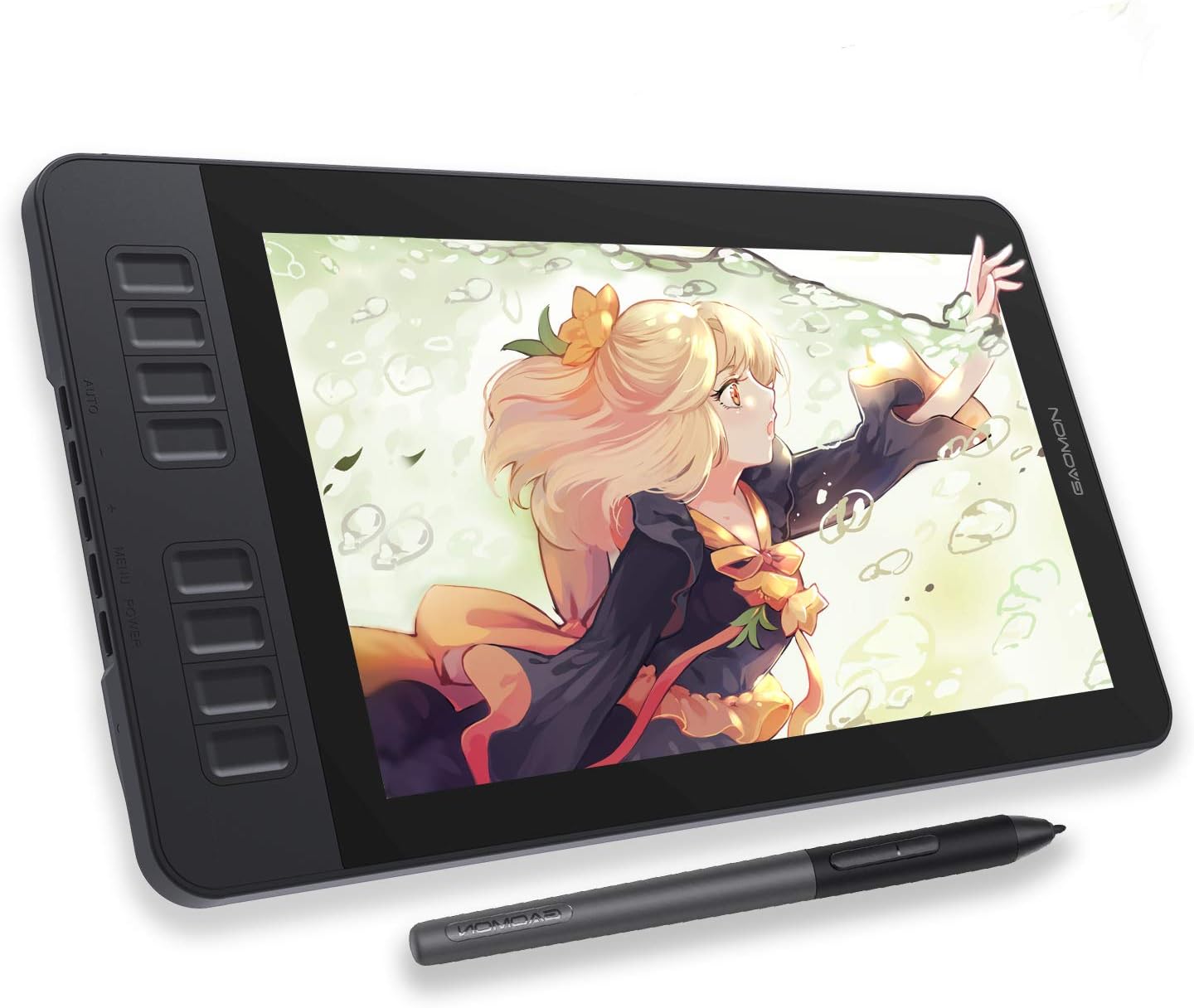
The PD1161 is an 11.6-inch Full HD IPS pen display that connects to a Windows or Mac computer, so you draw directly on the image like you would on an iPad. The listing describes a pre-installed matte film that feels closer to paper and reduces glare, a color gamut of 72% NTSC (100% sRGB) and 16.7 million display colors.
The battery-free AP50 pen offers 8192 levels of pressure sensitivity and tilt support. Eight programmable keys on the side of the display and two pen buttons can be customized in the driver. Connectivity is HDMI and USB, and the listing supports Windows 7 or later and macOS 10.12 or later. It is not standalone; it must be connected to a computer.
Best suited for: Procreate users moving to Krita, Clip Studio or Photoshop on a PC who want to keep drawing on screen.
Key features:
- 11.6-inch FHD IPS display with matte film
- 72% NTSC (100% sRGB) color gamut
- Battery-free pen, 8192 pressure levels, tilt
- 8 programmable side keys, 2 pen buttons
- HDMI and USB; Windows and macOS
Pros:
- Draw directly on screen like an iPad
- No pen charging
- Shortcut keys replace Procreate gestures
Cons and limitations:
- Requires a computer and cables
- Smaller than many iPads in usable area
- Driver setup needed for pressure
Buying consideration: Check your computer has an HDMI output or a suitable adapter, and install the latest GAOMON driver before launching your art software.
2. Wacom Intuos Small, Wired — Best for a low-cost entry on any computer
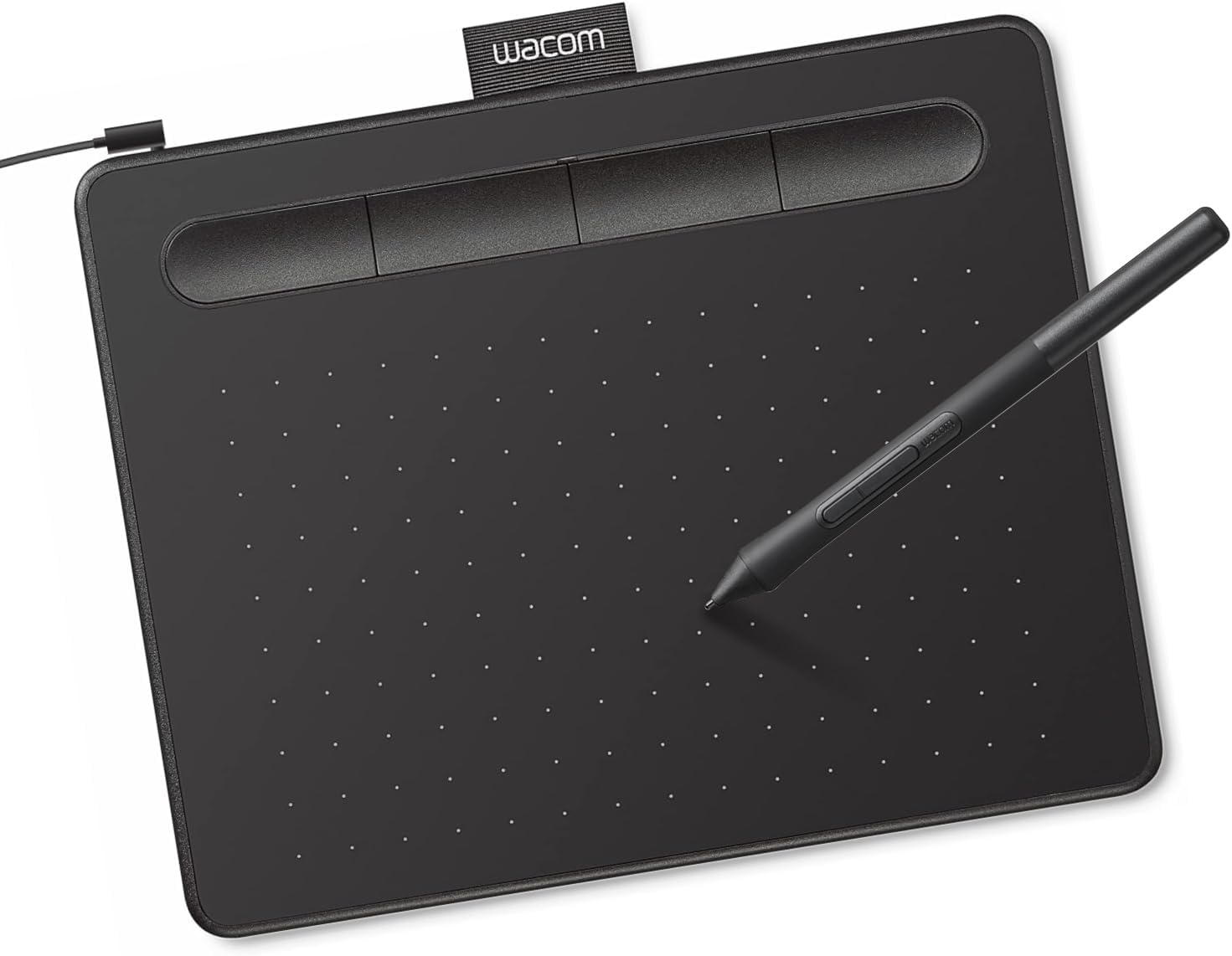
If you are not ready for a pen display, a screenless tablet like the Wacom Intuos Small is the cheapest way to get pressure-sensitive drawing on a computer. The listing describes a battery-free EMR pen with 4096 levels of pressure sensitivity and USB-A connectivity, working with Windows, Mac and Android plus plug-and-play on Chromebook.
You draw on the tablet and watch the monitor, which takes some adjustment for Procreate users accustomed to drawing on glass. Registration includes access to bundled creative software and training.
Best suited for: budget-conscious artists, students and Chromebook users trying a Procreate alternative.
Key features:
- 4096 pressure levels
- Battery-free EMR pen
- USB-A wired
- Windows, Mac, Android, Chromebook
Pros:
- Lowest price tier option
- Compact and reliable
- Wide compatibility
Cons and limitations:
- Screenless; hand-eye adjustment needed
- Small active area
Buying consideration: Pair it with Krita for a capable digital painting setup at very low total cost.
3. Frunsi T11 Pro Standalone Drawing Tablet, 10.1-Inch — Best for drawing without a computer

The Frunsi T11 Pro is the closest non-Apple equivalent to “an iPad for drawing” in the current listings: a standalone Android tablet with a pen and pre-installed drawing apps. The listing describes a 10.1-inch 1920 x 1200 FHD IPS display, Android 12, a quad-core MTK processor, 4 GB RAM, 64 GB storage and a 5800 mAh battery rated for over five hours.
It works with Android apps such as Sketchbook, ArtFlow and ibisPaint X, per the listing. Pen pressure is listed at 1024 levels, which is lower than pen displays and iPads but adequate for sketching and casual illustration.
Best suited for: students, hobbyists and travelers who want a self-contained drawing tablet at a lower cost than an iPad.
Key features:
- 10.1-inch 1920 x 1200 IPS display
- Android 12, 4 GB RAM, 64 GB storage
- 5800 mAh battery, over five hours
- Pre-installed drawing apps
- Pen with 1024 pressure levels
Pros:
- No computer needed
- Runs popular Android drawing apps
- Portable for travel and classes
Cons and limitations:
- Lower pressure levels than pen displays
- Modest processor for heavy brushes and big canvases
- Procreate itself is not available on Android
Buying consideration: Keep canvas sizes and layer counts moderate for smooth performance, and check which drawing apps are pre-installed versus downloadable.
How Your Procreate Skills Transfer
The good news for switchers: almost every Procreate technique has a direct equivalent in Krita, Clip Studio Paint and Photoshop. The tool names change, but the thinking does not. Here is how our Procreate tutorials map to other programs, so you can keep learning with what you already know.
- Line art: the stabilizer and inking techniques in our guide to drawing line art in Procreate translate to Krita’s brush smoothing and Clip Studio’s stabilization settings.
- Coloring flats: the approach in coloring line art in Procreate maps to Clip Studio’s reference-layer fill and Krita’s colorize mask.
- Reference layers: our guide on using reference layers in Procreate has close equivalents in Clip Studio (“Set as reference layer”) and Krita (“reference” fill options).
- Blending: the techniques in blending colors in Procreate apply to Krita’s blending brushes and Photoshop’s mixer brush.
- Smudging: our smudge tool tutorial for Procreate applies directly to Krita and Photoshop smudge brushes.
- Selections: the workflow in using the selection tool in Procreate carries over to lasso and magic wand tools everywhere.
- Adjustments: Procreate adjustment layers correspond to non-destructive adjustment layers in Photoshop and filter layers in Krita.
- Color grading: the ideas in color grading in Procreate work with gradient maps and curves in any major program.
- Perspective: our guide to perspective painting in Procreate pairs with Krita’s perspective assistants and Clip Studio’s perspective rulers.
- Cel shading: cel shading in Procreate uses clipping masks and multiply layers, which work the same in Krita, Clip Studio and Photoshop.
- Clouds: the soft-brush methods in painting realistic clouds in Procreate work with any airbrush and smudge combination.
- Skin: the layering approach in painting realistic skin in Procreate is software-agnostic and works in all of the alternatives above.
Buying Guide: How to Choose a Procreate Alternative
Start with your device
Windows and Mac users have the widest choice: Krita, Clip Studio, Photoshop, Rebelle and more. Android tablet users should look at Infinite Painter, ibisPaint, Clip Studio and MediBang. Chromebook users can run Android apps and some web-based tools.
Decide what you draw most
Painting favors Krita, Rebelle or Infinite Painter. Comics and line art favor Clip Studio Paint. Professional client work often requires Photoshop.
Consider cost model
Procreate’s one-time price is one of its biggest attractions. Krita is free. Rebelle and some Clip Studio desktop versions are one-time purchases. Photoshop is subscription only.
Match the hardware
Software is only as good as the pen. A pen display like the GAOMON PD1161 gives the most Procreate-like feel on a PC. A screenless tablet costs less. A standalone Android tablet avoids needing a computer.
Check file compatibility
If you still use Procreate on an iPad, export PSD files to keep layers when moving work to Krita, Clip Studio or Photoshop.
Plan for a learning curve
Desktop programs have more menus than Procreate. Spend an hour customizing your workspace, hiding panels and setting shortcuts. It makes the switch much easier.
Common Mistakes to Avoid
- Looking for “Procreate for Windows”; it does not exist, and apps claiming the name are not official.
- Buying expensive software before trying a free option like Krita.
- Skipping pen driver installation, which leaves pressure sensitivity disabled.
- Expecting desktop programs to mirror Procreate gestures exactly.
- Using huge canvases on low-powered Android tablets.
- Forgetting to export layered PSD files when moving work between apps.
FAQs
Is there a Procreate for Windows?
No. Procreate is available only on iPad, with Procreate Pocket on iPhone. Krita, Clip Studio Paint and Photoshop are the most popular alternatives on Windows.
What is the best free Procreate alternative?
Krita is the best free alternative for Windows, Mac and Linux. On Android, ibisPaint and MediBang Paint are popular free options.
Which Procreate alternative is best for Android?
Infinite Painter offers the most Procreate-like painting experience on Android, while ibisPaint and Clip Studio Paint are strong for line art and comics.
Can I open Procreate files in Krita or Photoshop?
Export your Procreate artwork as a PSD file to keep layers. Krita, Clip Studio Paint and Photoshop can open PSD files.
Do I need a drawing tablet to use Krita?
You can use a mouse, but a pen tablet with pressure sensitivity is strongly recommended for drawing and painting.
Is Clip Studio Paint better than Procreate?
It is better for comics, inking and animation thanks to its specialized tools, while Procreate is simpler and faster for general painting on iPad.
Final Recommendation
For most people leaving or living without an iPad, Krita is the best Procreate alternative: free, painting-focused and powerful. Comic artists should choose Clip Studio Paint, professionals will likely need Photoshop, and traditional painters should look at Rebelle. For hardware, the GAOMON PD1161 pen display gives the most iPad-like experience on a PC, the Wacom Intuos Small is the budget entry, and the Frunsi T11 Pro lets you draw without a computer. If you still use Procreate alongside other tools, our guides to color temperature in Procreate and custom canvas sizes in Procreate help keep files consistent across apps.



3 Comments