Quick answer: To do color grading in Procreate, finish your painting, then duplicate the layers and merge the copy into one flattened layer so the original stays safe. Apply grading from the Adjustments menu: Curves for contrast and per-channel color, Color Balance to tint shadows, midtones and highlights separately, Gradient Map to remap values to a color scheme, and Hue, Saturation, Brightness for overall saturation. Add Overlay or Soft Light layers for gentle color washes, use the Pencil mode to grade selected areas, and lower layer opacity until the effect feels natural.
Color grading is the final pass that gives an image its mood. Film colorists use it to make one scene feel cold and tense and the next warm and nostalgic, even when the footage itself is similar. In digital painting, grading does the same job: it unifies colors that were painted at different times, sets atmosphere, and pushes the eye toward the focal point.
This guide shows how to do color grading in Procreate using each of the relevant tools, how to combine them into a reliable workflow, and which grading looks suit which moods. The concepts are universal, so they also apply if you paint on desktop software; our roundup of Procreate alternatives for Windows notes which programs offer curves, gradient maps and non-destructive adjustment layers.
Color Correction vs Color Grading
The two terms are often used together but describe different goals.
| Color correction | Color grading | |
|---|---|---|
| Purpose | Fix problems: color casts, weak contrast, dull values | Create a mood or stylized look |
| Typical tools | Levels-like Curves, Color Balance, Saturation | Curves per channel, Gradient Map, color wash layers |
| When | First | After correction |
| Result | Natural, balanced image | Intentional, atmospheric image |
Correct first, then grade. Grading an image with fundamental value problems only makes those problems more stylish.
The Color Theory Behind Grading
Grading tools are easier to use when you know what they are trying to achieve. Most effective grades rely on a few principles.
- Temperature contrast: warm against cool reads as light against shade. Pushing highlights warm and shadows cool, or the reverse for moonlight, strengthens the sense of light without changing values.
- Complementary pairs: colors opposite each other on the wheel, such as orange and blue, or magenta and green, create vibrancy when one dominates and the other appears in smaller amounts.
- Limited palettes feel intentional: grading pulls scattered colors toward a narrower range, which is why a graded image often looks more cohesive than the raw painting.
- Saturation guides attention: the eye goes to the most saturated, highest-contrast area. Grading can lower saturation everywhere except the focal point.
- Value is sacred: good grading shifts hue and saturation while protecting the value structure that makes the image readable.
Step 1: Prepare a Safe Working Copy
Procreate’s Adjustments apply directly to a layer’s pixels. To keep your painting editable:
- Save a copy of the file in the Gallery, or duplicate all layers.
- In the Layers panel, select the duplicated layers by swiping right on each, then tap Group.
- Pinch the group’s layers together or use Flatten on the group to merge them into one layer.
- Hide the original layers. Apply all grading to the flattened copy.
If you change your mind, delete the graded copy and make a new one from the originals. Duplicating the graded layer before each major adjustment also lets you compare versions by toggling visibility.
Step 2: Fix Contrast With Curves
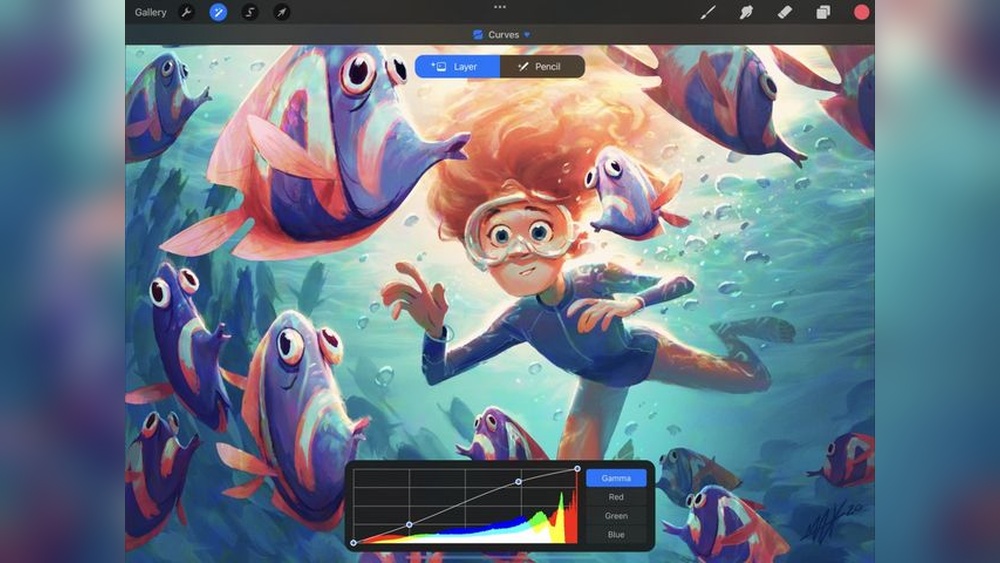
Open Adjustments > Curves. The curve maps input brightness (horizontal axis) to output brightness (vertical axis). The Gamma tab affects overall brightness; Red, Green and Blue tabs affect individual channels.
Common curve shapes
- Gentle S-curve: lower the shadow point slightly, raise the highlight point slightly. Adds contrast.
- Lifted blacks: raise the bottom-left point. Creates a faded, matte, film-like look.
- Lowered whites: drop the top-right point. Softens highlights for a muted, vintage feel.
- Brighter midtones: raise the middle of the curve. Opens up an image without blowing highlights.
Channel curves for color
- Raise the Blue curve in the shadows and lower it in the highlights to get cool shadows and warm highlights, a popular cinematic look.
- Raise Red slightly in the midtones for warmer skin.
- Lower Green slightly to add a magenta tint, or raise it for a greenish, eerie mood.
Small adjustments go a long way. Move points gently and compare by tapping the preview.
A practical habit is to adjust one curve at a time and pause before touching the next. Changing the Gamma curve alters how every color channel looks, so set overall contrast first, then fine-tune color with the individual channels. If the image starts to look harsh or posterized, with visible bands where smooth gradients used to be, the curve is too steep; flatten it slightly.
Step 3: Tint Shadows, Midtones and Highlights With Color Balance
Open Adjustments > Color Balance. Choose Shadows, Midtones or Highlights, then move the Cyan–Red, Magenta–Green and Yellow–Blue sliders.
Color Balance is the easiest way to create split-toning, where shadows and highlights carry different hues:
| Look | Shadows | Highlights |
|---|---|---|
| Teal and orange (cinematic) | Toward cyan and blue | Toward red and yellow |
| Golden hour | Slightly toward red | Toward yellow |
| Cold winter | Toward blue | Slightly toward cyan |
| Dreamy pastel | Toward magenta | Toward yellow, lightly |
| Night scene | Toward blue | Toward cyan or neutral |
Step 4: Remap Colors With Gradient Map
Adjustments > Gradient Map replaces each brightness value with a color from a gradient. Dark values take the gradient’s left color; light values take its right color.
How to use it for grading
- Duplicate your flattened layer.
- Apply a Gradient Map to the duplicate. Choose a preset or create your own by tapping the gradient and adding color stops.
- Set the duplicate’s blend mode to Soft Light, Overlay or Color, and lower opacity to around 10–40%.
At full strength, a Gradient Map is a dramatic duotone effect. At low opacity on a blend mode, it gently unifies colors around a scheme, such as dark purple shadows moving to peach highlights.
Building a custom gradient
- Keep the gradient running from dark to light so values stay intact.
- Use a cool dark color on the left and a warm light color on the right for a natural feel.
- Add a midtone stop to control the color of skin and mid-values.
Step 5: Adjust Saturation With Hue, Saturation, Brightness
Open Adjustments > Hue, Saturation, Brightness.
- Lower saturation slightly for moody, cinematic or vintage looks.
- Raise saturation carefully for vibrant, energetic illustrations.
- Hue shifts rotate all colors; useful for experimenting, but large shifts often look unnatural on full paintings.
Step 6: Use Blend Mode Layers for Color Washes
Painting color on blend mode layers is a flexible way to grade.
- Add a new layer above the painting.
- Set it to Overlay, Soft Light or Color.
- Paint with a large soft brush in the grading color, or fill the whole layer.
- Lower opacity until it feels right.
- Erase areas where the wash should not apply, such as skin or a focal point.
Paint warm light washes where light falls and cooler washes in shadow areas, a quick way to strengthen the light story. Multiply layers can deepen corners for a vignette, and Screen or Add layers can lift areas for glow.
Step 7: Grade Selected Areas With Pencil Mode
Most adjustments in Procreate offer two modes: Layer, which affects the whole layer, and Pencil, which lets you brush the adjustment onto specific areas. Pencil mode is excellent for:
- Increasing saturation only around the focal point.
- Warming a face while keeping the background cool.
- Darkening corners for a natural vignette.
You can also use the Selection tool to isolate an area before applying an adjustment.
A Complete Grading Workflow
- Finish the painting and check values in grayscale.
- Make a flattened copy.
- Correct: fix overall contrast with Curves and remove unwanted color casts with Color Balance.
- Set the mood: apply split-toning with Color Balance or channel curves.
- Unify: add a low-opacity Gradient Map on Soft Light.
- Adjust saturation globally, then boost it locally at the focal point with Pencil mode.
- Vignette: darken edges slightly with a Multiply layer or Curves in Pencil mode.
- Compare: toggle the graded layer on and off against the original. If the grade looks heavy, lower opacity.
For a non-destructive approach that keeps every adjustment editable, see our guide to adjustment layers and non-destructive editing in Procreate.
Grading Recipes by Mood
Warm and nostalgic
Lift blacks slightly in Gamma curves, warm highlights with Color Balance toward yellow and red, and lower saturation a little. Add a soft orange Overlay wash at low opacity.
Cool and moody
S-curve for contrast, shadows toward blue, highlights neutral or slightly cyan, saturation reduced. Darken corners for focus.
Cinematic teal and orange
Shadows toward cyan and blue, highlights toward orange. Keep skin in the orange range and environment in the teal range. Do not overdo it; subtle versions look more professional.
Soft pastel
Lift blacks considerably, lower contrast, add magenta to shadows and yellow to highlights, and use a light pastel Gradient Map on Soft Light.
Dramatic sky scenes
Strong S-curve, saturated warm highlights near the sun, deep cool shadows. Sky subjects benefit greatly from grading; our tutorial on painting realistic clouds in Procreate pairs well with these steps.
Build Your Own Grading Library
Professional colorists often work from reference frames that capture a target mood. You can do the same.
- Collect stills from films, photographs and paintings whose color mood you admire.
- Analyze them: what color are the shadows? The highlights? How saturated is the image overall? Are blacks deep or lifted?
- Recreate the look on a test painting using Curves, Color Balance and a Gradient Map.
- Save the gradient as a custom Gradient Map preset, and note your Color Balance and Curves settings in a text note for reuse.
Over time you build a personal set of grades you can apply quickly, which also helps make a series of illustrations feel consistent.
Grading for Screen vs Print
Images that look perfect on a bright tablet screen can print darker and duller. Screens emit light, while prints reflect it, and many printing processes cannot reproduce the most saturated screen colors.
- Avoid crushing shadows too far if you plan to print; dark detail often disappears on paper.
- Be cautious with extremely saturated blues, greens and magentas, which may shift in print.
- Order a small test print before committing to a large or expensive run.
- Ask your print service whether they want files in a specific color profile.
Common Color Grading Mistakes
- Grading too heavily. If the first thing you notice is the effect, it is too strong. Lower opacity.
- Crushing blacks or blowing highlights. Extreme curves lose detail. Check dark and light areas after grading.
- Grading directly on original layers. Always work on a copy.
- Ignoring skin tones. Heavy tints can make skin look sickly. Mask skin areas or adjust them separately.
- Using grading to fix weak values. Grading enhances; it does not replace good value structure.
- Judging on one screen only. Screen brightness and color vary. Check on another device if possible, and disable night-time color filters while grading.
FAQs
Does Procreate have color grading tools?
Yes. Curves, Color Balance, Gradient Map and Hue, Saturation, Brightness in the Adjustments menu, combined with blend mode layers, cover most color grading needs.
How do I color grade without ruining my painting?
Duplicate and flatten your layers into a copy, then grade the copy. Keep the originals hidden so you can start over at any time.
What is the best blend mode for color grading?
Soft Light is the gentlest and most versatile. Overlay is stronger. Color changes hue and saturation without affecting values.
How do I make shadows blue and highlights orange in Procreate?
Use Color Balance: select Shadows and move toward cyan and blue, then select Highlights and move toward red and yellow. Adjust strength by eye.
What does Gradient Map do in Procreate?
It remaps each brightness value to a color from a gradient. At low opacity on a blend mode, it unifies colors around a chosen scheme.
Can I color grade only part of my image?
Yes. Use the Selection tool before adjusting, or choose Pencil mode in an adjustment and brush the effect onto the areas you want.
Final Thoughts
Learning how to do color grading in Procreate gives you control over the final mood of every piece. Work on a copy, correct first, then grade with Curves, Color Balance, Gradient Maps and color wash layers. Keep it subtle, protect skin tones, and use local adjustments to guide the eye.
If you want to compare how other apps handle grading, especially ones with true adjustment layers on desktop, our guide to the best Procreate alternatives for PC reviews the options.