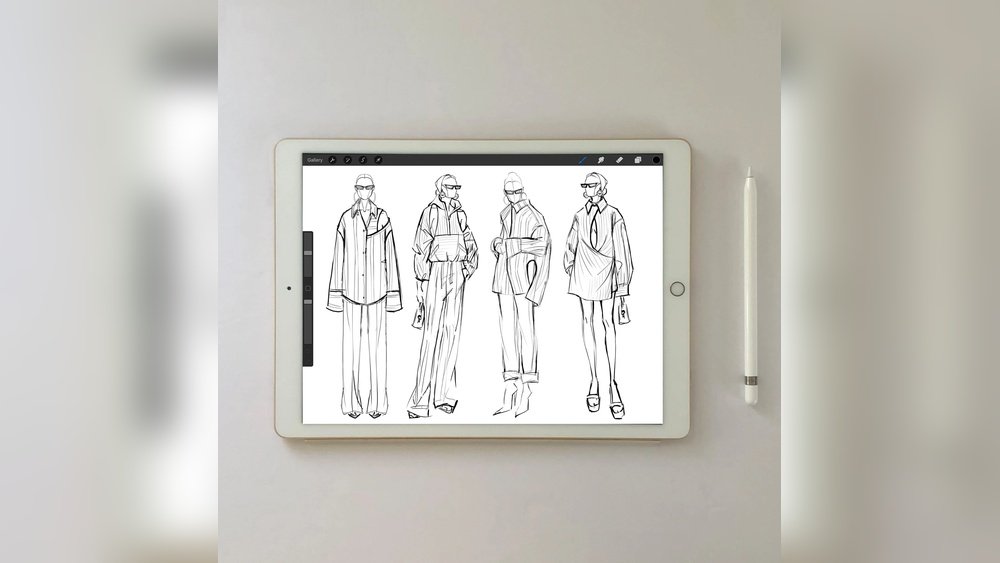
Are you struggling with the Symmetry Tool in Procreate not working the way it should? You’re not alone.
Many artists face this frustrating issue that can slow down your creative flow. But don’t worry—fixing it is easier than you think. In this guide, you’ll discover simple, step-by-step tips to fix Symmetry Tool Procreate and get your Symmetry Tool back on track quickly. Whether you’re creating mirrored designs or perfect patterns, these solutions will help you unlock Procreate’s full potential and make your artwork shine.
Keep reading to master the Symmetry Tool and bring balance to your digital creations!
Activate Symmetry Tool
Activating the Symmetry Tool in Procreate is simple yet powerful. This feature helps create perfect mirrored designs quickly. Follow these steps to enable symmetry and enhance your artwork.
Access Drawing Guide Settings
Open Procreate and tap the wrench icon at the top right. This opens the Actions menu. Select the “Canvas” tab next. Turn on the “Drawing Guide” option by sliding the toggle.
After enabling Drawing Guide, tap “Edit Drawing Guide” right below. This takes you to the drawing guide settings. Here you can customize the guide type to set up symmetry.
Choose Symmetry Type
In the drawing guide settings, choose “Symmetry” from the options at the bottom. Procreate offers several symmetry types.
Pick the type that fits your project: vertical, horizontal, quadrant, or radial symmetry. Vertical symmetry creates a mirror line down the canvas center. Quadrant splits the canvas into four mirrored sections.
Enable Symmetry Options
Once you select your symmetry type, tap “Options” below it. Here you can adjust additional settings. Turn on or off specific symmetry lines to customize your drawing experience.
After setting options, tap “Done” to apply the changes. Now, anything you draw on one side of the guide duplicates automatically on the other side.

Credit: www.reddit.com
Troubleshoot Common Issues
Troubleshooting the Symmetry Tool in Procreate helps fix common problems fast. Many users face issues that stop the tool from working correctly. Simple checks can solve most problems without stress. Follow these steps to get your Symmetry Tool running smoothly again.
Check Drawing Guide Activation
The Symmetry Tool works only when the Drawing Guide is on. Tap the wrench icon to open Actions. Select Canvas, then toggle Drawing Guide on. Next, tap Edit Drawing Guide and choose Symmetry. Pick a symmetry option like vertical or quadrant. Without this, the tool stays inactive and won’t mirror your strokes.
Verify Layer And Brush Settings
Check if the active layer is visible and unlocked. Symmetry won’t apply on hidden or locked layers. Also, some brushes may not support assisted drawing. Test with a default brush like the Monoline. Changing brush settings or opacity can affect the symmetry effect. Keep layers simple to avoid conflicts.
Disable Conflicting Gestures
Procreate’s gesture controls can block Symmetry. Go to Actions, then Prefs, and open Gesture Controls. Turn off Assisted Drawing options temporarily. This stops gestures from interfering with symmetry input. Try drawing again after disabling these. If it works, adjust gestures to prevent clashes with the Symmetry Tool.
Adjust Symmetry Preferences
Adjusting symmetry preferences in Procreate helps improve your drawing experience. This step fine-tunes how the symmetry tool behaves. It ensures your artwork looks balanced and professional. You can change settings to match your style and project needs. Small tweaks can fix common symmetry problems fast.
Switch Between Symmetry Modes
Procreate offers various symmetry modes that can be switched to suit your artistic needs. Experiment with different modes to find the one that best fits your project.