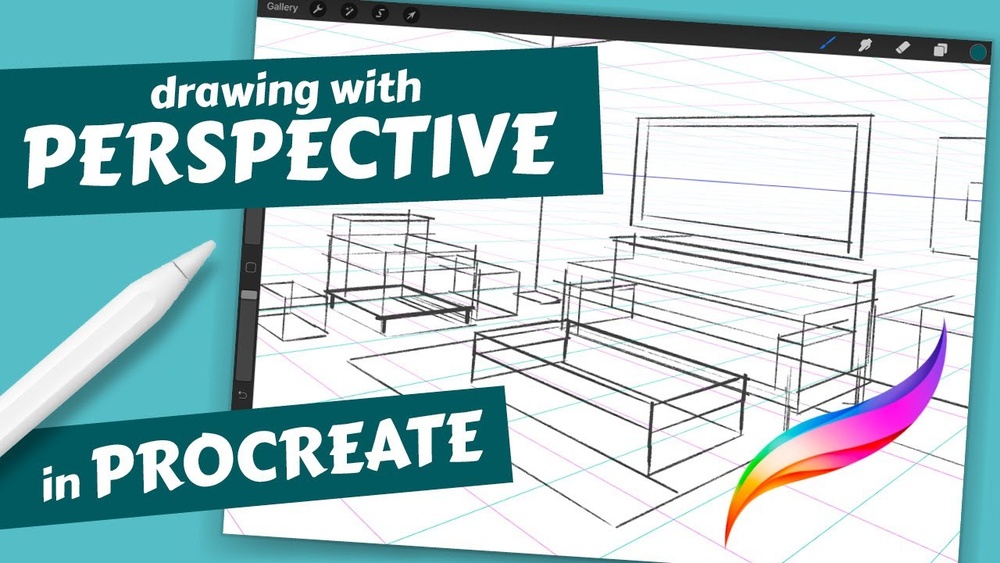
Quick answer: To do perspective painting in Procreate, open Actions, then Canvas, turn on Drawing Guide and tap Edit Drawing Guide. Choose Perspective, select one-, two- or three-point, and tap the canvas to place vanishing points along a horizon line. Turn on Assisted Drawing so your brush strokes snap to the perspective lines, sketch the structure on an assisted layer, then paint on normal layers above it, using Transform’s Distort mode to fit textures and details into the scene.
Few things break the illusion of a painting faster than a building that leans the wrong way or a road that does not shrink toward the horizon. Perspective gives a flat screen a sense of depth, and Procreate has a built-in guide that takes much of the frustration out of drawing it.
This guide explains the perspective basics you need, how to set up and use Procreate’s Perspective guide, how to move from a line construction to a full painting, and the tricks that make perspective feel natural rather than mechanical. If you are coming from another app, or weighing a Procreate alternative for Windows, the principles are the same; only the menus change.
Perspective Basics in Plain Terms
Linear perspective is a system for drawing objects so they appear to recede in space. Three elements matter most:
- Horizon line: The viewer’s eye level. Everything above it is seen from below; everything below it is seen from above.
- Vanishing points: Points on (or sometimes off) the horizon where parallel lines appear to meet.
- Station point: Where the viewer stands. Moving it changes how strongly objects distort.
| Perspective type | Vanishing points | Typical use |
|---|---|---|
| One-point | One on the horizon | Roads, hallways, rooms seen straight on, train tracks |
| Two-point | Two on the horizon | Buildings seen from a corner, boxes, street corners |
| Three-point | Two on the horizon, one above or below | Skyscrapers from below, dramatic aerial views |
Procreate supports all three, plus separate Isometric and 2D Grid guides for technical or game-style art.
Setting Up the Perspective Guide in Procreate
- Tap the Actions icon (the wrench).
- Go to Canvas and switch on Drawing Guide.
- Tap Edit Drawing Guide.
- Select Perspective at the bottom of the screen.
- Choose One Point, Two Point or Three Point.
- Tap on the canvas to place vanishing points. Procreate automatically draws a horizon line through the first two points.
- Drag a point to move it. Tap a point once to select it, then tap Delete if you want to remove it.
- Adjust Opacity and Thickness of the guide lines with the sliders at the top, and change the guide color with the color bar.
- Turn on Assisted Drawing if you want strokes to snap to the guide.
- Tap Done.
Placing vanishing points outside the visible canvas is common for natural-looking two-point scenes. Zoom out with a pinch gesture while editing the guide to place points beyond the edges.
Understanding Assisted Drawing
Assisted Drawing is what makes the guide powerful. When it is on, any stroke you draw snaps to the nearest perspective direction: toward a vanishing point, or perfectly vertical or horizontal. Procreate turns it on per layer. A layer with Drawing Assist enabled shows the word “Assisted” under its name in the Layers panel.
To toggle it on an individual layer, tap the layer thumbnail and choose Drawing Assist. A typical setup is to enable it only on your construction layer and leave it off on painting layers, so loose brushwork does not snap to lines.
How to Do Perspective Painting in Procreate: Full Workflow
This workflow uses a simple two-point street corner, but you can adapt it to interiors, landscapes or product illustrations.
Step 1: Thumbnail the idea
Before setting up any guide, make a few small rough thumbnails to decide on eye level and composition. A low horizon makes buildings feel tall and imposing; a high horizon shows more ground and feels like looking down. Deciding this first saves you from rebuilding the guide repeatedly.
Step 2: Place the horizon and vanishing points
Set up a Two Point guide. Place the horizon at the eye level you chose. Spread the vanishing points wide, often outside the canvas. Points placed too close together cause extreme distortion near the edges.
Step 3: Build the structure on an assisted layer
Create a new layer named “Construction” and enable Drawing Assist. Using a thin monoline or technical pen brush, draw the main boxes: the corner of the building, the edges of the sidewalk and the tops of windows. Start with the closest vertical edge, then pull lines to both vanishing points to create the walls.
Step 4: Divide surfaces correctly
To space windows or doors evenly in perspective, use the diagonal method. Draw an X from corner to corner across a wall plane. The center of the X marks the perspective center. Draw a vertical line through it, and you have split the wall into two equal halves in perspective. Repeat for quarters and eighths.
Step 5: Add secondary details
Draw window frames, ledges, signs and doors, all still snapping to the guide. Remember that details lower than the horizon show their tops, while details above the horizon show their undersides.
Step 6: Lower the construction layer and start painting
Lower the construction layer to 30 to 50 percent opacity. Create new layers below or above it with Drawing Assist off. Block in large flat areas of color for sky, walls, ground and shadows using a hard brush or the Selection tool with fill.
Step 7: Use selections to keep paint inside planes
Use the Selection tool in Polygon mode to click along the perspective lines of one wall. Now you can paint, airbrush gradients or add texture freely without spilling onto the next plane. This is one of the fastest ways to paint clean architecture.
Step 8: Fit textures with Distort
Paint or import a brick or tile pattern on its own layer. Tap the Transform tool, select Distort, and drag the corners to match the four corners of the wall plane. For curved surfaces, use Warp instead. Set the texture layer to Multiply or Overlay and clip it to the wall’s color layer.
Step 9: Light and shadow in perspective
Shadows follow perspective too. A shadow cast across the ground by a building recedes toward the same vanishing points as the building’s edges. Paint shadows on a Multiply layer in a cool, slightly saturated color, keeping them sharper near the base of the object.
Step 10: Atmosphere and final polish
Distant objects should be lighter, cooler and less detailed. Add a soft airbrush layer of sky color over far buildings at low opacity. Finish with color adjustments; our article on how to use adjustment layers in Procreate explains the non-destructive options available for this last stage.
Perspective Painting Tips That Make a Big Difference
- Keep verticals vertical in two-point perspective. Only three-point perspective tilts vertical lines. Accidental tilt makes buildings look like they are falling.
- Avoid extreme distortion at the edges. If shapes near the canvas edge look stretched, move vanishing points farther apart.
- Use perspective for organic subjects too. Trees, people and rocks in a scene still get smaller toward the horizon. Draw a few simple boxes to place them correctly.
- Measure people with the horizon. If the viewer is standing, the horizon line crosses every standing adult at roughly eye level, no matter how far away they are.
- Turn the guide off to check the painting. Seeing the painting without blue lines helps you judge whether it feels natural.
- Loosen up after construction. A rigid line drawing can feel lifeless. Paint over it with organic brushwork, letting edges break and details vary.
Common Perspective Mistakes in Digital Paintings
- Mixed eye levels. Drawing one building from street level and the one next to it from a balcony view. Keep a single horizon for the whole scene unless you are deliberately combining views.
- Ellipses that do not match the horizon. Circular forms such as wheels, cups and round towers get flatter as they approach eye level and rounder as they move away from it. A cup rim drawn as a full circle at eye level looks wrong instantly.
- Objects that do not shrink. Repeated elements like fence posts, lamp posts and windows should get smaller and closer together as they recede. Use the diagonal method to space them.
- Floating figures. Feet that do not sit on the ground plane make characters look pasted in. Draw a small box or ground shadow under each figure to anchor it.
- Detail that ignores depth. Painting distant windows with the same sharpness as close ones flattens the scene even when the lines are correct.
One-Point Perspective in Procreate: A Quick Exercise
If you are new to the guide, one-point perspective is the easiest place to start.
- Set up a One Point guide with the vanishing point in the center of the canvas.
- Enable Drawing Assist on a new layer.
- Draw a rectangle in the center of the canvas, the back wall of a hallway.
- Draw lines from each corner of the rectangle outward toward the canvas corners. These are the floor, ceiling and walls.
- Add doors along the side walls. Their tops and bottoms snap toward the vanishing point automatically.
- Paint the hallway with a light at the far end, letting the walls get darker as they come toward the viewer.
This exercise takes about 20 minutes and teaches you how the guide, assisted layers and selections work together.
Three-Point Perspective for Dramatic Scenes
Three-point perspective adds a vanishing point above (worm’s-eye view) or below (bird’s-eye view) the horizon. Vertical lines now converge toward this third point, making buildings feel enormous or giving an aerial sense of looking down.
In Procreate, after choosing Three Point, place two points on the horizon and a third far above or below. Keep the third point far away from the canvas for subtle convergence, or closer for extreme drama. Sky scenes pair especially well with a low eye level; our guide on painting realistic clouds in Procreate can help you finish the upper part of a worm’s-eye composition.
Troubleshooting the Perspective Guide
| Problem | Likely cause | Fix |
|---|---|---|
| Strokes do not snap to lines | Drawing Assist is off on that layer | Tap the layer, select Drawing Assist |
| Guide is not visible | Drawing Guide toggle is off, or opacity is zero | Actions, Canvas, Drawing Guide on; raise opacity in Edit Drawing Guide |
| Lines snap in unwanted directions | Stroke started at an angle close to another guide line | Start strokes slowly in the intended direction |
| Cannot place a vanishing point outside canvas | View is zoomed in | Pinch to zoom out while editing the guide |
| Loose brushwork snaps when painting | Painting on an assisted layer | Turn off Drawing Assist on painting layers |
| Scene looks warped near edges | Vanishing points too close together | Spread points farther apart |
Painting Perspective Outside Procreate
Procreate is iPad-only, so if you also work on a Windows PC or laptop you will need a different app for perspective painting there. Most serious desktop painting programs include some form of perspective ruler or assistant, though the setup and snapping behavior vary. Our comparison of the best Procreate alternatives for Windows looks at which desktop apps handle drawing guides and brush feel well enough to continue the same workflow.
FAQs
Where is the perspective tool in Procreate?
Open Actions, then Canvas, turn on Drawing Guide, tap Edit Drawing Guide and select Perspective at the bottom of the screen.
Why are my lines not snapping to the perspective guide?
Drawing Assist is probably off on the current layer. Tap the layer thumbnail and choose Drawing Assist, and make sure Assisted Drawing is enabled in the guide settings.
Can I use more than three vanishing points in Procreate?
The built-in Perspective guide supports up to three points. For scenes with multiple sets of objects at different angles, artists often draw additional vanishing lines manually on a separate layer or change the guide midway through.
Should I paint on the same layer as the perspective lines?
It is better to keep construction lines on their own assisted layer and paint on separate layers with Drawing Assist off. This keeps brushwork natural and lets you hide the lines later.
How do I put a texture in perspective in Procreate?
Place the texture on its own layer, open Transform, choose Distort and drag each corner to match the corners of the surface. Use Warp for curved surfaces.
Is perspective needed for fantasy or cartoon art?
Yes, even stylized art benefits from consistent perspective. You can exaggerate it for effect, but a clear horizon and vanishing points keep scenes believable.
Final Thoughts
Procreate’s Perspective guide removes the need for rulers and long construction lines, but the real skill is knowing where to place the horizon, how far apart to set vanishing points and when to loosen up. Build the structure with assisted strokes, then paint freely on top so the result feels like a painting rather than a diagram.
If your workflow includes a Windows machine as well as an iPad, explore our picks for desktop painting apps that replace Procreate on a PC to keep your perspective painting consistent across devices.