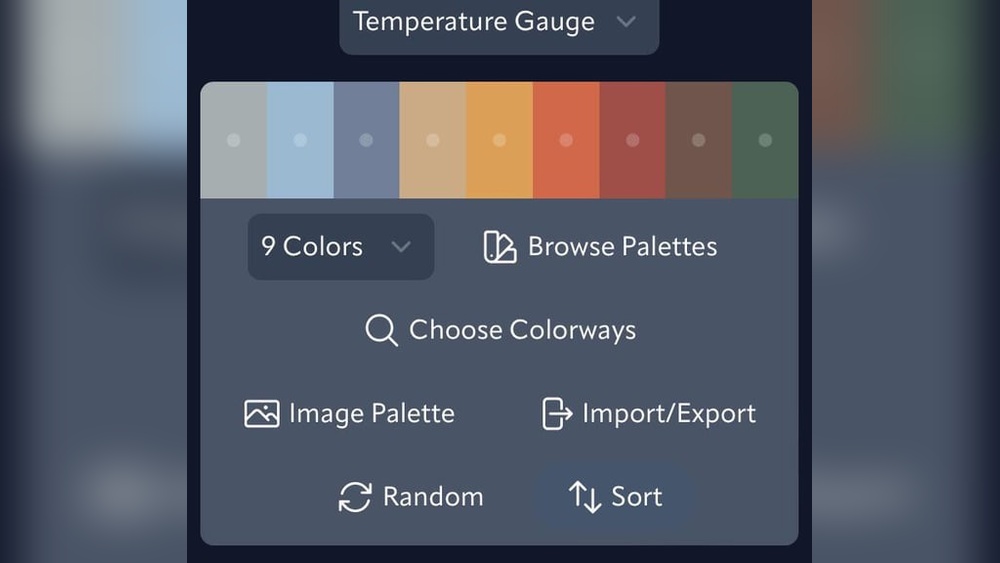
Quick answer: To do color temperature in Procreate, decide on a warm or cool light source, then shift hue as well as value as you paint: lit areas lean toward the light’s temperature, shadows lean the opposite way. Pick colors in the Disc or Classic color panel by sliding hue toward yellow-orange for warmth or blue-violet for coolness, and use Color Balance, Gradient Map, or Multiply and Overlay layers to adjust temperature across the whole image.
Two paintings can have identical drawing and values, and one will glow while the other looks flat. Usually the difference is color temperature. If you want to learn how to do color temperature in Procreate, the good news is that the app gives you several ways to control it: careful color picking, layer blend modes, and global adjustments that can warm or cool an entire illustration in seconds.
This guide explains the principle in plain terms, then walks through practical Procreate workflows you can use on your next piece.
What Color Temperature Means for Painters
Color temperature describes whether a color feels warm (toward red, orange, yellow) or cool (toward blue, green-blue, violet). It is relative. A lemon yellow looks cool next to an orange, and a violet can look warm next to a pure blue. That relativity is what makes temperature so useful: you are always comparing one color to its neighbors.
In painting, temperature does three main jobs:
- Describes light. Sunlight at golden hour is warm; overcast daylight and north-facing window light read cool.
- Separates light from shadow. A common observation, especially outdoors, is that warm light produces relatively cool shadows and cool light produces relatively warm shadows.
- Creates depth. Warm, saturated colors tend to advance; cool, greyed colors tend to recede, which is part of atmospheric perspective.
These ideas come straight from traditional painting. If you want the deeper theory as oil painters use it, our color temperature in oil painting guide covers the principles that transfer directly into digital work.
Reading Temperature in Procreate’s Color Panel
Procreate’s color panel has several modes. Each helps with temperature differently.
| Mode | How to use it for temperature |
|---|---|
| Disc | Rotate around the outer ring to shift hue toward warm or cool; the inner disc sets saturation and brightness |
| Classic | The square handles saturation and brightness; the hue slider below lets you nudge hue in small steps |
| Harmony | Shows complementary and analogous colors, useful for pairing a warm light with a cool shadow |
| Value | Numeric HSB and hex entry for precise, repeatable shifts |
| Palettes | Save warm and cool sets for a piece so you stay consistent |
A practical habit: when moving from a lit area to its shadow, do not just drag the brightness down. Also rotate the hue a few degrees toward the cool side (or warm side if your light is cool) and adjust saturation. In the Value tab, a shift of roughly 10 to 30 degrees of hue is a common starting range, though the right amount depends on the scene.
Step-by-Step: Painting With Temperature From the Start
- Decide the light. Choose one key light and write its temperature in a note layer: “warm sunset from left” or “cool window light from right.” This one decision guides every color choice.
- Set up layers. A typical stack: background, sketch, flat colors, shadows, lights, and an adjustments group at the top.
- Lay in local colors. Fill shapes with mid-value local color, the “true” color of each object without strong light.
- Add a shadow layer. Create a new layer above your flats, set it to Multiply, and enable Clipping Mask so it only affects the shapes below. Pick a cool, slightly saturated color such as a muted blue-violet if your light is warm. Paint the shadow shapes.
- Add a light layer. Create a layer set to Add, Screen, Overlay or Color Dodge (each gives a different intensity), clip it, and paint lit areas with a warm hue like soft orange or peach. Keep it subtle; lower the opacity until it feels natural.
- Add bounce light. Shadows pick up color from nearby surfaces. A warm floor bounces warm light into the underside of a cool shadow. A small touch on a separate layer adds realism.
- Refine edges and transitions. Where light turns into shadow (the terminator), temperature often shifts most noticeably. Some painters add a slightly more saturated, warmer band right at this transition on skin and organic forms.
- Check in grayscale. Add a black-filled layer set to Color or Saturation at the top to view values. Temperature shifts should not break your value structure. Hide the layer when done.
Global Temperature Adjustments
Sometimes the drawing is finished and the whole image needs to be warmer or cooler. Procreate has adjustment tools that make this fast. Duplicate your layers or flatten a copy first so you can compare.
Color Balance
Go to Adjustments, then Color Balance. You get three sliders: Cyan–Red, Magenta–Green and Yellow–Blue, applied to Shadows, Midtones or Highlights separately. Push highlights slightly toward red and yellow and shadows slightly toward blue to create a classic warm-light, cool-shadow look. Small moves go a long way.
Gradient Map
Adjustments, then Gradient Map. This maps dark-to-light values onto a color gradient. Procreate includes presets, and you can create custom ones: for example, deep blue-violet for darks, through neutral midtones, to warm cream for highlights. Lower the layer opacity so the original colors still show through, often somewhere in the 10 to 40 percent range.
Curves
Adjustments, then Curves. Switch from Gamma to the Red, Green or Blue channel. Raising the red curve in the highlights warms them; raising the blue curve in the shadows cools them. Curves offer fine control but take a bit of practice.
Hue, Saturation, Brightness
Useful for shifting a single layer, such as moving a whole shadow layer from neutral gray toward blue.
Overlay and Soft Light color layers
A new layer filled with a warm orange set to Overlay or Soft Light at low opacity warms the whole picture. Use a cool blue the same way to cool it. Add a layer mask to apply the effect only in some areas, such as a warm glow around a lamp.
Warm Light vs. Cool Light: Practical Color Pairings
| Scene | Light color | Shadow color | Notes |
|---|---|---|---|
| Golden hour outdoors | Warm orange-yellow | Cool blue-violet | Strong contrast; high saturation in light |
| Overcast day | Cool, soft gray-blue | Slightly warmer, low contrast | Soft shadows, muted saturation |
| Candle or firelight | Deep orange | Warm reds and browns, cooling with distance | Light falls off quickly |
| Moonlight | Cool blue | Deep blue-green or blue-violet | Low saturation, low value overall |
| Neon or sci-fi | Saturated magenta or cyan | Complement of the light | Use two contrasting light sources for drama |
| North window indoors | Cool, soft white | Relatively warm | A classic portrait setup |
These are starting points, not rules. Real scenes vary, and the most convincing results usually come from observing reference photos and noting where the temperature actually shifts.
Using Temperature for Depth
Atmospheric perspective is temperature and saturation working together. In outdoor scenes, distant objects often look cooler, lighter and less saturated because of the air between you and them.
- Separate foreground, middle ground and background onto their own layers or groups.
- Keep the foreground warmest and most saturated.
- Above the middle ground, add a clipped layer filled with a pale blue set to Screen or Normal at low opacity.
- Do the same for the background with a slightly stronger opacity.
- Check that values also get lighter and contrast lower with distance.
Color Temperature on Skin in Procreate
Skin is a great place to practice because temperature shifts are subtle but noticeable. Faces often show warmer, redder zones around the cheeks, nose and ears, more yellow tones on the forehead, and cooler, sometimes slightly blue-green tones around the jaw and mouth, especially on faces with facial hair. Lighting changes all of this, so use these as observations to check against references rather than fixed rules.
In Procreate, a soft airbrush on a clipped Overlay or Soft Light layer at low opacity is an easy way to add these zones without repainting the base.
Building a Warm/Cool Palette in Procreate
A saved palette keeps temperature consistent across a long project, especially if you work over several days.
- Open the color panel, tap Palettes, then the plus icon and Create New Palette. Name it after the piece or the lighting setup.
- Choose your key light color first and add it as the first swatch.
- Add two or three variations of it: lighter and slightly more saturated for highlights, and a slightly duller version for half-tones.
- Add your shadow family: a cool dark, a mid shadow, and a reflected-light color that sits between shadow and the local color of nearby surfaces.
- Add one or two neutrals, such as a warm gray and a cool gray, for transitions and backgrounds.
- Set the palette as default so it appears in the compact color view while you paint.
Mixing by eye from this limited palette tends to give more unified results than picking a fresh color from the full disc every time.
Screens and Color Temperature
Your iPad’s display settings change how warm or cool your painting looks to you. Features like True Tone and Night Shift adjust the screen’s color based on ambient light or time of day. They are comfortable for reading but can mislead you while judging temperature, because a painting that looks balanced on a warmed screen may look cold on other devices. Many digital artists switch these features off while painting and periodically check their work on a second screen, such as a phone or computer monitor.
Common Mistakes
- Using black for shadows. Black on Multiply desaturates and muddies colors. Use a tinted, cooler or warmer dark instead.
- Shifting hue but not checking value. A shadow can accidentally get lighter if the new hue is naturally bright (yellow, for instance). Check in grayscale.
- Overdoing global filters. Heavy Color Balance or Gradient Map pushes can make every image look the same. Keep adjustments subtle.
- Inconsistent light. Warm light on the left side of one object and the right side of another breaks the illusion. Keep your light note visible.
- Too many light sources. One key light and maybe one rim or fill light is enough for most images.
Practice Exercises
- Sphere study. Paint a gray sphere three times: warm light/cool shadow, cool light/warm shadow, and neutral. Compare which feels most three-dimensional.
- Limited palette. Create a five-color Procreate palette: two warm, two cool, one neutral. Paint a simple still life using only those.
- Time of day series. Paint one simple landscape, duplicate it, and use Color Balance and Gradient Map to create morning, noon, sunset and night versions.
- Master study. Choose a classic painting known for its light and match its temperature shifts in Procreate using the eyedropper sparingly and mixing by eye most of the time.
FAQs
How do I make a Procreate painting warmer overall?
Use Adjustments, then Color Balance, and push highlights and midtones slightly toward red and yellow. Alternatively, add a warm orange layer set to Overlay or Soft Light at low opacity.
What blend mode is best for shadows in Procreate?
Multiply is the most common choice for shadow layers, using a tinted color rather than gray or black. Some artists prefer Linear Burn or Color Burn for richer, more saturated shadows.
Does color temperature work the same in digital as in traditional painting?
The principles are the same: relative warmth and coolness, light versus shadow, and depth. Digital tools simply make it easier to test and adjust after painting.
Why do my shadows look muddy in Procreate?
Usually because they were made with black or gray on Multiply. Shift the hue toward the cool or warm side and keep some saturation.
Can I change color temperature on just one area?
Yes. Use a selection, a layer mask, or a clipped adjustment layer and apply Color Balance or a tinted Overlay only where you need it.
What is a good shadow color for warm sunlight?
A muted blue or blue-violet, slightly darker and less saturated than the lit color, is a common starting point. Adjust it against the reference.
Next Step
Color temperature in Procreate is not a single tool but a way of thinking: decide the light, shift hue as well as value, and use adjustments to fine-tune. The theory behind it comes from centuries of traditional painting. To build a deeper understanding of how warm and cool colors interact, read our full guide on mastering warm and cool color relationships, then come back and apply those lessons with your Apple Pencil.