PaintingProGuide is reader-supported. When you buy through links on this page we may earn an affiliate commission at no extra cost to you.
The best screens for digital painting show color accurately, keep that accuracy consistent across the whole panel, and are sharp and large enough that you can see brush texture without constant zooming. For most painters that means an IPS or OLED panel covering close to 100 percent of sRGB, ideally with wide-gamut coverage such as DCI-P3 or Adobe RGB, at 1440p or higher resolution, calibrated with a hardware colorimeter.
Most of this page explains exactly what to look for in a monitor, pen display or tablet screen so you can judge any model yourself. If you want to draw on the screen, a short list of pen displays on Amazon, chosen from listing specifications checked in October 2026, follows the monitor-versus-pen-display section.
Quick answer: Choose an IPS or OLED screen with near-100 percent sRGB coverage (and wide-gamut DCI-P3 or Adobe RGB if you print or work in wide color), 1440p or 4K resolution at 24 to 32 inches, and a matte or anti-glare finish if your room is bright. Then calibrate it with a colorimeter. If you want to draw directly on the screen, look at a pen display instead of a standard monitor. For drawing on the display itself, the XPPen Artist 24 Pro gives a large 2.5K canvas and the XPPen Artist 12 3rd is a compact, factory-calibrated option.
Screen Types for Digital Painters
| Screen type | How you use it | Best for | Watch out for |
|---|---|---|---|
| Standard monitor | View while drawing on a screenless tablet | Desktop painters with a graphics tablet | Hand-eye coordination takes practice |
| Pen display | Draw directly on the screen, connected to a computer | Painters who want pen-on-image feel | Cost, desk space, parallax |
| Tablet screen (iPad, Android) | Integrated screen and pen | Portable painting | Smaller size, glossy glare |
| Laptop screen | Built-in display, sometimes touch and pen | Painting on the go | Often limited color gamut |
| Second reference monitor | Displays references or palettes | Studio workflow | Should match main screen color |
How We Approached This Guide
We have not ranked standalone monitors, and the pen displays we link were chosen from Amazon listing specifications rather than personal use. The guidance below is based on well-established display specifications and how they affect digital painting: panel technology, color gamut, accuracy, resolution, size, finish and calibration. Use it as a checklist when comparing any monitor, pen display or tablet listing.
- Panel technology and viewing angles.
- Color gamut and accuracy figures from the manufacturer.
- Resolution and pixel density relative to screen size.
- Surface finish and glare control.
- Calibration support and uniformity.
What Makes a Screen Good for Digital Painting
1. Panel type: IPS, OLED or VA
IPS panels are the long-standing standard for creative work, with wide viewing angles and stable color across the screen. OLED panels add perfect blacks, very high contrast and often wide color gamuts, which makes paintings look striking, though some models have aggressive auto-brightness and burn-in risk with static interface elements. VA panels have strong contrast but colors and gamma can shift when viewed off-angle, which is a problem when your eye moves across a large canvas. TN panels are best avoided for painting.
2. Color gamut: sRGB, DCI-P3 and Adobe RGB
Gamut describes the range of colors a screen can show. For art shared online, near-100 percent sRGB coverage is the most important figure, because most viewers’ screens and the web are built around it. DCI-P3 is the wider gamut used by many modern phones and tablets. Adobe RGB covers more greens and cyans and matters most if you print on high-gamut fine art printers. A wide-gamut screen is only an advantage if your software is color-managed; otherwise sRGB images look oversaturated.
3. Color accuracy and uniformity
Gamut is not accuracy. A screen can cover a wide gamut and still show colors incorrectly. Look for factory calibration reports and accuracy figures (often a Delta E value below 2 is considered very accurate), and for uniformity compensation, which keeps brightness and color even from corner to corner. Uneven backlighting can make you paint one side of a canvas lighter than the other without noticing.
4. Resolution, size and pixel density
Higher resolution lets you see more of the canvas at full detail. A common sweet spot is 27 inches at 1440p for comfortable scaling, or 27 to 32 inches at 4K for crisp detail. Very small, very high-resolution screens may require interface scaling, which can make some painting apps’ menus tiny. For pen displays, 13 to 16 inches is typical for desks, while 22 to 24 inches suits dedicated painting setups.
5. Matte vs glossy finish
Glossy screens show slightly richer contrast but reflect lamps and windows, which can disguise value problems in your painting. Matte or anti-glare coatings reduce reflections at the cost of slight grain. For pen displays, a textured, etched glass surface also adds pleasant friction for the nib.
6. Brightness and print matching
Most screens are far brighter than a print viewed under room light. For painting that will be printed, many artists calibrate to a lower brightness, often around 80 to 120 candelas per square meter, so their work does not look dark on paper. For on-screen viewing, a moderate brightness in a consistently lit room is easier on the eyes.
7. Calibration and hardware support
Even good screens drift. A hardware colorimeter, used every few weeks, keeps your display accurate. Some professional monitors support hardware calibration, storing corrections in the monitor itself, which is more precise than software-only correction.
Quick Specification Checklist
| Spec | Minimum for hobby painting | Better for serious or print work |
|---|---|---|
| Panel | IPS | High-quality IPS or OLED |
| sRGB coverage | About 95 to 100 percent | 100 percent with accurate sRGB mode |
| Wide gamut | Optional | 95 percent DCI-P3 or 99 percent Adobe RGB |
| Resolution | 1080p at 24 inches | 1440p at 27 inches or 4K at 27 to 32 inches |
| Color depth | 8-bit | 10-bit or 8-bit plus FRC with good processing |
| Accuracy | Factory calibrated if possible | Delta E under 2, uniformity compensation |
| Finish | Matte or anti-glare | Matte with good uniformity |
| Adjustability | Tilt | Tilt, height, swivel and pivot |
Tablet and Laptop Screens for Painting
Many digital painters work entirely on a tablet or laptop, so the built-in screen is the screen. A few points matter here:
- Tablets: high-end tablets often have wide-gamut, well-calibrated displays, but they are glossy and small. A matte screen protector reduces glare and adds paper-like friction for the pen, at the cost of slight sharpness.
- Laptops: budget laptops frequently cover only part of sRGB, which makes colors look washed out. Check the gamut coverage before buying a laptop for art, or plan to connect an external monitor.
- Touch and pen laptops: 2-in-1 laptops with pen support can be excellent portable studios, but compare their display specs as carefully as their pen specs.
- Auto-brightness and night modes: turn these off while painting so the screen does not shift color under you.
Color Spaces in Practice
Understanding color spaces prevents the most common digital art color problems. Think of a color space as a defined set of colors. Your painting file has one, your screen can show one, and your printer can print one. When they do not match and nothing translates between them, colors shift.
For most painters the practical rules are simple. Paint in sRGB if your work is mainly for the web and social media, because that is what most viewers’ devices show. Paint in a wider space such as Display P3 or Adobe RGB only if your screen covers it, your software manages color, and your output, such as a fine art printer, can use it. When exporting for the web, convert to sRGB so your colors look the same on other people’s screens.
What to Expect at Different Budgets
| Budget level | Typical screen | What you give up |
|---|---|---|
| Entry | 24-inch 1080p IPS, near-full sRGB | Detail at large canvas sizes, wide gamut |
| Mid-range | 27-inch 1440p or 4K IPS, factory calibrated | Hardware calibration, top-tier uniformity |
| High-end | 27 to 32-inch 4K IPS or OLED, wide gamut, uniformity compensation | Mostly cost |
| Professional | Hardware-calibrated reference monitor with hood | Price and size |
Across every budget, a colorimeter gives the biggest improvement per dollar, because it turns a decent screen into a consistent one.
Two-Screen Workflows
Many painters use two screens: the main canvas on the better display and references, palettes or layers on the second. Calibrate both so references look the same on either screen, or keep color-critical references on the main display. If you use a pen display alongside a monitor, do final color checks on whichever is more accurate.
How to Read a Monitor Spec Sheet
Manufacturer listings mix useful numbers with marketing. Here is how to interpret the ones that matter for painting:
- Gamut percentages: look for coverage figures, such as 99 percent sRGB, rather than vague claims like ‘wide color’ or volume figures that can exceed 100 percent.
- Delta E: a measure of color error; lower is better, and under 2 is generally hard to see. Check whether it is an average or a maximum.
- Bit depth: 10-bit or 8-bit plus FRC reduces banding in smooth gradients like skies.
- Brightness: 250 to 350 nits is plenty for painting in a normal room; very high HDR brightness matters little for painting.
- Refresh rate: high refresh rates feel smooth for cursor movement but are not essential for painting.
- Uniformity: look for uniformity compensation on larger screens.
- Stand: height, tilt, swivel and pivot adjustment, or VESA support for an arm.
Eye Comfort and Ergonomics
Digital painting sessions are long, so comfort matters as much as color. Place the screen at arm’s length with the top roughly at eye level, and reduce glare with indirect lighting rather than a lamp reflecting in the panel. Flicker-free backlights can help people sensitive to PWM dimming. Instead of permanent blue-light filters, which shift colors, lower brightness in the evening and take regular breaks: every 20 minutes, look at something about 20 feet away for 20 seconds. For pen displays, a stand that raises the screen to 20 to 45 degrees prevents hunching over the desk.
Signs Your Screen Is Misleading You
- Your paintings look noticeably darker or more saturated on friends’ phones than on your screen.
- Prints come back much darker than expected, even from a reputable lab.
- Smooth gradients such as skies show visible bands that are not in the file.
- One side of a large flat color looks lighter or tinted compared with the other.
- Skin tones look green or magenta on one device and normal on another.
- Colors change noticeably when you move your head slightly.
If you recognize several of these, start with calibration and brightness before blaming your painting skills. If problems persist after calibrating, the panel’s gamut, uniformity or viewing angles are the likely limit, and that is the point at which a better screen pays for itself.
Monitor or Pen Display?
If you already paint with a screenless graphics tablet, a better monitor is often the most cost-effective upgrade, because the screen is where you judge color and value. If you struggle with the hand-eye disconnect of a screenless tablet, a pen display lets you paint directly on the image, though pen displays at a given price often have smaller or less color-accurate screens than standard monitors. Many studio painters use both: a pen display for drawing and an accurate monitor for checking color.
Recommended Pen Display Screens on Amazon
If you have decided on a pen display, these are specific screens on Amazon that meet the criteria covered above. They were selected from listing specifications checked in October 2026, comparing panel type, lamination, gamut, published accuracy, size and resolution. We have not used them, and standard monitors are not included because the listings we checked did not include painting-suitable monitors.
| Product | Best For | Key Spec | Price Tier |
|---|---|---|---|
| XPPen Artist 24 Pro | A large, high-resolution drawing screen | 23.8 in 2.5K QHD IPS, 90% Adobe RGB | $$$ |
| HUION Kamvas 13 (Gen 3) | Color accuracy at a compact size | 13.3 in laminated, 99% sRGB, ΔE<1.5 | $$$ |
| XPPen Artist 12 3rd | A portable, factory-calibrated screen | 11.9 in FHD, 99% sRGB, AG etched glass | $$$ |
| UGEE UE12 | A budget laminated pen display | 11.6 in FHD laminated, 124% sRGB | $$$ |
| GAOMON PD1161 | The lowest-cost way to draw on screen | 11.6 in FHD IPS, 100% sRGB | $$$ |
Price tiers: $ under $15, $$ $15 to $40, $$$ over $40, based on listing prices checked in October 2026. Prices change often, so confirm on Amazon.
1. XPPen Artist 24 Pro — Best for a large, high-resolution drawing screen

Most pen displays stop at Full HD, which is the main weakness the resolution section above warns about. The Artist 24 Pro moves to a 23.8 inch IPS panel at 2560 x 1440, so brush texture stays visible at normal zoom and there is room for palettes and layers beside the canvas.
The listing gives 118% sRGB, 84% NTSC and 90% Adobe RGB coverage, 20 shortcut keys with dual dials, and a full-featured USB-C connection with HDMI as an alternative.
Best suited for: Desktop painters who want one large screen that works as both their main display and their drawing surface.
Key features:
- 23.8 inch IPS, 2560 x 1440 (2.5K QHD)
- Wide gamut: 90% Adobe RGB, 118% sRGB (per listing)
- 20 shortcut keys, dual dials, USB-C or HDMI
Pros:
- Resolution and size suit detailed painting
- Wide gamut for print work
- Plenty of physical shortcuts
Limitations:
- Big desk footprint and needs a solid stand
- Pen listed at 8,192 levels, below newer 16K pens
- Wide gamut needs calibration and color management
Buying consideration: Measure your desk; a 24 inch pen display needs space in front of the screen for your arm as well as behind it.
2. HUION Kamvas 13 (Gen 3) — Best for color accuracy at a compact size

Where the Artist 24 Pro wins on size, the Kamvas 13 (Gen 3) is built around accuracy. The listing quotes 99% sRGB coverage, an average ΔE below 1.5 and a factory calibration report, which lines up with the accuracy and uniformity criteria earlier on this page.
Its fully laminated panel uses anti-sparkle Canvas Glass 2.0 to cut glare, which addresses the matte-versus-glossy trade-off for painters in bright rooms.
Best suited for: sRGB-focused painters who work for screens and want a smaller, accurate drawing surface beside a main monitor.
Key features:
- 13.3 inch fully laminated panel with anti-sparkle glass
- 99% sRGB, average ΔE under 1.5, calibration report
- 16,384-level pen; USB-C single cable
Pros:
- Accuracy figures published up front
- Low glare surface
- Compact enough for a two-screen workflow
Limitations:
- Full HD at 13.3 inches limits workspace
- Must be connected to a computer
- Full-featured USB-C cable may be extra (per listing)
Buying consideration: Pair it with a larger calibrated monitor using the two-screen workflow described above, and match both to the same white point.
3. XPPen Artist 12 3rd — Best for a portable, factory-calibrated screen

A light pen display at 1.58 lb with an 11.9 inch Full HD screen. The listing describes AG etched glass for a paper-like texture with reduced glare, full lamination for near-zero parallax and factory pre-calibration to 99% sRGB with ΔE under 1.5.
It is listed as compatible with Windows, macOS, Android 10 or later, ChromeOS and Linux, and its X4 pen has 16,384 pressure levels with 60 degree tilt.
Best suited for: Painters who move between desk, couch and travel and want consistent color in a small screen.
Key features:
- 11.9 inch Full HD, factory calibrated, 99% sRGB
- Etched anti-glare glass, fully laminated
- Dual X-Dial wheels; works with Android 10+
Pros:
- Very portable
- Matte etched glass for bright rooms
- Broad OS support including Android
Limitations:
- Small canvas for detailed work
- Full HD only
- Etched glass wears pen nibs faster than smooth glass
Buying consideration: Keep spare nibs on hand; textured glass gives more bite but uses nibs up more quickly.
4. UGEE UE12 — Best for a budget laminated pen display

At a lower price tier than the XPPen and Huion models, the UE12 still lists a fully laminated, anti-glare 11.6 inch Full HD screen, which removes the parallax gap that makes cheap pen displays feel imprecise.
The listing gives 124% sRGB gamut, 8 shortcut keys and dual USB-C ports with single-cable connection on compatible computers, plus support for Windows, macOS, Android 10.1 or later and ChromeOS.
Best suited for: Beginners who want to draw on screen without paying for a premium model.
Key features:
- 11.6 inch Full HD, fully laminated, anti-glare
- 124% sRGB gamut (per listing)
- 8 shortcut keys, dual USB-C ports
Pros:
- Laminated screen at an entry price
- Anti-glare surface
- Android and ChromeOS support
Limitations:
- Gamut above 100% sRGB can oversaturate without color management
- No published ΔE figure in the listing
- 8,192-level pen
Buying consideration: Because the gamut exceeds sRGB, use your software’s color management or an sRGB mode so colors do not look oversaturated.
5. GAOMON PD1161 — Best for the lowest-cost way to draw on screen
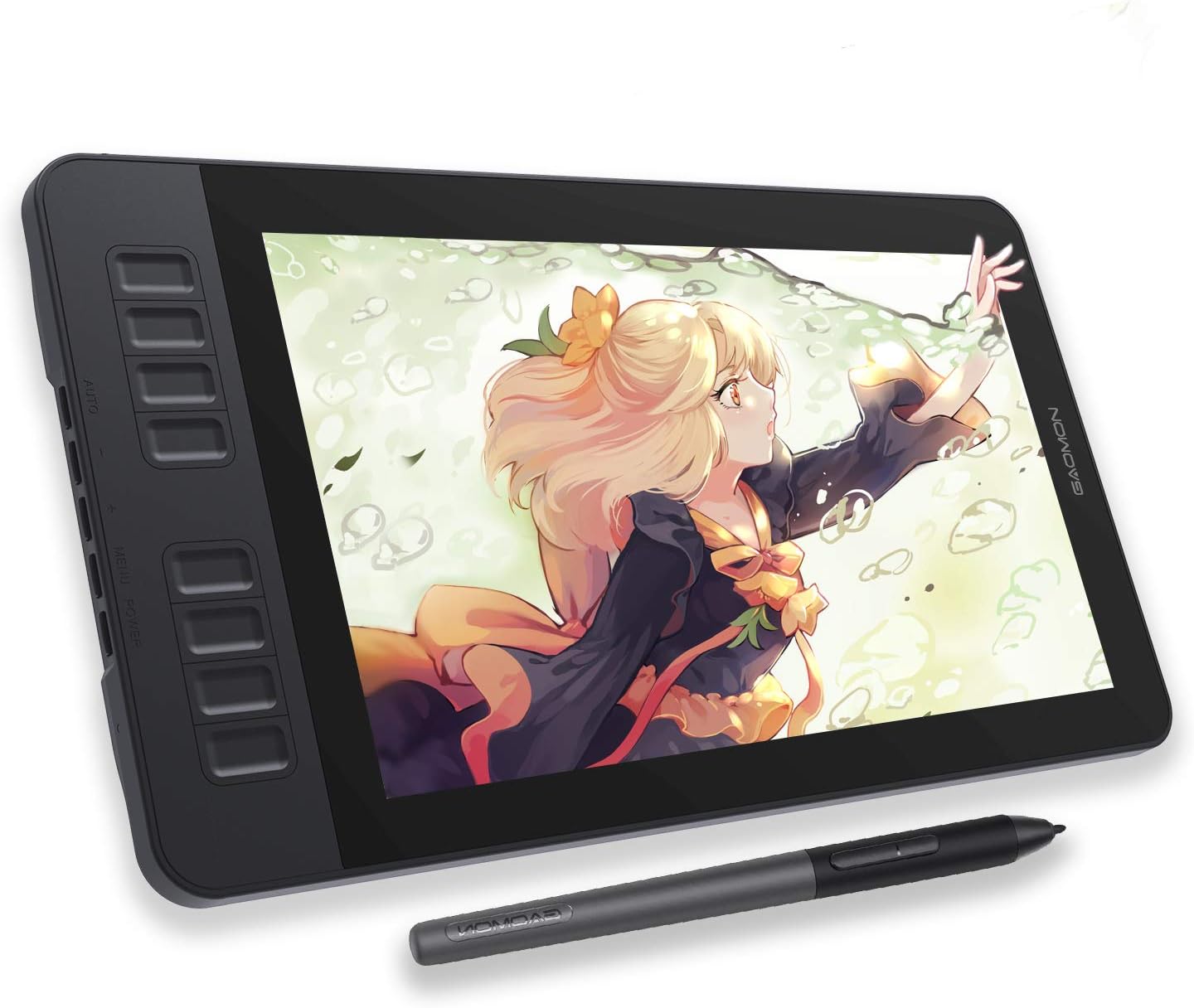
The simplest entry into pen displays in this list. The listing describes an 11.6 inch Full HD IPS screen with 100% sRGB coverage and a pre-installed matte film that makes drawing feel closer to paper while reducing glare.
Its AP50 battery-free pen offers 8,192 pressure levels with tilt, and the 8 side keys plus 2 pen buttons are programmable.
Best suited for: Students and hobby painters testing whether drawing on screen suits them before buying a premium display.
Key features:
- 11.6 inch Full HD IPS, 100% sRGB (72% NTSC)
- Pre-installed matte film
- Battery-free pen with tilt; 8 shortcut keys
Pros:
- Lowest price tier among these displays
- Matte surface out of the box
- IPS panel with full sRGB
Limitations:
- Listing does not describe the screen as laminated, so expect some parallax
- Connects with HDMI and USB, more cables
- Small canvas
Buying consideration: Check that your computer has a free HDMI port or a suitable adapter before ordering.
Setting Up Your Screen for Painting
- Calibrate with a colorimeter to a standard target such as D65 white point and gamma 2.2.
- Set brightness for your room and print needs, then leave it consistent.
- Turn off dynamic contrast, eye-saver blue filters and auto-brightness while painting.
- Use the sRGB mode for web work if your screen is wide-gamut and your software is not color-managed.
- Control room lighting so reflections and changing daylight do not affect your judgment.
- Check your painting in grayscale regularly to confirm values, regardless of screen quality.
Buying Guide: How to Choose a Screen for Digital Painting
Start with color accuracy
An accurate sRGB display beats a dazzling but inaccurate wide-gamut one for most painters.
Match gamut to your output
Web and social media work: sRGB. Printing on fine art printers: consider Adobe RGB coverage. Mobile-first work: DCI-P3.
Pick size and resolution together
27-inch 1440p or 4K is the popular balance for desktop painting.
Consider ergonomics
A height-adjustable stand or monitor arm reduces neck strain during long sessions.
Budget for calibration
A colorimeter is a small cost compared with the screen and pays off in consistent color.
Think about your pen workflow
If you will draw directly on the screen, compare pen displays rather than standard monitors.
Practice on Your Screen
A good screen helps most with subtle value and color work. Test your setup with our tutorials on digital night scenes, where dark values must stay readable, and digital waves and ocean. If you do not have a pen yet, read how to do digital painting without a tablet.
Common Mistakes to Avoid
- Painting on a very bright screen and getting dark prints.
- Buying a wide-gamut screen and viewing sRGB art without color management, making everything oversaturated.
- Never calibrating, so colors slowly drift.
- Using a glossy screen opposite a window.
- Relying on one device; check work on a phone too, since that is how many people will see it.
- Ignoring panel uniformity on large screens.
FAQs
What type of monitor is best for digital art?
An IPS or OLED monitor with near-100 percent sRGB coverage, good factory accuracy and uniformity, ideally at 1440p or 4K.
Do I need a wide-gamut monitor for digital painting?
Not for web art. It helps for print and professional work, but only with color-managed software and calibration.
Is OLED good for digital painting?
OLED offers excellent contrast and color, but check for auto-dimming and consider burn-in risk from static toolbars.
What resolution is best for a digital painting monitor?
27 inches at 1440p is a comfortable standard; 4K at 27 to 32 inches gives sharper detail.
Should I calibrate my screen?
Yes. A hardware colorimeter keeps color and brightness accurate and consistent over time.
Is a pen display better than a monitor for painting?
A pen display lets you draw on the image directly. A standard monitor with a graphics tablet often gives better color for the money.
Final Recommendation
Use the checklist above when shopping for a monitor, and see the pen display picks earlier on the page if you want to draw directly on the screen. For most digital painters, an accurate IPS or OLED screen with full sRGB coverage, 1440p or 4K resolution, an anti-glare finish and an adjustable stand is the right target. Add wide-gamut coverage if you print, and calibrate regularly.
If drawing directly on the screen matters more than ultimate color accuracy, compare pen displays instead, and consider pairing one with an accurate monitor for final color checks. Finally, remember that the screen is a tool for judging value and color, not a substitute for those skills: checking your painting in grayscale, flipping the canvas horizontally and viewing it small, as a thumbnail, will catch more problems than any monitor upgrade. Combine a well-calibrated screen with those habits and your digital paintings will look the way you intend on other people’s devices and in print.