

PaintingProGuide is reader-supported. When you buy through links on this page we may earn an affiliate commission at no extra cost to you.
A drawing monitor, also called a pen display, is a screen you paint on directly with a pressure-sensitive pen while it runs your full desktop software. It is the tool most professional digital painters end up using, because it combines the precision of a computer with the hand-eye directness of a brush on canvas. The best drawing monitors for digital painting differ mainly in size, color accuracy and pen technology, and the right one depends on how much desk space, budget and color fidelity your work needs.
Our product check found three true drawing monitors on Amazon spanning the whole range: the 11.6-inch GAOMON PD1161 for beginners, the 13.3-inch Wacom One HD for hobbyists, and the 27-inch 4K Wacom Cintiq Pro 27 for studios. Because every pen display benefits from a drawing glove, we also cover three gloves from the same check. Below the reviews, you will find a size and resolution guide, a setup checklist, and fixes for parallax, offset and jitter.
Quick answer: For professional studio work, the Wacom Cintiq Pro 27 is the top tier: 27-inch 4K at 120Hz, 10-bit color, 99% Adobe RGB, 98% DCI-P3 and the 8,192-level Pro Pen 3. For hobbyists, the Wacom One HD 13.3-inch is a fully laminated, easy entry into Wacom pen displays. On a tight budget, the GAOMON PD1161 gives an 11.6-inch Full HD screen with an 8,192-level tilt pen. Add a two-finger glove like the Kortimu palm rejection glove.
Our Top Picks at a Glance
- Wacom Cintiq Pro 27 — Best professional drawing monitor
- Wacom One HD 13.3 Inch Pen Display — Best for hobbyists
- GAOMON PD1161 11.6 Inch — Best budget drawing monitor
- Kortimu 3-Layer Palm Rejection Drawing Glove — Best glove for smooth gliding
- HUION Skeleton Artist Glove — Best single glove from a tablet brand
- Gzingen 5 Pack Artist Gloves — Best value multi-pack of gloves
| Product | Best For | Key Spec | Key Strength | Price Tier |
|---|---|---|---|---|
| Wacom Cintiq Pro 27 | Studios, professionals | 27 in 4K 120Hz, 10-bit, 99% Adobe RGB | Pro Pen 3, 8,192 levels, touch | $$$ |
| Wacom One HD 13.3 in | Hobbyists | 13.3 in HD, full lamination, 4,096 levels | Works with Mac, PC, Chromebook | $$$ |
| GAOMON PD1161 | Beginners, budget | 11.6 in FHD IPS, 100% sRGB, 8,192 levels | Tilt, 8 shortcut keys | $$$ |
| Kortimu Drawing Glove | Palm rejection | 3-layer, 2 gloves, 3 sizes | Cleaning cloth included | $ |
| HUION Skeleton Glove | Anti-smudge | Lycra and nylon, one size | Fits either hand | $ |
| Gzingen 5 Pack Gloves | Value | 5 two-finger gloves | Spares for washing | $ |
How We Chose
We did not paint on these displays for this guide. Picks are based on the Amazon listing details and specifications checked in October 2026, how well each drawing monitor’s size, resolution, color gamut, pen technology and workflow controls fit digital painting, and how widely each product is reviewed by Amazon buyers. A screenless pen tablet in our product set was excluded.
- Pen performance: pressure levels, tilt, battery-free design.
- Display quality: resolution, lamination, color gamut and bit depth.
- Size and desk fit: from 11.6 to 27 inches.
- Workflow: express keys, touch and on-screen menus.
- Compatibility: operating systems and ports.
Best Drawing Monitors for Digital Painting Reviewed
1. Wacom Cintiq Pro 27 Drawing Tablet with 4K 120Hz Touchscreen and Pro Pen 3 — Best for professional studio work

The Cintiq Pro 27 is a 27-inch 4K UHD (3840 x 2160) pen display with 10-bit color, 99% Adobe RGB and 98% DCI-P3 coverage, and a 120Hz refresh rate that the listing says is twice that of any previous model. The Wacom Pro Pen 3 offers 8,192 pressure levels, three side switches and customizable grips, weight and balance.
Eight customizable ExpressKeys, on-screen menus, multi-touch and pen gestures, and four 1/4-inch mount points for accessories complete the package. Registration unlocks three-month trials of Capture One, Clip Studio Paint EX, Toon Boom Harmony and Storyboard Pro.
Best suited for: Professional illustrators, concept artists and studios.
Key features:
- 27 in 4K, 120Hz, 10-bit
- 99% Adobe RGB, 98% DCI-P3
- Pro Pen 3, 8,192 levels, customizable
- 8 ExpressKeys, multi-touch, 1/4 in mounts
Pros:
- Exceptional color gamut
- Large 4K canvas
- Customizable pro pen
Cons and limitations:
- Highest price tier by far
- Needs a capable computer and large desk
- Heavy; stand or arm needed
Buying consideration: Check that your graphics card can drive 4K at 120Hz over the supported ports before buying.
2. Wacom One HD Creative Pen Display, 13.3 Inch — Best for hobbyists

Wacom One HD is a 13.3-inch high-definition pen display with full lamination, designed for creative hobbyists and anyone wanting a bigger digital canvas or second screen. It works with any software and with Mac, PC and Android devices per the listing. The pen has 4,096 pressure levels and a customizable button for shortcuts like undo.
A compact 13.3-inch display fits on most desks and can be put away after each session, making it a practical first pen display.
Best suited for: Hobbyists and students stepping up from a screenless tablet.
Key features:
- 13.3 in HD display, full lamination
- 4,096 pressure levels
- Customizable pen button
- HDMI connection; Mac, PC, Android
Pros:
- Trusted pen technology
- Compact
- Works with any software
Cons and limitations:
- HD resolution on 13.3 in
- No express keys listed
- Color gamut not stated
Buying consideration: Assign the pen button to undo; it saves constant reaching for the keyboard.
3. GAOMON PD1161 Drawing Tablet with Screen, 11.6 Inch FHD — Best for budget drawing monitors
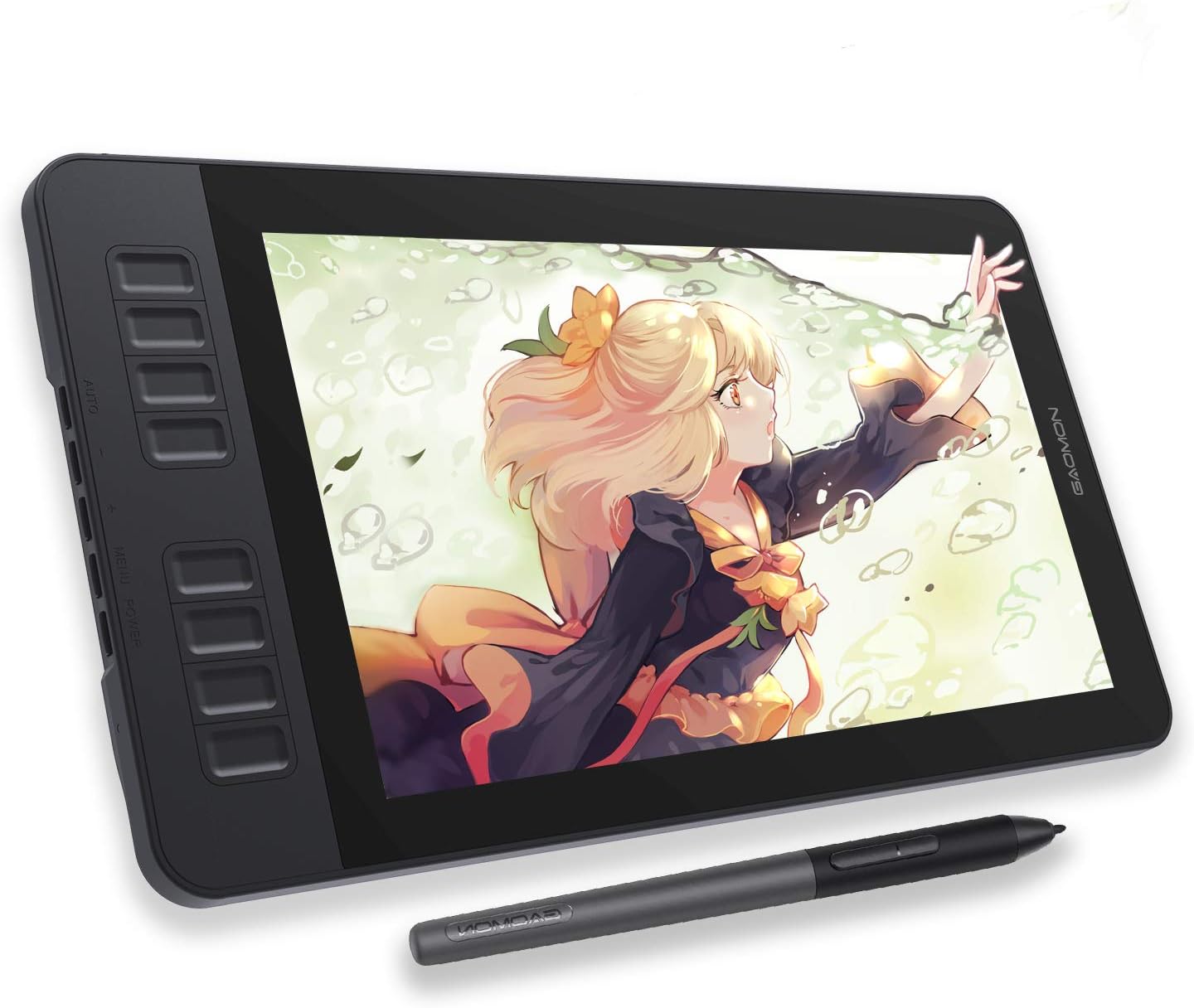
The PD1161 is an 11.6-inch Full HD IPS pen display with a pre-installed matte film for a paper-like feel. The listing states 72% NTSC (100% sRGB) color gamut, and the battery-free AP50 pen offers 8,192 pressure levels and tilt. Eight press keys and two pen buttons are programmable in the driver.
The listing clearly notes that it is not standalone and must connect to a computer. For beginners, it is an affordable way to try drawing on screen with tilt support.
Best suited for: Beginners and budget-conscious painters.
Key features:
- 11.6 in FHD IPS
- 100% sRGB (72% NTSC)
- 8,192-level battery-free pen with tilt
- 8 shortcut keys
Pros:
- Low price tier for a pen display
- Tilt support
- Matte film included
Cons and limitations:
- Small screen
- Needs computer, HDMI and USB
- Film not as durable as etched glass
Buying consideration: Replace the matte film when it wears; a fresh film restores the paper-like feel.
4. Kortimu Artist Drawing Glove, 3-Layer Palm Rejection — Best for smooth gliding
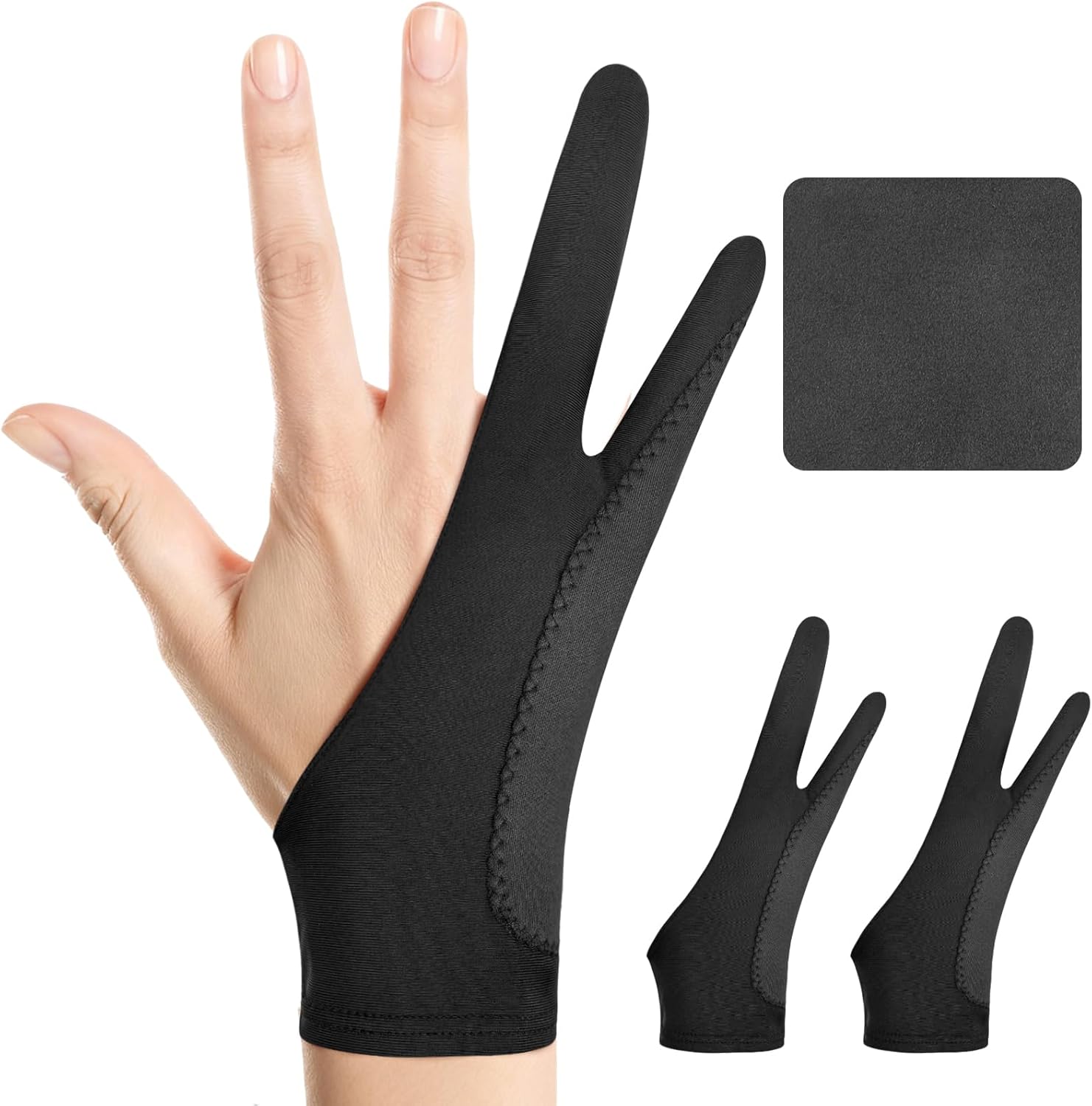
Kortimu’s two-finger glove uses a three-layer anti-slip, anti-smudge design that the listing says prevents accidental palm touches and keeps the screen spotless. It is ambidextrous, made of stretchy moisture-wicking fabric, and the set includes two gloves and a cleaning cloth in three sizes.
On pen displays, a glove reduces friction as your hand slides across glass and prevents palm oils from leaving streaks over the painting.
Best suited for: Anyone using a pen display or iPad for long sessions.
Key features:
- Two-finger, ambidextrous
- 3-layer palm rejection design
- 2 gloves plus cleaning cloth
- Three sizes
Pros:
- Pair included
- Cleaning cloth
- Sized options
Cons and limitations:
- Fit varies by hand
- Fabric wears over time
- Not needed for screenless tablets
Buying consideration: Choose the size closest to your hand; loose gloves bunch and drag.
5. HUION Skeleton Artist Glove for Drawing Tablets — Best for an anti-smudge single glove

Huion’s skeleton-pattern glove is a two-finger design in soft Lycra and nylon, one free size about 7.87 by 3.15 inches, usable on either hand. The listing focuses on preventing smudges and reducing friction, and notes it cannot prevent accidental touches on all devices.
A dark color hides soiling, so it needs washing less often.
Best suited for: Pen display users who want a simple anti-smudge glove.
Key features:
- Two-finger design
- Lycra and nylon
- One size, either hand
- Black skeleton pattern
Pros:
- Comfortable, flexible
- Hides dirt
- From a tablet brand
Cons and limitations:
- Single glove
- One size
- Palm rejection not guaranteed
Buying consideration: Wash by hand and air dry to keep the elastic in shape.
6. Gzingen 5 Pack Artist Glove for Drawing Tablet — Best for a value multi-pack

Gzingen packs five two-finger gloves made of breathable, high-elastic material, about 20 cm long and 8 cm wide, that fit either hand. The listing says they let the hand slide smoothly over tablets, pen displays and drawing monitors.
Five gloves mean you always have a clean one while others are in the wash, and they work for classrooms or shared studios.
Best suited for: Painters who want spares, and classrooms.
Key features:
- 5 gloves
- Two-finger, ambidextrous
- About 20 x 8 cm
- Breathable elastic material
Pros:
- Lots of spares
- Lowest cost per glove
- Fits either hand
Cons and limitations:
- One size
- Basic construction
- No palm rejection claim
Buying consideration: Keep one at your desk and one in your laptop bag.
Buying Guide: How to Choose Drawing Monitors for Digital Painting
Size and desk space
Measure your desk. A 13-inch display fits beside a keyboard; a 27-inch display usually replaces a monitor and needs a stand or arm.
Resolution and pixel density
Full HD is sharp at 11 to 13 inches. At 15 to 16 inches, QHD or higher is better. At 22 to 27 inches, 4K keeps detail crisp.
Higher resolution needs a more capable graphics card.
Color gamut
At least 100% sRGB for web and print. Adobe RGB and DCI-P3 coverage matter for print-heavy and film work.
Pen technology
Battery-free pens are convenient. Look for 4,096 or more pressure levels and tilt for natural shading.
Lamination and surface
Fully laminated screens reduce parallax. Etched glass or matte films reduce glare and add tooth.
Ports and drivers
Check the display’s connections against your computer. Install the latest driver before plugging in.
Size and Resolution Guide
| Size | Recommended Resolution | Best For |
|---|---|---|
| 11-13 in | Full HD | Beginners, small desks, portability |
| 15-16 in | Full HD to QHD | Serious hobbyists |
| 22-24 in | QHD to 4K | Professionals with desk space |
| 27 in and up | 4K | Studios, color-critical work |
Drawing Monitor vs Screenless Tablet vs Standalone
| Feature | Drawing Monitor | Screenless Pen Tablet | Standalone Tablet |
|---|---|---|---|
| Draw on the image | Yes | No | Yes |
| Needs a computer | Yes | Yes | No |
| Software | Full desktop apps | Full desktop apps | Android apps |
| Learning curve | Low | Moderate | Low |
| Typical cost | Moderate to high | Low | Moderate |
Many painters start with a screenless tablet, move to a drawing monitor once they paint regularly, and add a standalone later for travel. If you already know you will paint seriously in desktop software, going straight to a drawing monitor saves the adjustment period of learning hand-eye coordination on a pad.
Stands, Arms and Desk Layout
Larger drawing monitors are heavy and need support. A 13-inch display can rest on a fold-out stand; a 27-inch display like the Cintiq Pro 27 is usually mounted on its own stand or a VESA-compatible arm so it can swing between a near-vertical viewing angle and a low drawing angle. Arrange the keyboard to the side of your non-drawing hand, keep reference images on a second monitor at eye level, and leave room for your forearm to rest on the desk edge. A good layout reduces reaching and makes long painting sessions far more comfortable.
Lighting also matters. Position lamps behind or to the side of the display, not above it, to avoid reflections on the glass. Neutral, daylight-balanced room lighting makes it easier to judge color on screen. Avoid painting with a bright window directly behind the display, since your eyes will adapt to the window and the screen will seem darker than it is, which pushes you to paint too light. Close a blind or reposition the desk so the window sits to one side of the display rather than behind or in front of it. Anti-glare or matte screen surfaces help further in bright rooms.
Setup Checklist
- Install the manufacturer’s latest driver before connecting.
- Connect video, USB and power as the manual describes.
- Set the display’s native resolution and scaling in your operating system.
- Calibrate the pen in the driver so the cursor sits under the nib.
- Map the pen to the drawing monitor only, not across all screens.
- Set express keys for undo, brush size, eyedropper and pan.
- Calibrate color with a hardware colorimeter if color accuracy matters.
Troubleshooting Drawing Monitors
| Problem | Likely Cause | Fix |
|---|---|---|
| Cursor offset from pen tip | Uncalibrated pen or parallax | Run pen calibration; sit square to the screen |
| Pen moves the cursor on the wrong monitor | Mapping across displays | Map pen to the drawing monitor only |
| Jittery diagonal lines | Driver or app smoothing settings | Update driver; adjust stabilizer in your app |
| No pressure in software | Driver not detected or Windows Ink setting | Reinstall driver; toggle Windows Ink in driver settings |
| Palm leaves marks | Touch enabled or no glove | Disable touch while painting; use a glove |
Practice Projects
Put your drawing monitor to work with our tutorials on painting digital waves and ocean and painting digital night scenes. For a comparison point, see how to do digital painting without a tablet.
Common Mistakes to Avoid
- Buying a 27-inch display for a small desk. Measure first.
- Skipping driver installation. Pressure will not work properly.
- Mapping the pen to all monitors. Strokes go to the wrong screen.
- Ignoring graphics card limits. 4K at 120Hz needs supported ports.
- Leaving touch on while painting. Palms trigger strokes.
- Painting with the display flat. Use a stand angle to protect your neck.
FAQs
What is the best drawing monitor for digital painting?
For professionals, the Wacom Cintiq Pro 27. For hobbyists, the Wacom One HD. For budget beginners, the GAOMON PD1161.
What is the difference between a drawing tablet and a drawing monitor?
A drawing tablet usually has no screen; you look at a separate monitor. A drawing monitor is a screen you draw on directly.
Do drawing monitors work without a computer?
No. Drawing monitors connect to a computer. Standalone drawing tablets run their own operating system.
Why do I need a drawing glove?
A glove reduces friction and prevents smudges and accidental palm input on glass screens.
Is 4K necessary on a drawing monitor?
Only at larger sizes. Full HD is sharp on 11 to 13 inches; 4K is ideal around 27 inches.
How do I fix pen offset on a drawing monitor?
Run the driver’s pen calibration and sit facing the screen squarely to reduce parallax.
Final Recommendation
Professionals and studios should choose the Wacom Cintiq Pro 27 for its 4K 120Hz canvas, wide Adobe RGB and DCI-P3 coverage and the customizable Pro Pen 3. Hobbyists will find the Wacom One HD 13.3-inch a compact, laminated entry point, and beginners on a budget can start with the GAOMON PD1161 and its tilt-enabled pen. Pair any of them with a two-finger glove: Kortimu for palm rejection, Huion for a simple anti-smudge glove, or Gzingen for a five-pack of spares.




One Comment