

PaintingProGuide is reader-supported. When you buy through links on this page we may earn an affiliate commission at no extra cost to you.
A tablet is a complete studio in a slab of glass, but painting on one for hours exposes its weak points: it lies flat, the glass is slippery, your palm drags and smudges, and every shortcut is a gesture or a menu tap. A handful of inexpensive accessories solve most of that. The best digital painting accessories for tablets are a stand to angle the screen, a glove for smooth, smudge-free strokes, a shortcut controller if your setup supports one, and, for fun, a brush-style stylus for loose painting.
Quick answer: Start with a stand and a glove. The MAX SMART foldable tablet stand tilts 9 to 16 inch tablets from 15 to 39 degrees and weighs 360 g; the Kortimu palm-rejection glove reduces friction and smudges. If you paint on a pen tablet or Windows tablet with a laptop, add the HUION Keydial Mini for shortcuts.
Below we compare six tablet accessories by what they fix, then share setup advice for iPad, Android and pen tablets.
Our Top Picks at a Glance
- MAX SMART Foldable Tablet Drawing Stand — Best stand for iPads and small tablets
- Frunsi Drawing Tablet Stand, 12 to 17 in — Best stand for larger tablets with phone holder
- Kortimu 3-Layer Palm Rejection Drawing Glove — Best drawing glove overall
- Holyzuel Digital Art Glove — Best padded glove for paper and tablet
- HUION Keydial Mini Bluetooth Keypad — Best shortcut controller for pen tablets and laptops
- BUTOUCH Digital Painting Brush Stylus — Best brush-feel stylus for touchscreens
| Product | Best For | Key Spec | Key Strength | Price Tier |
|---|---|---|---|---|
| MAX SMART Foldable | iPad and small tablets | 15 to 39 degrees, 9 to 16 in, 360 g | Folds to 1 cm | $$ |
| Frunsi Stand | Larger tablets | 12 to 17 in, adjustable angles | Phone holder, cooling gaps | $$ |
| Kortimu Glove | Glide and palm rejection | 3-layer, two-finger, ambidextrous | Cleaning cloth included | $ |
| Holyzuel Glove | Padded comfort | Spandex, padded palm, two-finger | For tablets and paper | $ |
| HUION Keydial Mini | Shortcuts | 18 keys plus dial, Bluetooth | Fully programmable | $$ |
| BUTOUCH Brush Stylus | Painterly feel | Synthetic hair tip, no battery | Any touchscreen | $$ |
How We Chose
These picks are based on Amazon listing details and specifications checked in October 2026, how directly each accessory improves painting on tablets, and how widely each product is reviewed by Amazon buyers. We have not used these accessories ourselves. We left out a pen tablet that appeared in our research, because it is a computer input device rather than an accessory for an existing tablet.
- Problem solved: posture, friction, smudges or workflow speed.
- Compatibility with common tablet sizes and devices.
- Portability for painting away from a desk.
- Comfort over long sessions.
- Value relative to daily use.
Best Digital Painting Accessories for Tablets Reviewed
1. MAX SMART Foldable Tablet Drawing Stand — Best for iPads and small tablets

Angling the tablet is the single biggest comfort upgrade. MAX SMART’s stand adjusts from 15 to 39 degrees and fits most tablets, drawing tablets, e-readers and lightweight laptops up to 16 inches. It weighs only 360 g and folds to about 1 cm thick, so it slips into a backpack.
That range covers the most common drawing angles for iPads and Android tablets.
Best suited for: iPad and Android tablet painters, at home or on the go.
Key features:
- 15 to 39 degree range
- Fits 9 to 16 in
- 360 g
- Folds to about 1 cm
Pros:
- Very light and portable
- Common drawing angles
- Affordable
Cons and limitations:
- Narrower range than some stands
- Light build for heavy pen displays
Buying consideration: Start around 20 to 25 degrees and adjust after a session.
2. Frunsi Drawing Tablet Stand, 12 to 17 in — Best for larger tablets

Frunsi’s stand supports 12 to 17 inch devices and offers adjustable angles. The listing describes a double triangular structure for stability so it does not shake when drawing, gaps in the surface for heat dissipation, and a built-in smartphone holder.
The phone holder is useful for displaying a reference photo beside your canvas, so you do not need to split the tablet screen.
Best suited for: Larger tablets and small pen displays.
Key features:
- Fits 12 to 17 in
- Adjustable angles
- Double triangle structure
- Phone holder
Pros:
- Supports bigger devices
- Phone holder for references
- Stable design
Cons and limitations:
- Bulkier than ultra-slim stands
- Plastic
Buying consideration: Put your reference photo on your phone in the holder to keep the full tablet screen for painting.
3. Kortimu 3-Layer Palm Rejection Drawing Glove — Best for smooth, smudge-free strokes
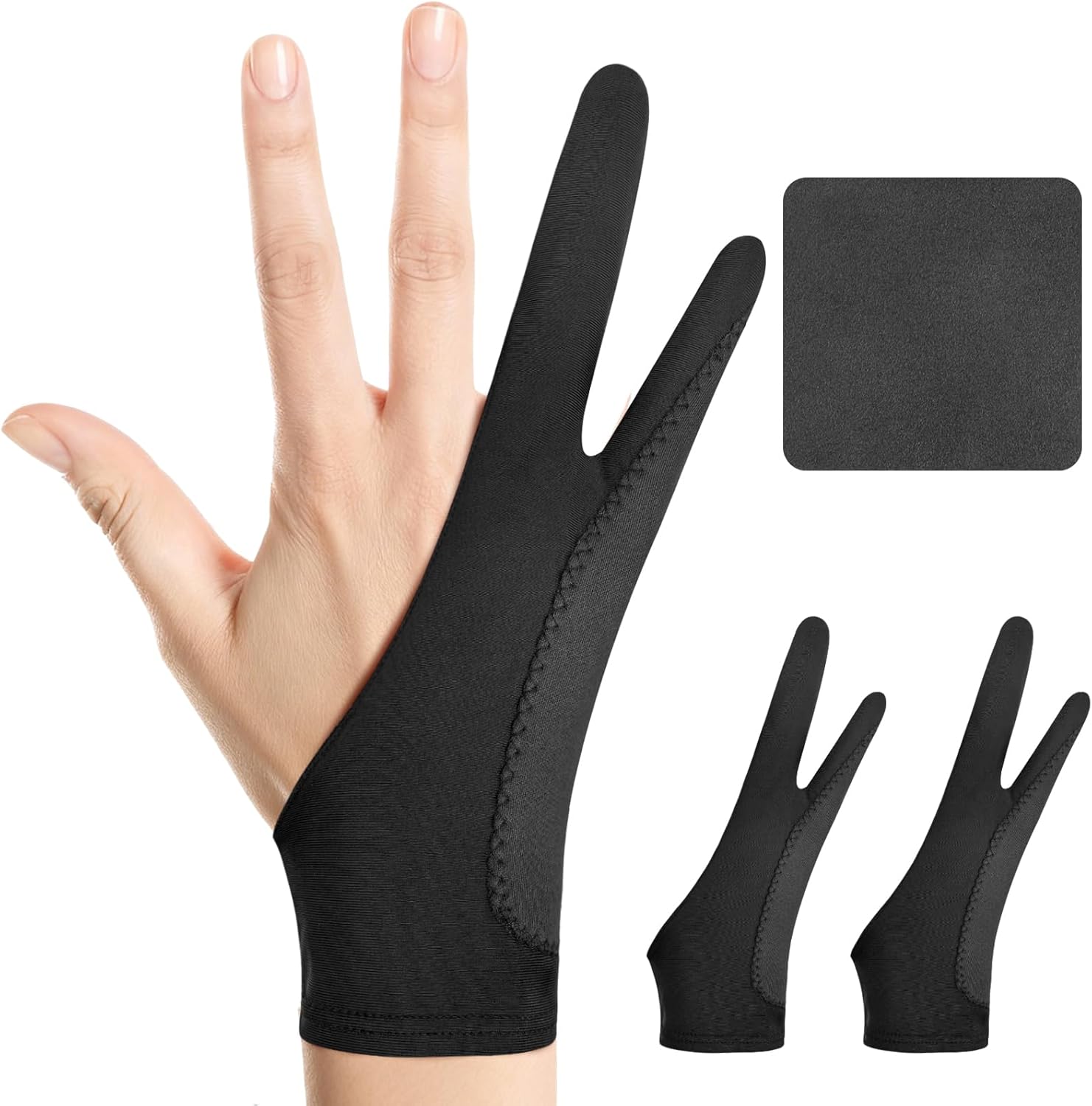
Tablet glass grips skin, especially when your hand is warm, which makes long strokes jerky. A two-finger glove covers the side of the hand that rests on the screen. Kortimu’s glove has a three-layer anti-slip, anti-smudge design, an ambidextrous fit and moisture-wicking stretch fabric, with a cleaning cloth included.
The listing also highlights palm rejection, preventing accidental touches on touchscreens.
Best suited for: Every tablet painter.
Key features:
- Two-finger design
- 3-layer anti-smudge
- Ambidextrous
- Cleaning cloth
Pros:
- Smoother glide
- Fewer smudges
- Very low cost
Cons and limitations:
- One size
- Needs washing
Buying consideration: Wash it every week or two to keep it gliding.
4. Holyzuel Digital Art Glove — Best for padded comfort

Holyzuel’s glove is designed to be comfortable rather than tight, with extra-thick padding on the palm area, per the listing. It is made of smooth, elastic spandex to reduce friction on digital devices, fits left or right hand, and is also suggested for paper sketching to keep hands clean.
Padding is welcome if you rest a lot of weight on the side of your hand.
Best suited for: Artists who want a softer, padded glove.
Key features:
- Spandex
- Extra-thick palm padding
- Two-finger, either hand
- For tablets and paper
Pros:
- Padded comfort
- Works for traditional sketching too
- Low cost
Cons and limitations:
- Size Small listed; check fit
- Padding may feel warm
Buying consideration: Check the sizing chart on the listing before ordering.
5. HUION Keydial Mini Bluetooth Keypad — Best for shortcuts for pen tablets and laptops

If you paint on a pen tablet connected to a laptop, or on a Windows tablet, a shortcut keypad saves constant reaching. HUION’s Keydial Mini has 18 programmable keys and a dial with up to three functions, connects by Bluetooth 5.0 and offers anti-ghosting for up to five keys. The listing names drawing tablets, laptops and PCs as compatible devices.
iPad users should check compatibility on the listing; this is primarily a computer accessory.
Best suited for: Pen tablet and Windows tablet painters.
Key features:
- 18 programmable keys
- Dial with 3 functions
- Bluetooth 5.0
- Anti-ghosting
Pros:
- Big time saver
- Wireless
- Flexible mapping
Cons and limitations:
- Primarily for computers
- Setup time
Buying consideration: Map undo, brush size, eyedropper and zoom first.
6. BUTOUCH Digital Painting Brush Stylus — Best for a painterly feel

BUTOUCH’s brush stylus has a synthetic hair tip and works with all touchscreen devices, needing no battery or charging, according to the listing. It is compact and portable.
It does not give pressure sensitivity like an Apple Pencil or active pen, but it encourages loose, gestural strokes, which is a fun change of pace and popular with kids.
Best suited for: Loose sketches and playful painting on any touchscreen.
Key features:
- Synthetic hair tip
- No battery or charging
- Works on touchscreens
- Compact
Pros:
- Traditional brush feel
- Works on phones and tablets
- No pairing
Cons and limitations:
- No pressure sensitivity
- Less precise
Buying consideration: Pair it with large, soft brushes in your painting app.
Accessory Priorities by Tablet Type
iPad with Apple Pencil. A stand and a glove come first. A matte screen protector is a popular addition for a paper-like feel. Shortcut remotes designed for Procreate exist if you want physical buttons.
Android tablets with stylus. The same priorities apply: stand and glove first. Check stylus nib availability for your model.
Pen tablets connected to a computer. A shortcut controller gives the biggest workflow gain, and a glove reduces friction on the tablet surface.
Pen displays. A sturdy stand and a glove, plus a controller to replace the keyboard.
Windows tablets and 2-in-1 laptops. These behave like pen displays with a built-in computer. A stand or kickstand angle, a glove and a Bluetooth controller make them a capable portable studio, since keyboard covers are awkward to reach while drawing.
Kids’ tablets. A sturdy stand, a small glove and a brush stylus or chunky stylus make tablet painting easier for small hands.
Matte Screen Protectors: Worth It?
Many tablet artists add a matte, paper-like screen protector. It adds friction so the pen feels more like a pencil on paper, reduces glare from overhead lights and hides fingerprints. The trade-offs are a slightly softer, grainier image, which matters for color-critical work, and faster wear on stylus nibs. If you sketch and ink a lot, a matte protector often feels better; if you paint and judge color closely, many artists keep the glass bare and use a glove for glide instead. You can also use both.
Managing Power and Heat in Long Sessions
Painting apps with large canvases and many layers work tablets hard. Long sessions can drain the battery and warm the device. Painting while plugged in is fine for most tablets; route the cable out the side so it does not press against a stand’s lip. Stands with open or vented surfaces, such as the Frunsi, allow some airflow behind the device. Lowering screen brightness slightly and closing background apps also help. If a tablet gets uncomfortably hot, take a break and let it cool.
Using a Phone as a Reference Screen
Splitting a tablet screen between canvas and reference shrinks your working area. A simple alternative is to show references on your phone, propped in a stand’s phone holder or a small phone stand beside the tablet. Keep the phone at a similar brightness to the tablet so colors look comparable, and use a reference app or photo album dedicated to the current piece so you are not scrolling through unrelated images.
A Compact Travel Kit for Tablet Painters
- Tablet and stylus, fully charged, with a spare nib.
- A fold-flat stand like the MAX SMART.
- Two drawing gloves, one to wear and one spare.
- A short charging cable and a small power bank.
- A microfiber cloth for the screen.
- Optional: a brush stylus for quick, loose studies.
Everything fits in a tablet sleeve or small backpack, turning a cafe table or train seat into a workable studio.
Setting Up a Comfortable Tablet Painting Station
- Angle the tablet on a stand so your head is upright.
- Wear a glove on your drawing hand.
- Support your forearm on the desk edge or a cushion.
- Keep references separate, on a phone or second screen, to free canvas space.
- Map shortcuts to a controller or the app’s gesture settings.
- Light from the side to avoid glare.
- Take breaks to rest your eyes and wrist.
Then practice with our tutorials on painting digital waves and ocean and digital night scenes, or start with digital painting without a tablet.
Using Built-In Tablet Features Alongside Accessories
Accessories work best combined with the tablet’s own tools. Most painting apps let you customize gestures: two-finger tap to undo, three-finger tap to redo, and touch-and-hold for the eyedropper. Turning on palm rejection in your app settings reduces stray marks even before you put on a glove. Many styluses support double-tap to switch tools. Spending ten minutes in your app’s gesture settings can replace several physical shortcuts, so a controller becomes optional rather than essential.
Cleaning and Caring for Tablet Accessories
Wipe the tablet screen with a dry microfiber cloth after each session, and use only manufacturer-approved cleaners when needed. Hand-wash gloves in mild soap and let them air-dry flat. Check stand pads for dust and grit, which can scratch the back of your tablet, and wipe them clean. Replace stylus nibs when they feel scratchy or flat; a worn nib can mark matte screen protectors and even glass over time.
Buying Guide: How to Choose Digital Painting Accessories for Tablets
Fix posture first
A stand delivers the biggest comfort improvement for the money. Even a simple fold-flat stand changes how your neck and shoulders feel after an hour.
Then fix friction
Gloves make strokes smoother and keep the screen clean, and they cost less than a coffee.
Check device compatibility
Stands list size ranges; controllers list supported devices and software.
Consider portability
Light, foldable accessories suit artists who paint away from home.
Buy spares of consumables
Gloves wear out and need washing; having two helps.
Mind your stylus
Your stylus is the accessory you touch most. Keep spare nibs on hand, choose a grip or sleeve if the barrel feels thin, and store it where it will not roll off the desk. For active pens, keep them charged so they do not die mid-stroke.
Think about where you paint
A couch painter needs a lap desk or cushion and a light glove; a desk painter needs a stable stand and perhaps a controller. Buy for the place you actually paint most often.
Experiment with fun extras
A brush stylus can spark new, looser ways of working.
Common Mistakes to Avoid
- Painting flat for hours. Use a stand.
- Ignoring glove hygiene. Wash regularly.
- Buying a stand too small. Check size ranges.
- Assuming every controller works with iPad. Check compatibility.
- Expecting pressure from a brush stylus. It works like a finger.
FAQs
What accessories do I need for digital painting on an iPad?
A stand to angle the screen and a drawing glove are the most useful. Many artists also add a matte screen protector and a shortcut remote.
Do drawing gloves work on iPads?
Yes. They reduce friction and smudges and help prevent accidental palm touches.
What angle should my tablet be at for drawing?
Many artists like roughly 15 to 45 degrees. Adjust until your neck is neutral.
Can I use a shortcut keypad with a tablet?
Some keypads support tablets; others are designed for computers. Check the listing for your device.
Is a brush stylus good for digital art?
It is fun for loose, painterly work but lacks pressure sensitivity, so it is not a replacement for an active pen.
Are tablet stands stable enough for drawing?
Well-designed stands with stoppers and anti-slip pads are stable for drawing; check size and weight limits.
Final Recommendation
For most tablet painters, the best first purchases are the MAX SMART foldable stand (or the Frunsi stand for larger tablets) and a Kortimu or Holyzuel drawing glove. Together they fix posture and friction for very little money.
If you paint on a pen tablet with a computer, add the HUION Keydial Mini. For a playful, painterly change of pace, try the BUTOUCH brush stylus.




