
PaintingProGuide is reader-supported. When you buy through links on this page we may earn an affiliate commission at no extra cost to you.
Drawing tablets for painters are not only for digital artists. Many traditional painters use one to plan compositions, test color schemes, mock up a mural on a photo of the wall or try variations of a painting before committing to canvas. A tablet also opens the door to digital painting for those who want to try it.
There are two main types. Pen tablets have no screen; you draw on the pad and watch the computer monitor. They are affordable and durable. Standalone and display tablets let you draw directly on the image, which feels more like paper but costs more. We compare five tablets across both types plus one useful accessory.
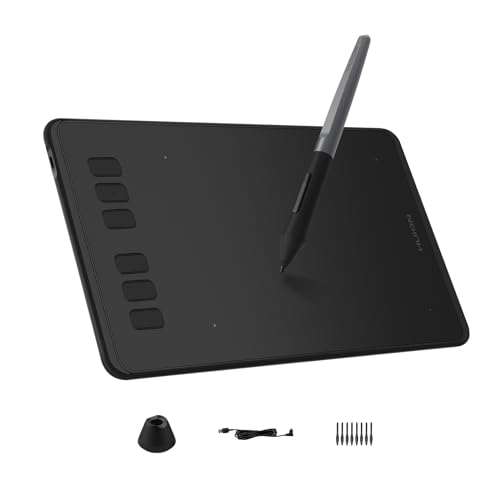
Quick answer: The Wacom Intuos Small is the best starting point for most painters thanks to its reliable battery-free pen. For a bigger working area, choose the GAOMON M10K with its touch ring, and if you want to draw on screen without a computer, the PicassoTab A10.
Our Top Picks at a Glance
- Wacom Intuos Small — Best for painters starting digital work with a trusted pen
- UGEE M708 V2 Drawing Tablet — Best for a large working area at a low price
- GAOMON M10K Drawing Tablet — Best for customizable shortcuts and a touch ring
- PicassoTab A10 Standalone Drawing Tablet — Best for drawing on screen without a computer
- RubensTab T11 Pro Standalone Drawing Tablet — Best for a standalone option with long battery life
- OTraki Artist Drawing Gloves (4 pack) — Best for smooth hand movement and smudge-free screens
| Product | Best For | Key Spec | Key Strength | Price Tier |
|---|---|---|---|---|
| Wacom Intuos Small | Painters starting digital work with a trusted pen | Wired; battery-free EMR pen; software included | Industry-standard pen feel | $$ |
| UGEE M708 V2 Drawing Tablet | A large working area at a low price | 10 x 6.25 in active area; 8 hot keys; Android support | Large surface, multi-OS | $$ |
| GAOMON M10K Drawing Tablet | Customizable shortcuts and a touch ring | 10 x 6.25 in; 10 keys; touch ring; 8192 levels | Touch ring for zoom and brush size | $$$ |
| PicassoTab A10 Standalone Drawing Tablet | Drawing on screen without a computer | 10 in laminated display; 4096-level active pen; standalone | Includes app upgrades and tutorials | $$$ |
| RubensTab T11 Pro Standalone Drawing Tablet | A standalone option with long battery life | Standalone; 5800 mAh battery; battery-free pressure pen | Pre-installed pro drawing apps | $$$ |
| OTraki Artist Drawing Gloves (4 pack) | Smooth hand movement and smudge-free screens | 4 gloves | Reduces friction and palm rejection issues | $ |
How We Chose
These picks are based on Amazon listing details and specifications checked in October 2026, how well each tablet’s working area, pen, controls and setup suit painters using digital tools, and how widely each product is reviewed by Amazon buyers. Where listings give inconsistent specs, we point that out.
Our criteria:
- Tablet type: pen tablet or standalone screen
- Working area size
- Pen technology and pressure levels
- Shortcuts and controls
- Compatibility with computers and devices
- Value for the price tier
How Traditional Painters Use Tablets
- Thumbnail sketches: try several compositions in minutes and compare them side by side.
- Color studies: test palettes and lighting on a photo or sketch before mixing paint.
- Mural mockups: paint a design onto a photo of the wall to show a client.
- Reference prep: crop, adjust values and grid reference photos for tracing or projection.
- Digital painting: create finished digital works or prints.
Undo, layers and instant color changes make experimentation cheap. Many painters find that a few minutes of digital planning saves hours of repainting.
Best Drawing Tablets for Painters Reviewed
1. Wacom Intuos Small — Best for painters starting digital work with a trusted pen
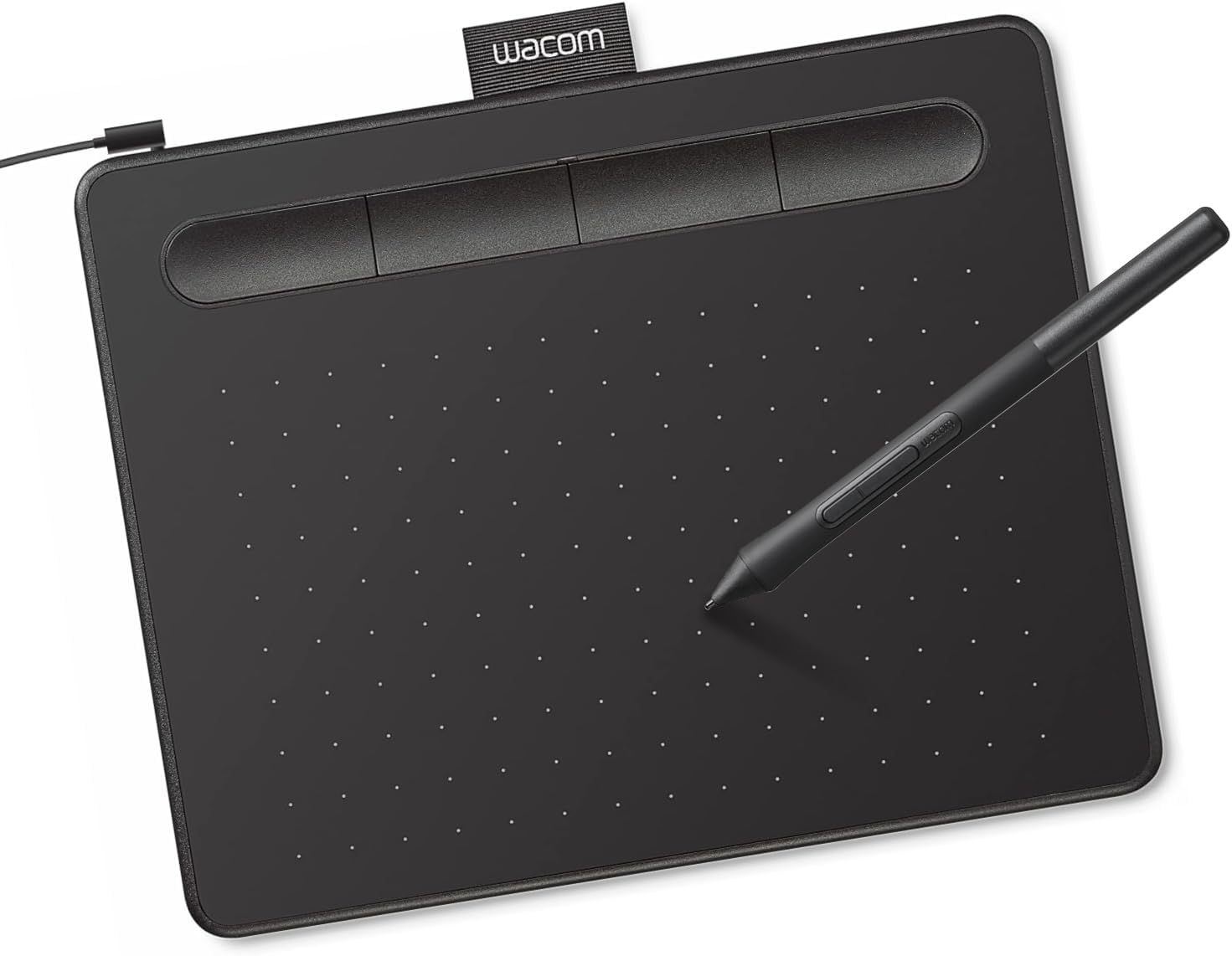
Wacom is the name most digital artists started with, and the Intuos Small is its entry point. The listing describes Wacom’s EMR battery-free pen technology, compatibility with any software program for drawing, painting and photo editing, and included creative software and training when you register.
For traditional painters, a pen tablet is the cheapest way to try digital painting, plan compositions, test color schemes or make studies before committing paint to canvas. You draw on the tablet while looking at your computer screen, which takes a few days to get used to.
The Small size suits a desk alongside a keyboard. Painters who use large arm movements may eventually want a bigger working area, but for sketches and studies it is plenty.
Best suited for: Traditional painters exploring digital studies, composition planning and color tests on a computer.
Key features:
- Wired connection
- Battery-free EMR pen
- Works with any creative software
- Creative software and training included on registration
Pros:
- Reliable, widely supported
- No pen battery to charge
- Low price tier
Cons and limitations:
- Small working area
- Needs a computer
- Hand-eye coordination takes practice
Buying consideration: Map the tablet to one monitor only if you use two screens; mapping across both makes strokes feel stretched.
2. UGEE M708 V2 Drawing Tablet — Best for a large working area at a low price

UGEE’s M708 V2 gives you a 10 by 6.25 inch active area in a slim pad, much larger than entry-level small tablets. It works with Windows, macOS, Chrome OS, Linux and Android 6.0 or later according to the listing, and has eight hot keys.
The pressure-sensitivity figure is listed inconsistently, 16,384 in one place and 8,192 in another, but either is far beyond what you will notice in practice. The bigger area is the real benefit: broader strokes feel closer to painting on paper.
Best suited for: Painters who want room for larger arm movements without paying for a display tablet.
Key features:
- 10 x 6.25 inch active area
- Eight customizable hot keys
- Passive stylus
- Windows, macOS, Chrome OS, Linux and Android support
Pros:
- Large drawing area
- Broad compatibility including Android
- Low price tier
Cons and limitations:
- Pressure spec inconsistent in listing
- Needs a computer or phone
- Less established brand
Buying consideration: If you plan to draw from an Android phone, check your phone is on the supported list before buying.
3. GAOMON M10K Drawing Tablet — Best for customizable shortcuts and a touch ring

GAOMON’s M10K matches the UGEE’s 10 by 6.25 inch area with a papery textured surface, a battery-free AP31 stylus with 8,192 pressure levels, ten programmable press keys and a touch ring.
The touch ring is a genuine workflow upgrade for painters. You can program it to zoom the canvas or change brush size, two adjustments digital painters make constantly, without reaching for the keyboard. The textured surface gives a little drag, closer to paper than slick plastic.
Best suited for: Digital painters who want shortcuts at their fingertips and a paper-like surface.
Key features:
- 10 x 6.25 inch area with papery texture
- Battery-free stylus, 8,192 levels
- Ten press keys
- Programmable touch ring
Pros:
- Touch ring speeds up workflow
- Paper-like texture
- Low price tier
Cons and limitations:
- Textured surface wears nibs faster
- Needs a computer
- Shortcut setup takes time
Buying consideration: Set the touch ring to brush size first; it is the change you make most often while painting digitally.
4. PicassoTab A10 Standalone Drawing Tablet — Best for drawing on screen without a computer

A standalone tablet has its own screen and runs drawing apps itself, so you draw directly on the image, like paper, with no computer. PicassoTab’s A10 has a 10-inch laminated display that reduces glare and parallax, a 4,096-level active pen, and bonus items including lifetime upgrades for the Concepts drawing app and Artixo tutorials.
Drawing on the screen is far more intuitive for traditional painters than a pen tablet. The tutorial upgrades are a useful start for beginners.
Best suited for: Beginners and traditional painters who want to draw directly on a screen without a computer.
Key features:
- 10 inch laminated display
- 4,096-level active pen
- Standalone, no computer needed
- Lifetime app upgrades and tutorial access
- Bonus accessories
Pros:
- Draw directly on the image
- Portable
- Beginner-friendly bundle
Cons and limitations:
- Highest price tier here
- 10 inch screen is small for big compositions
- Performance depends on apps used
Buying consideration: Try the included drawing app for a few weeks before buying additional software; many painters find it enough for studies.
5. RubensTab T11 Pro Standalone Drawing Tablet — Best for a standalone option with long battery life

Frunsi’s RubensTab T11 Pro is another standalone tablet, fully self-contained with a 5,800 mAh battery and a battery-free pressure-sensitive pen. It comes with a suite of drawing apps pre-installed.
Like the PicassoTab, it suits painters who want to sketch on location or on the sofa without a computer. The pen needs no charging, which is convenient for travel.
Best suited for: Painters who want a portable, standalone drawing tablet for sketching away from the desk.
Key features:
- Standalone tablet
- 5,800 mAh battery
- Battery-free pressure-sensitive pen
- Pre-installed drawing apps
Pros:
- No computer required
- Pen needs no charging
- Portable
Cons and limitations:
- Highest price tier
- Screen size not stated in our data
- App ecosystem varies
Buying consideration: Check which apps are pre-installed and whether you can add your preferred painting app before buying.
6. OTraki Artist Drawing Gloves (4 pack) — Best for smooth hand movement and smudge-free screens

An artist glove covers the side of your hand and the last two fingers. On a drawing tablet it reduces friction, so your hand glides, and keeps skin oils off the screen. On standalone tablets it can also help prevent stray palm touches.
The same gloves are useful for traditional work: they stop your hand smudging graphite, charcoal and pastel on paper. OTraki’s four-pack gives you spares.
Best suited for: Anyone drawing on a tablet or on paper with smudgy media.
Key features:
- Four artist gloves
- Covers ring and little fingers
Pros:
- Smoother hand glide
- Prevents smudges
- Very low price tier
Cons and limitations:
- Few details in listing
- Sizing not specified in our data
- Accessory only
Buying consideration: Choose a snug fit; a loose glove bunches and catches on the tablet edge.
Pen Tablet vs Standalone Tablet
Pen tablets (Wacom Intuos, UGEE, GAOMON) are affordable, durable and work with powerful desktop software. You look at the monitor while drawing on the pad, which feels odd for a few days and then becomes natural.
Standalone tablets (PicassoTab, RubensTab) have their own screen and apps. You draw on the image directly, which suits traditional painters, and they are portable. They cost more and depend on the apps available.
If you already have a capable computer and want the most for your money, choose a pen tablet. If you want to sketch on the sofa or outdoors, or simply prefer drawing on the image, choose a standalone tablet.
Getting Started with Digital Painting
Set the pressure curve so light strokes stay light and firm strokes reach full opacity. Start with a few simple brushes rather than hundreds of presets. Work in layers, a sketch layer, a color layer and a details layer, so changes are easy. Flip the canvas horizontally now and then; it reveals drawing errors just as a mirror does in the studio.
Treat the first weeks as practice in hand-eye coordination rather than finished art. Trace simple shapes, draw straight lines and circles, and copy a small value study of one of your own paintings. Once the pen feels natural, move on to color.
Finally, keep your traditional habits. Squint to check values, step back from the screen, and limit your palette. Digital tools make every color available instantly, but the restraint that makes paintings work on canvas works on screen too.
Bringing Digital Studies Back to the Easel
The point of a tablet for many painters is a better painting on canvas. Print or display your digital study next to the easel and use it as a map for values and color temperature rather than something to copy exactly. Paint has its own character, and the canvas version should take advantage of it.
If you project or grid your digital sketch onto canvas, export it at the canvas’s aspect ratio first, so nothing gets cropped or stretched during the transfer.
Buying Guide: How to Choose a Drawing Tablet
Choose the type
Pen tablet for value and desktop software; standalone tablet for drawing on screen and portability.
Display tablets that connect to a computer are a third option, though none appear in our data.
Working area
Small tablets suit sketches and desks with little room. Medium areas around 10 by 6 inches suit broader strokes and painters used to arm movement.
Pen technology
Battery-free pens are lighter and never need charging. Pressure levels above a few thousand make little practical difference; pen accuracy and feel matter more.
Shortcuts
Hot keys and touch rings reduce trips to the keyboard. Painters change brush size and zoom constantly, so a programmable control helps.
Compatibility
Check your operating system, and Android version if you plan to use a phone. Confirm your preferred painting software supports the tablet.
Surface feel
Textured surfaces feel closer to paper but wear pen nibs faster. Keep spare nibs on hand.
Ideas for Your First Digital Studies
Need subjects to try on your new tablet? Explore our collection of artistic inspiration and creative ideas for painters. Planning a decorative project? A quick digital mockup helps before you start painting pottery at home, and digital sketches translate well to scratch art crafts.
Common Mistakes to Avoid
- Buying the largest tablet before trying a small one
- Mapping a pen tablet across two monitors
- Leaving pressure settings at default
- Using hundreds of brush presets instead of learning a few
- Ignoring pen nib wear on textured surfaces
- Expecting digital studies to look like oil paint immediately
FAQs
Is a drawing tablet useful for traditional painters?
Yes. Painters use tablets for thumbnails, color studies, mural mockups and preparing reference images, as well as digital painting.
Do I need a screen tablet or a pen tablet?
A pen tablet is cheaper and works well with a computer. A standalone screen tablet lets you draw directly on the image and is portable.
How many pressure levels do I need?
A few thousand is plenty. Most painters cannot tell the difference above that; pen accuracy and comfort matter more.
Is the Wacom Intuos good for beginners?
Yes. It is reliable, widely supported and affordable, with a battery-free pen and included software.
Can I use a drawing tablet with my phone?
Some, like the UGEE M708, support Android. Check compatibility for your specific phone and app.
What is an artist glove for?
It reduces friction between your hand and the tablet and prevents smudges on screens and paper.
Final Recommendation
For most painters, the Wacom Intuos Small is the best first tablet: reliable, affordable and compatible with any software. Painters who want more room should choose the GAOMON M10K for its touch ring or the UGEE M708 for broad compatibility.
If drawing directly on the image matters more than price, the PicassoTab A10 offers a beginner-friendly standalone bundle, with the RubensTab T11 Pro as an alternative. Add OTraki gloves for smoother strokes on any surface.



One Comment