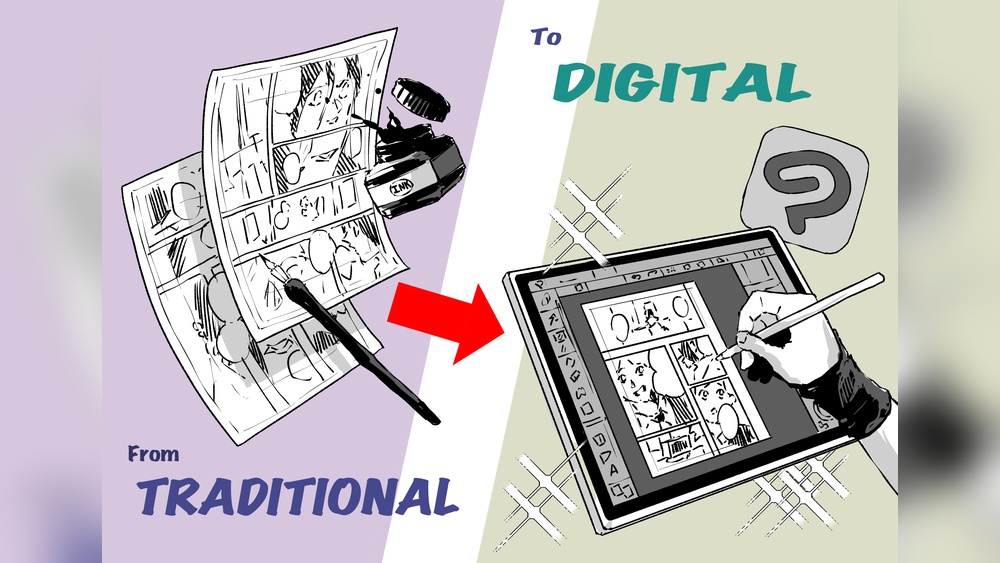
Are you ready to bring your manga ideas to life with a powerful digital tool? Clip Studio Paint is the go-to software for many manga artists because it makes drawing, inking, and coloring easier and more fun.
If you want to create stunning digital manga art but don’t know where to start, this guide is made just for you. You’ll discover simple steps and tips that will help you master Clip Studio’s features and take your manga art from a rough sketch to a polished masterpiece.
Keep reading, and you’ll soon be creating manga like a pro!
Credit: www.clipstudio.net
Getting Clip Studio Ready
Choosing the right tools in Clip Studio Paint shapes the quality of your digital manga art. Tools help you draw clean lines, add details, and create textures. Picking tools that fit your style makes the process faster and more enjoyable.
Selecting Brushes For Manga
Brushes give your manga its unique look. Clip Studio offers many brush types like ink, watercolor, and airbrush. Use ink brushes for sharp, bold outlines. Watercolor brushes add soft shading and texture. Try different brushes to find what suits your style best. Adjust brush size and opacity to control line thickness and detail.
Using Vector Layers
Vector layers keep your lines smooth and easy to edit. They allow you to resize and change strokes without losing quality. Use vector layers for inking and line art. You can fix mistakes by adjusting curves and points. This saves time and keeps your artwork clean. Vector layers also make it easy to create consistent line widths.
Utilizing Pen And Pencil Tools
The pen and pencil tools mimic traditional drawing tools. The pen tool is perfect for precise lines and inking. Use the pencil tool for sketching and rough drafts. Clip Studio’s pressure sensitivity helps create natural strokes. Experiment with different settings to get soft or hard lines. These tools give you control over your drawing style and detail.
Choosing The Right Tools
Adding tones and textures brings depth and style to your manga art. These elements create mood and enhance details. Clip Studio Paint offers many tools to apply and customize them easily. Understanding how to use tones and textures can improve the overall look of your work.
Applying Screen Tones
Screen tones are a classic manga technique. Clip Studio Paint has built-in screen tone materials. Select the area you want to fill, then choose a tone pattern. Apply it with the fill tool or drag and drop directly. Adjust the size and density to fit your style. Use multiple tones to create contrast and depth.
Using Patterns And Effects
Patterns add variety beyond standard tones. Clip Studio includes various patterns like dots, lines, and grids. You can apply these with the material palette or pattern brushes. Effects such as blur or noise add texture realism. Layer patterns with different opacities for unique looks. Experiment to find the right feel for each panel.
Customizing Textures
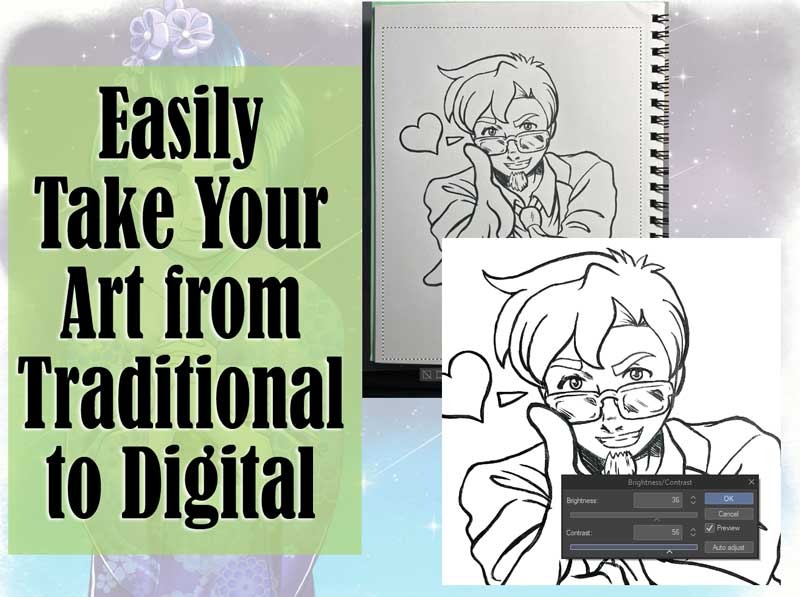
Custom textures make your art stand out. Create new textures by importing images or drawing your own. Use the texture tool to blend them smoothly onto your art. Adjust brightness, contrast, and scale for the best fit. Save your custom textures for future projects. This flexibility helps keep your manga fresh and original.
Creating Your Manga Canvas
Coloring is a key step in digital manga art. It adds life and depth to your drawings. Good coloring makes characters and scenes more vivid and interesting. Clip Studio Paint offers many tools and techniques to color effectively. Understanding these techniques helps you create professional-looking manga art.
This section covers essential coloring techniques in Clip Studio Paint. Learn how to pick color palettes, use layer modes, and apply shading and highlights. These tips will improve your digital manga art skills.
Choosing Color Palettes
Selecting the right colors sets the mood of your manga. Choose palettes that match your story’s theme and characters. Clip Studio Paint has built-in color sets and palette tools. Use these to save and organize colors for easy access. Stick to a limited color range for consistency. Soft pastels work well for calm scenes. Bright colors suit action-packed or energetic moments. Try experimenting with complementary colors to create contrast.
Layer Modes For Coloring
Layer modes control how colors blend with layers below. Clip Studio Paint offers many modes like Multiply, Overlay, and Screen. Multiply darkens colors, perfect for shadows. Overlay intensifies colors without losing detail. Screen lightens colors, ideal for highlights. Use layers with different modes to build rich colors. Keep your base colors on a normal layer. Add shadows and light on separate layers with different modes. This keeps your coloring flexible and easy to edit.
Shading And Highlights
Shading adds depth and volume to your manga art. Use soft brushes for smooth gradients. Hard brushes create sharp shadows and define shapes. Decide your light source first. Shade areas opposite the light source for realism. Highlights show where light hits directly. Add small bright spots on eyes and hair for sparkle. Use clipping masks to keep shading within the lines. Blend shadows and highlights gently for a natural look.
Credit: tips.clip-studio.com
Sketching Your Manga
Finalizing and exporting your digital manga art in Clip Studio Paint is the last step before sharing your work. This phase ensures your art looks professional and is ready for print or online use. Careful review and correct export settings help preserve your manga’s quality and details.
Checking For Errors
Look closely at your art for any mistakes. Check line work, colors, and text. Zoom in to see small details. Fix any smudges or gaps in your lines. Make sure speech bubbles and captions are clear and error-free. Review the overall composition for balance and consistency. This step helps avoid surprises after export.
Export Settings For Print And Web
Choose settings based on where your manga will appear. For print, use high resolution like 300 dpi. Select the CMYK color mode for accurate colors. Save as TIFF or PDF for best quality. For web, set resolution to 72 dpi. Use RGB color mode for screen display. Export as JPEG or PNG for faster loading. Adjust file size without losing detail to improve viewing.
Saving Project Files
Save your work often during the process. Keep a copy of the Clip Studio project file (.clip). This file holds all layers and settings for future edits. Name files clearly with dates or version numbers. Back up your files on external drives or cloud storage. Proper saving protects your effort and allows easy updates later.
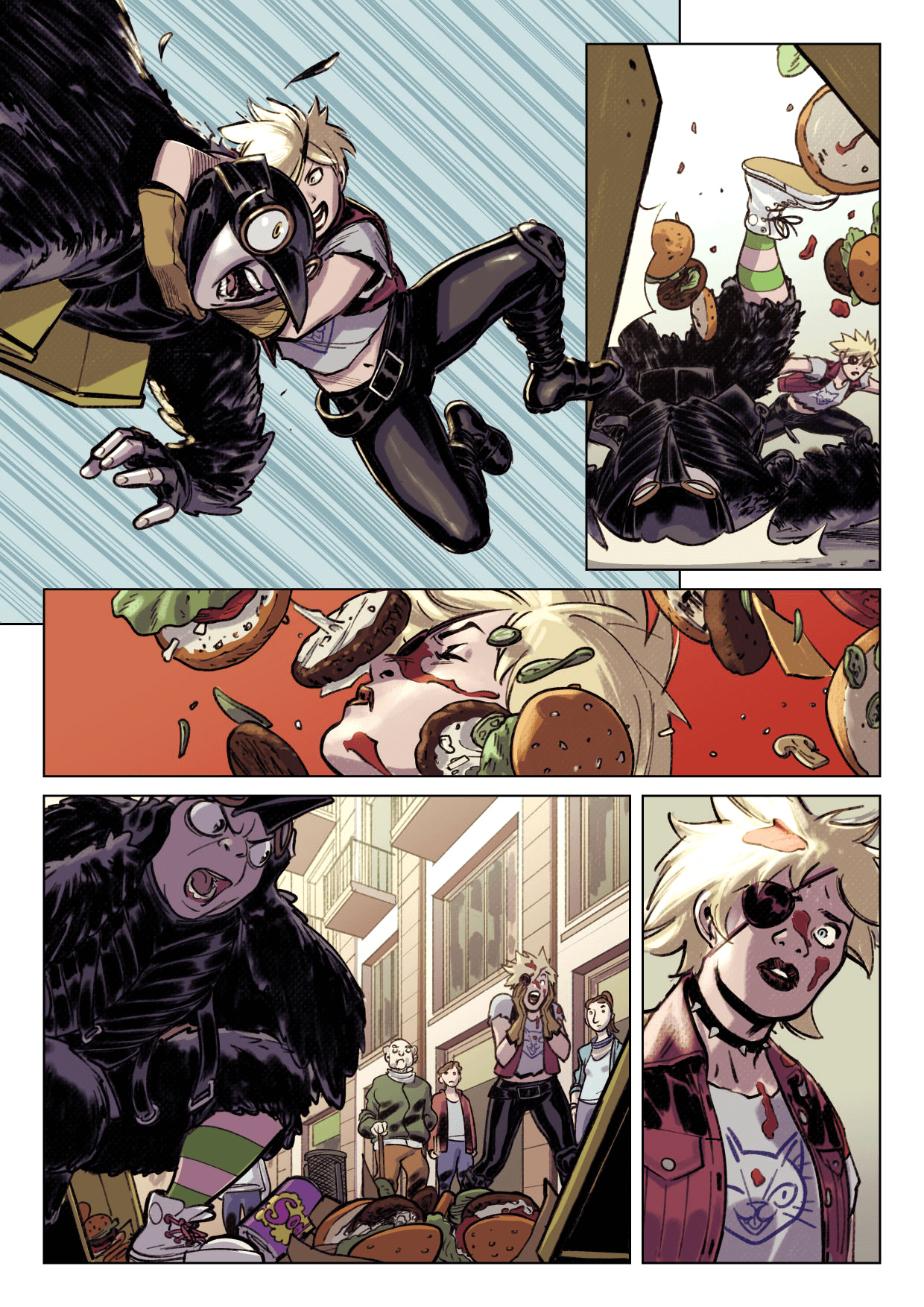
Credit: www.clipstudio.net
Frequently Asked Questions
Do Manga Artists Use Clip Studio Paint?
Yes, many manga artists use Clip Studio Paint for its specialized tools, ease of paneling, and efficient digital drawing features.
How To Make Manga Pages In Clip Studio?
Open Clip Studio Paint and create a new manga page file. Use panel tools to design layouts. Sketch, ink, and add tones on separate layers. Insert speech bubbles and text. Export pages as images or PDFs for printing or digital release.
Is Clip Studio Good For Digital Art?
Clip Studio Paint is excellent for digital art, offering powerful tools for illustration, comics, and manga creation. It’s user-friendly and affordable.
What Digital Art Program Do Manga Artists Use?
Manga artists primarily use Clip Studio Paint for digital art. It offers specialized tools for manga creation, including paneling and inking. The software is user-friendly, efficient, and affordable, making it a top choice among professionals and beginners alike.
Conclusion
Digital manga art in Clip Studio Paint offers great creative freedom. Start with simple sketches and build your story step-by-step. Use layers to organize your work and add details easily. Practice regularly to improve your drawing skills and speed. Explore different brushes and tools to find your style.
Remember, patience and consistency lead to better results. Enjoy the process of bringing your manga ideas to life. Keep experimenting and learning with each new project. Your digital manga skills will grow over time.