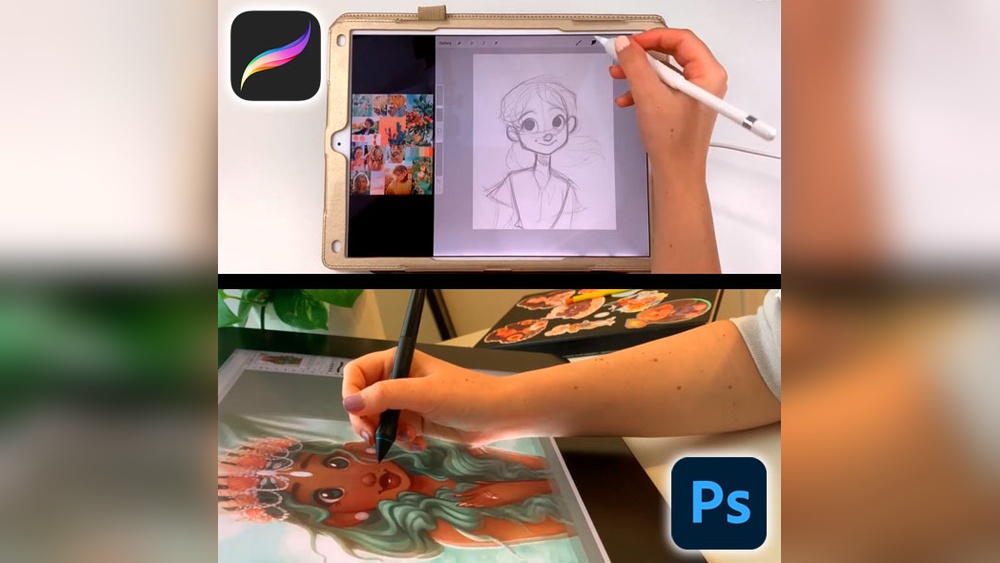
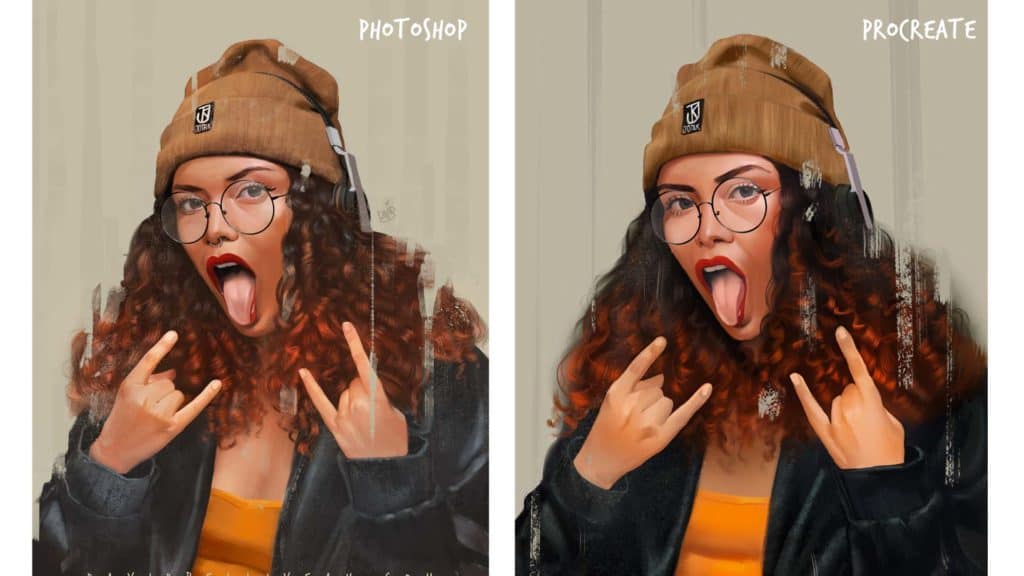
When it comes to digital illustration, choosing the right tool can make all the difference in bringing your creative vision to life. You might be wondering: should you go with Procreate or Photoshop for your artwork? In this ultimate showdown of Procreate vs Photoshop, we explore which tool is best for your illustration needs.
Both are powerful, but they offer very different experiences depending on your style, workflow, and device. Whether you’re sketching on the go or working on a detailed desktop project, understanding the strengths and limits of each will help you work smarter and create better art.
You’ll discover which software fits your needs best, so you can focus on what truly matters—making your illustrations stand out. Keep reading to find out which one will unlock your full creative potential.
Credit: paintable.cc

Credit: www.youtube.com
Understanding Procreate vs Photoshop
Key Differences
Photoshop offers advanced photo editing, extensive layer controls, vector tools, and superior text features. It supports desktops and complex workflows. Procreate focuses on iPad illustration with fewer export and text options. Photoshop also handles larger files and integrates better with Adobe Creative Cloud apps.
Procreate for Illustration
Is Procreate Good For Illustration?
Procreate is excellent for illustration, offering intuitive tools and realistic brushes for sketching, inking, and coloring on iPad. It suits artists seeking a portable, user-friendly app for detailed digital artwork.
Comparing with Adobe Illustrator
Is Adobe Illustrator Better Than Procreate?
Adobe Illustrator excels in vector graphics and scalability. Procreate offers intuitive raster drawing on iPad. Choose Illustrator for logos; Procreate for digital painting.
Limitations of Procreate
What Are The Cons Of Procreate?
Procreate limits layer count and only works on iPads. It lacks advanced text tools and has basic export options. The app requires costly Apple hardware.
Conclusion
Choosing between Procreate and Photoshop depends on your illustration needs. Procreate works best for quick sketches and detailed drawings on iPad. Photoshop offers more tools and suits complex projects on desktops. Both apps have unique strengths and some limits. Consider your device, budget, and style before deciding.
Experimenting with each can help find the right fit. The key is to pick the software that supports your creativity well.
Procreate vs Photoshop: The Differences That Actually Matter
Where each one runs, and what it costs
Procreate is an iPad application sold once, outright, and it does not exist on Windows or macOS desktops. Photoshop runs on Windows, macOS and iPad, and it is sold on subscription. That single difference decides the question for a lot of illustrators before any feature comparison starts: if you do not own an iPad, Procreate is not an option, and if you want to stop paying and keep working, a perpetual licence matters more than any brush engine.
Colour space and print work
Procreate works in RGB. That is perfect for screens, social posts and client previews, but commercial print runs on CMYK, and a conversion has to happen somewhere. Photoshop handles CMYK natively, along with ICC profiles, soft proofing and out-of-gamut warnings, so if your illustrations end up on a press you will still pass through Photoshop at the end. Illustrators who only publish digitally rarely feel this limit at all.
Layers, canvas size and the memory ceiling
Photoshop layer counts are limited by your computer, and a desktop with plenty of RAM will keep going long past what most illustrations need. Procreate ties the maximum number of layers to canvas dimensions and the iPad model: the larger the canvas, the fewer layers you get. Plan for this before you start a big piece, because raising the resolution halfway through is not possible without exporting and rebuilding.
Brushes, text and vectors
Both applications have deep, fully customisable brush engines, and both import and export brush sets. The gap opens elsewhere. Photoshop carries proper typography, vector shapes, smart objects, adjustment layers and camera raw processing. Procreate has basic text and no vector layer at all, which is fine for a painted illustration and awkward for a book cover or a poster with typographic detail.
Moving files between them
Procreate exports layered PSD files, which is the normal handoff. Expect layer names, groups and opacity to survive. Do not expect every Procreate adjustment or liquify pass to arrive as an editable effect; those arrive baked into pixels. Flatten nothing you might need later, and keep the original .procreate file as your master.
Which One Fits Your Workflow
If you sketch in cafes, on trains or on the sofa, and your finished work lives on screens, Procreate will cover almost everything you do, and the pressure response on an iPad with an Apple Pencil is superb for line work. If you deliver to print, work with heavy typography, composite photography into your illustrations, or need one file to move between a studio machine and a laptop, Photoshop is the safer base.
A large number of working illustrators use both, and not as a compromise. Thumbnails and sketches happen in Procreate because it is fast and portable; final colour, type, print preparation and client revisions happen in Photoshop because that is where the precision tools are. Buying Procreate once and subscribing to Photoshop only in the months you need it is a common, and cheaper, pattern.