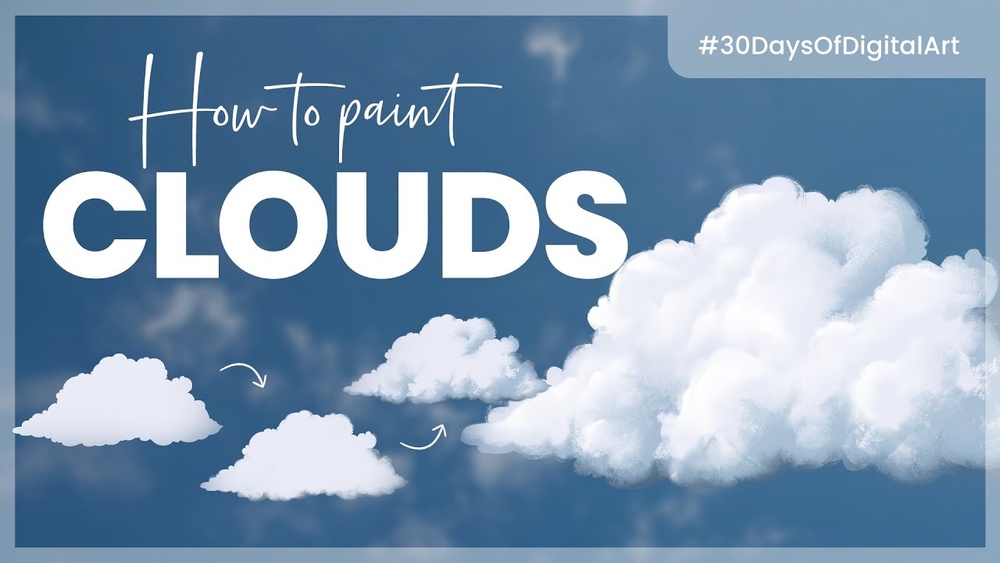
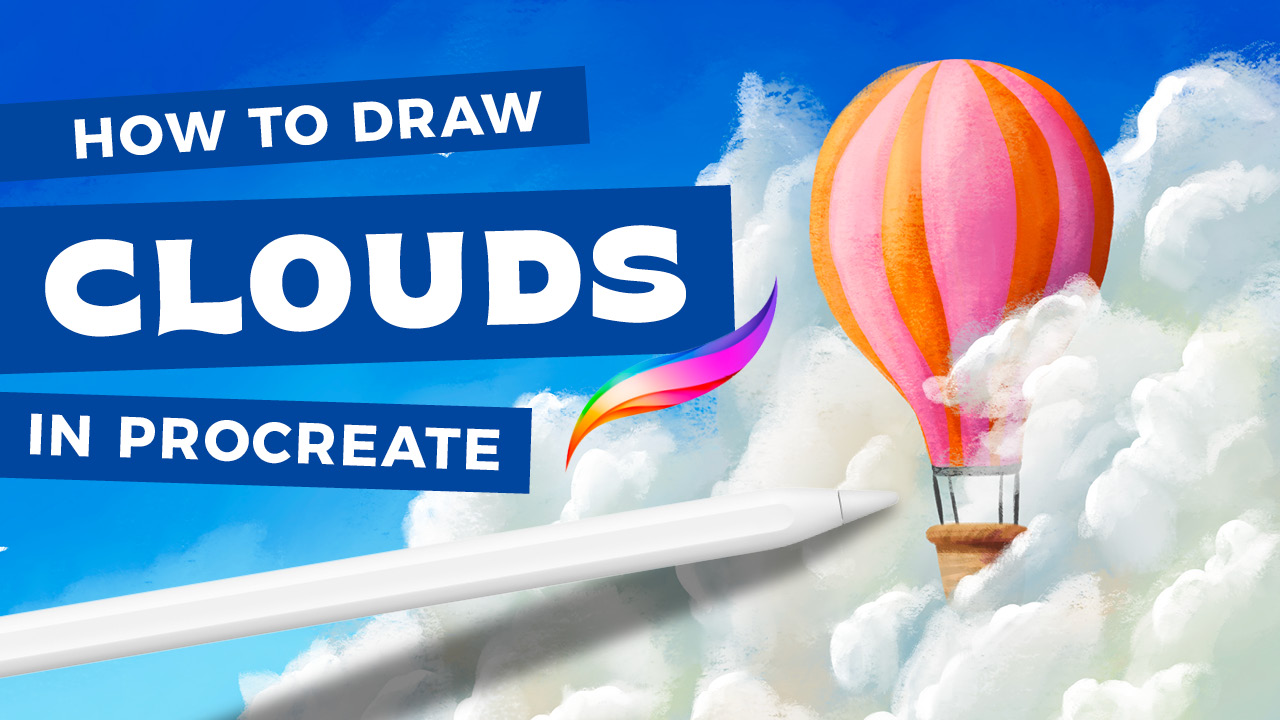
Have you ever wanted to create clouds in your digital art that look so real, they could float right off the screen? Painting realistic clouds in Procreate might seem tricky at first, but with the right techniques, you can bring your skies to life with soft, fluffy textures and natural shading.
In this guide, you’ll discover simple, step-by-step tips to master cloud painting, no matter your skill level. Ready to transform your artwork and impress everyone with your stunning skies? Let’s dive in and make your clouds look breathtakingly real!
Setting Up Your Canvas
Setting up your canvas is the first step in painting realistic clouds in Procreate. A well-prepared canvas helps you work efficiently and achieve better results. It also allows your artwork to have the right size and colors from the beginning.
Take time to choose the right canvas size and select a color palette that matches the mood you want to create. These choices affect how your clouds will look and how easy it is to paint details.
Choosing The Right Canvas Size
Pick a canvas size that fits your final goal. For social media, smaller sizes like 2000 x 2000 pixels work well. For prints, go for larger sizes like 4000 x 3000 pixels. A bigger canvas gives more space for detail but can slow down your device.
Keep your device’s memory and speed in mind. Start with a size that balances detail and performance. You can always resize later if needed.
Selecting Color Palette
Choose colors that reflect the sky and clouds realistically. Use soft whites, light grays, and gentle blues. Add warm tones like pink or orange for sunset clouds. Cooler blues and purples work well for stormy or night skies.
Keep your palette limited to a few colors. This helps maintain harmony and makes blending easier. Save your palette in Procreate for quick access during painting.
Credit: www.reddit.com
Picking Brushes For Clouds
Choosing the right brushes is key to painting realistic clouds in Procreate. Different brushes create varied textures and effects. Selecting suitable brushes helps bring clouds to life with softness and depth. Experimenting with brush styles can elevate your cloud painting skills quickly.
Watercolor Brushes
Watercolor brushes give clouds a soft, natural look. They mimic wet paint blending and subtle color shifts. These brushes help create smooth edges and gentle transitions. Use light strokes to build cloud layers gradually. Watercolor brushes add a dreamy feel to your sky scenes.
Airbrush And Smudge Tool
The airbrush tool adds smooth gradients and light shading. It works well for softening cloud edges and adding volume. Use low opacity settings for subtle effects. The smudge tool helps blend colors and shapes seamlessly. Smudging creates fluffy, airy cloud forms with smooth transitions.
Custom Cloud Brushes
Custom cloud brushes are designed specifically for cloud textures. They often have varied shapes and softness levels. These brushes save time and add detail quickly. You can find many free or paid cloud brushes online. Custom brushes allow you to paint realistic clouds with ease and precision.
Creating Base Cloud Shapes
Creating the base shapes of clouds sets the foundation for a realistic look. Start with simple forms that capture the cloud’s fluffy nature. Avoid sharp edges to keep clouds soft and natural.
Use a light hand to shape the clouds. These base shapes guide the details you add later. Keep the shapes loose and organic to mimic real clouds.
Sketching Soft Outlines
Begin by sketching soft outlines with a light brush in Procreate. Choose a brush with low opacity and soft edges. This helps create gentle cloud contours.
Draw rounded, uneven shapes that overlap slightly. Clouds rarely have smooth, perfect lines. Use short, curving strokes to add variety.
Avoid pressing too hard. Keep the sketch light and airy. This step is about capturing the cloud’s basic form without detail.
Using Ink Brushes For Structure
After sketching, switch to ink brushes for more defined structure. Select an ink brush with textured edges for natural variation. It adds depth to your base shapes.
Outline the cloud forms with gentle pressure changes. This creates thicker and thinner lines, adding interest. Do not close every shape fully; clouds look better with open edges.
Use quick, flowing strokes to keep the shapes dynamic. The ink brush gives your clouds a solid base for shading and highlights later.
Credit: bardotbrush.com
Adding Depth With Layers
Adding depth with layers is key to painting realistic clouds in Procreate. Layers help create a sense of volume and distance. They make clouds feel soft and full, not flat. By using multiple layers, you can control light, shadow, and texture with ease.
This technique also allows adjustments without losing previous work. It gives freedom to experiment with shapes and colors. Each layer adds detail and complexity, making clouds look natural and dynamic.
Building Light And Shadow
Start with a base layer of soft, light colors. Use a low-opacity brush to paint the brightest parts. These areas catch sunlight and appear closest to the viewer. Next, add shadow layers with darker tones. Shadows give clouds form and make them pop off the screen. Blend edges softly to keep the cloud’s fluffiness. Adjust layer opacity to balance light and shadow. This step brings a three-dimensional feel to your clouds.
Layering Multiple Cloud Forms
Clouds are made of many overlapping shapes. Paint each form on a new layer. Use different brush sizes and opacities for variety. This layering mimics how real clouds build up in the sky. Place some layers behind others to create depth. Add subtle color shifts to suggest distance and thickness. Keep layers separate to tweak shapes easily. Layering multiple forms gives your clouds a natural, airy look.
Blending Techniques
Blending is key to painting realistic clouds in Procreate. It softens edges and mixes colors smoothly. This creates the fluffy, airy look clouds need. Using the right blending techniques brings depth and life to your cloud art.
Without smooth blending, clouds can look flat or harsh. Proper blending adds softness and natural transitions. This section covers two essential methods to blend clouds effectively in Procreate.
Using Smudge Tool Effectively
The Smudge Tool is perfect for blending cloud edges gently. Choose a soft brush for smooth smudging. Adjust the strength to control how much paint moves. Start by lightly dragging over the cloud edges.
Use circular motions to mimic the natural swirl of clouds. Avoid over-smudging to keep some texture. Layer smudging in parts to create depth. This tool helps merge colors and shapes seamlessly.
Feathering Edges For Realism
Feathering means softening the edges of cloud shapes. Select a low-opacity brush with soft edges. Paint lightly along the cloud borders to blur them gently. This avoids sharp outlines that look unnatural.
Feathering blends the cloud into the sky smoothly. Use multiple light strokes rather than one heavy stroke. This technique adds a misty, airy feel. It also helps clouds look like they float in the air.
Detailing And Highlights
Detailing and highlights bring clouds to life in your digital painting. They add depth and realism, making the clouds appear soft and full. Small touches of light and color changes create the illusion of volume and movement. This section explains how to enhance your clouds with subtle details and bright highlights.
Adding Puffy Highlights
Use a soft brush with a light color to paint highlights on cloud edges. Focus on the areas where light hits the cloud directly. These highlights should be bright but not harsh. Blend softly to keep the puffy texture. Layer several strokes for a natural glow effect.
Apply highlights in small, rounded shapes to mimic the cloud’s fluffiness. Vary the size and intensity to avoid flatness. Highlights near the cloud’s edge catch the most light and stand out the most. This technique gives your clouds a three-dimensional look.
Subtle Color Variations
Introduce gentle color shifts within the cloud to add realism. Use soft blues, grays, and warm tones like light pink or yellow. These colors reflect the sky and sunlight variations. Paint softly to keep the colors from overpowering the cloud’s white base.
Use low opacity brushes to layer different colors gradually. This method creates smooth transitions and natural shadows. Color variation helps your clouds avoid looking flat or artificial. It also gives them a dynamic, lively appearance.
Tips For Realistic Clouds
Painting clouds in Procreate can be tricky but rewarding. Realistic clouds add life and depth to your artwork. Small details make a big difference. Understanding some key tips helps create natural-looking clouds. These tips focus on shape, texture, and avoiding common mistakes.
Simplifying Complex Shapes
Clouds look complex but start simple. Break them into basic shapes like circles and ovals. Sketch these shapes lightly to plan your cloud. Avoid drawing every little detail at first. Focus on the big forms that make up the cloud.
Simplifying lets you control the overall shape better. It also speeds up the painting process. Use soft brushes to blend the edges gently. This keeps the clouds soft and fluffy. Adding too many details early makes clouds look messy.
Avoiding Overworking The Painting
Overworking clouds can ruin their natural look. Stop painting once you capture the main shapes and tones. Too much blending or adding detail makes clouds look flat. Use layers to build subtle depth slowly.
Keep checking your work from a distance. This helps you see if the clouds still look fresh. Use the eraser to remove areas that feel too heavy. Less is more when painting realistic clouds in Procreate.

Credit: www.youtube.com
Saving And Exporting Artwork
Saving and exporting your cloud artwork in Procreate is a crucial step to keep your work safe and ready to share. Proper saving helps avoid losing progress. Exporting allows you to use your art on websites, prints, or social media.
Choosing the right file format impacts quality and file size. Optimizing your artwork ensures it looks great wherever you display it.
File Formats For Sharing
Procreate supports multiple file formats. PNG offers high quality with transparent backgrounds. JPEG is good for photos but loses some detail. TIFF keeps all layers and quality for editing later. PSD files work well with Photoshop for further editing. Choose a format based on how you plan to use the artwork.
Optimizing For Web And Print
For web use, save files in PNG or JPEG. Keep resolution at 72 DPI to reduce size and load time. For print, increase resolution to 300 DPI for sharp images. Use TIFF or PDF for the best print quality. Always check colors on different devices or printers to ensure accuracy.
Frequently Asked Questions
How To Draw Realistic Clouds In Procreate?
Use a soft watercolor or cloud brush in Procreate. Sketch cloud shapes with light strokes. Blend edges using the smudge tool. Add layers of shading for depth. Highlight areas with a soft eraser to create realistic light effects.
What Brush To Use For Clouds In Procreate?
Use soft, textured brushes like Watercolor, Cloud, or Airbrush in Procreate for realistic clouds. Blend edges gently with the smudge tool.
How Do I Draw Realistic Clouds?
Sketch soft cloud shapes with light, rounded strokes. Layer shades for depth. Blend edges gently for realism. Use textured brushes to add detail.
How To Make Clouds Look Realistic In A Painting?
Use soft, layered brush strokes to build depth and texture. Blend edges gently for a fluffy, natural look. Add subtle shadows and highlights to enhance realism.
Conclusion
Painting realistic clouds in Procreate takes practice and patience. Use simple shapes and soft brushes for best results. Layer colors lightly to add depth and volume. Blend edges gently to create natural transitions. Keep experimenting with brushes and smudge tools.
Notice how light and shadow shape clouds. Each painting will improve your skills bit by bit. Enjoy the process and have fun creating sky scenes. Realistic clouds can bring your digital art to life. Keep practicing, and your clouds will look more real every time.