PaintingProGuide is reader-supported. When you buy through links on this page we may earn an affiliate commission at no extra cost to you.
Four kinds of device can be used for digital painting, and the best one depends mostly on what you already own. If you have a computer, the cheapest route is a pen tablet (a screenless drawing pad) or, for more money, a pen display you draw on directly. If you want everything in one portable device, a tablet computer with a pressure-sensitive pen, such as an iPad with Apple Pencil or a Samsung Galaxy Tab with S Pen, is the most popular choice. And if you want a dedicated, budget all-in-one, standalone drawing tablets combine an Android tablet with a stylus and preloaded drawing apps.
This guide compares those device types side by side, offers a quick decision guide, and reviews six devices on Amazon across three of the categories: a budget pen display, three screenless pen tablets and two standalone drawing tablets. Mainstream tablets like the iPad are covered in the comparison but not reviewed, as they were not among the products checked for this page.
Quick answer: If you own a computer and want to draw on the screen, the GAOMON PD1161 11.6-inch pen display (8,192 pressure levels, tilt, 100% sRGB per the listing) is an affordable entry point. If budget comes first, a screenless pen tablet such as the Wacom Intuos Small or the VEIKK VK850 (8 x 5 inch area, 16,384 levels, tilt, 10 keys and a dial) gives you pressure-sensitive painting for very little. If you do not want a computer at all, an iPad with Apple Pencil is the most capable all-in-one, while standalone drawing tablets like the Frunsi T11 Pro are a lower-cost alternative for beginners.
Digital Painting Devices Compared
| Device type | Needs a computer? | Draw on screen? | Relative cost | Best for |
|---|---|---|---|---|
| Pen tablet (screenless) | Yes | No | Lowest | Beginners with a computer; ergonomic long sessions |
| Pen display | Yes | Yes | Medium to high | Natural drawing feel at a desk |
| Tablet with pressure pen (iPad, Galaxy Tab) | No | Yes | Medium to high | Portability and polished apps like Procreate |
| Standalone drawing tablet | No | Yes | Low to medium | Beginners and kids wanting an all-in-one |
| Pen-enabled laptop or 2-in-1 | It is the computer | Yes | High | One device for work and art |
Which Device Should You Choose?
- You have a decent computer and a small budget: start with a pen tablet.
- You have a computer and want to draw on the screen: choose a pen display.
- You want to paint anywhere and like Procreate: choose an iPad with Apple Pencil.
- You use Android: a Samsung Galaxy Tab with S Pen or a standalone drawing tablet.
- You are buying for a child or beginner without a computer: a standalone drawing tablet keeps it simple.
- You want one machine for everything: a pen-enabled 2-in-1 laptop.
Specs That Matter on Any Device
Pressure sensitivity
Pressure controls brush size and opacity. Modern pens offer thousands of levels; above a few thousand, the quality of the pressure curve matters more than the number.
Tilt
Tilt lets pencil and brush tools shade with the side of the “lead,” which feels natural for sketching.
Active area or screen size
Larger areas let you draw from the arm rather than the wrist. Around 10 x 6 inches suits most desks.
Lamination and parallax
On screens, fully laminated displays reduce the gap between pen tip and line, making drawing feel more precise.
Processing power and RAM
For all-in-one devices, RAM limits canvas size and layers. Standalone budget tablets have less headroom than computers or high-end tablets.
Software
Your device decides your apps: Procreate is iPad-only; Krita and Clip Studio Paint run on desktops; Android has its own app selection.
Our Top Picks at a Glance
- GAOMON PD1161 Pen Display (11.6 in) — Best budget pen display
- VEIKK VK850 Pen Tablet (8 x 5 in) — Best value screenless tablet with a dial
- Wacom Intuos Small Pen Tablet — Best compact tablet from the industry standard
- UGEE M708 Pen Tablet (10 x 6 in) — Best large budget pen tablet
- Frunsi RubensTab T11 Pro Standalone Tablet — Best standalone tablet for beginners
- Frunsi T8 Standalone Drawing Tablet — Best compact standalone option
| Product | Best For | Key Spec | Key Strength | Price Tier |
|---|---|---|---|---|
| GAOMON PD1161 | Drawing on screen | 11.6 in FHD IPS; 8,192 levels; tilt | 100% sRGB per listing | $$$ |
| VEIKK VK850 | Value with shortcuts | 8 x 5 in; 16,384 levels; tilt | 10 keys + dial; glove and nibs included | $$ |
| Wacom Intuos Small | Compact, trusted | Small; EMR; 4,096 levels | Software and training included | $$ |
| UGEE M708 | Large area for less | 10 x 6 in; 16,384 levels | Wide OS support | $$$ |
| Frunsi T11 Pro | No computer needed | 10.1 in; Android 12; 1,024 levels | Preloaded apps, stand case | $$$ |
| Frunsi T8 | Compact standalone | 8 in; Android 13; 2,048 levels | 4 GB RAM, 64 GB storage | $$$ |
How We Chose
We selected these devices from Amazon listing details and specifications checked in October 2026, judging pressure, tilt, size, compatibility and value, and considering how widely each is reviewed by Amazon buyers. We have not drawn on these devices ourselves; specs come from the listings.
- Pressure and tilt support
- Working area or screen size
- Compatibility and setup
- Extras such as keys, dials, gloves and stands
- Value for the tier
Best Devices for Digital Painting Reviewed
1. GAOMON PD1161 Pen Display (11.6 in) — Best for drawing directly on screen on a budget
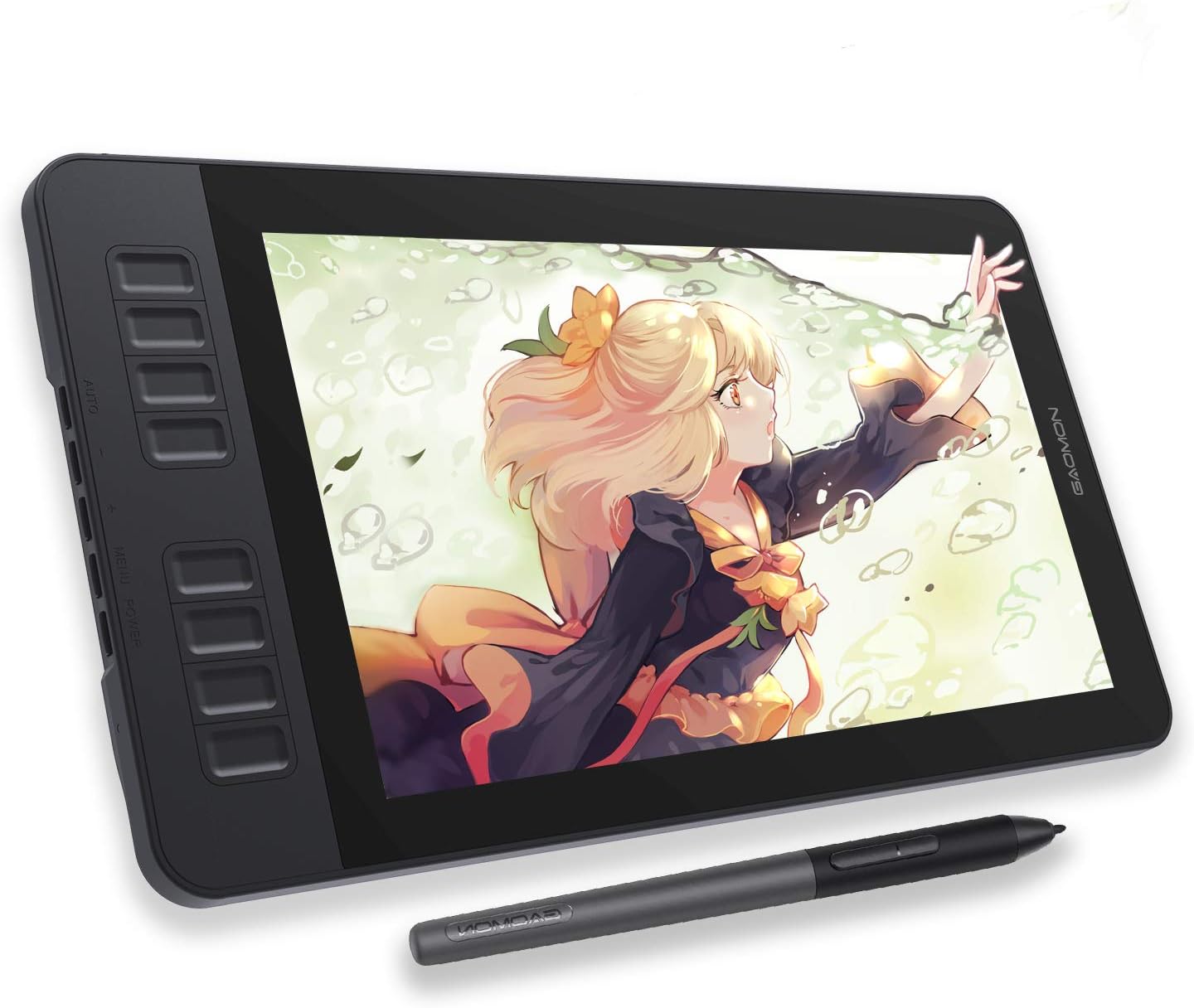
The GAOMON PD1161 is an 11.6-inch full HD IPS pen display that connects to a laptop or desktop; it is not standalone. The listing cites 72% NTSC (100% sRGB) color, a pre-installed matte film for a paper-like feel, and a battery-free AP50 pen with 8,192 pressure levels and tilt.
Eight side keys and two pen buttons can be programmed in the driver. It supports Windows 7 or later and macOS 10.12 or later via HDMI and USB.
For artists who find the hand-eye split of pen tablets awkward, a small pen display is the most affordable way to draw where you look.
Best suited for: Computer owners who want the natural feel of drawing on screen without a high price.
Key features:
- 11.6 in FHD IPS
- 8,192 levels; tilt; battery-free pen
- 8 keys + 2 pen buttons
- Matte film pre-installed
Pros:
- Draw where you look
- Good color claim for the tier
- Matte texture
Cons and limitations:
- Requires a computer and cables
- Small for big compositions
- Higher tier than pen tablets
Buying consideration: Raise the display on a stand so you are not bending over it.
2. VEIKK VK850 Pen Tablet (8 x 5 in) — Best for value with shortcuts

VEIKK’s VK850 offers an 8 x 5 inch active area, a battery-free P05 pen with 16,384 pressure levels and tilt, 10 customizable shortcut keys and a quick dial. It is very thin (0.08 inch) and light (0.57 lb).
The accessory kit is generous: 20 replacement nibs, a nib remover, an artist glove and a USB-C adapter. It supports Windows, macOS, Linux and Android.
A dial for brush size or zoom is unusual at this tier and speeds up painting.
Best suited for: Beginners and students wanting features and extras for little cost.
Key features:
- 8 x 5 in active area
- 16,384 levels; tilt
- 10 keys + quick dial
- Glove, 20 nibs and adapter included
Pros:
- Dial and many shortcuts
- Accessories included
- Low tier
Cons and limitations:
- Screenless
- Smaller than 10 x 6 tablets
- Driver setup required
Buying consideration: Assign the dial to brush size; it is the control painters adjust most.
3. Wacom Intuos Small Pen Tablet — Best for a compact, trusted tablet
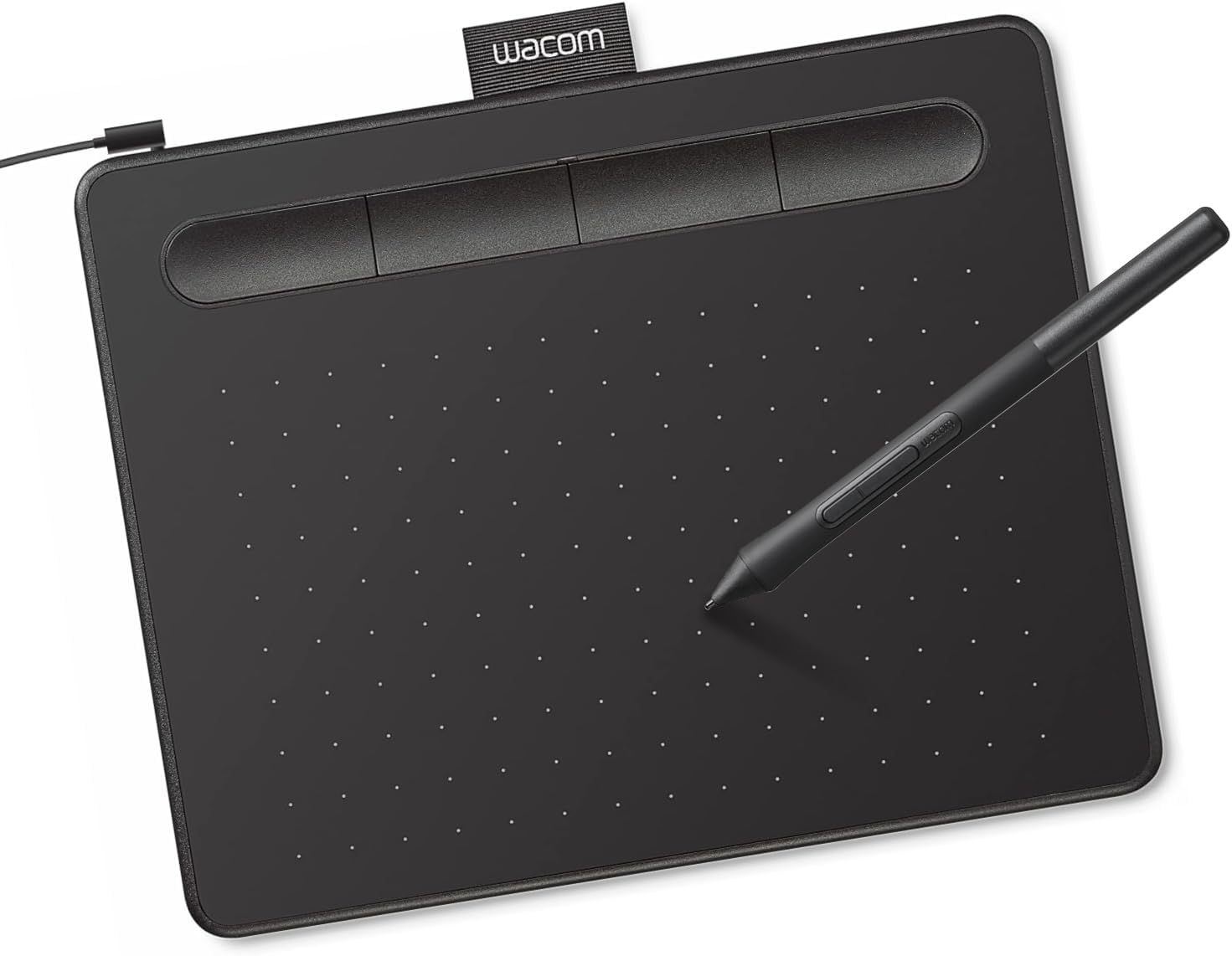
Wacom’s Intuos Small uses EMR battery-free pen technology with 4,096 pressure levels, works with Windows, macOS and Android, and is plug-and-play with Chromebook. Registering it unlocks bundled creative software and online training.
Wacom is the long-standing professional standard in pen input, and Intuos is its entry line.
The small size suits laptops and tight desks.
Best suited for: Students and beginners who want the industry-standard brand.
Key features:
- EMR battery-free pen
- 4,096 pressure levels
- Windows, macOS, Android, Chromebook
- Software and training with registration
Pros:
- Trusted brand
- Compact
- Bundled software
Cons and limitations:
- Small active area
- Fewer levels than rivals (rarely noticeable)
- USB-A
Buying consideration: Reduce the mapped screen area if strokes feel too sensitive on a large monitor.
4. UGEE M708 Pen Tablet (10 x 6 in) — Best for a large budget pen tablet
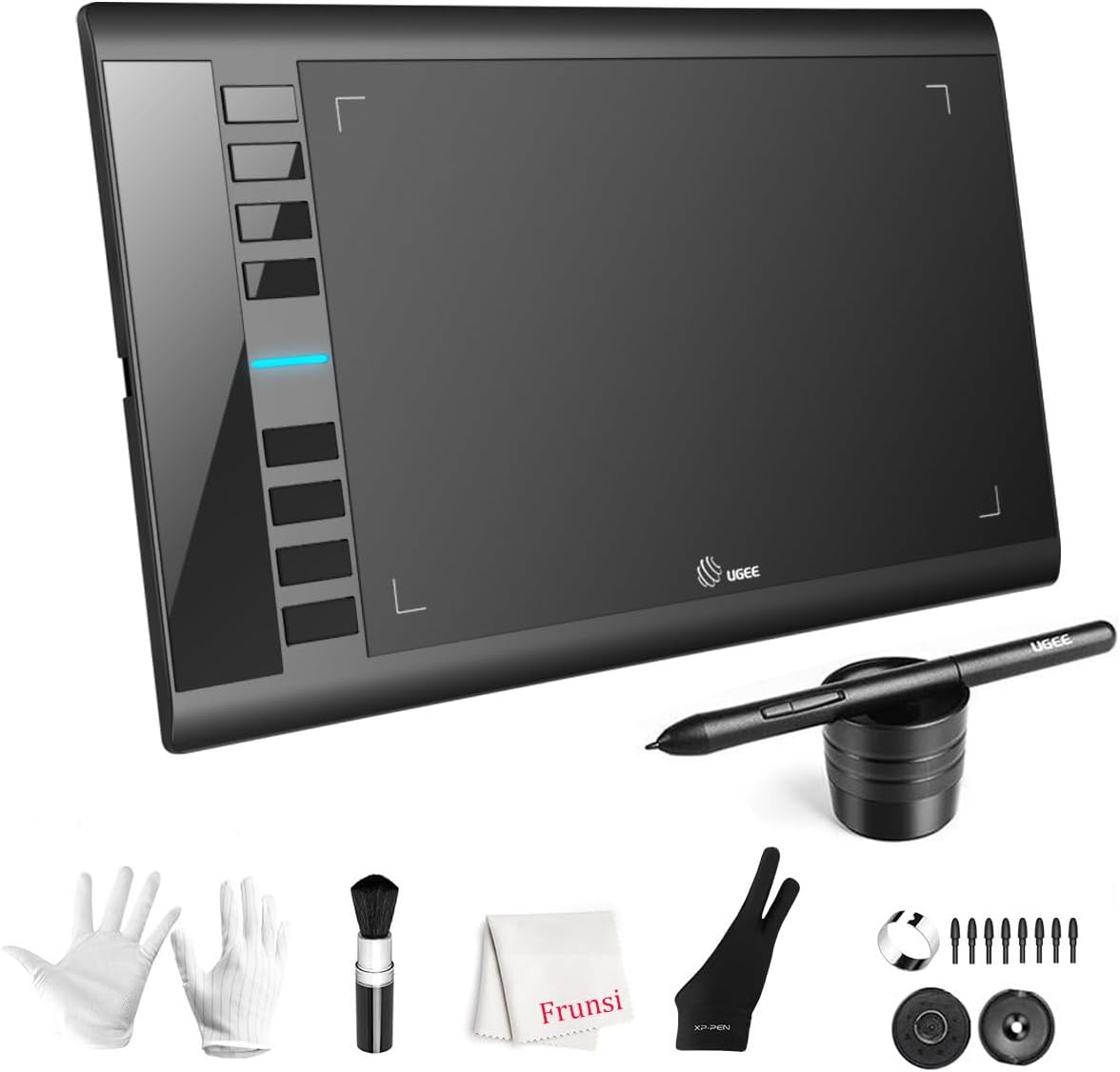
UGEE’s M708 V3 provides a 10 x 6 inch active area with a paper-like surface, a battery-free pen with 16,384 pressure levels and eight express keys. It supports Windows, macOS, Android, Chrome OS and Linux.
Its large area for the tier makes it suitable for full-size monitors and arm-based strokes.
Ambidextrous design suits left-handed artists.
Best suited for: Budget buyers who want a large area.
Key features:
- 10 x 6 in active area
- 16,384 levels
- 8 express keys
- Wide OS compatibility
Pros:
- Large area
- Low tier
- Paper-like texture
Cons and limitations:
- No tilt listed
- Screenless
- Driver setup
Buying consideration: Place the tablet centered in front of your monitor to keep movements natural.
5. Frunsi RubensTab T11 Pro Standalone Drawing Tablet — Best for a beginner all-in-one

Frunsi’s RubensTab T11 Pro is a standalone drawing tablet with a 10.1-inch screen running Android 12, so it needs no computer. A built-in 5800 mAh battery gives up to 5 hours of use, the pressure-sensitive pen needs no battery, and drawing apps come pre-installed. An adjustable stand case is included.
The details list 1,024 pressure levels, fewer than pen tablets, which is adequate for beginners but less nuanced for advanced painting.
It is certified to GMS, FCC and CE and has a 12-month warranty.
Best suited for: Beginners, students and kids who want a dedicated drawing device.
Key features:
- 10.1 in screen; Android 12
- Battery-free pen; 1,024 levels per details
- Pre-installed drawing apps
- Stand case; up to 5 hours battery
Pros:
- No computer needed
- Ready to draw out of the box
- Doubles for note-taking
Cons and limitations:
- Lower pressure resolution
- Limited power for large canvases
- Mid-to-high tier for its specs
Buying consideration: Keep canvases moderate in size and layer counts low on budget standalone tablets.
6. Frunsi T8 Standalone Drawing Tablet (8 in) — Best for a compact standalone option
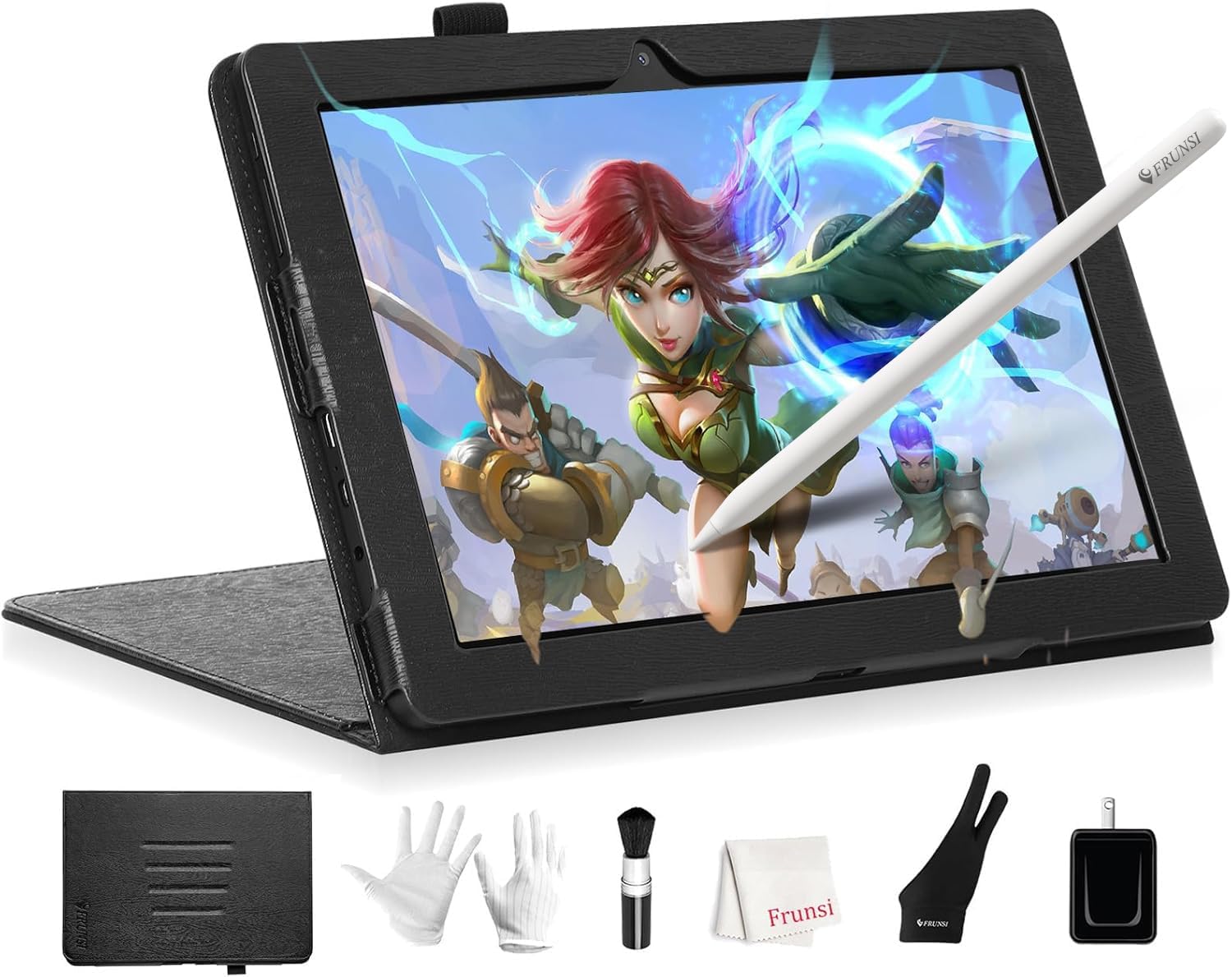
The Frunsi T8 is an 8-inch standalone tablet running Android 13 with a 1200 x 800 display, an MTK quad-core processor, 4 GB of RAM and 64 GB of storage expandable to 256 GB. The details list 2,048 pressure levels.
It comes with pre-installed drawing apps and tutorials, and because it runs Android, you can install other drawing apps from the store.
It is smaller and more portable than the T11 Pro.
Best suited for: Young artists and beginners wanting a small, portable all-in-one.
Key features:
- 8 in 1200 x 800 display; Android 13
- Quad-core, 4 GB RAM, 64 GB storage
- 2,048 pressure levels per details
- Pre-installed apps and tutorials
Pros:
- Portable
- Newer Android version
- Expandable storage
Cons and limitations:
- Small, lower-resolution screen
- 4 GB RAM limits big files
- Mid-to-high tier for specs
Buying consideration: Compare with mainstream Android tablets that support pressure pens before buying, especially for older students.
Your First Week With a New Device
- Install drivers or updates first. Pen tablets and displays need their driver; tablets need system updates.
- Calibrate the pen. Pen displays and some tablets include a calibration step that aligns the cursor with the pen tip.
- Set the pressure curve. Draw light and heavy lines and adjust until both feel natural.
- Map shortcuts. Start with undo, eraser and brush size.
- Practice control drills. Ten minutes a day of lines, circles and pressure ramps builds coordination fast.
- Paint something small. A simple still life or landscape in one session builds confidence.
Budget for the extras
The device is not the whole cost. Software may be free (Krita) or paid (Procreate, Clip Studio Paint, Photoshop). Pens wear nibs, so spares matter, and a two-finger glove, a stand for pen displays and tablets, and possibly a matte screen protector all add comfort. Including these in your budget from the start avoids surprises.
Buying Guide: Choosing a Digital Painting Device
Start from what you own
A computer makes pen tablets and displays the best value. No computer points to tablets or standalone devices.
Decide on screen versus screenless
Screenless tablets are cheaper and ergonomic; screens feel more natural.
Check software options
Your device decides which apps you can use.
Compare pressure and tilt
Both matter for expressive painting.
Mind RAM on all-in-ones
Budget standalone devices are fine for learning but limit large paintings.
Consider left-handed use and posture
Most pen tablets and displays can be rotated 180 degrees in their drivers for left-handed use, and shortcut keys then sit under the non-drawing hand. Check that the device you choose supports this. For posture, any device you draw on directly should be tilted up with a stand, so you are not bending your neck over a flat screen for hours.
Think about growth
Skills transfer between devices, so a starter device is never wasted.
Try Your New Device
Practice with our tutorials on digital waves and ocean painting and digital night scenes. Still deciding? See digital painting without a tablet.
Common Mistakes to Avoid
- Buying a device that does not run your preferred app.
- Choosing a tiny tablet for a large monitor.
- Ignoring drivers and setup.
- Expecting budget standalone tablets to match high-end tablets.
- Skipping ergonomics. Use stands and good posture.
- Overbuying on day one. Start simple and upgrade later.
FAQs
What is the best device for digital painting for beginners?
If you have a computer, a pen tablet is the best-value start. Without a computer, an iPad with Apple Pencil or a standalone drawing tablet works well.
Is a pen display better than a pen tablet?
It feels more natural because you draw on the screen, but it costs more. Many professionals use screenless tablets for years.
Are standalone drawing tablets good?
They are convenient for beginners and kids. Budget models have less power and pressure resolution than mainstream tablets or computers.
Do I need a computer for digital painting?
No. Tablets with pressure pens and standalone drawing tablets work without a computer.
How many pressure levels do I need?
A few thousand is plenty for most artists. The quality of the pressure curve matters more than the exact number.
What device do professional digital painters use?
Many use pen displays or screenless pen tablets with desktop software, and many also use iPads for portable work.
Final Recommendation
With a computer, choose the GAOMON PD1161 to draw on screen, or a pen tablet such as the VEIKK VK850, Wacom Intuos Small or UGEE M708 for the best value. Without a computer, an iPad with Apple Pencil remains the most capable all-in-one, while the Frunsi T11 Pro and T8 offer simple, lower-cost standalone options for beginners.