PaintingProGuide is reader-supported. When you buy through links on this page we may earn an affiliate commission at no extra cost to you.
Digital painting equipment is less about buying the most expensive gear and more about removing the bottlenecks between your idea and the canvas. For most artists that means four things: an input device you can control with pressure, a screen that shows color honestly, a computer or tablet with enough memory to handle large layered files, and software whose brushes suit your style. Everything else, from gloves to stands to calibrators, makes long sessions more comfortable and results more consistent.
This guide explains the best digital painting equipment by category, what specs actually matter, and how to build a setup at three budget levels. Use this page as a buying framework. After the category reviews you will find specific tablets, pen displays and a glove available on Amazon, chosen from listing specifications checked in October 2026, and our linked guides cover tablets, monitors and software in more depth.
Quick answer: The core digital painting equipment is a pressure-sensitive pen tablet or pen display (or an iPad with Apple Pencil), a color-accurate IPS monitor with at least 100% sRGB coverage, a computer with 16GB of RAM or more, and painting software such as Photoshop, Clip Studio Paint, Krita or Procreate. Add a two-finger drawing glove, an adjustable stand and a hardware calibrator when your budget allows. Good specific starting points are the Wacom Intuos Small or XPPen Deco 01 V3 as a first pen tablet, and the HUION Kamvas 13 (Gen 3) if you want to draw on screen.
Our Top Picks at a Glance
- Screenless pen tablet — Best entry point for beginners on a budget
- Pen display (drawing monitor) — Best for drawing directly on the image with desktop software
- Standalone drawing tablet or iPad — Best for painting without a computer
- Color-accurate IPS monitor — Best upgrade for consistent color
- Hardware colorimeter — Best for print-accurate color
- Two-finger drawing glove and stand — Best comfort upgrades
| Equipment | Best For | Key Spec | Key Strength | Price Tier |
|---|---|---|---|---|
| Screenless pen tablet | Beginners | 4,096+ pressure levels, medium active area | Low cost, works with any software | $$ |
| Pen display | Serious desktop painters | Laminated screen, 100% sRGB, tilt | Draw on the image | $$$ |
| Standalone tablet or iPad | Mobile painting | 6GB+ RAM, pressure pen | No computer needed | $$$ |
| IPS monitor | Color work | 100% sRGB, Delta E under 2 | Reliable color | $$$ |
| Colorimeter | Print and client work | Supports your monitor and OS | Accurate, repeatable color | $$$ |
| Drawing glove | Pen display and iPad users | Two-finger design | Less friction and smudging | $ |
Price tiers are general guides for each category: $ under 15, $$ 15 to 40, and $$$ over 40 in typical retail ranges, with wide variation by brand and size.
How We Chose
We did not test equipment for this page. The specific products linked further down were chosen from Amazon listing specifications, not from personal use. The categories and specifications below reflect widely accepted requirements for digital painting and the features listed by major manufacturers. Our separate tablet, monitor and software guides cover specific products checked on Amazon.
- Control: pressure sensitivity, tilt and low latency.
- Color: gamut coverage, calibration and panel type.
- Performance: RAM, storage and graphics for large files.
- Comfort: ergonomics for long sessions.
- Compatibility: software and operating system support.
Best Digital Painting Equipment Reviewed by Category
1. Screenless Pen Tablet — Best for Beginners
A screenless pen tablet is a flat pad you draw on while watching your monitor. It is the most affordable way to get pressure-sensitive control in any desktop software, and many professionals still prefer it because it lets them sit upright and look straight ahead. Expect a short adjustment period while your hand-eye coordination adapts.
Best suited for: beginners, students, and painters who want an ergonomic upright posture.
Key features to look for:
- At least 4,096 pressure levels
- Tilt support for shading brushes
- Medium active area, around 8 x 5 to 10 x 6 inches
- Programmable express keys
Pros:
- Lowest cost
- Works with any software
- Ergonomic posture
Cons and limitations:
- Learning curve
- No direct visual feedback under the pen
- Smaller models feel cramped on large monitors
Buying consideration: map the tablet to one monitor only, and match the active area’s aspect ratio to your screen.
2. Pen Display — Best for Drawing Directly on the Image
A pen display is a screen you paint on directly, connected to a computer. It removes the learning curve of a screenless tablet and is the most common professional setup. Sizes range from about 12 to 32 inches.
Best suited for: serious hobbyists and professionals using desktop software.
Key features to look for:
- Fully laminated screen to reduce parallax
- At least 100% sRGB coverage
- Anti-glare or etched glass
- Adjustable stand or VESA mounting
Pros:
- Natural drawing experience
- Full desktop software
- Wide range of sizes
Cons and limitations:
- Higher cost
- Needs desk space and cables
- Neck strain without a proper stand
Buying consideration: check your computer’s ports, since some displays need HDMI plus USB while others use a single USB-C cable.
3. Standalone Drawing Tablet or iPad — Best for Painting Anywhere
Standalone tablets run their own operating system, Android or iPadOS, and need no computer. With apps like Procreate, Clip Studio, Infinite Painter or ibis Paint, they are capable painting devices for home, travel and plein air sketching.
Best suited for: mobile painters, students and artists who want one device.
Key features to look for:
- 6GB of RAM or more for layers
- Laminated screen and pressure pen
- Enough storage for layered files
- Support for your preferred painting app
Pros:
- Portable
- Intuitive
- One device for sketching and painting
Cons and limitations:
- Mobile apps differ from desktop tools
- Layer limits on large canvases
- Battery life varies
Buying consideration: check the app’s system requirements before choosing a device.
4. Color-Accurate Monitor — Best Upgrade for Consistent Color
If you use a screenless tablet, your monitor is your canvas. Even with a pen display, many artists judge final color on a calibrated monitor. An IPS panel with 100% sRGB coverage and factory calibration is the baseline for work that looks right on other screens and in print.
Best suited for: anyone selling prints or delivering client work.
Key features to look for:
- IPS panel
- 100% sRGB; wide gamut optional
- Factory calibration with Delta E under 2
- QHD or 4K at 27 inches
Pros:
- Reliable color
- Larger workspace
- Good for reference images
Cons and limitations:
- Color-accurate models cost more
- Wide-gamut screens need color management
- Drift over time
Buying consideration: use the sRGB mode for web and standard print work.
5. Hardware Colorimeter — Best for Print Accuracy
A colorimeter is a small sensor that hangs over your screen and measures its output, then builds a profile so colors display correctly. It is the difference between hoping your prints match and knowing they will.
Best suited for: artists selling prints and professionals.
Key features to look for:
- Support for your operating system
- Compatibility with your monitor type
- Ambient light measurement
- Simple calibration software
Pros:
- Accurate color
- Repeatable over time
- Works across screens
Cons and limitations:
- Extra cost
- Requires periodic recalibration
- Some displays need specific profiles
Buying consideration: calibrate every one to three months.
6. Comfort Gear — Gloves, Stands and Arms
A two-finger glove reduces friction and smudges on glass screens. An adjustable stand or monitor arm sets pen displays at a comfortable angle. These small items make the difference between a two-hour session and a sore wrist after forty minutes.
Best suited for: pen display and iPad users who paint for long sessions.
Buying consideration: choose a glove size close to your hand; loose gloves bunch.
Recommended Digital Painting Equipment on Amazon
The categories above tell you what to buy; this section names specific options. These pen tablets, pen displays and a drawing glove were chosen from Amazon listing specifications checked in October 2026, matched to the beginner, pen display and comfort categories. We have not tested them.
| Product | Best For | Key Spec | Price Tier |
|---|---|---|---|
| Wacom Intuos Small | A first pen tablet from an established brand | Screenless, 4,096 pressure levels | $$ |
| XPPen Deco 01 V3 | A larger screenless tablet for the money | 10 x 6 in, 16,384 levels, 60° tilt | $$$ |
| HUION Inspiroy H1060P | Shortcut-heavy workflows | 10 x 6.25 in, 12 + 16 keys, tilt | $$$ |
| HUION Kamvas 13 (Gen 3) | Drawing directly on the image with accurate color | 13.3 in laminated, 99% sRGB, ΔE<1.5 | $$$ |
| XPPen Artist 13.3 Pro V2 | Wide color on a mid-size pen display | 13.3 in laminated FHD, Adobe RGB ≥91% | $$$ |
| HUION Artist Drawing Glove | Smoother, smudge-free hand movement | Two-finger, Lycra and nylon | $ |
Price tiers: $ under $15, $$ $15 to $40, $$$ over $40, based on listing prices checked in October 2026. Prices change often, so confirm on Amazon.
1. Wacom Intuos Small — Best for a first pen tablet from an established brand
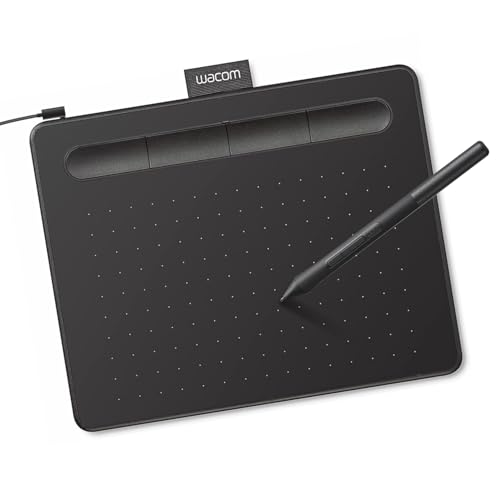
The screenless pen tablet category above is the cheapest way into pressure-sensitive painting, and the Intuos Small is a widely used entry model. The listing describes Wacom’s battery-free EMR pen technology and 4,096 pressure levels, and says it works with any software.
It is listed as compatible with Windows, macOS and Android and plug-and-play with Chromebook, and registration unlocks bundled creative software and training.
Best suited for: Beginners who want a compact, reliable tablet to learn pen control before spending more.
Key features:
- Battery-free EMR pen, 4,096 pressure levels
- Works with Windows, macOS, Android; Chromebook plug-and-play
- Bundled software and training with registration
Pros:
- Trusted pen technology
- Small and portable
- Software included
Limitations:
- Small active area limits big arm strokes
- Lower pressure levels than newer rivals
- Wired connection
Buying consideration: Small tablets suit laptops and small monitors; on a large monitor, a medium active area feels more natural.
2. XPPen Deco 01 V3 — Best for a larger screenless tablet for the money

If the Intuos feels cramped, the Deco 01 V3 offers a 10 x 6 inch active area in an 8mm slim body. The listing gives 16,384 pressure levels and 60 degree tilt from a battery-free stylus, plus 8 customizable express keys.
It is listed as compatible with Windows, macOS, ChromeOS and Android 6.0 or later, and can be rotated for left-handed use.
Best suited for: Beginners and hobbyists on desktop monitors who want room for broad strokes.
Key features:
- 10 x 6 inch active area
- Battery-free pen with 16,384 levels and tilt
- 8 express keys; Android, ChromeOS, Windows, macOS
Pros:
- Large area at a low price tier
- Tilt support for shading brushes
- Left-hand friendly
Limitations:
- No screen, so hand-eye coordination takes practice
- Larger to carry
- Lesser-known driver ecosystem than Wacom
Buying consideration: Map one express key to undo and one to brush size; it speeds up painting more than any other setting.
3. HUION Inspiroy H1060P — Best for shortcut-heavy workflows
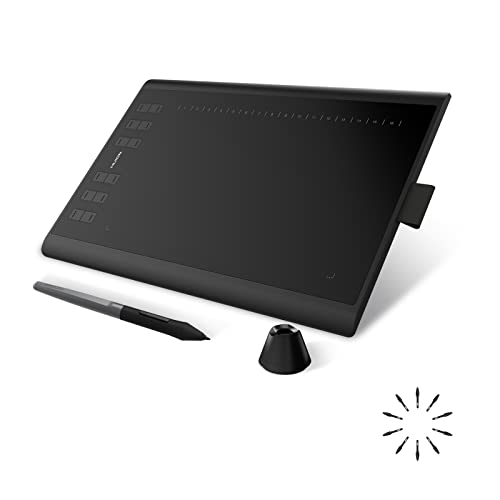
A screenless tablet with an unusually large set of shortcuts: 12 programmable press keys and 16 soft keys, per the listing. The 10 x 6.25 inch working area and battery-free tilt stylus cover the core needs of digital painting.
The listing names support for Windows, macOS, Android 6.0 or later and Linux, with an OTG connection for phones (not iPhone or iPad).
Best suited for: Painters who use many software shortcuts and want them on the tablet rather than the keyboard.
Key features:
- 10 x 6.25 inch working area
- 12 press keys plus 16 soft keys
- Battery-free stylus with tilt
Pros:
- Plenty of programmable keys
- Large area
- Works with Linux
Limitations:
- Lots of keys can be overkill
- A USB adapter is needed for some Macs (per listing)
- Screenless
Buying consideration: If you rarely use shortcuts, the simpler Deco 01 V3 offers similar drawing performance.
4. HUION Kamvas 13 (Gen 3) — Best for drawing directly on the image with accurate color

This is the pen display category in practice: you draw on the screen while it runs from your computer. The listing describes a fully laminated 13.3 inch screen with anti-sparkle Canvas Glass 2.0, 16,384 pressure levels and a pen with three side buttons.
For color, it lists 99% sRGB coverage with an average ΔE under 1.5 and a factory calibration report, plus a single USB-C cable connection, 5 shortcut keys and dual dials.
Best suited for: Painters ready to move from a screenless tablet to drawing on screen, with color they can trust.
Key features:
- 13.3 inch fully laminated screen, anti-sparkle glass
- 99% sRGB, average ΔE under 1.5, factory calibration report
- 16,384 pressure levels; USB-C single cable
Pros:
- Accurate color for its class
- Natural on-screen drawing
- Tidy one-cable setup on compatible computers
Limitations:
- Not standalone; needs a computer
- Full-featured USB-C cable may be sold separately (per listing)
- Higher price tier
Buying consideration: Check whether your computer’s USB-C port supports video output (DisplayPort Alt Mode) before relying on the single-cable setup.
5. XPPen Artist 13.3 Pro V2 — Best for wide color on a mid-size pen display
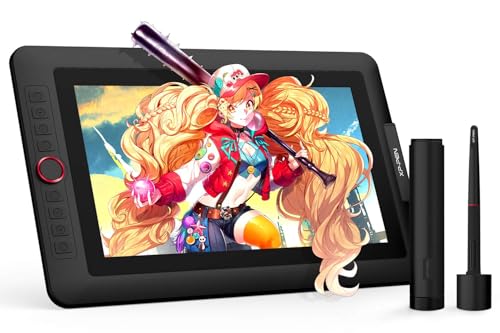
An alternative pen display with a wider listed gamut: 88% NTSC, Adobe RGB of 91% or more and sRGB of 123% or more, on a 13.3 inch fully laminated Full HD panel with a 178 degree viewing angle.
The listing highlights 60 degree tilt, 16K pressure in the V2 version and a red dial for zoom and brush size, with support for Windows, macOS, ChromeOS and Linux.
Best suited for: Painters who print or want wide-gamut color and prefer a physical dial for zoom and brush size.
Key features:
- 13.3 inch fully laminated Full HD screen
- Wide gamut listed: Adobe RGB ≥91%, sRGB ≥123%
- Red dial, 60° tilt, 3-in-1 cable included
Pros:
- Wide color gamut for the price
- Dial speeds up workflow
- Cable included
Limitations:
- Needs a computer
- Wide gamut needs color management to avoid oversaturation in sRGB work
- Full HD only
Buying consideration: Calibrate it with a colorimeter if you use the wide gamut, as covered in the color section of this guide.
6. HUION Artist Drawing Glove — Best for smoother, smudge-free hand movement

A small comfort upgrade from the list above. The two-finger glove reduces friction between your hand and the tablet or screen and stops smudges, and the listing says one free-size glove works on either hand.
It is made of soft Lycra and nylon. The listing is clear that it reduces smudging and friction but does not prevent accidental touch input on touchscreens.
Best suited for: Pen display and iPad painters, or anyone whose hand sticks to the drawing surface during long sessions.
Key features:
- Two-finger design, fits left or right hand
- Lycra and nylon
- About 20 cm long
Pros:
- Very low cost
- Smoother strokes on glass
- Keeps the screen clean
Limitations:
- Does not stop touch input (per listing)
- One size may not fit every hand
- Single glove only
Buying consideration: Turn off touch input in your tablet driver if palm touches are the problem; the glove alone will not solve it.
Buying Guide: How to Choose Digital Painting Equipment
Computer specs that matter
Painting software uses RAM for layers and canvas size. 16GB is a practical minimum for desktop painting; 32GB is comfortable for large print files. A fast SSD speeds saving and loading. A dedicated graphics card helps with large brushes and 4K displays in some programs.
Pressure and tilt
4,096 pressure levels give smooth tapering; higher numbers add subtle control. Tilt lets you shade with the side of a brush, which matters for painterly work.
Screen size and resolution
For pen displays, 13 to 16 inches suits most desks; 22 to 27 inches suits professionals. Resolution should rise with size: Full HD at 13 inches, QHD or 4K at 22 inches and above.
Color gamut and calibration
100% sRGB is the baseline. Wider gamuts, like DCI-P3 or Adobe RGB, matter for specialized print and video work but need color management.
Software
Photoshop is the studio standard, Clip Studio Paint excels at illustration and comics, Krita is free and capable, Corel Painter leads natural media, and Procreate dominates iPad painting.
Ergonomics
Set screens near eye level, keep wrists neutral and use a stand for pen displays. Breaks every 30 to 45 minutes reduce strain.
Mouse, Touchscreen or Pen: Why Pressure Matters
You can paint digitally with a mouse or a finger, and some artists do, but pressure sensitivity changes how painting feels. With a pressure pen, pressing harder can make a stroke thicker, more opaque or both, just as a loaded brush does. That single feature makes tapering lines, soft blending and expressive strokes possible without constantly changing brush settings.
Tilt adds another layer: tilting the pen can switch a brush to a broad, soft edge for shading, like using the side of a pencil. Rotation, available on some premium pens, turns flat brushes as you rotate the barrel. None of these are essential to start, but pressure is the one feature worth prioritizing above everything else when choosing digital painting equipment.
| Input | Pressure | Best Use |
|---|---|---|
| Mouse | No | Vector work, pixel art, editing |
| Finger or capacitive stylus | No | Sketching, simple coloring |
| Pressure pen (tablet or display) | Yes | Painting, inking, blending |
Three Starter Setups by Budget
| Budget Level | Input | Display | Software |
|---|---|---|---|
| Starter | Screenless pen tablet | Existing monitor in sRGB mode | Krita (free) |
| Intermediate | 13-16 in pen display | Pen display plus existing monitor | Clip Studio Paint |
| Professional | 22-27 in pen display | Calibrated IPS monitor and colorimeter | Photoshop and Clip Studio |
| Mobile | iPad with Apple Pencil or Android standalone | Built-in screen | Procreate or Clip Studio |
Optional Extras Worth Considering
- Second monitor: keeps reference images, tutorials and palettes off your main canvas.
- Shortcut remote or keypad: a small programmable keypad puts undo, brush size and zoom under your non-drawing hand.
- External backup drive or cloud storage: layered files are large and irreplaceable.
- Daylight-balanced desk lamp: neutral lighting helps you judge on-screen color and reduces eye strain.
- Spare pen nibs: textured screens and films wear nibs down; replace them when they flatten.
- Matte screen protector: adds paper-like tooth to glossy tablets and iPads.
The Smart Upgrade Order
Most painters improve fastest by upgrading in this order, because each step removes the biggest remaining bottleneck.
- Pressure-sensitive input: moving from mouse to pen is the biggest single leap.
- Monitor in sRGB mode or a basic IPS monitor: fixes the most obvious color problems.
- RAM upgrade: removes lag and layer limits on big canvases.
- Pen display: adds direct drawing once you paint regularly.
- Calibration: needed once you sell prints or deliver client work.
- Larger or higher-resolution display: a comfort and productivity upgrade, not a skill upgrade.
Caring for Digital Painting Equipment
Digital gear lasts longer with simple habits. Clean screens with a dry microfiber cloth or a cleaner the manufacturer approves; avoid household glass cleaners on coated screens. Replace pen nibs before they wear to the metal, since a worn nib can scratch the surface. Keep cables loosely coiled rather than bent sharply at the connectors, and store tablets in a sleeve when traveling.
Update drivers and painting software regularly, but avoid updating your operating system the day before a deadline; tablet drivers sometimes need time to catch up with new releases. Finally, back up brushes, settings and artwork in at least two places so that a failed drive or lost tablet never costs you months of work.
Matching Equipment to Your Goals
A hobbyist painting for fun on weekends needs very different gear from a freelance illustrator delivering print-ready files. If you paint for enjoyment and social media, a screenless tablet or an iPad and a decent sRGB screen will carry you a long way. If you sell prints, add calibration before a bigger screen. If you work for studios or publishers, match their software and file requirements first, then invest in a large pen display and a color-accurate monitor. Spending in that order keeps money going to the upgrades that change your results most.
Setup Checklist
- Install tablet drivers before connecting hardware.
- Set your monitor to sRGB mode and calibrate if possible.
- Map the pen to one screen.
- Configure express keys for undo, brush size and color picker.
- Set your software’s color profile to sRGB for web work.
- Arrange the desk so the screen is at eye level or the pen display is angled.
Learn and Practice
Once your equipment is set up, put it to work with our tutorials on painting digital waves and ocean and painting digital night scenes. If you want to start before buying anything, our guide to digital painting without a tablet shows what is possible with a mouse or touchscreen.
Common Mistakes to Avoid
- Buying the largest pen display first. Size to your desk and experience.
- Ignoring RAM. Layer limits and lag frustrate more than small screens.
- Skipping calibration. Colors drift and prints disappoint.
- Using wide-gamut mode for web work. Colors look different elsewhere.
- Neglecting ergonomics. Discomfort cuts sessions short.
- Collecting software instead of practicing. Master one program first.
FAQs
What equipment do I need for digital painting?
A pressure-sensitive pen tablet or pen display (or an iPad with Apple Pencil), a computer or tablet with enough RAM, a color-accurate screen and painting software.
Is a pen display better than a screenless tablet?
A pen display is more intuitive because you draw on the image. A screenless tablet is cheaper and allows a more upright posture. Both are used professionally.
How much RAM do I need for digital painting?
16GB is a practical minimum for desktop painting; 32GB is comfortable for large, multi-layer print files.
Do I need a calibrated monitor for digital art?
For web sharing, a good sRGB monitor is enough. For prints and client work, calibration with a colorimeter is strongly recommended.
Can I paint digitally on an iPad only?
Yes. Many artists use an iPad with Apple Pencil and Procreate or Clip Studio as their only setup.
What is the cheapest way to start digital painting?
A screenless pen tablet with free software such as Krita, using your existing computer and monitor.
Final Recommendation
Start with a pressure-sensitive input device that matches your workflow: a screenless tablet for the lowest cost, a pen display for direct drawing with desktop software, or an iPad or standalone tablet for painting anywhere. Pair it with an IPS monitor in sRGB mode, 16GB of RAM or more and software suited to your style. As your work moves toward prints and clients, add a colorimeter, a color-accurate monitor and comfort gear like a stand and a two-finger glove.