

PaintingProGuide is reader-supported. When you buy through links on this page we may earn an affiliate commission at no extra cost to you.
Fifty dollars buys a surprisingly capable screenless pen tablet in 2026. Every drawing tablet under 50 on this list has a battery-free pen, at least 4096 pressure levels, and works with Krita, Photoshop, Clip Studio and the other programs painters actually use. The differences that matter are active area, shortcut keys, tilt support, pen-nib supply and whether the tablet plays well with Android phones. We compared five tablets currently listed on Amazon.com in this price bracket, from the Wacom Intuos Small to a 10 x 6 inch UGEE.
Quick answer: The Wacom Intuos Small is the safest first tablet for its driver reliability and bundled software, but its drawing area is small. If you want more room, the UGEE M708 V3 gives a 10 x 6 inch surface and 16384 pressure levels for similar money. The VEIKK VK850 is the best mid-size value with tilt, a dial and 20 spare nibs, and the Spaseeba T605 is the cheapest way to try digital drawing at all.
Our Top Picks at a Glance
- Wacom Intuos Small — Best for reliability and beginners
- UGEE M708 V3 10 x 6 — Best large drawing area under the budget
- VEIKK VK850 8 x 5 — Best value with tilt and quick dial
- GAOMON M10K 10 x 6.25 — Best shortcut layout with touch ring
- Spaseeba T605 6.7 x 4 — Best ultra-budget and travel tablet
| Product | Best For | Key Spec | Key Strength | Price Tier |
|---|---|---|---|---|
| Wacom Intuos Small | First tablet, reliability | 4096 levels, EMR pen, USB-A | Wacom drivers and bundled software | $$ |
| UGEE M708 V3 | Large working area | 10 x 6 in, 16384 levels, 8 keys | Most drawing space for the money | $$$ |
| VEIKK VK850 | Tilt and portability | 8 x 5 in, 16384 levels, tilt, 10 keys + dial | 20 nibs and glove included | $$ |
| GAOMON M10K | Shortcut-heavy workflows | 10 x 6.25 in, 8192 levels, 10 keys + touch ring | Programmable ring for zoom and brush size | $$$ |
| Spaseeba T605 | Tight budgets, travel | 6.7 x 4 in, 8192 levels, 35° tilt, 6 keys | Lightest and cheapest | $$ |
How We Chose
We have not drawn on these tablets for this article. Picks are based on the Amazon listing details and specifications recorded in October 2026, how each tablet’s active area, pen technology and controls serve a painter working under a strict budget, and how widely each product is reviewed by Amazon buyers. Prices move, so a tablet that was under fifty dollars on the check date may hover around that line.
- Active area: larger surfaces make long strokes easier; small ones suit laptops and travel.
- Pen technology: battery-free pens with high pressure resolution and, where available, tilt.
- Shortcut controls: express keys, touch rings or dials that keep your hand off the keyboard.
- Compatibility: Windows, macOS, Linux, Chrome OS and Android support as stated in the listing.
- Accessories and support: spare nibs, gloves, adapters, driver updates and warranty.
Best Drawing Tablet Under 50 Picks Reviewed
1. Wacom Intuos Small, Wired — Best for reliability and beginners
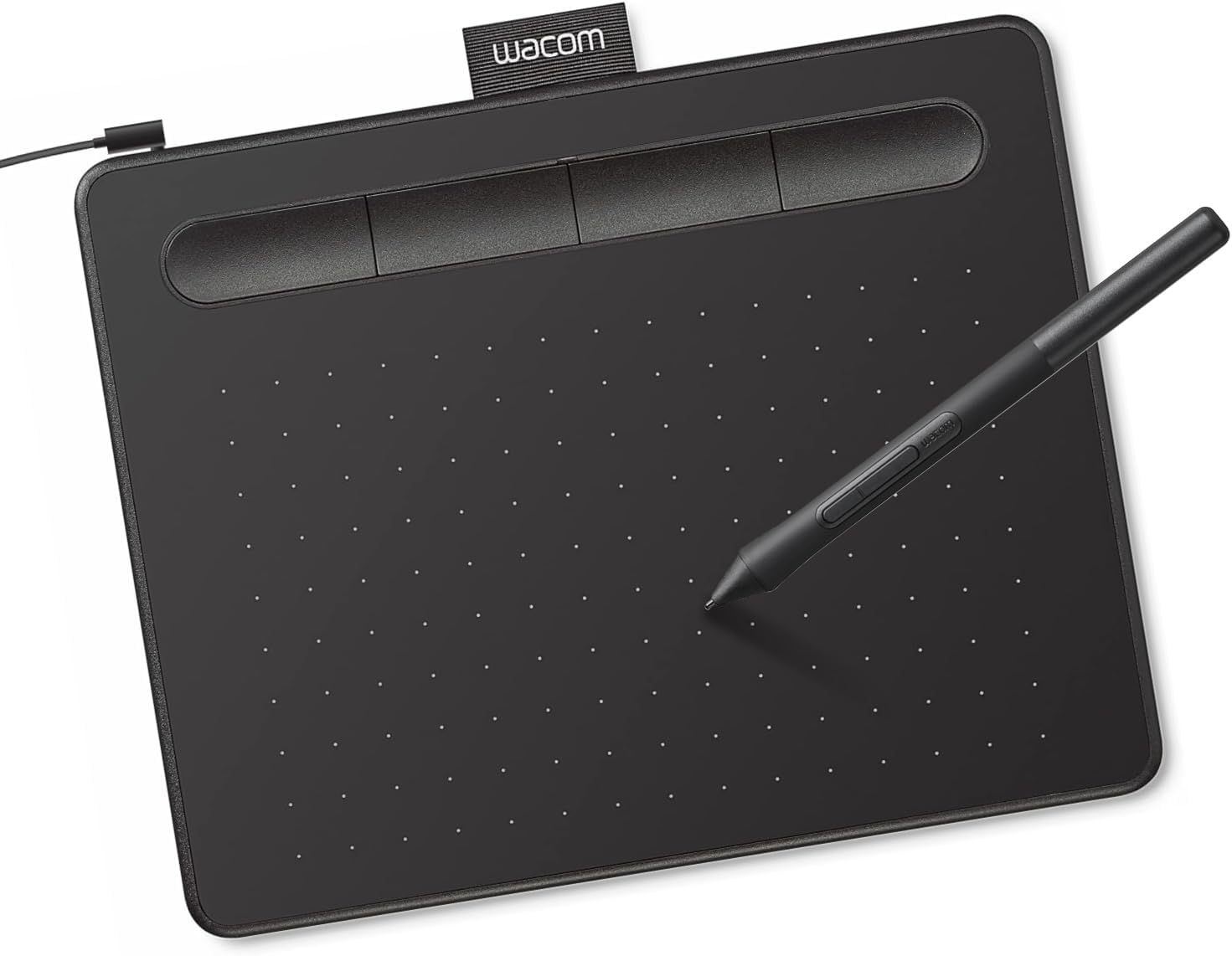
Wacom has made pen tablets for over forty years, and the Intuos Small is the entry point. The listing highlights Wacom’s EMR battery-free pen technology, 4096 pressure levels, USB-A connection, and compatibility with Windows, macOS and Android, plus plug-and-play use with Chromebooks. Registering the tablet unlocks bundled creative software and online training.
What you give up is size: the Small has a compact active area, and the pressure resolution is lower on paper than the budget competitors. In practice, mature drivers and consistent pen behavior are why many teachers still recommend it as a first tablet.
Best suited for: beginners who value trouble-free setup and brand support over raw specifications, and anyone pairing a tablet with a Chromebook.
Key features:
- Battery-free EMR pen, 4096 pressure levels
- USB-A wired connection
- Windows, macOS, Android; plug-and-play on Chromebook
- Bundled software and training with registration
- Works in any drawing or photo program
Pros:
- Most established driver ecosystem
- Chromebook support without drivers
- Software bundle adds value
Cons and limitations:
- Smallest working area in this group
- Lower pressure resolution than rivals
- No tilt, USB-A only
Buying consideration: If your desk is small or you draw on a laptop, the compact size is an advantage rather than a flaw.
2. UGEE M708 V3 Drawing Tablet, 10 x 6 inch — Best for a large drawing area
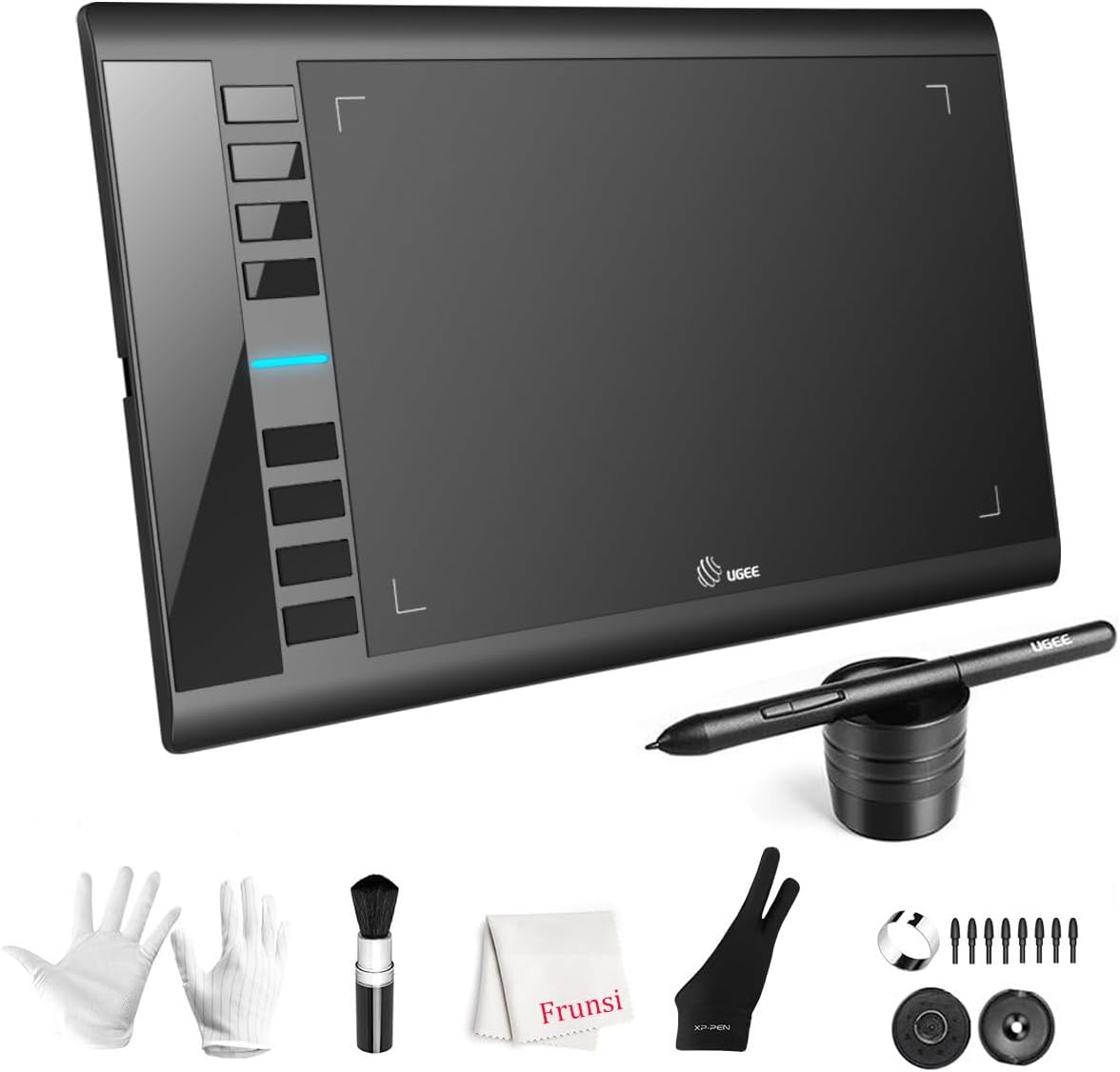
The UGEE M708 V3 delivers the most drawing surface in this price range: a 10 x 6 inch active area with a paper-like texture. Its passive pen offers 16384 pressure levels, the highest resolution listed here, and eight customizable express keys sit along the side for eraser, zoom, scroll and undo.
Compatibility is broad: Windows 7 through 11, macOS 10.10 or later, Android 10 or later, Chrome OS 88 or later and Linux. The listing mentions USB to USB-C connectivity with adapters included, an ambidextrous design, a pen holder and extra pen tips.
Best suited for: painters who want long, loose strokes, dual-monitor users, and anyone who finds small tablets cramped.
Key features:
- 10 x 6 inch active area
- 16384 pressure levels, battery-free pen
- 8 customizable express keys
- Windows, macOS, Android, Chrome OS, Linux
- USB-C connectivity with adapters, pen holder and spare nibs
Pros:
- Largest surface for the money
- Highest pressure resolution in the group
- Left-handed friendly
Cons and limitations:
- Large footprint on a small desk
- Driver download required for full features
- Tilt support is not stated in the listing
Buying consideration: A 10 x 6 inch tablet maps well to monitors up to about 27 inches; on a 13 inch laptop screen the mapping can feel over-sensitive, so adjust the active area in the driver.
3. VEIKK VK850 8 x 5 inch Drawing Tablet — Best for tilt and portability

VEIKK positions the VK850 as the escape from cramped 6 x 4 inch starter tablets. The 8 x 5 inch active area is a sensible middle ground, and the pen offers 16384 pressure levels with plus or minus 60 degree tilt support, which the cheaper tablets here lack. Ten programmable keys and a quick dial handle undo, brush size, zoom and scrolling.
At 0.08 inches thick and 0.57 pounds it is built for a backpack, and the listing says it connects to laptops and Android phones through a USB-C adapter. The box includes 20 replacement nibs, a nib remover, an artist glove and the adapter, backed by a one-year warranty and lifetime driver updates.
Best suited for: students and commuters who sketch on the go, and painters who want tilt-sensitive brushes without spending more.
Key features:
- 8 x 5 inch active area
- 16384 pressure levels and ±60° tilt
- 10 shortcut keys plus quick dial
- Ultra-thin, 0.57 lb
- 20 nibs, glove, USB-C adapter, one-year warranty
Pros:
- Tilt support at this price is rare
- Generous spare-nib supply
- Smart screen mapping for any display
Cons and limitations:
- Thin body can flex if packed carelessly
- Smaller than the 10 x 6 inch options
- Brand is less familiar than Wacom
Buying consideration: If you use tilt-aware brushes in Krita or Photoshop, this is the only tablet in the group whose listing states tilt beyond 35 degrees.
4. GAOMON M10K Drawing Tablet, 10 x 6.25 inch — Best for shortcut-heavy workflows

The GAOMON M10K is the other big-surface option, with a 10 x 6.25 inch papery working area and the AP31 battery-free pen at 8192 pressure levels. Its distinguishing feature is the control layout: ten press keys plus a programmable touch ring for zooming, brush adjustment and scrolling, with the layout usable left-handed.
Two side buttons on the pen switch between brush and eraser. The listing states compatibility with Windows 7 or later, macOS 10.12 or later and Android 11 through 14, with USB connection and a driver download from GAOMON.
Best suited for: artists who customize shortcuts heavily and want a touch ring for brush size and zoom without reaching for the keyboard.
Key features:
- 10 x 6.25 inch active area
- 8192 pressure levels, battery-free pen with two side buttons
- 10 press keys and a touch ring
- Windows, macOS, Android 11-14
- USB connection, driver from GAOMON
Pros:
- Touch ring is a genuine workflow saver
- Large surface
- Left-handed configuration supported
Cons and limitations:
- Lower pressure resolution than UGEE and VEIKK
- Price sits right at the budget ceiling
- No tilt stated
Buying consideration: Choose this over the UGEE if the touch ring matters more to you than the extra pressure levels; otherwise the UGEE is the better spec sheet.
5. Spaseeba T605 Drawing Tablet, 6.7 x 4 inch — Best for tight budgets and travel

The T605 is the least expensive way onto this list, and the specifications are better than the price suggests. The listing cites a 6.7 x 4 inch active area, 8192 pressure levels, 35 degree tilt recognition, 330 PPS report rate, 5080 LPI resolution, 15 mm pen sensing height and six customizable press keys.
At 195 grams it is the lightest tablet here. Compatibility covers Windows, macOS 11 or later and Android 5 or later with OTG, and the package includes a Type-C OTG adapter, eight pen nibs, a USB cable and a nib clip. The brand also pitches it for signing documents, online teaching and rhythm games.
Best suited for: absolute beginners, kids, note-takers and anyone who wants a tablet for a laptop bag at the lowest cost.
Key features:
- 6.7 x 4 inch active area
- 8192 pressure levels, 35° tilt, battery-free pen
- 6 shortcut keys
- 195 g, ultra-thin
- OTG adapter, 8 nibs, cable, nib clip included
Pros:
- Lowest price tier
- Tilt support at this size is unusual
- Android OTG support for phone drawing
Cons and limitations:
- Small surface limits long strokes
- Lesser-known brand
- Fewer keys than the mid-size tablets
Buying consideration: Great as a first tablet or a secondary travel tablet; if you already know you love digital painting, spend the extra on the VEIKK or UGEE.
Buying Guide: How to Choose a Drawing Tablet Under 50
Active area vs. your monitor
The tablet surface maps to your screen. A 6 x 4 inch area on a 27 inch monitor means small hand movements become large cursor jumps, which is fine for notes but tiring for painting. A 10 x 6 inch area suits larger displays and loose brushwork; 8 x 5 inches is the middle ground. Laptop users can comfortably use small tablets.
Pressure levels and tilt
Anything above 4096 levels is more than most hands can distinguish, so do not pay for 16384 levels alone. Tilt matters more if you use brushes that respond to angle; of these tablets, only the VEIKK and Spaseeba list tilt support.
Battery-free pens
All five tablets ship with passive, battery-free pens, so there is nothing to charge. Pens differ in side buttons and nib supply; the VEIKK includes 20 nibs, the Spaseeba eight.
Shortcut keys, rings and dials
Express keys replace keyboard shortcuts for undo, brush size and zoom. A touch ring (GAOMON) or dial (VEIKK) adds smooth control for brush size and canvas zoom. The Wacom Intuos Small relies on fewer keys and its software bundle.
Operating system and phone support
Check the listing for your OS version. All five support Windows and macOS; UGEE and VEIKK also list Linux and Chrome OS, and Wacom is plug-and-play on Chromebook. Android support requires a USB-C or OTG adapter, included with UGEE, VEIKK and Spaseeba.
Drivers and warranty
Wacom’s drivers are the most mature. Budget brands require a driver download for pressure and keys to work; VEIKK states lifetime driver updates and a one-year warranty. Download drivers only from the manufacturer’s site.
Screenless vs. screen tablets
Nothing under fifty dollars has a built-in display. Screenless tablets take a short adjustment period because you look at the monitor while your hand draws on the desk, but they are durable, light and the standard way most professionals learned.
Set Up Your New Tablet
Once the tablet arrives, follow our drawing tablet setup guide to install drivers, map the active area and shape the pressure curve. Windows users can go deeper with how to use a drawing tablet on PC, and if you plan to draw on Android with the UGEE, VEIKK or Spaseeba, see how to use a drawing tablet on a phone. When everything works, try our tutorial on painting digital waves and ocean scenes to put pressure sensitivity to use.
Common Mistakes to Avoid
- Buying a 6 x 4 inch tablet for a large monitor and blaming the pen for jittery lines.
- Judging tablets by pressure levels alone; driver quality and active area matter more.
- Skipping the driver install and assuming pressure sensitivity is broken.
- Leaving a drawing program open with Windows Ink settings mismatched to the driver, causing lag or missed strokes.
- Expecting a screen; nothing in this price range has one.
- Forgetting spare nibs when traveling; nibs wear faster on textured surfaces.
FAQs
Is a drawing tablet under 50 good enough for digital painting?
Yes. All five tablets here have battery-free pens with at least 4096 pressure levels and work with Krita, Photoshop and Clip Studio. The limits are size and the absence of a screen, not drawing quality.
Which drawing tablet under 50 has the largest drawing area?
The GAOMON M10K at 10 x 6.25 inches and the UGEE M708 V3 at 10 x 6 inches are the largest. The VEIKK VK850 is 8 x 5 inches, the Spaseeba T605 is 6.7 x 4 inches, and the Wacom Intuos Small is the most compact.
Do these tablets work with Android phones?
The UGEE M708 V3, VEIKK VK850 and Spaseeba T605 list Android support with an included USB-C or OTG adapter, and the GAOMON M10K lists Android 11 to 14. Wacom lists Android compatibility for the Intuos Small as well.
Do I need to charge the pen?
No. Every tablet in this comparison ships with a battery-free passive pen.
Is Wacom worth it over cheaper brands at this price?
Wacom offers the most reliable drivers, Chromebook plug-and-play and bundled software, but the smallest surface and lowest pressure resolution. Budget brands give more size and features; Wacom gives fewer setup headaches.
Does a cheap tablet support tilt?
Some do. The VEIKK VK850 lists ±60 degree tilt and the Spaseeba T605 lists 35 degree tilt recognition. The UGEE, GAOMON and Wacom listings do not state tilt.
Final Recommendation
For a first drawing tablet under 50, pick the Wacom Intuos Small if you want the smoothest setup and will draw on a laptop. If you draw on a large monitor and want room to move, the UGEE M708 V3 is the best specification for the money, with the GAOMON M10K as the alternative for anyone who wants a touch ring. The VEIKK VK850 is our value pick for its tilt support, dial and spare nibs, and the Spaseeba T605 is the right choice when the budget is tighter than fifty dollars or you need a tablet for travel.



One Comment