
PaintingProGuide is reader-supported. When you buy through links on this page we may earn an affiliate commission at no extra cost to you.
Drawing on a screen removes the strangest part of learning digital art: watching your hand on a desk while your line appears somewhere else. A drawing display tablet (also called a pen display) puts the image right under the pen nib, so sketching, inking and painting feel closer to working on paper. The best drawing display tablet balances screen quality, pen accuracy, size and connection simplicity, and it has to work with the computer you already own.
When we checked Amazon in October 2026 for this guide, two pen displays matched our criteria and data: the Wacom Cintiq 16 and the GAOMON PD1161. They sit at very different price tiers, so this guide compares them in depth and gives you a full checklist for judging any other pen display you are considering.
Quick answer: The Wacom Cintiq 16 is the best drawing display tablet of the two we compared, with a 16-inch 2.5K (2560 x 1600) screen, 99% DCI-P3 color and the Pro Pen 3 with tilt. If you are starting out on a smaller budget, the GAOMON PD1161 offers an 11.6-inch full HD screen, a battery-free 8,192-level pen with tilt and eight shortcut keys at a much lower price tier. Both need to be connected to a computer.
Our Top Picks at a Glance
- Wacom Cintiq 16 (2.5K, Pro Pen 3) — Best for serious hobbyists and professionals
- GAOMON PD1161 — Best for beginners on a budget
| Product | Best For | Key Spec | Key Strength | Price Tier |
|---|---|---|---|---|
| Wacom Cintiq 16 (2.5K, Pro Pen 3) | serious hobbyists and professionals | 16″ IPS, 2560 x 1600, 99% DCI-P3, Pro Pen 3 | Sharper, wider-gamut screen and Wacom pen | $$$ |
| GAOMON PD1161 | beginners on a budget | 11.6″ FHD IPS, 100% sRGB (72% NTSC), AP50 battery-free pen | Low-cost pen display with tilt and 8 keys | $$$ |
How We Chose
We did not draw on these devices. Our picks are based on the Amazon listing details and specifications checked in October 2026, how well each pen display’s screen, pen, size and connectivity fit digital drawing and painting, and how widely each product is reviewed by Amazon buyers. Only two pen displays in our product data fit the query, so we have focused on comparing them closely. We weighed:
- Screen: size, resolution, panel type and color coverage.
- Pen: pressure levels, tilt, battery-free design and buttons.
- Connection: cables required and compatibility with Windows and macOS.
- Workflow features: shortcut keys, stands and anti-glare surfaces.
- Value: features relative to price tier for beginners and professionals.
Best Drawing Display Tablets Reviewed
1. Wacom Cintiq 16 (2.5K, Pro Pen 3) — Best for serious hobbyists and professionals

The current Cintiq 16 listing describes a 16-inch IPS display with 2.5K WQXGA resolution (2560 x 1600), 99% DCI-P3 and 100% sRGB coverage with 8-bit color, and anti-glare glass. Compared with older full HD pen displays at this size, the higher resolution makes lines and brush textures look noticeably crisper.
The included Pro Pen 3 offers 8,192 pressure levels, tilt support and three shortcut keys, and the holder mounts on either side of the display, which is helpful for left-handed artists. Built-in fold-out legs give a 20-degree working angle, and Wacom sells an adjustable stand separately if you want more positions.
Connection is through a USB-C cable to a computer with DisplayPort Alt Mode or Thunderbolt 3 or 4. The listing notes that computers without those ports need additional cables. Supported systems listed include Windows 10 or later, macOS 13 or later and Android 8.0 or above.
Best suited for: Illustrators, comic artists and concept artists who draw daily and want a sharp, color-rich screen with Wacom’s pen technology.
Key features:
- 16-inch IPS, 2560 x 1600 resolution
- 99% DCI-P3, 100% sRGB, 8-bit color
- Pro Pen 3 with 8,192 levels, tilt and 3 keys
- Fold-out legs (20 degrees), USB-C with DP Alt Mode or Thunderbolt
Pros:
- Sharp 2.5K resolution at 16 inches
- Wide color coverage for painting
- Single USB-C cable on compatible computers
Cons/limitations:
- Highest price tier in this comparison
- Older computers without DP Alt Mode need extra cables or adapters
- No express keys on the display itself
Buying consideration: Check your computer’s USB-C port supports DisplayPort Alt Mode or Thunderbolt before buying; not all USB-C ports carry video.
2. GAOMON PD1161 — Best for beginners on a budget
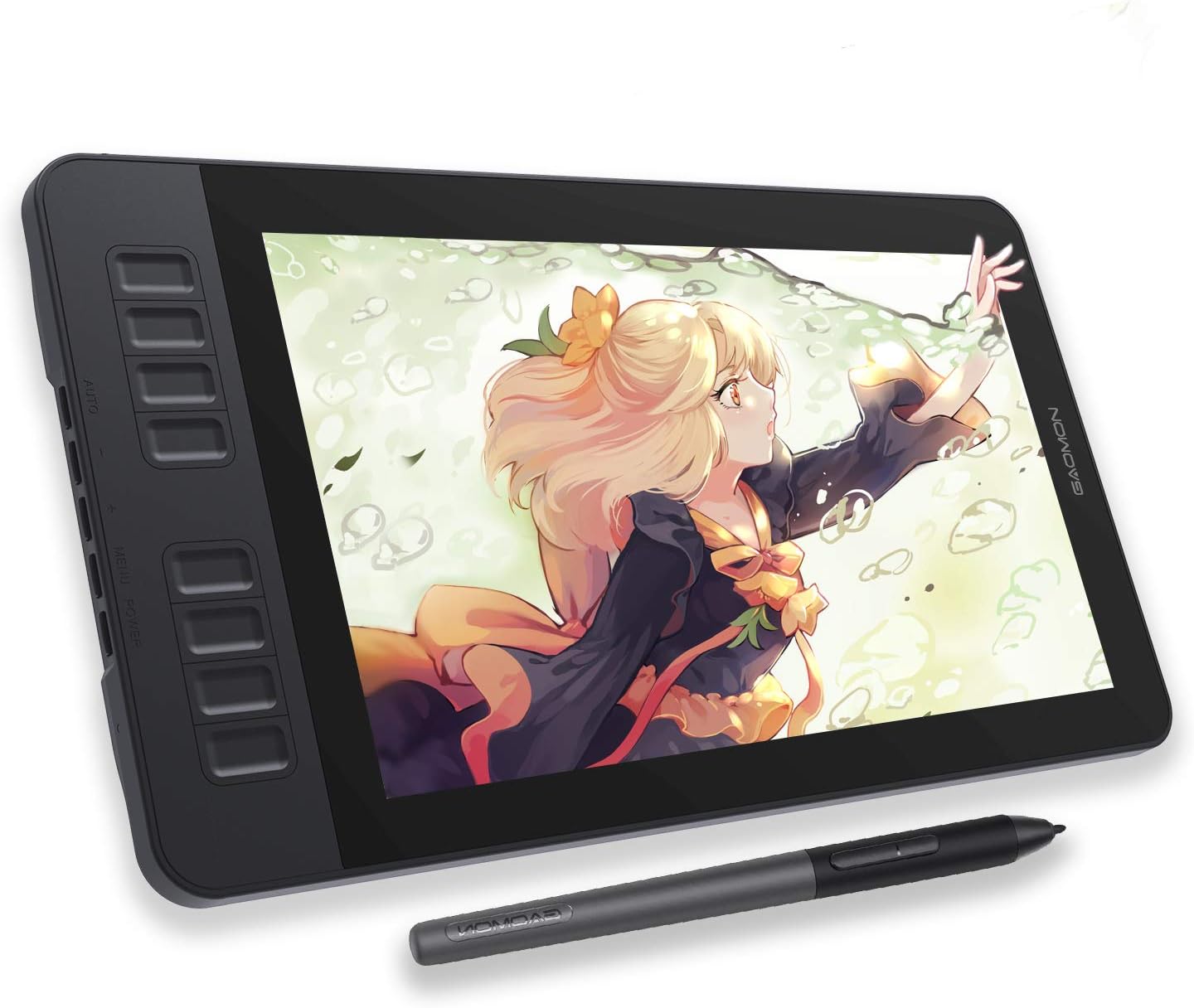
GAOMON’s PD1161 is a compact 11.6-inch full HD IPS pen display aimed at people trying screen drawing for the first time. The listing quotes 72% NTSC (100% sRGB) color and a pre-installed matte film that gives the screen a paper-like feel and reduces glare.
The included AP50 pen is battery-free, with 8,192 pressure levels and tilt. Eight programmable press keys on the side of the display and two pen buttons can hold shortcuts such as undo, brush size and zoom, which speeds up work considerably.
The listing is clear that the PD1161 is not a standalone tablet: it must be connected to a laptop or computer, using HDMI and USB according to the connectivity details. Supported systems listed are Windows 7 or later and macOS 10.12 or later. The smaller screen means less room for canvas and tool panels than the Cintiq 16.
Best suited for: Students and hobbyists who want to try drawing on a screen without a large investment, and travelers who need a small pen display.
Key features:
- 11.6-inch full HD IPS display
- 100% sRGB (72% NTSC) per listing
- Battery-free AP50 pen, 8,192 levels, tilt
- 8 programmable keys, HDMI and USB connection
Pros:
- Much lower price tier
- Physical shortcut keys on the device
- Compact and portable
Cons/limitations:
- Small screen limits workspace
- Full HD is less sharp than 2.5K
- Uses separate HDMI and USB connections
Buying consideration: If your laptop lacks HDMI, budget for a compatible adapter; check GAOMON’s guidance on supported adapters.
Wacom Cintiq 16 vs GAOMON PD1161
| Feature | Wacom Cintiq 16 | GAOMON PD1161 |
|---|---|---|
| Screen size | 16 inches | 11.6 inches |
| Resolution | 2560 x 1600 (2.5K) | 1920 x 1080 (full HD) |
| Color coverage (listing) | 99% DCI-P3, 100% sRGB | 100% sRGB (72% NTSC) |
| Pen | Pro Pen 3, 8,192 levels, tilt, 3 keys | AP50 battery-free, 8,192 levels, tilt, 2 buttons |
| Shortcut keys on display | None listed | 8 programmable keys |
| Stand | Fold-out legs, 20 degrees | Not specified in listing |
| Connection | USB-C (DP Alt Mode or Thunderbolt) | HDMI plus USB |
| Price tier | $$$ | $$$ |
Both fall in the highest price tier band used on this site, but the Cintiq 16 costs several times more than the GAOMON. For many beginners, the GAOMON is a sensible way to discover whether pen-on-screen drawing suits them. Artists who already know they will draw for hours each day may find the Cintiq’s larger, sharper, wider-gamut screen worth the difference.
Pen Display vs Pen Tablet vs Standalone Tablet
| Device | How it works | Strengths | Trade-offs |
|---|---|---|---|
| Pen tablet (no screen) | Draw on a pad, look at your monitor | Inexpensive, ergonomic posture, durable | Hand-eye coordination takes practice |
| Pen display | Draw directly on a screen connected to a computer | Natural feel, precise placement | Needs a computer and desk space, costs more |
| Standalone pen tablet or computer | Screen and computer in one device | Portable, no cables | App and performance limits vary by platform |
If you are not sure digital drawing is for you yet, our guide to digital painting without a tablet explains how far a mouse or touchpad can take you and when it is time to upgrade.
Buying Guide: How to Choose a Drawing Display Tablet
Screen size
Around 12 inches is portable and affordable; 15 to 16 inches gives room for both canvas and tool panels and suits most artists; 22 inches and up is desk-bound and best for professionals. Larger screens mean bigger arm movements, which many artists find more natural.
Resolution and pixel density
Full HD looks sharp at 11 to 13 inches but softer at 15 to 16 inches. 2.5K or higher at 16 inches keeps lines crisp.
Color coverage
Good sRGB coverage is the baseline for screen work. Wider gamuts such as DCI-P3 help with vivid painting, but you may still check final colors on a calibrated monitor.
Pen technology
Most current pens offer 8,192 pressure levels, so look beyond that number to tilt support, initial activation force, parallax (the gap between nib and cursor) and battery-free design.
Surface and glare
Etched or matte surfaces add tooth and reduce reflections. Glossy screens can show reflections and feel slippery.
Connectivity and compatibility
Single-cable USB-C setups are tidy but require DisplayPort Alt Mode or Thunderbolt. HDMI plus USB works with more computers but adds cables. Always check OS support.
Total cost of ownership
The sticker price is only part of the cost. Factor in a stand if one is not included, a glove, spare nibs, any adapter your computer needs and, if you do not already own one, painting software. A lower-cost display with physical keys and an included stand can end up cheaper overall than it first looks, while a premium display may need several add-ons to reach its full comfort.
Shortcut keys and stands
Physical keys save trips to the keyboard. A stand with multiple angles protects your neck and wrists during long sessions.
Who Should Buy a Pen Display?
A pen display is a strong fit if you:
- Struggle with the hand-eye disconnect of a screenless pen tablet.
- Do a lot of inking, lettering or line art where precise placement matters.
- Paint for clients or social media and want to see color directly under the pen.
- Have a computer with suitable video output and desk space for a second screen.
It may not be the best first purchase if you mainly paint loose, broad digital work, have limited desk space, or want the lowest possible cost. In those cases, a screenless pen tablet is a capable and much cheaper starting point, and many professionals still prefer one for posture reasons.
Ergonomics: Protecting Your Neck, Wrist and Eyes
Pen displays encourage you to lean in, which can strain your neck over long sessions. A few habits help:
- Raise the angle. Fold-out legs are a start; an adjustable stand that brings the screen closer to eye level is better for long sessions.
- Bring the display to you. Sit back and pull the screen forward rather than hunching over the desk.
- Use a glove. A two-finger glove lets your hand glide and keeps the screen clean.
- Use shortcut keys. Fewer reaches to the keyboard means less twisting.
- Take breaks. Look away into the distance every 20 minutes or so to rest your eyes.
- Manage brightness. Match screen brightness to the room to reduce eye fatigue.
Getting Used to Drawing on a Screen
Even with the image under your pen, there is a short adjustment period. The glass feels smoother than paper, your hand can cover part of the image, and the cursor may sit a fraction away from the nib. Practice long, confident strokes, circles and hatching for a few days. Enable stabilization or smoothing in your painting app for inking, and flip the canvas horizontally often to check proportions. Most people find that within a week or two the screen feels natural.
Painting Software to Pair With Your Display
A pen display works with the painting software on your computer, so your choice of app matters as much as the hardware. Popular options include Krita (free and open source), Clip Studio Paint (well loved for comics and manga), Adobe Photoshop (industry standard for illustration and photo painting), Affinity Photo and Corel Painter. Most support pressure and tilt from the pen once drivers are installed. Before buying, check that your preferred app supports your operating system and the tablet driver, and test pressure in the app after setup.
Caring for a Pen Display
Wipe the screen with a dry microfiber cloth, or a cloth lightly dampened with a screen-safe cleaner sprayed onto the cloth rather than the screen. Replace worn nibs promptly; a nib worn down to a sharp edge can scratch the surface coating. Unplug and store the display flat or upright in a padded sleeve when traveling, and avoid resting heavy objects on it. Keeping the driver updated also helps with stability and compatibility after operating system updates.
Accessories Worth Budgeting For
- Adjustable stand for multiple working angles.
- Drawing glove to reduce friction and smudges.
- Replacement nibs; nibs wear faster on textured surfaces.
- Video adapter or cable if your computer lacks the required ports.
- Screen protector film if your display has a glossy surface and you want more tooth.
Setting Up Your Pen Display
- Install the latest driver from the manufacturer before plugging in.
- Connect the display and choose whether to mirror or extend your main monitor.
- Calibrate the pen in the driver to reduce cursor offset.
- Map the display to its own screen so the pen only controls the pen display.
- Assign shortcut keys for undo, brush size, eyedropper and zoom.
- Adjust pressure curves in the driver or your painting app to match your hand.
For a detailed walkthrough with screenshots and troubleshooting, see our guide on how to set up a drawing tablet.
Common Mistakes to Avoid
- Not checking ports. USB-C does not always carry video; confirm DP Alt Mode or Thunderbolt.
- Buying too small for daily work. Tiny screens make tool panels crowd the canvas.
- Skipping driver installation. Without drivers, pressure and tilt may not work.
- Drawing flat on a desk for hours. Use a stand or angle to protect your neck.
- Ignoring the glove. A two-finger drawing glove reduces friction and smudges.
- Expecting a pen display to replace a computer. Most need to be connected to one.
FAQs
What is a drawing display tablet?
It is a pen display: a screen you draw on directly with a pressure-sensitive pen, connected to a computer that runs your art software.
Is the Wacom Cintiq 16 worth it?
For artists who draw daily, its 2.5K screen, wide color coverage and Pro Pen 3 can justify the cost. Beginners may prefer a lower-cost option first.
Does the GAOMON PD1161 work without a computer?
No. The listing states it must be connected to a laptop or computer to work.
Can I use a pen display with a laptop?
Yes, if the laptop has the right ports, such as USB-C with DisplayPort Alt Mode for the Cintiq 16, or HDMI plus USB for the GAOMON.
Is a pen display better than a pen tablet?
It feels more natural for many people, but pen tablets are cheaper and encourage better posture. Both are used by professionals.
What size drawing display is best for beginners?
12 to 16 inches works well. Smaller is cheaper and portable; 15 to 16 inches gives more comfortable workspace.
Final Recommendation
Choose the Wacom Cintiq 16 if you want a sharp, color-rich 16-inch pen display with Wacom’s Pro Pen 3 and you have a computer with DisplayPort Alt Mode or Thunderbolt. Choose the GAOMON PD1161 if you are new to screen drawing, want physical shortcut keys and prefer a much lower price tier, accepting a smaller, full HD screen. Either way, budget for a stand and a drawing glove, and check computer compatibility first.




One Comment