
PaintingProGuide is reader-supported. When you buy through links on this page we may earn an affiliate commission at no extra cost to you.
The best Krita brushes for most painters are already installed. Krita, the free and open-source painting program, ships with a large default set of brush presets built on more than a dozen brush engines, and those presets cover sketching, inking, blending, texture, wet paint and special effects. Before downloading anything, it is worth learning which built-in presets do which job, and how to tune them. Then, if you need a specific look, a focused community bundle fills the gaps.
This guide breaks down the Krita brush types that matter, the engines behind them, how to evaluate and install a bundle, the settings that make the biggest difference, and how to build a lean personal brush set. We do not recommend specific third-party packs by name, because their availability and licenses change; instead you will learn to judge any brush or bundle yourself.
Quick answer: Start with Krita’s default presets and build a core kit of seven: a pencil or sketch brush, an inking pen with pressure taper, a basic round paint brush, a soft airbrush, a Color Smudge blender, a textured or chalk brush, and a wet or bristle brush for painterly strokes. Tag them so they appear in the right-click pop-up palette. Add a third-party bundle only for a specific need, such as comic inks or watercolor textures, and check its license and Krita version compatibility before importing.
Essential Krita Brush Types at a Glance
- Sketch or pencil brush — Best for loose construction lines
- Inking pen — Best for clean line art with pressure taper
- Basic round paint brush — Best for blocking in color
- Soft airbrush — Best for gradients, glows and atmosphere
- Color Smudge blender — Best for mixing colors on the canvas
- Texture or chalk brush — Best for grain, rough surfaces and traditional feel
- Bristle or wet brush — Best for painterly, oil-like strokes
| Brush Type | Best For | Typical Engine | Key Strength | Cost |
|---|---|---|---|---|
| Sketch/pencil | Construction, gesture | Pixel | Light, grainy lines | Built in |
| Inking pen | Line art, comics | Pixel | Pressure size taper, crisp edges | Built in |
| Round paint | Block-ins, flats | Pixel or Color Smudge | Predictable coverage | Built in |
| Airbrush | Gradients, glow | Pixel | Soft falloff | Built in |
| Smudge blender | Blending on canvas | Color Smudge | Mixes existing paint | Built in |
| Texture/chalk | Rough surfaces | Pixel with texture | Paper-like grain | Built in or varies |
| Bristle/wet | Painterly strokes | Bristle or Color Smudge | Visible brush marks | Built in or varies |
How We Chose
This guide is based on how Krita’s brush engines and preset system work and on the brush categories that digital painters rely on, rather than on trials of specific downloadable bundles. The only products on this page are a few pen tablets near the end, picked from Amazon listing specifications checked in October 2026, because pressure and tilt hardware shape how every Krita brush behaves.
- Coverage of the core digital painting tasks
- Pressure response for size, opacity and flow
- Ease of tuning in the Brush Editor
- Performance on large canvases
- Clear licensing and version compatibility for bundles
Understanding Krita Brush Engines
Every Krita preset runs on a brush engine, and the engine determines what the brush can do. Knowing a few engines helps you pick and adjust presets with intent.
Pixel engine
The workhorse. Pixel brushes stamp a brush tip along the stroke, with settings for size, opacity, flow, spacing, rotation and texture. Most pencils, pens, airbrushes and basic paint brushes use it.
Color Smudge engine
Color Smudge brushes pick up and drag existing color, letting paint mix on the canvas like real wet media. They are central to painterly blending, and many “wet” presets use this engine.
Bristle engine
Simulates individual bristles, producing streaky strokes that respond to pressure and direction. It is good for oil-like marks and expressive texture.
Sketch, Hatching and Spray engines
Sketch creates connecting lines that build up a loose, sketchy look. Hatching generates parallel lines for shading. Spray scatters particles for effects like dust, stars or foliage.
Shape, Particle, Grid, Curve and others
These special engines produce filled shapes, generative particle trails, grid patterns and curved lines. They are less common in everyday painting but useful for effects.
MyPaint engine
Krita can use brushes in the MyPaint format through its MyPaint engine, which opens up another family of natural-media brushes.
Best Krita Brushes by Task
1. Sketching: a light, grainy pencil
Pick a pencil preset that responds to pressure with opacity rather than size, so light strokes stay faint. Lower the layer opacity of your sketch later to ink or paint over it. A slightly textured tip feels more like graphite and helps you avoid committing too early.
2. Inking: a pen with taper and smoothing
For line art, choose a pen whose size follows pressure, giving tapered ends. Pair it with smoothing in the Freehand Brush tool options (Basic, Weighted or Stabilizer modes) to steady long curves. Many comic artists keep two pens: a fine one for detail and a larger one for outlines.
3. Blocking in: a reliable round
A basic round with opacity linked to pressure and moderate hardness covers large areas quickly. Use it on separate layers for flats if you work in a cel-shaded style.
4. Atmosphere: the soft airbrush
A soft airbrush handles skies, glows, rim lights and subtle color shifts. Keep opacity low and build gradually. Combine with blending modes such as Add or Screen on a separate layer for light effects.
5. Blending: Color Smudge
A Color Smudge blender lets you soften transitions without the flat look of a blur filter. Adjust smudge length and color rate: lower color rate means more pure smudging, higher means the brush adds its own color while mixing.
6. Texture: chalk, charcoal and grainy brushes
Texture brushes add a traditional, tactile feel. In Krita, textures can be applied to a brush via the Texture option, with control over scale, brightness and how texture interacts with pressure. Use sparingly so texture supports the image rather than dominating it.
7. Painterly strokes: bristle and wet brushes
Bristle-engine and wet Color Smudge presets give visible brush marks reminiscent of oil or gouache. They are ideal for concept art and loose studies. Large bristle brushes can be heavier on performance, so reduce size or canvas resolution if the stroke lags.
How to Evaluate a Krita Brush Bundle
Check the format
Krita resources usually come as .bundle files, which package presets, brush tips, textures and tags. Individual presets use the .kpp format. Bundles are the easiest to install and remove cleanly.
Confirm version compatibility
Krita’s resource system changed significantly between major versions. Make sure the bundle states compatibility with the version you run.
Look for real stroke previews
A trustworthy bundle shows each brush’s stroke on a plain background and an example painted with that bundle. Finished artworks alone do not show what the brushes do.
Read the license
Some free brushes are licensed for any use; others restrict redistribution or commercial use. If you sell prints or do client work, choose a bundle with clear terms.
Prefer focused bundles
A curated bundle of 15 to 40 brushes is more useful than hundreds of variations. Too many presets slow down finding the one you need.
Presets, Brush Tips and Textures: What You Are Actually Downloading
Krita’s resource system separates several kinds of files, and knowing the difference prevents confusion when a download does not behave as expected.
Brush presets are complete brushes. A preset stores the engine, brush tip, sensors, spacing, texture and every other setting. When people talk about “Krita brushes,” they usually mean presets, saved as .kpp files and often packaged in bundles.
Brush tips are the shapes that a Pixel-engine brush stamps along a stroke. They can be generated (round or square with adjustable hardness) or predefined image tips. Image tips can come from other sources, which is how some Photoshop brush shapes can be brought into Krita, but a tip alone does not carry the original brush’s dynamics. You build a preset around it.
Patterns and textures are images used by the Texture option inside a preset to add grain. Changing the texture can turn a smooth brush into chalk or canvas-like strokes.
Bundles are containers that can hold presets, tips, patterns, gradients, palettes and tags together. Importing a bundle adds everything at once; deactivating it hides those resources again, which makes bundles the tidiest way to try new brushes.
When a downloaded preset looks wrong, a missing tip or texture inside the bundle is a common cause. Reinstalling the full bundle usually fixes it.
Install and Organize Krita Brushes
Krita’s resource manager lets you import bundles from its settings menu, and imported brushes then appear in the Brush Presets docker. Use tags to group brushes by task, such as Sketch, Ink, Paint and FX, and filter the docker by tag.
The right-click pop-up palette shows a ring of favorite presets around the cursor. Assign your seven core brushes to the tag the pop-up palette displays, and you will rarely need the docker while painting.
When you edit a preset, save it as a new preset rather than overwriting, or use the option to save over only when you are sure. That keeps the original intact.
Brush Editor Settings That Matter Most
Open the Brush Editor (F5 by default) to adjust the active preset. These options make the biggest difference:
- Size and opacity sensors: link them to pressure, speed, tilt or fade to change how the brush responds.
- Flow: controls how much paint each dab deposits, separate from overall opacity.
- Spacing: lower spacing gives smooth strokes; higher spacing gives stamped, textured strokes.
- Rotation and scatter: add variation for foliage, hair and texture.
- Texture: apply a pattern to the brush for grain.
- Brush tip: switch between auto-generated tips and predefined image tips, including imported tip images.
Test changes on a scratch layer or small canvas so you can compare before and after.
Build a Lean Personal Brush Kit
- List the tasks in your typical painting: sketch, ink, block in, render, blend, texture, effects.
- Pick one default preset for each and paint a small study using only those.
- Adjust each preset’s sensors and spacing until it behaves the way you want, then save as a new preset.
- Tag the kit and assign it to the pop-up palette.
- Only add new brushes when you hit a real limitation, and remove ones you never use.
This approach makes your work more consistent and your workflow faster than chasing new packs.
Performance Tips for Heavy Brushes
Large textured, bristle and smudge brushes can lag on big canvases. Reduce brush size, increase spacing slightly, work on a lower-resolution canvas for sketches, and close unused documents. Krita’s performance settings also include options that affect canvas acceleration and memory; adjusting them can help on older computers.
Krita Brush Setups by Art Style
Comics and manga
Line art carries the style, so prioritize two or three inking pens with different taper strengths, a hard round for flats on a separate layer, and a hatching or screentone-style brush for shading. Turn on stabilization for long panels and speech balloon outlines. Keep blending brushes to a minimum; comics usually read better with clean shapes.
Concept art and environment painting
Speed matters more than polish. Large textured block-in brushes, a bristle brush for painterly marks, a Spray-engine brush for foliage or debris, and a Color Smudge blender let you find shapes and light quickly. Many concept painters also use a lasso fill tool alongside brushes for hard-edged silhouettes.
Digital illustration
Illustrators often combine a clean inking pen with soft rendering: a round with opacity pressure, a soft airbrush for gradients, and a smudge brush for skin and fabric. A subtle texture brush applied on an overlay layer adds a printed or paper-like finish.
Traditional media look
If you want your work to resemble pencil, charcoal or gouache, pick presets with strong texture settings and low spacing, and set brush opacity to follow pressure. A paper texture applied to brushes, rather than as a separate overlay, makes strokes catch the grain the way real media do.
Pixel art
Krita includes pixel-art-friendly presets with hard, aliased edges. Pair them with a small canvas, nearest-neighbor scaling and a grid, and avoid smudge brushes, which blur pixels.
Tablet Settings That Change How Every Brush Feels
Before blaming a brush, check your tablet setup. Krita has a global pressure curve in its tablet settings that applies to all brushes. If strokes feel too heavy or too faint, adjusting that curve often fixes every brush at once, while per-preset sensor curves fine-tune individual brushes.
Make sure your tablet driver is current and that Krita is using the correct tablet input API on your system; Windows users can switch between input modes in Krita’s settings if pressure is missing. If tilt-aware brushes do not respond, confirm your pen supports tilt. Finally, map tablet buttons to frequent actions such as undo, brush size or the pop-up palette, which speeds up any brush workflow.
Learn More About Krita Brushes
Ready to import? Follow our step-by-step guide on how to add brushes to Krita. Coming from other apps? See whether you can use Photoshop brushes in Krita and whether Procreate brushes work in Krita. New to the program entirely? Start with our free digital painting in Krita guide, and for broader advice, read how to choose the right brushes for digital painting.
Common Mistakes to Avoid
- Downloading huge bundles before learning the built-in presets.
- Overwriting default presets instead of saving edited copies.
- Importing bundles made for a different Krita version.
- Ignoring licenses when using brushes for paid work.
- Using texture brushes everywhere, flattening the image.
- Never assigning favorites to the pop-up palette.
Tablets That Bring Krita Brushes to Life
Most of the brush engines covered above can map size, opacity or flow to pen pressure, so the tablet you use shapes how every preset feels. The four below, two screenless and two pen displays, were picked from Amazon listings checked in October 2026 for their pen specs, active area and how widely buyers review them. We have not tested them with Krita, so pair whichever you choose with the tablet settings section above.
UGEE M708 V3 — Best Large Pen Tablet for the Price
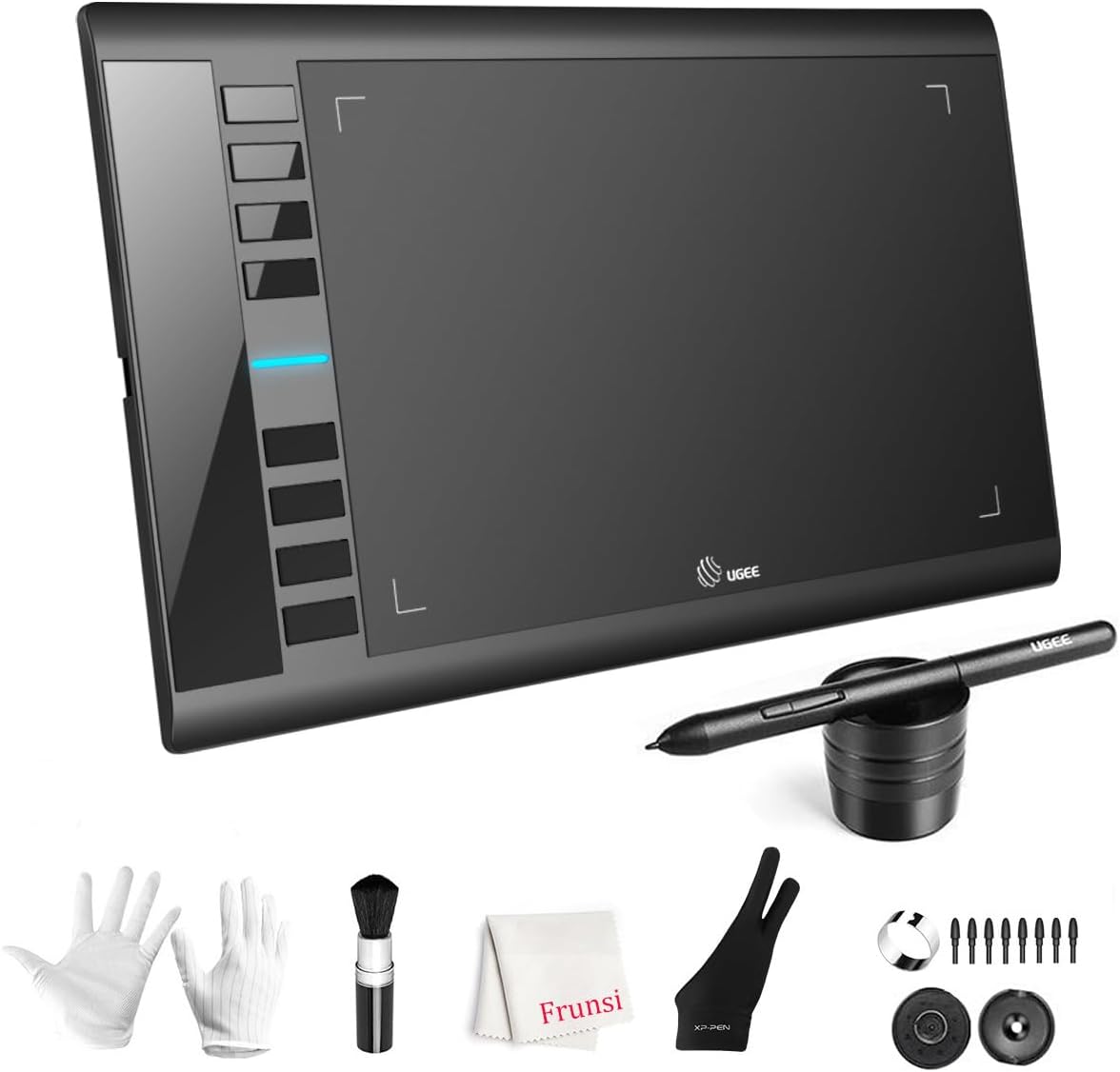
The M708 V3 has a 10 x 6 inch active area with a paper-textured surface, eight express keys and a passive stylus the listing rates at 16,384 pressure levels. The roomy area suits Krita’s bristle and Color Smudge brushes, which reward longer strokes, and it connects over USB-C with adapters included.
Best suited for: painters who want a big drawing surface without paying for a screen.
Key features:
- 10 x 6 inch textured active area
- 16,384-level passive stylus
- 8 express keys, USB-C
XOPPOX 10 x 6 Graphics Tablet — Best for Windows Users Who Want Many Keys

XOPPOX gives you a 10 x 6 inch active area, a battery-free pen with 8,192 pressure levels and 12 customizable shortcut keys, plus 10 multimedia keys that the listing says work on Windows only. It also lists Android and macOS 11 or later support, but not iPhone or iPad.
Best suited for: Windows painters who want shortcut keys for brush size, eraser and the pop-up palette.
Key features:
- 10 x 6 inch active area
- 8,192 pressure levels, battery-free pen
- 12 shortcut keys plus Windows-only media keys
HUION Kamvas 13 (Gen 3) — Best Pen Display for Painting on Screen

Painting directly on a 13.3-inch fully laminated screen makes blending and texture work feel closer to traditional media. HUION lists 16,384 pressure levels, 99% sRGB coverage with a factory calibration report, and dual dials that can control brush size or canvas rotation. The listing notes it needs a computer to work.
Best suited for: Krita painters ready to move from a screenless tablet to drawing on the image itself.
Key features:
- 13.3-inch fully laminated screen
- 16,384 pressure levels
- Dual dials and factory color calibration
GAOMON PD1161 — Best Budget Pen Display
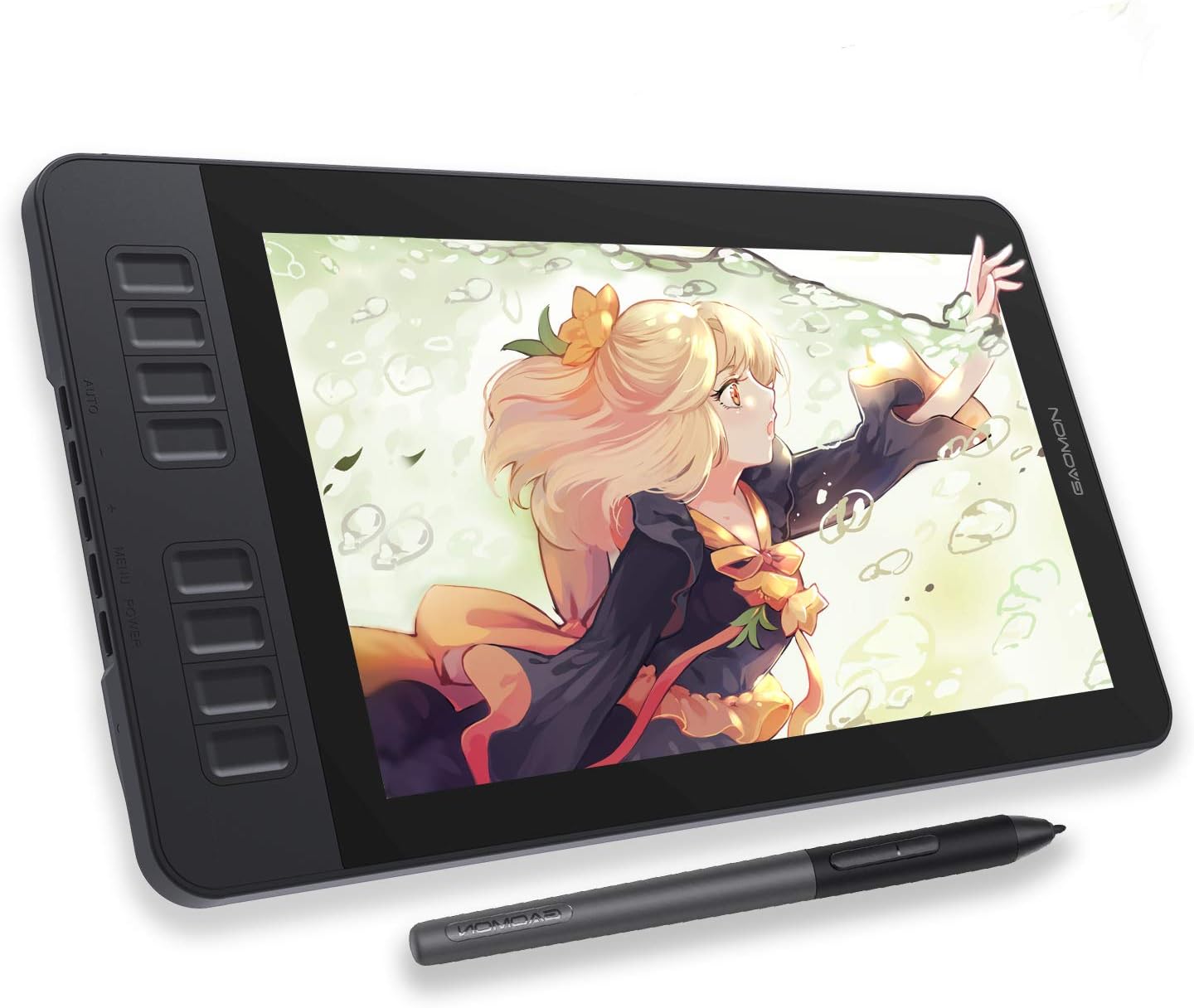
The PD1161 is an 11.6-inch full HD IPS pen display with a pre-installed matte film, 100% sRGB, a battery-free AP50 pen with 8,192 pressure levels, tilt support and eight side keys. The listing is clear that it is not standalone and must be connected to a computer.
Best suited for: budget-minded artists who want an entry-level screen tablet for Krita.
Key features:
- 11.6-inch full HD IPS screen with matte film
- 8,192 pressure levels with tilt
- 8 shortcut keys plus 2 pen buttons
FAQs
What are the best Krita brushes for beginners?
The default presets. Start with a pencil, an inking pen, a round paint brush, a soft airbrush and a Color Smudge blender, then expand as needed.
Are Krita brushes free?
Krita and its default brushes are free. Community bundles may be free or paid, each with its own license.
How do I install a Krita brush bundle?
Use the resource manager in Krita’s settings to import the .bundle file, then find the new presets in the Brush Presets docker.
Can I use Photoshop brushes in Krita?
Krita can import brush tip images from some Photoshop brush files, but full brush behavior does not transfer automatically. See our guide linked above.
Which Krita brush is best for blending?
A Color Smudge preset. Adjust smudge length and color rate for softer or more painterly blends.
Why is my Krita brush lagging?
Large, textured or smudge brushes on big canvases can be demanding. Reduce brush size, increase spacing, or adjust Krita’s performance settings.
Final Recommendation
The best Krita brushes are a small, well-tuned set built from the default presets: pencil, pen, round, airbrush, Color Smudge blender, texture brush and a bristle or wet brush. Learn the engine behind each, adjust sensors and spacing in the Brush Editor, and organize them with tags and the pop-up palette. Add a focused, version-compatible bundle with a clear license only when you need a specific style the defaults cannot reach.


2 Comments