PaintingProGuide is reader-supported. When you buy through links on this page we may earn an affiliate commission at no extra cost to you.
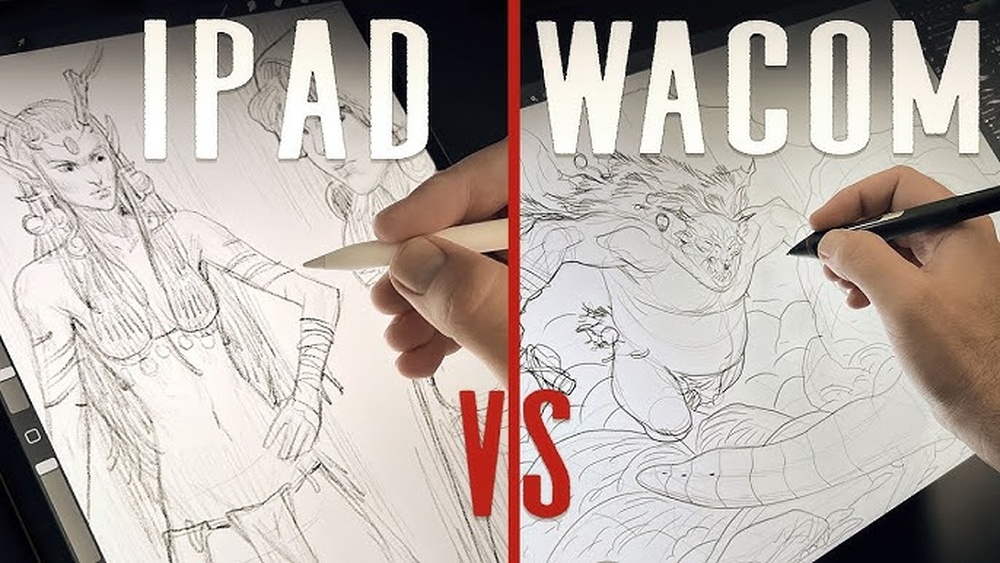
Wacom vs iPad Pro for digital painting comes down to one question: do you want a dedicated drawing tool built around a pen, or a general-purpose tablet that happens to be superb at drawing? The iPad Pro gives you a brilliant screen, Procreate and total portability, but it is an expensive computer first. Wacom gives you pen-first hardware in several forms, from screenless pen tablets that plug into your existing computer to standalone devices like the MovinkPad 11 that run drawing apps on their own.
Both can produce professional work. The right choice depends on the software you want to use, whether you already own a capable computer, how much you value drawing directly on the screen, and your budget. This comparison breaks those factors down and points you to the Wacom options currently listed on Amazon that make sense against an iPad Pro.
Quick answer: If you want a portable, all-in-one drawing device and love Procreate, the iPad Pro is hard to beat, though it costs the most. If you want a pen-focused standalone tablet with Clip Studio Paint included, the Wacom MovinkPad 11 is the closest Wacom alternative. If you already have a computer and want the lowest-cost way into digital painting, a Wacom Intuos pen tablet (available renewed) does the job for a fraction of the price.
Our Top Picks at a Glance
- Wacom MovinkPad 11 with Pro Pen 3 — Best Wacom alternative to an iPad Pro for drawing on the go
- Wacom Intuos Medium Bluetooth (Renewed) — Best budget option if you already own a computer
- Apple iPad Pro with Apple Pencil — Best premium all-rounder for Procreate users
| Product | Best For | Key Spec | Key Strength | Price Tier |
|---|---|---|---|---|
| Wacom MovinkPad 11 | Standalone drawing | 11.45″ Android 14 tablet, 8,192 pressure levels | Matte etched glass, battery-free pen | $$$ |
| Wacom Intuos Medium (Renewed) | Budget, computer-based painting | Pen tablet, 4,096 pressure levels, Bluetooth or USB | Low cost, works with desktop software | $$$ |
| Apple iPad Pro | Procreate and portability | High-refresh display, Apple Pencil support | Fast performance, huge app ecosystem | $$$ |
How We Chose
This comparison is based on the Amazon listing details and specifications checked in October 2026 for the Wacom products, plus well-established, widely published facts about the iPad Pro platform and its software. We did not use either device for this article, so we focus on what the specifications and software ecosystems mean for a painter rather than on subjective feel.
The criteria we weighed:
- Drawing surface: on-screen drawing versus a screenless pen tablet, and surface texture.
- Pen technology: pressure levels, battery-free versus charged pens, and buttons.
- Software: which painting apps run on each platform.
- Independence: whether the device needs a separate computer.
- Portability and total cost: weight, accessories you must add, and overall price tier.
Wacom vs iPad Pro: The Core Differences
Philosophy
Wacom builds devices around a pen. Its products range from screenless Intuos tablets to pen displays and the standalone MovinkPad. Apple builds the iPad Pro as a high-end tablet computer that supports a pen. That difference shows up everywhere: Wacom tends to prioritize pen feel, matte surfaces and compatibility with professional desktop software, while the iPad Pro prioritizes display quality, speed and a broad app store.
Software Ecosystem
Procreate is the single biggest reason painters choose an iPad, and it runs only on Apple devices. The iPad also runs Adobe Fresco, Clip Studio Paint, Affinity apps and many others. A Wacom Intuos connects to a Windows or Mac computer, which means you can run full desktop software such as Photoshop, Krita, Corel Painter or Clip Studio Paint. The MovinkPad runs Android, ships with Wacom Canvas and two years of Clip Studio Paint Debut according to its listing, and can run Android drawing apps such as Ibis Paint.
Drawing Surface
The iPad Pro has a smooth glass screen; many painters add a paper-texture screen protector for more bite. The MovinkPad 11 listing highlights a matte etched glass surface designed to feel like paper and reduce glare and fingerprints. The Intuos has no screen at all: you draw on a textured pad and watch the result on your monitor, which takes practice but is perfectly workable.
Pen and Pressure
The MovinkPad uses a slim Wacom Pro Pen 3 with 8,192 pressure levels and three buttons, and it needs no battery. The Intuos uses the battery-free Wacom Pen 4K with 4,096 levels. The Apple Pencil is charged from the iPad and offers excellent latency and tilt; Apple does not publish pressure levels in the same way, but the experience is widely regarded as very responsive. In practice, all three are sensitive enough for painting; pen shape, buttons and surface feel matter more than the raw number.
Cost of the Full Setup
An iPad Pro is a premium purchase, and the Apple Pencil is usually sold separately. Add storage, a case and a screen protector and the total climbs. The MovinkPad is priced well below an iPad Pro and includes its pen. The renewed Intuos is the least expensive by far, but only if you already have a computer that can run your painting software.
Best Wacom and iPad Pro Options for Digital Painting
1. Wacom MovinkPad 11 with Pro Pen 3 — Best for Standalone Drawing on the Go

The MovinkPad 11 is Wacom’s direct answer to artists who want an iPad-style device without needing a computer. According to the listing it is an 11.45-inch Android 14 tablet with 8 GB of memory and 128 GB of storage, and it weighs about 1.3 pounds. The included slim Pro Pen 3 is battery-free, offers 8,192 pressure levels and stores replacement nibs in its back end.
Wacom bundles its own Wacom Canvas sketching app, two years of Clip Studio Paint Debut, and trials of other art apps. A tap-and-hold gesture on the screen launches Wacom Canvas instantly, which is a nice touch for quick sketching. The matte etched glass is meant to feel more like paper than standard glossy glass, so you may not need an extra screen protector. The listing also notes support for other compatible digital pens from brands such as Staedtler and LAMY.
Best suited for: artists who want a portable all-in-one drawing tablet, prefer a paper-like surface, and do not need Procreate.
Key features:
- 11.45-inch display with matte etched glass
- Android 14, 8 GB memory, 128 GB storage
- Battery-free Pro Pen 3 with 8,192 pressure levels and three buttons
- Includes Wacom Canvas and two years of Clip Studio Paint Debut
- Weighs about 1.3 pounds
Pros:
- Pen included and never needs charging
- Paper-like surface built in
- No computer required
- Priced well below an iPad Pro
Cons and limitations:
- Android art apps are fewer than on iPad; no Procreate
- Clip Studio Paint Debut is an entry-level edition and time-limited
- Storage is fixed at 128 GB per the listing
Buying consideration: check that the apps you rely on are available on Android before choosing it over an iPad. If Clip Studio Paint is your main program, the bundled license is a strong head start.
2. Wacom Intuos Medium Bluetooth Pen Tablet (Renewed) — Best for Budget Painting on a Computer

If you already have a laptop or desktop, a screenless pen tablet is the most affordable route into serious digital painting. This renewed Wacom Intuos Medium (model CTL6100WLK0) connects by Bluetooth or USB and uses the battery-free Wacom Pen 4K with 4,096 pressure levels. The renewed listing states it includes all original accessories plus a one-year refurbished warranty.
The box contents listed include the pen, a PVC-free USB cable with an L-shaped connector, three spare nibs stored inside the pen and a nib removal tool. Because it works with your computer, you can run full desktop painting software rather than tablet apps. The trade-off is hand-eye coordination: you look at the monitor while drawing on the pad, which feels odd for the first week or two.
Best suited for: beginners on a budget, students, and painters who want desktop software like Photoshop, Krita or Painter.
Key features:
- Medium-size active area
- 4,096 pressure levels with battery-free pen
- Bluetooth and USB connectivity
- Compatible with Windows and macOS per listing
- Renewed with one-year warranty
Pros:
- Lowest cost of the three options
- Works with powerful desktop software
- Wireless option reduces cable clutter
- Durable, simple hardware
Cons and limitations:
- No screen; you draw while looking at a monitor
- Requires a capable computer
- Renewed unit rather than new
Buying consideration: confirm your computer’s operating system is supported by current Wacom drivers before buying, since the listed compatibility notes are for older OS versions as a minimum.
3. Apple iPad Pro with Apple Pencil — Best for Procreate and All-Round Use
The iPad Pro does not appear in our checked product data, so we are not linking a specific listing, but it belongs in any honest comparison. Its strengths are well known: a fast Apple silicon chip, a high-refresh display that makes pen strokes look immediate, and the best tablet app library for artists, including Procreate. It also doubles as a laptop replacement for many people, which can justify the price.
The drawbacks are just as clear. It is the most expensive route, the Apple Pencil is usually a separate purchase and needs charging, and the glossy glass feels slick unless you add a matte protector. If you mainly want a device for painting and nothing else, you are paying for computer features you may not use.
Best suited for: artists committed to Procreate, people who also want a powerful general-purpose tablet, and anyone who values display quality above all.
Pros:
- Procreate and a deep library of art apps
- Excellent display and performance
- Useful far beyond drawing
Cons and limitations:
- Highest total cost
- Pencil sold separately and needs charging
- Glossy glass without a protector
Verdict by Use Case
You Are a Beginner on a Tight Budget
Choose the Wacom Intuos. Pair it with a free program like Krita on the computer you already own and you have a capable painting setup for very little money. If you decide digital painting is not for you, you have not spent much.
You Want to Draw Anywhere Without a Computer
Both the MovinkPad 11 and the iPad Pro fit. Pick the iPad Pro if Procreate or iPad-only apps matter; pick the MovinkPad if you want a pen-first device with a paper-like surface, an included battery-free pen and Clip Studio Paint, at a lower price.
You Work Professionally in Desktop Software
A Wacom pen tablet or pen display connected to a workstation remains the standard in many studios because it runs full desktop software with keyboard shortcuts. An iPad Pro can supplement that setup for sketching on the move.
You Already Own an iPad
Try painting on what you have before buying anything. An Apple Pencil and a matte screen protector may be all you need.
Buying Guide: How to Choose Between Wacom and iPad Pro
Decide on Your Software First
Your painting app shapes everything else. Procreate means Apple. Photoshop with full features, Corel Painter or Rebelle mean a computer, and a Wacom tablet connects to that computer. Clip Studio Paint and Krita run on several platforms, which keeps your options open.
Screen or No Screen
Drawing directly on a display feels more natural and is faster to learn. Screenless tablets are cheaper and encourage a more upright posture because you look at a monitor rather than down at your hands. Plenty of professionals still prefer screenless tablets for that ergonomic reason.
Pen Design and Maintenance
Battery-free pens, like those included with Wacom tablets, never need charging. Nibs wear down on textured surfaces, so check whether spares are included; both Wacom listings here include replacement nibs. Buttons on the pen are handy for undo or eyedropper shortcuts.
Surface Texture
A matte surface gives a pen more friction and control, closer to paper. Glossy glass is slicker. The MovinkPad builds texture into its glass; on an iPad you would add a paper-feel protector.
Screen Size and Portability
Larger screens give more room for gestural strokes but are heavier. An 11-inch device is a comfortable balance for sketching on a couch or train. Medium pen tablets suit most desks without taking over the workspace.
Total Cost of Ownership
Add up the device, pen, software subscriptions, protector and case. A cheaper tablet with a free app may serve you better than a premium device you are afraid to take outside.
Keep Learning
Once you have your hardware, practice with focused subjects. Our guides to painting digital waves and ocean scenes and digital night scenes are good projects for testing pressure control and blending. Still undecided? You can even start with digital painting without a tablet to learn the software before you spend money on hardware.
Common Mistakes to Avoid
- Buying an iPad Pro for drawing without confirming you actually want Procreate or iPad apps.
- Choosing a screenless tablet and giving up after two days instead of allowing a week or two to adjust.
- Forgetting to budget for the Apple Pencil, a case and a screen protector.
- Assuming more pressure levels always means better painting; pen feel and software matter more.
- Buying a pen tablet without checking driver support for your operating system.
- Ignoring app availability on Android before choosing a standalone Wacom device.
FAQs
Is a Wacom or an iPad Pro better for digital painting?
Neither is better for everyone. The iPad Pro is the strongest all-in-one choice for Procreate users. Wacom is better if you want a dedicated pen device, a paper-like surface, desktop software, or a much lower price.
Can I use Procreate on a Wacom tablet?
No. Procreate runs only on Apple iPad and iPhone. Wacom tablets work with desktop programs or, in the case of the MovinkPad, with Android drawing apps such as Clip Studio Paint.
Is the Wacom MovinkPad a good iPad alternative for artists?
For drawing, it is a reasonable alternative: it includes a battery-free pen with 8,192 pressure levels, a matte etched screen and Clip Studio Paint Debut. It has fewer art apps than iPad and no Procreate.
Do professional artists use iPads or Wacom tablets?
Both. Many studio professionals use Wacom tablets or pen displays with desktop software, while many illustrators sketch and even finish work on iPads. Some use both for different stages.
Is a screenless pen tablet hard to learn?
It takes some practice because your hand and eyes are in different places. Most people adapt within a week or two of regular use, and the lower cost makes it a sensible first tablet.
Do I need a screen protector for drawing on an iPad Pro?
You do not need one, but many painters like a matte paper-texture protector because it adds friction and reduces glare. It also slightly increases pen nib wear.
Final Recommendation
Pick the iPad Pro if Procreate is your goal and you will also use the tablet as a general computer. Pick the Wacom MovinkPad 11 if you want a pen-first, standalone drawing device with a paper-like screen and a bundled Clip Studio Paint license at a lower price. Pick the renewed Wacom Intuos Medium if you already own a computer and want to start painting for the least money. All three can produce professional work; match the device to your software and budget, and spend the savings on practice time.