

PaintingProGuide is reader-supported. When you buy through links on this page we may earn an affiliate commission at no extra cost to you.
The iPad became the default digital sketchbook for a simple reason: apps like Procreate turned it into a responsive, portable painting surface that just works. But not every iPad is equally good for painting, and the detail that matters most is not in the iPad at all. It is which Apple Pencil the iPad supports, because only some pencils sense pressure. Choosing the best iPad for digital painting means matching screen, storage and pencil support to how you paint.
Our October 2026 product data included two current iPads, the 11-inch iPad with the A16 chip and a renewed iPad mini with the A17 Pro chip, plus several standalone Android drawing tablets that shoppers often compare against them. Here is how they stack up for painting.
Quick answer: For most painters on a budget, the 11-inch iPad (A16) is the best iPad here: a 2360 x 1640 Liquid Retina display, USB-C and enough power for painting apps. Pair it with an Apple Pencil that supports pressure. For maximum portability and wide P3 color, the iPad mini (A17 Pro) is the pick, and it supports Apple Pencil Pro. If you want a bigger screen for less, the PicassoTab X14 is the strongest Android alternative.
Our Top Picks at a Glance
- Apple iPad 11-inch (A16), 128GB — Best iPad for most painters
- Apple iPad mini (A17 Pro), 512GB, Renewed — Best for portability and color
- PicassoTab X14 — Best large-screen alternative to an iPad
- Callsky Cpad 12 Pro Standalone Drawing Tablet — Best spec-heavy Android alternative
- PicassoTab A10 — Best budget alternative for beginners
- RubensTab T11 Pro — Best alternative with an included stand case
| Product | Best For | Key Spec | Key Strength | Price Tier |
|---|---|---|---|---|
| iPad 11-inch (A16) | Most painters | 2360 x 1640 at 264 ppi, 128GB | Procreate and iPad app ecosystem | $$$ |
| iPad mini (A17 Pro), Renewed | Portability, color | 8.3 in, P3 wide color, 512GB | Apple Pencil Pro support | $$$ |
| PicassoTab X14 | Big screen | 14 in laminated, 6GB/128GB | Largest screen here | $$$ |
| Callsky Cpad 12 Pro | Specs per dollar | 12 in laminated, 100% sRGB, 256GB | Tilt, USI 2.0 pen, LTE | $$$ |
| PicassoTab A10 | Beginners | 10 in laminated, 6GB/64GB | Accessories included | $$$ |
| RubensTab T11 Pro | Table sketching | 10.1 in FHD, Android 12 | Stand case | $$$ |
How We Chose
We did not paint on these devices for this guide. Picks are based on Amazon listing details and specifications checked in October 2026, how well each device’s display, storage, pen support and app ecosystem suit digital painting, and how widely each product is reviewed by Amazon buyers. Apple Pencil compatibility notes draw on Apple’s published product information; always confirm on Apple’s current compatibility list.
- Pen support: pressure and tilt from compatible pens.
- Display: resolution, size, lamination and color.
- Storage: painting files with many layers take space fast.
- Apps: access to painting apps such as Procreate on iPad, or Android equivalents.
- Value: what you get for the price tier.
A screenless UGEE tablet also appeared in our results at an unusual price; we left it out since it is not an iPad or a standalone alternative.
The Apple Pencil Question: Pressure Matters
For painting, pressure sensitivity controls brush size and opacity as you press harder or lighter. Not all Apple Pencils provide it. The Apple Pencil (USB-C) is the most affordable current model, but Apple specifies that it does not support pressure sensitivity. The Apple Pencil Pro and the Apple Pencil (1st generation) do.
That makes compatibility the key to choosing an iPad for painting:
- The iPad mini (A17 Pro) supports Apple Pencil Pro, which offers pressure, tilt and extra features like squeeze and barrel roll.
- The 11-inch iPad (A16) listing mentions Apple Pencil (USB-C), which lacks pressure. For pressure on this model, check Apple’s compatibility page for a pressure-capable pencil it supports, such as the first-generation Apple Pencil.
Our detailed comparison of Wacom versus iPad Pro for digital painting covers the higher-end iPad Pro and how it compares with dedicated drawing hardware.
Best iPad for Digital Painting Reviewed
1. Apple iPad 11-inch (A16), 128GB — Best for Most Painters

The standard 11-inch iPad is the most affordable route into iPad painting. The listing describes the A16 chip, an 11-inch Liquid Retina display at 2360 x 1640 pixels and 264 ppi, 128GB storage, Wi-Fi 6, USB-C, Touch ID and 12MP front and back cameras. True Tone adjusts the display to the room’s color temperature, and iPadOS supports Apple Pencil for drawing and Scribble.
For painting, the A16 handles popular apps comfortably for most hobby and student work. The main considerations are storage, since 128GB fills with layered files and reference photos, and choosing a pressure-capable pencil.
Best suited for: students, hobbyists and anyone starting digital painting on a budget.
Key features
- A16 chip
- 11-inch Liquid Retina, 2360 x 1640 at 264 ppi
- 128GB, USB-C, Wi-Fi 6
- True Tone, Touch ID
Pros
- Access to Procreate and other iPad painting apps
- Lowest price tier among iPads
- USB-C for easy file transfer
Cons
- Listed pencil (USB-C) lacks pressure
- 128GB can fill quickly
- The standard iPad’s display is not fully laminated, unlike iPad Air and Pro models, so there is a slight gap under the pen tip
Buying consideration: Budget for a pressure-capable Apple Pencil and consider cloud backup for finished files.
2. Apple iPad mini (A17 Pro), 512GB, Renewed — Best for Portability and Color

The iPad mini packs serious power into a pocketable 8.3-inch device. The listing describes the A17 Pro chip, an 8.3-inch Liquid Retina display at 2266 x 1488 with P3 wide color, True Tone and ultralow reflectivity, USB-C and all-day battery life. This listing is a renewed unit with 512GB of storage, generous for large painting libraries.
P3 wide color helps with vivid, accurate color, and Apple Pencil Pro support gives you pressure and tilt. The trade-off is screen size: 8.3 inches is a sketchbook, not a studio canvas.
Best suited for: urban sketchers, travelers and painters who want a capable device that fits in a jacket pocket.
Key features
- A17 Pro chip
- 8.3-inch, P3 wide color, ultralow reflectivity
- 512GB storage
- Renewed unit
Pros
- Very portable
- Wide color display
- Plenty of storage
Cons
- Small canvas for large compositions
- Renewed condition and warranty vary by seller
Buying consideration: Check the renewed warranty terms and battery condition policy on the listing.
Android Alternatives to the iPad
Standalone Android drawing tablets come with a pen in the box and often larger screens for less money. They cannot run iPad-only apps such as Procreate, but they run Android painting apps like Krita, ibis Paint X, Infinite Painter and Clip Studio Paint.
3. PicassoTab X14 — Best Large-Screen Alternative

The X14 is PicassoTab’s largest portable tablet, with a fully laminated 14-inch paper-like display, a 4,096-level active pen, an octa-core CPU, 6GB RAM and 128GB storage expandable to 1TB, running Android 13. It includes a case, drawing glove, power adapter, pre-installed screen protector and lifetime upgrades for the Concepts and Artixo apps.
Best suited for: painters who want a big canvas without a computer.
Key features
- 14 in fully laminated display
- 4,096-level pen included
- 6GB RAM, 128GB expandable
Pros
- Largest screen in this guide
- Pen and accessories included
Cons
- No Procreate
- Android 13 is older than some rivals
Buying consideration: Confirm your preferred Android painting app supports the pen’s pressure on this device.
4. Callsky Cpad 12 Pro — Best Spec-Heavy Alternative
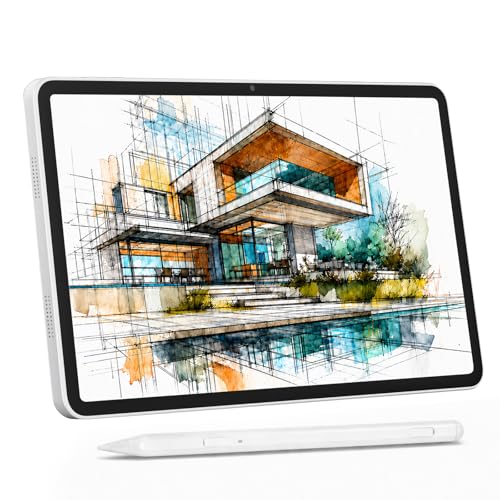
This 12-inch standalone lists an unusually full spec sheet: a fully laminated 2000 x 1200 IPS display with 100% sRGB, a 4,096-level stylus with 60° tilt and USI 2.0, Android 15, 16GB RAM (described as 8GB plus 8GB virtual), 256GB storage expandable to 2TB, an 8000mAh battery with reverse charging and 4G LTE dual SIM. The box includes a shockproof case, anti-glare protector, glove and 18W charger.
Best suited for: buyers who want lots of storage, tilt and cellular data in one device.
Key features
- 12 in laminated, 100% sRGB
- Tilt and USI 2.0 pen
- Android 15, 256GB
- 4G LTE
Pros
- Large storage and modern Android
- Tilt support
Cons
- Half the listed RAM is virtual
- Less-established brand
Buying consideration: “8+8 virtual” RAM means 8GB physical memory; virtual memory is slower. Judge performance on the 8GB figure.
5. PicassoTab A10 — Best Budget Alternative

The A10 offers a laminated 10-inch screen, 4,096-level active pen, octa-core processor, 6GB RAM and 64GB storage expandable up to 1TB on Android 14, with the same accessory bundle as other PicassoTabs.
Best suited for: beginners and young artists.
Key features
- 10 in laminated screen
- Pen included
- Android 14
Pros
- Lower price tier than iPad plus pencil
- Ready out of the box
Cons
- Modest base storage
- No iPad apps
Buying consideration: Add a microSD card early.
6. RubensTab T11 Pro — Best Alternative with a Stand Case

The T11 Pro has a 10.1-inch Full HD IPS screen, a battery-free pen, a 5800mAh battery rated for up to five hours, Android 12 and an adjustable stand case. Its listed 1,024 pressure levels are the lowest here.
Best suited for: casual sketching and note-taking with a built-in stand.
Key features
- 10.1 in FHD IPS
- Battery-free pen
- Stand case
Pros
- Stand included
- No pen charging
Cons
- 1,024 pressure levels
- Older Android
Buying consideration: Better for sketching than detailed painting.
What About iPad Air and iPad Pro?
Our product data for this query did not include current iPad Air or iPad Pro listings, but they are worth knowing about. Both step up from the standard iPad with fully laminated displays, support for Apple Pencil Pro and, on Pro models, higher refresh rates that make strokes feel more immediate. They also cost considerably more. For many painters, the standard iPad or iPad mini paired with a pressure-capable pencil delivers most of the painting experience for less. Upgrade if you paint daily, work on large canvases or simply find the standard iPad’s display gap distracting.
Painting Apps on iPad
Part of the iPad’s appeal is the app selection. The most widely used options for painting include:
- Procreate: a one-time purchase, fast and intuitive, and the most popular iPad painting app. It is exclusive to iPad.
- Clip Studio Paint: strong for illustration and comics, with subscription plans.
- Adobe Fresco: includes live brushes that simulate oil and watercolor behavior.
- Infinite Painter: a capable painting app with natural brushes, also available on Android.
- Sketchbook: a straightforward drawing and sketching app.
Most of these use Apple Pencil pressure and tilt where the pencil supports them. With a pencil that lacks pressure, you can still paint by adjusting brush size and opacity with sliders, but the experience is less fluid.
iPad or Computer Plus Pen Tablet?
If you already own a capable computer, a screenless pen tablet costs far less than an iPad and runs full desktop software. The iPad wins on portability, simplicity and drawing directly on the image. Many artists use both: the iPad for sketching and color studies anywhere, and a desktop setup for large, finished pieces. If you are choosing only one and you mostly paint at home, compare the total cost of an iPad plus pencil with a pen tablet for your existing computer before deciding.
Buying Guide: How to Choose an iPad for Digital Painting
Pencil compatibility first
Confirm which Apple Pencils your iPad supports and whether that pencil has pressure. This single detail affects painting more than chip speed.
Screen size
Eleven inches is a comfortable all-round canvas. The 8.3-inch mini is a portable sketchbook. Larger iPad Air and iPad Pro models, not in our data, give more room for studio work.
Storage
Painting files with many layers and time-lapse recordings are large. 128GB is a minimum; 256GB or more is more comfortable for heavy users.
Display quality
Look at resolution, wide color (P3) and lamination. Wide color matters if you sell prints or share work online.
Apps you want
Procreate is iPad-only. If it is central to your plans, choose an iPad. If you prefer Krita or ibis Paint X, Android tablets are an option.
New or renewed
Renewed iPads can offer more storage for the money. Check warranty, return policy and battery condition.
Setting Up Your iPad for Painting
- Add a matte, paper-like screen protector if you want more tooth.
- Use a stand to angle the iPad and reduce neck strain.
- Turn on palm rejection in your painting app, or wear a padded glove.
- Back up artwork regularly to cloud or a computer.
- Calibrate your expectations for color: True Tone shifts the display warmer or cooler with room lighting, so turn it off while making color-critical decisions.
- Keep the iPad updated, and update your painting app after major iPadOS releases.
Then practice soft gradients with our digital waves and ocean tutorial or try the night scene painting tips.
Common Mistakes to Avoid
- Buying a pencil without pressure. Check before you buy.
- Choosing minimum storage for heavy painting. Files grow quickly.
- Assuming Android tablets run Procreate. They do not.
- Ignoring renewed warranty terms. Read the listing.
- Painting flat for hours. Use a stand.
- Skipping backups. A lost or broken iPad should not mean lost art; export finished pieces regularly.
FAQs
Which iPad is best for Procreate?
Any current iPad runs Procreate. The 11-inch iPad (A16) is the most affordable all-rounder; the iPad mini (A17 Pro) is best for portability. For pressure, pair either with a compatible pressure-sensitive Apple Pencil.
Does the Apple Pencil USB-C have pressure sensitivity?
No. Apple specifies that the Apple Pencil (USB-C) does not support pressure sensitivity. Apple Pencil Pro and the first-generation Apple Pencil do.
Is the iPad mini good for digital painting?
Yes, for sketching and smaller pieces. Its 8.3-inch P3 display and Apple Pencil Pro support suit portable painting, but the canvas is small for large compositions.
Is an iPad better than an Android drawing tablet?
iPads offer Procreate and a mature app ecosystem. Android drawing tablets often include a pen and larger screens for less. Choose based on the apps you want.
How much storage do I need on an iPad for art?
128GB works for light use. Heavy painters with many layered files benefit from 256GB or more, or regular cloud backups.
Is a renewed iPad worth it for painting?
It can be, especially for higher storage. Check the warranty, return window and battery condition policy.
Final Recommendation
For most painters, the 11-inch iPad (A16) is the best iPad value, as long as you pair it with a pressure-capable Apple Pencil. If portability and wide color matter more than screen size, choose the iPad mini (A17 Pro) with Apple Pencil Pro. If you do not need Procreate, the PicassoTab X14 offers a much larger screen with a pen included, and the Callsky Cpad 12 Pro packs in storage and tilt. Beginners can start affordably with the PicassoTab A10 or RubensTab T11 Pro.


One Comment