

PaintingProGuide is reader-supported. When you buy through links on this page we may earn an affiliate commission at no extra cost to you.
The phrase “drawing tablet” covers two very different machines. One is a flat pad you plug into a computer and draw on while looking at your monitor. The other is a self-contained screen with its own processor that you can carry to a park bench. Choosing among the best drawing tablets for digital painting starts with deciding which of those two lives you want, because the right answer for a desk painter is the wrong answer for a commuter.
Below we compare six tablets from both camps, explain what their listed specs actually mean when you are blending skin tones or laying in a sky, and flag the trade-offs that listings tend to bury.
Quick answer: If you own a computer, the UGEE M708 is the best value for painting, with a roomy 10 x 6 inch active area and 8 shortcut keys. Prefer a proven brand on a small desk? Choose the Wacom Intuos Small. If you want no computer at all, the PicassoTab X11 stands out among standalone tablets for its laminated 2K screen and 6GB RAM.
Our Top Picks at a Glance
- UGEE M708 — Best for value and drawing space when you have a computer
- Wacom Intuos Small — Best for dependable drivers and compact desks
- PicassoTab X11 — Best standalone tablet for painting away from a desk
- PicassoTab A10 — Best smaller standalone option with a laminated screen
- RubensTab T11 Pro — Best for a Full HD standalone screen with a stand case
- Frunsi T8 — Best for long battery life in a small standalone tablet
| Product | Best For | Key Spec | Key Strength | Price Tier |
|---|---|---|---|---|
| UGEE M708 | Value with a computer | 10 x 6 in area, 16,384 levels | Big surface, 8 express keys | $$$ |
| Wacom Intuos Small | Small desks, laptops | 4,096 levels, EMR pen | Mature, stable drivers | $$ |
| PicassoTab X11 | Standalone painting | 11 in laminated 2K, 6GB/128GB | Sharpest standalone screen here | $$$ |
| PicassoTab A10 | Compact standalone | 10 in laminated, 6GB/64GB, Android 14 | Light and portable | $$$ |
| RubensTab T11 Pro | Standalone with stand | 10.1 in FHD IPS, Android 12 | Stand case included | $$$ |
| Frunsi T8 | Long sessions on the go | 8 in, 4GB/64GB, 4000mAh | Up to 20 hours listed | $$$ |
How We Chose
We did not paint on these tablets. Our selections rely on Amazon listing details and specifications checked in October 2026, how well each tablet’s format, size and features suit digital painting specifically, and how widely each product is reviewed by Amazon buyers. Where a listing was vague, we said so rather than filling the gap with guesses.
- Painting comfort: active area or screen size, lamination and surface texture.
- Pen response: listed pressure levels and pen type.
- Performance: RAM and storage for standalone tablets, because layers and canvas size depend on memory.
- Compatibility: operating systems and apps named on the listing.
- Value: what is included, such as gloves, cases or app upgrades.
Screenless or Standalone? Decide This First
A screenless graphics tablet such as the UGEE M708 or Wacom Intuos turns your computer into the studio. You get the full power of desktop software, unlimited layers within your computer’s memory and a large monitor for judging color. The cost is a short adjustment period while your hand learns to draw on one surface and look at another.
A standalone tablet such as a PicassoTab or RubensTab is an Android device built around a pen. You draw directly on the image and can paint anywhere. In exchange, you work within mobile apps and the tablet’s memory, and the screens in this price range are smaller than a monitor.
A simple rule: if you already have a decent computer and mostly paint at a desk, buy screenless and save the difference. If you do not have a capable computer, or you want to paint during travel, buy standalone.
Best Drawing Tablets for Digital Painting Reviewed
1. UGEE M708 — Best for Value and Drawing Space
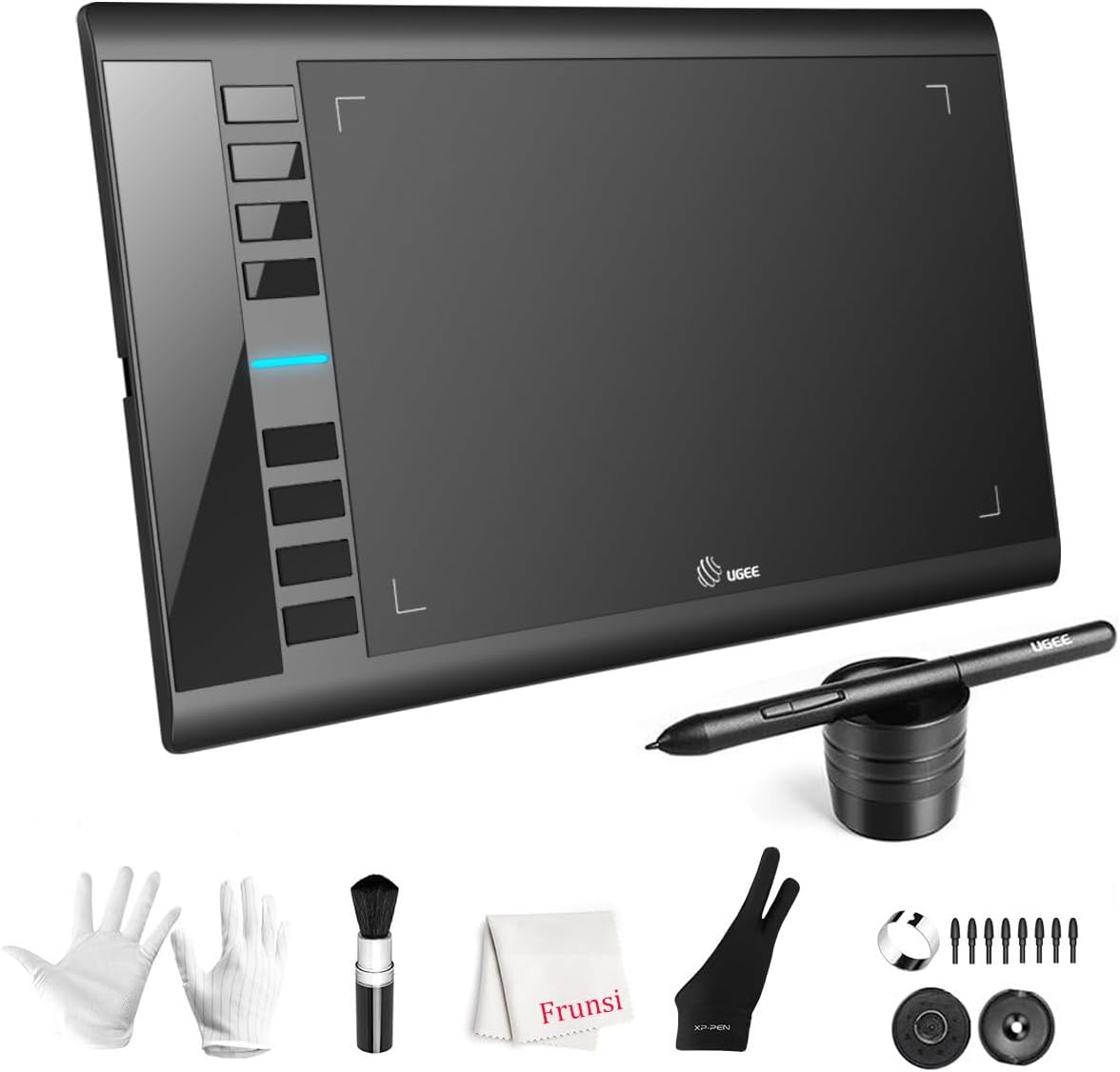
The M708’s 10 x 6 inch active area is the largest drawing surface in this list. That matters for painting because broad strokes such as sky gradients and background washes feel more natural when your arm can move. The listing describes a papery surface texture, a passive stylus with 16,384 pressure levels and eight express keys for undo, eraser, zoom and scroll.
Compatibility is broad on paper: Windows, macOS, Android 10 or later, Chrome OS 88 or later and Linux, with USB-C adapters included. The design is ambidextrous with a pen holder and spare tips.
Best suited for: painters with a desktop or laptop who want room to move without paying premium prices.
Key features
- 10 x 6 in active area with paper-like texture
- 16,384-level passive stylus
- 8 customizable express keys
- USB with USB-C adapters
Pros
- Large surface for gestural painting
- No pen charging
- Works across many platforms
Cons
- Takes up more desk space
- No tilt mentioned on the listing
- Textured surfaces wear nibs faster
Buying consideration: A 10 x 6 tablet suits monitors around 22 to 27 inches. On a 13-inch laptop, it can feel oversized unless you map it to a portion of the area.
2. Wacom Intuos Small — Best for Dependable Drivers
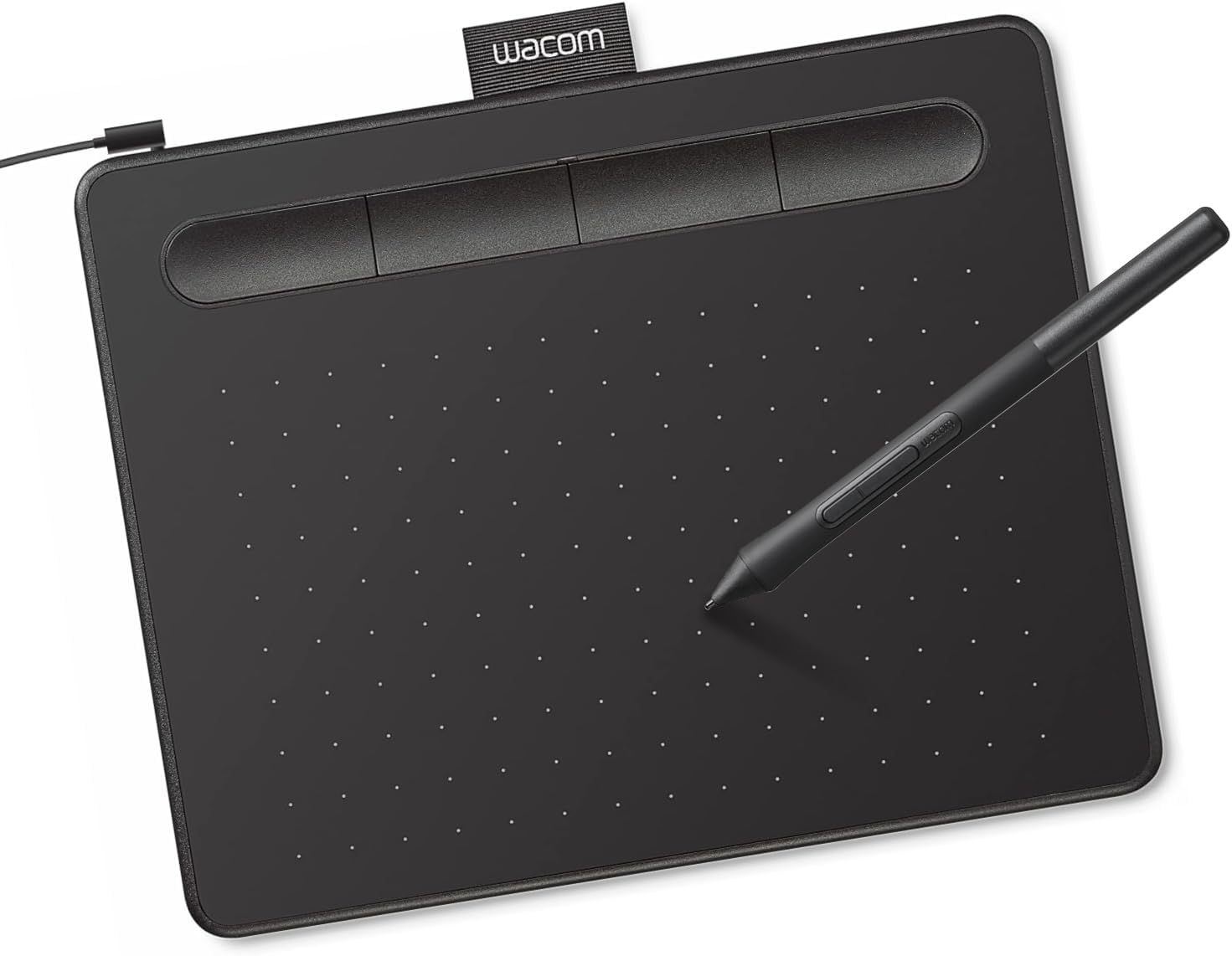
Wacom’s entry tablet is a known quantity. The listing highlights EMR battery-free pen technology, 4,096 pressure levels and support for Windows, macOS, Android and Chromebook. Registration unlocks bundled creative software and Wacom’s online training, which helps if you are starting from zero.
Its small footprint suits laptops and tight desks. Painters who want broad, flowing strokes on a big monitor will feel the limits of the smaller surface.
Best suited for: laptop painters, students and anyone who wants the most predictable software compatibility.
Key features
- EMR battery-free pen
- 4,096 pressure levels
- USB-A wired
- Bundled software and training
Pros
- Stable drivers
- Very portable
Cons
- Small active area
- No express keys listed
Buying consideration: Pair it with keyboard shortcuts for undo and brush size, since the tablet itself offers fewer controls than the UGEE.
3. PicassoTab X11 — Best Standalone Tablet for Painting

Of the standalone tablets here, the X11 lists the strongest combination for painting: a fully laminated 11-inch 2K screen, a 4,096-level pressure stylus, an octa-core processor, 6GB RAM and 128GB storage expandable to 1TB. Lamination reduces the gap between pen tip and line, and a 2K resolution keeps brush textures crisp.
It ships with five preloaded creative apps, lifetime upgrades for the Concepts drawing app and Artixo tutorials, plus a case, drawing glove, power adapter and pre-installed screen protector.
Best suited for: painters without a capable computer, students and anyone who wants to paint on the move.
Key features
- 11 in fully laminated 2K display
- 4,096-level stylus
- 6GB RAM, 128GB storage, expandable
- Bundled apps and accessories
Pros
- Sharp, laminated screen
- Generous storage for a standalone
- Everything needed in the box
Cons
- Custom tablet OS listed; check app availability
- Smaller canvas view than a monitor
Buying consideration: The listing names a custom graphics tablet OS. Confirm that your preferred painting app is supported before buying if you rely on a specific program.
4. PicassoTab A10 — Best Compact Standalone

The A10 shares much of the X11’s recipe in a smaller package: a laminated 10-inch screen, 4,096-level active pen, octa-core processor and 6GB RAM, with 64GB storage expandable up to 1TB. It runs Android 14 per the listing and includes the same app upgrades and accessory bundle.
For painting, the main difference from the X11 is screen size and storage. Ten inches is comfortable for sketching and smaller paintings; larger compositions mean more zooming.
Best suited for: younger artists, beginners and painters who want a light tablet for travel.
Key features
- 10 in laminated display
- Android 14
- 6GB RAM, 64GB storage expandable
- Case, glove, adapter and screen protector
Pros
- Light and easy to carry
- Modern Android version for app support
Cons
- Half the base storage of the X11
- Smaller canvas
Buying consideration: Add a microSD card early; painting files with many layers fill 64GB faster than expected.
5. RubensTab T11 Pro — Best Standalone with a Stand Case

The T11 Pro has a 10.1-inch Full HD IPS screen at 1920 x 1200, a battery-free pen, a 5800mAh battery listed at up to five hours of continuous use and Android 12. An adjustable stand case is included, which gives you an angled surface for drawing at a table.
The listing quotes 1,024 pressure levels, the lowest here. That is enough for sketching and basic painting, but fine pressure control for delicate glazes is more limited.
Best suited for: beginners and note-takers who want a standalone tablet with a ready-made stand.
Key features
- 10.1 in FHD IPS screen
- Battery-free pen
- Android 12, pre-installed apps
- Adjustable stand case
Pros
- Stand case included
- Pen needs no charging
Cons
- 1,024 pressure levels listed
- Shorter listed battery life than the T8
- Older Android version
Buying consideration: If subtle opacity control matters to your painting style, the PicassoTab models list higher pressure levels.
6. Frunsi T8 — Best for Battery Life on the Go
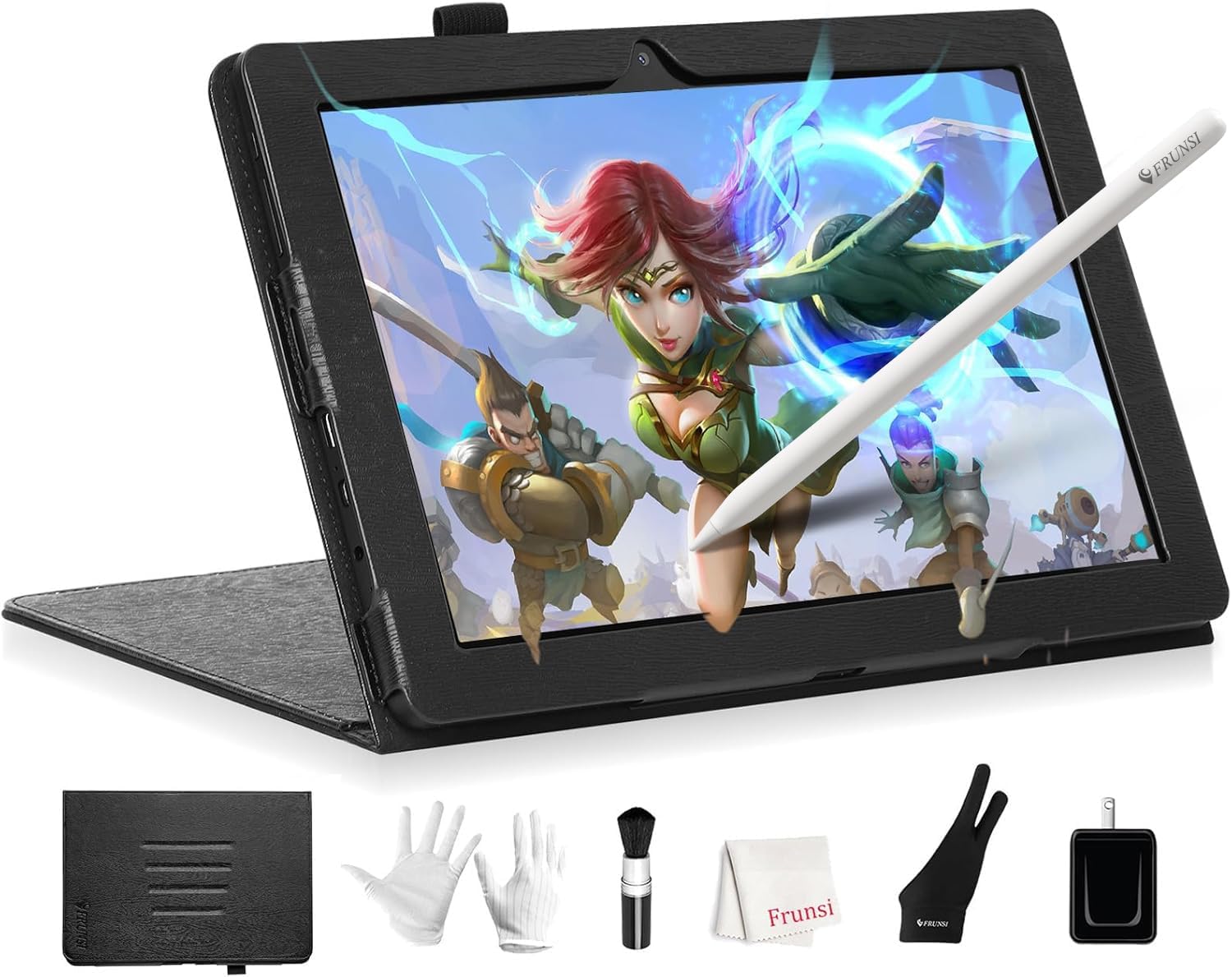
The T8 is the smallest tablet here, with an 8-inch 1200 x 800 display, Android 13, a quad-core processor, 4GB RAM and 64GB storage expandable to 256GB. The listed 4000mAh battery is rated for up to 20 hours of drawing, and the listing names compatibility with apps such as SketchBook, ArtFlow and ibis Paint X.
The small screen and lower resolution make it a sketchbook replacement more than a main painting surface.
Best suited for: quick studies, travel sketching and young beginners.
Key features
- 8 in display, Android 13
- 2,048 pressure levels
- 4GB RAM, 64GB storage expandable
- Up to 20 hours listed
Pros
- Pocketable
- Long listed battery life
Cons
- Small, lower-resolution screen
- 4GB RAM limits big canvases
Buying consideration: Treat it as a digital sketchbook. For finished paintings, a larger screen or a computer-based tablet will be more comfortable.
Setting Up Your Tablet for Painting on Day One
Out of the box, almost every drawing tablet feels slightly wrong until you adjust a few settings. Spending twenty minutes here saves weeks of fighting the tool.
- Install the right driver or update the system. For screenless tablets, download the latest driver from the manufacturer’s site and remove any drivers from previous tablets. For standalone tablets, run system updates before installing apps.
- Set the pressure curve. Draw a row of strokes from feather-light to firm. If the light ones vanish, soften the curve. If everything comes out heavy, firm it up.
- Map your most used commands. Undo, brush size, eyedropper and eraser are the big four for painting. Put them on express keys, pen buttons or gestures.
- Fix the orientation and mapping. On screenless tablets, make sure the tablet’s aspect ratio matches your monitor so circles do not come out as ovals.
- Do a short warm-up. Ten minutes of lines, ellipses and value scales builds the hand-eye link far faster than jumping straight into a finished piece.
Buying Guide: How to Choose Drawing Tablets for Digital Painting
Match size to how you paint
Painters who use broad, loose strokes benefit from large active areas or screens. Detail-focused painters can work well on smaller surfaces with frequent zooming. On screenless tablets, match the area to your monitor; on standalone tablets, 10 to 12 inches balances portability and canvas room.
Lamination on standalone screens
Laminated screens bond glass to the display so the line appears right under the nib. Both PicassoTab models list lamination. On non-laminated screens, a visible gap can make precise work feel off.
Pressure sensitivity in context
For painting, pressure controls opacity and brush size. Around 2,048 levels and up feels smooth for most people. The 1,024 levels on the T11 Pro are workable but less refined. The way the app maps pressure matters as much as the number.
RAM and storage
Painting apps on standalone tablets cap layers and canvas size based on memory. 6GB RAM handles moderate canvases comfortably; 4GB is fine for sketching. Painting files with dozens of layers are large, so expandable storage is valuable.
Android version and app support
Newer Android versions generally get better app support. Before buying, check that Krita, ibis Paint X, Infinite Painter or your preferred app runs on that version and on that hardware.
Included accessories
Drawing gloves, cases and screen protectors add real value. A matte screen protector adds tooth to glossy screens and protects them from nib wear.
Keep Practicing
A new tablet is the perfect excuse to try a fresh subject. Work on soft gradients with our digital waves and ocean painting tutorial, or explore lighting with these digital night scene tips. Not sure a tablet is necessary yet? See how to start digital painting without a tablet.
Common Mistakes to Avoid
- Buying standalone when you already have a strong computer. You may pay more for less painting power.
- Ignoring RAM on standalone tablets. Low memory means low layer limits.
- Assuming every app runs everywhere. Check app support for the tablet’s operating system.
- Painting flat on a table for hours. Use a stand or case to tilt the surface.
- Skipping storage planning. Back up files and add a memory card before space runs out.
- Not tuning pressure. Adjust the pressure curve in your app on day one.
FAQs
What is the best drawing tablet for beginners in digital painting?
If you have a computer, the Wacom Intuos Small or UGEE M708 are simple, affordable starting points. If you do not, the PicassoTab A10 is a light standalone option with a laminated screen.
Do I need a computer for a drawing tablet?
Screenless tablets like the UGEE M708 and Wacom Intuos need a computer or compatible device. Standalone tablets such as the PicassoTab and RubensTab models run on their own.
Is a standalone drawing tablet good for professional painting?
Budget standalone tablets are great for sketching, studies and personal work. Professionals doing client work usually prefer a computer-based setup for software power and color accuracy.
How much RAM does a drawing tablet need?
For standalone painting, 6GB RAM is a comfortable target for moderate canvases. 4GB works for sketches and smaller paintings.
Can I use Krita or ibis Paint X on these standalone tablets?
The Frunsi T8 listing names SketchBook, ArtFlow and ibis Paint X, and Android tablets can generally install apps from their app store. Check compatibility for the exact model and Android version.
Is a bigger drawing tablet always better?
No. A tablet too big for your monitor or desk forces large arm movements and clutters your workspace. Match the size to your screen and painting style.
Final Recommendation
For painters who already own a computer, the UGEE M708 offers the most room to paint for the money, while the Wacom Intuos Small is the safer bet if you want rock-solid drivers on a small desk. If you want to leave the desk behind, the PicassoTab X11 has the best standalone screen and storage in this group, with the A10 as a lighter alternative. The RubensTab T11 Pro and Frunsi T8 suit beginners and sketchers who value an included stand or long battery life over painting finesse.



One Comment