PaintingProGuide is reader-supported. When you buy through links on this page we may earn an affiliate commission at no extra cost to you.
“Wireless” means two different things in drawing tablets. One is a pen tablet that connects to your computer over Bluetooth instead of a cable, so you can paint from the sofa or move between desk and laptop without unplugging. The other is a standalone tablet with its own screen, processor and battery that needs no computer at all. Both free you from the desk; they just suit different workflows. The best wireless tablets for digital painting are the ones that match how and where you actually paint.
We compared six options on Amazon: a Bluetooth Wacom Intuos, Wacom’s MovinkPad 11 Android drawing tablet, a 14.25-inch UGEE standalone, two Frunsi RubensTabs and the Simbans PicassoTab A10. Below, you will find a format comparison, a pressure-level and screen-size guide, battery and app considerations, and setup tips for both Bluetooth and standalone tablets.
Quick answer: For painting on a computer without cables, the Wacom Intuos Small Bluetooth is the simplest choice, with battery-free EMR pen technology and 4,096 pressure levels. For painting anywhere without a computer, the Wacom MovinkPad 11 pairs an 11.45-inch Android 14 screen with the 8,192-level Pro Pen 3. For the biggest standalone canvas, the UGEE 14.25-inch standalone has 8GB RAM, 256GB storage and a 10,000mAh battery.
Our Top Picks at a Glance
- Wacom MovinkPad 11 — Best standalone wireless tablet
- Wacom Intuos Small Bluetooth — Best Bluetooth pen tablet for computers
- UGEE 14.25 Inch Standalone Drawing Tablet — Best large-screen standalone
- Simbans PicassoTab A10 — Best standalone for beginners and students
- Frunsi T8 8 Inch Standalone — Best compact standalone for sketching
- Frunsi RubensTab T11 Pro — Best budget 10-inch standalone
| Product | Best For | Key Spec | Key Strength | Price Tier |
|---|---|---|---|---|
| Wacom MovinkPad 11 | Standalone painting | 11.45 in Android 14, 8GB/128GB, 8,192 levels | Pro Pen 3, Clip Studio trial | $$$ |
| Wacom Intuos Small Bluetooth | Computer painting, no cable | Bluetooth or USB-A, 4,096 levels | Battery-free pen, software | $$$ |
| UGEE 14.25 in Standalone | Big standalone canvas | 14.25 in 2.4K, 8GB/256GB, 10,000mAh | Paper-like NanoMatte | $$$ |
| Simbans PicassoTab A10 | Beginners, students | 10 in laminated, Android 14, 6GB/64GB, 4,096 levels | Concepts PRO and tutorials | $$$ |
| Frunsi T8 | Pocket sketching | 8 in 1200×800, Android 13, 4GB/64GB, 2,048 levels | Smallest standalone | $$$ |
| Frunsi RubensTab T11 Pro | Budget 10-inch | 10.1 in, Android 12, 1,024 levels | Pre-installed drawing apps | $$$ |
How We Chose
We did not paint on these tablets for this guide. Picks are based on the Amazon listing details and specifications checked in October 2026, how well each tablet’s connection type, pen pressure, screen size, memory and battery fit wireless digital painting, and how widely each product is reviewed by Amazon buyers. A wired pen display in our product set was excluded because it is not wireless.
- Wireless type: Bluetooth pen tablet or standalone with its own OS.
- Pen pressure: 4,096 levels or more preferred for painting.
- Screen or active area: size suited to painting rather than only sketching.
- Memory and storage: painting apps limit layers by RAM.
- Battery: hours of use away from the desk.
Bluetooth Pen Tablet vs Standalone Tablet
| Feature | Bluetooth Pen Tablet | Standalone Drawing Tablet |
|---|---|---|
| Needs a computer | Yes | No |
| Screen | No; you look at the monitor | Yes; draw on the screen |
| Software | Any desktop app (Photoshop, Krita, Clip Studio) | Android apps |
| Learning curve | Hand-eye coordination takes practice | Natural, like paper |
| Price tier | Lower | Moderate to higher |
| Best for | Desktop software users who want no cables | Painting on the go without a computer |
Best Wireless Tablets for Digital Painting Reviewed
1. Wacom MovinkPad 11 Android Drawing Tablet with Pro Pen 3 — Best for standalone wireless painting

The MovinkPad 11 is an 11.45-inch Android 14 tablet with 8GB of memory and 128GB of storage, paired with a slim, battery-free Wacom Pro Pen 3 that offers 8,192 pressure levels and three buttons, with replacement nibs stored in the pen. The display has a matte etched glass surface designed to feel like paper and reduce glare and fingerprints.
It ships with the Wacom Canvas app, which launches when you tap and hold the pen on the screen, plus two years of Clip Studio Paint Debut and trials, per the listing. At 1.3 pounds, it is lighter than most laptops.
Best suited for: Artists who want Wacom pen quality without a computer.
Key features:
- 11.45 in Android 14
- 8GB RAM, 128GB storage
- Pro Pen 3, 8,192 levels, battery-free
- Matte etched glass, 1.3 lbs
Pros:
- Highest pen pressure here
- Paper-like surface
- Painting software included
Cons and limitations:
- Highest price tier
- Android apps only
- No storage expansion listed
Buying consideration: Use Clip Studio or another full painting app for finished work; Wacom Canvas is best for quick sketches.
2. Wacom Intuos Small Bluetooth Graphic Drawing Tablet — Best for computer painting without a cable
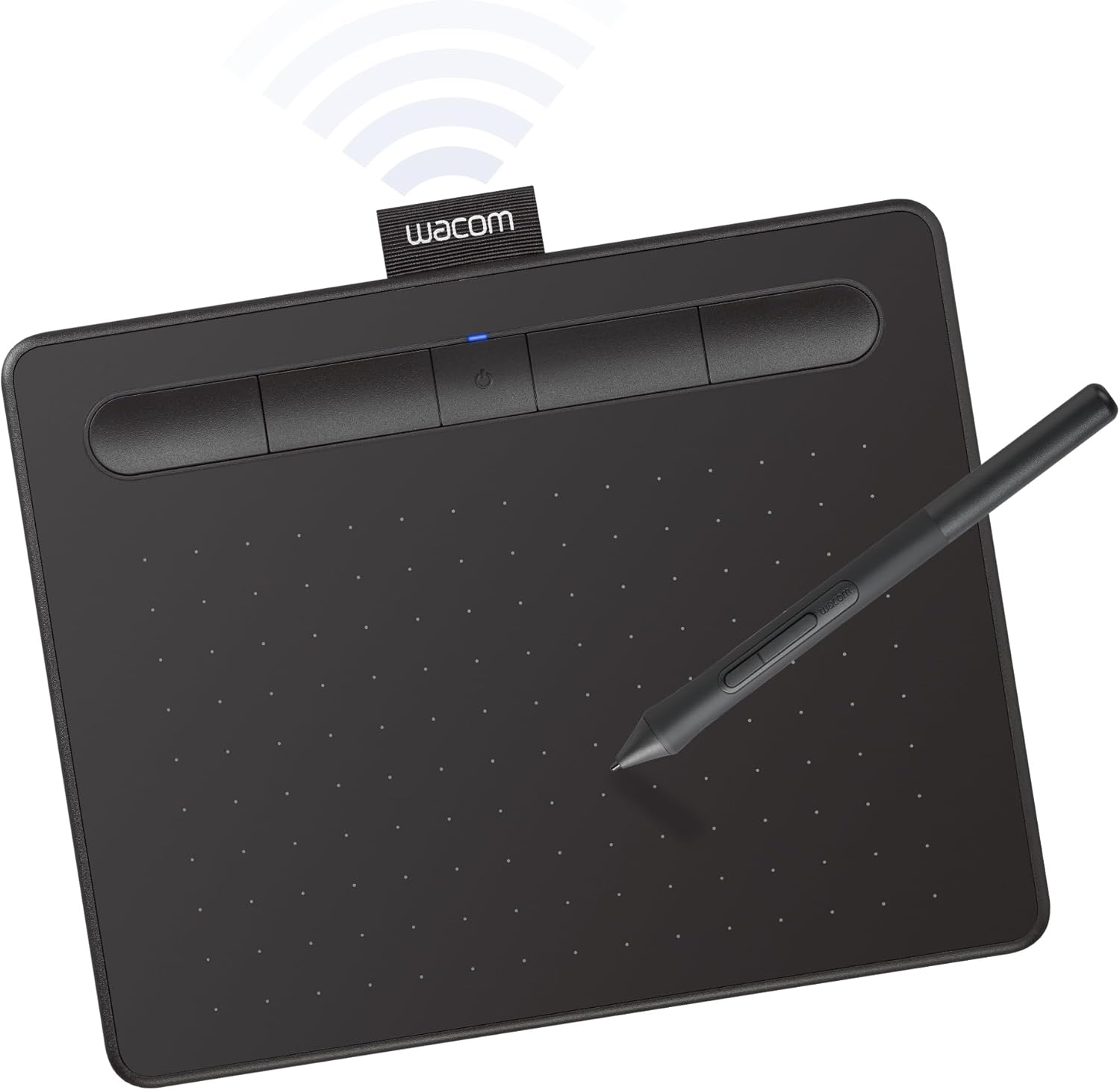
The Intuos Small Bluetooth connects wirelessly via Bluetooth or directly by USB-A. It uses Wacom’s battery-free EMR pen technology with 4,096 pressure levels and works in any software on Windows, macOS and ChromeOS according to the listing. Registration unlocks included creative software and Wacom’s online training.
A pen tablet without a screen takes a week or two of practice to coordinate, because you look at the monitor while your hand moves on the pad. Once learned, it is a comfortable, ergonomic way to paint in full desktop apps.
Best suited for: Painters who use Photoshop, Krita or Clip Studio on a computer.
Key features:
- Bluetooth or USB-A
- 4,096 pressure levels
- Battery-free EMR pen
- Software and training included
Pros:
- Works with any desktop software
- No pen charging
- Lowest price tier here
Cons and limitations:
- No screen
- Small active area
- Tablet itself needs charging for Bluetooth
Buying consideration: Map the active area to one monitor only, not across two screens, to keep strokes proportional.
3. UGEE 14.25 Inch Standalone Drawing Tablet with U-Pencil — Best for a large standalone canvas

UGEE’s standalone runs Android 14 on a 6nm octa-core processor with 8GB RAM and 256GB storage. The 14.25-inch 2.4K display has a paper-like NanoMatte surface, and the U-Key switches between Regular, Ink Paper and Color Paper modes. A 10,000mAh battery with 27W fast charging keeps it going for long sessions, and it is 6.95mm thin and 760g.
The screen size is the headline. At over 14 inches, it is the closest a standalone gets to a desktop pen display, with room for both canvas and tool panels.
Best suited for: Painters who want a large screen and lots of storage without a computer.
Key features:
- 14.25 in 2.4K NanoMatte display
- Android 14, 8GB/256GB
- 10,000mAh battery, 27W charging
- 4,096 pressure levels listed
Pros:
- Largest standalone screen here
- Big battery
- Paper-like texture
Cons and limitations:
- Higher price tier
- Larger to carry
- Pressure lower than MovinkPad
Buying consideration: Use the Color Paper mode for painting sessions; Ink Paper modes are designed for reading and reduce color.
4. Simbans PicassoTab A10 Standalone Drawing Tablet — Best for beginners and students

The PicassoTab A10 is a 10-inch standalone running Android 14 with an octa-core processor, 6GB RAM and 64GB storage expandable up to 1TB. The laminated display reduces glare and parallax, and the active pen offers 4,096 pressure levels.
Six bonus items are included per the listing: a lifetime Concepts PRO upgrade, a lifetime Artixo tutorials VIP upgrade, a case, a drawing glove and other accessories. The built-in lessons make it a strong pick for learners.
Best suited for: Students, teens and beginners learning digital painting.
Key features:
- 10 in laminated display
- Android 14, 6GB RAM, 64GB + up to 1TB
- 4,096-level active pen
- Concepts PRO and tutorials included
Pros:
- Lessons included
- Expandable storage
- Laminated screen
Cons and limitations:
- Active pen needs charging
- Mid-size screen
- Mid price tier
Buying consideration: Work through the included tutorials in order; structured lessons speed up early progress.
5. Frunsi T8 8 Inch Standalone Drawing Tablet — Best for compact sketching
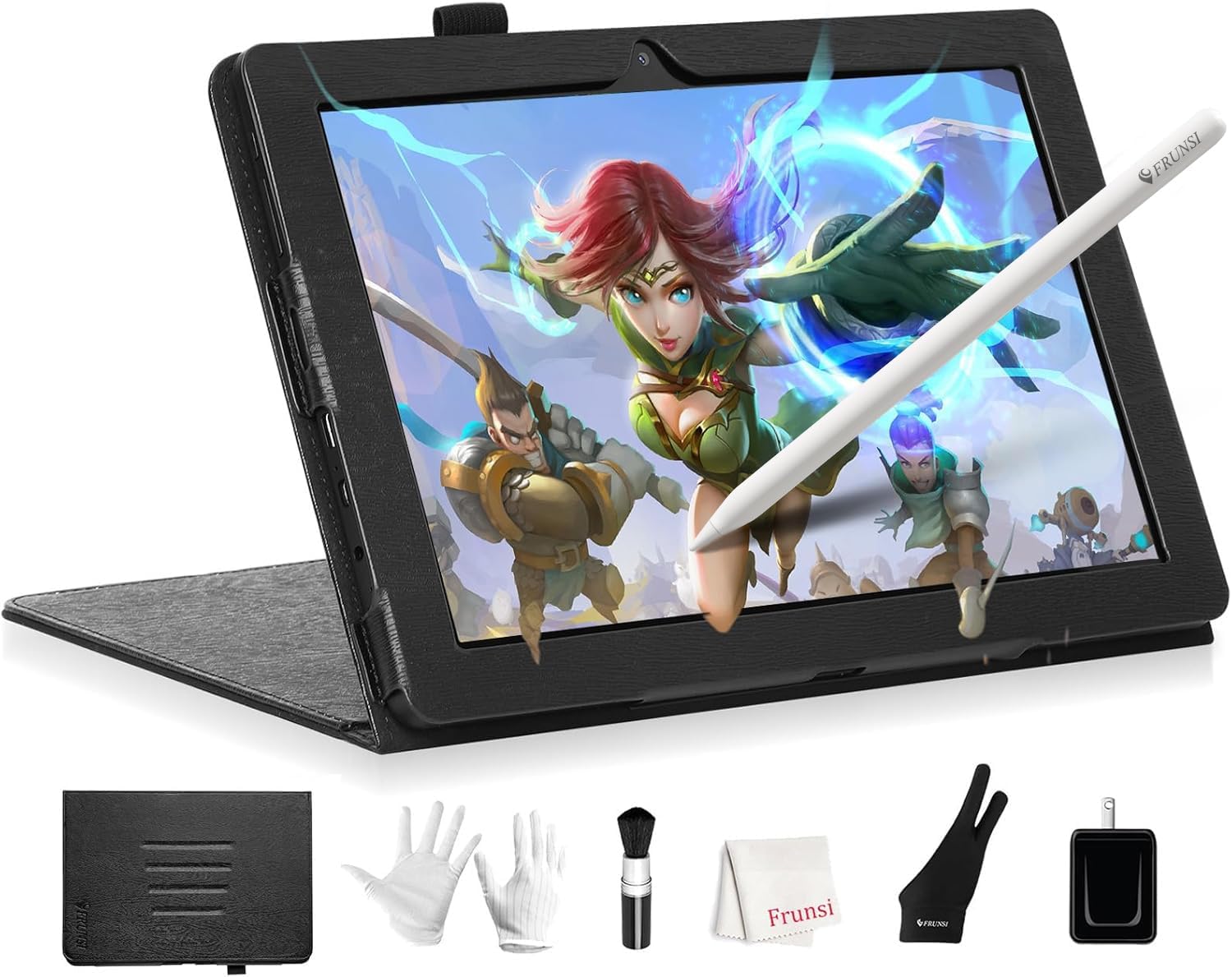
The Frunsi T8 is an 8-inch standalone running Android 13 with a 1200 x 800 display, an MTK quad-core CPU, 4GB RAM and 64GB storage expandable to 256GB, and a 4,000mAh battery. The pen has 2,048 pressure levels.
It is the most portable option here, ideal for sketching on commutes and in cafes, and runs apps like SketchBook and ArtFlow per the listing.
Best suited for: Pocket-size sketching and travel.
Key features:
- 8 in 1200 x 800
- Android 13, 4GB/64GB, expandable
- 2,048 pressure levels
- 4,000mAh battery
Pros:
- Very portable
- Expandable storage
- Lower price tier
Cons and limitations:
- Small screen for painting
- Lower pressure levels
- Modest RAM limits layers
Buying consideration: Use it for sketches and color studies, then finish larger paintings on a bigger device.
6. Frunsi RubensTab T11 Pro Standalone Drawing Tablet — Best for a budget 10-inch standalone

The RubensTab T11 Pro is a 10.1-inch standalone that needs no computer, with a 5,800mAh battery for up to five hours of continuous use and a battery-free pressure-sensitive pen. It comes pre-installed with drawing apps and includes an adjustable stand case.
The listing details show Android 12 and 1,024 pressure levels, both lower than newer models, so it is best for beginners and casual sketching rather than demanding painting.
Best suited for: Budget-conscious beginners wanting a 10-inch screen.
Key features:
- 10.1 in screen
- Android 12
- 1,024 pressure levels, battery-free pen
- 5,800mAh, about 5 hours
Pros:
- Battery-free pen
- Stand case included
- Pre-installed apps
Cons and limitations:
- Older Android version
- Lowest pressure levels
- Limited specs listed
Buying consideration: Check that your preferred painting app supports Android 12 before buying.
Buying Guide: How to Choose Wireless Tablets for Digital Painting
Decide where you paint
If you paint at a computer but hate cables, choose a Bluetooth pen tablet. If you want to paint on the sofa, in bed or on trips without a computer, choose a standalone.
Pen pressure and pen type
4,096 levels is comfortable for painting; 8,192 gives finer control in brush-heavy apps. Battery-free pens never need charging.
Tilt support helps with shading brushes.
Screen and display surface
Laminated and matte or paper-like surfaces reduce glare and the gap between pen tip and line. Larger screens are better for painting; 8 inches suits sketching.
Memory and storage
Painting apps limit layer counts by RAM. 6GB or more is noticeably freer for big canvases; 8GB is better.
Battery life
Standalones vary from a few hours to all day. Bluetooth pen tablets also need occasional charging.
Software ecosystem
Bluetooth tablets use desktop software. Standalones use Android apps such as Clip Studio, Krita, ibis Paint, Infinite Painter and SketchBook. Check that your favorite app runs on the tablet’s Android version.
Pressure Levels and Screen Sizes at a Glance
| Use | Minimum Pressure Levels | Screen or Area |
|---|---|---|
| Sketching and notes | 2,048 | 8 in screen or small pad |
| Illustration and inking | 4,096 | 10-11 in screen or medium pad |
| Painting with textured brushes | 4,096-8,192 | 11-14 in screen |
Setup Tips
Bluetooth pen tablets
- Install the latest driver before pairing.
- Pair via your computer’s Bluetooth settings while the tablet is in pairing mode.
- Map the active area to a single monitor.
- Keep the USB cable for charging and as a backup connection.
Standalone tablets
- Update Android and your painting apps first.
- Set screen brightness and turn off blue light filters while judging color.
- Enable palm rejection in your painting app or use a two-finger glove.
- Back up work to cloud storage or a memory card regularly.
Popular Painting Apps for Wireless Setups
| App | Runs On | Good For |
|---|---|---|
| Clip Studio Paint | Desktop and Android | Illustration, comics, painting |
| Krita | Desktop and Android | Free painting with a desktop-class brush engine |
| ibis Paint X | Android | Free all-round drawing with many brushes |
| Infinite Painter | Android | Natural media brushes and blending |
| Sketchbook | Android | Clean sketching interface |
| Concepts | Android | Vector sketching and design |
| Photoshop | Desktop | Painting and photo work with a pen tablet |
Before buying a standalone, open the app store listing for the apps you plan to use and check the minimum Android version and recommended RAM. Large canvases with many layers need more memory, and older Android versions can block newer app updates. With a Bluetooth pen tablet, your existing desktop software works as usual once the driver is installed.
Ergonomics Away From the Desk
Painting on a sofa or in bed is the point of going wireless, but posture still matters over long sessions. Prop a standalone on a stand or a pillow so it sits at an angle rather than flat on your lap, and take breaks every 30 to 45 minutes to stretch your wrist and neck. With a Bluetooth pen tablet, keep the pad and the screen in a straight line in front of you; twisting to one side to see the monitor is a common cause of shoulder strain. A two-finger drawing glove also reduces friction and smudges when your hand rests on a glass screen for hours, and it helps palm rejection on tablets that lack it.
Practice Projects
Once your tablet is set up, try our tutorials on painting digital waves and ocean and digital night scenes. If you are still deciding whether you need a tablet at all, read about digital painting without a tablet.
Common Mistakes to Avoid
- Buying a standalone for desktop-only software. Android apps are different from Photoshop.
- Choosing low RAM for big paintings. Layer limits come quickly.
- Mapping a pen tablet across two monitors. Strokes stretch.
- Skipping palm rejection. Stray marks ruin strokes.
- Ignoring Android version. Older versions may not support newer apps.
- Not backing up. Standalones can be lost or damaged.
FAQs
What is the best wireless tablet for digital painting?
For standalone painting, the Wacom MovinkPad 11. For painting on a computer without cables, the Wacom Intuos Small Bluetooth.
Do wireless drawing tablets have lag?
Bluetooth pen tablets can have slightly more latency than wired connections; most users find it fine for painting. Standalones draw directly on the device.
Can I use Photoshop on a standalone drawing tablet?
Standalones run Android apps, not desktop Photoshop. Apps such as Clip Studio, Krita and ibis Paint are popular alternatives.
How many pressure levels do I need?
4,096 levels is comfortable for painting; 8,192 gives finer control.
Is a standalone tablet good for beginners?
Yes. Drawing on the screen is intuitive, and some, like the PicassoTab A10, include tutorials.
How long do standalone drawing tablets last on battery?
It varies widely. The listings range from about 5 hours for the Frunsi T11 Pro to a 10,000mAh battery on the UGEE.
Final Recommendation
For painting anywhere without a computer, the Wacom MovinkPad 11 is the strongest choice thanks to its 8,192-level Pro Pen 3 and paper-like screen. If you paint in desktop software, the Wacom Intuos Small Bluetooth removes cables at the lowest price tier. Choose the UGEE 14.25-inch for the largest standalone canvas, the PicassoTab A10 for structured learning, the Frunsi T8 for pocket sketching, and the RubensTab T11 Pro for a budget 10-inch screen.