Are you ready to transform your digital sketches into stunning line art using Procreate? Whether you’re new to digital drawing or looking to sharpen your skills, mastering line art in Procreate can elevate your artwork to a whole new level.
In this guide, you’ll discover simple, step-by-step techniques to create clean, smooth lines that bring your designs to life. From setting up your canvas to choosing the perfect brushes and adding those finishing touches, you’ll learn how to make your line art crisp and professional.
Stick with me, and by the end, you’ll have the confidence and know-how to create beautiful line art that stands out every time. Let’s dive in!
Setting Up Canvas
Setting up your canvas correctly is the first step to drawing clean line art in Procreate. A well-prepared canvas helps maintain sharp lines and smooth strokes. It also makes editing easier later on.
Taking time to choose the right settings can improve your workflow and final result. Focus on resolution, size, and guides before starting your artwork.
Choosing Resolution
Resolution defines the detail in your artwork. A higher resolution means more pixels and clearer lines. For line art, 300 DPI is a good standard. It keeps your lines crisp and ready for print.
Lower resolutions might cause blurry or pixelated lines. Choose at least 2048 x 2048 pixels for digital use. Increase size and DPI for print projects.
Selecting Canvas Size
The canvas size depends on your project needs. Square canvases work well for social media posts. Rectangular sizes suit comic strips or illustrations better.
Start with a size that matches your final output. Larger canvases give more room to work but need more device power. Smaller canvases are easier to handle but limit detail.
Using Line Guides
Line guides help keep your strokes straight and balanced. Procreate offers several guides like grids and symmetry. Activate them through the Actions menu under Canvas.
Grids help with even spacing and alignment. Symmetry guides let you draw mirrored lines quickly. Use these tools to improve accuracy and save time.

Credit: www.youtube.com
Brush Selection
Choosing the right brush is key to creating clean and smooth line art in Procreate. The brush you select shapes the style and quality of your lines. It controls the flow, thickness, and texture of each stroke.
Procreate offers many brushes designed specifically for line art. Some brushes give sharp edges, while others provide soft, natural lines. Picking a brush that matches your style helps express your artistic vision clearly.
Best Brushes For Line Art
The “Monoline” brush is perfect for consistent, uniform lines. It keeps your strokes smooth and steady. The “Technical Pen” brush offers sharp, precise lines, ideal for detailed work. The “Studio Pen” has a slightly tapered effect, great for dynamic strokes.
Many artists also prefer the “Inking” brushes under the default set. These brushes balance pressure sensitivity and smoothness. Experiment with these to find which suits your drawing style best.
Customizing Brush Settings
Adjusting brush settings tailors the brush to your needs. Increase or decrease the “Streamline” to smooth your lines. Higher streamline creates cleaner curves by slowing your stroke digitally. Modify “Taper” settings to control how lines start and end.
You can change brush size and opacity to add variety. Save your custom brushes for quick access during projects. This customization makes drawing faster and more enjoyable.
Using Pressure And Tapering
Procreate supports pressure sensitivity with Apple Pencil. Pressing harder produces thicker lines, while lighter pressure creates thin lines. This technique adds depth and interest to your line art.
Tapering controls the gradual thinning of lines at the start or end. Use tapering to mimic traditional ink brushes or calligraphy styles. Combining pressure and tapering gives your art a professional and polished look.
Sketch Preparation
Preparing your sketch properly is key to smooth line art creation in Procreate. This step sets the foundation for clean, precise lines. The better your sketch, the easier tracing becomes. It also saves time in later stages. Focus on clarity and simplicity during sketch preparation.
Use layers wisely and adjust sketch visibility to avoid confusion. Organizing your work early helps maintain flow and control. Here are essential tips on preparing your sketch for line art in Procreate.
Creating A Clean Sketch
Start with a rough sketch using a soft brush. Keep your strokes light and loose. Avoid heavy or overlapping lines. Aim for clear shapes and forms. Use simple lines to outline your subject. Clean sketches help you trace lines more accurately. Erase any unnecessary marks carefully. A tidy sketch prevents mistakes in your final line art.
Adjusting Sketch Opacity
Lower the sketch layer’s opacity to about 20-30%. This makes the sketch faint but visible. It allows your line art to stand out better. Reducing opacity prevents distraction from bold sketch lines. You can adjust opacity anytime for comfort. Keep your focus on smooth, confident strokes for line art.
Layer Management
Create a new layer above the sketch for your line art. Keep the sketch on a separate layer below. This separation lets you edit lines without affecting the sketch. Name your layers clearly for easy access. Lock the sketch layer to avoid accidental changes. Proper layer management keeps your workflow organized. It also helps fix errors quickly without redoing the entire drawing.
Drawing Techniques
Drawing line art in Procreate requires a set of basic techniques. These techniques help create clean and clear lines. They improve the overall look of your artwork. Practicing these methods will boost your confidence and skill.
Focus on steady lines, using Procreate’s tools for precision, and adding line weight. Each step adds depth and style to your drawing. Let’s explore these important drawing techniques.
Steady Line Drawing
Keep your hand steady for smooth lines. Rest your wrist lightly on the screen or use a drawing glove. Slow, controlled strokes work better than fast, shaky ones. Use Procreate’s Stabilization setting to help smooth your lines. This feature reduces jitter and creates cleaner strokes. Practice drawing simple shapes like circles and squares to build control.
Using Quickshape For Precision
QuickShape lets you draw perfect shapes quickly. Draw a line or shape and hold your stylus on the screen. Procreate will snap it to a perfect form, like a straight line, circle, or square. Use this tool for geometric parts of your artwork. It saves time and keeps your drawing sharp. Combine QuickShape with freehand lines for a balanced look.
Applying Line Weight Variations
Varying line weight adds interest and depth to your art. Thicker lines can show shadows or important edges. Thin lines work well for details and lighter areas. Use pressure sensitivity on your Apple Pencil to control line thickness. Press harder for thick lines and softer for thin lines. This technique gives your line art a natural and dynamic feel.
Refining Line Art
Refining line art in Procreate turns rough sketches into polished drawings. This step improves clarity and sharpness. It helps your artwork look professional and clean. Focus on perfecting your lines and adding small details. These changes make your art more interesting and dynamic. Spend time on this phase for the best results.
Cleaning Up Lines
Start by selecting the eraser tool. Remove any stray marks or overlapping lines. Zoom in to see all details clearly. Use the lasso tool to select and move lines if needed. Straighten curves by redrawing or adjusting with the brush. Keep lines consistent in thickness and style. Clean lines create a neat and balanced look.
Smoothing And Erasing
Procreate offers smoothing options for cleaner strokes. Use the streamline feature to reduce shaky lines. Adjust the smoothing slider to find the right balance. Erase small imperfections carefully without losing line quality. Use a soft brush eraser for gentle corrections. These techniques make your lines flow smoothly and look natural.
Adding Texture And Details
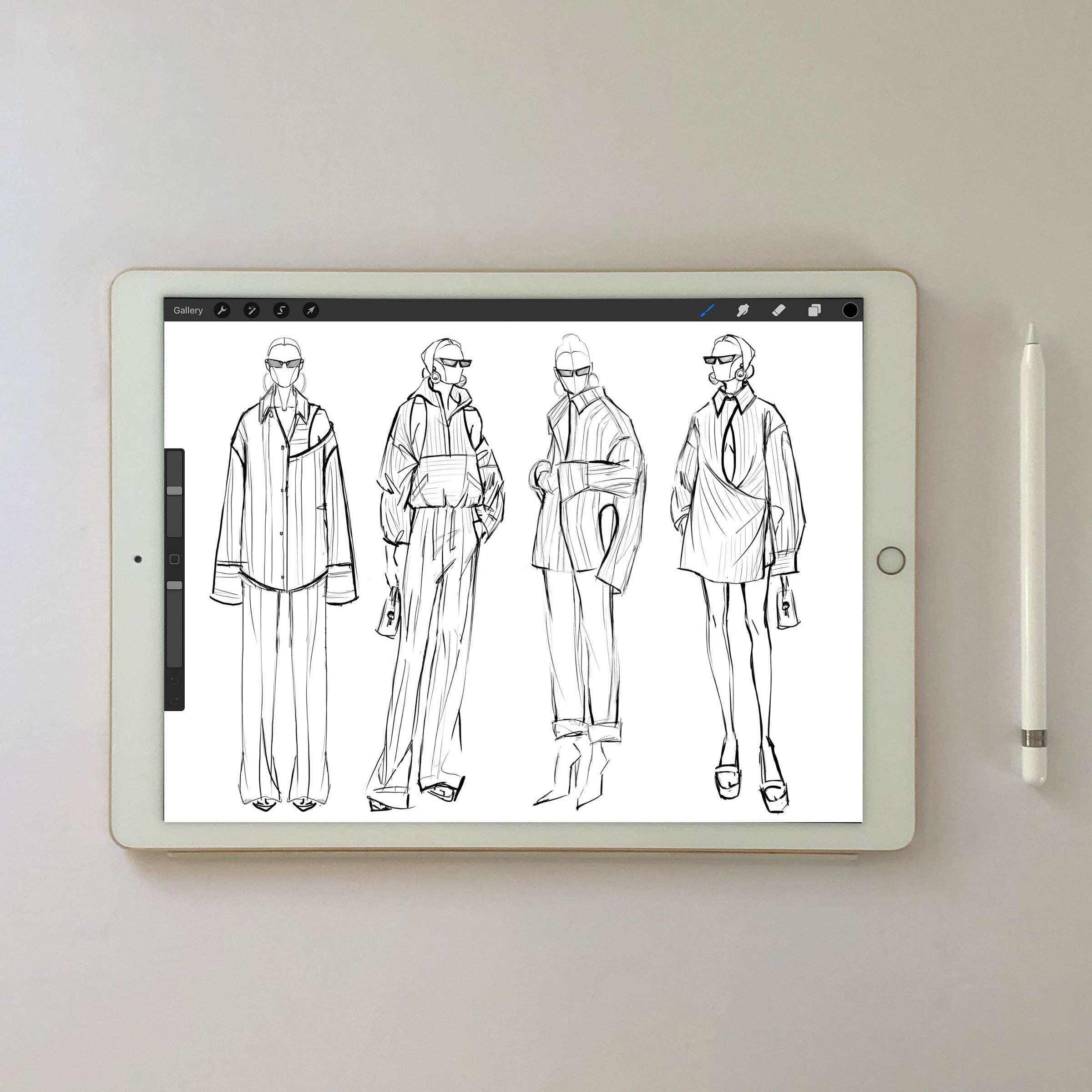
Add texture to give your line art depth and interest. Use different brushes to create varied line weights and patterns. Draw small details like hair strands, fabric folds, or skin texture. Apply crosshatching or stippling for shading effects. These details add character and realism to your drawing. Textured lines make your artwork stand out.
Credit: www.amikosimonetti.com
Coloring Line Art
Coloring line art in Procreate brings your drawings to life. It adds depth and vibrancy. Simple colors can make your art pop. Use Procreate’s tools to stay neat and creative. This section explores easy methods to color your line art effectively.
Using Alpha Lock
Alpha Lock lets you paint only on existing pixels. Activate it by swiping right on the layer. This locks transparency, so colors stay inside your lines. Choose a brush and pick colors freely. It’s perfect for shading or adding details without going outside.
Filling With Reference Layers
Reference layers keep your colors tidy and separated. Set your line art as a reference layer. Then select the color fill tool on a new layer. Tap inside closed areas to fill them quickly. This method saves time and keeps your lines untouched.
Adding Shadows And Highlights
Shadows and highlights create volume and interest. Use a soft brush with darker colors for shadows. Add lighter tones to areas that catch light. Blend softly to keep it natural. This step turns flat colors into lively illustrations.
Saving And Exporting
Saving and exporting your line art in Procreate is a key step to keep your work safe and ready for sharing. Proper saving ensures you don’t lose your progress. Exporting lets you use your art in different projects or platforms. Learning the right formats and settings helps maintain your artwork’s quality and style.
File Formats For Line Art
Choosing the correct file format matters for line art. PNG keeps lines sharp and background transparent. JPEG is good for sharing but may blur edges. TIFF saves high quality with layers intact. PSD works well if you plan to edit in Photoshop. Pick a format based on your needs and where you want to use the art.
Export Settings
Adjust export settings to keep your line art crisp. Use high resolution, like 300 DPI, for printing. Choose RGB color mode for screen display. Turn off compression to avoid losing detail. Export with transparent background if needed. These settings help your art look its best everywhere.
Backing Up Your Work
Backing up your drawings protects your effort. Save copies on cloud storage like iCloud or Google Drive. Export versions regularly during your work process. Use an external hard drive for extra safety. This way, you can restore your art if something goes wrong.
Tips And Tricks
Drawing line art in Procreate can be smooth and fun with the right tips. These tricks help you improve your skills quickly. They focus on keeping your lines clean, avoiding errors, and working faster. Use these tips to get better results every time.
Maintaining Line Consistency
Keep your hand steady for smooth, even lines. Use a brush with pressure sensitivity to control thickness. Zoom in to add detail and zoom out to check overall flow. Try to draw long strokes instead of many short ones. Adjust the brush settings to suit your style. Practice drawing basic shapes to build control.
Avoiding Common Mistakes
Don’t rush your strokes; slow and steady wins the race. Avoid shaking by resting your arm on the screen edge or table. Use the undo button instead of erasing too much. Check your layers to separate sketches from final lines. Avoid over-layering lines; keep it simple and clean. Use guides or grids to keep proportions correct.
Speeding Up Workflow
Set up custom brushes for your favorite line styles. Use quick gestures like double-tap to undo or redo. Save line art as templates for future projects. Use the streamline feature to smooth your strokes automatically. Organize layers and name them clearly for easy editing. Use shortcuts and gestures to move faster in Procreate.
Credit: www.etsy.com
Frequently Asked Questions
How To Do Line Art In Procreate?
Open a high-resolution canvas in Procreate. Lower sketch opacity, create a new layer, select a fine brush, and carefully trace your sketch. Adjust line weight and taper using brush settings for clean, smooth line art. Use the eraser to refine edges and perfect your drawing.
How To Get Line Guides In Procreate?
Open a canvas in Procreate, tap the wrench icon, select Canvas, then turn on Drawing Guides. Tap Edit Drawing Guide to customize lines.
How To Draw Within The Lines In Procreate?
To draw within the lines in Procreate, enable “Alpha Lock” on the layer. Then, paint only inside the existing shapes without crossing edges.
How To Make An Image Into Line Art In Procreate?
Import the image into Procreate. Lower its opacity, create a new layer, then trace the image with a fine brush. Adjust line weight and clean up for crisp line art.
Conclusion
Drawing line art in Procreate becomes easier with practice and patience. Use simple tools and follow clear steps for better results. Experiment with brushes to find your unique style. Keep your lines steady and avoid rushing the process. Remember, every artist starts somewhere, so keep drawing daily.
Enjoy creating clean, crisp line art that brings your ideas to life. Stay curious and keep improving with each stroke you make.