

PaintingProGuide is reader-supported. When you buy through links on this page we may earn an affiliate commission at no extra cost to you.
A drawing tablet under 100 dollars buys you more than it did a few years ago: battery-free pens, 8,192 or more pressure levels, tilt support and a working area big enough for real painting. What it does not buy you is a screen. Every tablet in this price band is a pen tablet, meaning you draw on a matte slab while looking at your monitor. That takes a few days to feel natural, and then it is simply how you work.
This guide covers the sub-$100 pen tablets worth buying for digital painting and sketching, based on what each Amazon listing specifies, plus one standalone Android tablet that sits above the line for people who do not own a computer. If you already know you want a screen, nothing here will satisfy you; save for a pen display instead.
Quick answer: The Wacom Intuos Small is the safest buy for a first tablet because of its driver quality and bundled software, even though its active area is compact. If you want more drawing space for the same money, the GAOMON M10K gives you a 10 x 6.25-inch surface, a touch ring and 10 shortcut keys. The UGEE M708 V3 is the pick for Android users and anyone who wants the highest listed pressure resolution in this price range.
Our Top Picks at a Glance
- Wacom Intuos Small — Best for beginners who want plug-and-play reliability
- GAOMON M10K — Best large working area with a touch ring
- UGEE M708 V3 — Best for Android phones and tablets
- UGEE M708 V2 (Android version) — Best budget 10 x 6 tablet with tilt
- Frunsi T8 Standalone Tablet — Best if you have no computer (sits above $100)
| Product | Best For | Key Spec | Key Strength | Price Tier |
|---|---|---|---|---|
| Wacom Intuos Small | First tablet, software bundle | 4,096 levels, EMR pen, USB-A | Wacom driver stability | $$ |
| GAOMON M10K | Larger strokes, shortcuts | 10 x 6.25 in, 8,192 levels | Touch ring plus 10 keys | $$$ |
| UGEE M708 V3 | Android and PC painting | 10 x 6 in, 16,384 levels | USB-C with adapters | $$$ |
| UGEE M708 V2 | Budget large tablet | 10 x 6.25 in, 60° tilt | Wide OS support | $$ |
| Frunsi T8 | No-computer drawing | 8 in screen, Android 13, 4 GB RAM | Fully standalone | $$$ |
How We Chose
These picks come from reading the Amazon listing details and specifications for each tablet as checked in October 2026, judging how well the active area, pressure resolution, connectivity and operating-system support fit digital painting on a budget, and weighing how widely each tablet is reviewed by Amazon buyers. Nothing here is based on bench testing; where a listing is vague or contradicts itself, we say so.
What we weighed for a drawing tablet under 100 dollars:
- Active area: a 10 x 6-inch surface maps far more comfortably to a 24-inch monitor than a 6 x 4-inch one.
- Pen type: battery-free (EMR or passive) pens are lighter and never die mid-session.
- Pressure and tilt: 8,192 levels is plenty; tilt matters for shading with textured brushes.
- Shortcut keys: express keys and a touch ring reduce keyboard reaching for undo, zoom and brush size.
- OS compatibility: Windows and macOS are table stakes; Android and ChromeOS support widens who can use it.
- Driver reputation: a cheap tablet with flaky drivers costs more in frustration than it saves.
Best Drawing Tablets Under 100 Reviewed
1. Wacom Intuos Small — Best for Beginners Who Want It to Just Work
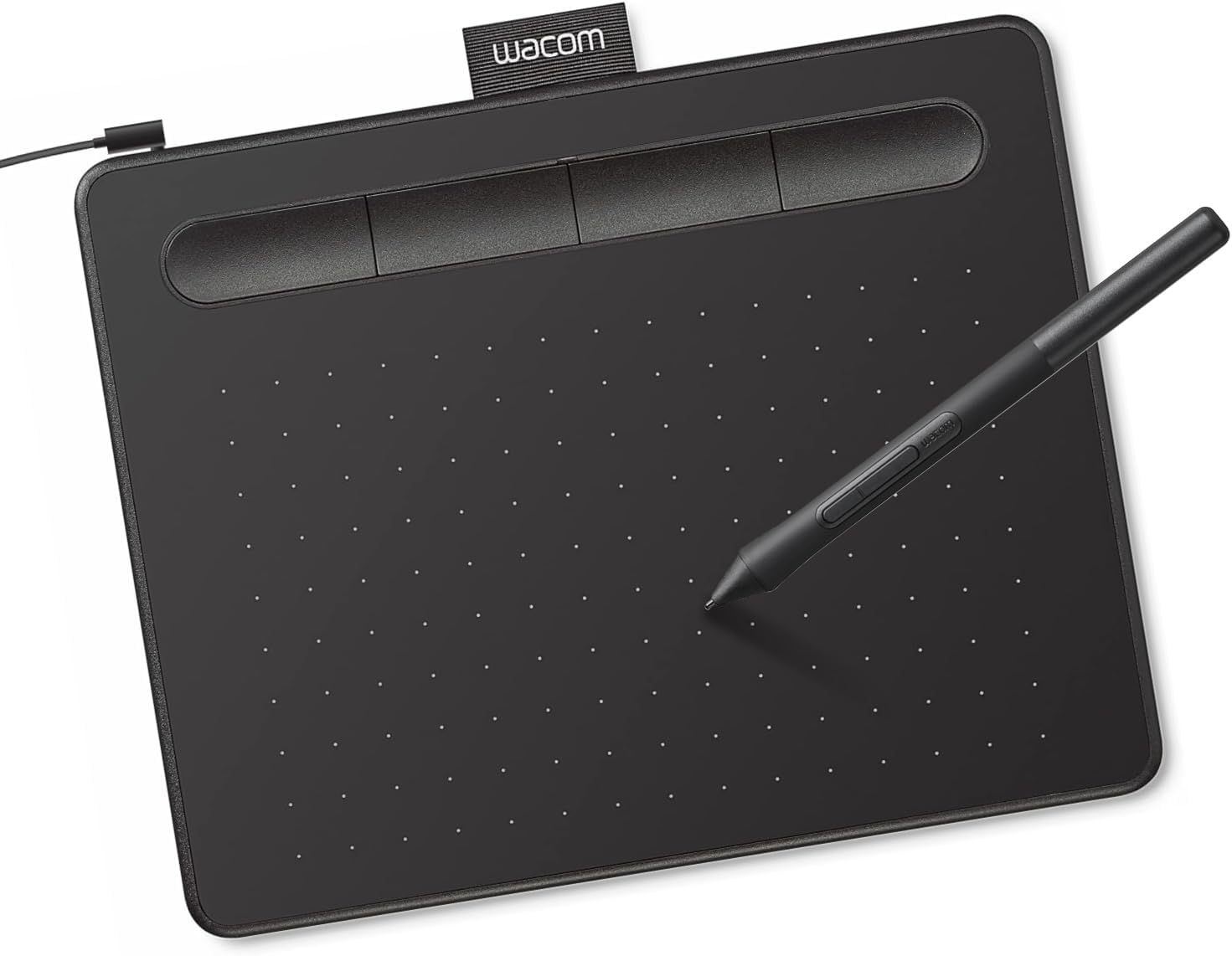
The Intuos Small is the tablet most art teachers still point students toward, and the listing explains why without hype: Wacom EMR technology, a battery-free pen with 4,096 pressure levels, and compatibility with Windows, macOS, Android and Chromebook via plug-and-play. The pen-to-paper feel Wacom describes comes from the textured surface and a pen that needs no charging.
The trade-off is size. The Small has a modest active area, so your strokes are compressed relative to a large monitor. For sketching, inking and photo retouching that is fine; for broad, loose painting gestures you will notice it. The listing also highlights the included software and online training unlocked when you register, which is a genuine advantage for a first tablet.
Best suited for: first-time digital artists, students, and anyone who values stable drivers and bundled creative software over raw specs.
Key features (from the listing):
- Battery-free EMR pen, 4,096 pressure levels
- USB-A wired connection
- Works with Windows, macOS, Android; plug-and-play with Chromebook
- Software and training access with registration
- Works in any creative program
Pros:
- Most trusted driver ecosystem in the category
- Light, compact and easy to travel with
- Bundled software adds real value for beginners
- Chromebook support out of the box
Cons and limitations:
- Smaller active area than the 10 x 6 competitors
- Lower pressure resolution on paper (4,096), though rarely noticeable in practice
- USB-A cable only; no wireless in this model
Buying consideration: if you draw on a 27-inch or larger monitor, consider whether the compact surface will feel cramped; otherwise this is the low-risk choice.
2. GAOMON M10K — Best Large Working Area With a Touch Ring

The M10K gives you a 10 x 6.25-inch papery-texture drawing space, a battery-free AP31 stylus with 8,192 pressure levels, and a control layout most sub-$100 tablets skip: 10 programmable press keys plus a touch ring that the listing says can be mapped to zoom, brush size or scrolling. The ring and keys can be set up for left-handed use.
Compatibility covers Windows 7 or later, macOS 10.12 or later and Android 11 through 14. Setup is USB, with a driver download from GAOMON’s site. For painters who use lots of brush-size changes and canvas rotation, the touch ring is the feature that makes this tablet feel a class above its price.
Best suited for: illustrators and painters who want a big surface and hardware shortcuts without reaching for the keyboard.
Key features (from the listing):
- 10 x 6.25 in active area with paper-like texture
- Battery-free AP31 stylus, 8,192 levels
- 10 customizable press keys and a programmable touch ring
- Two pen side buttons for pen/eraser switching
- Windows, macOS and Android 11–14 support
- Built-in pen loop and spare nibs
Pros:
- Largest control set in this group
- Generous active area for sweeping strokes
- Left-handed configuration supported
- Replacement nibs included
Cons and limitations:
- No tilt support mentioned in the listing
- Requires a driver install rather than plug-and-play
- Physically bigger to carry than the Intuos Small
Buying consideration: make sure your desk has room; a 10 x 6 tablet plus keyboard and mouse takes real space.
3. UGEE M708 V3 — Best for Android Phones and Tablets
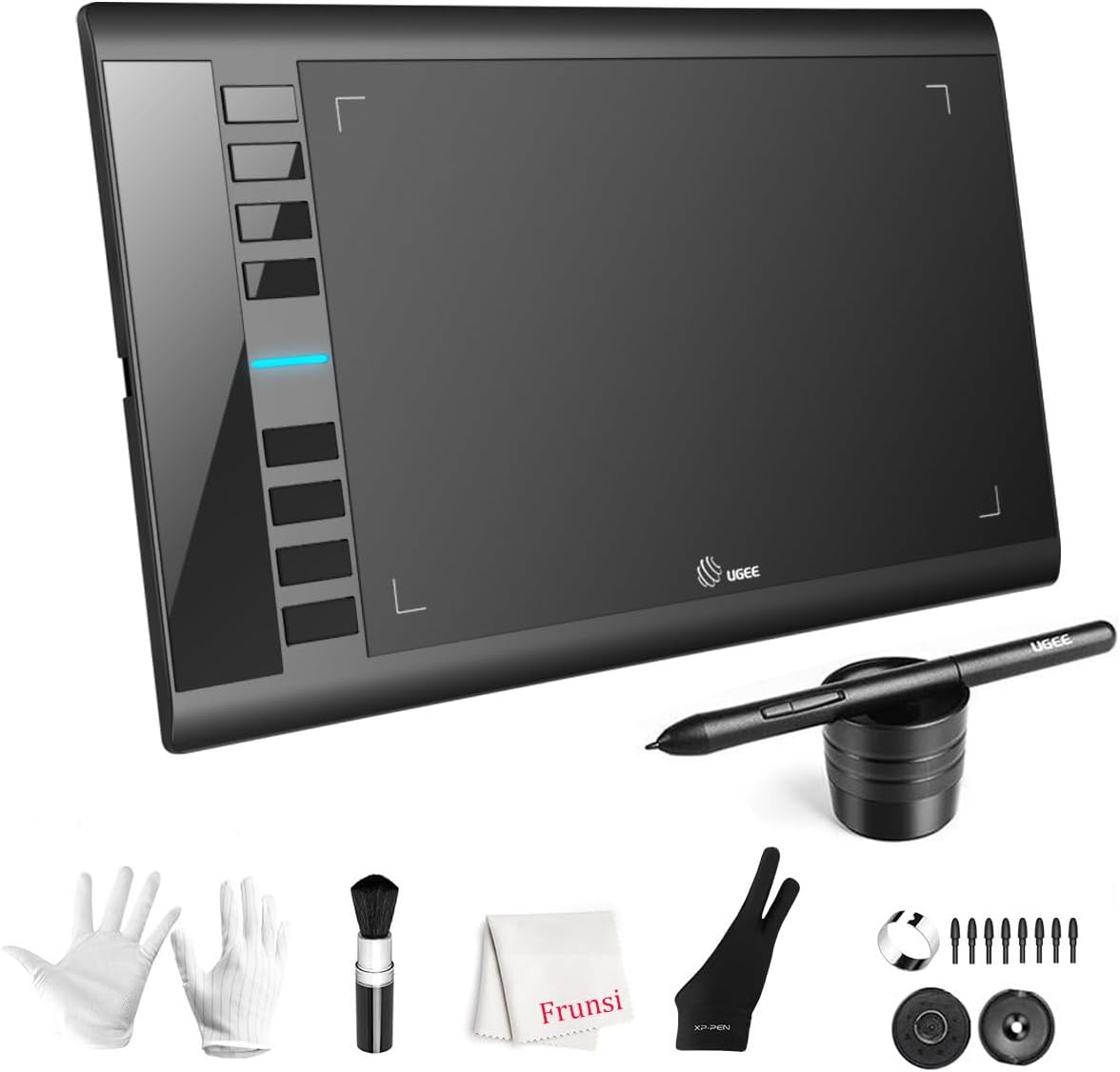
The M708 V3 is the newer revision of UGEE’s popular 10 x 6-inch tablet. Its listing advertises a passive stylus with 16,384 pressure levels, the highest figure in this roundup, plus eight customizable express keys and a USB-to-USB-C connection with adapters included. The listed OS range is broad: Windows 7 through 11, macOS, Android 10 or later, ChromeOS 88 or later and Linux.
That Android support is the headline for a lot of buyers. Pairing a 10 x 6 tablet with a phone or Android tablet running ibis Paint or similar apps gives you a workable painting setup with no laptop. The listing also notes ambidextrous design, a pen holder and extra nibs.
Best suited for: Android-first artists, Chromebook users, and anyone who wants the finest pressure gradation in the price range.
Key features (from the listing):
- 10 x 6 in active area, papery texture
- 16,384-level passive (battery-free) stylus
- 8 express keys
- USB to USB-C connectivity with adapters
- Windows, macOS, Android 10+, ChromeOS 88+, Linux
- Ambidextrous, pen holder and spare tips
Pros:
- Widest OS support here
- Highest listed pressure resolution
- Adapters included for USB-C devices
- Large surface for the money
Cons and limitations:
- Listing does not clearly state tilt support for the V3
- No touch ring
- Driver download required
Buying consideration: confirm your Android version is 10 or newer; the V2 listing below shows an older minimum if you have an older phone.
4. UGEE M708 V2 (Android Version) — Best Budget 10 x 6 Tablet With Tilt

The V2 is the older sibling and its listing is messier: the title mentions 16,384 levels while the bullets and spec table say 8,192. Treat it as an 8,192-level tablet, which is still more than enough. Where it earns a spot is the explicitly stated 60-degree tilt support, something the V3 listing leaves unclear, and a very slim profile that the listing calls ultra thin.
OS support reaches back to Android 6.0, ChromeOS 88, Linux, macOS 10.12 and Windows 7, so this is the tablet for older devices. Eight express keys cover undo, zoom and eraser. Software compatibility called out includes ibis Paint X and FlipaClip for mobile.
Best suited for: budget buyers with older Android devices, and painters who want tilt-sensitive shading.
Key features (from the listing):
- 10 x 6.25 in active area
- Battery-free stylus, 8,192 levels (per spec table)
- 60° tilt support
- 8 customizable express keys
- Android 6.0+, ChromeOS 88+, Linux, macOS 10.12+, Windows 7+
- Slim, lightweight panel
Pros:
- Tilt support stated clearly
- Broadest backward compatibility with old Android
- Thin and light for a 10 x 6 tablet
- Same large working area as pricier tablets
Cons and limitations:
- Listing pressure figures contradict each other
- Older revision; V3 adds USB-C adapters
- No touch ring
Buying consideration: if you do not need tilt or old-Android support, the V3 is the cleaner buy.
5. Frunsi T8 Standalone Drawing Tablet — Best if You Have No Computer (Above $100)
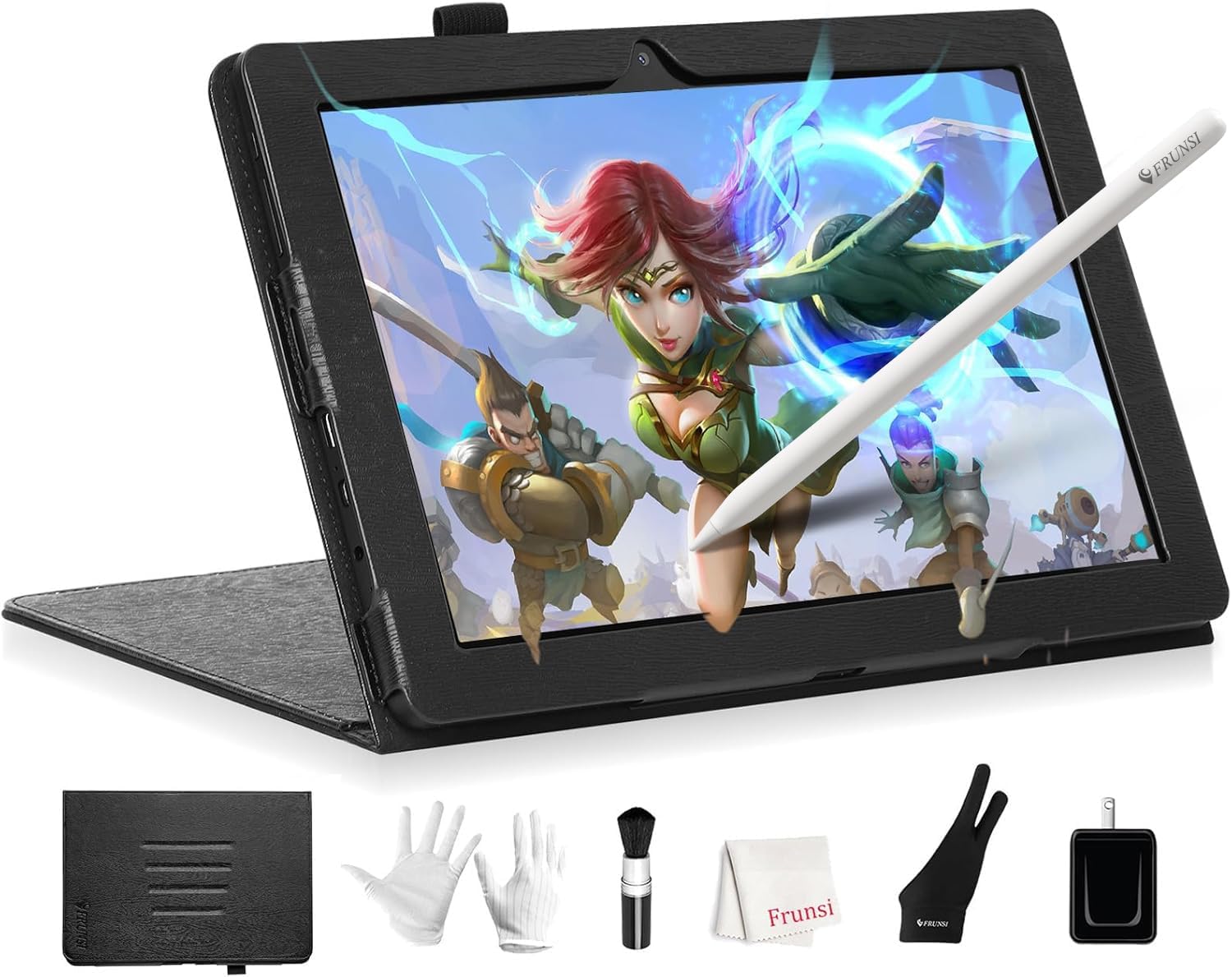
The T8 is not a pen tablet; it is a small Android 13 tablet with a pressure-sensitive pen built for drawing apps. The listing specifies an 8-inch 1200 x 800 display, a quad-core MTK processor, 4 GB RAM, 64 GB storage expandable to 256 GB, a 4,000 mAh battery and 2,048 pressure levels. It ships with drawing apps and tutorials pre-installed and supports SketchBook, ArtFlow and ibis Paint X.
We include it because many people searching for a cheap tablet actually need a device that works with no computer at all. It sits above the $100 line, and its 2,048 pressure levels and 1200 x 800 resolution are modest compared with a laptop plus pen tablet. If you already own a computer, the four tablets above are better value.
Best suited for: kids, travelers and casual artists who do not own a computer and want an all-in-one device.
Key features (from the listing):
- 8 in display, 1200 x 800
- Android 13, MTK quad-core, 4 GB RAM, 64 GB storage (expandable to 256 GB)
- 4,000 mAh battery
- 2,048-level pressure pen
- Wi-Fi built in
- Pre-installed drawing apps and tutorials
Pros:
- Works with nothing else attached
- Expandable storage
- Runs standard Android art apps
Cons and limitations:
- Priced above $100
- Low resolution for an 8-inch screen
- Only 2,048 pressure levels
- Small canvas for detailed work
Buying consideration: treat this as a budget Android tablet first and a drawing device second; if you have a computer, skip it.
Buying Guide: How to Choose a Drawing Tablet Under 100
Pen tablet or screen?
Under $100 you get a pen tablet, not a pen display. Pen tablets have a steep first week while your hand learns to draw where your eyes are not. After that, most illustrators find them faster and more ergonomic than hunching over a screen. If you cannot accept the disconnect, save for a display rather than compromising here.
Active area and monitor size
Match the tablet to your monitor. A small tablet mapped to a large screen makes every tiny hand movement travel a long way on screen, which hurts line control. A 10 x 6-inch surface pairs well with 24- to 27-inch monitors; a compact tablet suits laptops and smaller screens.
Pressure levels and tilt
Marketing fixates on pressure numbers. The jump from 2,048 to 8,192 is noticeable on thin line weights; above that, the difference is academic. Tilt lets a brush widen as you lean the pen, which matters for pencil and airbrush textures but not for flat vector work.
Battery-free pens
All four pen tablets here use battery-free styluses. That means no charging, lighter pens and no dead pen mid-stream. It is one of the biggest quality-of-life upgrades over older rechargeable designs and should be a requirement at any price.
Shortcut keys and touch rings
Express keys let you map undo, brush size, zoom and canvas rotation to the tablet. A touch ring adds a continuous control for zoom or brush size. If you paint with lots of brush-size changes, the GAOMON M10K’s ring is worth more than extra pressure levels.
Operating system and device support
Check the exact OS version in the listing against your device. Android support usually needs a USB-C OTG connection and a current Android version. Chromebook support varies; Wacom lists plug-and-play, while the UGEE models cite ChromeOS 88 or later.
Drivers and software
Wacom drivers have the longest track record. GAOMON and UGEE require downloads from their sites and generally work well, but check for current driver support for your OS before buying. Free software such as Krita covers painting; the Wacom bundle adds trials and training that beginners often use.
Setting Up and Learning Your Tablet
Once the tablet arrives, spend ten minutes on configuration before drawing anything: map the active area to your main monitor, set pressure curve to taste and assign undo to a key. Our step-by-step guide to setting up a drawing tablet walks through the driver settings that matter.
Not ready to spend yet? You can still practice digital painting fundamentals with a mouse or phone; see how to do digital painting without a tablet. When you want a subject to practice brush control, our tutorial on painting digital waves and ocean is a good first project for any of these tablets.
Common Mistakes to Avoid
- Buying a tiny tablet for a big monitor, then blaming your hand for shaky lines.
- Paying more for a 16,384-level pen when you have not yet learned to use 8,192.
- Skipping the driver install and using the tablet as a generic mouse, which disables pressure.
- Ignoring your Android version; many tablets need Android 10 or newer for full function.
- Expecting a budget standalone tablet to match a laptop and pen tablet for performance.
- Mapping the tablet to two monitors at once, which halves your drawing precision.
FAQs
Is a drawing tablet under 100 dollars good enough for professional work?
For sketching, inking, comics and digital painting, yes. Many working illustrators use mid-size pen tablets like these daily. What you give up is a built-in screen, wireless operation and premium build.
Do I need a computer for these tablets?
The Wacom, GAOMON and UGEE tablets need a computer, Chromebook or compatible Android device to work. Only the Frunsi T8 operates on its own, and it sits above the $100 budget line.
Which tablet works with an iPad or iPhone?
None of the listings here claim iOS or iPadOS support. These tablets target Windows, macOS, Android, ChromeOS and Linux.
Does the pen need batteries or charging?
No. All four pen tablets use battery-free styluses that draw power from the tablet surface.
How big a tablet do I need for painting?
A 10 x 6-inch active area is the comfortable size for painting on a desktop monitor. Smaller tablets work for sketching and photo editing, especially on laptops.
Does tilt matter for a beginner?
Not at first. Tilt adds expressive shading with textured brushes later on. If you can get it at the same price, as with the UGEE M708 V2, take it; do not pay extra for it as a beginner.
Final Recommendation
If this is your first tablet and you want the least friction, buy the Wacom Intuos Small and spend the saved mental energy learning your software. If you already know you want a bigger surface and shortcut hardware, the GAOMON M10K is the strongest spec sheet under $100. Android users should look at the UGEE M708 V3, and anyone with an older phone or a specific need for tilt can save a little with the M708 V2. Only buy the Frunsi T8 if a computer is genuinely not an option.



One Comment