How to Use Procreate App for Beginners: Ultimate Step-by-Step Guide

How to Use Procreate App for Beginners

Are you ready to dive into the world of digital art but don’t know where to start? Procreate is the perfect app to bring your creative ideas to life, even if you’ve never picked up a digital brush before.

With its simple design and powerful tools, Procreate makes drawing, painting, and designing easy and fun. In this guide, you’ll learn how to use Procreate step-by-step, so you can create stunning artwork without feeling overwhelmed. Stick with me, and you’ll soon discover just how accessible and exciting digital art can be for beginners like you.
How to Use Procreate App for Beginners: Ultimate Step-by-Step Guide

Credit: www.skillshare.com

Getting Started With Procreate

Starting with Procreate is simple and fun for new digital artists. This app offers tools that help beginners create art quickly. Before drawing, you need to install the app, set up your canvas, and learn the interface. Each step is easy to follow and helps you feel comfortable using Procreate.

Installing The App

Go to the App Store on your iPad. Search for “Procreate” in the search bar. Tap the download button to install the app. The app costs a small one-time fee. After installation, open Procreate and get ready to create.

Setting Up Your Canvas

Open Procreate and tap the plus (+) icon to create a new canvas. Choose a size that fits your project. You can select preset sizes or make a custom canvas. The size affects the quality and file size of your artwork. Start with a medium size to practice easily.

Navigating The Interface

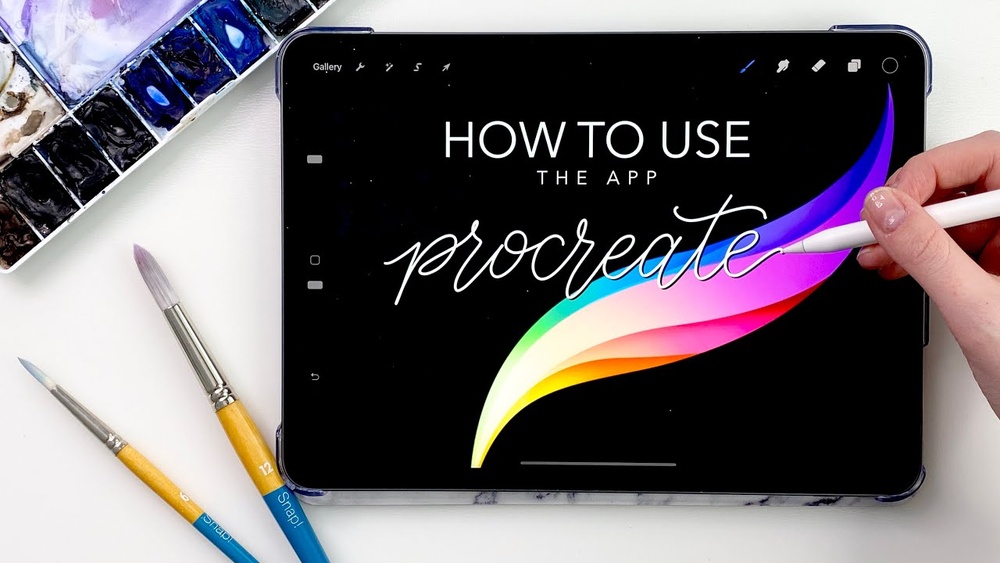
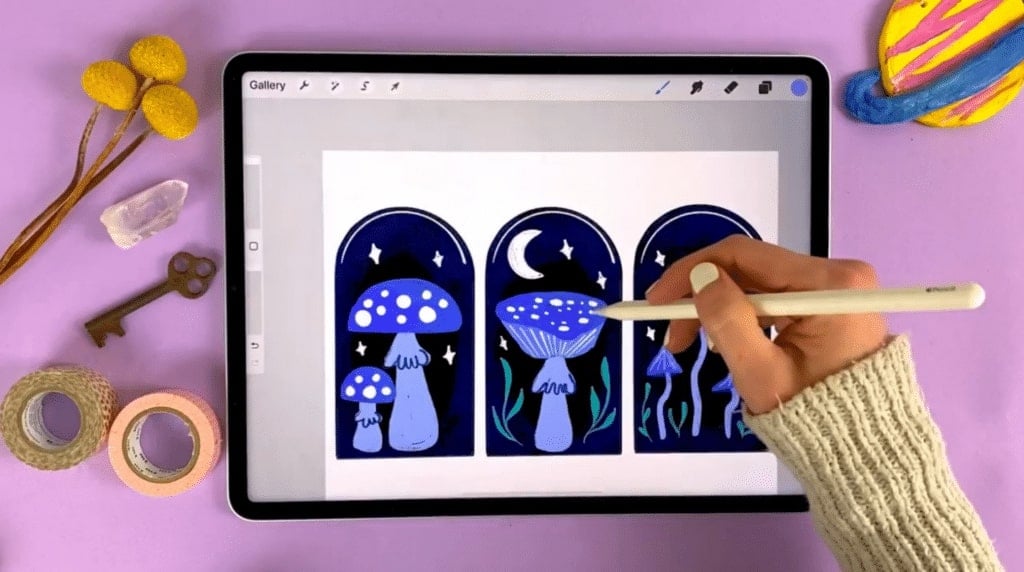
The Procreate interface is simple and clear. On top, find tools like brush, smudge, and erase. The right side has undo and redo buttons. The left side controls brush size and opacity. At the top right, open layers and color panels. Spend some time tapping icons to learn their functions.

Essential Tools For Beginners

Starting with Procreate can feel exciting and a bit overwhelming. The app offers many tools that help create beautiful digital art. Knowing a few essential tools makes your drawing easier and more fun. These tools help beginners learn and improve step by step.

Focus on understanding brushes, layers, and drawing aids. These are the core parts that shape your artwork. Each tool has a simple function but gives you great control over your design.

Brushes And Their Uses

Brushes in Procreate are like real paintbrushes but digital. You can choose from pencils, inks, airbrushes, and more. Each brush creates a different texture or style. For example, use a pencil brush for sketching and an airbrush for soft shading. Experiment with brushes to find your favorite style. Adjust brush size and opacity to change the effect. This makes your artwork look natural and dynamic.

Using Layers Effectively

Layers are like sheets of transparent paper stacked on each other. They let you work on parts of your drawing without changing other parts. Use separate layers for sketching, coloring, and details. This way, fixing mistakes is easy and quick. You can also move or erase parts without affecting the whole image. Naming your layers helps keep your work organized. Learning to use layers saves time and improves your workflow.

Quickshape And Drawing Assist

QuickShape helps create perfect shapes like circles, squares, and triangles. Draw a shape and hold your finger to snap it into place. It saves time and makes your art look clean. Drawing Assist offers tools like symmetry and guides. Symmetry draws one side, and the app copies it on the other side. This is great for creating balanced designs. Use perspective guides to draw scenes that look real. These tools help you draw better, even if you are new.

Basic Drawing Techniques

Basic drawing techniques are the foundation of creating art in Procreate. These techniques help beginners build confidence and control. Simple steps like sketching, using guides, and adding color transform your ideas into drawings.

Practicing these basics improves your skills and makes digital drawing more enjoyable. Start with light sketches, then use tools to refine your work. Color and blending add depth and life to your art.

Sketching Your First Drawing

Begin with a rough sketch using the pencil brush. Keep lines light and loose. This helps to map out shapes and proportions. Use multiple layers to separate parts of your sketch. It allows easy changes without ruining your work.

Zoom in to add details and erase mistakes. Use the undo button to fix errors quickly. Sketching is about exploring ideas, not perfection. Keep practicing to improve your hand control.

Using Symmetry Guides

Symmetry guides help create balanced designs. Activate them in the Actions menu under Canvas. Choose vertical, horizontal, or quadrant symmetry. Draw on one side, and Procreate copies it on the other.

This tool is perfect for drawing faces, patterns, and mandalas. It saves time and keeps your work neat. Experiment with different symmetry types to find what suits your drawing style.

Applying Color And Blending

After sketching, pick colors from the palette or create your own. Use the brush tool to fill areas with color. Lower the opacity for lighter shades and build layers of color gradually.

Blend colors with the smudge tool to create smooth transitions. It softens edges and adds realism. Adjust brush size and strength for subtle effects. Practice blending to give your art depth and texture.

Editing And Refining Artwork

Editing and refining artwork in Procreate lets you improve your drawing step by step. This process makes your art look polished and clear. Procreate offers easy tools to help you correct and enhance your work. Understanding these tools will boost your confidence and creativity.

Adjusting Layers

Layers in Procreate work like sheets of clear paper stacked together. You can draw on each layer separately without changing the others. To adjust layers, tap the layer icon to open the menu. Move layers up or down to change their order. You can also rename, duplicate, or merge layers for better control. Adjusting opacity helps to make parts of your drawing lighter or darker.

Using The Eraser And Smudge Tools

The Eraser tool removes unwanted parts of your drawing. Select the Eraser icon, then choose a brush style and size. Carefully erase mistakes or clean edges. The Smudge tool blends colors and lines to create smooth transitions. Tap the finger icon, pick a brush, and gently drag over areas you want to blend. These tools help refine details and add softness to your art.

Undo, Redo, And Quick Gestures

Undo lets you fix recent mistakes instantly. Tap with two fingers to undo your last action. Redo restores the change if you undo too much. Tap with three fingers to redo. Quick gestures save time and make editing easier. Pinch with two fingers to zoom out, spread to zoom in. Hold and drag with three fingers to copy and paste. Using these shortcuts speeds up your workflow.

Tips For Smooth Workflow

Creating art with Procreate becomes more enjoyable with a smooth workflow. A clear setup helps you focus on your creativity. Simple habits save time and reduce frustration. Below are key tips to keep your work organized and efficient.

Customizing Brushes

Procreate offers many brushes, but you can make your own. Adjust size, opacity, and shape for unique effects. Save custom brushes to reuse them easily. This saves time searching and keeps your style consistent. Experiment with settings to find what feels best for you.

Organizing Your Projects

Keep your artworks in folders to find them quickly. Name each project clearly to avoid confusion. Use stacks to group similar projects or themes. Regularly delete unused files to free up space. A tidy gallery helps you stay productive and focused.

Saving And Exporting Artwork

Save your work often to avoid losing progress. Use Procreate’s auto-save, but also back up files manually. Export your art in formats like PNG or PSD depending on your needs. Choose the right resolution for print or web use. Proper saving ensures your art is safe and ready to share.

How to Use Procreate App for Beginners: Ultimate Step-by-Step Guide

Credit: www.amazon.com

Helpful Features For Beginners

Procreate offers many helpful features designed for beginners. These features make digital drawing easier and more enjoyable. They help you learn fast and create beautiful art without stress.

Understanding these beginner-friendly tools can improve your experience. You can focus on creativity instead of technical difficulties.

Color-by-number And Tracing

Color-by-number is a fun way to practice coloring within lines. It helps beginners learn about color placement and shading. Procreate allows you to import or create color-by-number templates easily.

Tracing is another useful feature for beginners. You can trace over photos or sketches to build confidence. Procreate’s layers make tracing simple and precise. It helps improve hand control and line work before freehand drawing.

Using Tutorials And Resources

Procreate supports a wide range of tutorials and resources. Many free and paid lessons guide beginners step-by-step. These tutorials cover basics like brush settings, layers, and effects.

Following tutorials helps you understand the app’s tools better. You gain practical skills by replicating projects. This boosts your confidence and encourages regular practice.

Affordable One-time Purchase Benefits

Procreate costs only once, with no monthly fees. This makes it affordable for beginners who want quality software without ongoing costs.

The one-time purchase gives you full access to all features. You get updates and new tools at no extra charge. This budget-friendly approach lets beginners focus on learning without worrying about subscriptions.

Hardware Requirements

To use Procreate smoothly, your hardware must meet certain requirements. The app demands a compatible device and responsive accessories. Proper hardware ensures better drawing experience and fewer interruptions. Understanding these needs helps beginners start without issues.

Choosing the right iPad and Apple Pencil is crucial. Adjusting settings for better performance can also improve your workflow. Below are details to guide you through these hardware essentials.

Ipad And Apple Pencil Compatibility

Procreate works best on iPads that support the Apple Pencil. Compatible models include the iPad Pro, iPad Air (3rd generation and later), iPad (6th generation and later), and iPad mini (5th generation and later). Check your iPad model before downloading the app.

The Apple Pencil lets you draw with precision and pressure sensitivity. The 1st generation Apple Pencil works with older models. The 2nd generation Apple Pencil supports newer iPads and offers wireless charging.

Using an Apple Pencil improves control over your strokes and line thickness. It also supports tilt and pressure features in Procreate, essential for natural drawing effects.

Optimizing Settings For Performance

Procreate performs best with the right settings on your iPad. Close other apps running in the background to free up memory. Lower your brush size and canvas resolution for smoother drawing if your device feels slow.

Enable Procreate’s “Drawing Assist” and “Streamline” features to help with smoother lines. These settings reduce lag and make your strokes appear more natural. Adjust brush settings to fit your style and device capability.

Keep your iPad’s software updated for the best compatibility. Regular updates fix bugs and improve performance. Also, restart your iPad regularly to maintain speed during long drawing sessions.

How to Use Procreate App for Beginners: Ultimate Step-by-Step Guide

Credit: www.youtube.com

Common Challenges And Solutions

Starting with Procreate can feel tough. Many beginners face common challenges that slow down their progress. Knowing these challenges helps you prepare and find easy solutions. This section covers typical problems and how to solve them. Follow these tips to enjoy drawing with Procreate more.

Overcoming The Learning Curve

The first challenge is getting used to Procreate’s tools. The app has many features, which can feel confusing at first. Take time to explore each tool slowly. Use simple tutorials to practice basic functions like brushes, layers, and colors. Repeat simple exercises to build confidence. Practice regularly to improve your skills step by step. Patience helps you move past early frustration.

Avoiding Common Mistakes

Beginners often make mistakes like drawing on the wrong layer or using too many layers. Keep your layers organized and name them clearly. Avoid overusing effects or brushes that hide your original art. Save your work often to prevent loss. Zoom in carefully to avoid rough lines. Use Undo and Redo buttons to fix errors quickly. These small habits save time and improve your work.

Where To Find Support And Community Help

Many online groups and forums support Procreate users. Join social media groups focused on Procreate art. Watch beginner-friendly YouTube channels for step-by-step guides. Participate in challenges to practice and get feedback. Official Procreate forums also provide tips and updates. Sharing your art and questions helps you learn faster. A strong community makes the learning process easier and fun.

Frequently Asked Questions

Can A Beginner Use Procreate?

Yes, beginners can use Procreate easily. It has an intuitive interface, helpful tools, and affordable pricing. Learning basic features takes some time but is rewarding. Procreate’s layers and guides support skill-building, making it ideal for new digital artists.

Is Procreate Good For Tattoos?

Procreate is excellent for tattoo design. It offers precise tools, layers, and symmetry features, making detailed artwork easy. Artists create and refine tattoo concepts efficiently with this user-friendly app.

Which Is Better, Canva Or Procreate?

Canva suits quick graphic design with templates, while Procreate excels in detailed digital art. Choose based on your creative needs.

Can I Learn Procreate On My Own?

Yes, you can learn Procreate on your own using online tutorials, practice, and its beginner-friendly tools.

Conclusion

Using Procreate as a beginner is simple and fun. Start with basic tools and practice daily. Explore layers, brushes, and quick shapes to improve your skills. Don’t rush—take your time to learn at your own pace. Many helpful tutorials are available online to guide you.

With patience, you can create beautiful digital art. Keep experimenting and enjoy your creative journey with Procreate.

Facebook
Pinterest
Twitter
LinkedIn
Reddit
Telegram
Picture of Md Jomiruddin Sobuj

Md Jomiruddin Sobuj

Related Post

Finding the best digital painting software for Mac can be challenging. There

Finding the right tools for digital painting can transform your creative process.

Learn how to digital paint portraits with pro workflow steps, brush settings,

Choosing the best laptop for digital painting can be challenging. The right

Leave a Reply

Your email address will not be published. Required fields are marked *

Picture of Paintingproguide

Paintingproguide

Painting

Welcome to PaintingProGuide, your ultimate resource for all things related to painting! Whether you’re a seasoned artist or just starting out, our mission is to inspire, educate, and empower you to create your best work. We believe that everyone has the potential to be an artist, and our goal is to help you unlock your creativity and achieve your artistic dreams.

Recent Posts