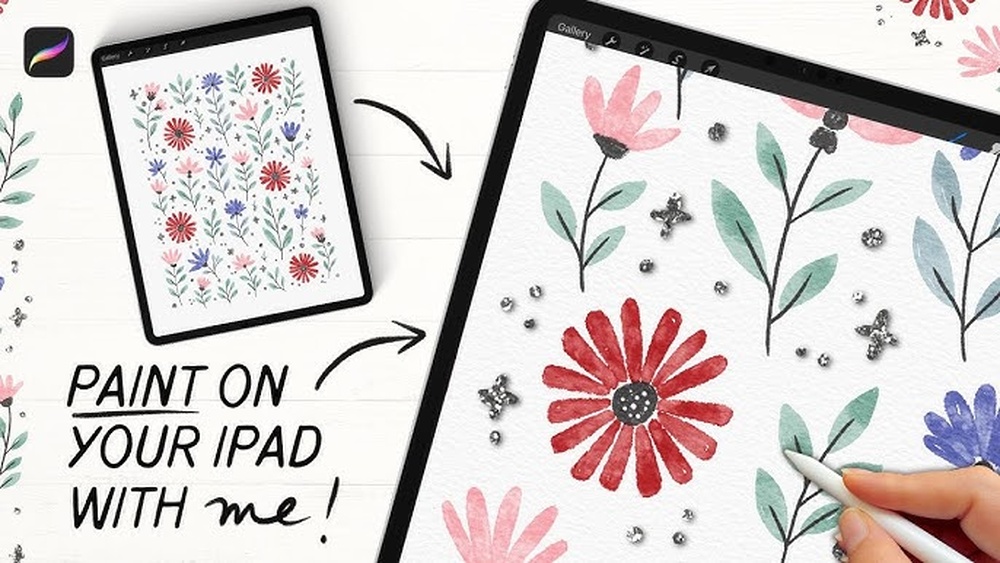
Quick answer: Learning how to paint digital flowers in Procreate starts with setup: create a canvas around 3000 x 3000 px at 300 DPI, block each petal as a flat silhouette on its own layer, then lock that layer with Alpha Lock and paint light and shadow inside the shape. Build from a mid-tone base to soft shading with an airbrush, add petal veins and edge highlights with a small textured brush, and finish with a Gaussian Blur on background blooms for depth. Working shape first and detail last keeps petals clean and easy to fix.
Flowers look simple on a phone screen and then collapse the moment you try to paint one. Petals overlap in confusing ways, the color goes flat, and the soft edges you see in reference photos turn into hard, sticker-like outlines. Most of that comes down to working order, not talent.
This guide walks through how to paint digital flowers in Procreate as a repeatable process: canvas setup, layer structure, silhouette blocking, shading inside clipped shapes, and the small finishing moves that make a bloom read as soft and alive. It also covers specific flower types, because a rose and a daisy need very different handling.
What You Need Before You Start
The hardware list is short. You need an iPad that runs Procreate, an Apple Pencil (either generation that works with your iPad), and Procreate itself. A matte screen protector is optional, but many painters like the extra drag it gives the pencil tip.
The brush list matters more than people expect. You can paint a whole flower with the default set, but you will move faster with four brush roles covered:
- A hard, opaque round for blocking petal silhouettes (Procreate’s Monoline or Studio Pen works).
- A soft airbrush for gradients and gentle shading across a petal.
- A textured painting brush with some grain, for organic surface variation.
- A fine detail brush with pressure-controlled taper, for veins, stamens and edge highlights.
If the stock brushes feel stiff, a dedicated floral or painterly set can speed things up a lot. The brush roundup on our guide to the best digital painting brushes for Procreate breaks down which brush types suit soft petals versus crisp botanical line work.
Best Canvas Size for Digital Art in Procreate (for Flowers)
Canvas size decides two things: how much detail you can add and how many layers Procreate lets you keep. Procreate limits layer count based on canvas dimensions and your iPad’s RAM, so a giant canvas can leave you with very few layers.
| Use | Suggested size | Why |
|---|---|---|
| Practice studies, single bloom | 2048 x 2048 px, 300 DPI | Plenty of layers, fast brush response |
| Social posts or wallpapers | 2732 x 2048 px or 1080 x 1350 px multiples | Matches common screen and feed ratios |
| Prints up to 8 x 10 in | 2400 x 3000 px, 300 DPI | Enough resolution for sharp prints |
| Prints up to 11 x 14 in | 3300 x 4200 px, 300 DPI | Print-ready, but fewer layers on older iPads |
For most floral practice, a square around 3000 x 3000 px at 300 DPI is a safe middle ground. It prints cleanly at 10 inches square and still leaves enough layers for a separate silhouette, shading and detail layer per flower on most recent iPads. Check the layer count Procreate shows when you create the canvas before committing.
Set Up Your Layers So Mistakes Stay Fixable
Floral painting rewards a tidy layer stack. When every petal group sits on its own layer, you can recolor, reshape or blur one part without disturbing the rest. A practical structure from bottom to top looks like this:
- Background – a solid color or soft gradient.
- Back blooms and leaves – anything that will be blurred later.
- Stems and main leaves.
- Back petals of the main flower.
- Front petals of the main flower.
- Center – stamens, pistil or seed head.
- Details and highlights – veins, dew, rim light.
Name each layer as you go. It feels slow for the first five minutes and saves real time once you have twenty layers and need to find the one with the overlapping petal.
How to Paint Digital Flowers in Procreate: Step by Step
The method below works for almost any bloom. The core idea is to separate shape from light: get the silhouette right first, then paint value and color inside it.
1. Sketch the gesture, not the petals
On a low-opacity sketch layer, draw the flower’s overall shape: a circle for a daisy, a cup for a tulip, a spiral-filled ball for a rose. Add a center point and a few lines showing the direction each petal radiates. Flowers grow around a center, and petals almost always point back toward it, so those direction lines keep everything believable.
Turn on the drawing guide’s symmetry option (Radial) if you are painting a highly regular flower like a daisy or dahlia. It speeds up the sketch, though you will want to break the symmetry later so the flower does not look stamped.
2. Block flat silhouettes
With a hard, opaque brush, fill each petal group as a flat shape in one mid-tone color. Back petals go on one layer, front petals on another. Do not shade yet. If the silhouette reads as the right flower when it is completely flat, the rest of the painting will work.
A quick way to fill shapes: draw the outline, then drag the color circle from the top right into the closed shape. Adjust the ColorDrop threshold by holding after the drop and sliding left or right if it leaks or leaves gaps.
3. Lock the shape with Alpha Lock or a clipping mask
Tap the layer and choose Alpha Lock (or swipe right with two fingers on the layer). Now any paint you add stays inside the existing pixels. Alternatively, add a new layer above and set it as a Clipping Mask so shading lives on a separate layer you can erase without touching the base color.
Clipping masks are the better habit for beginners, because you can lower opacity or change blend modes on the shading alone.
4. Shade with the airbrush
Decide where your light comes from and stick with it. Petals are thin, curved surfaces, so shading follows three zones:
- The base of each petal, where it meets the center, is usually darker and more saturated.
- The curl or fold picks up the strongest shadow where the petal turns away from the light.
- The tip and outer edge are often lighter, sometimes almost translucent.
Use a soft airbrush at low opacity (around 15 to 30 percent) and build in passes. Shift your shadow color toward a cooler or more saturated version of the petal color rather than just adding black or gray, which tends to make flowers look dirty.
5. Add form with a textured brush
Switch to a brush with some grain and paint thin strokes following the petal’s growth direction, from base toward tip. This creates the subtle streaking you see on real petals. Keep pressure light and vary the color slightly, a touch warmer here, a touch paler there.
6. Paint the center
Centers carry a lot of a flower’s identity. A sunflower center is a dense spiral of dark seeds; a lily has long filaments with pollen-heavy anthers; a rose hides its center in tight inner petals. Block the center as a flat shape, shade it, then add small dots or lines with a detail brush. Dark centers need a few warm highlight dots so they do not read as a hole.
7. Detail: veins, edges and highlights
On a top layer, add fine veins with a tapered brush at low opacity. Veins should be barely visible, a slightly lighter or darker line rather than a strong outline. Then add a thin highlight along the edges facing the light. This rim of light is often what makes a petal feel thin and dimensional.
8. Push depth with blur and color
Select the background blooms layer and apply Adjustments, then Gaussian Blur, at a low percentage (often 5 to 15 percent depending on canvas size). Lower their saturation slightly and shift them toward the background color. Your main flower now sits in focus while the rest falls back, similar to a shallow depth-of-field photo.
Painting Different Flower Types
Each flower family has its own logic. Learning a few makes the next ones easier.
| Flower | Key structure | Common trap | Fix |
|---|---|---|---|
| Rose | Spiral of cupped petals around a tight center | Drawing every petal edge | Paint the spiral as value shapes; outline only the front petals |
| Daisy / sunflower | Radial petals around a raised disc | Perfect symmetry that looks mechanical | Vary petal length and angle; overlap a few |
| Tulip | Cup of 3 inner and 3 outer petals | Flat, egg-shaped blob | Show the front petal overlapping and the inner wall in shadow |
| Peony | Dense, ruffled mass | Muddy over-blended center | Group ruffles into 3 to 5 large value shapes first |
| Lily | Six recurved petals, long stamens | Stamens painted too thick | Use a tapered detail brush and light pressure |
| Cherry blossom | Five small rounded petals with a notch | Every blossom identical | Mix front views, side views and buds |
Painting a rose without losing your mind
Roses are the flower beginners most want to paint and most often abandon. The trick is to stop thinking about individual petals in the center. Block the whole bloom as a rounded cup shape, then paint a dark spiral into the top for the inner folds. Add the outer petals as larger, lighter shapes that curl outward. Only the outermost two or three petals need a clean, defined edge; the inner ones can stay suggested.
Loose, painterly flowers
Not every floral piece needs realism. For a looser, watercolor-like look, use a wet-edge or watercolor brush, let strokes overlap, and avoid blending everything smooth. Set some layers to Multiply so overlapping strokes darken naturally, like transparent paint. Leave some petal edges open or unfinished; the viewer’s eye fills them in.
Color Tips for Digital Flowers
Color is where many floral paintings go flat. A few principles help:
- Shift hue, not just brightness. A pink petal’s shadow might lean toward violet or deep rose, and its highlight toward a warm cream. Moving across hue makes color feel rich.
- Keep the brightest saturation small. Reserve your most intense color for a small area near the center or the lit side of a petal.
- Use complementary greens carefully. Leaves next to red or pink flowers can overpower them. Push foliage greens slightly toward blue or gray so the bloom wins.
- Try a color harmony. Procreate’s color panel has a Harmony mode with complementary, split complementary, analogous, triadic and tetradic options. Picking a scheme up front keeps palettes cohesive.
For a quick global adjustment after you finish, add a layer at the top set to Overlay or Soft Light and paint a soft warm or cool tint across the image. Lower the opacity until the shift is barely visible. It ties the colors together like light falling across the whole scene.
Common Mistakes When Painting Flowers in Procreate
Outlining everything. Dark outlines around every petal make flowers look like coloring-book art. Define edges with value contrast instead: a light petal against a darker petal behind it creates an edge without a line.
Over-blending. The smudge tool is tempting, but smudging everything removes the texture that gives petals life. Blend in large areas and leave texture in the details.
Using pure black for shadows. This dulls color fast. Pick a darker, more saturated version of the local color, or a complementary tint.
Painting the whole flower on one layer. Fixing a single petal then means repainting neighbors. Split petal groups across layers from the start.
Ignoring the light direction. If one petal is lit from the left and another from the right, the flower looks pasted together. Mark your light source with a small arrow on the sketch layer.
Too much detail everywhere. Detail draws the eye. If veins and texture cover every petal equally, nothing stands out. Concentrate detail where you want attention, usually near the center and on the front petals.
Tips by Skill Level
Beginners
Start with single, simple flowers: a tulip, a daisy, a poppy. Use only three brushes. Paint the same flower three times, changing only one thing each time (lighting, color, or brush). Repetition teaches more than variety at this stage.
Intermediate
Move to bouquets and arrangements. Practice overlapping blooms at different angles and depths. Work from reference photos and pay attention to how petals catch light differently on the top, side and underside. Experiment with blend modes, especially Multiply for shadows and Add or Screen for glowing highlights.
Advanced
Develop a personal style. That might mean a limited palette, a signature texture, or a mix of loose and tight rendering in the same piece. Try painting flowers in dramatic lighting, such as backlit petals glowing at sunset, which demands careful control of translucency and edge light. Building your own brushes in Procreate’s Brush Studio, adjusting grain, taper and wet mix, is a natural next step.
Procreate Features That Make Floral Work Easier
- QuickShape: Draw a petal outline and hold at the end of the stroke. Procreate smooths it into a clean curve you can then edit.
- StreamLine: In brush settings, raising StreamLine smooths shaky lines, useful for long stems.
- Liquify: The Push mode lets you nudge a petal’s shape after painting, which is easier than repainting.
- Reference window: Under Canvas, turn on Reference to keep a photo floating while you paint.
- Time-lapse replay: Watching your own replay shows where you wasted time or over-worked an area.
- Selection and Transform: Duplicate a finished bud, flip it and resize it to fill a branch quickly, then repaint small parts so the copies differ.
Exporting Your Flower Painting
Export as PNG for web use with transparency, JPEG for smaller social posts, PSD if you want to keep layers for editing elsewhere, and PDF or TIFF for print. If you plan to print, confirm your canvas is set to 300 DPI and roughly the final print size before you start, because scaling a small canvas up later softens the detail. Procreate also lets you export a time-lapse video, which many artists share alongside the finished bloom.
FAQs
What is the best canvas size for digital art in Procreate?
For floral practice, around 3000 x 3000 px at 300 DPI is a good balance of detail and layer count. Use smaller canvases like 2048 x 2048 px for quick studies, and size up to your print dimensions at 300 DPI only when you know you will print the piece.
Which Procreate brush is best for painting flowers?
No single brush does everything. A hard round for silhouettes, a soft airbrush for shading, a textured brush for petal streaks and a fine tapered brush for veins cover most needs. Floral-specific brush sets can add realistic textures but are not required to start.
How do I make petals look soft instead of flat?
Shade inside each petal with a low-opacity airbrush, darkening the base and folds and lightening the tips. Add a thin highlight along the lit edge and keep outlines to a minimum. Soft edges come from value transitions, not smudging.
Should I use Alpha Lock or clipping masks?
Both keep paint inside a shape. Alpha Lock paints directly on the base layer, while a clipping mask puts shading on a separate layer above it. Clipping masks are more flexible because you can change opacity or erase shading without touching the base color.
How long does it take to paint a flower in Procreate?
A simple single bloom can take 30 to 60 minutes for a beginner following these steps. A detailed rose or a full bouquet can take several hours, mostly in shading and detail passes.
Can I paint flowers in Procreate without drawing skills?
Yes. Flowers are forgiving subjects because petal shapes vary naturally. Tracing a reference photo on a low-opacity layer to learn structure is a common practice method, and blocking silhouettes rather than drawing outlines reduces the need for precise line work.
Next Step
Once your process is solid, the brushes you use start to shape the look of every petal: how soft the gradients are, how natural the textures feel, how crisp the veins come out. If you are ready to move beyond the default set, our comparison of Procreate brush packs for painterly and botanical work walks through the options by style and skill level, so you can pick tools that match the flowers you want to paint.